
 Community
 Video Library
 Agent Training
 Freshservice
 Freshdesk
 Freshchat
 Freshcaller
 Freshsales
 Freshteam
 Freshworks Neo
 Freshsurvey
 Freshservice for MSP
 In today’s norm, service delivery has grown into a high-impact function in most industries. On that note, the planning and execution of service management projects are done as meticulously as every other project in the organization.
With the new-gen project management in Freshservice, execute your service management projects to a tee, by planning them end-to-end using a modern and intuitive project management solution. Let your ITIL modules work hand-in-hand with Project Management to deliver high-quality service management projects.
If you are interested, here is a link for in-depth new-gen project management walkthrough: Link
Where can you find it?

To get started with the project management module, navigate to it from the side nav by clicking on the projects icon, and select Projects.
Getting started with Project Creation
What are project templates?
Service management involves a lot of repetitive and identical projects spanning specific functions. To save time, you would want to templatize these projects to quickly create them for specific functions. Here’s where you can make use of project templates.
With project templates create predefined project skeletons and task lists involved to deliver specific projects.
To set it up,

- In the projects module, click on Project Template.
- Now click on New template.
- Enter a name and description for your project and choose if it’s a software or a business project. You can also choose the visibility for this template.

- Now you can add all the tasks needed for this project, as you create it

You can also clone existing project templates to create new ones by clicking on
 and selecting Clone.
You can choose to clone the template with tasks and members.
Note: You can save projects as templates and reuse them when required.
Create a Project in Freshservice
Projects in Freshservice help teams plan, track, and manage work that involves multiple tasks, and timelines.
You can create projects in the following ways:
Create a blank project
Create a project using a template
Create a project from an existing Ticket, Problem, or Change
Follow the steps to create a project in Freshservice.
Go to Freshservice.
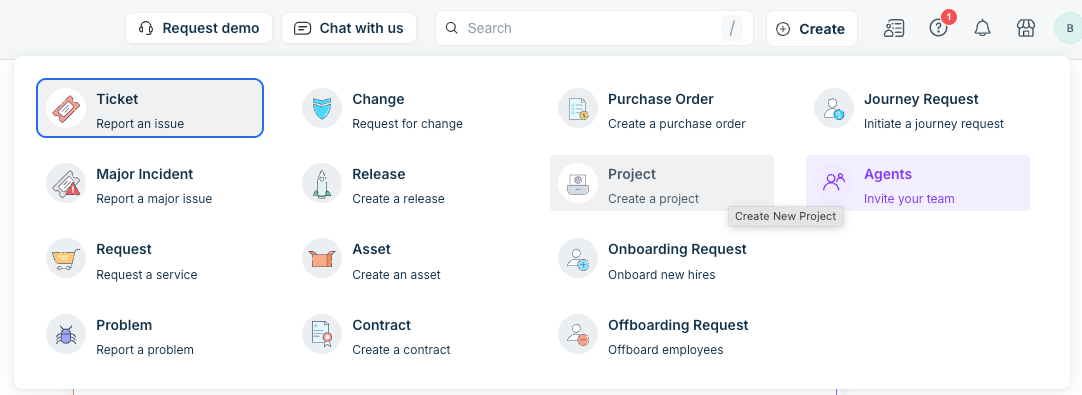
On the top navigation bar, click Create > Project.
Or, if you want to create a Project from an existing Ticket, Problem, or Change, follow these substepsOpen the Ticket, Problem, or Change form.
Click Associations > Associate > Project.
Click New project to create a new project or click Existing project to associate the Ticket, Problem, or Change with an existing project.
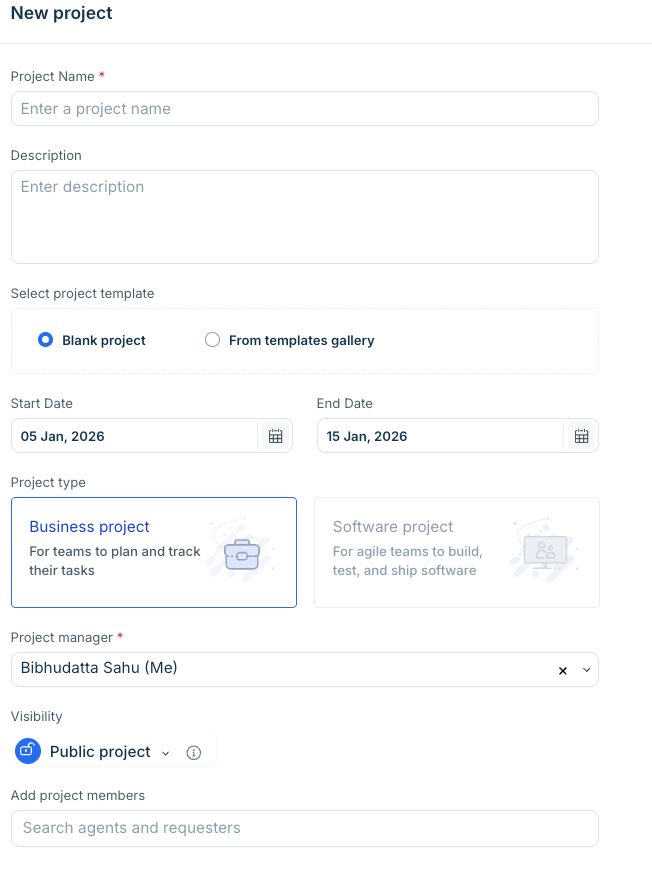
The New project form is displayed.
Enter a name of the project in Project name field.
Enter a description of the project in Description field.
Under Select project templates, select Blank project or From template gallery.
If you use a template, it populates all the tasks defined to the template.
If you create a blank project, you have to create all the tasks manually. To know more about templates, see Getting Started with Project Management.Select start date and end date.
Under Project type, select Business project or Software project, depending on the type of work you want to manage.
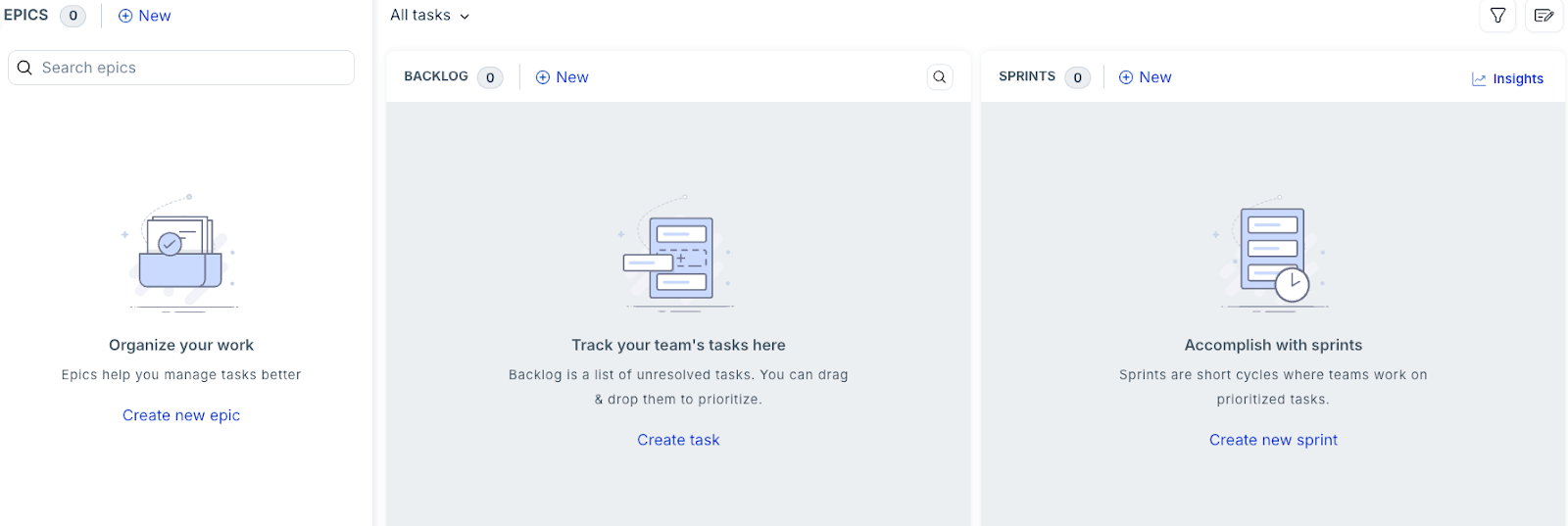
The selected project type determines the project layout and available features. For example, the Software project uses a Kanban-style view and includes options to create epics, sprints, and backlogs as shown in the following image.From Project manager list, select project manager who will manage the project.
Under Visibility, select Private project or Public project to control who can view the project.
Under Add project members, add agents and requesters who will work on the project.
lick Create.
Your project is created. If you go to Project from the left menu, you can see the project on a liner timeline layout.

Associate tickets, problem, change, and asset with the project and project tasks
Now project members can associate existing tickets, problem, change, and assets with the projects and project tasks in new-gen project management.
More details: Link

How to import Project tasks?
Go to the designated Project, then access Tasks. Click the three dots at the top right and choose the import option to bulk import project tasks.

Additional configurations :
- How to configure your project settings?
- How to customize status?
- How to configure project task workflows
- How to setup your kanban board
- How to configure custom fields and forms
- Configuring project fields
- How to create and configure project task types
- Adding project members and managing their access
- Configuring high-level project automation settings from the admin
Faq:
1. What permission or role is required to access the project module or restrict who can be a project owner?
You can configure the following permissions according to your specific needs via Global Settings Admin > Roles > Agent Roles, and then assign them to the agents.

2. How to import the Project Tasks without any errors?
There isn't a specific template for importing tasks, as it depends on individual configurations. To import tasks, navigate to Projects from the Neo admin bar, select the relevant project, and go to the Tasks tab. Click on the three dots and select Export CSV. Use this exported file as a reference to update the values in the file you want to import. Click on the import option to upload the CSV file, map the fields, and then click import.

- You can utilize the exported file as a guide for updating the values in the CSV for import.
- As the project ID is unique, it should not be duplicated.
- Once the CSV is filled, you can proceed with importing the file, mapping the fields with the columns, and complete the import process.