
 Community
 Video Library
 Agent Training
 Freshservice
 Freshdesk
 Freshchat
 Freshcaller
 Freshsales
 Freshteam
 Freshworks Neo
 Freshsurvey
 Freshservice for MSP
 TABLE OF CONTENTS
- Access the documents list view
- Search and filter
- Lifecycle and deletion logic
- Permissions and security
- Technical specifications summary
- Frequently asked questions
Document management in Freshservice has evolved from a localized, ticket-specific task into a powerful, workspace-wide repository with the introduction of the documents list view.
This central command center offers a unified interface to search, filter, and manage every document generated across your service desk, ensuring effortless retrievability and organized record-keeping while transforming fragmented data into a structured knowledge asset.
Access the documents list view
Depending on your specific permissions and role, you can find the documents list view in one of two places:
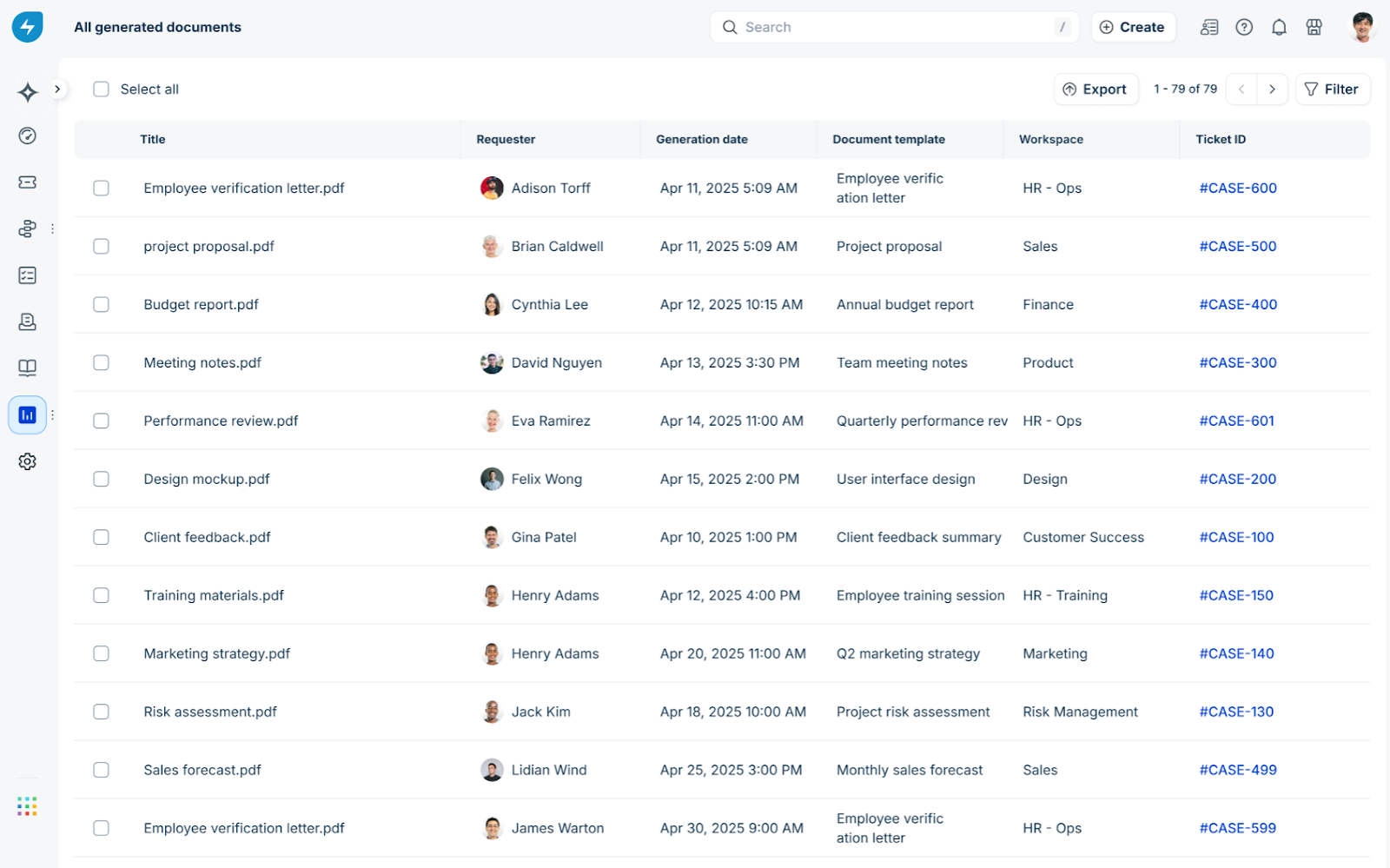
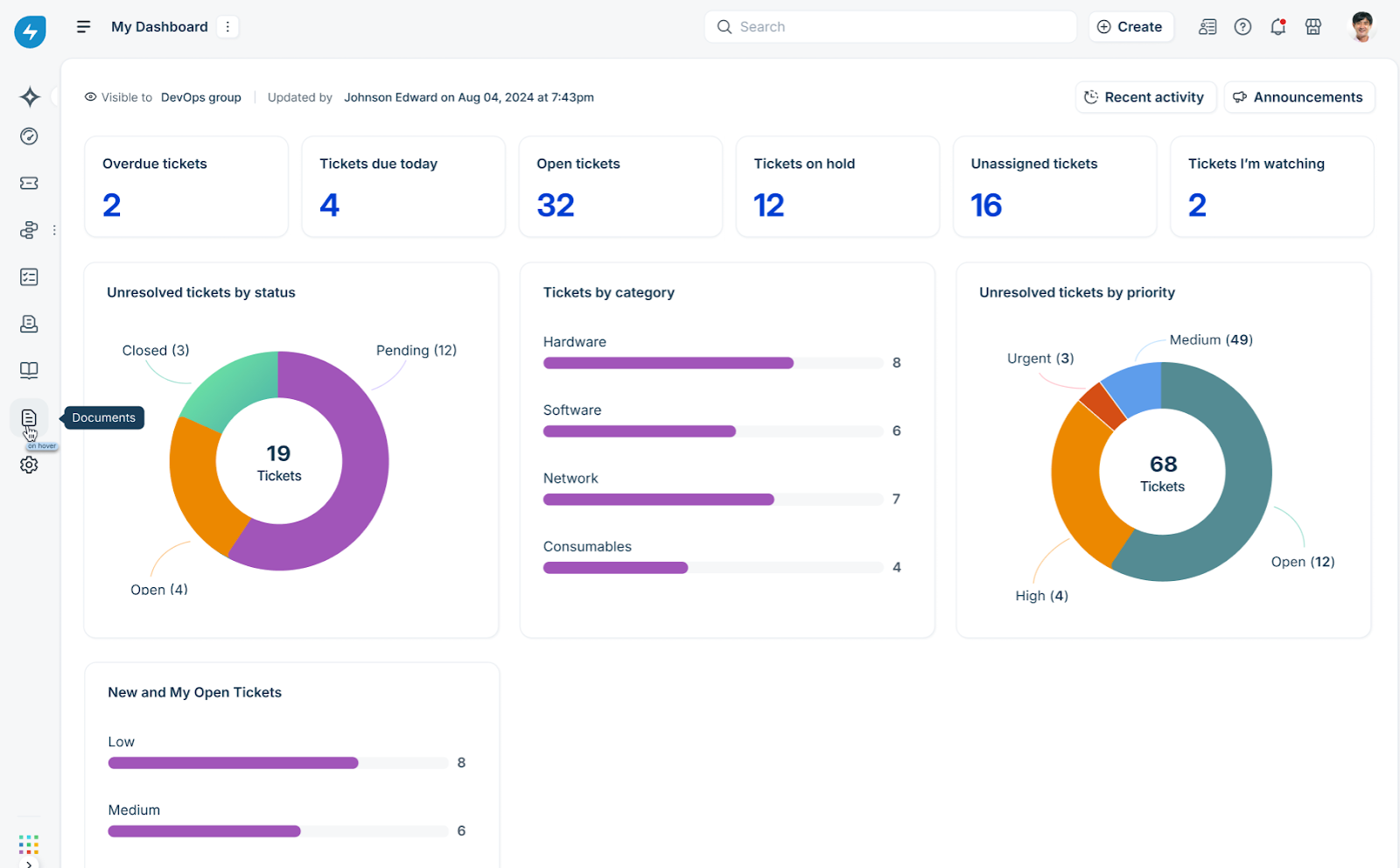
Dedicated Access: Agents with the View/Generate Documents permission see the documents list view as a dedicated icon in the left navigation panel, enabling quick access to the repository.
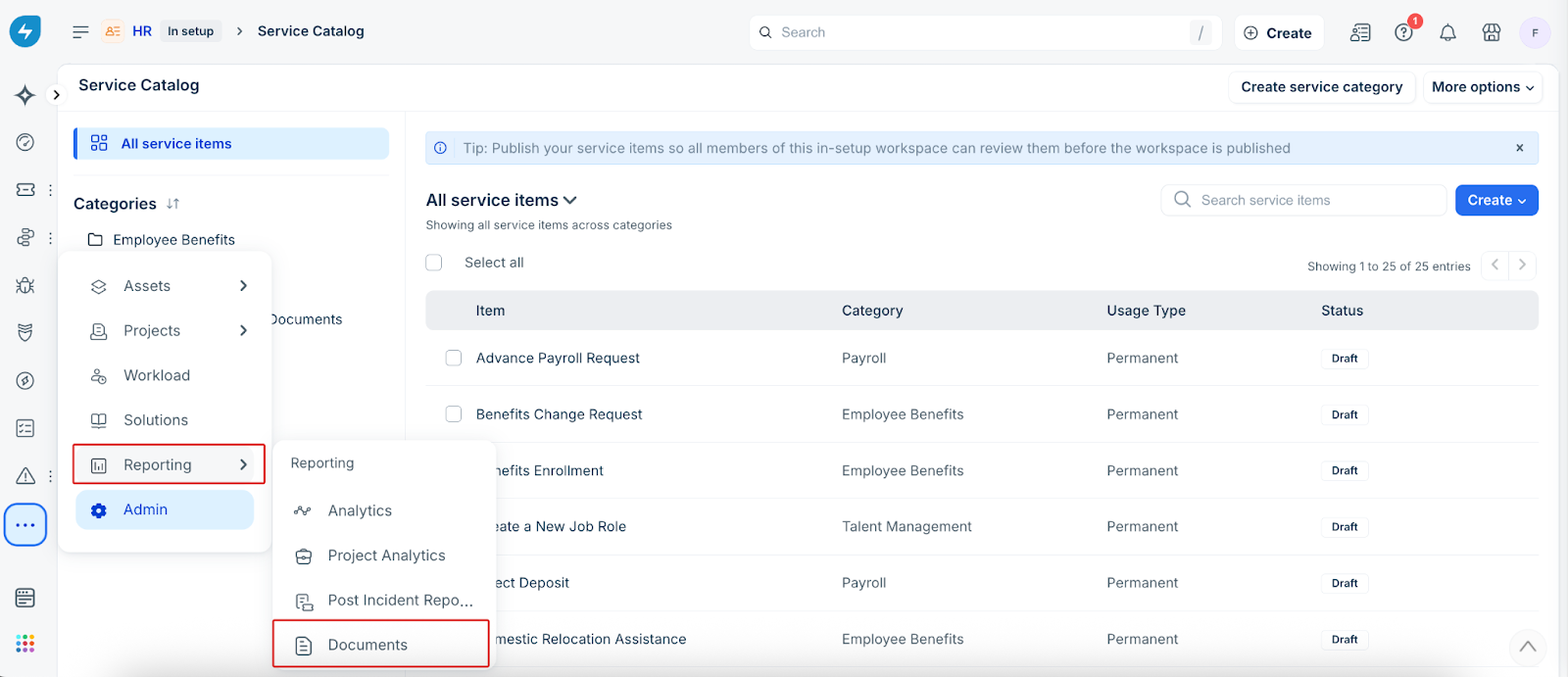
Integrated Access: Agents who also have access to Analytics will find the documents list view housed under the Reporting section, as shown below.
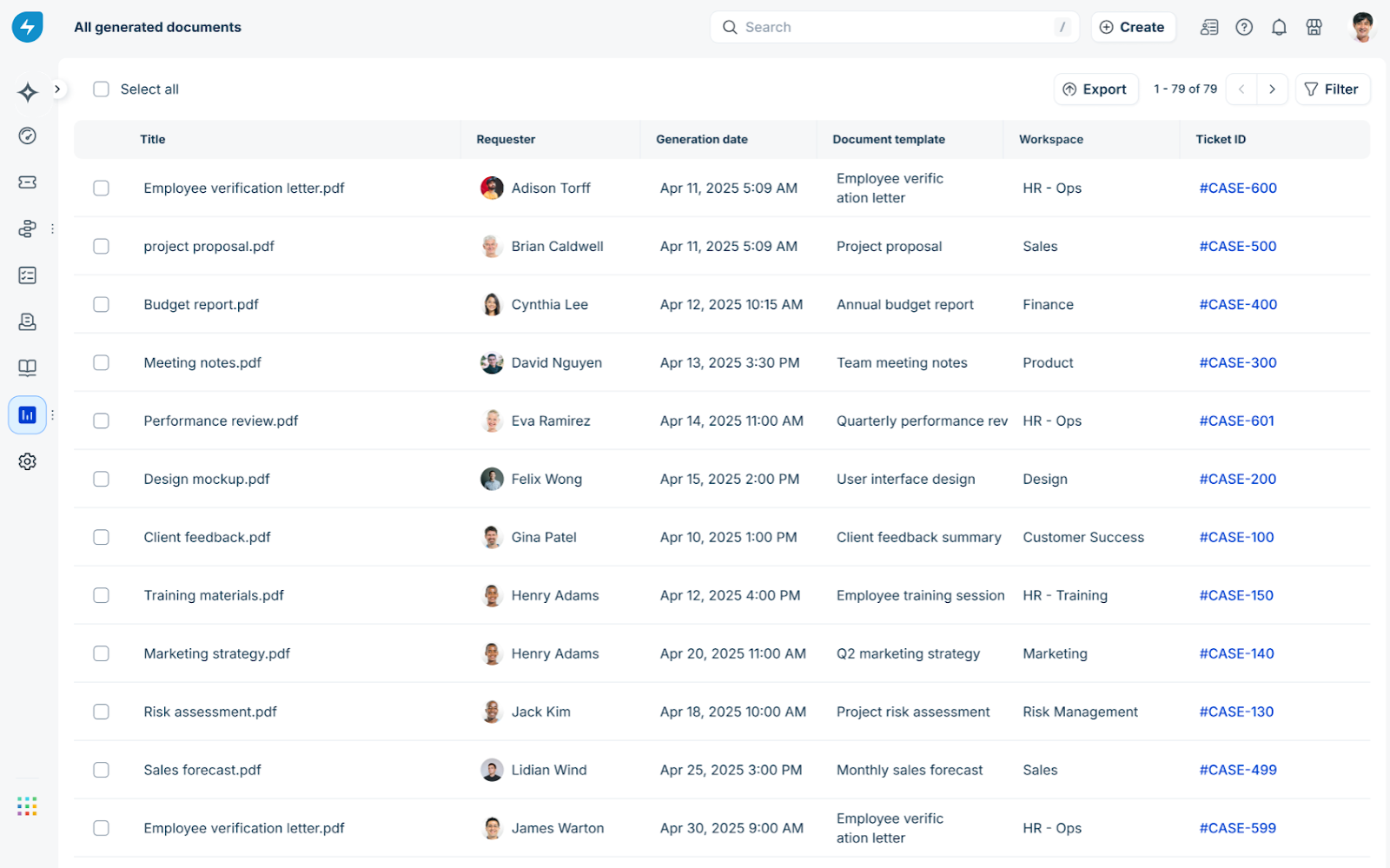
The list view displays documents as individual line items. Each row represents a specific document generation event, allowing you to track versions and statuses at a glance.
Columns and display
The list displays 30 records per page. By default, the following standard properties are visible:
Title: The specific name of the generated document.
Requester name: The user associated with the document.
Generation date: The timestamp of creation.
Document template: The specific template used (for example, NDA, Promo Letter).
Workspace: The department or workspace where the document originated.
Case ID: A hyperlinked reference to the parent ticket.
Preview documents
You can preview a document directly from the list view by clicking the document name.
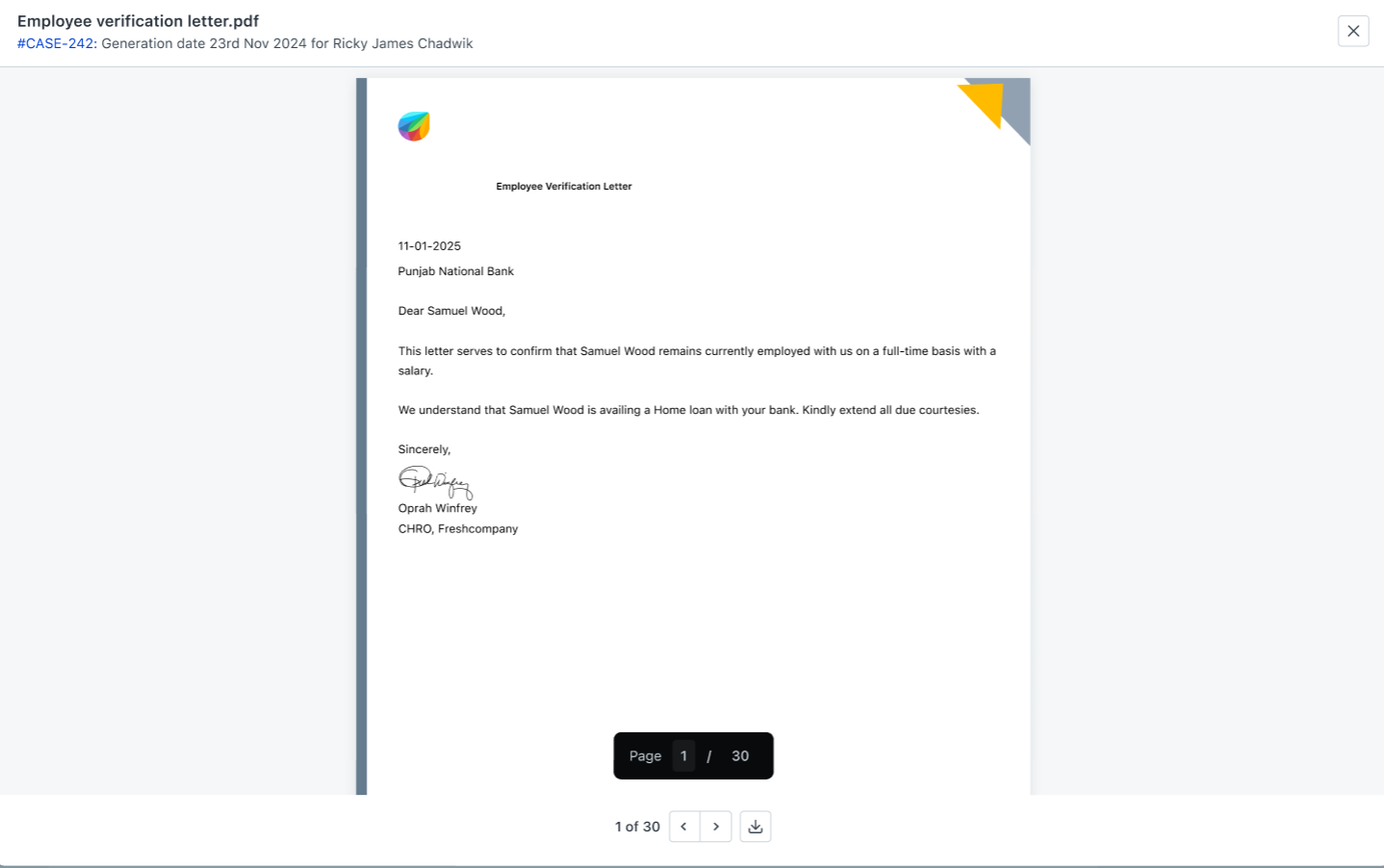
Note: For security and compliance, expired documents are removed from the list view and do not support previews.
Search and filter
The documents list view introduces advanced search capabilities that index document names and metadata.
Standard filters
The filter pane allows you to quickly narrow down records by workspace, document template, requester, or date range.
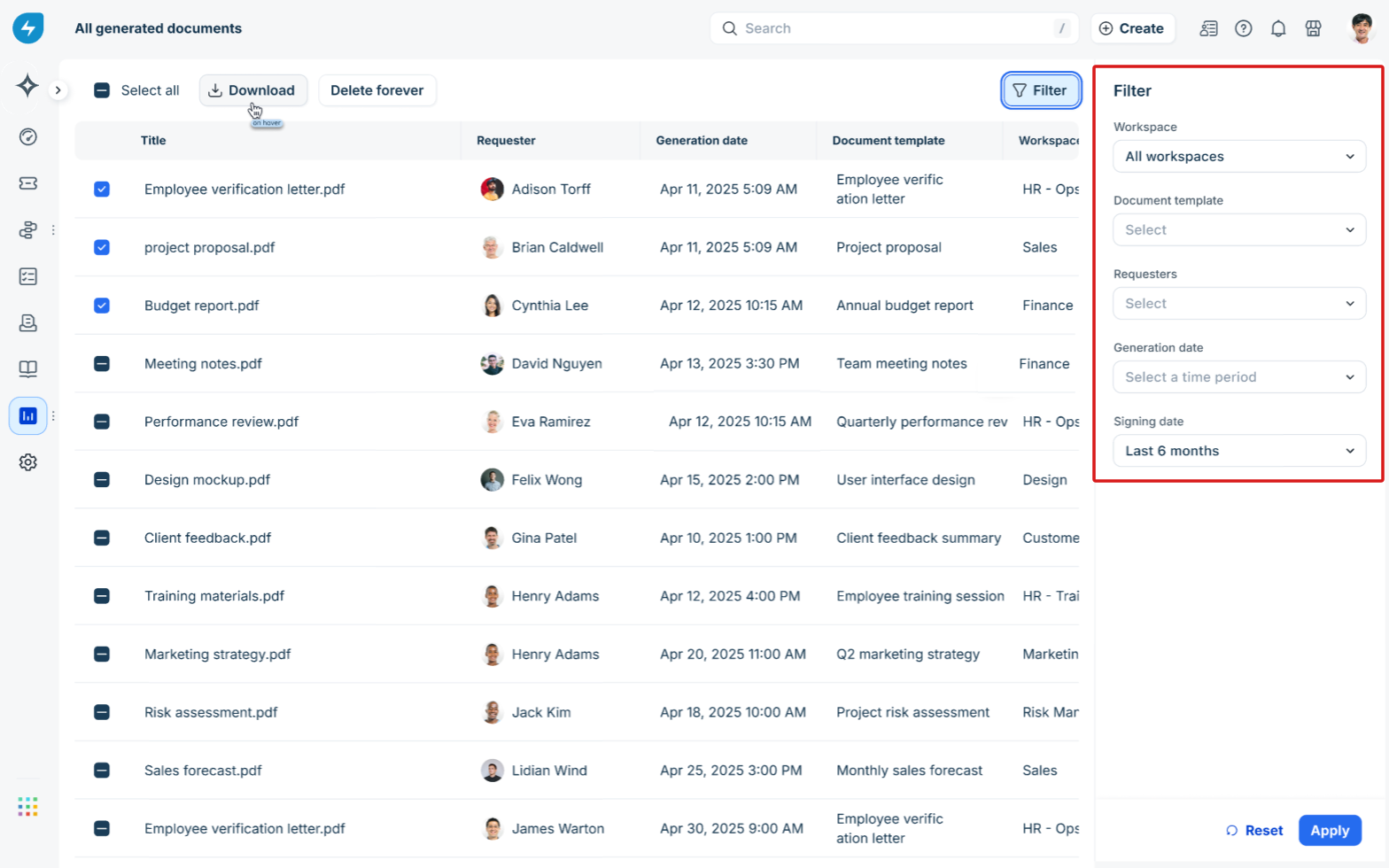
To simplify date-based tracking, date filters support Relative Periods. This allows you to quickly filter documents using predefined timeframes such as Last 30 Days or Next Quarter, without manually calculating dates.
Custom attribute filters
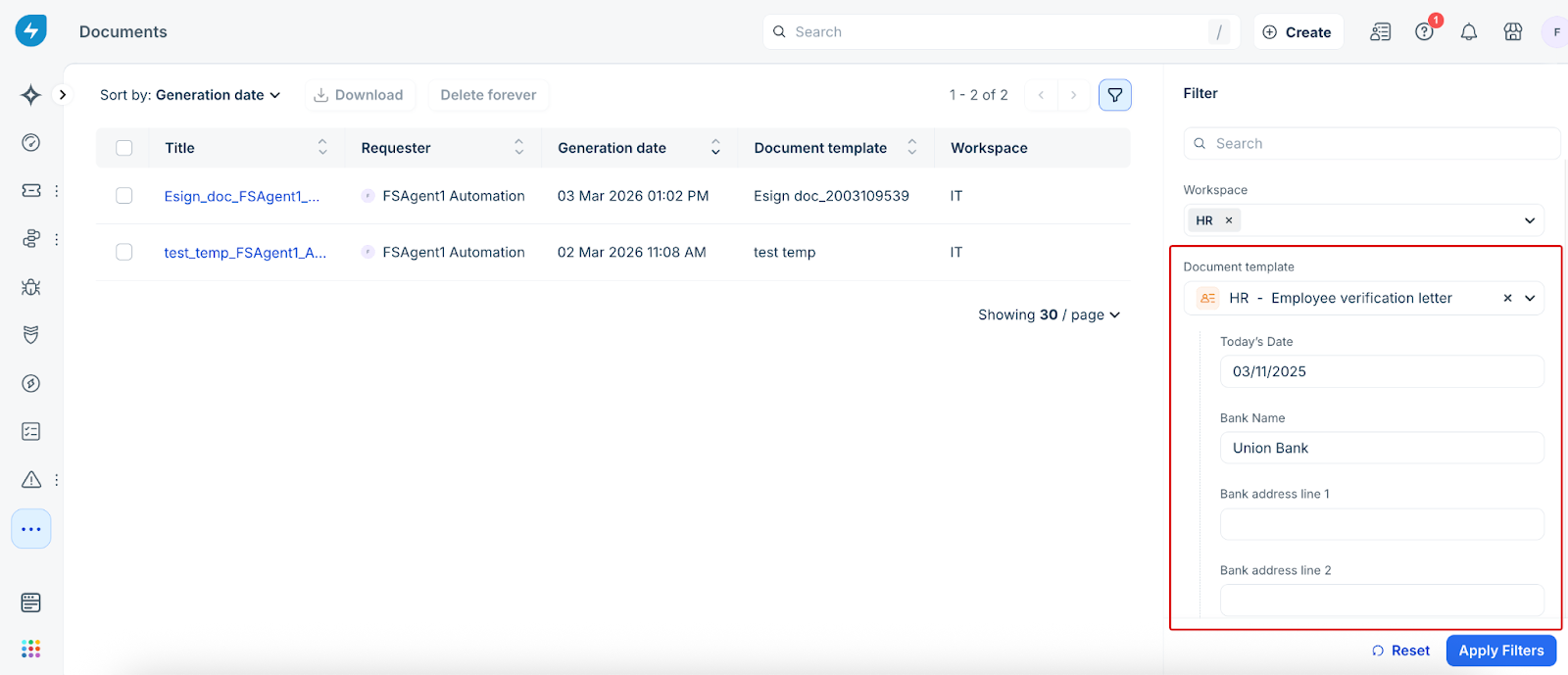
The documents list view lets you filter records using the placeholders defined in your document templates. This helps you quickly locate documents based on the specific data captured during document generation.
For example, in an Employee Verification Letter template, you can filter documents using attributes such as Today’s Date, Bank Name, or other custom placeholders configured in the template.
Note:
Custom attribute filters work best when an appropriate data type is assigned to placeholders in the document template. If no data type is configured, the placeholder is treated as a string, which requires an exact match when filtering.
Documents generated before the introduction of placeholder data types use the default string type. As a result, filtering by custom attributes may be limited for those documents.
Lifecycle and deletion logic
The new data model ensures that documents have a lifecycle independent of the ticket.
Archived tickets: Documents remain in the list view even if the parent ticket is archived. Visibility is maintained based on the agent group inherited from the archived ticket.
Manual deletion: Authorized agents can delete a "Generated" document.
Impact: Deleting a document removes it from the list view, the requester's profile page, and any ticket-level previews.
Ticket behavior: For active tickets, the attachment section displays a placeholder indicating that the document was deleted. For archived tickets, admins can access an "All Deleted Docs" view to audit removals.
Bulk actions: To efficiently manage large volumes of records, the documents list view allows you to perform the following actions in bulk:
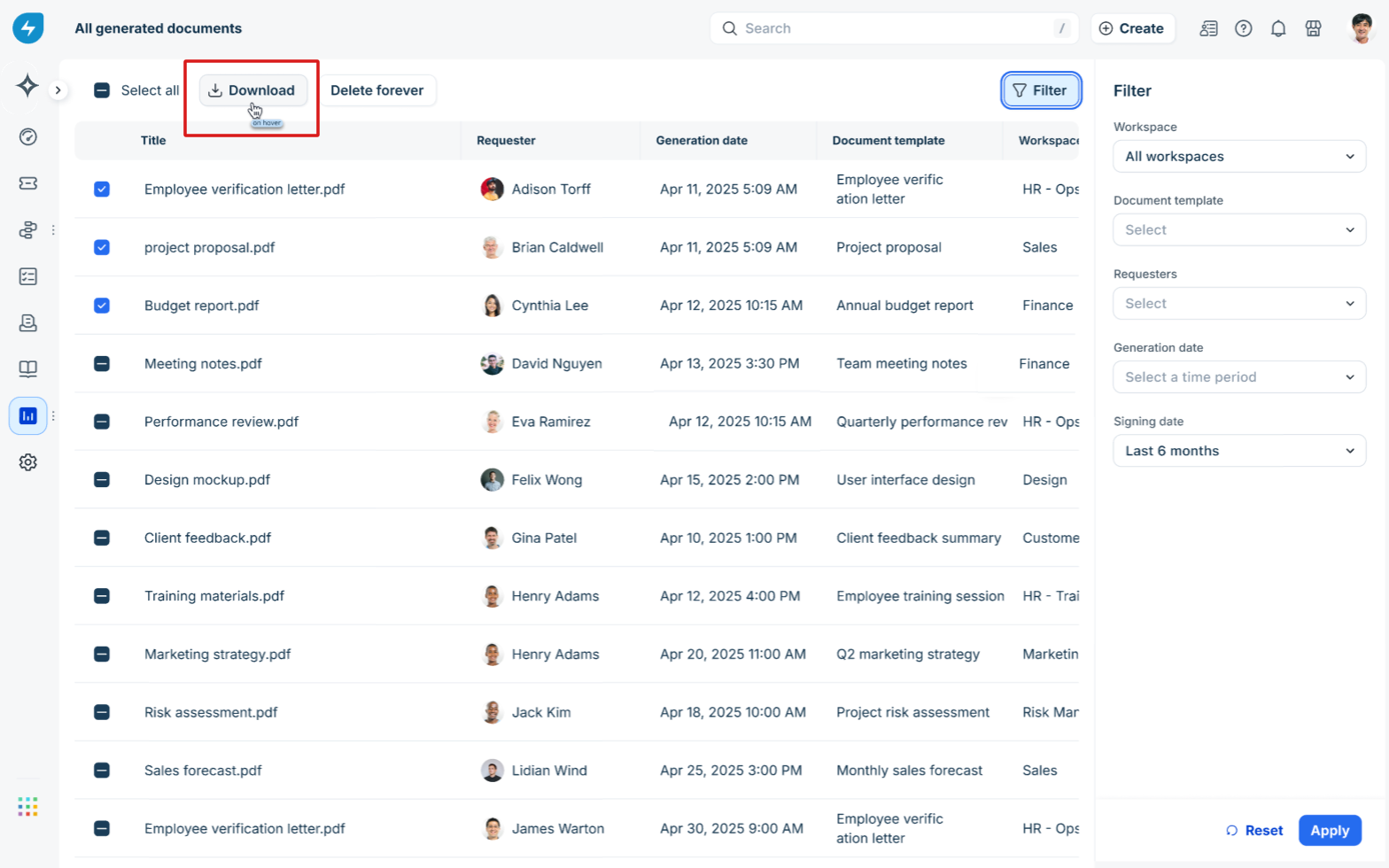
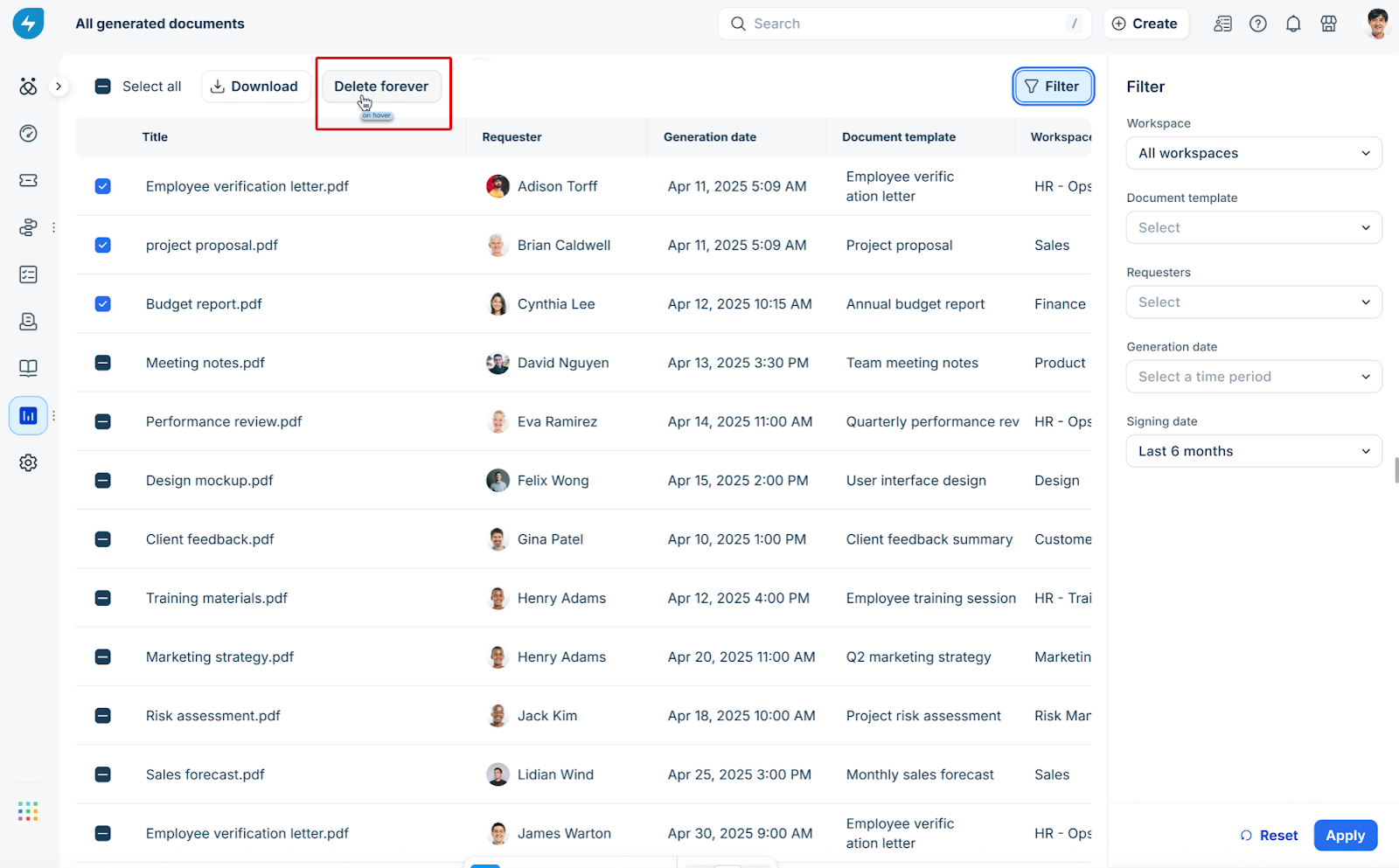
Bulk download: Select specific documents using the checkboxes on your current page. Clicking Download will immediately package these files (up to 30) for a direct download to your local device.
Bulk delete: Streamline your repository by removing multiple records at once. Simply select the unwanted documents and click Delete forever to permanently clear them from the module, ensuring your workspace remains clutter-free and compliant with data retention policies.
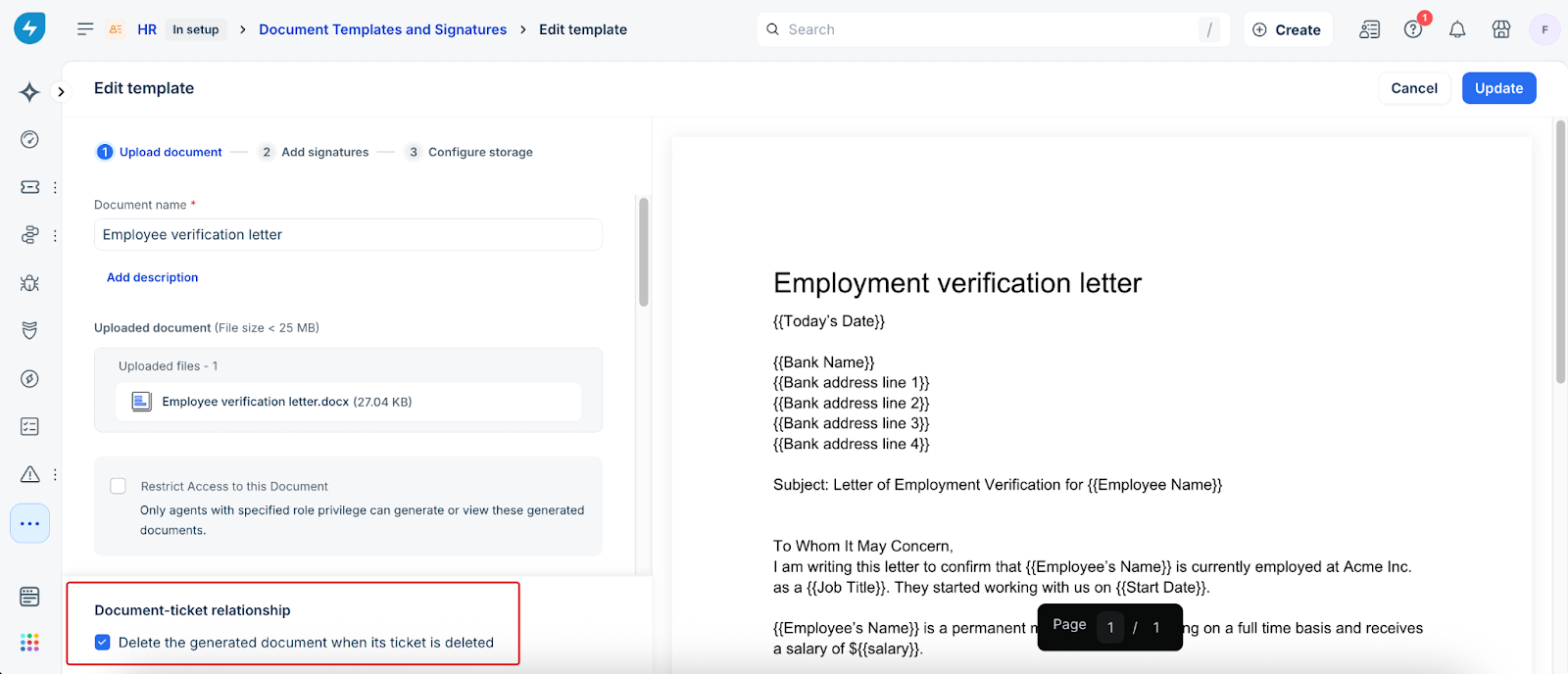
Automatic deletion: In document template settings, admins can choose to have documents automatically deleted when a ticket is deleted (this is unchecked by default).
Document deletion and audit trails: Deleting a document is a global action that ensures data privacy and compliance. Because documents are often tied to active service requests, the system maintains transparency regarding their removal.
Impact on active tickets: If a document is deleted from a ticket that is not yet archived, the file is removed, but a record of its existence remains. The ticket’s attachment section and conversation notes will explicitly display a message: "This document has been deleted." This prevents confusion among other agents working on the case.
Impact on archived tickets: Documents remain accessible even after a ticket is archived. However, if a document is deleted after archiving, it is moved to a centralized "All deleted docs" view accessible by admins for auditing purposes.
Requester view: Once deleted, the document is immediately removed from the Requester’s profile page and can no longer be accessed by the end-user.
Permissions and security
Document security follows a strict inheritance model:
Ticket Access List Controls (ACL): If you cannot view the parent ticket, you cannot see the document in the list view.
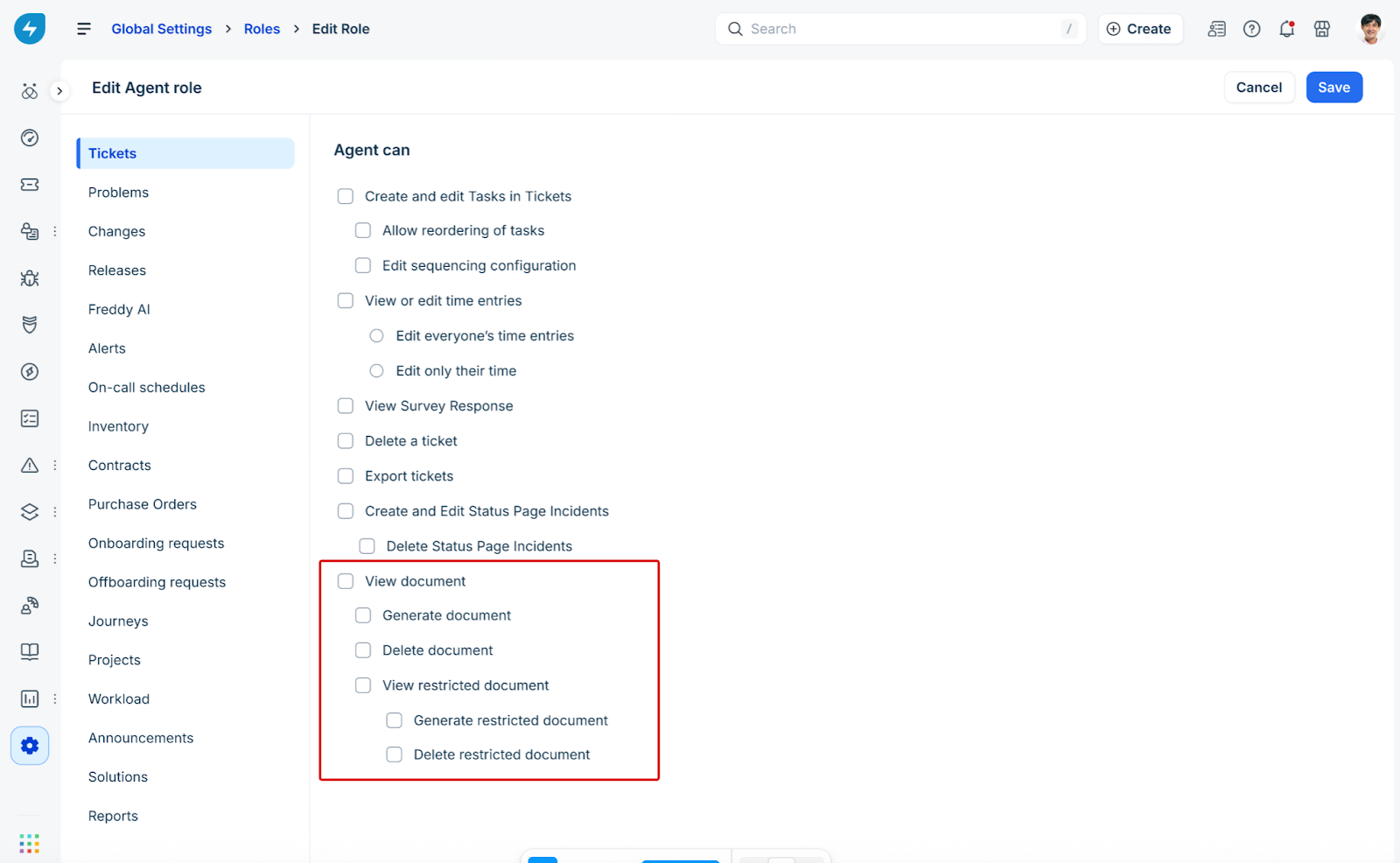
Granular permissions: Admins can define roles with specific View, Generate, or Delete rights by navigating to Global Settings > Roles.
View/Generate is enabled by default for standard agent roles.
Delete must be explicitly granted by an administrator.
Technical specifications summary
Before exploring the interface, review the following specifications and system limits:
Frequently asked questions
General navigation and usage
Can I view a document if the associated ticket has been deleted or archived?
Yes. Documents now exist as independent entities in the data model. Even if a ticket is archived, the document remains searchable and viewable in the Documents list view. However, if the parent ticket is permanently deleted, the document's visibility depends on the "Delete document when ticket deletes" setting in your Template configuration.Why can’t I see the "Delete" button for a document?
Document permissions are now granular. While View and Generate are typically enabled for all agents by default, the Delete permission must be explicitly granted to your role by an administrator.What happens to the document preview if a document expires?
Once a document reaches its expiration date, the preview is disabled for security and compliance reasons. The document will also be removed from the active list view to prevent accidental distribution of outdated information.Is there a limit to how many documents I can download at once?
The list view supports bulk actions for the records displayed on a single page (up to 30 documents). For larger volumes, use the Export option. You will receive an email with a CSV containing temporary, secure links to the documents once the export is processed.
Data and filtering
How do custom placeholders become filterable attributes?
For a placeholder (like "Embassy Name" or "Start Date") to appear as a filter, an administrator must map it to a specific data type (String, Date, Numeric, etc.) within the Document Template settings.Will my existing documents (generated before this update) show up in filters? Standard properties (Name, Requester, Template, Date) will be available for all historical documents. However, filtering by Custom Attributes will only apply to documents generated after the template placeholders have been mapped to specific data types.
How does "User Lookup" filtering work for signers?
If a placeholder is mapped as a User Lookup, the filter ties directly to your Freshservice user database. This allows you to filter by specific entities, such as "Reporting Manager" or "Requested For," rather than searching for a text string.
Integration and workflow
Can I edit a document directly from the list view?
No. To maintain document integrity, generated documents are read-only. If you need to correct information, you must navigate to the hyperlinked Case ID and regenerate the document using the updated ticket fields.How does the system handle "Guest Users" who need to sign a document? Currently, user lookup fields are tied to existing Freshservice entities. For guest users or external signers who do not exist in your database, we recommend using a standard String data type for their name/email to ensure they remain searchable in the list view.
Will deleting a document remove the attachment from the original ticket?
Yes. Deleting a document from the centralized list view is a global action. It removes the file from the list view, the requester’s profile, and the ticket’s attachment section. A system note is added to the ticket to inform other agents of the deletion.
Transitioning users
What happens if I enter the wrong data type during generation?
Input validation will trigger an error if the agent's input doesn't match the admin's defined format.Can I see signature status in the list view?
Yes, you can add a 'Status' column to track documents that are 'Pending Signature'.
Troubleshooting
I searched for a document by name but got no results. Why?
Ensure that you have the correct workspace selected. If you are an agent in the IT workspace, you may not have the ACL (Access Control List) permissions to view documents generated in the HR workspace unless you are part of the shared agent group.The date filter isn't showing the documents I expected. What's wrong?
Check if you are filtering by Generated Date, Signed Date, or Expiry Date. These are distinct attributes. Also, ensure your administrator has sanitized the date placeholders; if a date was saved as a "String," relative date filters (for example, "Last 7 Days") will not recognize it.