Community
 Video Library
 Agent Training
 Freshservice
 Freshdesk
 Freshchat
 Freshcaller
 Freshsales
 Freshteam
 Freshworks Neo
 Freshsurvey
 Freshservice for MSP
 Scheduled tasks represent automated processes configured to run at specific intervals or triggers on your discovered devices. By identifying these tasks, you gain visibility into background operations, maintenance scripts, and automated workflows that exist within your infrastructure.
This article provides an overview of the scheduled tasks feature and instructions on how to view, add, and manage automated tasks discovered across your devices.
View and manage scheduled tasks
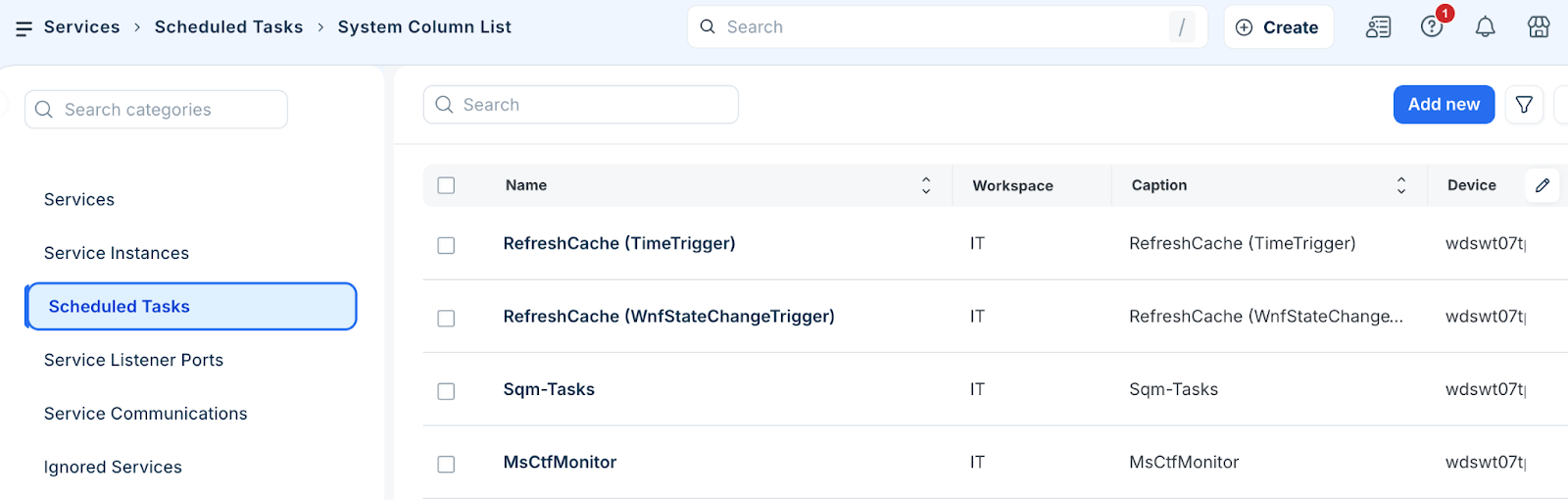
To access the centralized list of all automated tasks identified during the discovery process:
Go to Applications > Services > Scheduled Tasks to open the list page.
Review the tasks associated with your devices, including their names and host information.
Click on a specific task name to view its detailed configuration or to edit its metadata.
Perform bulk actions
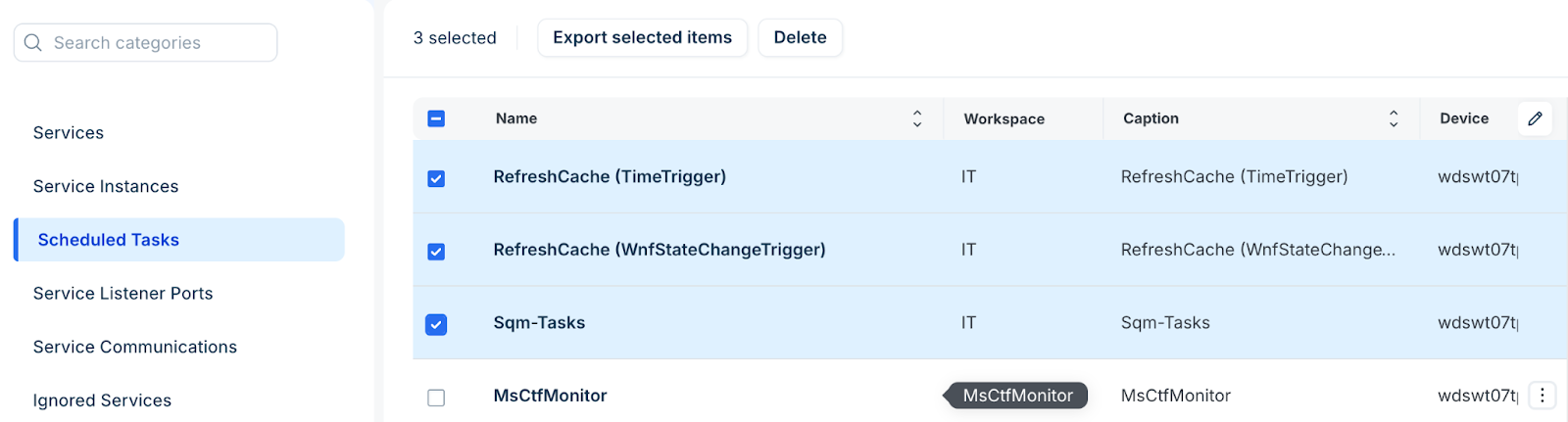
Apply changes to multiple task records simultaneously using the actions menu.
Select one or more items from the Scheduled Tasks list.
Select the relevant action, such as; delete or export records.
Add a scheduled task
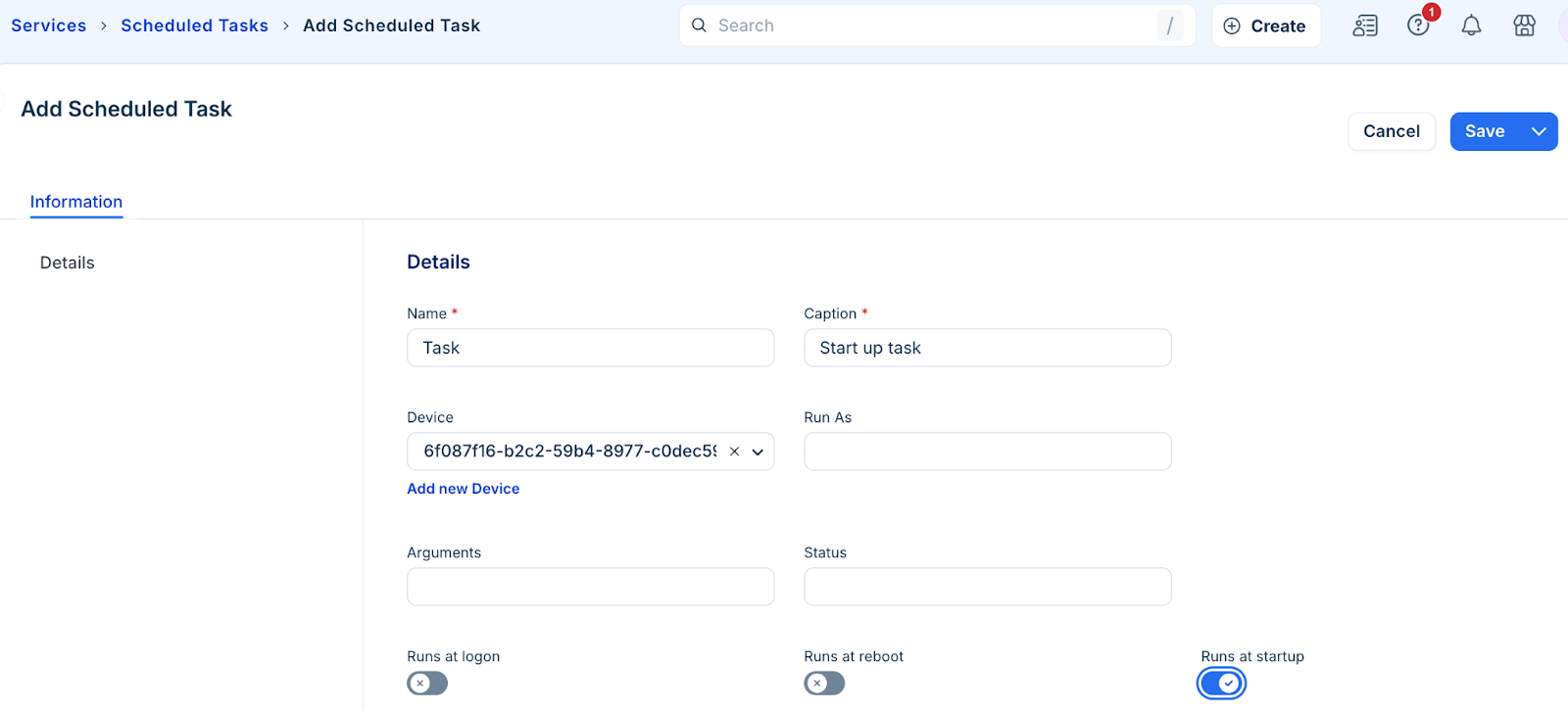
To create a new task record to manually track automated processes that were not captured during discovery, follow these steps:
Click Add new on the Scheduled Tasks list.
Enter a Name and Caption for the task to identify it within the inventory.
Select the Device where the task is configured.
Enter any additional information, such as the execution path or schedule details.
Click Save.