
 Community
 Video Library
 Agent Training
 Freshservice
 Freshdesk
 Freshchat
 Freshcaller
 Freshsales
 Freshteam
 Freshworks Neo
 Freshsurvey
 Freshservice for MSP
 Note: Available only for new signups after the 31 March, 2026 release. If you signed up earlier, refer to the existing ITAM documentation.
DNS discovery syncs DNS zone data into your inventory, giving you visibility into DNS records, IP addresses, and related metadata. By automating the transfer of zone information, you maintain an accurate map of your naming hierarchy and resource allocation without manual data entry.
This article provides an overview of the DNS autodiscovery and instructions on how to prepare your Microsoft DNS environment, configure zone transfers, and manage automated discovery jobs.
Prerequisites
You need the following before the installation:
Administrator access to manage discovery settings and DNS server configurations.
A Microsoft DNS server with active zones.
The static IP address of your virtual appliance to authorize transfers.
Set up the Microsoft DNS server
Configure your server to allow the virtual appliance to request and receive zone data. Follow these steps:
Log in to your Microsoft DNS server.
Right-click on the target Zone Name and select Properties.
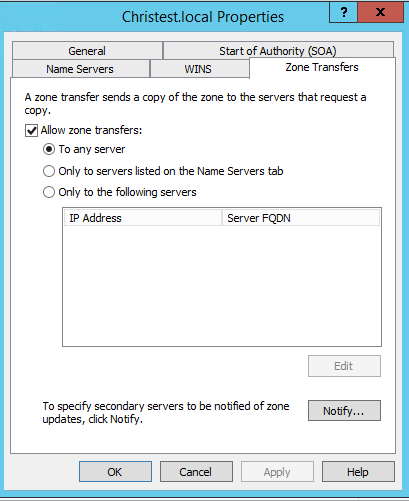
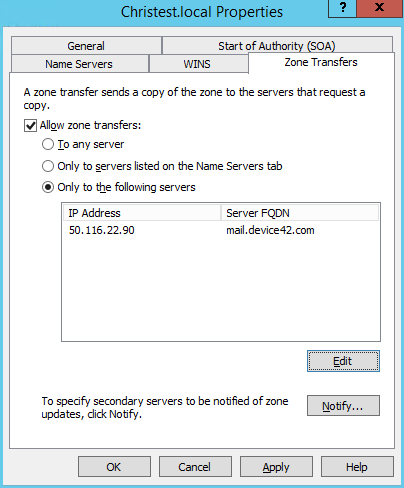
Go to the Zone Transfers tab and select the Allow zone transfers checkbox.
Select the option to allow transfers specifically to the IP address of your virtual appliance.
Enter the appliance IP address and click OK to apply the changes.
Create a DNS zone discovery job
Define the parameters for the zone synchronization job within the console.
Go to Admin > Asset Management > Scan and discover and click the Discovery Jobs tab.
Select DNS Zone Sync from the list of discovery jobs and click Add new.
Fill the following mandatory fields:
Name: Enter the name of the DNS zone to be transferred (typically the zone name enabled in the previous step).
Nameserver: Enter the FQDN or IP address of the DNS server.
Auto Delete Enabled: Enable to delete records that were not found in new transfers of the zone but were found in older transfers.
Note: The Auto Delete option also removes entries manually added to the inventory that do not exist on your DNS server.
In the Discovery Schedule section, click Add new to create an autodiscovery for the job. You can create multiple schedules.
Click Save, then click Run Now to start the discovery.
Note: Newly created jobs will not run on the first day of creation to prevent a high volume of simultaneous tasks. If you would like to run a job after its initial creation, click Run Now on the Discovery Jobs tab.