
 Community
 Video Library
 Agent Training
 Freshservice
 Freshdesk
 Freshchat
 Freshcaller
 Freshsales
 Freshteam
 Freshworks Neo
 Freshsurvey
 Freshservice for MSP
 Note: Available only for new signups after the 31 March, 2026 release. If you signed up earlier, refer to the existing ITAM documentation.
Applicable plan: Growth, Pro, Enterprise
Microsoft Azure autodiscovery allows you to automate the inventory of your cloud infrastructure. By integrating with Azure, Freshservice identifies virtual machines, Kubernetes clusters, databases, networks, and load balancers, importing them as manageable assets into your CMDB.
Freshservice provides insights into your Azure resources and services by using an application service principal in accordance with Microsoft’s security recommendations. This article provides details about creating an application service principal with limited permissions to enable an inventory of Azure resources.
TABLE OF CONTENTS
- Prerequisites
- How it works
- Role preparation
- Configure Azure Kubernetes Service (AKS)
- Create an Azure discovery job
- Configure SAML for Azure
- Azure Discovery Items
- Virtual device with Azure Discovery
Prerequisites
You need the following before the installation:
A user account with administrative privileges in the Azure portal.
Administrator privileges in Freshservice to configure discovery jobs.
Access to the Azure Active Directory (Microsoft Entra ID) to create application registrations.
Application preparation
To begin, you must set up an application within your Azure environment to allow Freshservice to communicate with the Azure API.
Log in to the Azure portal.
Go to Azure Active Directory > Enterprise Applications > New Application > Create Your Own Application.
Name your application and select the Integrate any other application you don’t find in the gallery (Non-gallery) option.
Once created, go to the top-level directory and choose App Registrations.
Select your application and note the Application (client) ID and the Directory (tenant) ID.
Select Certificates & Secrets and click New Client Secret.
Add a description and expiration date, then click Add.
Note: Copy the string in the Value column immediately. This is used as the Client Secret ID for discovery. It will not be visible again once you sign out.
How it works
Discovery can be performed at two levels:
Tenant Level: Best suited for environments with a large number of Azure subscriptions.
Subscription Level: Ideal for environments with only a few subscriptions where granular control is required.
Note: The assignable scope in the policy below assumes you are performing subscription level discovery. If you are performing tenant level discovery, be sure to change the assignable scope to: /providers/Microsoft.Management/managementGroups/root-management-group-id-goes-here.
Role preparation
You must create a role with limited permissions to adhere to the principle of least privilege.
Subscription Level
Follow these steps to configure discovery for a specific Azure subscription:
Go to the Subscriptions section in the Azure portal and select the subscription you would like to allow this application to discover.
Copy the Subscription ID, as it will be used later for discovery.
Note: The Discover all subscriptions option should be unchecked to enable subscription level discovery. By default, this option is selected for tenant level discovery.
Go to Subscriptions > Select your Subscription > Access Control (IAM) > Roles > Add > Add Custom Role.
Enter a name for the custom role and an optional description, then select either Start from scratch or Start from JSON.
If using the Start from scratch option, you need to manually select each permission needed for this application to access the desired resources. Select Add permissions and select the relevant checkbox for the required permission, and click Add.
If using the Start from JSON option, copy and paste the JSON data to pull in the necessary permissions, and save it as a .json file. Upload this file on the Basics page when creating the role, and the permissions will be automatically defined.
{
"properties": {
"roleName": "D42Discovery",
"description": "",
"assignableScopes": [
"/subscriptions/subscription-id-goes-here"
],
"permissions": [
{
"actions": [
"Microsoft.AAD/domainservices/read",
"Microsoft.AlertsManagement/smartdetectoralertrules/read",
"Microsoft.Compute/disks/read",
"Microsoft.Compute/sshpublickeys/read",
"Microsoft.Compute/virtualMachines/read",
"Microsoft.Compute/virtualmachines/extensions/read",
"Microsoft.Compute/virtualmachinescalesets/read",
"Microsoft.ContainerService/managedClusters/accessProfiles/listCredential/action",
"Microsoft.ContainerService/managedClusters/listClusterUserCredential/action",
"Microsoft.ContainerService/managedClusters/read",
"Microsoft.DBforMariaDB/servers/databases/read",
"Microsoft.DBforMariaDB/servers/read",
"Microsoft.DBforMySQL/flexibleservers/read",
"Microsoft.DBforMySQL/flexibleservers/databases/read",
"Microsoft.DBforPostgreSQL/flexibleservers/read",
"Microsoft.DBforPostgreSQL/serverGroupsv2/*",
"Microsoft.DBforPostgreSQL/servers/databases/read",
"Microsoft.DBforPostgreSQL/servers/read",
"Microsoft.DocumentDB/databaseAccounts/cassandrakeyspaces/read",
"Microsoft.DocumentDB/databaseAccounts/gremlinDatabases/read",
"Microsoft.DocumentDB/databaseAccounts/mongodbDatabases/read",
"Microsoft.DocumentDB/databaseAccounts/privateEndpointConnections/read",
"Microsoft.DocumentDB/databaseAccounts/read",
"Microsoft.DocumentDB/databaseAccounts/sqlDatabases/read",
"Microsoft.DocumentDB/databaseAccounts/tables/read",
"Microsoft.Insights/actiongroups/read",
"Microsoft.Insights/components/read",
"Microsoft.Insights/datacollectionrules/read",
"Microsoft.Insights/metrics/read",
"Microsoft.KeyVault/vaults/read",
"Microsoft.ManagedIdentity/userassignedidentities/read",
"Microsoft.Migrate/migrateprojects/read",
"Microsoft.Network/applicationgateways/read",
"Microsoft.Network/connections/read",
"Microsoft.Network/dnsresolvers/read",
"Microsoft.Network/loadBalancers/read",
"Microsoft.Network/localnetworkgateways/read",
"Microsoft.Network/networkInterfaces/read",
"Microsoft.Network/networksecuritygroups/read",
"Microsoft.Network/networkwatchers/flowlogs/read",
"Microsoft.Network/networkwatchers/read",
"Microsoft.Network/privateEndpoints/read",
"Microsoft.Network/privatednszones/read",
"Microsoft.Network/privatednszones/virtualnetworklinks/read",
"Microsoft.Network/publicIPAddresses/read",
"Microsoft.Network/routetables/read",
"Microsoft.Network/virtualNetworks/read",
"Microsoft.Network/virtualnetworkgateways/read",
"Microsoft.OperationalInsights/querypacks/read",
"Microsoft.OperationalInsights/workspaces/read",
"Microsoft.OperationsManagement/solutions/read",
"Microsoft.RecoveryServices/vaults/read",
"Microsoft.Resources/subscriptions/resourceGroups/read",
"Microsoft.Servicebus/namespaces/read",
"Microsoft.Sql/managedInstances/databases/read",
"Microsoft.Sql/managedInstances/read",
"Microsoft.Sql/servers/databases/read",
"Microsoft.Sql/servers/read",
"Microsoft.SqlVirtualMachine/sqlVirtualMachines/read",
"Microsoft.Storage/storageAccounts/blobServices/containers/read",
"Microsoft.Storage/storageAccounts/privateEndpointConnections/read",
"Microsoft.Storage/storageAccounts/read",
"Microsoft.Web/serverfarms/read",
"Microsoft.Web/sites/functions/read",
"Microsoft.Web/sites/read"
],
"notActions": [],
"dataActions": [],
"notDataActions": []
}
]
}
}
Tenant Level
If using the Tenant ID for discovery, you must create a Single Role at the tenant level. Follow these steps to configure discovery across all subscriptions within an Azure tenant:
Go to Management Groups > Select your Azure Tenant Group > Access Control (IAM) > Roles > Add > Add Custom Role.
Enter a custom role name and description, then select Start from scratch or Start from JSON.
If using the Start from scratch option, you will need to manually select each permission needed for this application to access the desired resources.
If using the Start from JSON option, copy and paste the JSON data and save it as a .json file. Be sure to change the assignable scope to /providers/Microsoft.Management/managementGroups/root-management-group-id-goes-here.
Upload this file on the Basics page when creating the role, and the permissions will be automatically defined.
After defining the permissions, select Next to define the scope this application will have access to.
Select Next to review or copy the JSON, then Next and Create.
Apply the role
To apply the role, go back to the Access Control (IAM) > Add > Add Role Assignment.
Select your newly created role and choose Next to bring you to the Members tab.
Select the User, group, or service principal > Select members, and choose the application created in the previous steps.
Select Next and then Review + Assign.
Your custom role is now applied to your new application and can be used for discovering Azure Resources.
Configure Azure Kubernetes Service (AKS)
When Authentication and Authorization is set to Azure AD authentication with Kubernetes RBAC and Kubernetes local accounts is disabled:
Ensure a group is configured within the Cluster admin ClusterRoleBinding.
Include the discovery user or service principal in this group.
You can specify multiple groups within the Cluster admin ClusterRoleBinding selection. This can be useful if you want to keep the discovery user or service principal in a separate, dedicated discovery group rather than adding it to an existing group.
Create an Azure discovery job
To set up the automated discovery job, follow these steps:
Go to Admin > Asset Management > Scan and discover and click the Discovery Jobs tab.
Select Cloud from the list of discovery jobs and click Add new.
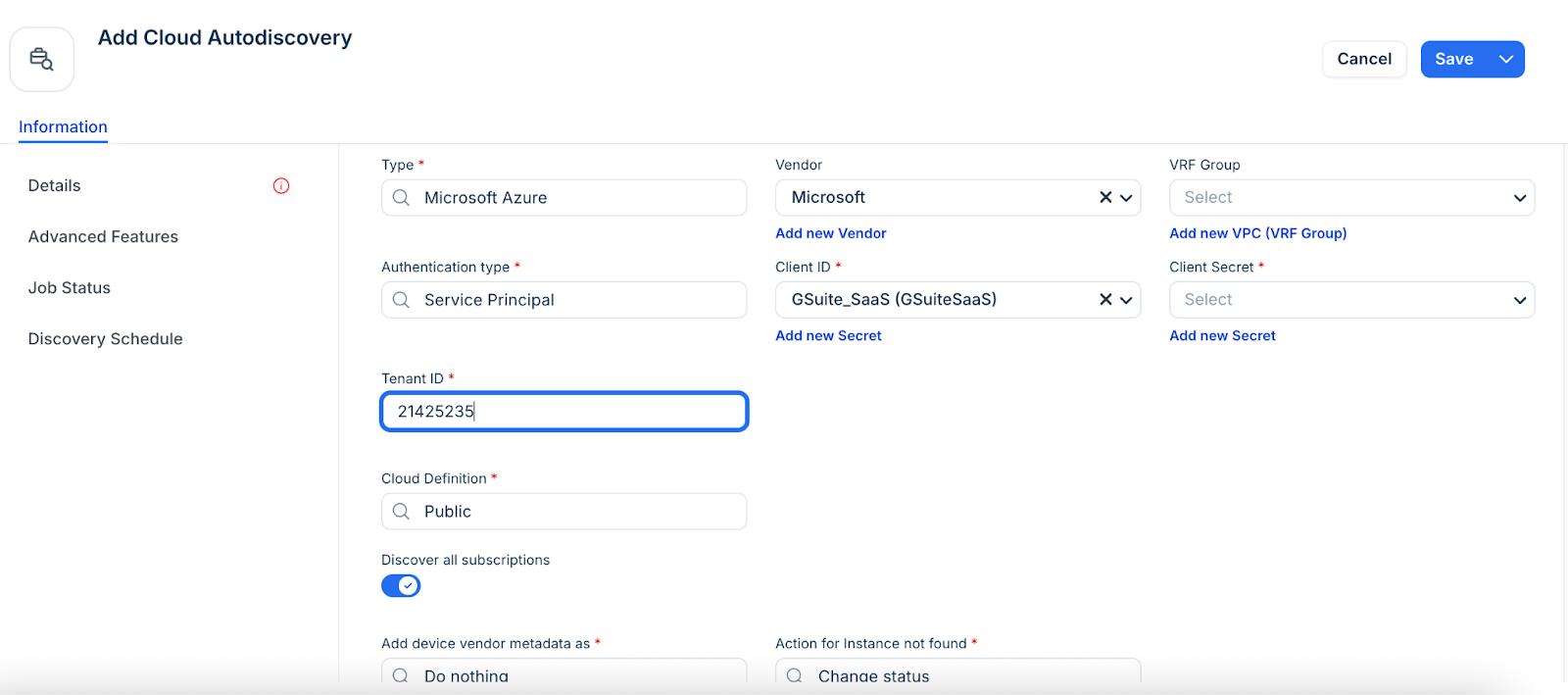
Enter a job name and select Microsoft Azure as Type.
Select a remote collector group.
Select Service Principal as the Authentication type.
Click Add new Secret and create a new secret or select the existing one. Repeat this for Client Secret.
Select a VRF Group to place all discovered IPs in subnets. This is useful if you have duplicate IPs in your internal network.
Paste the Directory (tenant) ID directly into the Tenant ID field.
Configure the following additional options:
Discover all subscriptions: Enable for tenant level or disable for specific subscription discovery.
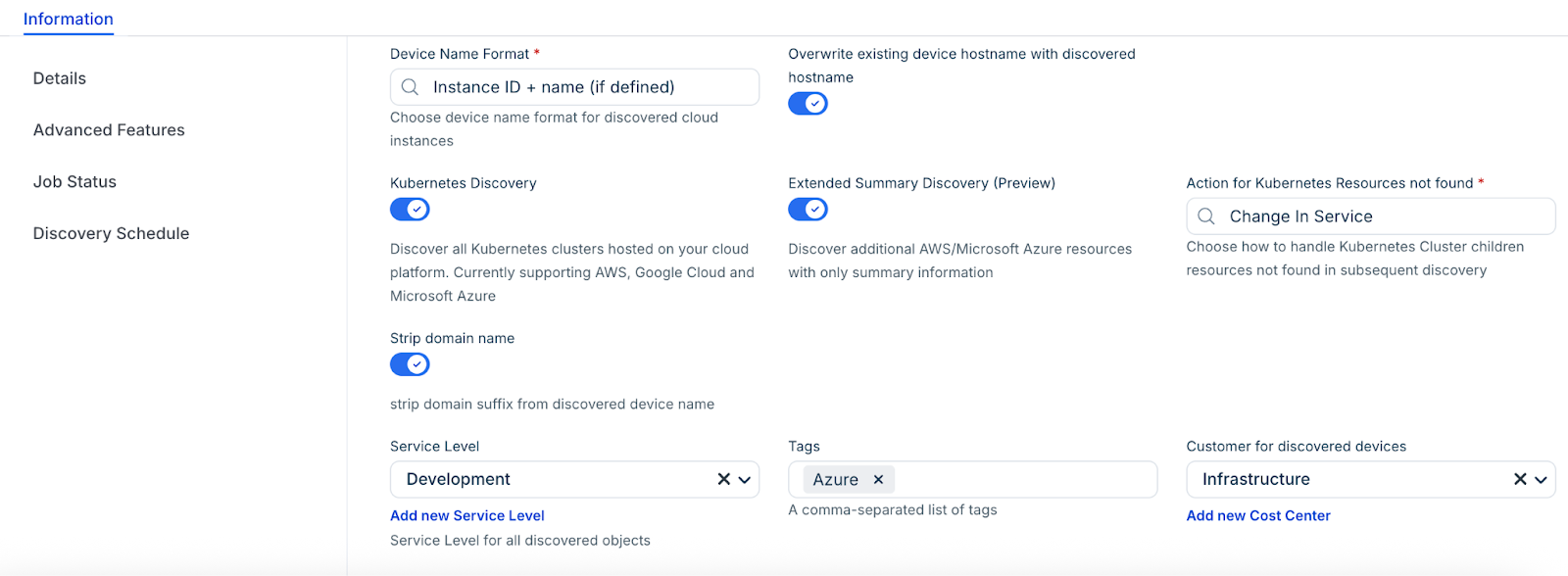
Kubernetes Discovery: Enable to pull in AKS resources.
Extended Summary Discovery (Preview): Enable to discover all resources with abbreviated detail.
Enter a Tag name to categorize and filter discovered devices by your chosen tags.
Enable Strip domain name to strip the discovered domain suffix (everything after the first period) from the device instance name.
Select an option from the Service Level drop-down, or add a new Service level category. For example, you can set it so that the Development, Deployment, or Production service level is applied to discovered items.
Select a customer for discovered devices to add another specialized classification or create a new by using the Add new Cost Center option.
In the Discovery Schedule section, click Add new to create an autodiscovery for the job. You can create multiple schedules.
Click Save, then click Run Now to start the discovery.
Configure SAML for Azure
To ensure seamless authentication:
In Azure, change the Signing Option to Sign SAML response.
In the Appliance Manager, go to Global Settings > SAML 2.0 Settings.
Verify that the Username field has a value of name.
Azure Discovery Items
The following Azure resources are discoverable. Instances of Azure Database for PostgreSQL flexible servers are also supported.
Virtual device with Azure Discovery
To view the details of your discovered virtual devices, follow these steps:
In the side More options > IT Asset Management > All Devices.
Select Virtual from the Type filter to display the list of virtual devices.
Click on a device name to enter the view or edit mode.
Locate the Cloud Instance Information details at the bottom of the page.
Locate Azure cloud account tags
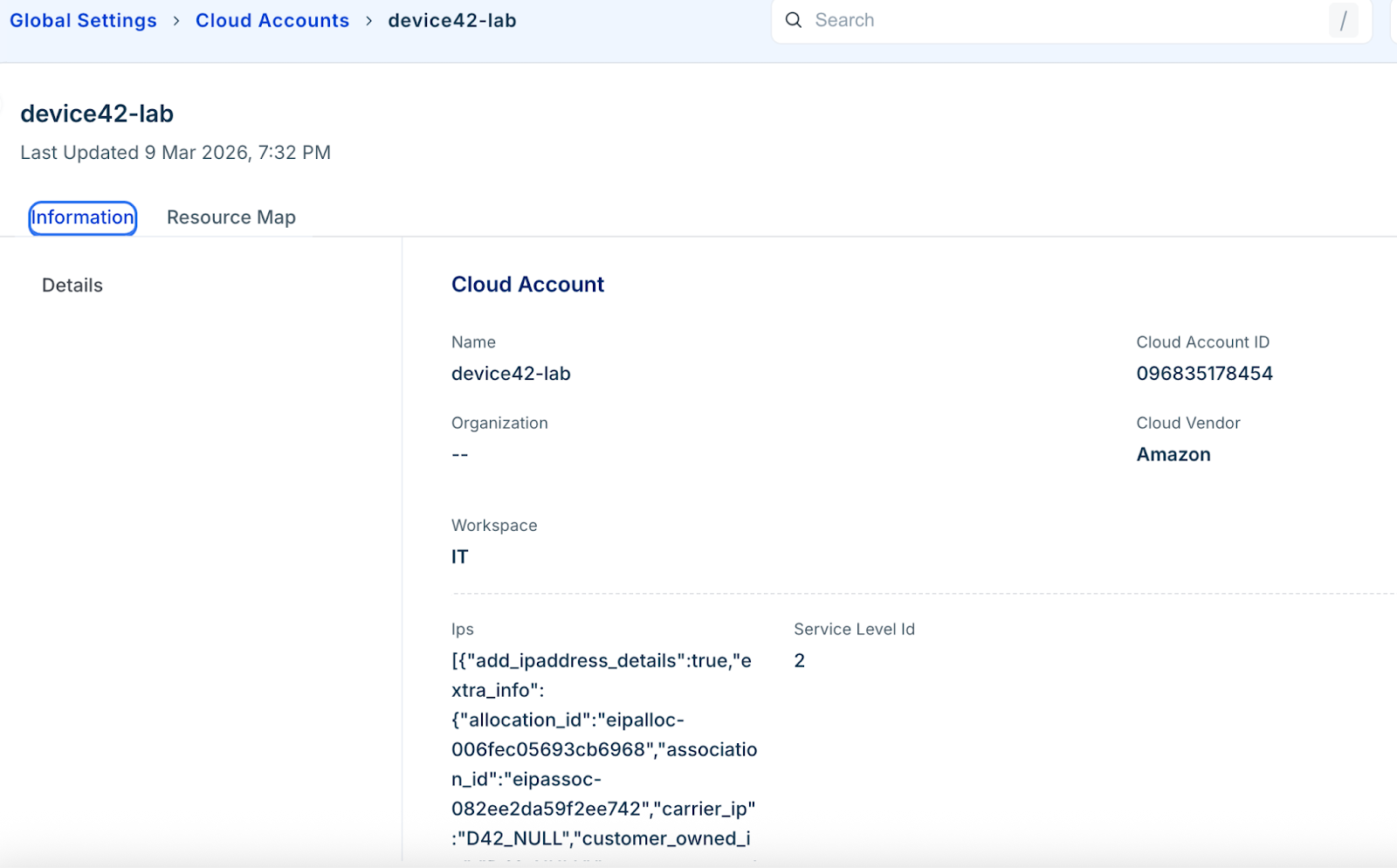
Go to Admin > Asset Management > Discover Hub > Cloud Accounts and select your GCP account. The available discovered account-level tags will be listed under the Cloud Vendor Custom Fields section.
To view the details of your discovered virtual devices, follow these steps:
In the side More options > IT Asset Management > All Devices.
Select Virtual from the Type filter to display the list of virtual devices.
Click on a device name to enter the view or edit mode.
Locate the Cloud Instance Information details at the bottom of the page.