Community
 Video Library
 Agent Training
 Freshservice
 Freshdesk
 Freshchat
 Freshcaller
 Freshsales
 Freshteam
 Freshworks Neo
 Freshsurvey
 Freshservice for MSP
 Note: Available only for new signups after the 31 March, 2026 release. If you signed up earlier, refer to the existing ITAM documentation.
Discovery identifies critical hardware data through dedicated management boards using either the IPMI or Redfish protocols. This identifies the hardware model, serial number, and the Baseboard Management Controllers (BMC) interface's IP and MAC addresses.
Discovered management details are automatically added to the device record as an interface labeled mgmt. This ensures that management path information is associated with the primary asset without manual mapping.
Prerequisites
You need the following before the installation:
Valid credentials for the IPMI or Redfish management boards (e.g., iDRAC, iLO, ALOM).
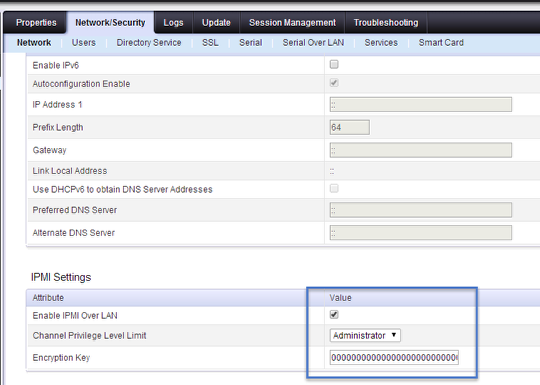
Ensure that the target hardware is configured to respond to remote discovery requests. For successful discovery, verify that the IPMI over LAN setting is enabled within the hardware's web portal (such as Dell iDRAC or HP iLO). If this is disabled, the discovery job will be unable to establish a connection even with correct credentials.
Create an IPMI or Redfish discovery job
Follow these steps to configure your management interface discovery jobs:
Step 1: Add a new discovery job
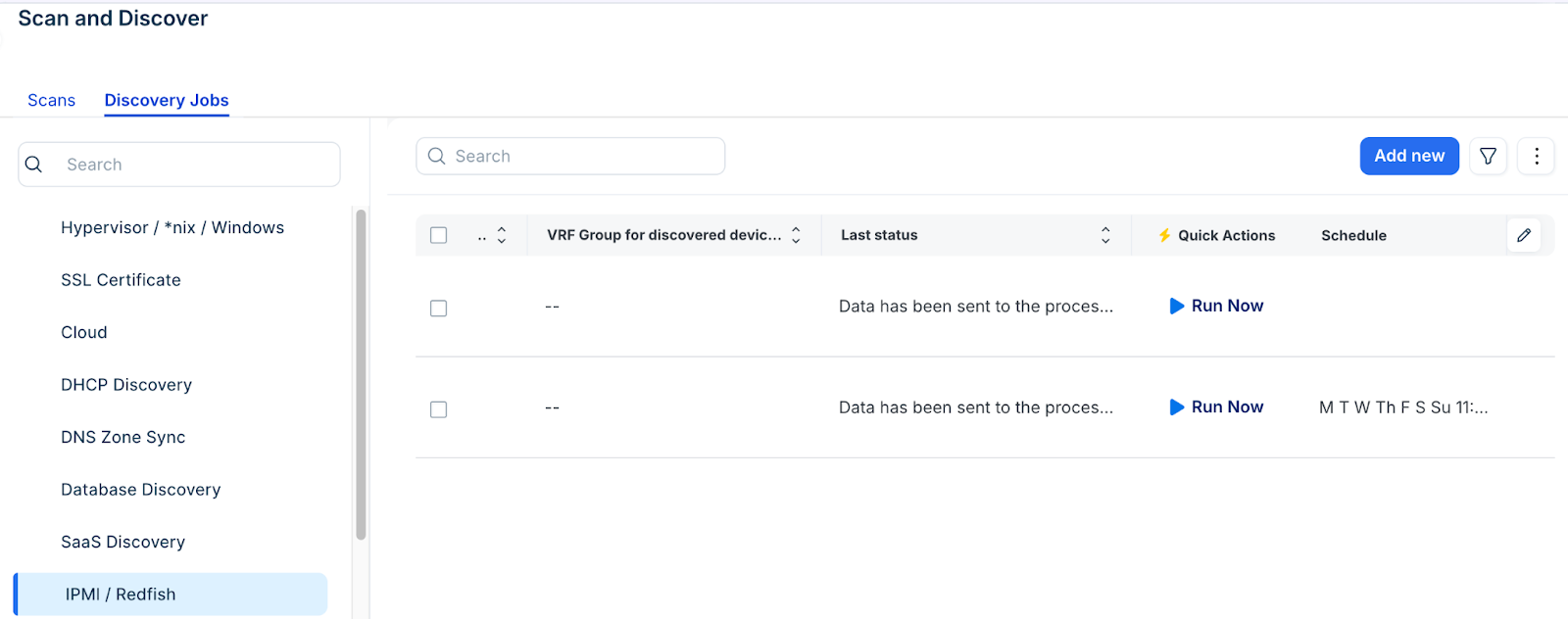
Go to Admin > Asset Management > Scan and discover and click the Discovery Jobs tab.
Select IPMI / Redfish Discovery from the list of discovery jobs and click Add new.
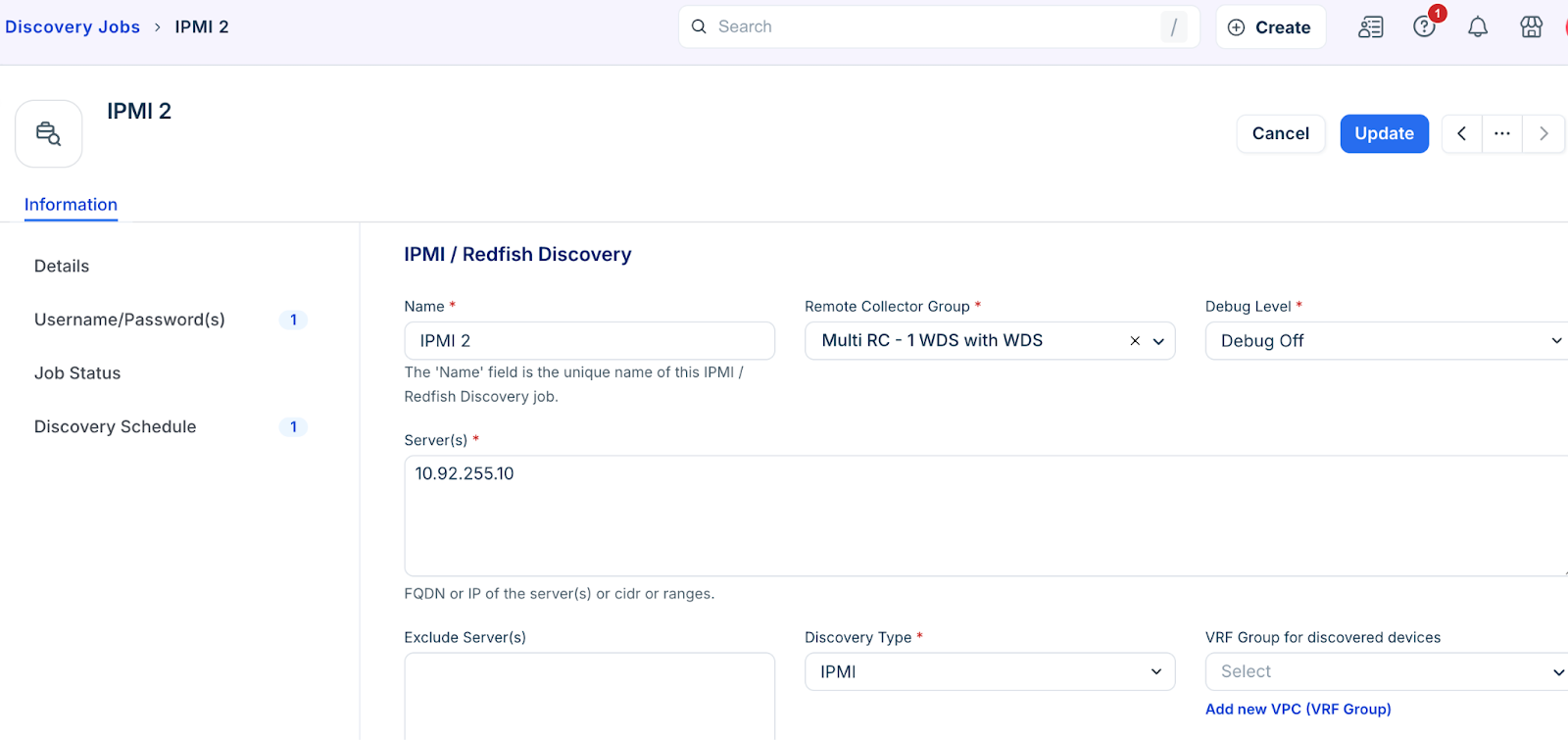
Fill in the following job details:
Name: Enter a unique identifier for the job.
Server(s): Input the IP address range for the management interfaces.
Exclude Server(s): Add any specific IPs that should be skipped.
Discovery Type: Select IPMI or Redfish based on your hardware support.
Step 2: Configure naming and hardware options
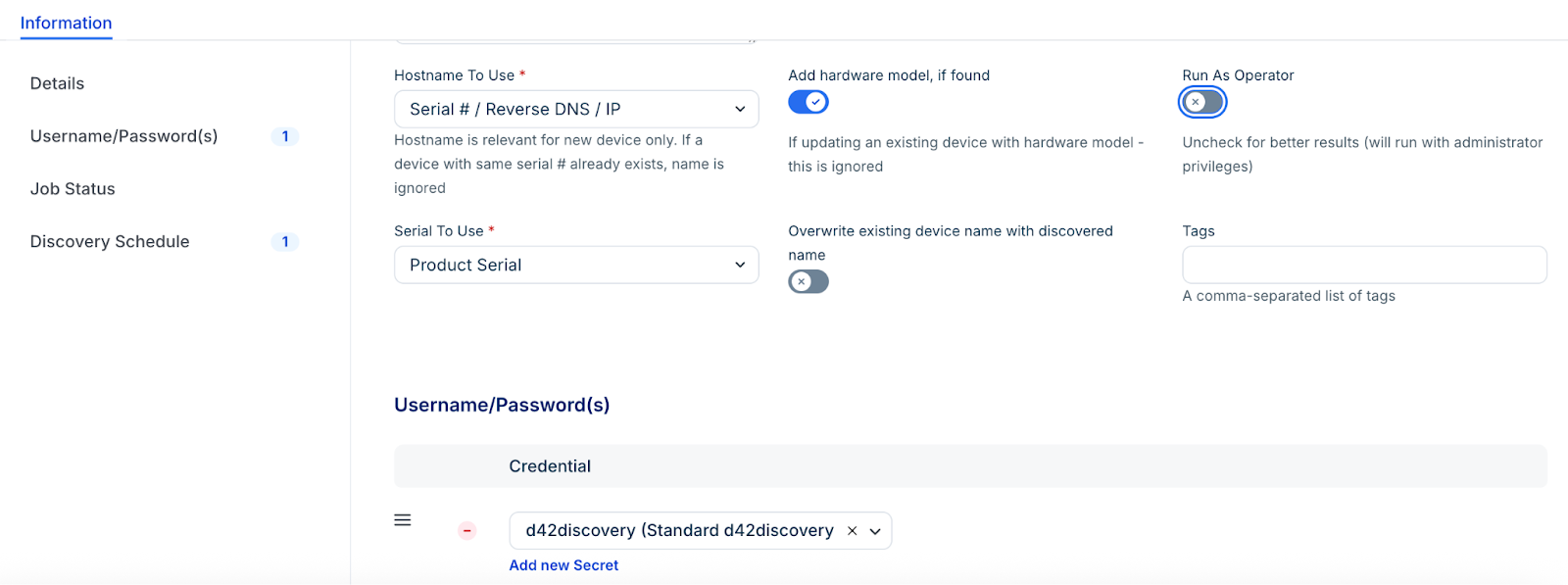
Establish the priority for how newly discovered devices are named in the inventory.
In the Hostname to use drop-down, select one of the following naming orders:
Serial # / Reverse DNS / IP: Prioritizes the serial number, falling back to DNS or IP.
Discovered Name / Serial # / Reverse DNS / IP: Prioritizes the name provided by the IPMI interface.
Reverse DNS / Discovered Name / Serial # / IP: Prioritizes the network DNS entry.
Enable Add hardware model, if found to automatically associate the discovered model with the device.
In Serial to use drop-down, select one of the following:
Product Serial
Board Serial
Service Tag (for Dell environments).
Deselect Run as Operator to allow discovery to run with administrative privileges if certain details are missing during standard scans.
Add the credentials to the Discovery Target(s) Credential(s) field required to authenticate with the BMC.
Step 3: Run or schedule the discovery job
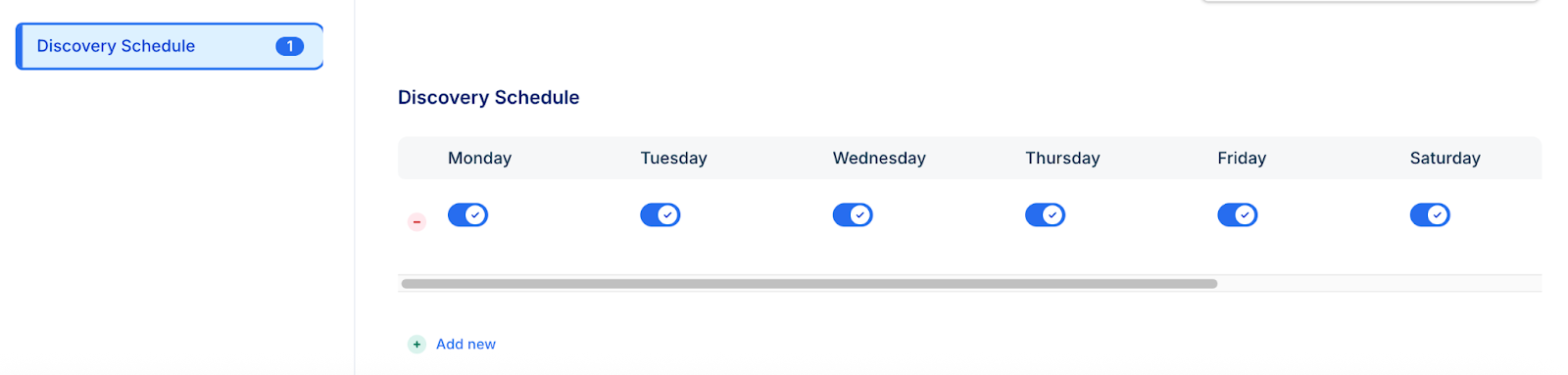
In the Discovery Schedule section, click Add new to create an autodiscovery for the job. You can create multiple schedules.
Click Save, then click Run Now to start the discovery.
To automate the scan, select Add another Auto Discovery Schedule to set a recurring interval.
Note: Newly created jobs will not run on the first day of creation to prevent a high volume of simultaneous tasks. If you would like to run a job after its initial creation, click Run Now on the Discovery Jobs tab.