
 Community
 Video Library
 Agent Training
 Freshservice
 Freshdesk
 Freshchat
 Freshcaller
 Freshsales
 Freshteam
 Freshworks Neo
 Freshsurvey
 Freshservice for MSP
 TABLE OF CONTENTS
- Overview
- Prerequisites
- Enable and configure trusted URLs
- Domain syntax and formatting rules
- User experience (UX) reference
- Upcoming enhancements
Learn how to configure the Trusted URLs setting in Freshservice to control external hyperlink access and safeguard your agents and requesters from unapproved or malicious domains.
Overview
The Trusted URLs service desk setting allows administrators to restrict or monitor external web links clicked from within Freshservice tickets, notes, and conversations.
Initial state: The Trusted URLs setting is disabled by default.
Default whitelisted domains: All internal in-app navigation links and official Freshworks product-related domains are whitelisted by default and bypass security checks.
Verification occurrence: Links are verified only when an external link is clicked within the application. Adding or entering links in private notes or the reply editor is not restricted, and URL validation does not extend to external URLs added inside marketplace apps, analytics, and surveys.
Browser-level actions: Opening links in a new tab via right-click is governed by the web browser itself and cannot be managed or restricted.
Prerequisites
You must have Administrator privileges to modify service desk settings.
Enable and configure trusted URLs
Log in to your Freshservice account.
Go to Admin > Global Settings > Service Desk Settings.
Scroll to the Trusted URLs section and enable the toggle.
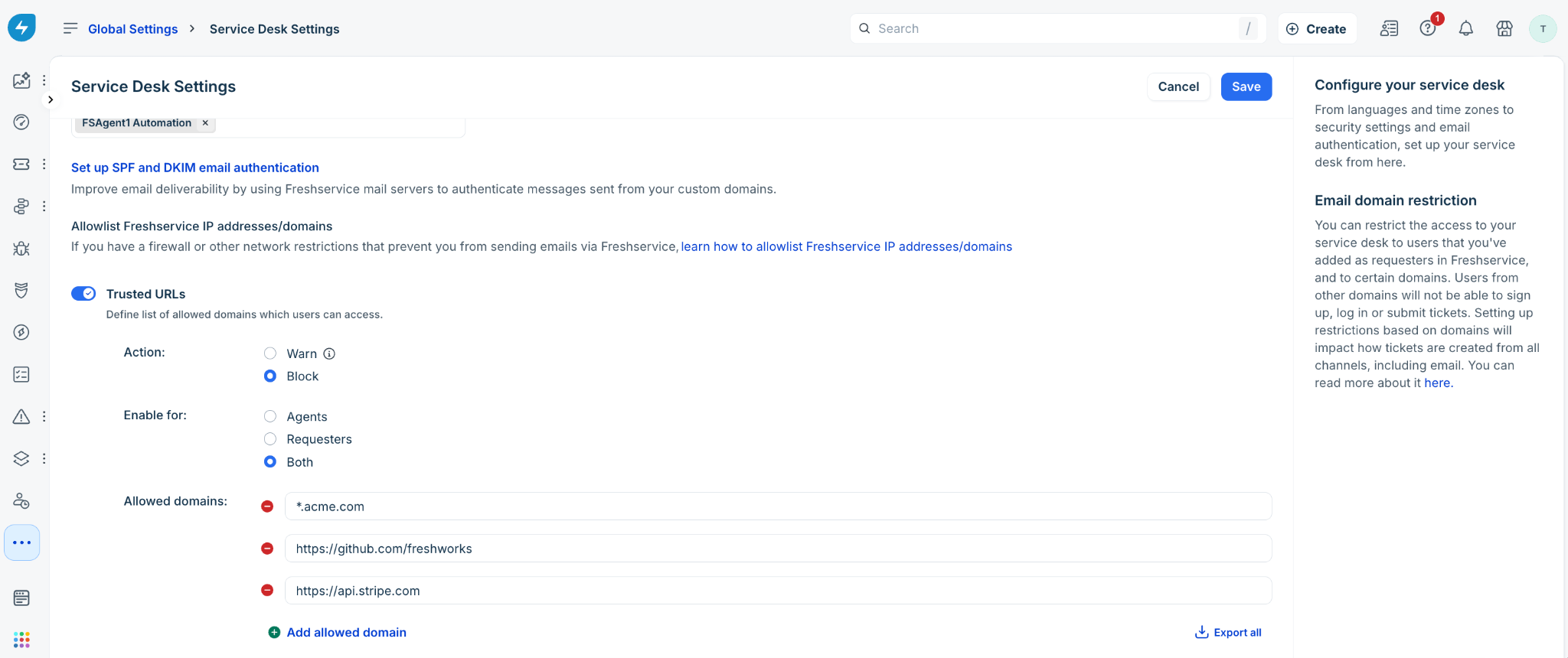
Under Action, select the restriction policy to apply when an unlisted domain is clicked.
Warn: Displays a warning modal informing the user that the domain is unapproved, but allows them to select Continue anyway.
Block: Displays a restriction modal and completely prevents access.
Under Enable for, choose who the rule applies to: Agents, Requesters, or Both.
Under Allowed domains, add the trusted external domains or specific paths.
Select Add allowed domain to add more entries.
Select Save to apply your changes.
Domain syntax and formatting rules
To ensure trusted links are recognized correctly, follow these domain formatting requirements.
Important notes on validation:
Protocol requirement: Full path entries must start explicitly with https://. An entry for (https://stripe.com) will not match (http://stripe.com).
Wildcard placement: Wildcards are supported only at the beginning of an entry (for example, *.domain.com). Trailing wildcards (for example, [https://domain.com/]* are not supported.
Internationalized domains: Domains containing non-ASCII characters are automatically converted into Punycode during configuration and verification.
User experience (UX) reference
When an agent or requester clicks an external link:
Allowed domain
The link opens immediately without modal prompts or delays.
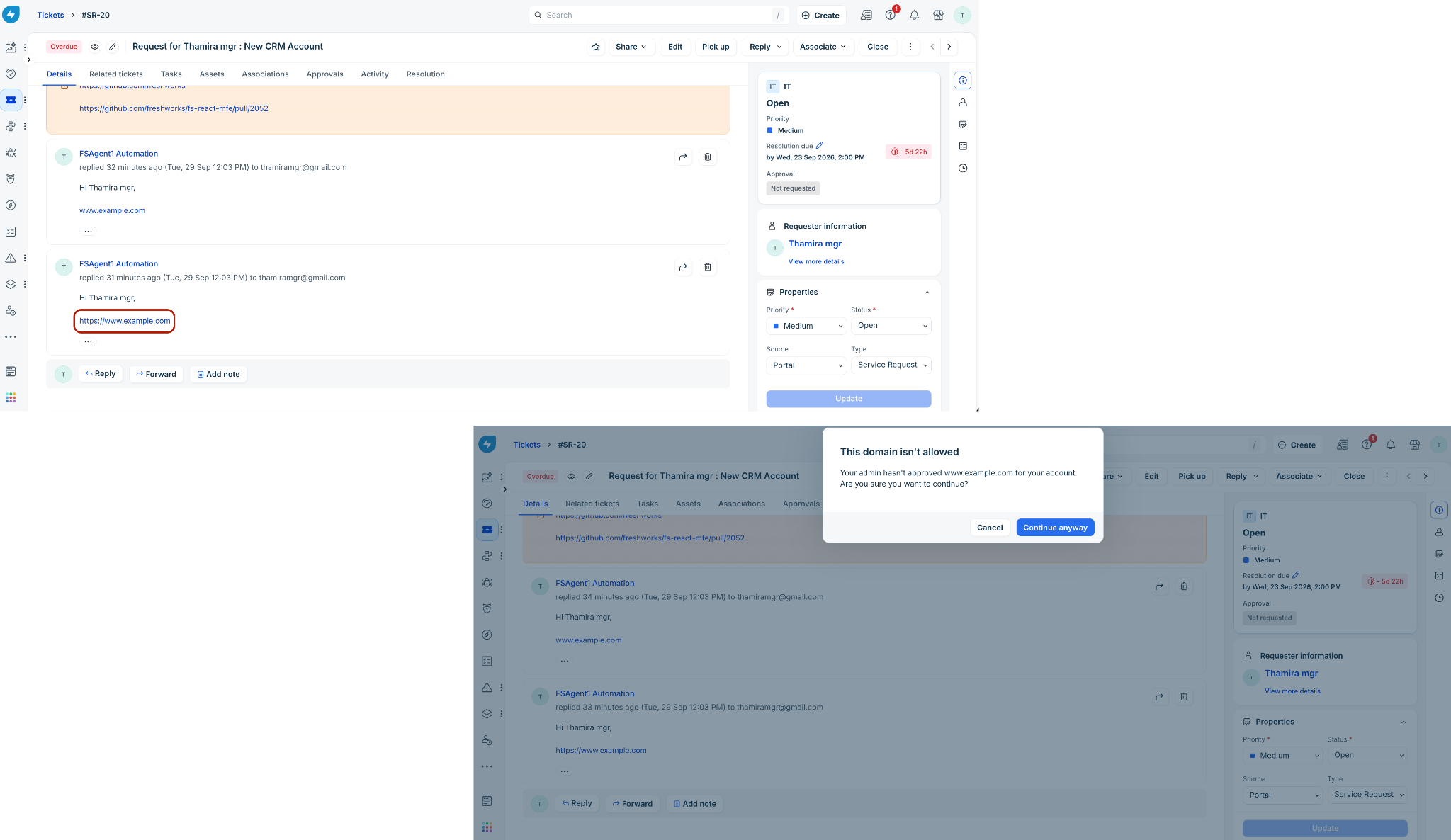
Unallowed domain (Action: Warn)
A dialog opens with a warning message. The user can choose Cancel or Continue anyway.
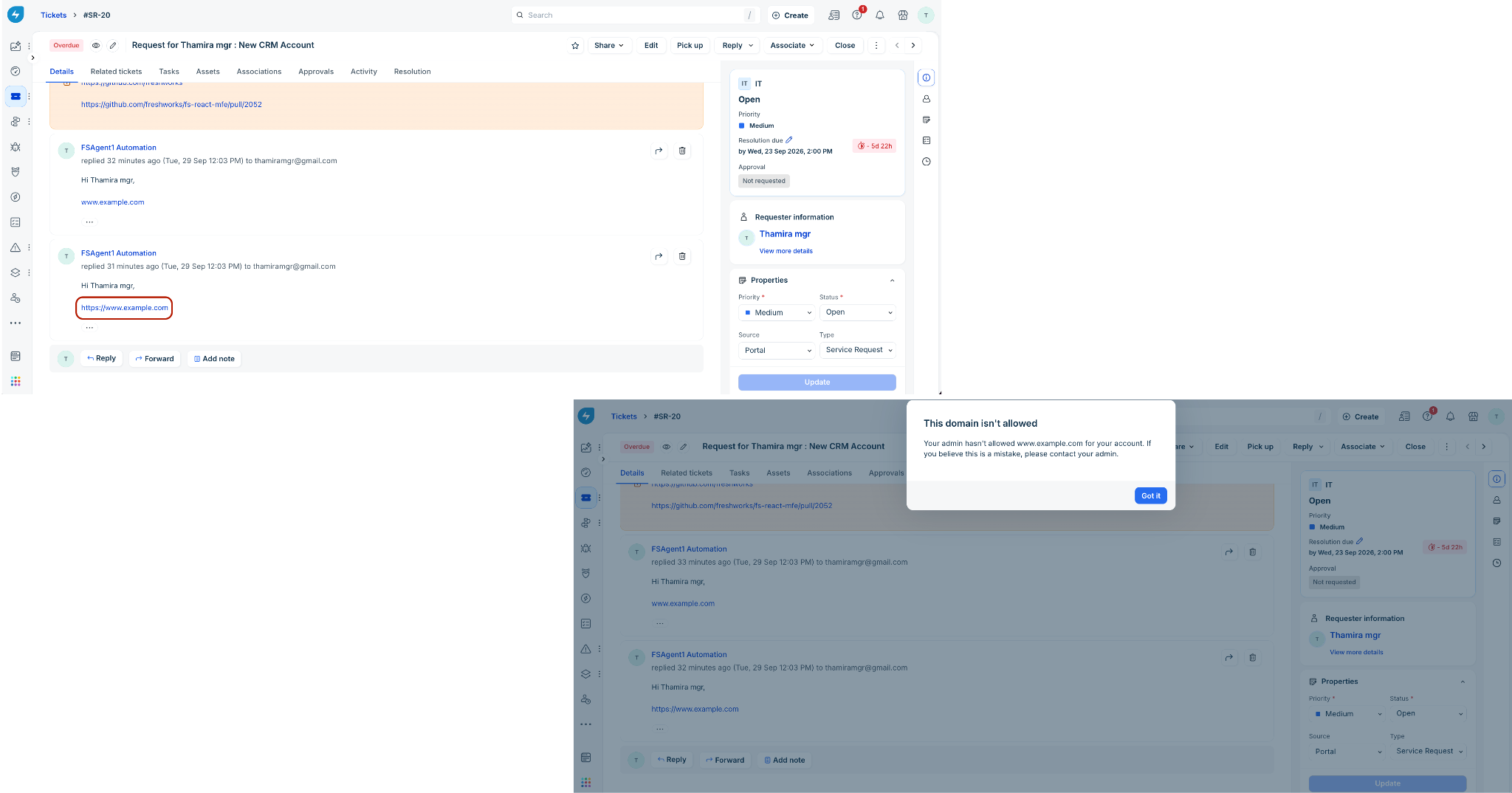
Unallowed domain (Action: Block)
A dialog opens with a blocking message. The user cannot proceed and must select Got it to dismiss the modal.
Upcoming enhancements
Bulk add allowed domains: A Bulk Add feature to import and manage multiple allowed domains simultaneously will be introduced in an upcoming release.
Content checking during link insertion: Real-time link checking when agents type or paste URLs in reply fields is planned as a future feature.
Domains with ports: Support for domains with ports is currently unavailable and will be added in a future update.