
 Community
 Video Library
 Agent Training
 Freshservice
 Freshdesk
 Freshchat
 Freshcaller
 Freshsales
 Freshteam
 Freshworks Neo
 Freshsurvey
 Freshservice for MSP
 TABLE OF CONTENTS
This article provides information on installing and configuring the Box app, mapping document templates to Box storage locations, and viewing and managing document upload status in Freshservice.
Prerequisites
Before you configure or use Box for document storage, ensure you have the following:
For admins
Global Admin privileges in Freshservice.
Access to the Box account and target folders where generated documents will be stored.
A Box user account with permission to install third-party apps. If your organization restricts app installations, a Box administrator must allow the Freshservice app.
A target folder that already exists in Box. Freshservice does not create folders automatically.
For agents
The Box app must be installed and configured by an admin.
The document template used to generate the document must have Box configured as its storage destination.
Overview
Freshservice lets you automatically upload generated documents to preconfigured folders in Box storage. Admins can configure a Box folder as the storage destination for a document template. When a document is generated using the template, Freshservice uploads the document to the configured Box location and keeps the document linked to the ticket for reference.
Storage mapping is configured at the document template level. This allows you to configure different Box folders for different document templates and maintain consistent storage practices across documents generated through service items, workflows, and other supported document-generation actions.
The integration helps your organization improve document management in the following ways:
Reduce manual effort for agents.
Prevent documents from being misplaced or stored only within tickets.
Maintain audit and compliance readiness.
Keep employee documents accessible beyond the ticket lifecycle.
Admin experience
Admins can connect a Box account, configure storage destinations for document templates, and manage failed document uploads.
Install the Box app
The Box app is installed and managed at the account level, with only one installation allowed per account.
To install and authorize the Box app, follow these steps:
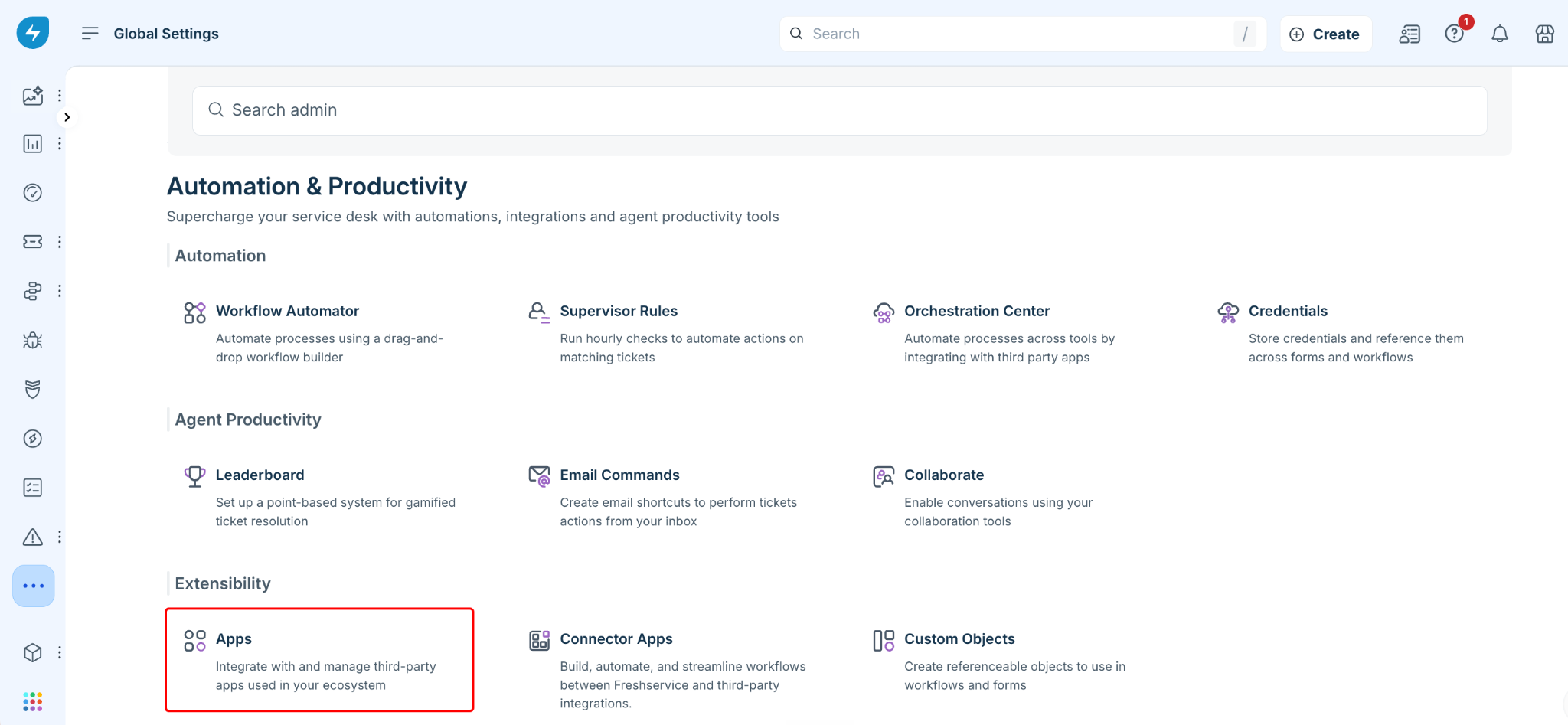
In Freshservice, go to Admin > Apps.
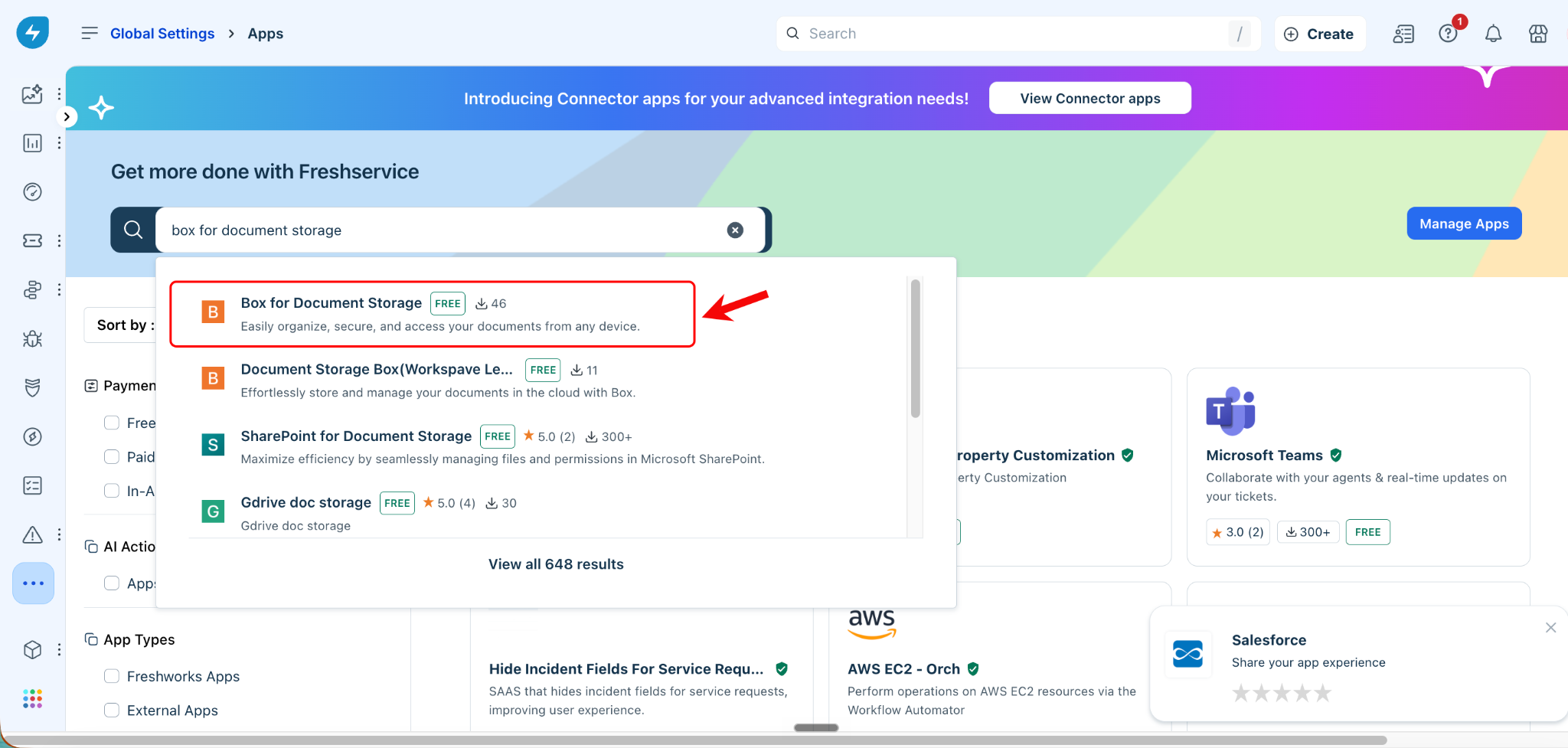
Search for and select Box for Document Storage.
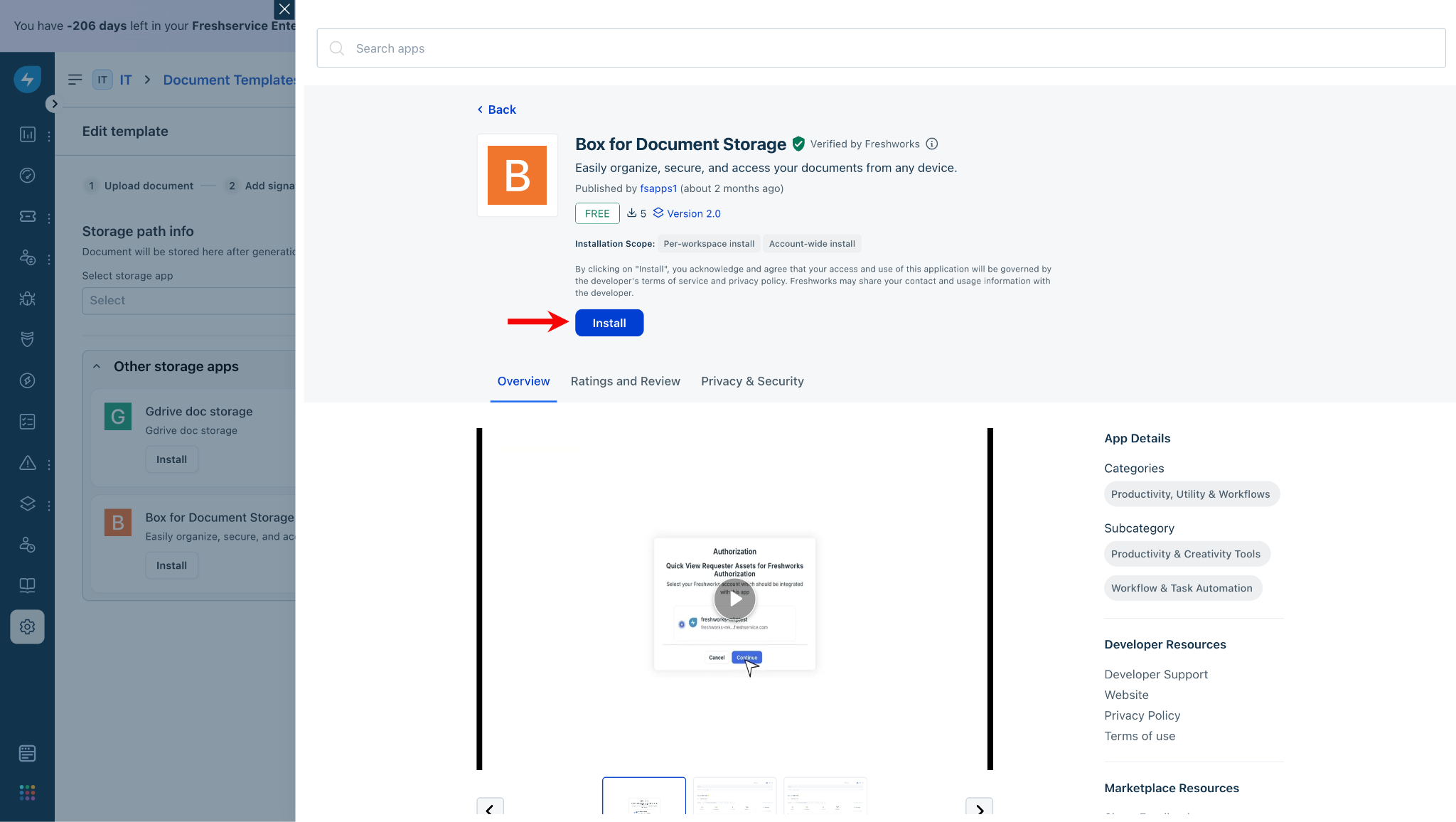
Click Install.
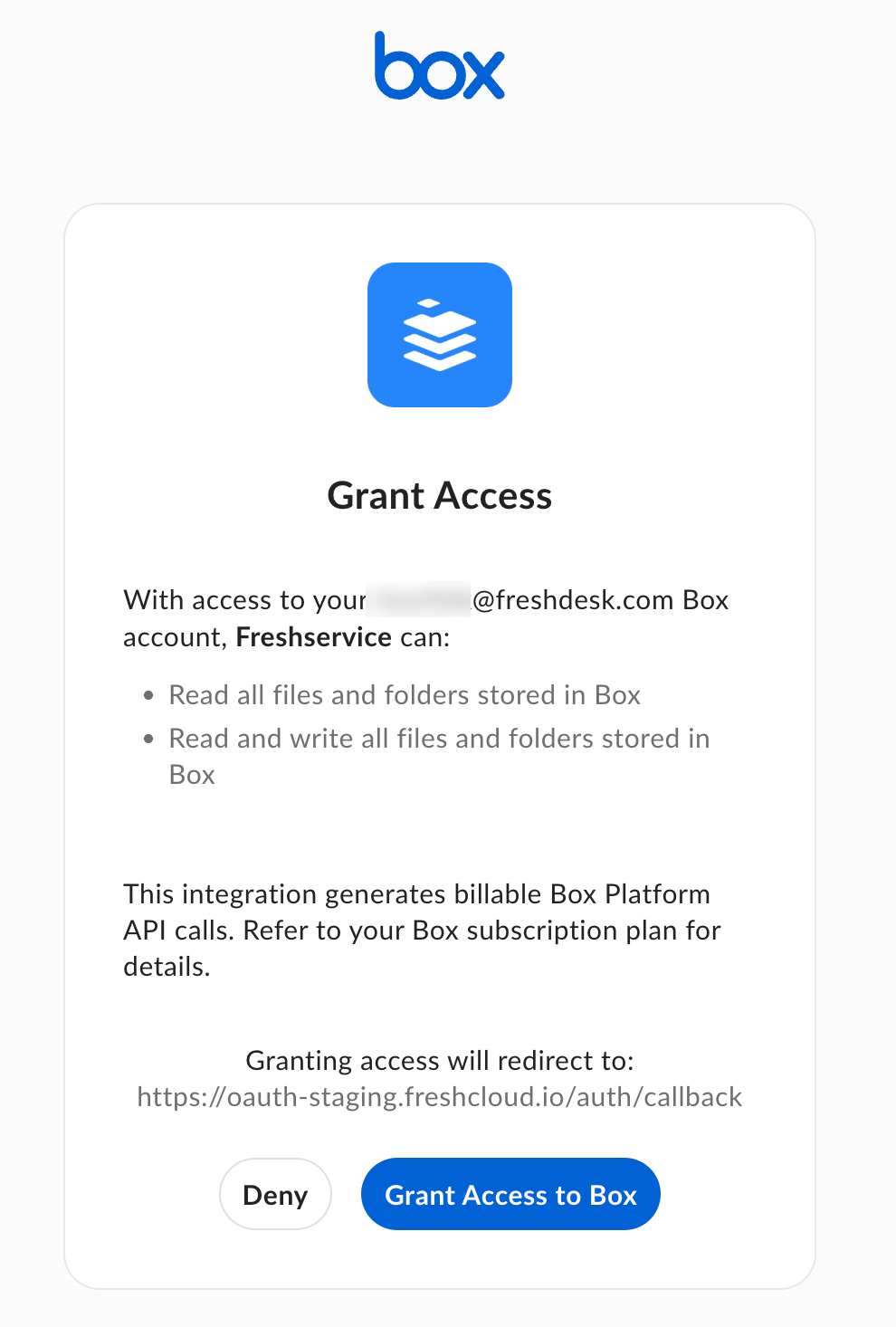
On the Box authorization screen, review the access requested for your Box account and click Grant Access to Box.
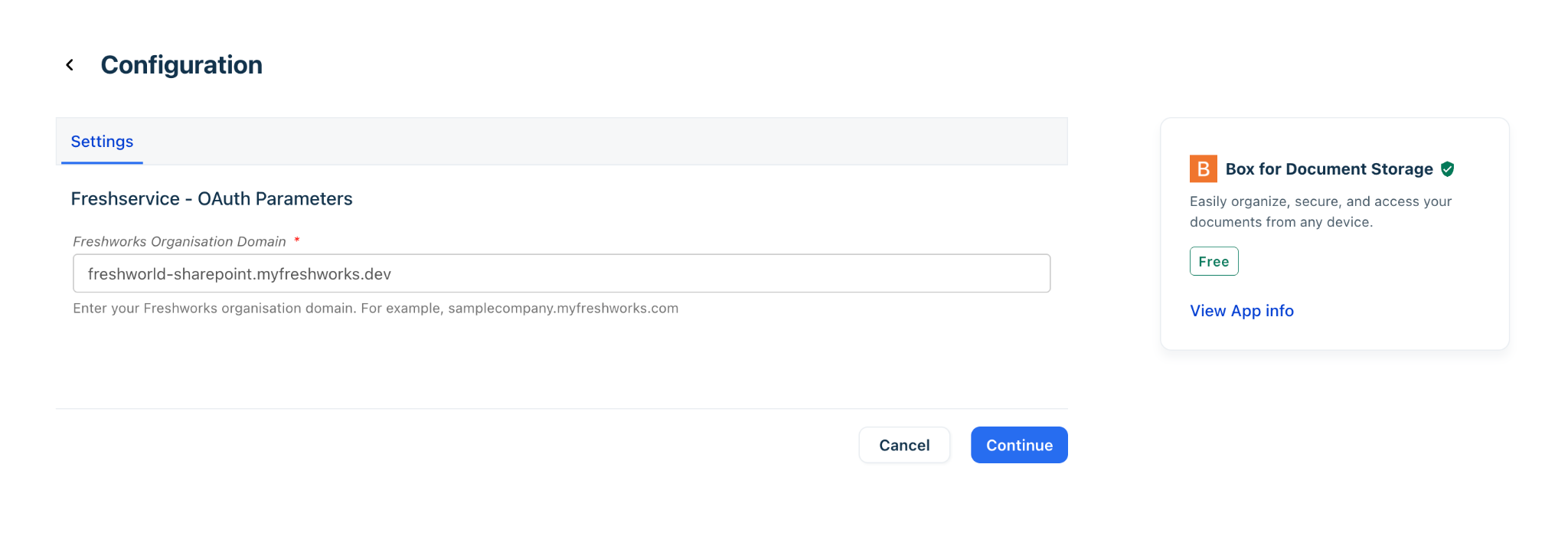
Enter or validate the Freshservice OAuth parameters (Freshworks Organization Domain). For example, samplecompany.myfreshworks.com. Then, click Continue.
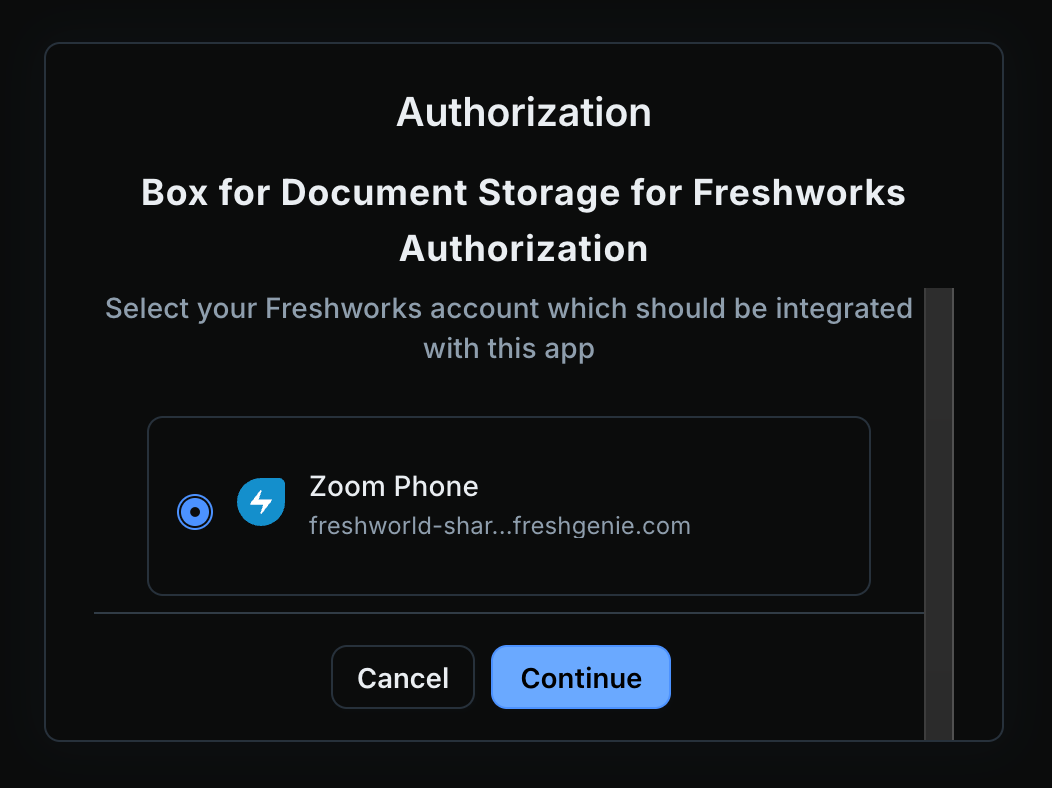
Select the Freshworks account to authorize Box document storage, and click Continue.
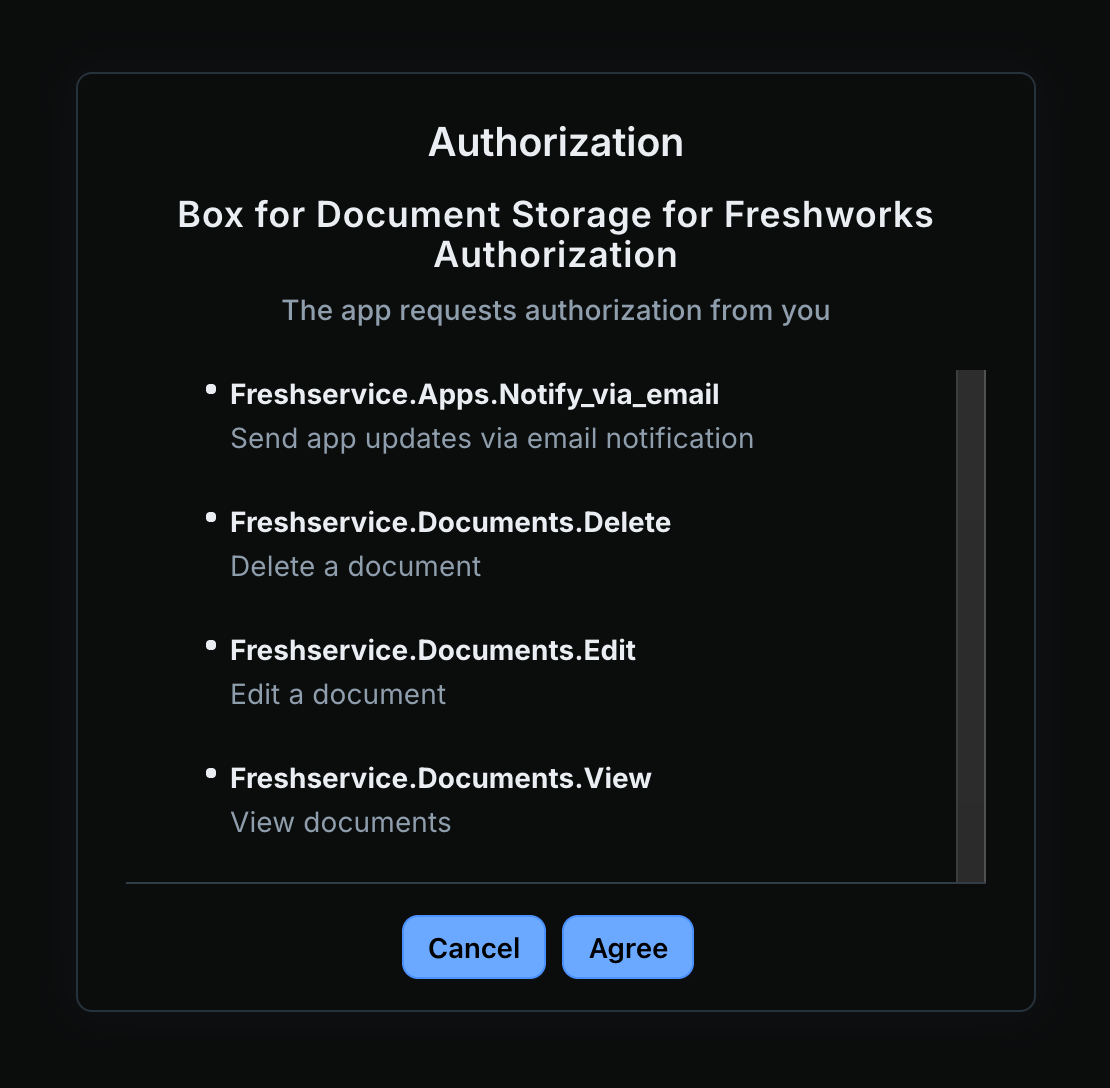
Review the permissions requested by the app, including permissions to view, edit, delete, and send notifications, and click Agree to authorize the app.
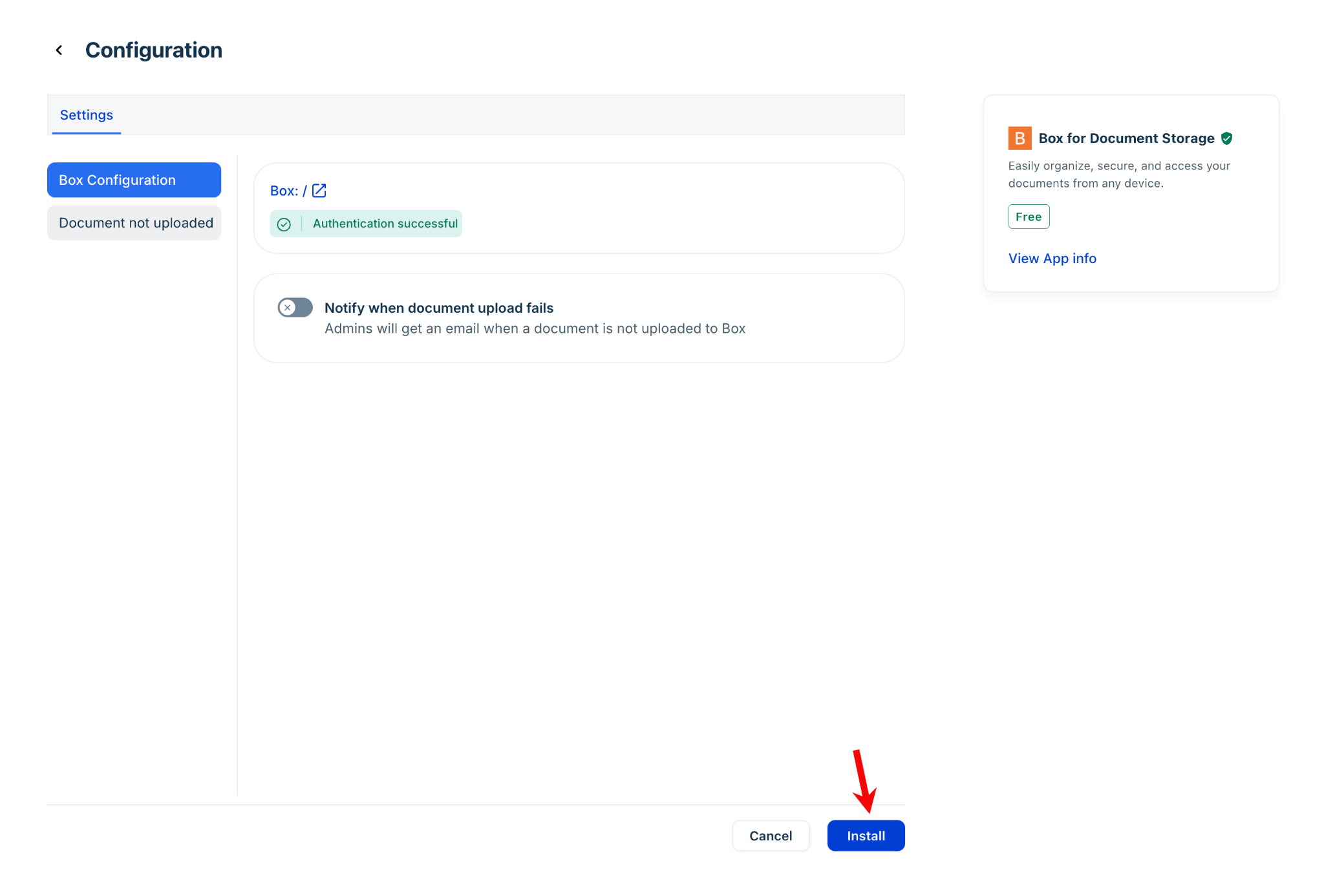
On the Configuration page, verify that the Authentication successful status is displayed.
Click Install to complete the installation.
Configure Box as a storage destination
After installing the Box app, configure the Box location where documents generated from a document template are stored. Storage mapping is configured at the document template level.
To configure Box as the storage destination for a document template, follow these steps:
Go to Admin > Document Templates and Signatures.
Open the document template that you want to configure.
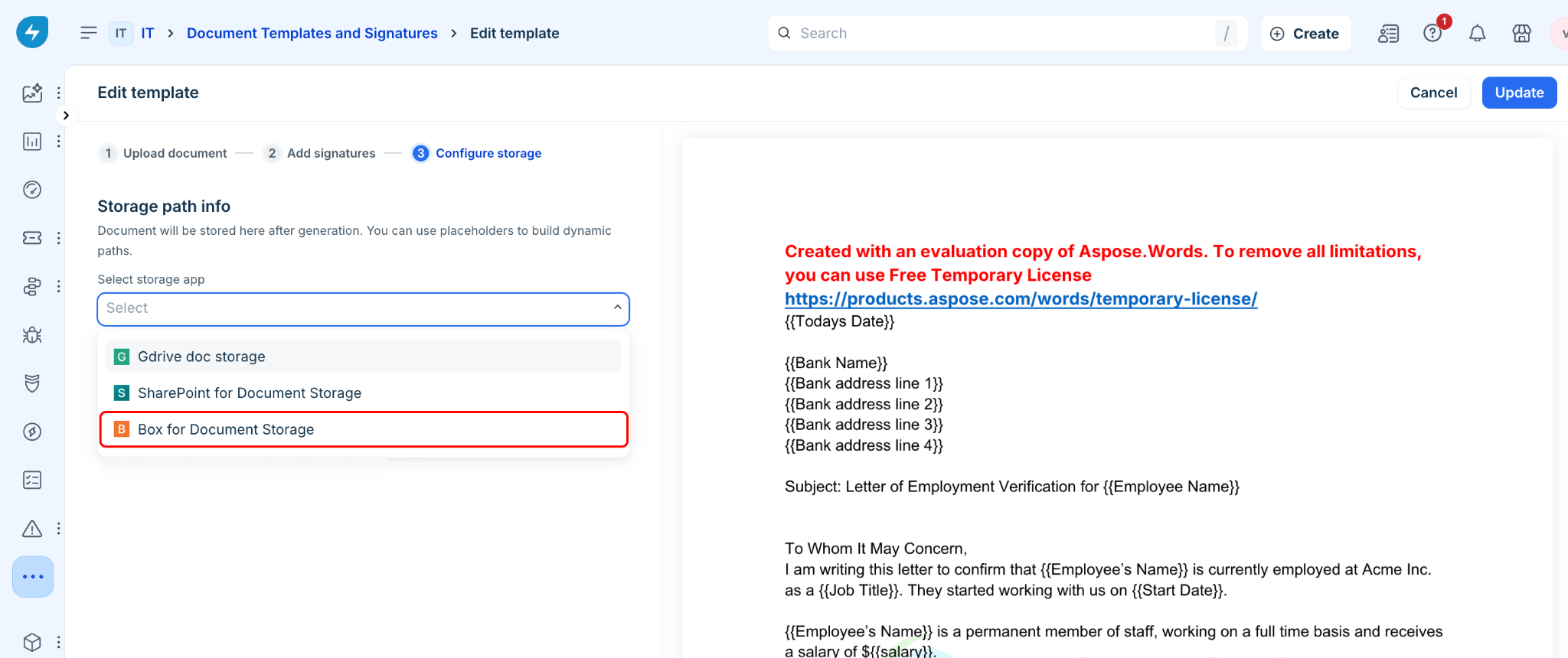
In the Select Storage app dropdown, select Box for Document Storage.
In the Storage path field, select or enter the target Box folder path. You can also include dynamic placeholders in the storage path, such as the employee name or ID stored in Freshservice as Requester or Requested for fields.
For example: HR Documents/{{Requester.Name}}/Onboarding. During document generation, Freshservice resolves these placeholders and uploads the document to the matching Box folder.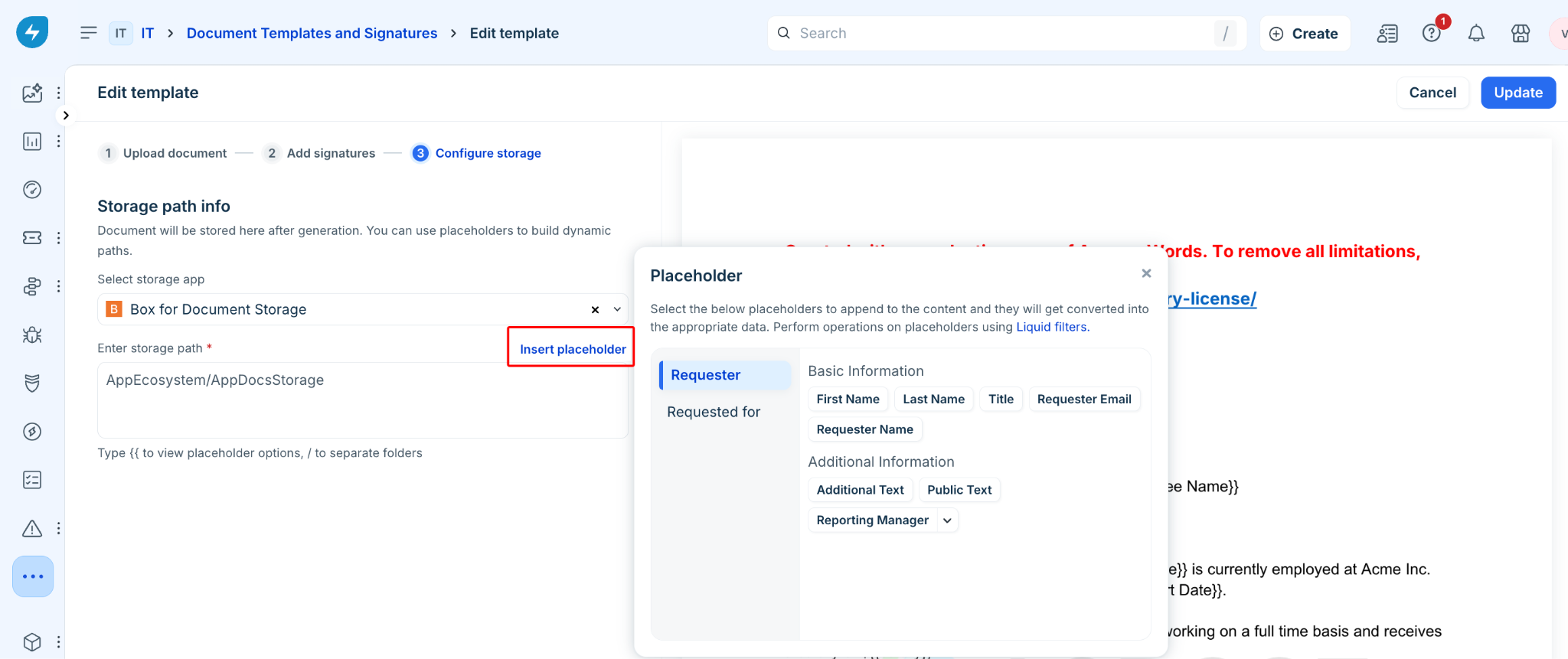
Click Update to save the document template. The next time the document is generated, Freshservice uploads it to the mapped Box folder and keeps the file linked to the ticket for reference.
Note:
The target Box folder must already exist. Freshservice does not create folders automatically.
Storage mapping is point-in-time. If you change the folder path later, documents that have already been generated stay in their original location.
For e-signature documents, the upload happens after the signing process is complete.
Manage failed document uploads
Admins can review document upload activity in the Box app logs and retry failed uploads without regenerating the documents.
View app logs
To view the Box app logs, follow these steps:
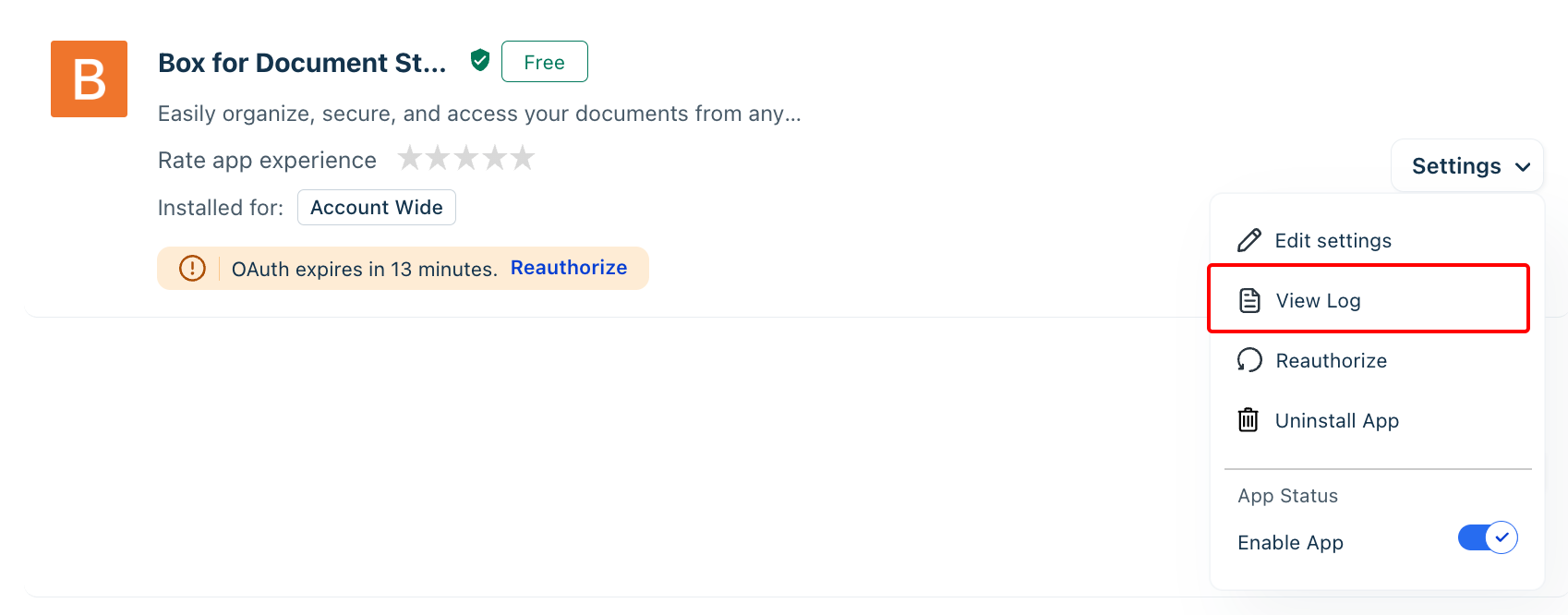
Go to Admin > Global Settings > Apps > Manage Apps.
Search and select Box for Document Storage.
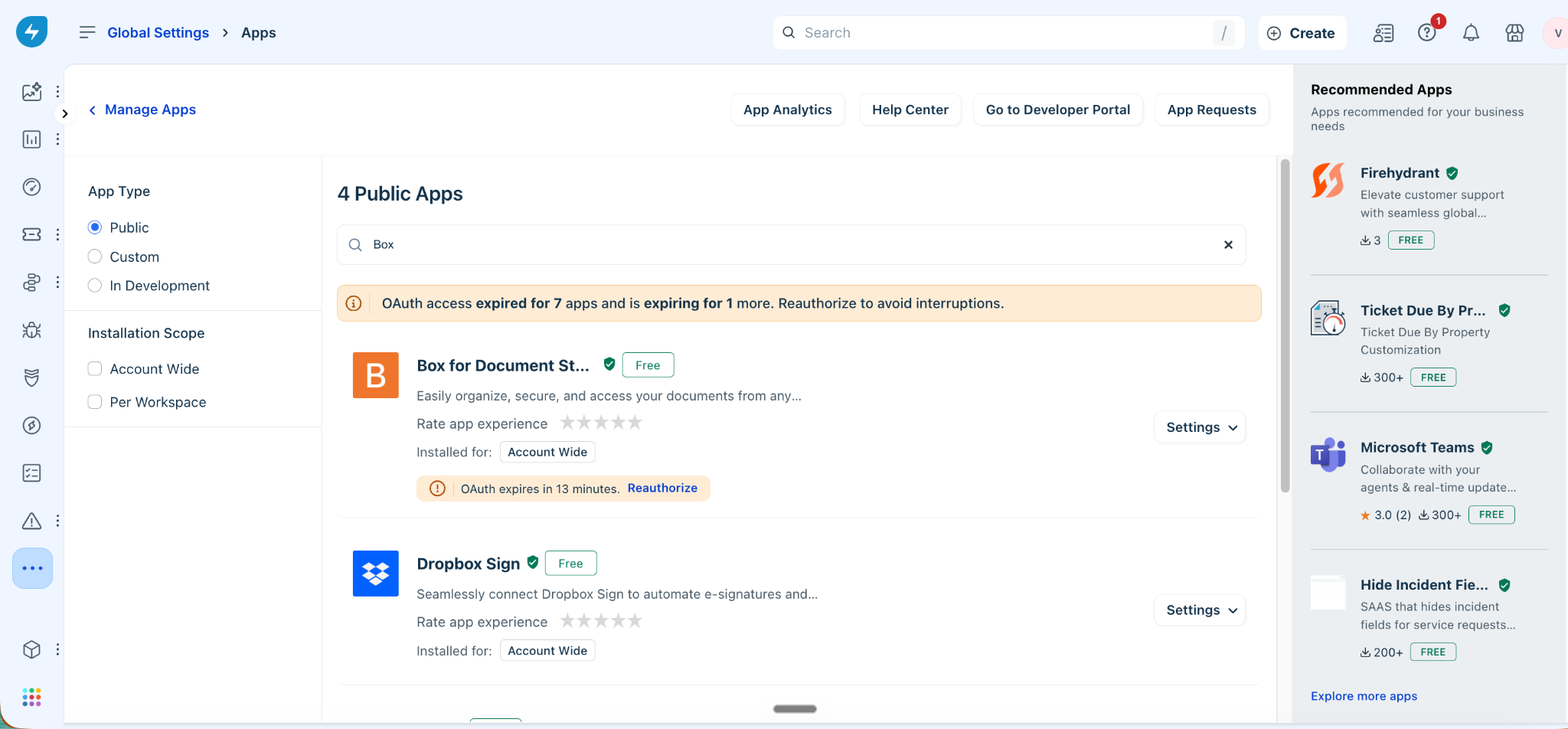
Select View Log.
You can filter the logs by a specific time period, such as the last hour, Today, a specific date, or a date range.
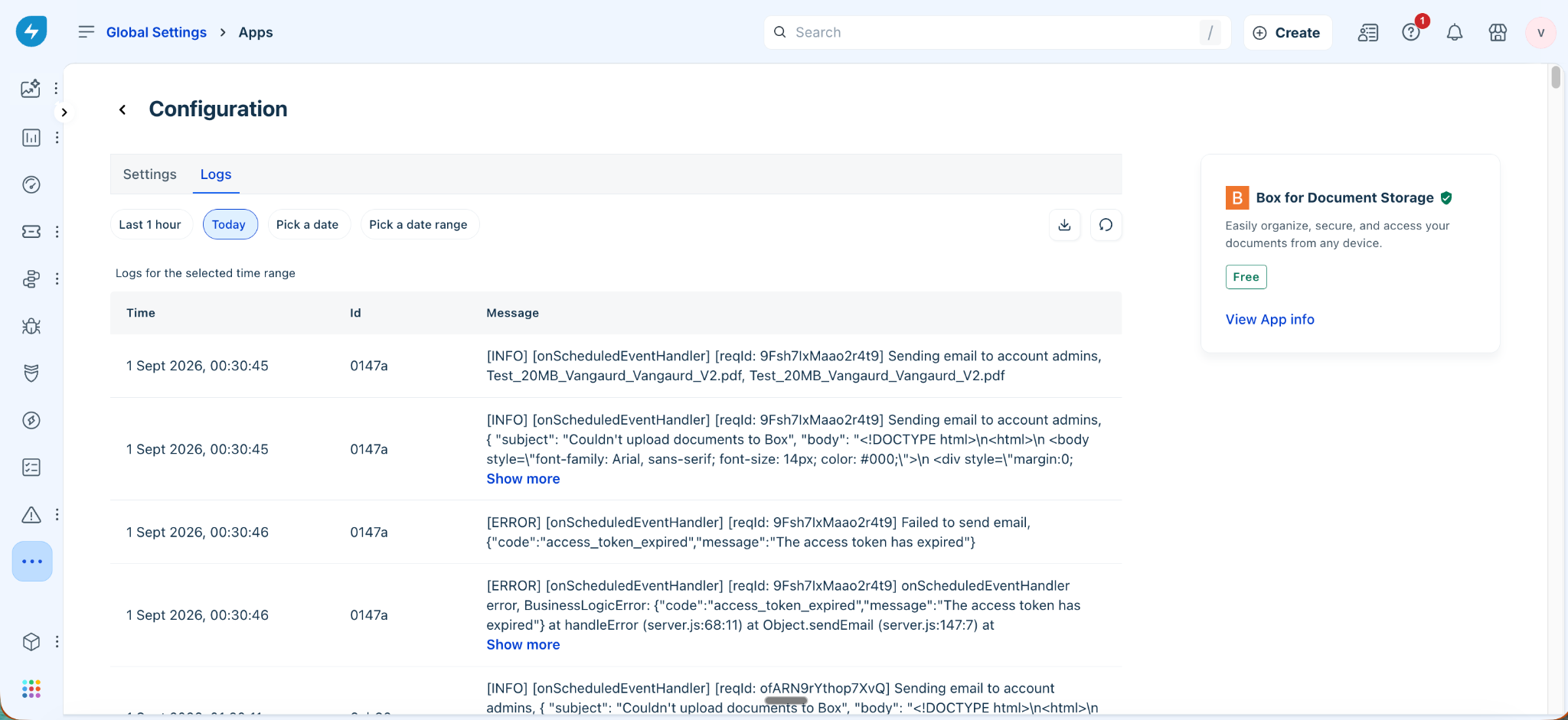
The app logs display the following information:
Time: Date and time when the log entry was recorded.
Id: A short identifier for the log entry (tied to the underlying request), used to trace a specific upload or notification attempt across multiple log lines.
Message: The full log detail for that entry, including the log level (INFO or ERROR), the handler that generated it (for example, onScheduledEventHandler), and contextual details such as the document name, the notification sent to admins, or the error code and reason (for example, access_token_expired) when something fails.
Retry failed uploads
Retry is supported only as a bulk action. Existing files in Box are not overwritten. If a naming conflict occurs, Freshservice appends the date and time to the file name.
To retry failed uploads, follow these steps:
In App logs, identify entries with a Failed status.
Fix the underlying issue in the Box app or in Box.
Select one or more failed entries.
Select Retry.
Freshservice attempts to upload the documents again using the original storage configuration.
Troubleshoot upload failures
If a document upload fails, Freshservice displays the failure reason in the app logs. Common causes include:
An invalid or incorrect Box folder path.
A placeholder in the storage path that resolves to an unexpected or empty value.
Insufficient permissions for the target Box folder or shared folder.
The connected Box account has been revoked or suspended.
The OAuth token for the connected Box account has expired.
The target folder has been deleted or moved to Trash in Box.
The Box storage quota for the connected account has been exceeded.
Fix the underlying issue and retry the failed upload from the Box app settings.
Admin notifications for upload failures
Freshservice sends upload failure notifications in batches. This allows admins to review multiple failures together instead of continuously monitoring the app logs. Admins can then identify the failed uploads in the app logs and retry them in bulk.
Agent experience
After an admin configures Box as the storage destination for a document template, agents can generate documents using the template without performing any additional Box configuration.
When an agent generates a document, Freshservice uploads it to the Box folder configured by the admin and keeps the document linked to the ticket for reference. Documents generated through workflows or auto-send actions follow the same upload behavior and status tracking.
Access a generated document in Box
When you generate a document using a template configured for Box storage, Freshservice automatically uploads the document to the configured Box location.
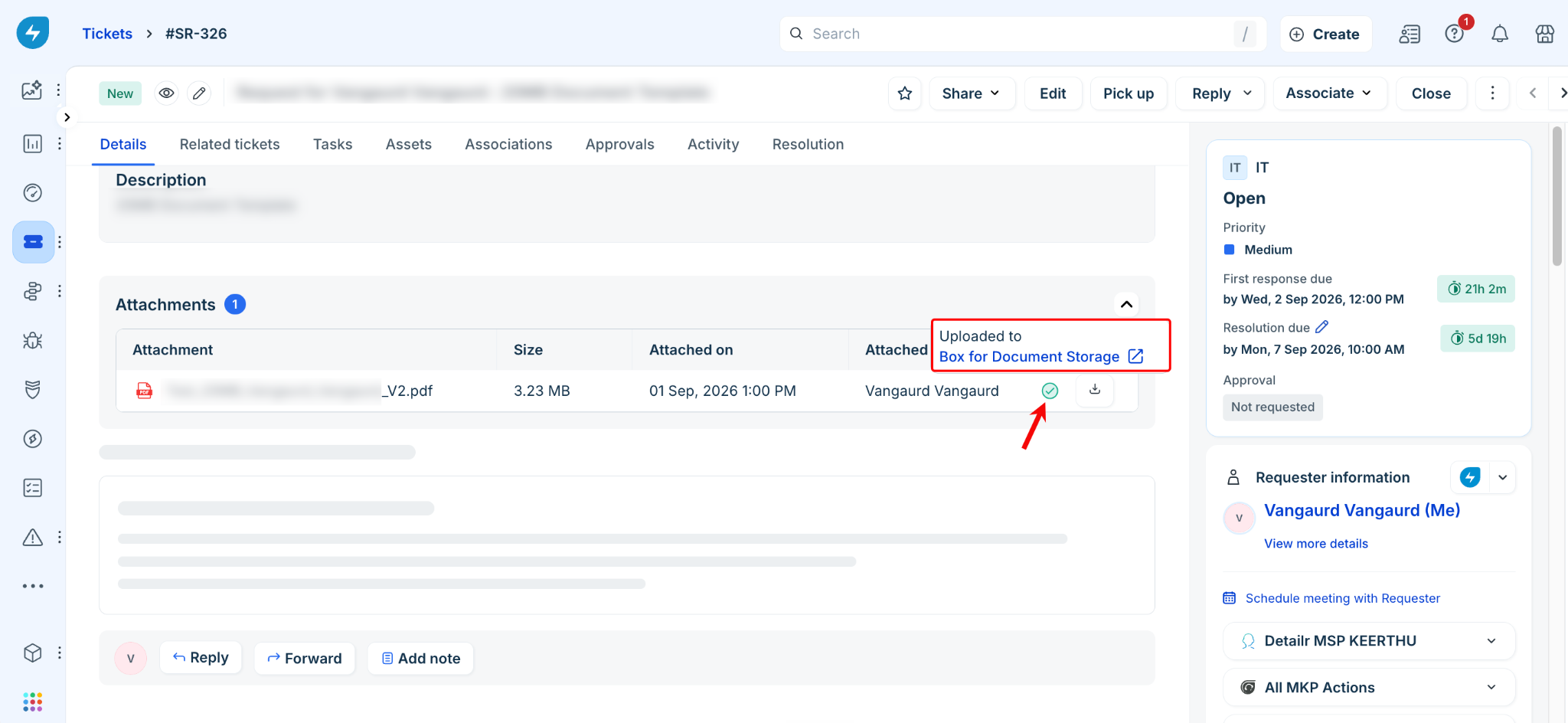
You can access the document from the ticket using the Box link associated with the generated document.
View the document upload status
You can check whether a generated document was successfully uploaded to Box from the ticket.
To view the upload status, follow these steps:
Open the ticket where the document was generated.
Go to the Attachments section.
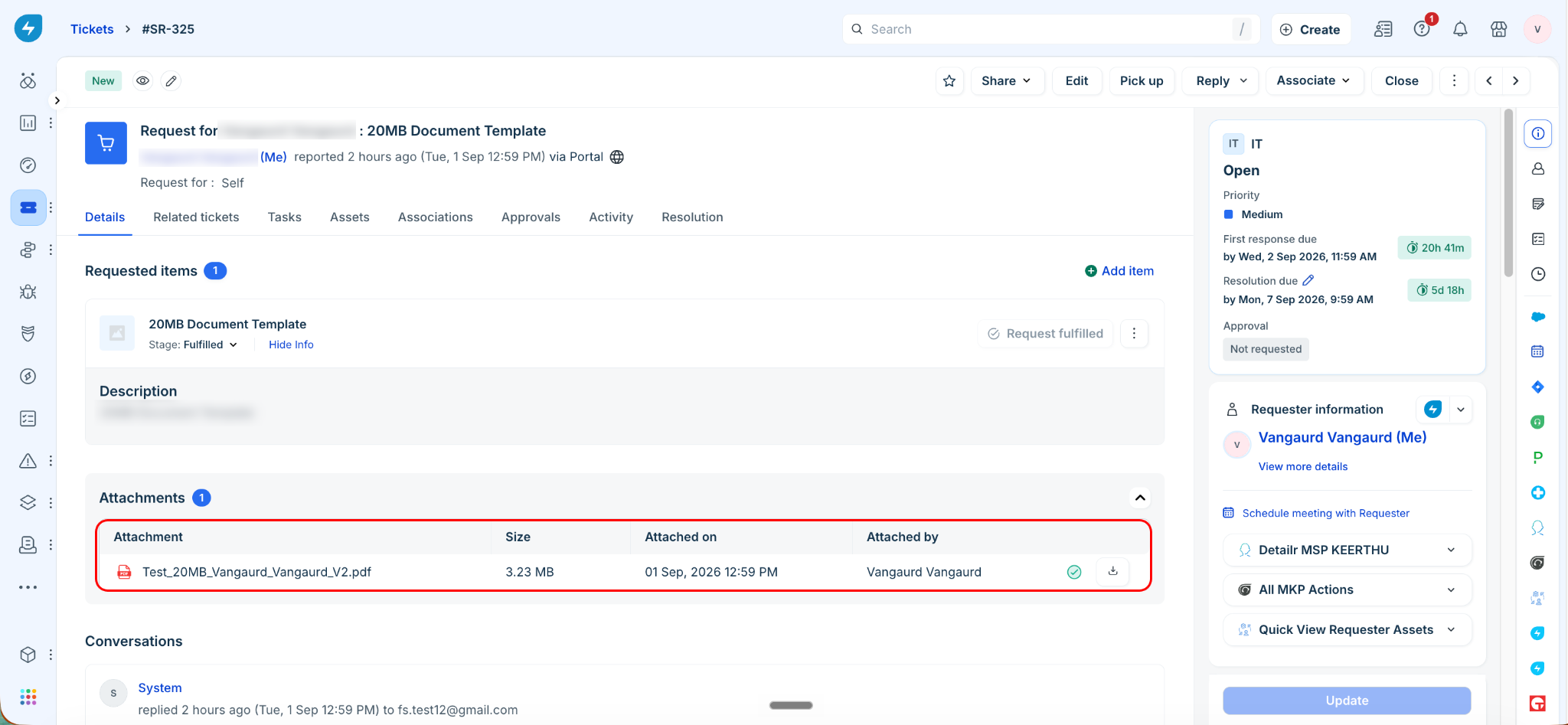
Locate the generated document and view its upload status.
The upload status indicates whether the document was uploaded successfully:
Note: Agents cannot retry failed uploads. Contact an admin to resolve the issue and retry the upload from the Box app settings.
Frequently asked questions
1. Can I configure different Box folders for different document templates?
Yes. Storage mapping is configured for each document template, so each template can point to a different Box folder.
2. Can I change the Box storage location after a document is generated?
No. Storage mapping is applied when the document is generated. Changes to the storage path apply only to documents generated after the change.
3. Are restricted documents supported?
Yes. Restricted documents can also be uploaded to Box. Access to the Box link follows the existing sharing and permission settings of the target folder.
4. Are documents generated through workflows uploaded to Box?
Yes. Documents generated through workflows or auto-send actions follow the same upload behavior and status tracking.
5. Are existing files overwritten if the same document is generated again?
No. Freshservice prevents existing files from being overwritten. New versions are saved with an incremented version number. If a naming conflict still occurs, Freshservice appends the date and time to the file name to create a unique file name.
6. Does Freshservice create folders automatically in Box?
No. The target folder must already exist in Box, and the connected Box account must have edit access to the folder.
7. What placeholders can I use in the storage path?
You can use Requester and Requested for fields, including default and custom fields, if the field type is string or number. Number values are automatically converted to text. Type {{ in the Storage path field to view the available placeholders.
8. What happens if the Box app is disabled or uninstalled?
The behavior depends on the app status:
Disabled: Existing mappings are retained, but new documents are not uploaded until the app is enabled again.
Uninstalled: All document template mappings for the account are removed, and Box links are no longer displayed on tickets in that account.
Known limitations
The current version of the Box integration has the following limitations:
Freshservice does not automatically create folders in Box. The target folder must already exist.
Folder-level permissions are managed in Box. Uploaded files inherit the sharing settings of the target folder.
Only one storage path can be configured for each document template.
Retention policies are managed in Box and cannot be controlled from Freshservice.
Only one Box account can be connected to the app for each account.
The placeholder dropdown supports only Requester and Requested for fields of the string or number type. Other field types are not available as placeholders.