
 Community
 Video Library
 Agent Training
 Freshservice
 Freshdesk
 Freshchat
 Freshcaller
 Freshsales
 Freshteam
 Freshworks Neo
 Freshsurvey
 Freshservice for MSP
 TABLE OF CONTENTS
- Prerequisites
- Overview of metadata mapping
- How metadata mapping works
- Configure metadata mapping for a document template
- Apply mapping to other document templates
- Supported field data types
- Resolve metadata mapping errors
- Get notified when a document upload fails
- View document upload and sync status on a ticket
- Frequently asked questions
This article explains how to map ticket, requester, and service item information from Freshservice to SharePoint properties when you upload documents generated from Freshservice. It also describes how to configure metadata mapping, reuse mappings across document templates, and resolve mapping or sync issues.
Prerequisites
Before you configure metadata mapping, ensure that you have the following:
Administrator privileges to configure app settings in Freshservice.
The SharePoint for document storage app installed and authenticated.
A SharePoint site linked to Freshservice. Metadata mapping cannot be configured until the SharePoint site is linked.
Overview of metadata mapping
The SharePoint for document storage app lets you upload documents generated in Freshservice, such as offer letters, NDAs, or verification letters, directly to SharePoint. With metadata mapping, you can also transfer relevant information from Freshservice to SharePoint properties when the document is uploaded.
You can map values from document template placeholders, service item fields, requester fields, and system metadata. For example, you can map the requester's name, ticket ID, or a service item field to a corresponding SharePoint property. Once a document template is mapped, every document generated from that template and uploaded to SharePoint automatically carries the mapped values.
This removes the need for agents to manually update document properties in SharePoint after each upload. It also helps keep SharePoint libraries organized and makes documents easier to search and manage based on their metadata.
Metadata mapping is configured for each document template. If multiple document templates use the same SharePoint drive, you can copy common requester and system metadata mappings to other templates instead of configuring them individually. However, metadata mapping isn't available for document templates whose SharePoint site or drive is defined using placeholders because the destination cannot be resolved in advance.
How metadata mapping works
For every document template stored in your linked SharePoint drive, you can map the following fields:
Document template placeholders: Placeholders defined in the document template, such as {Employee_Full_Name}.
Service item fields: Fields specific to the service item associated with the document template.
Requester fields: All public requester fields, including the requested for field.
System metadata: Ticket fields such as Ticket ID, subject, ticket URL, agent name, agent email, department, workspace, category, and date created.
After you configure the mapping, Freshservice transfers the mapped values to the corresponding SharePoint properties when a document is generated and uploaded.
Configure metadata mapping for a document template
Before you begin, make sure your SharePoint site is linked under SharePoint configuration.
To configure metadata mapping for a document template, follow these steps:
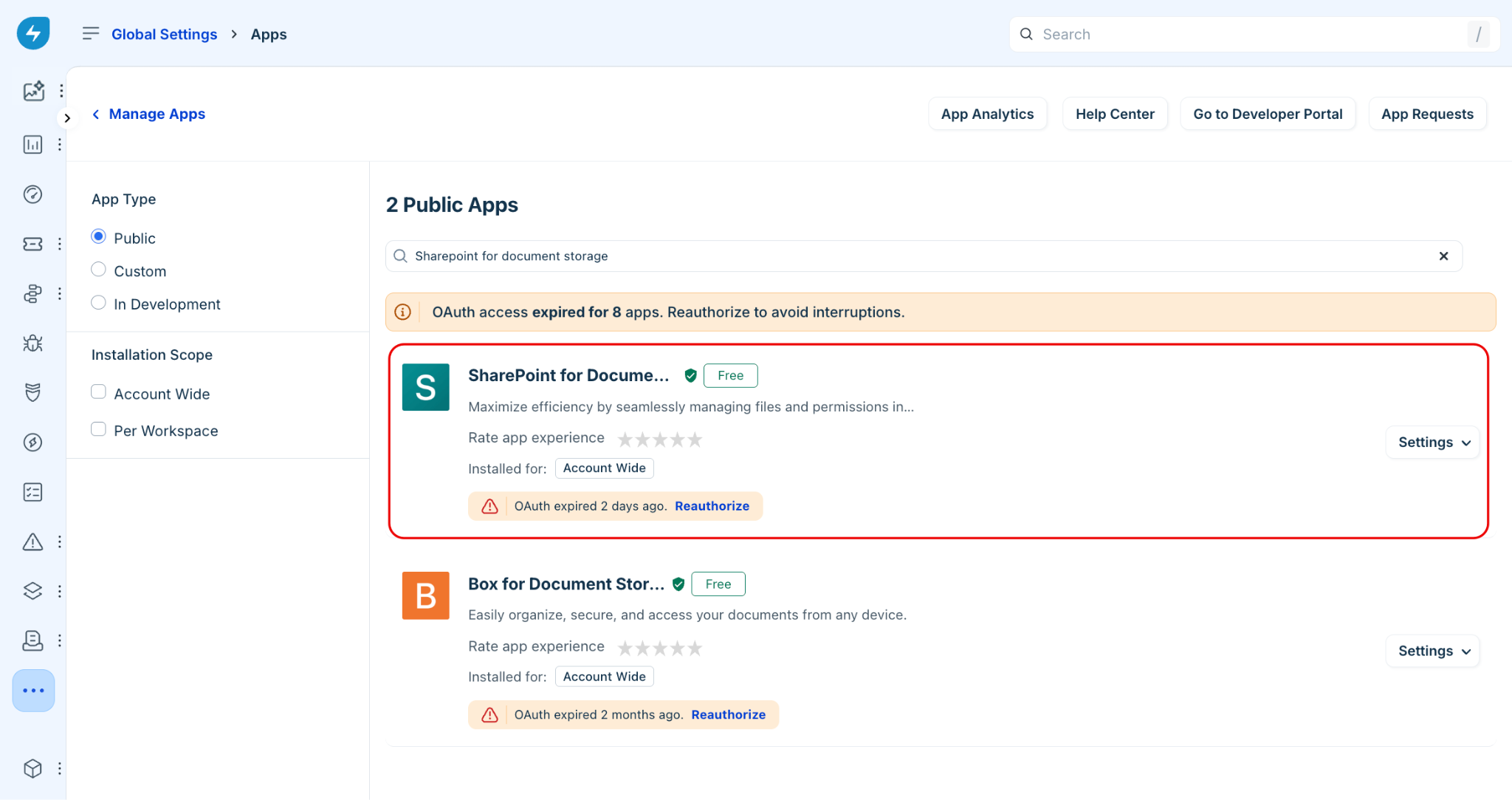
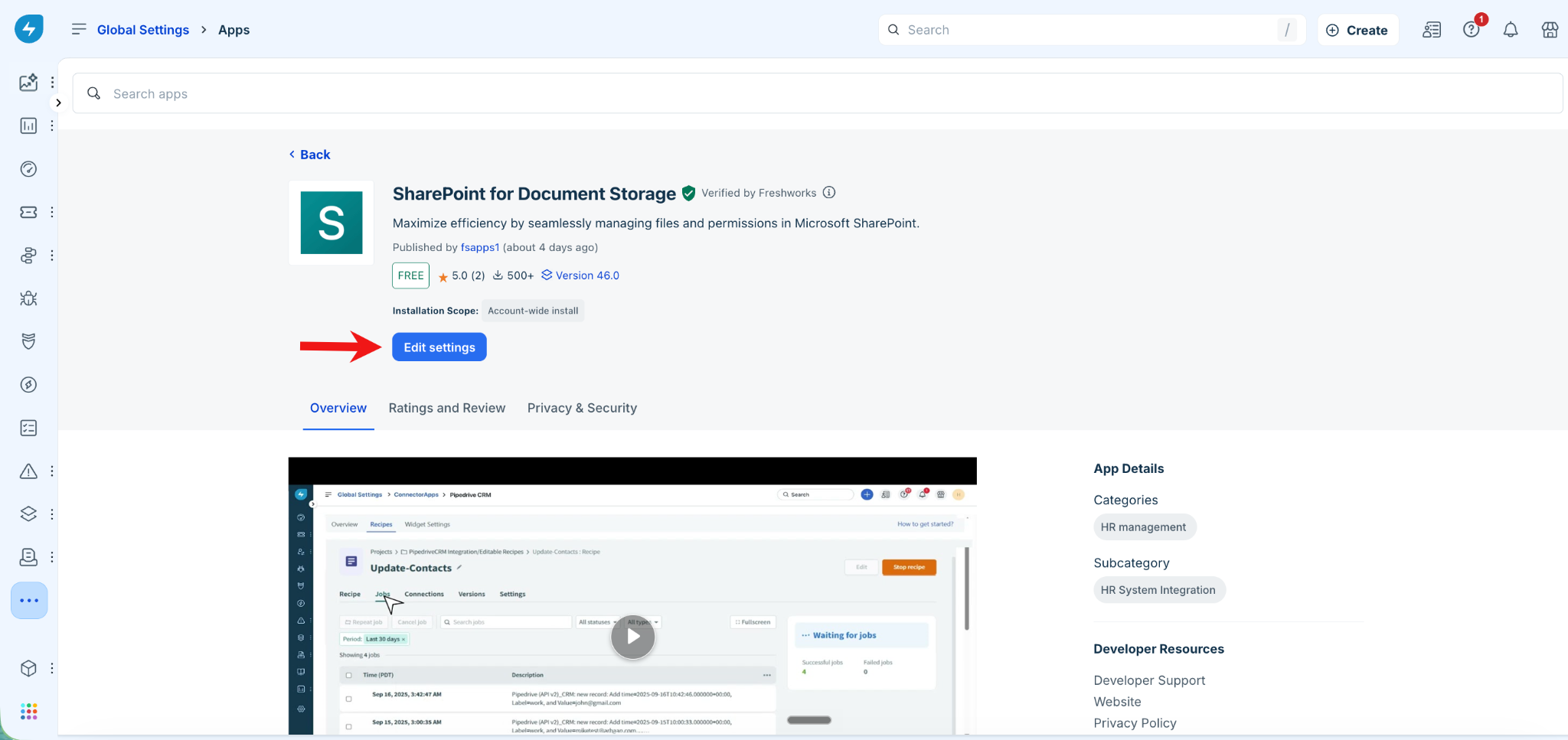
Go to Global Settings > Apps.
Search for and open SharePoint for document storage.
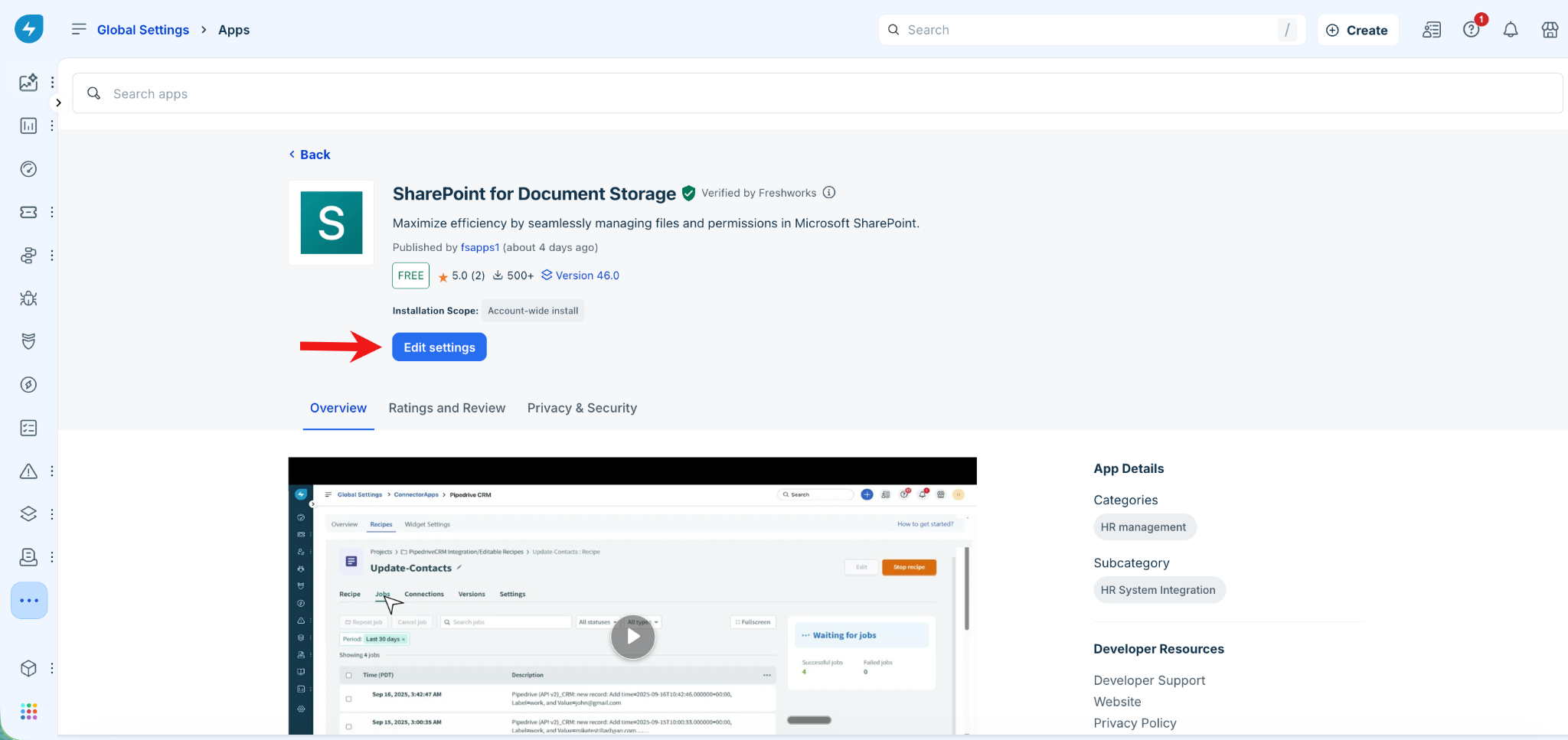
Click Edit settings.
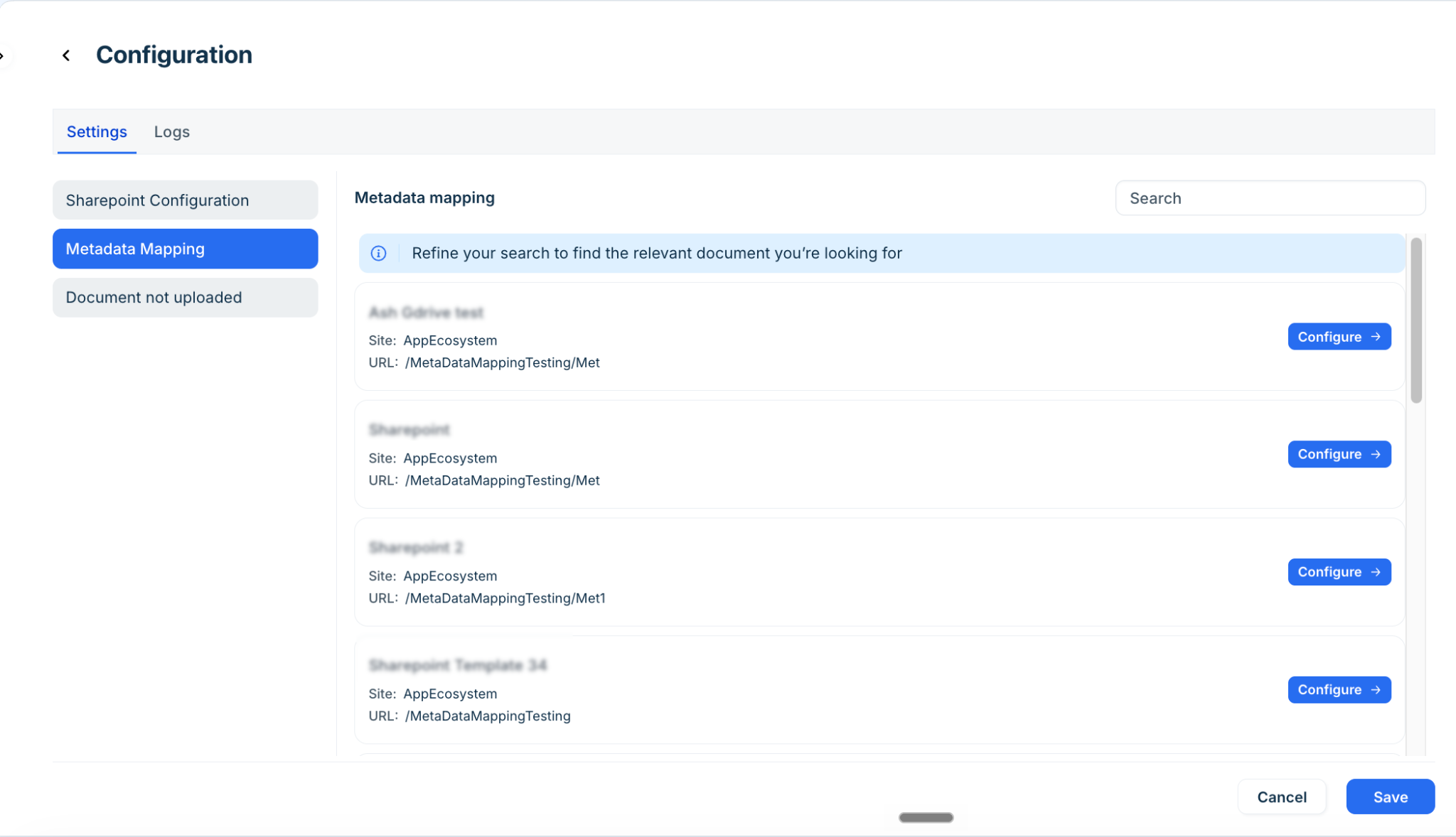
On the Configurations page, under Settings, select Metadata mapping.
Use the Search field to find a specific document template, or scroll through the paginated list.
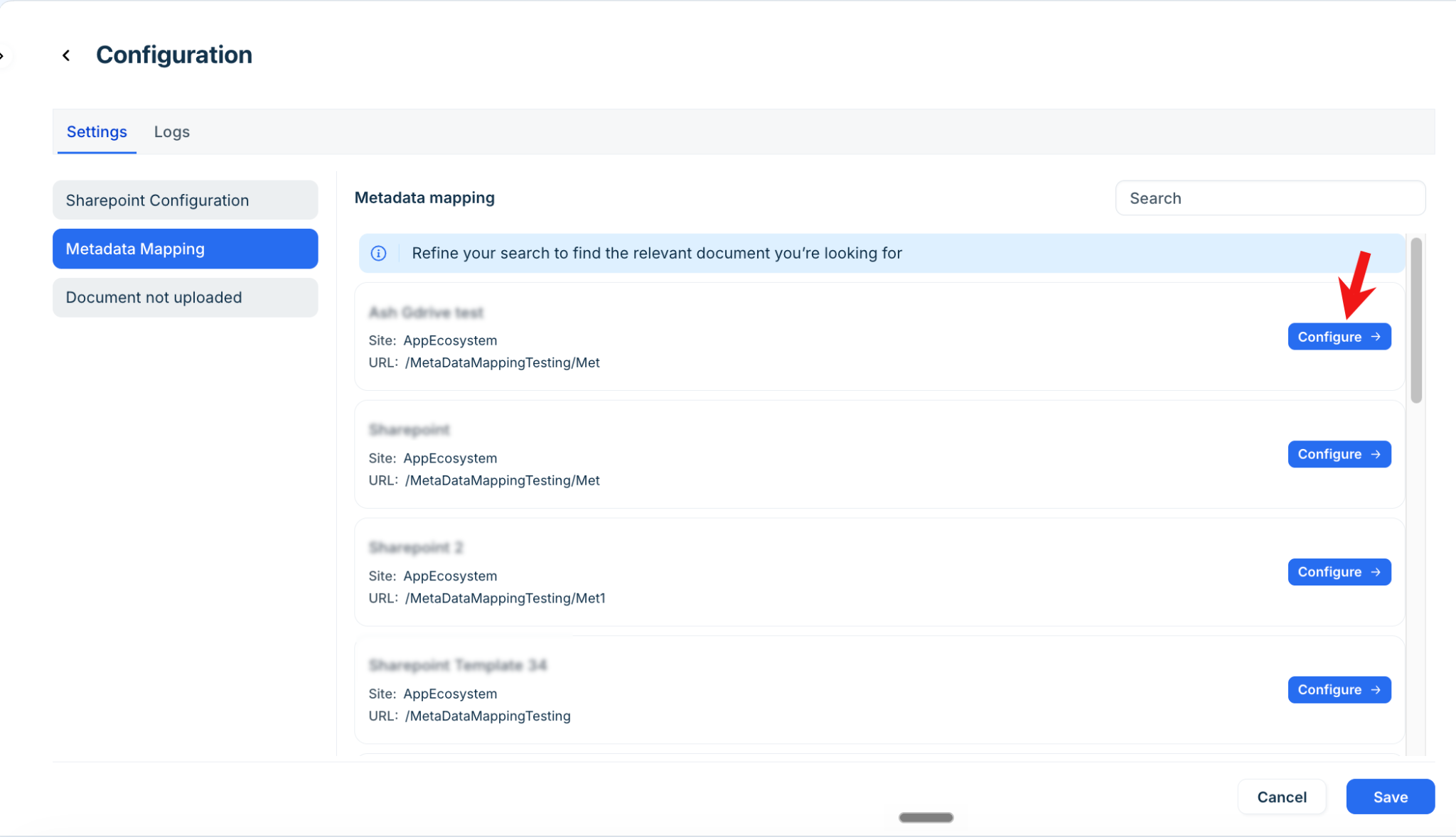
Click Configure next to the document template that you want to map.
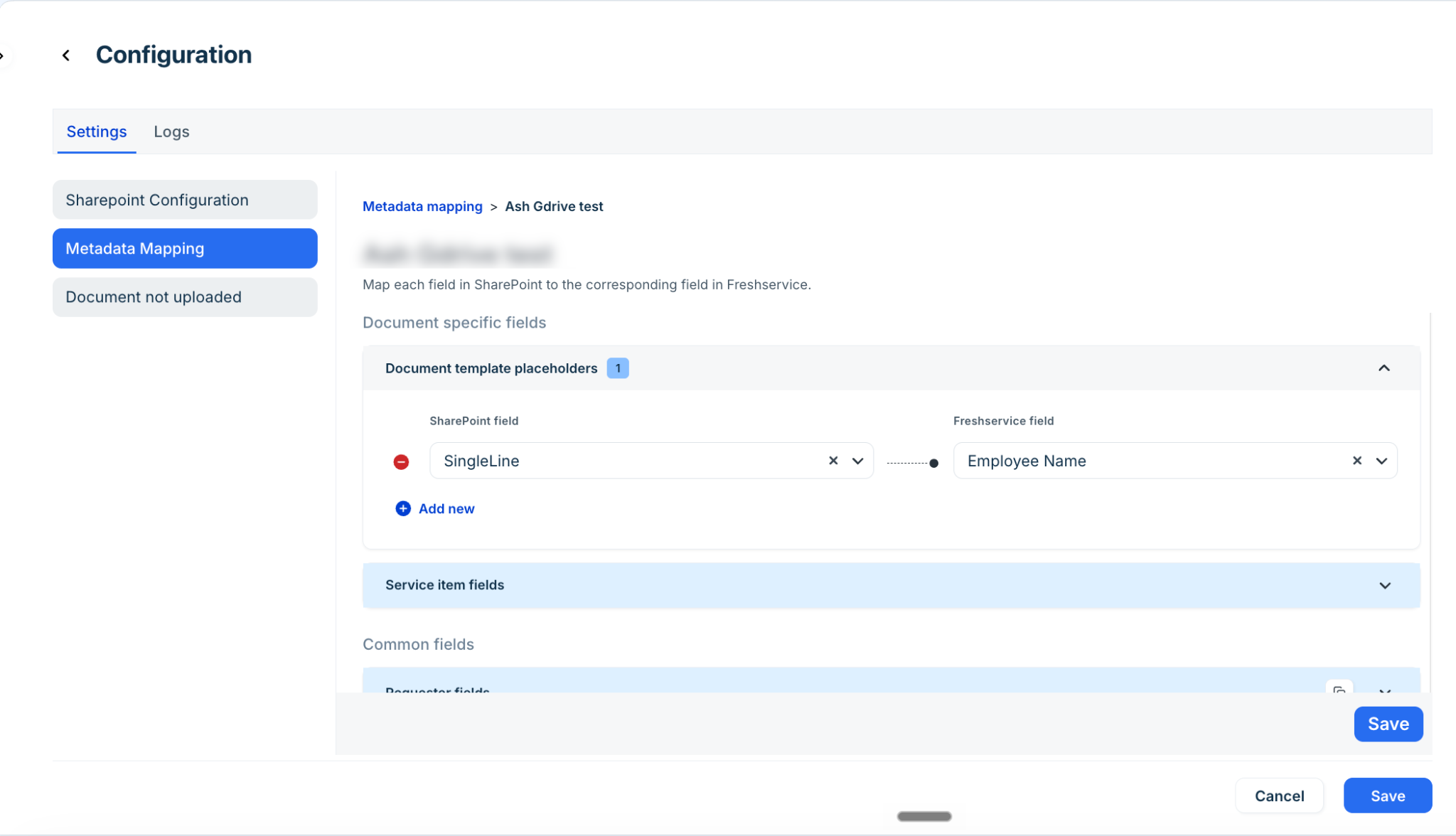
Under Document-specific fields, expand Document template placeholders and select a SharePoint field and the corresponding Freshservice field for each placeholder in the template. Click Add new to map additional placeholders.
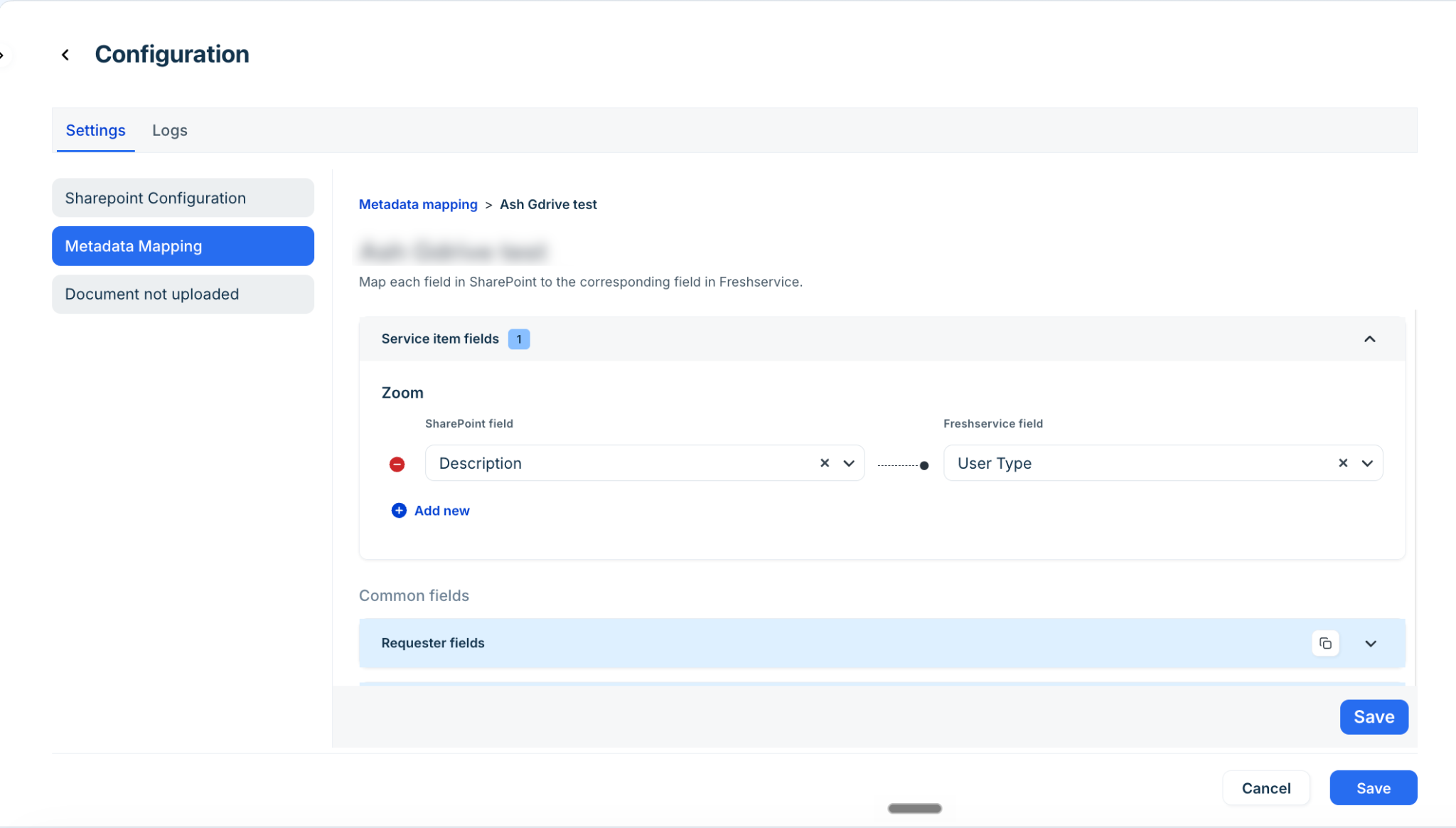
Expand Service item fields and map the SharePoint fields to the relevant Freshservice service item fields. Click Add new to map more fields within a service item.
Similarly, under Common fields, expand Requester fields and map the relevant SharePoint fields to requester fields, such as name or department.
Expand System metadata and map SharePoint fields to ticket fields, such as Ticket ID, Agent name, or Date created.
Click Save.
After you save the mapping, the document template appears in the Metadata mapping list with the number of fields mapped.
Note: Metadata mapping cannot be configured for document templates whose storage location, such as the SharePoint site or drive, is defined using placeholders.
Apply mapping to other document templates
If multiple document templates share the same SharePoint drive, you can copy common field mappings to other templates instead of configuring them individually. You can copy requester fields and system metadata mappings.
To apply mapping to other document templates, follow these steps:
Go to Global Settings > Apps.
Search for and open SharePoint for document storage.
Click Edit settings.
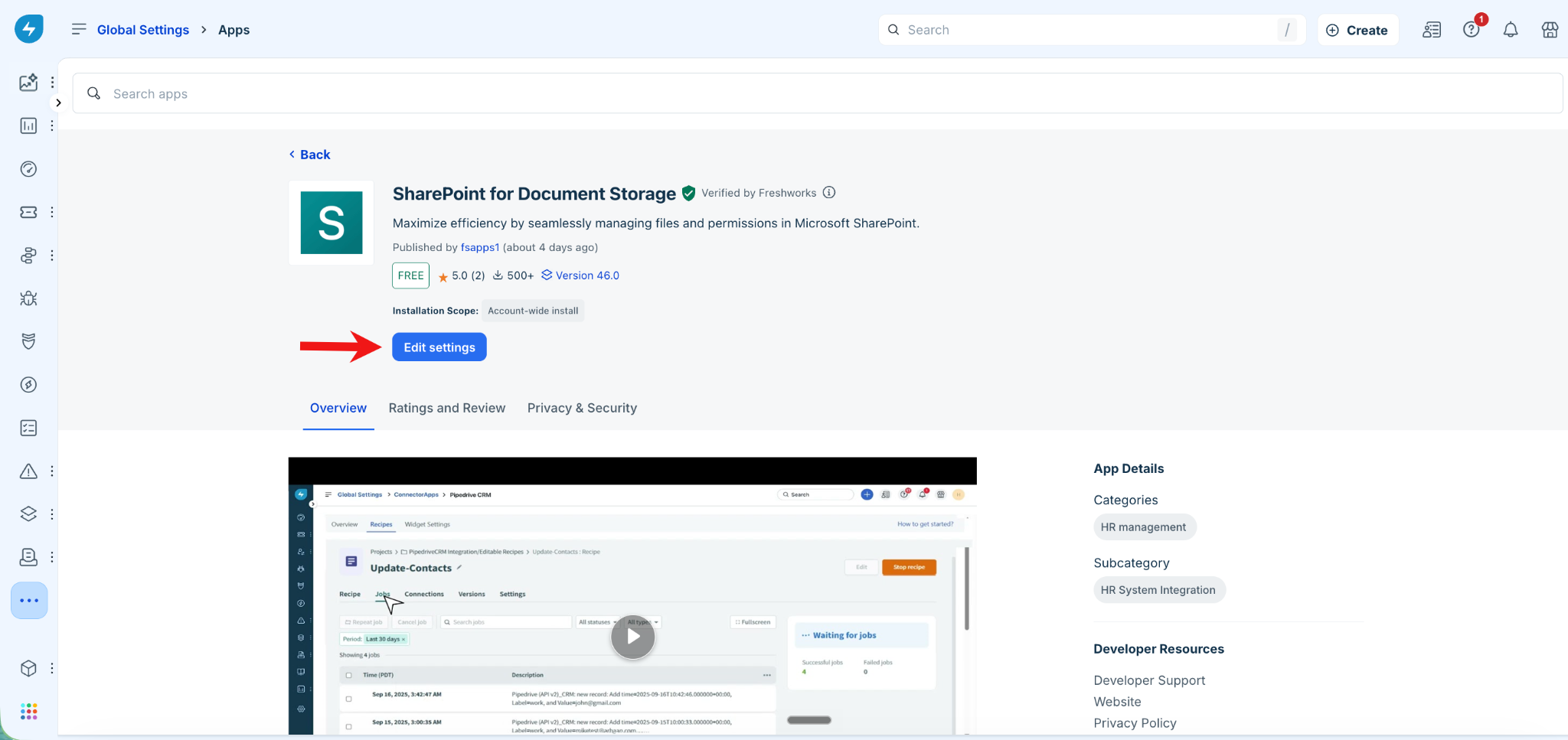
On the Configurations page, under Settings, select Metadata mapping.
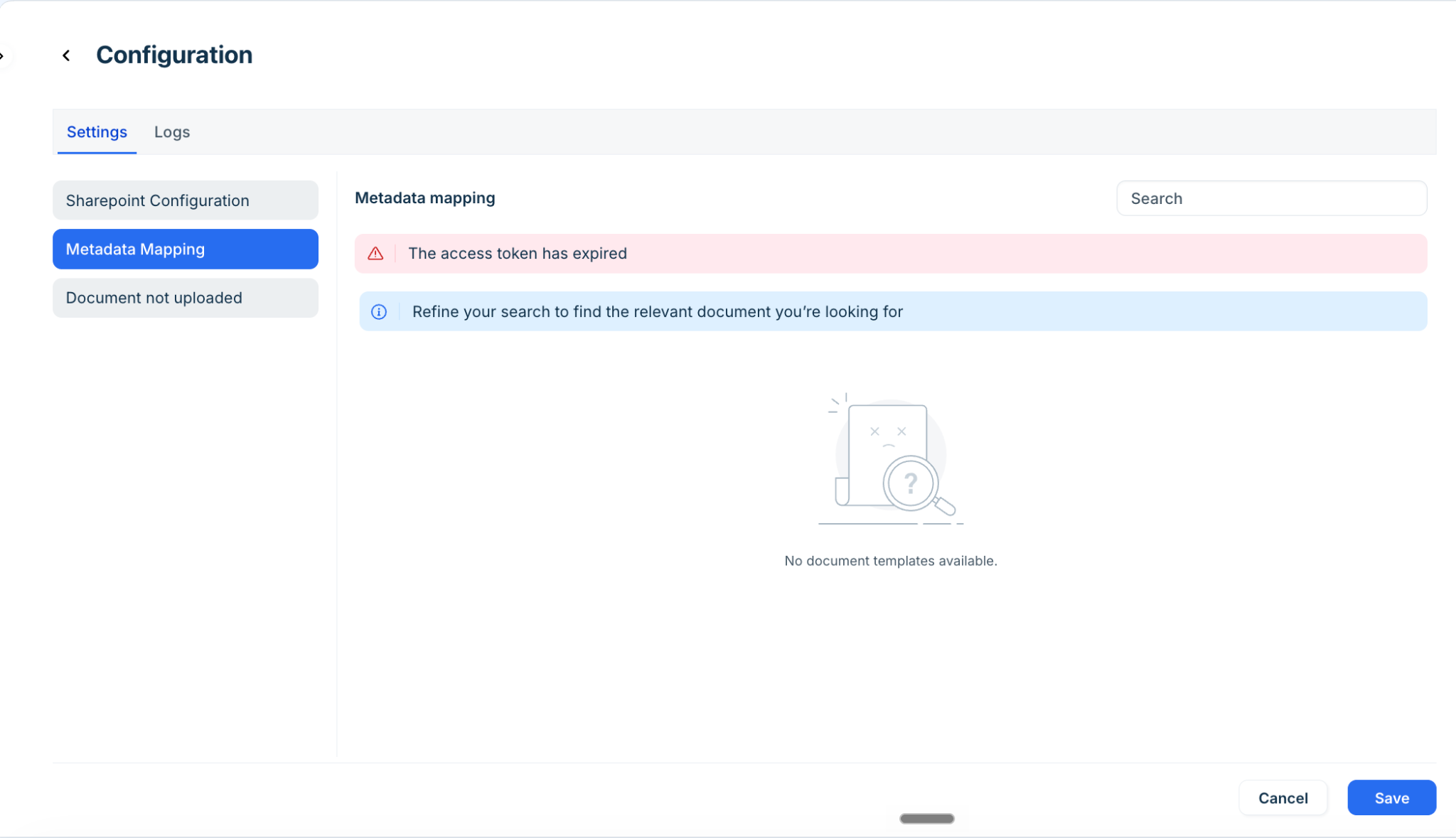
Click Configure on a document template that already has Requester fields or System metadata mapped.
Click the copy icon next to Requester fields or System metadata.
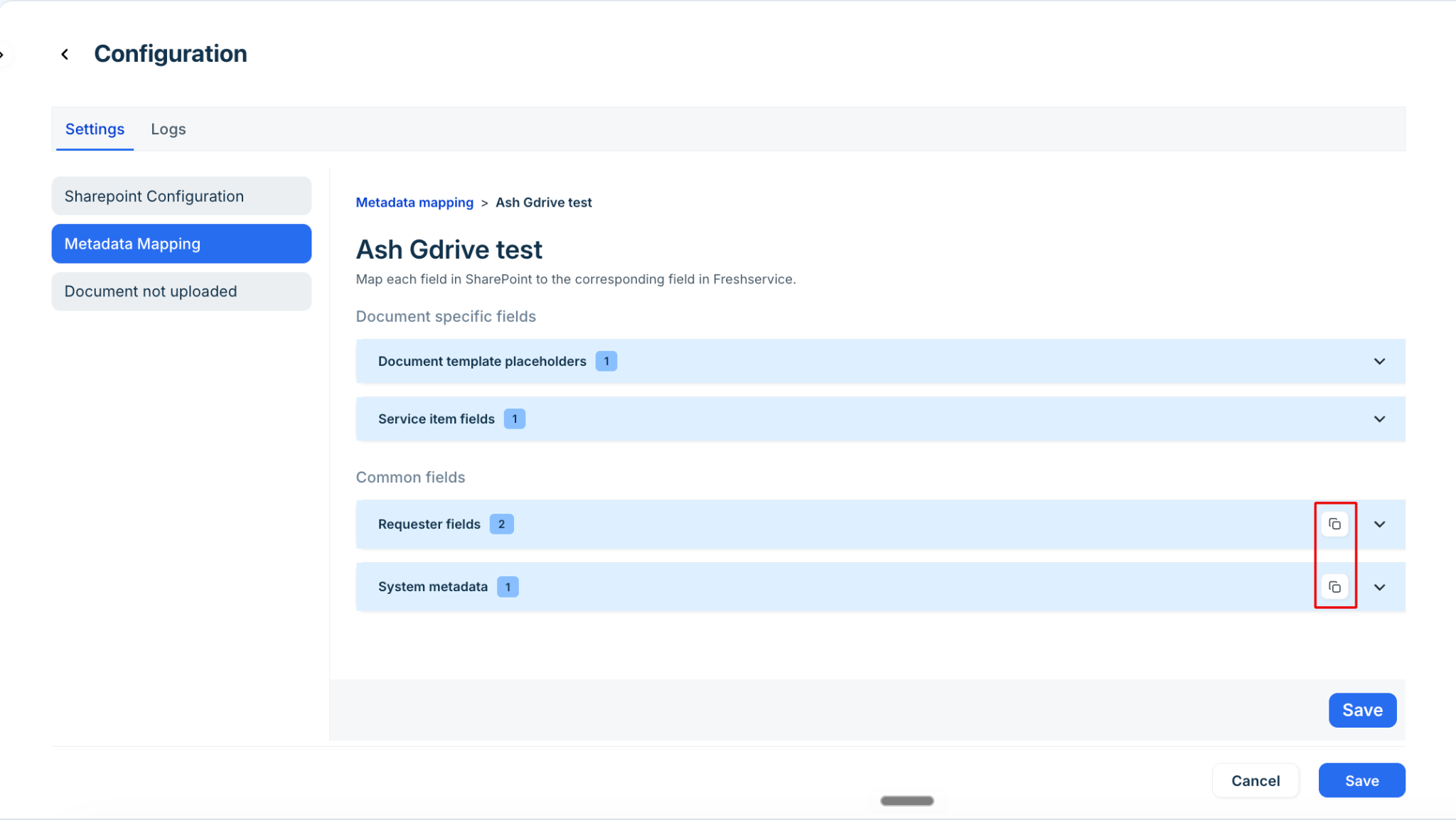
In the Apply mapping to other documents dialog, use the Search field to find document templates, or select them from the list.
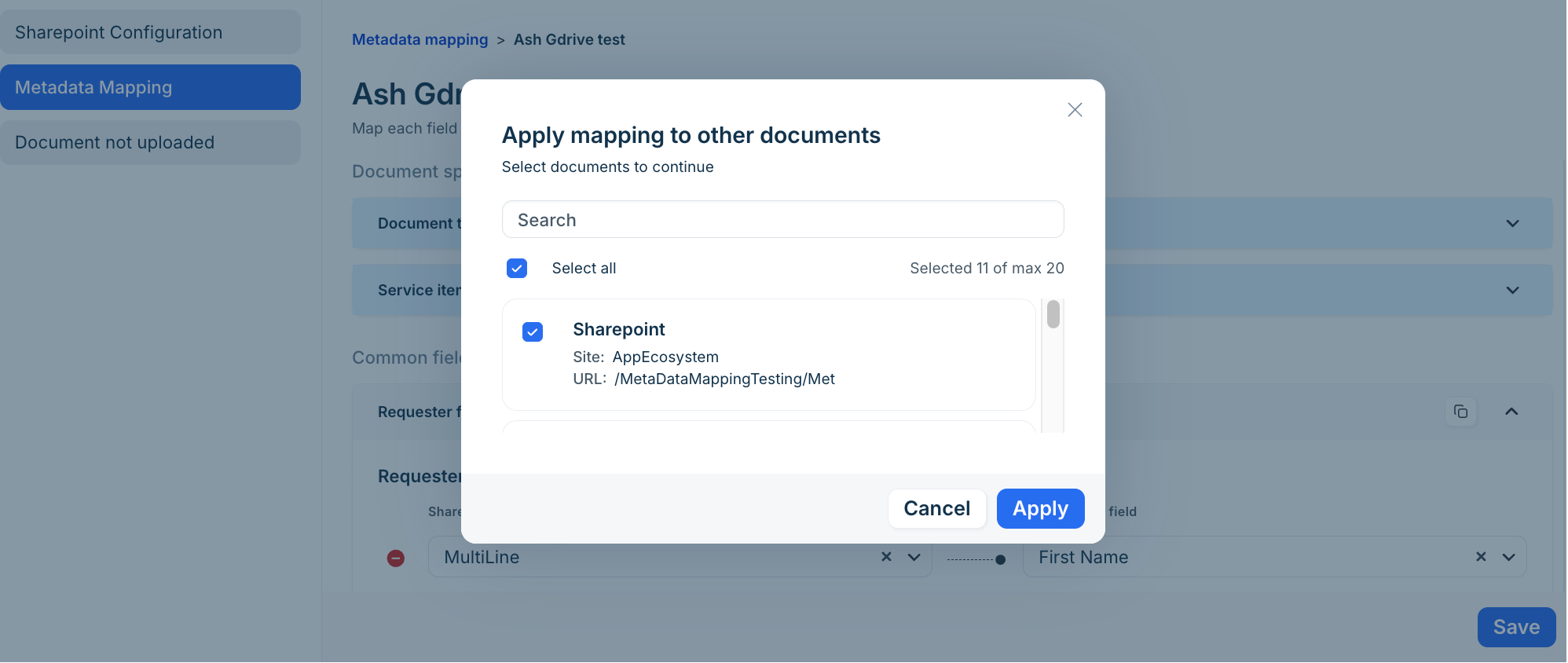
Select the checkboxes for the document templates that you want to apply the mapping to, or select Select all.
Click Apply.
Only mappings that are common and feasible for the target document template are copied. These include requester fields, system metadata, and document placeholders that apply to the target template based on its storage drive. A confirmation message shows the number of document templates to which the mapping was successfully applied, along with any failures.
Supported field data types
The following SharePoint property data types are supported for metadata mapping:
Single line of text
Multiple lines of text
Number
Currency
Date and Time
Yes/No
If the Freshservice field's data type doesn't exactly match the SharePoint property, Freshservice automatically casts the value where possible. For example, supported types can be cast to text, numbers can be cast to currency, and vice versa, and boolean values can be cast to Yes/No.
If a value cannot be cast to the target data type, the mismatch is flagged as an error during sync.
Resolve metadata mapping errors
A document template's metadata mapping can go out of sync if the underlying SharePoint site, drive, or field is changed after the mapping is configured. When this happens, the document template is flagged in the Metadata mapping list.
Get notified when a document upload fails
You can choose to receive an email notification whenever a document fails to upload to SharePoint.
To turn on upload failure notifications, follow these steps:
Go to Global Settings > Apps.
Search for and open SharePoint for document storage.
Click Edit settings.
On the Configurations page, under Settings, select Sharepoint Configuration.
Enable the Notify when document upload fails toggle and click Save.
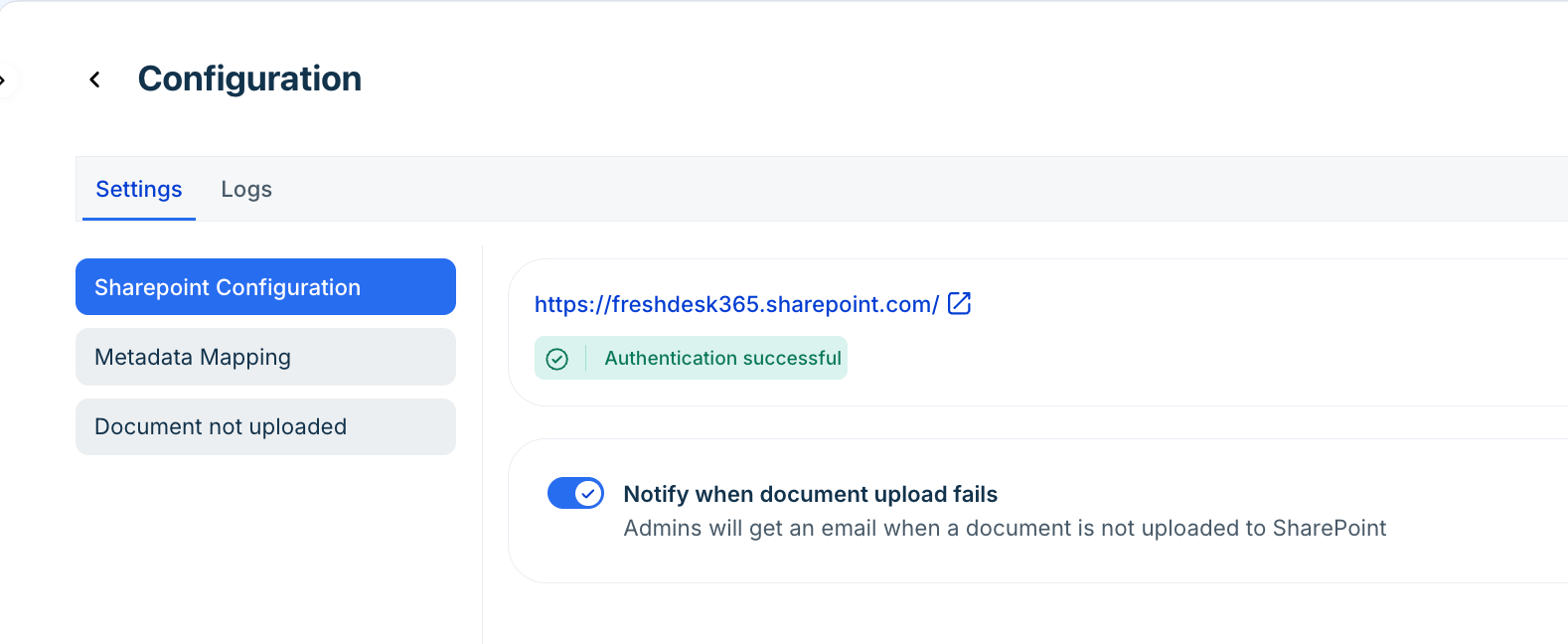
Note: When this setting is enabled, administrators receive an email whenever a document isn't uploaded to SharePoint. You can review these documents under the Documents not uploaded tab.
View document upload and sync status on a ticket
When a document generated from a ticket is uploaded to SharePoint, its status is shown in the Attachments section of the ticket.
The following statuses are available:
Uploaded to SharePoint: The document was uploaded and its metadata was synced successfully.
Uploaded to SharePoint: The document was uploaded, but its metadata couldn't be synced. Hover over the status to see the message, "Attachment uploaded to SharePoint, but we couldn't sync metadata. Contact your admin for details." This can happen, for example, because of a data type mismatch.
Sync to Sharepoint failed: The document couldn't be uploaded to SharePoint. Hover over the status to see the option to contact your admin for details.
Frequently asked questions
The following answers address common questions about metadata mapping.
1. Can I use the same metadata mapping for multiple document templates?
Yes. If multiple document templates use the same SharePoint drive, you can copy common requester and system metadata mappings to other templates.
2. What happens if a SharePoint field is deleted after I configure a mapping?
The affected mapping is flagged as an error, and the field is marked This field is deleted. Select a valid replacement field or remove the mapping.
3. Can Freshservice map fields when the Freshservice and SharePoint data types are different?
Freshservice casts values to supported target data types where possible. If a value cannot be cast to the target data type, the mismatch is flagged as an error during sync.
4. Can I configure metadata mapping when the SharePoint site or drive uses placeholders?
No. Metadata mapping can't be configured when the storage location is defined using placeholders because the destination can't be resolved in advance.