
 Community
 Video Library
 Agent Training
 Freshservice
 Freshdesk
 Freshchat
 Freshcaller
 Freshsales
 Freshteam
 Freshworks Neo
 Freshsurvey
 Freshservice for MSP
 Note: Available only for new signups after the 31 March, 2026 release. If you signed up earlier, refer to the existing ITAM documentation.
Cloud discovery jobs automatically identify and return database instances running on various cloud platforms. Once discovered, you can view granular resource details, related databases, and topology maps. This visibility helps maintain an accurate record of your cloud infrastructure and its interdependencies.
View cloud databases
Follow these steps to perform administrative actions on discovered resources:
In the side bar, click more options > IT Asset Management > Inventory > Databases > Cloud Databases.
Use the list page filters to find specific instances:
Search: Filter by the resource name.
Cloud Account: Filter by the specific cloud vendor. For example, AWS, Azure.
Vendor Resource Subtype: Narrow results by specific database types. For example, RDS, SQL Managed Instance.
More Filters: Access additional parameters for a refined search.
Click the name of a cloud database to see its specific details. Use the links under Database/Schema to view information about related resources.
Use resource maps and calculations
Visualize the relationships and group logic associated with your cloud databases.
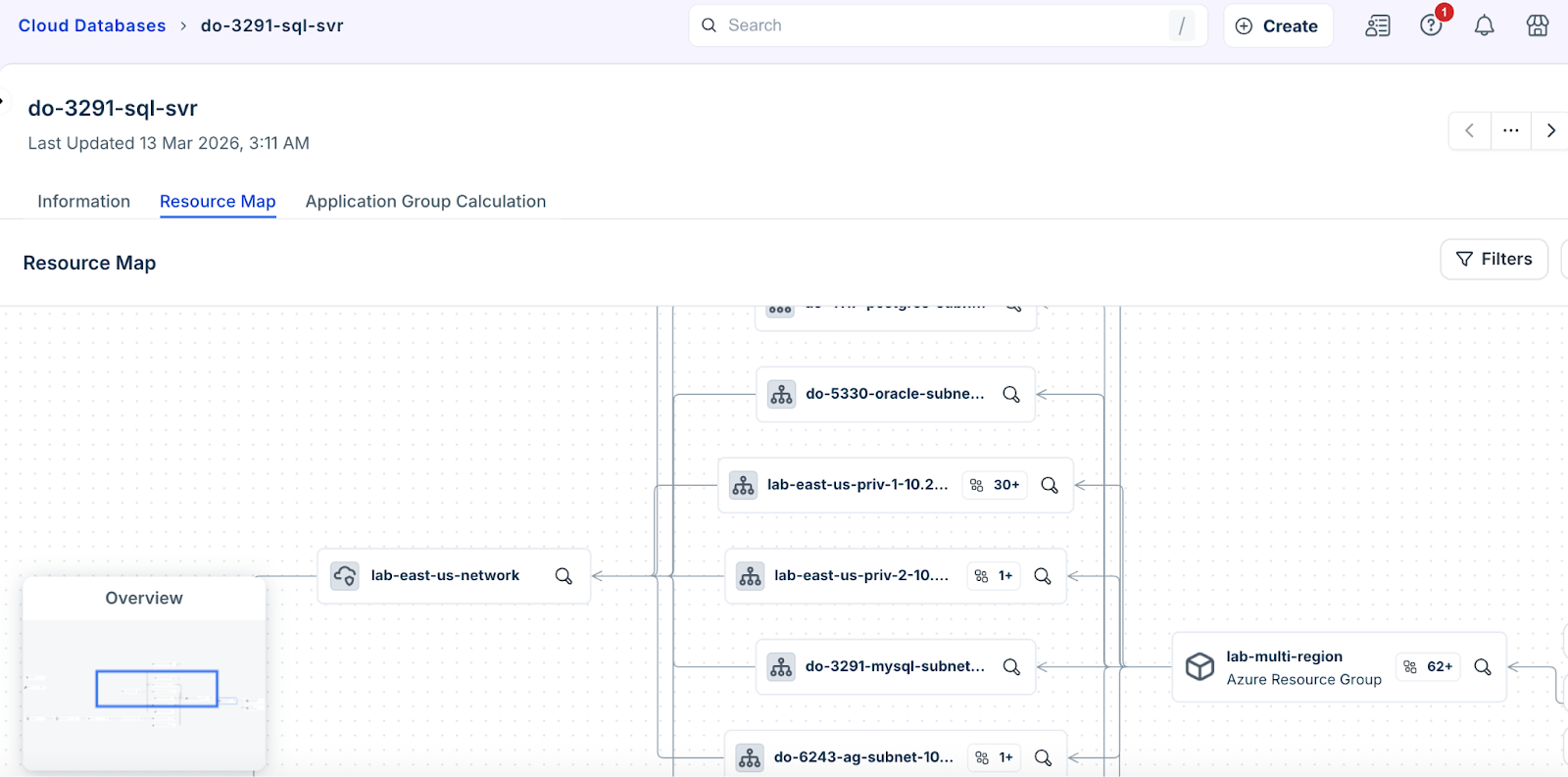
Resource Map: Click Resource Map on the top left of the database details page to view a topology map. You can select specific resource types to include or exclude from the visualization.
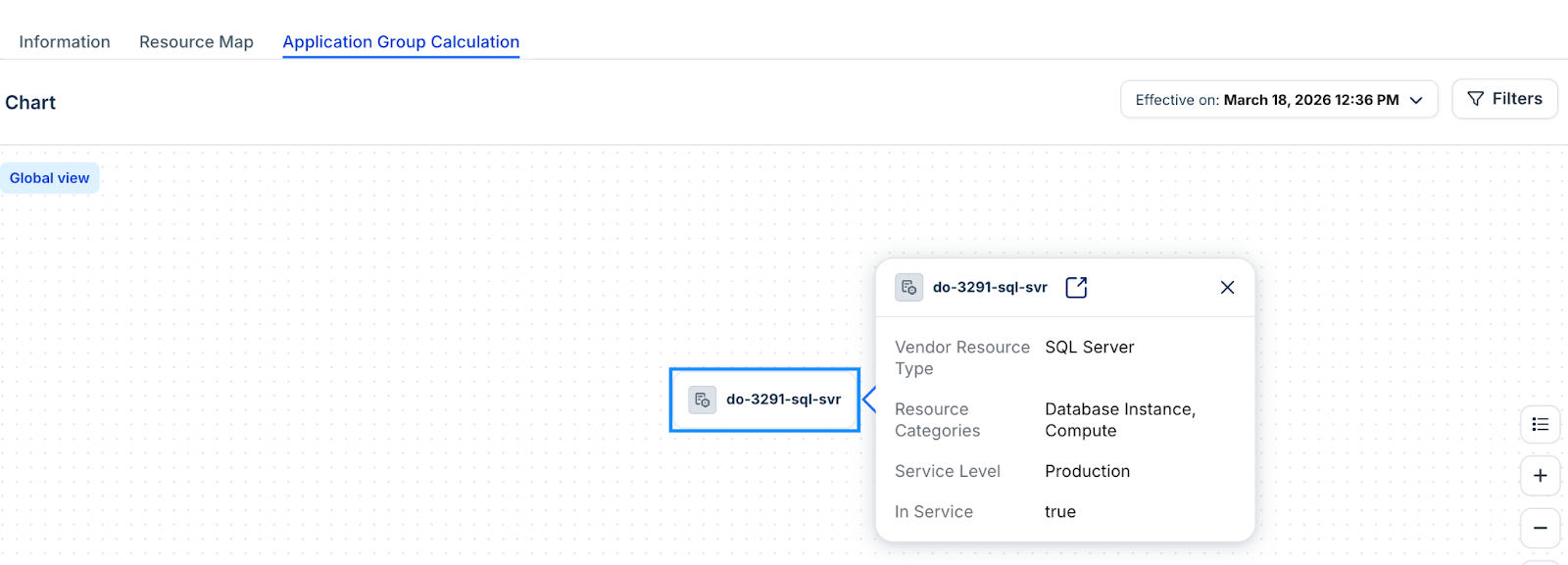
Application Group Calculation: Click the Application Group Calculation tab to view a visualization of how the system calculates the group logic for that specific cloud database.
Edit cloud database details
Update metadata and service levels for discovered cloud resources.
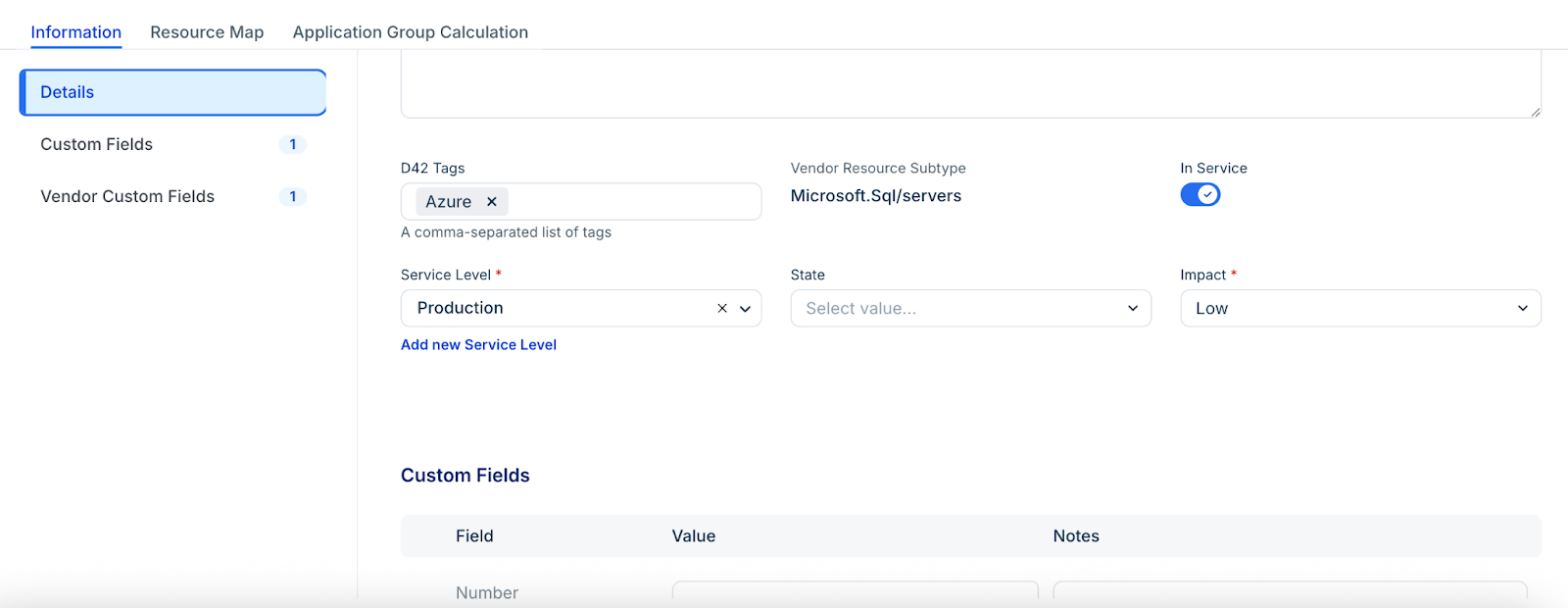
Click the Edit button on the Info page of a specific cloud database.
Modify the following fields as required:
Notes and Tags: Add descriptive information or organizational labels.
In Service: Toggle between Yes or No to reflect the current operational status.
Service Level: Assign a level such as Development, Testing, or Production.
Custom Fields: Update any user-defined data points.
Click Save to apply changes.
Delete cloud databases
You can delete or archive database records from the inventory. Follow these steps:
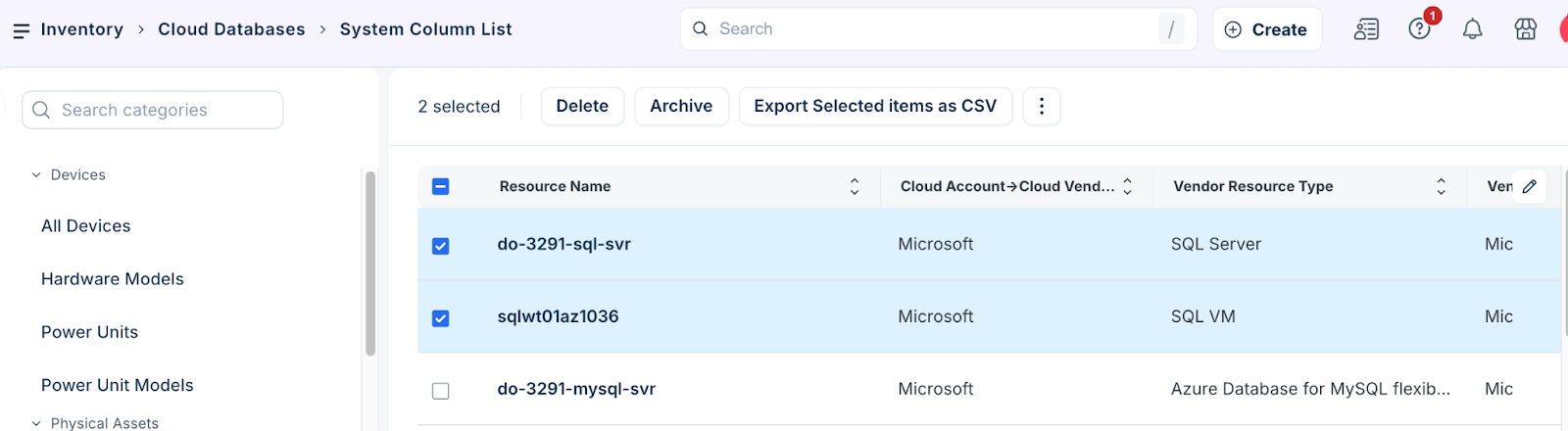
Select one or more databases from the Cloud Databases list page.
Click Delete or Archive based on the requirement.
Click Delete to remove the database record.
DOQL views and API
Additional cloud database data is available through Data Object Query Language (DOQL) views and the API for quick data extraction. Some of these fields may not yet have corresponding UI elements. Refer to the API documentation for more information.