
 Community
 Video Library
 Agent Training
 Freshservice
 Freshdesk
 Freshchat
 Freshcaller
 Freshsales
 Freshteam
 Freshworks Neo
 Freshsurvey
 Freshservice for MSP
 Note: Available only for new signups after the 31 March, 2026 release. If you signed up earlier, refer to the existing ITAM documentation.
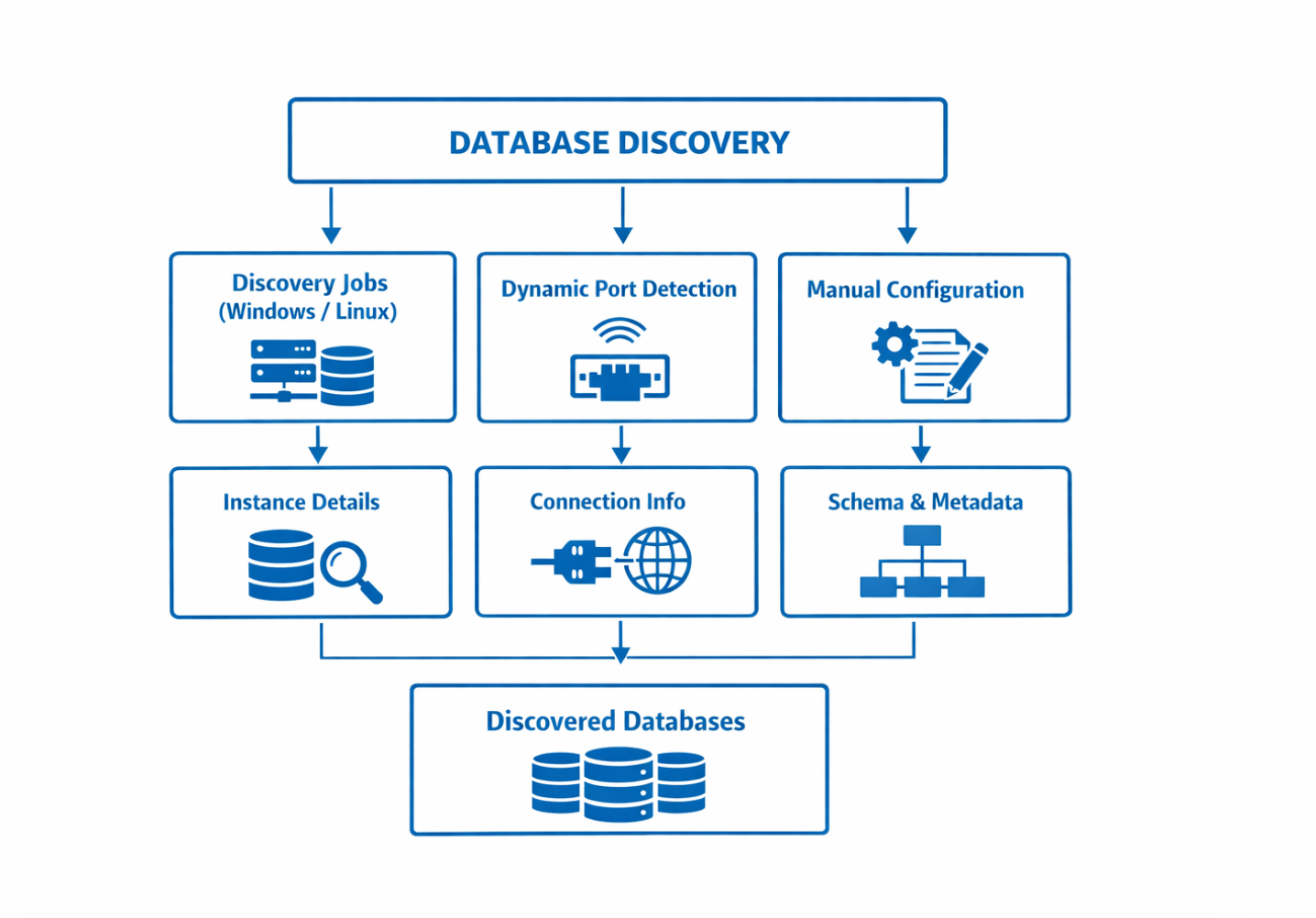
Database discovery detects and catalogs database instances running in your environment, including MSSQL, Oracle, PostgreSQL, and DB2. The process runs through standard Windows and *nix based discovery jobs, returning instance details, connection information, and schema data.
This article explains supported versions, permissions, configuration steps, and how to view discovery results.
Prerequisites
You need the following before the installation:
Administrator privileges to manage discovery settings.
An active Application Dependency Mapping license. Go to Tools > Settings > Licensing to verify your status.
Appropriate credentials for both the target operating system (Windows or *nix) and the database instance.
Default Database Ports
By default, the target machine ports are defined by the database vendors as follows.
Dynamic discovery automatically detects the appropriate ports and supports MSSQL and Oracle database discovery, including instances configured to listen on non-standard ports. This is useful for shared database servers hosting multiple instances.
To manually specify database discovery details, such as the server port, IP address, and access credentials; use Database Connections Discovery jobs.
Configure discovery exclusions
Before running a job, you can define which data points to ignore:
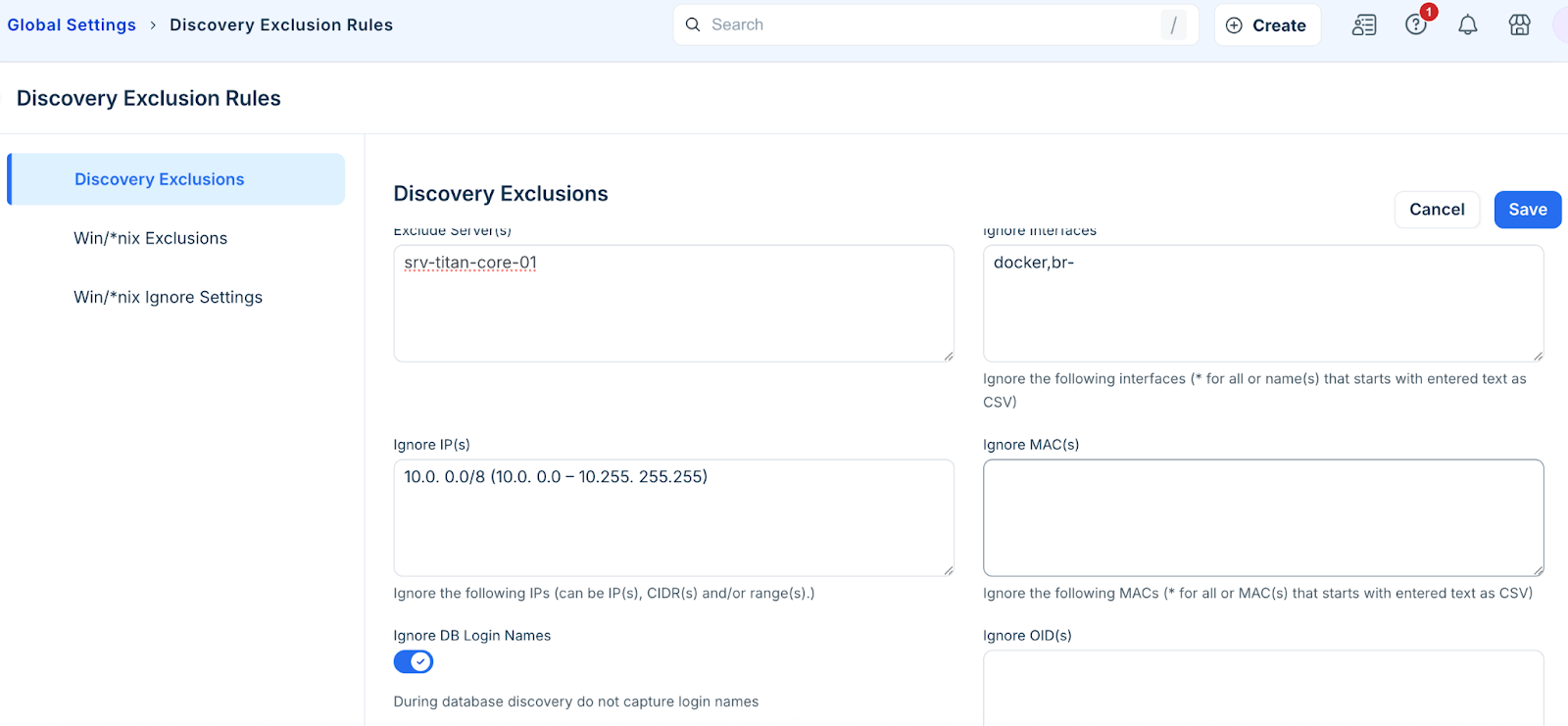
Go to Admin > Asset Management > Discovery exclusions rules.
Enable Ignore DB Login Names if you do not want to collect database login names.
Specify any interfaces, IP addresses, or MAC addresses that should be excluded from the discovery process.
Click Save.
Configure Database connection discovery
Database connections discovery allows you to manually specify connection details for databases that automated discovery jobs cannot access. This jon type is particularly useful when standard discovery cannot determine the proper connection settings for a specific instance.
Note: If you have already discovered cloud databases through standard cloud discovery jobs, using a Fully Qualified Domain Name (FQDN) in this job will prevent the creation of duplicate database entries.
Create a database connections discovery job
Follow these steps to create and configure a manual database discovery job for your cloud environment:
Go to Admin > Asset Management > Scan and discover > click the Discovery Jobs tab.
Select Database Discovery from the list of discovery jobs and click Add new.
Enter the following connection information:
Name: A unique name for the connection.
Application Component: The application component to link to this database.
Platform: Select the database type (Oracle, MSSQL, Postgres, or DB2).
Server: The IP address or FQDN of the cloud database server.
Port: The specific port used by the database server.
Credential: The credentials required for database access.
Specify the Extra information based on the platform:
Oracle: Enter an Instance name (required).
Postgres and DB2: Enter a Database name (required).
MSSQL: No extra information is required.
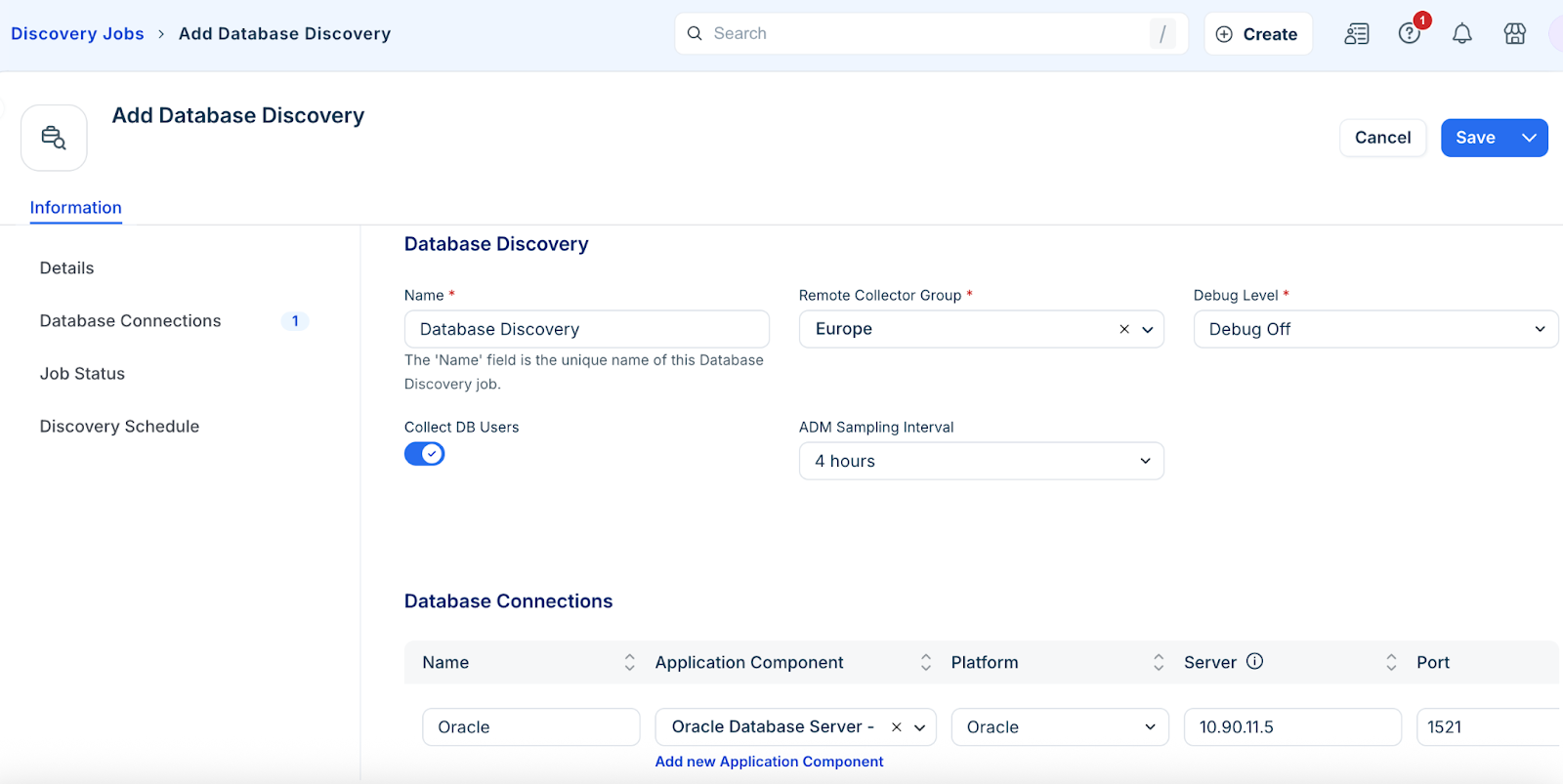
Note: For Oracle discovery, enabling the Collect DB Users toggle allows the system to discover user schemas that do not contain any objects. By default, only users owning objects are discovered.
In the Discovery Schedule section, click Add new to create an autodiscovery for the job. You can create multiple schedules.
Click Save.
Monitor and view results
Track the success of your manual discovery jobs and inspect the discovered cloud database resources.
Check discovery job scores
Analyze the performance and success rate of your database discovery runs.
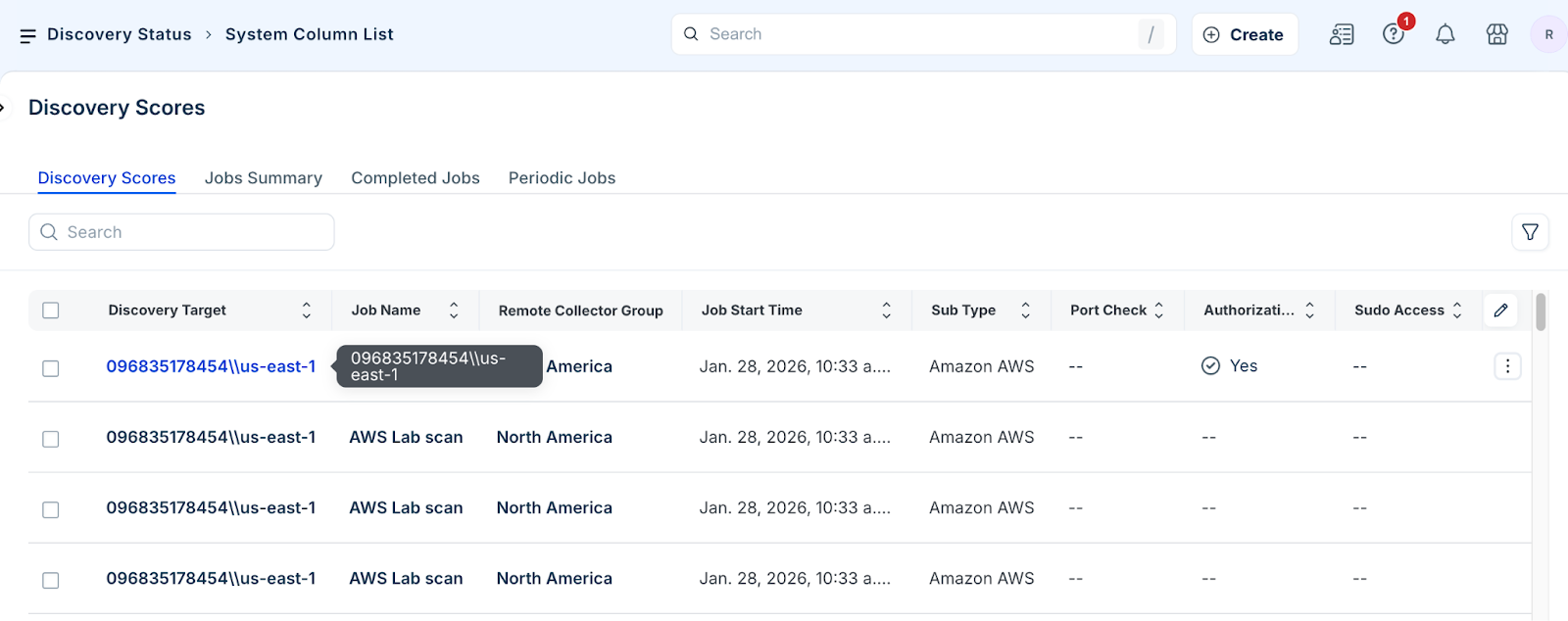
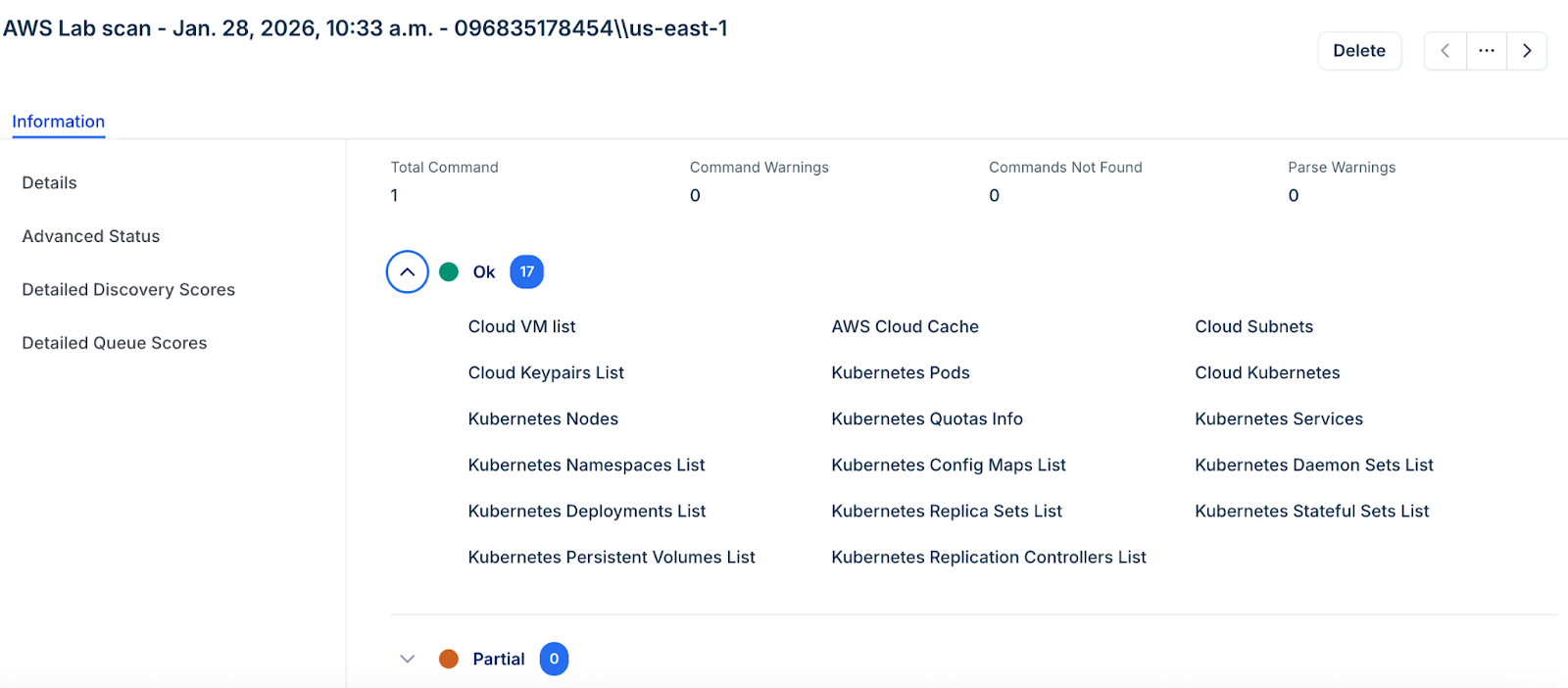
Go to Admin > Asset Management > Discovery Status > Discovery Scores.
Click the target job in the Discovery Target column.
Click Detailed Discovery Scores to view granular information and troubleshoot any connection failures.
View discovered cloud databases
Access the centralized list of all cloud databases detected through manual or automated jobs.
In the side bar, click more options > IT Asset Management > Inventory > Databases > Cloud Databases.
Search or filter the list to find the specific resource.
Click the Resource Name column to view detailed instance information, including metadata and connection history.
Related articles
MSSQL Server Database Discovery
Oracle Database Discovery
PostgreSQL Database Discovery
DB2 Discovery