Community
 Video Library
 Agent Training
 Freshservice
 Freshdesk
 Freshchat
 Freshcaller
 Freshsales
 Freshteam
 Freshworks Neo
 Freshsurvey
 Freshservice for MSP
 Note: Available only for new signups after the 31 March, 2026 release. If you signed up earlier, refer to the existing ITAM documentation.Switch port management allows you to track physical and logical network interfaces across your infrastructure. By documenting port statuses, VLAN associations, and remote connections, you gain full visibility into your network fabric.
This article provides an overview of managing switch ports. It explains how to use autodiscovery, manual entries, and switch templates to document network connectivity and port properties efficiently.
Prerequisites
You need the following before managing switch ports:
Access to the IT Asset Management module in your Freshservice instance.
Administrator privileges or specific permissions to create and edit switch port records.
View and add switch ports
You can access port information through the global list or from specific device records. To manage ports, follow these steps:
Go to IT Asset Management > Inventory > Ports.
On the Ports page, perform one of the following:
To add a new port: Click Add new, enter the required details, and complete any optional sections such as Port Aliases, Parts, and so on. Click Save to create the record.
To view or edit an existing port: Click the relevant Port ID. To make changes, click Edit, modify the necessary fields, and click Update.
Notes:To learn more about the specific fields on the switch port details page, refer to the Understand switch port properties section later in this article.
You can also view ports directly by navigating to a device’s details page and going to its Ports section.
Understand switch port properties
The following table describes the properties available for switch ports. You can configure these fields manually or populate them through autodiscovery.
Perform bulk operations on switch port records
To modify multiple switch ports records simultaneously, go to the Ports page and select the checkboxes next to the switch ports you want to manage. Use the buttons that appear on the toolbar at the top of the list or click the More options (three vertical dots) icon to access additional options.
The following table describes the actions available for managing switch ports:
View a list of active switch ports
To view only the active switch ports, follow these steps:
Go to the Ports page and click the Filter icon.
Select Yes from the Up filter dropdown menu.
Click Apply.
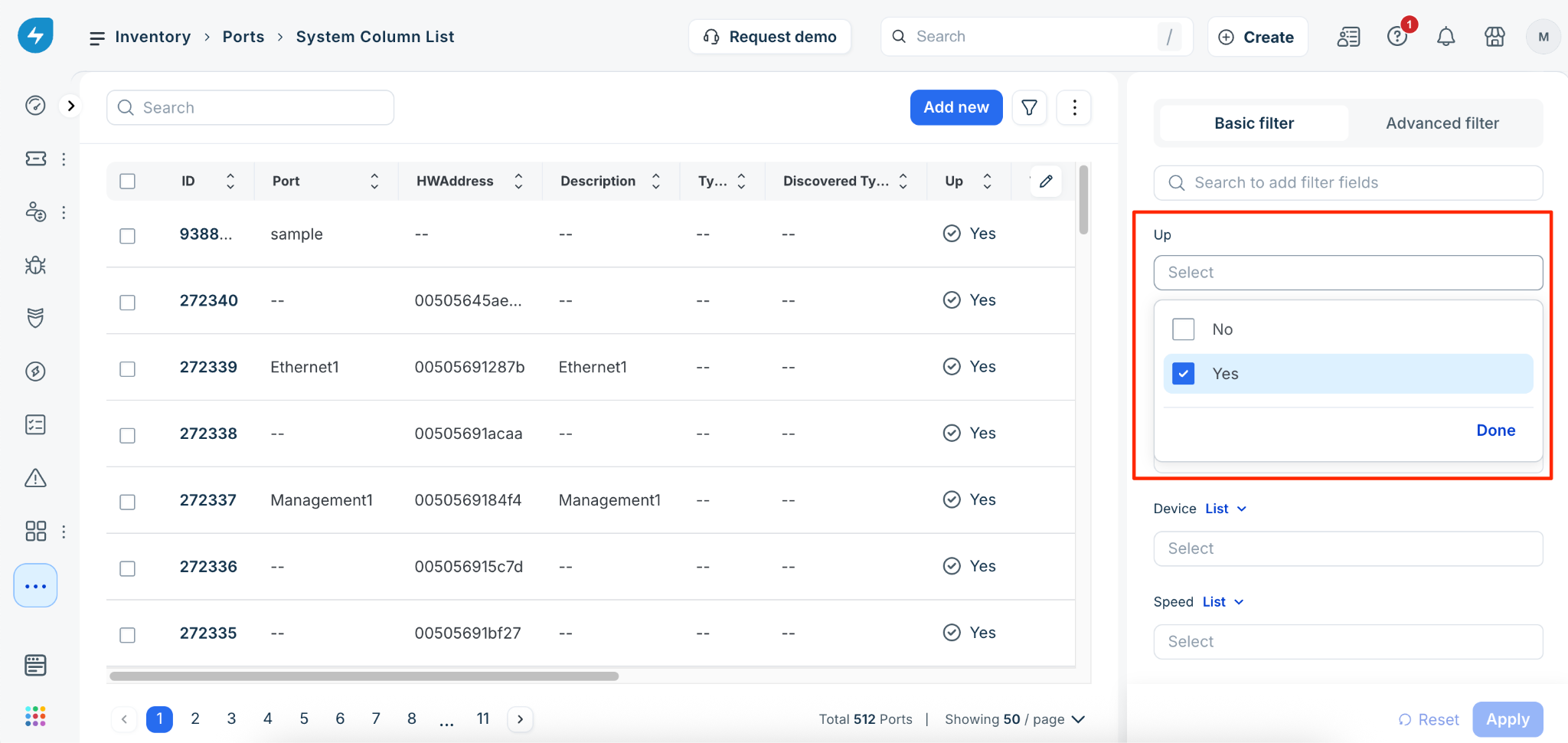
The list updates to show only the ports that are currently operational.
Configure stacked switches
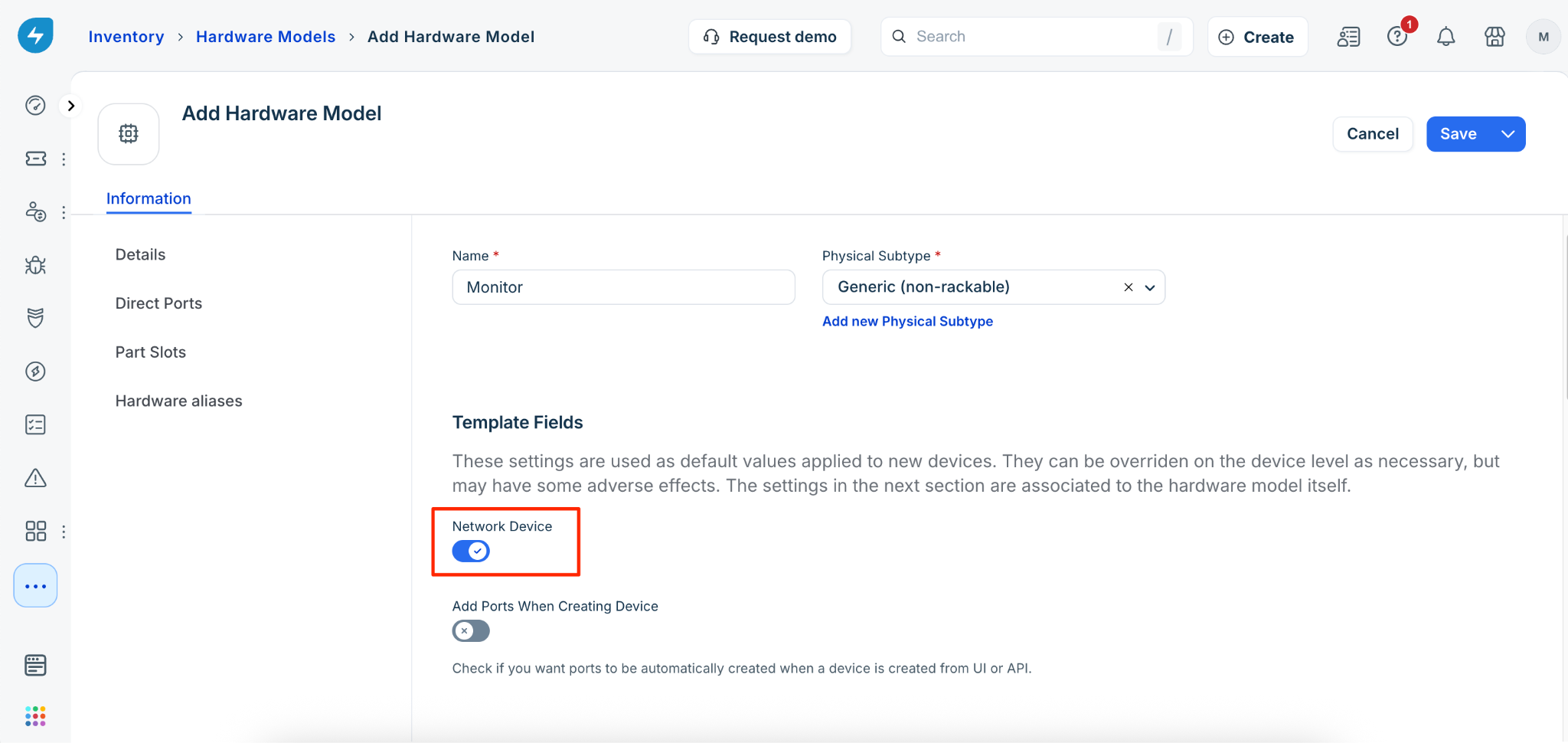
All switches, whether stacked or independent, are represented based on their underlying hardware model. Stacked switches are configured by first defining the hardware model and then creating instances of that model. To do so, follow these steps:
Go to IT Asset Management > Inventory > Hardware Models and click Add new.
Enter the name for the device in the Name field and select physical subtype from the Physical Subtype dropdown menu
Enable the Network Device checkbox and click Save.
Configure FEX modules
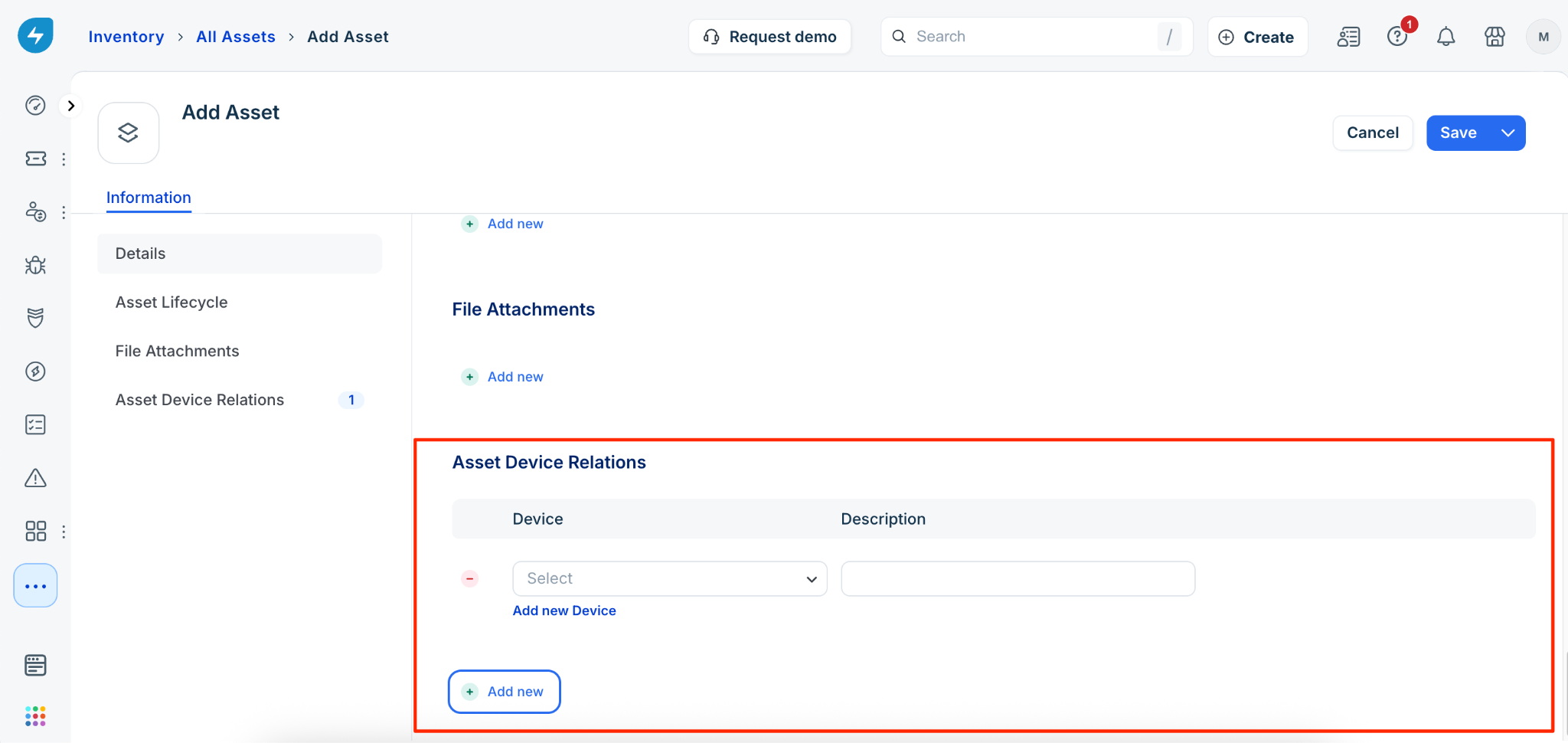
Fabric Extender (FEX) modules can be added as assets and then linked to a switch using asset device relations.
To manually add and associate a FEX module:
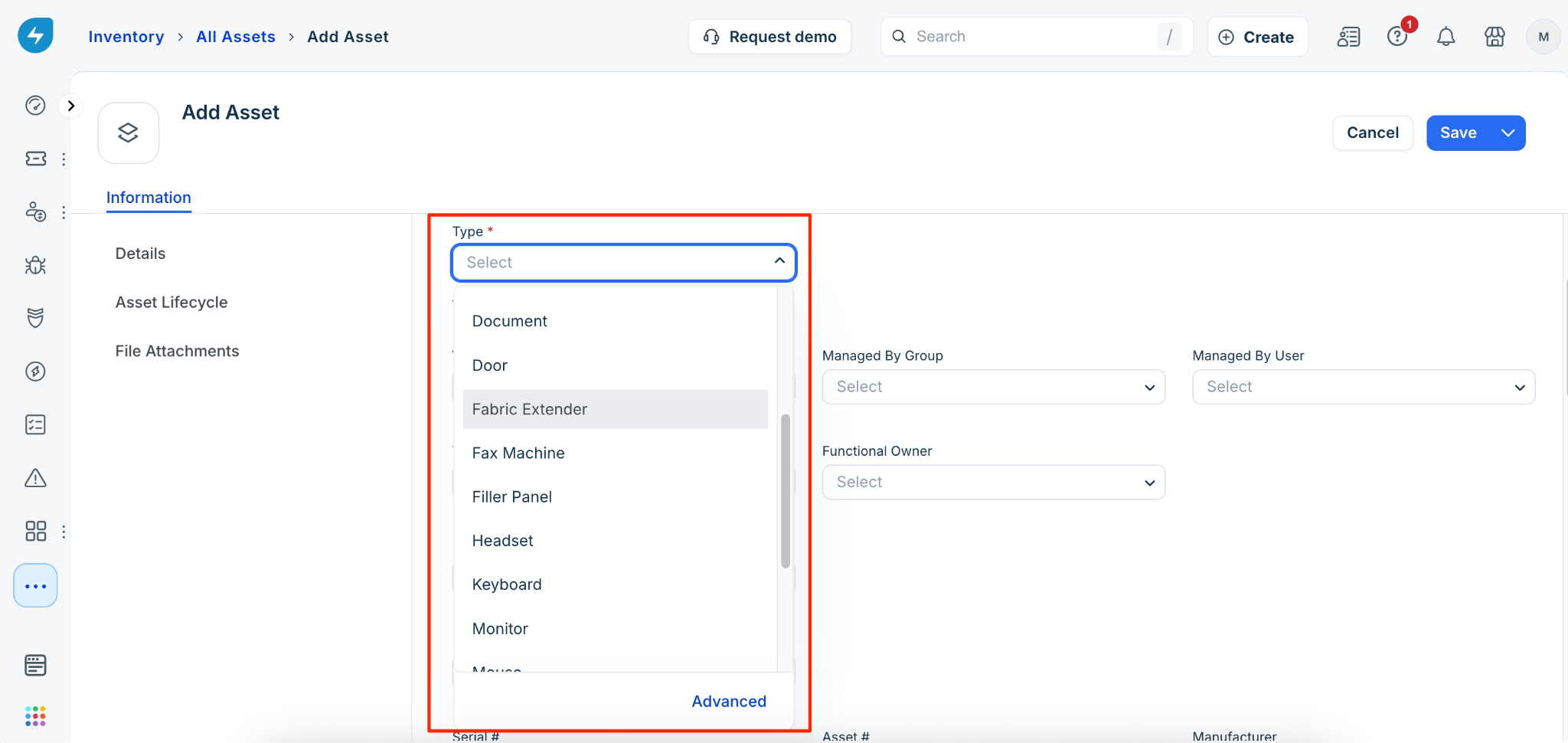
Go to IT Asset Management > Inventory > All Assets and click Add new.
Name the asset and set the Type to Fabric Extender.
Under the Asset Device Relation section, associate the asset with the parent switch.