
 Community
 Video Library
 Agent Training
 Freshservice
 Freshdesk
 Freshchat
 Freshcaller
 Freshsales
 Freshteam
 Freshworks Neo
 Freshsurvey
 Freshservice for MSP
 Note: Available only for new signups after the 31 March, 2026 release. If you signed up earlier, refer to the existing ITAM documentation.You can manage devices to access critical properties such as device names, asset numbers, and serial numbers.
You can configure the framework for how that device interacts with your infrastructure by defining a device type (physical, virtual, or cluster). For example, identifying a device as a Network Device enables switch port management, while marking it as a Virtual/Container Host allows it to host guest devices. Freshservice also tracks Service Levels to define production status, helping you monitor the asset lifecycle from procurement to retirement.
This article provides an overview of managing devices within the inventory, including how to add new devices, edit existing properties, and use the device list page for bulk actions.
Prerequisites
You need the following before managing devices:
Administrator privileges or specific permissions to create and edit device records.
Access to the IT Asset Management module in your Freshservice instance.
Add a new device
To add a new device record, follow these steps:
Go to IT Asset Management > Inventory and click Add new. The Add Device page opens.
Enter details to the following mandatory fields:
Name: A name for the device.
Workspace: Select the workspace associated with the device.
Type: Select the type of the device - Physical, Virtual, Cluster.
Service Level: Select an appropriate service level from the list. By default, new devices are set to Production. To add a new service level, click Add new Service Level.
Usage Type: Select how the device is used - Permanent or Loaner.
Optionally, check the following attribute boxes to define how the device behave:
Network Device: Required for managing switch ports.
Virtual/Container Host: Required for hosting virtual guests.
In Service: Enabled by default for new devices.
Add other relevant details such as IP address, serial number, department, and so on.
Click Save.
Edit a device
To modify an existing device, follow these steps:
Go to IT Asset Management > Inventory and click on the name of the device you want to modify.
The particular device’s page opens.Click Edit in the top-right corner of the page.
Update the necessary fields and click Update.
Caution:
Changing device type: Use caution when changing a device type (e.g., from physical to virtual). Changing the type results in the loss of type-specific attributes. For example, when changing from a physical type, you lose rack information, hardware models, and connectivity.
Non-Editable fields: Fields populated via EnrichAI Data, such as End of Life or End of Support, cannot be edited manually unless you disable EnrichAI Data and disconnect the record.
View device information
To view detailed information about a particular device, from the left navigation pane, go to IT Asset Management > Inventory. The All Device page opens where you can add, filter, clone, or import devices.
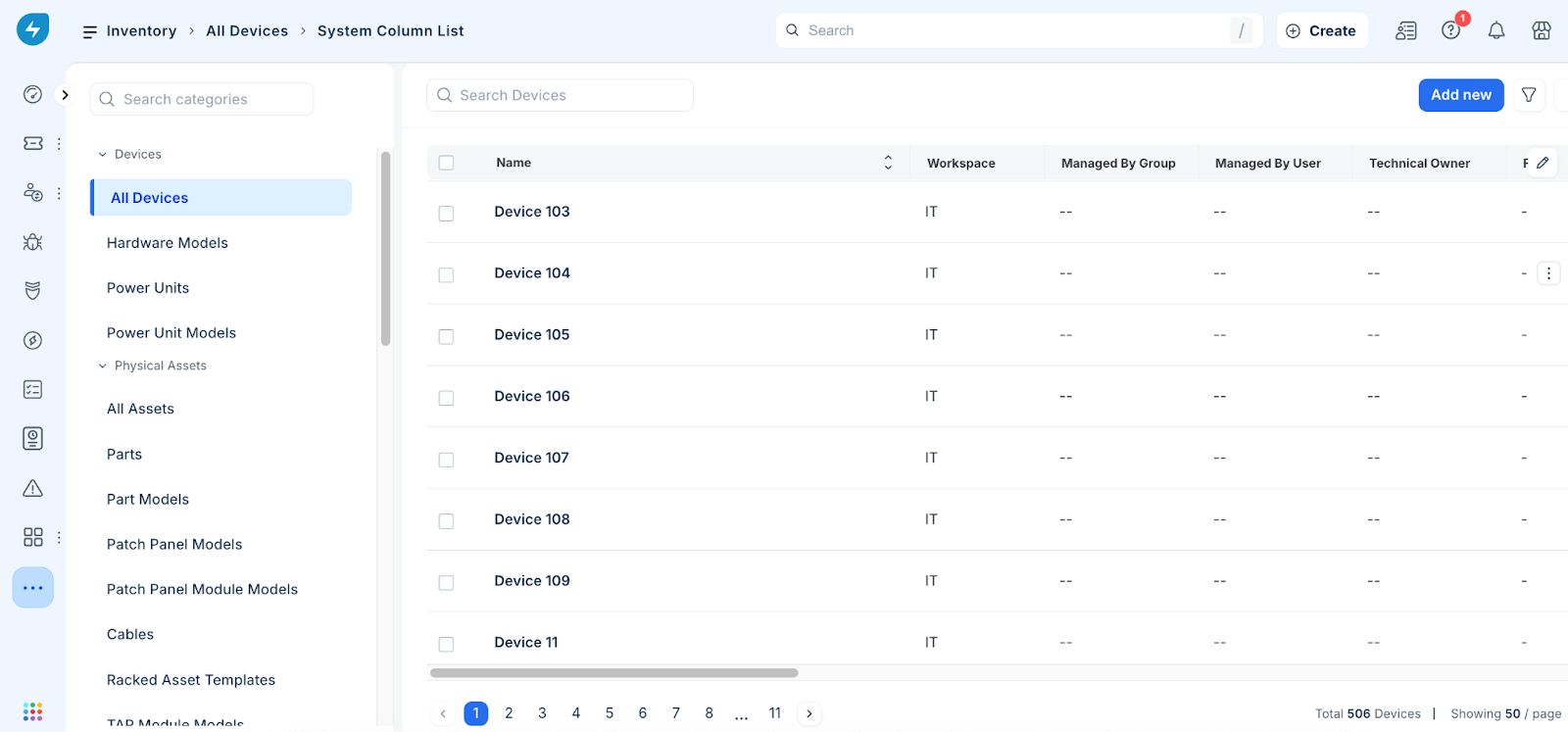
To view details of a device, click the device name. The device page opens displaying the following information:
Object List: Use the horizontal More options icon in the upper-right corner of the page to navigate between devices.
Tabs: Go through tabs to access data such as general information about device, Application Group Calculation, Topology, and activity.
Note: Discovered Certificate Instances are displayed in the device details view.Device Management: Use the vertical More options icon at the top of the page to archive or delete the device.
Subpage Options: Access conditional subpages like Topology, and Application Group Calculation using the subpage button row.
Perform bulk actions on device tags
Tags are useful for filtering and grouping objects. For example, you could define a "Project X" tag and associate that tag with all the devices, IP addresses, and other items associated with Project X.
To add or remove tags for multiple devices at once, follow these steps:
Go to IT Asset Management > Inventory.
The device list page opens.Select the checkboxes for the devices you want to update.
Click the More options (three vertical dots) icon.
Select Add tags to selected items or Remove tags from selected items.
Type the tag name in the text box and confirm the action.