
 Community
 Video Library
 Agent Training
 Freshservice
 Freshdesk
 Freshchat
 Freshcaller
 Freshsales
 Freshteam
 Freshworks Neo
 Freshsurvey
 Freshservice for MSP
 Note: Available only for new signups after the 31 March, 2026 release. If you signed up earlier, refer to the existing ITAM documentation.Part model templates are the blueprints used to define hardware components. These templates specify the characteristics of a part, such as its type, dimensions, and connectivity options. By using templates, you ensure consistency across your inventory, as every physical part created from a template inherits its pre-defined configuration.
Models can be configured to support internal ports or to be placed into specific part slots (or blade slots) on a device chassis. For more information on managing slots within a device, see the documentation on device part slots.
This article provides an overview of part model templates and instructions on how to define hardware components, including those with integrated ports and specific slot requirements.
Prerequisites
You need the following before managing part model templates:
Administrator privileges to access the IT Asset Management module.
Physical specifications of the component, including port counts and connection types.
Create a part model template
To create a new template for a hardware component, follow these steps:
Go to IT Asset Management > Inventory > Part Models.
Click Add new.
In the Type field, select the relevant classification.
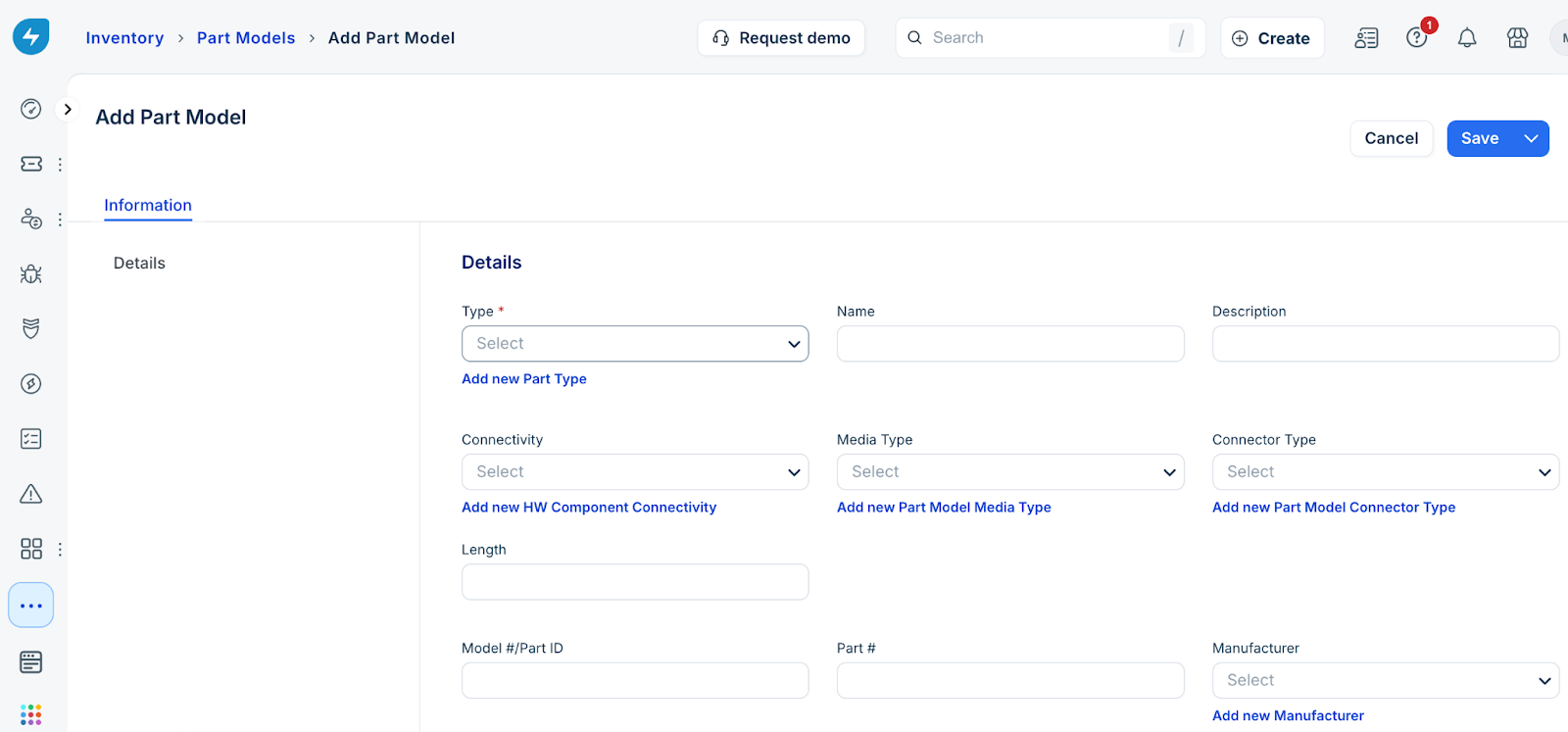
If the required classification is not available, click Add new Part Type to create a custom type.
Note: While creating a new part type, select the Supports Ports checkbox in the Associate Part Type window to define ports.
Enter a name and any relevant specifications for the model.
To configure specific port details, refer to the Configure ports on a part model section later in this article.
Click Save.
Configure ports on a part model
If a part, such as a network card or a specialized module, contains its own ports, you can define a port layout within the template. To configure these ports, follow these steps:
Go to the specific part model record page.
In the Port Name Template field, define the naming scheme for the port template.
Enter a prefix in the Port Prefix field.
To add individual ports to the template, go to the Ports section, click Add new, and enter the relevant details. To create multiple ports at once, click + Add Bulk Ports. This bulk add feature automatically generates ports based on your defined naming template.
Edit a part model template
To update the specifications or port layout of an existing template, follow these steps:
Go to IT Asset Management > Inventory > Part Models.
Select the model you want to modify.
Click Edit in the upper-right corner.
Update the fields as required and click Save.