
 Community
 Video Library
 Agent Training
 Freshservice
 Freshdesk
 Freshchat
 Freshcaller
 Freshsales
 Freshteam
 Freshworks Neo
 Freshsurvey
 Freshservice for MSP
 Note: Available only for new signups after the 31 March, 2026 release. If you signed up earlier, refer to the existing ITAM documentation.
A part is a specific instance or Configuration Item (CI) created from a part model. It represents a physical component, such as a hard disk, memory chip, or peripheral accessory and tracks its assignment, quantities, or status.
This article provides an overview of parts management, including standard hardware components and non-serialized consumables, with instructions on how to create models and track physical inventory.
TABLE OF CONTENTS
- Prerequisites
- Create a part model
- Add parts to inventory
- Track parts in a device
- Common scenarios and use cases
Prerequisites
You need the following before managing part records:
Administrator privileges to create and edit parts and part models.
Defined storage rooms, devices, or active helpdesk service items to which parts will be assigned.
Part model components and hierarchy
Each level of the hierarchy serves a distinct administrative purpose in inventory cataloging.
The following table explains the hierarchy tiers using an example of a company tracking network cables.
Create a part model
A part model is a template that describes a unique hardware type. It contains technical specifications such as the model number, size, type, and manufacturer.
You must define a part model template before adding physical inventory. Follow these steps to create a part model:
Go to Assets > Inventory > Parts Models.
Click Add new.
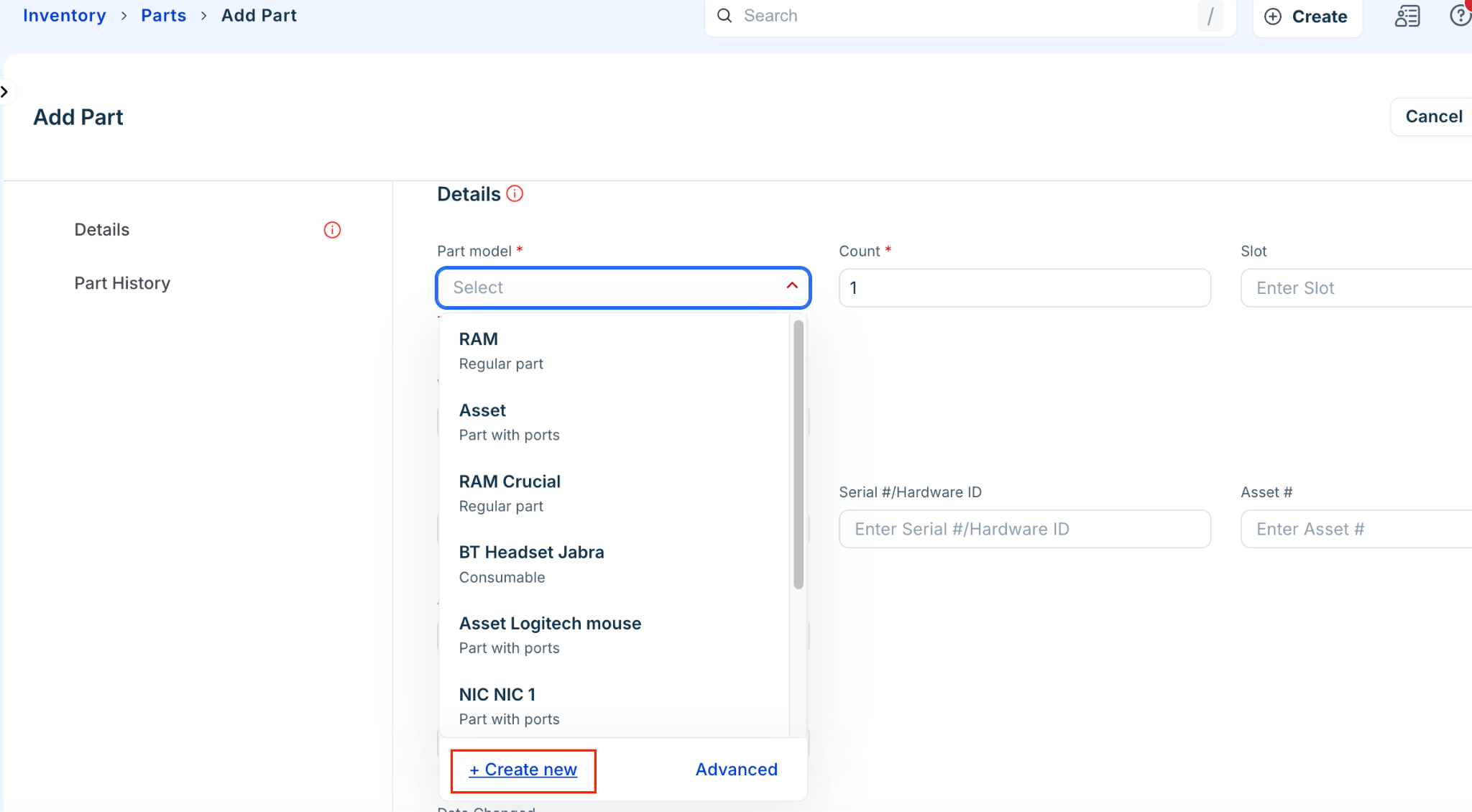
Select an existing part model from the Type dropdown menu or click Create new to add a new one.
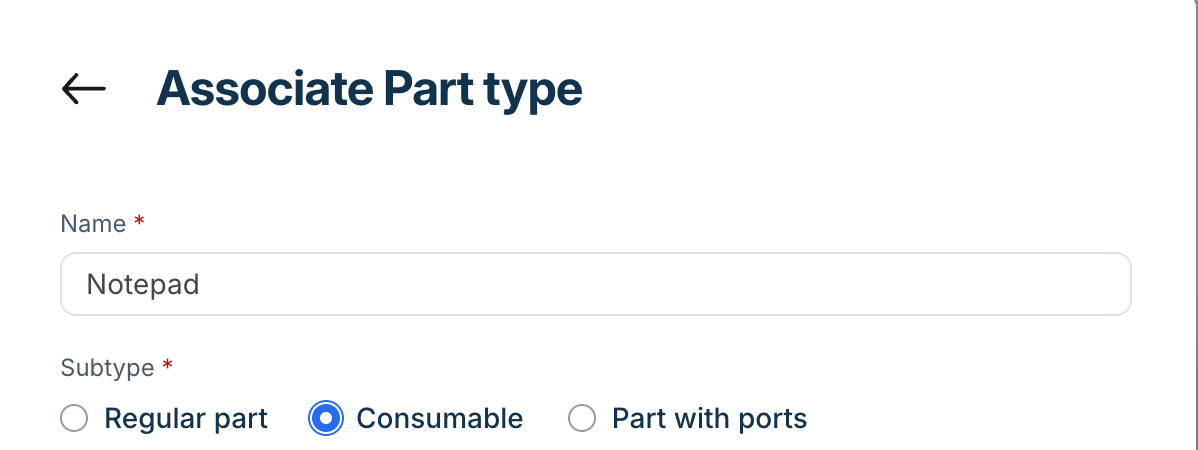
Enter a name for part model type.
Select one of the following subtype:
Regular part: Used for standard serialized or tracked hardware components installed inside devices, such as a CPU, RAM, Hard Disk, PSU, NIC, or HBA.
Consumables: Used for bulk, non-serialized inventory permanently issued to users without an expectation of return, such as keyboards, mice, or batteries.
Supports ports: Used for network or infrastructure components that contain physical connectivity interfaces or port configurations.
Note: Once you save a part model with the Consumables subtype, you cannot edit or change its subtype later. If you select this subtype by mistake, you must delete the part model entry and recreate it.
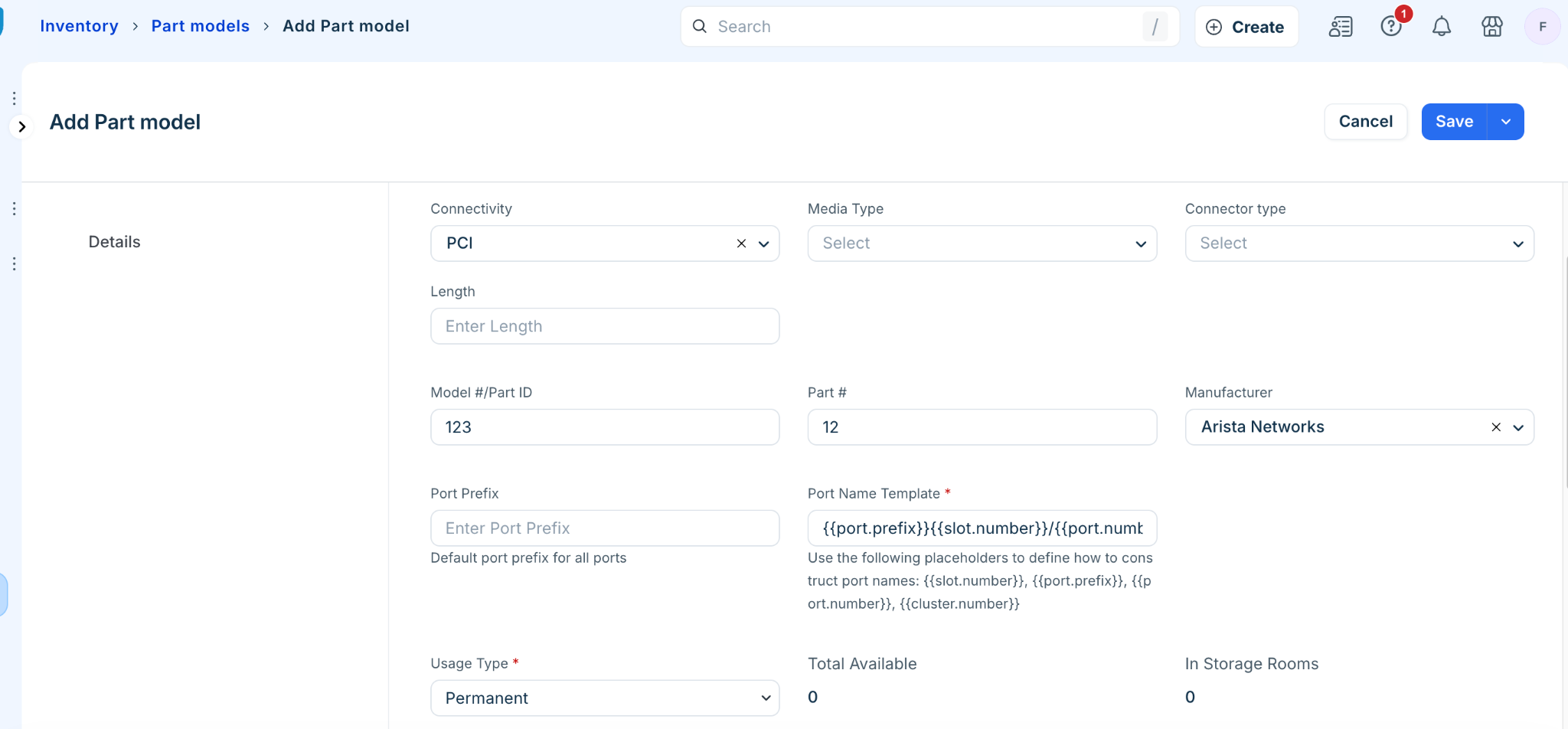
Select the Manufacturer dropdown menu.
(Optional) Enter value for the model number and part number in the relevant fields.
Click Save.
Add parts to inventory
After defining a model, you can add physical units as line items. The tracking interface adapts depending on whether the part model is a standard hardware component or a consumable.
For Standard Hardware Components
To add standrad hardware components suchs as CPU, RAM, follow these steps:
Go to Assets > Inventory > Part Models and select a model.
Go to the Parts section and click + Add New.
In the Count field, enter the inventory quantity.
Fill in the serial number, asset number (if available), firmware version, assignment, and location in the appropriate fields.
Click Update.
For Consumable Parts
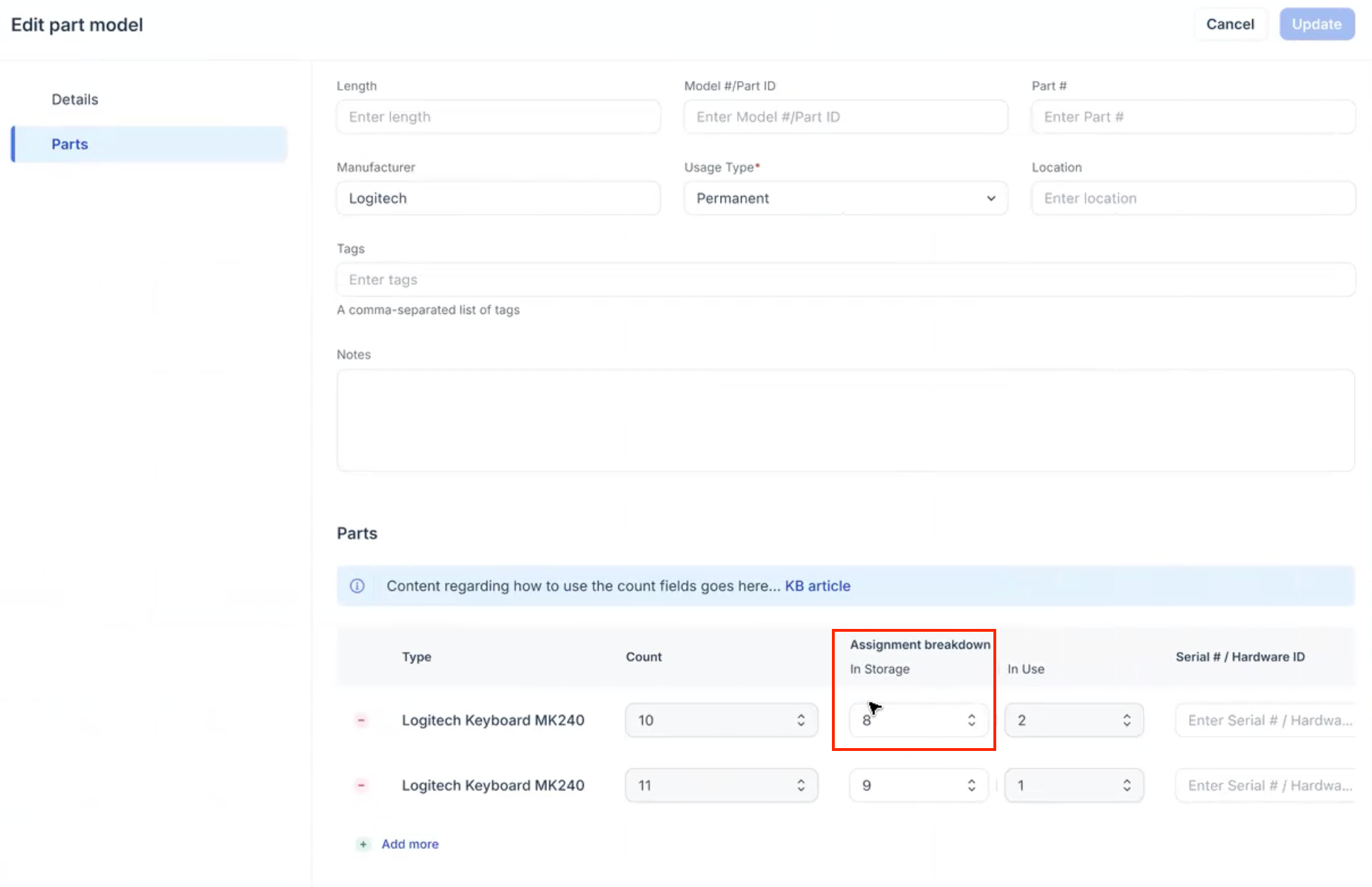
The consumables parts are tracked collectively in batches rather than as unique individual assets. The following parameters are tracked for the consumables part:
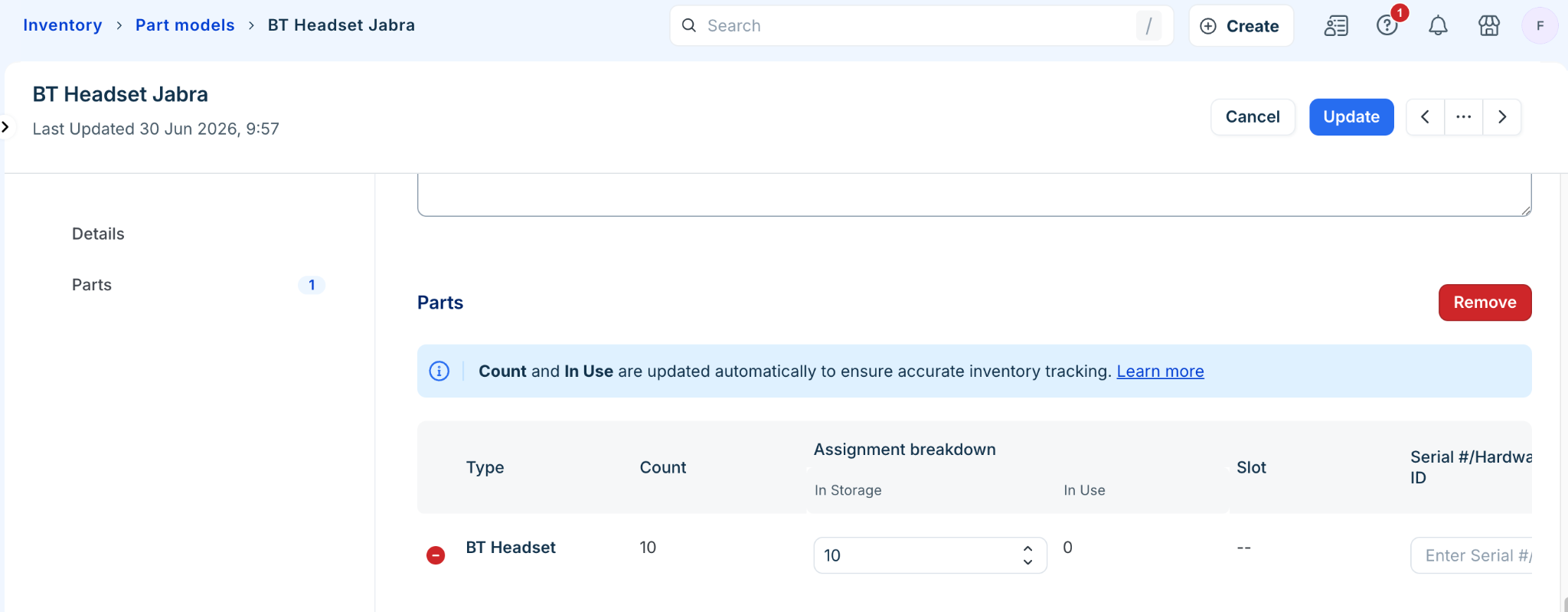
Count - The total inventory pool capacity for the specific lot batch (In Storage + In Use).
In Storage - The quantity of items sitting in your storage rooms available for deployment.
In Use - The quantity of items currently distributed to end-users via tickets.
Note: You can only manually enter or edit values in the In Storage field. The In Use metric updates automatically through ticket fulfillment actions. If a consumable part is dissociated or unlinked from a ticket, the allocated count automatically reverts from In Use back to In Storage.
To add stock to a consumable lot:
Select your consumable part model and click + Add New.
In the Parts section, enter your available stock count into the In Storage field.
Click Update.
Track parts in a device
To view or edit standard parts currently installed in a device, follow these steps:
Go to IT Asset Management > Inventory > All Devices > click any device > go to the Parts section.
Review the installed components or click Update to assign a new component from your inventory to the device.
Common scenarios and use cases
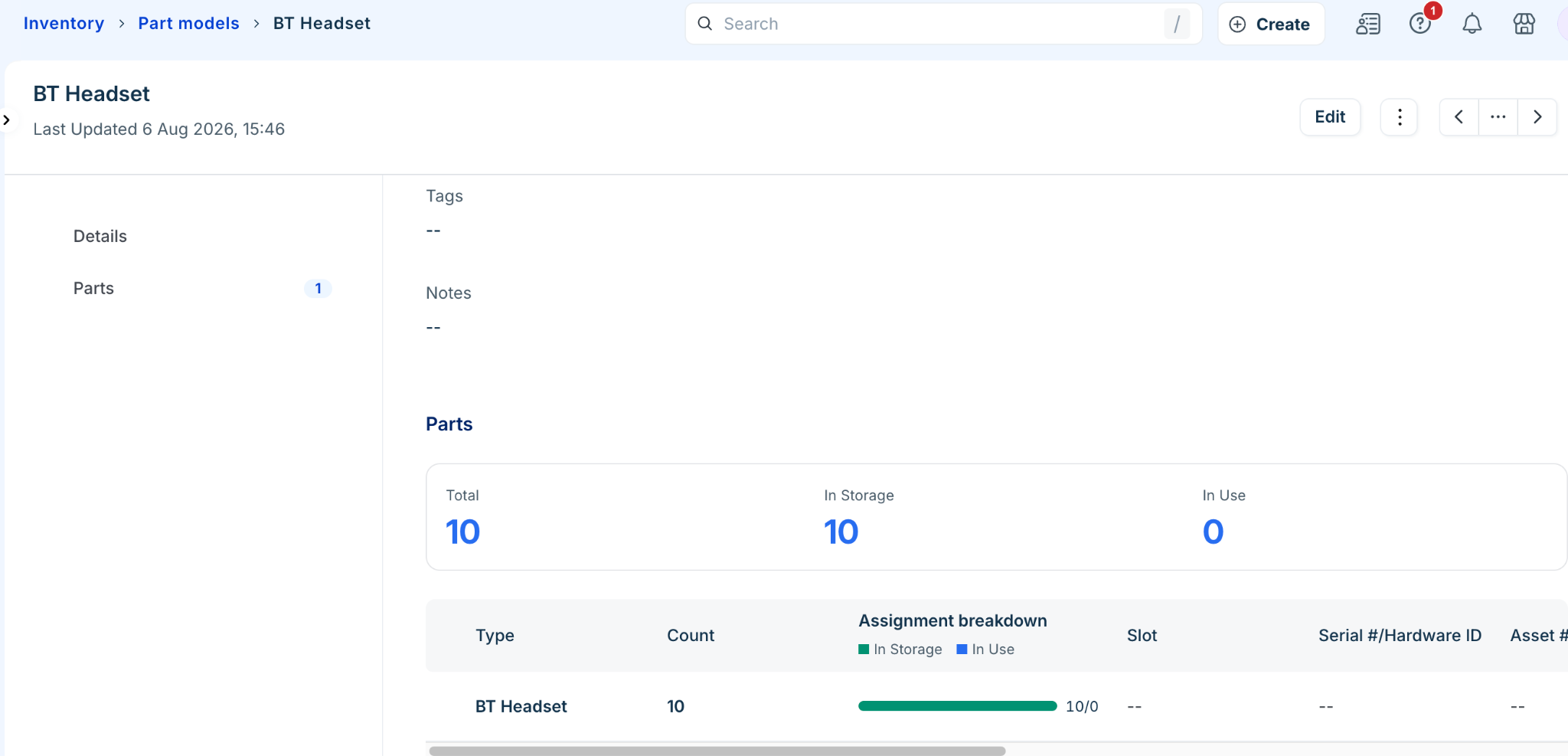
A consumable part has 10 units in stock.
A user requests 2 units through a service ticket. After the agent fulfills the request, the inventory updates to:
In Storage: 8
In Use: 2.
Later, the user requests 2 more units in person. The agent hands over the items, creates a ticket to record the request, and associates the 2 units with the ticket. The inventory updates to:
In Storage: 6
In Use: 4.
The user returns 1 unit after realizing it was not needed. The agent dissociates 1 unit from the ticket, updating the inventory to:
In Storage: 7
In Use: 3.
A new inventory batch with 10 additional units is added. The two batches now show:
Batch 1: In Storage: 7, In Use: 3
Batch 2: In Storage: 10, In Use: 0
A new ticket requests 15 units. The agent fulfills the request by allocating 7 units from Batch 1 and 8 units from Batch 2. The inventory updates to:
Batch 1: In Storage: 0, In Use: 10
Batch 2: In Storage: 2, In Use: 8
Note: If another agent fulfills the remaining stock from a selected batch before you complete the request, the available quantity may become 0. In such cases, the fulfillment fails, and you must select another batch with sufficient inventory.