Community
 Video Library
 Agent Training
 Freshservice
 Freshdesk
 Freshchat
 Freshcaller
 Freshsales
 Freshteam
 Freshworks Neo
 Freshsurvey
 Freshservice for MSP
 Note: Available only for new signups after the 31 March, 2026 release. If you signed up earlier, refer to the existing ITAM documentation.
TCP port scan discovery accelerates the inventory process by pre-scanning a specified range of IP addresses to identify active machines and open ports. This discovery determines whether a machine is running *nix or Windows and uses that data to automatically create or update specialized discovery jobs for those qualifying IPs.
When the scan is complete, the resulting TCP scan data is used to create or update a discovery job for the qualifying IPs. This page covers how to configure TCP port scan settings and schedule scans.
Create a TCP port scan job
To set up a new TCP port scan, follow these steps:
Step 1: Define the scan targets
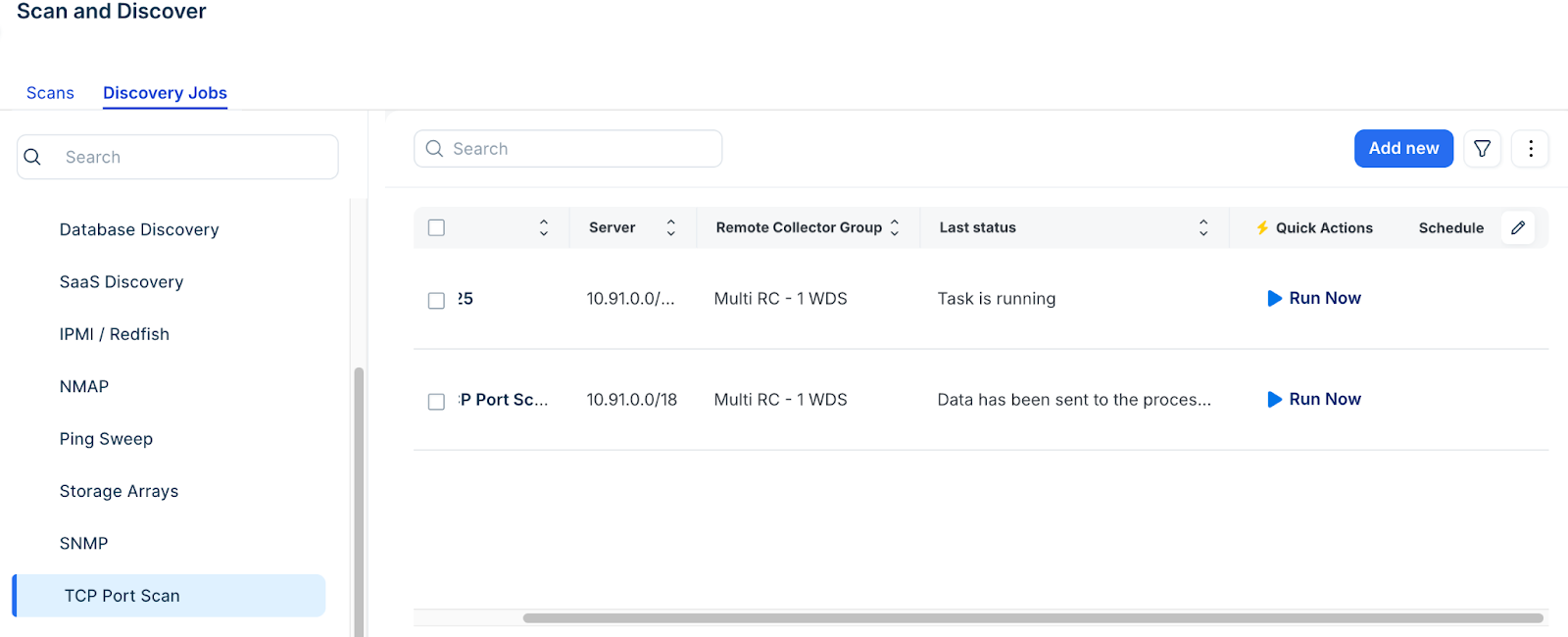
Go to Admin > Asset Management > Scan and discover and click the Discovery Jobs tab.
Select TCP Port Scan from the list and click Add new.
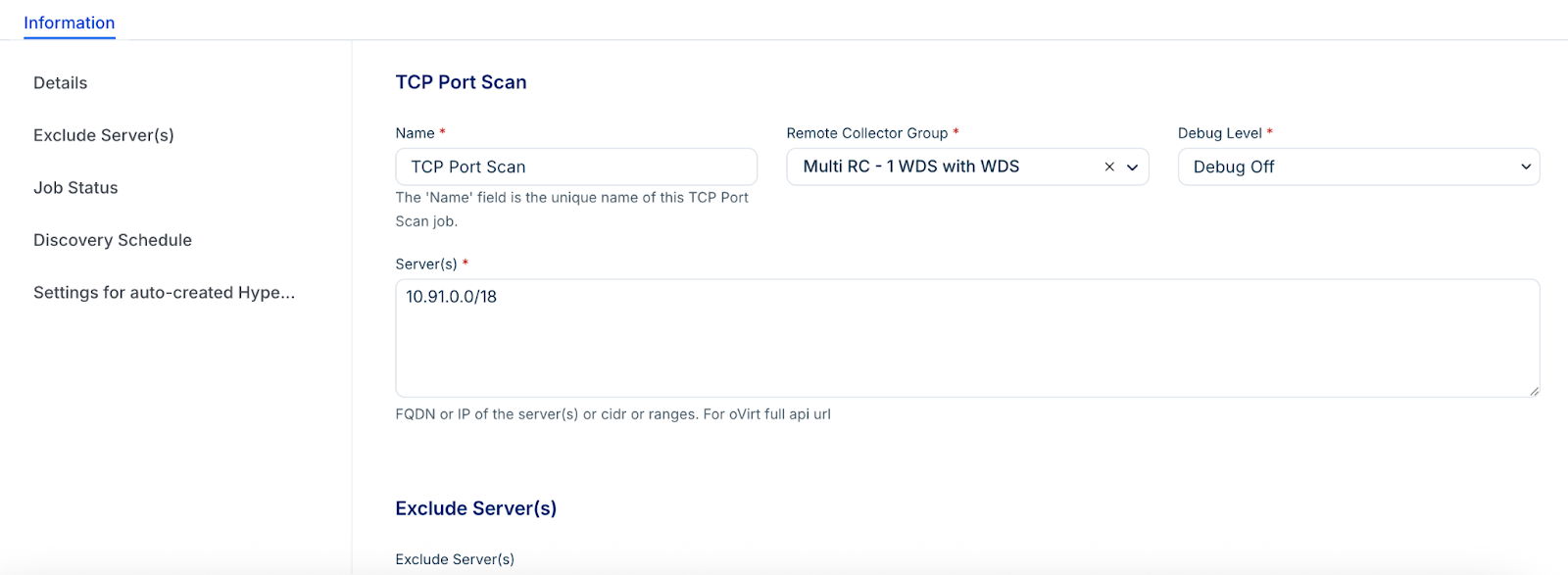
Specify which Remote Collector with Windows Discovery Service (WDS) to run the scan on.
Enter the Server(s) range (IP or FQDN).
Optionally, list any servers in the Exclude field that should be skipped.
Step 2: Configure the naming template
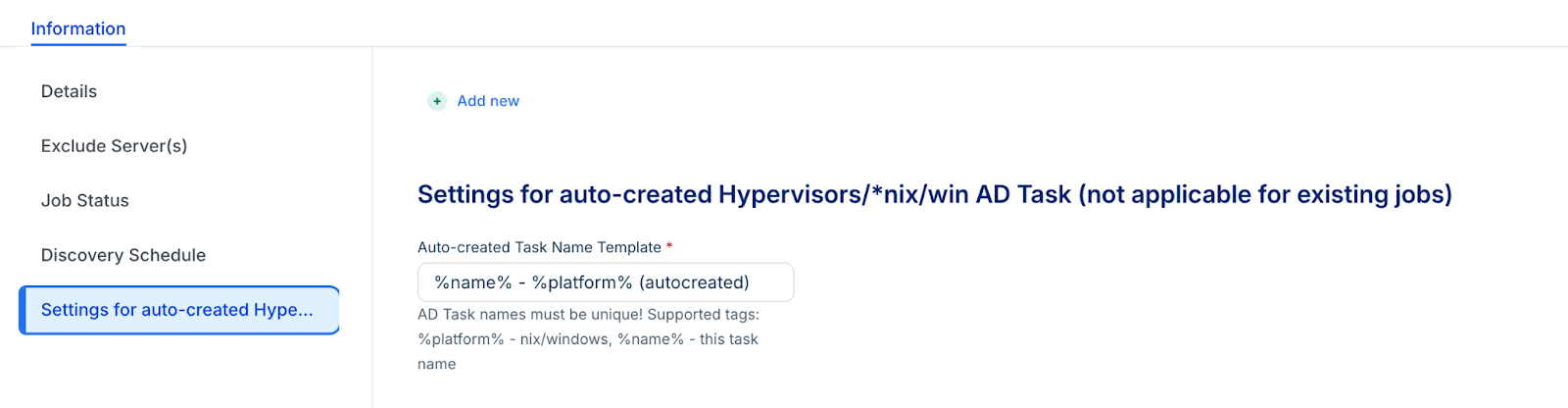
Under Settings for auto-created Hypervisors/nix/win AD, in the Auto-created Task Name Template define the naming template pattern. This pattern is used to generate unique names for the discovery jobs created by the scan results.
Step 3: Set credentials
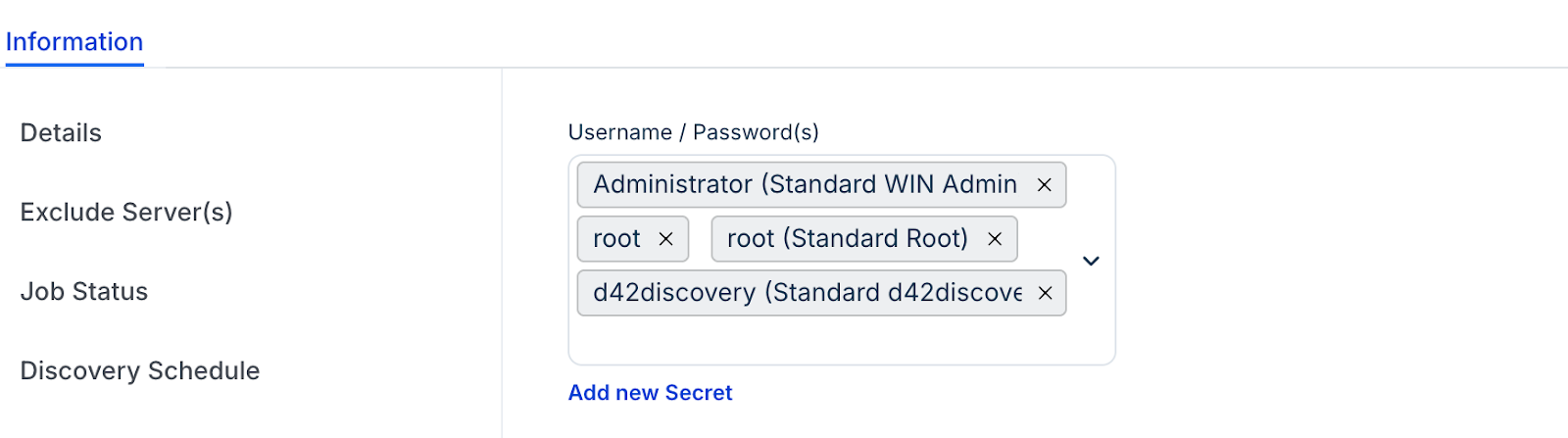
Add the necessary credentials in the Username / Password(s) field for the target servers.
Note: New secrets added to TCP port scans are not automatically synchronized with previously created discovery jobs; they only apply to new ones.
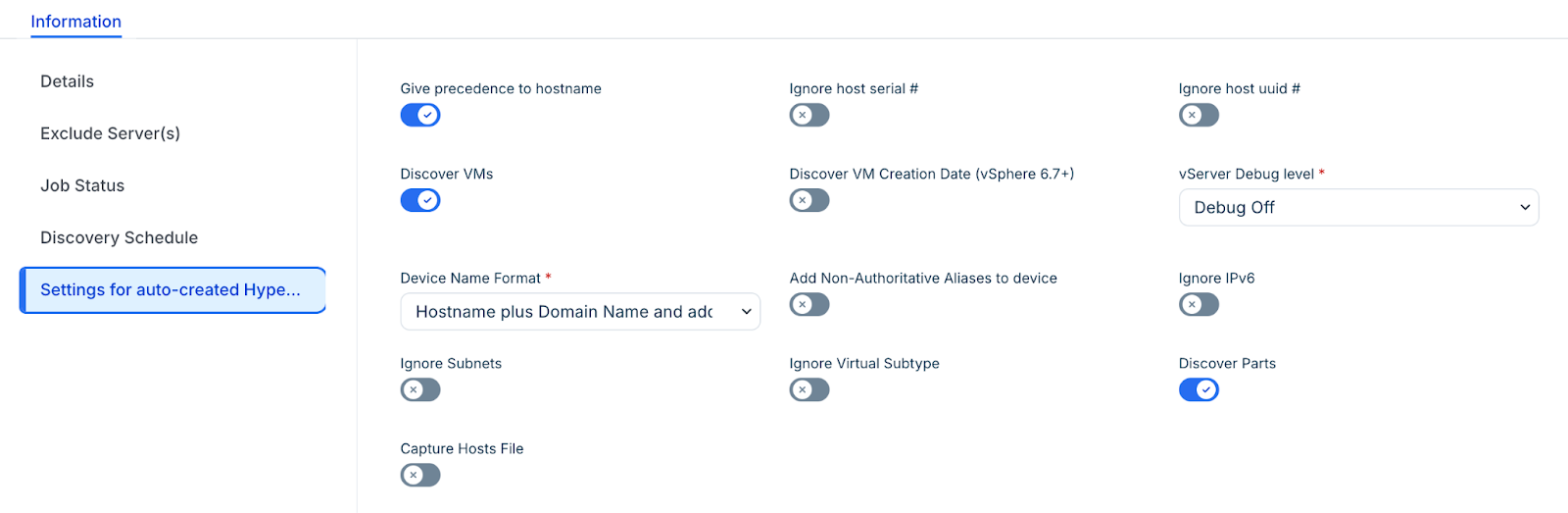
Step 4: Configure discovery job settings
The TCP port scan job acts as a template for the discovery tasks it creates. Ensure the following settings are configured to match your organizational standards:
Device Name Format: Enter your naming preferences for discovered devices and specify the scope of the data to be collected.
Discover ProviderID/Cloud ID: Enable this option to capture high-level application data.
Service Level: Assign a Service Level for cases where no VM is detected.
Associate discovered devices with specific Customers or VRF Groups.
Apply Tags to assist with Application Dependency Mapping (ADM).
Collect database server information: Enable this option to perform deep database discovery.
Step 5: Run or schedule the scan
In the Autodiscovery Schedule section, click Add another Autodiscovery Schedule to set a recurring interval for the scan itself.
Click Save.
To start immediately, click Run Now on the job details page.
Note: Scheduling a TCP port scan job only schedules the scan itself. The discovery jobs created as a result of the scan must be managed or scheduled separately.