
 Community
 Video Library
 Agent Training
 Freshservice
 Freshdesk
 Freshchat
 Freshcaller
 Freshsales
 Freshteam
 Freshworks Neo
 Freshsurvey
 Freshservice for MSP
 Note: Available only for new signups after the 31 March, 2026 release. If you signed up earlier, refer to the existing ITAM documentation.
UCS autodiscovery identifies Cisco ASA, Cisco UCS, NetScaler, and cluster devices through their native APIs. While devices from A10 Networks produce results using SNMP, Citrix NetScaler load balancer API discovery is used specifically to build TCP or UDP connections within application groups.
This article describes how to discover load balancers, Cisco UCS, and ACI devices. It covers how to create discovery jobs and configure specific options to map out virtual servers, pools, and their relationships to backend devices.
Note: NetScaler discovery will not add new devices and resources; these are typically added using initial SNMP scans.
Load balancer discovery procedures
To map out virtual servers, pools, and backend relationships, follow this three-stage process:
Step 1: Initial SNMP Scan
Create and run an SNMP job to identify and discover the load balancer and other cluster devices.
Input the correct matching community string and ensure SNMP is configured on your F5.
Step 2: Backend server discovery
Run a Hyervisor/*nix/Windows job to discover the actual backend servers (pool members). This gathers detailed information about the members themselves.
Step 3: API-based connectivity scan
Go to Discovery Jobs > UCS and click Add new.
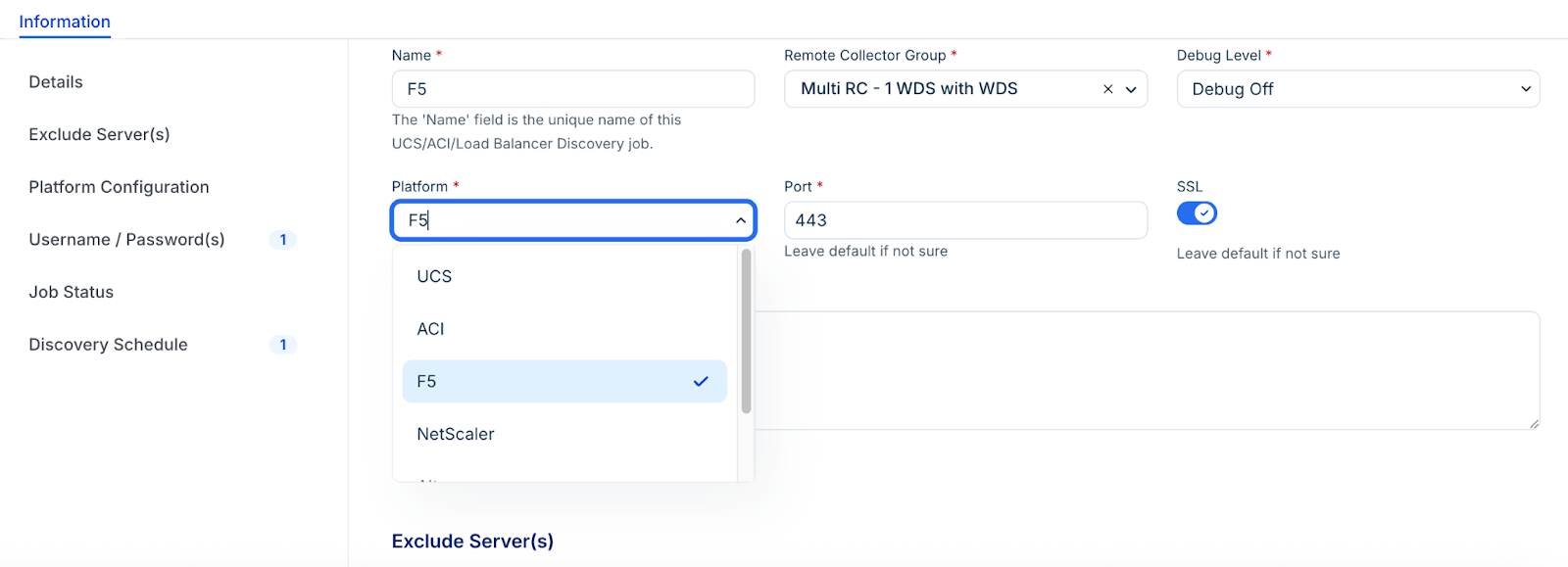
Select the Platform for the load balancer type from the dropdown. This step collects the connectivity and dependency data between the balancer and the pool members.
Prerequisites
Before starting the discovery process, ensure the following requirements are met:
F5 local account: You must have a username for a local account with access to the F5 API. API calls work with read-only access and do not require administrative privileges.
Note: F5 devices do not support username and password authentication for accounts using external providers (like Active Directory) which use token-based authentication.
Create a Load Balancer discovery job
Go to Discovery > UCS/ACI/Load Balancers, click Add new, and select the Platform for load balancer type from the drop-down.
If you are discovering an F5 device, follow these steps:
Start by scanning an F5 device using SNMP. Add a job under Discovery > SNMP and input the correct matching community string. Ensure you configure SNMP on your F5. See Load Balancers for more information about SNMP discovery.
Once discovered using SNMP, scan your F5 pool members using either SSH or the API, depending on the device's OS. This will allow you to gather detailed information about the F5 pool members.
Scan the F5 by creating a discovery job under Discovery > UCS/ACI/Load Balancers. This requires an account with F5 API permissions.
Create a UCS / Cluster discovery
To discover UCS or other cluster devices, follow these configuration steps:
Step 1: Add a new job
Go to Admin > Asset Management > Scan and discover and click the Discovery Jobs tab.
Select UCS from the list and click Add new.
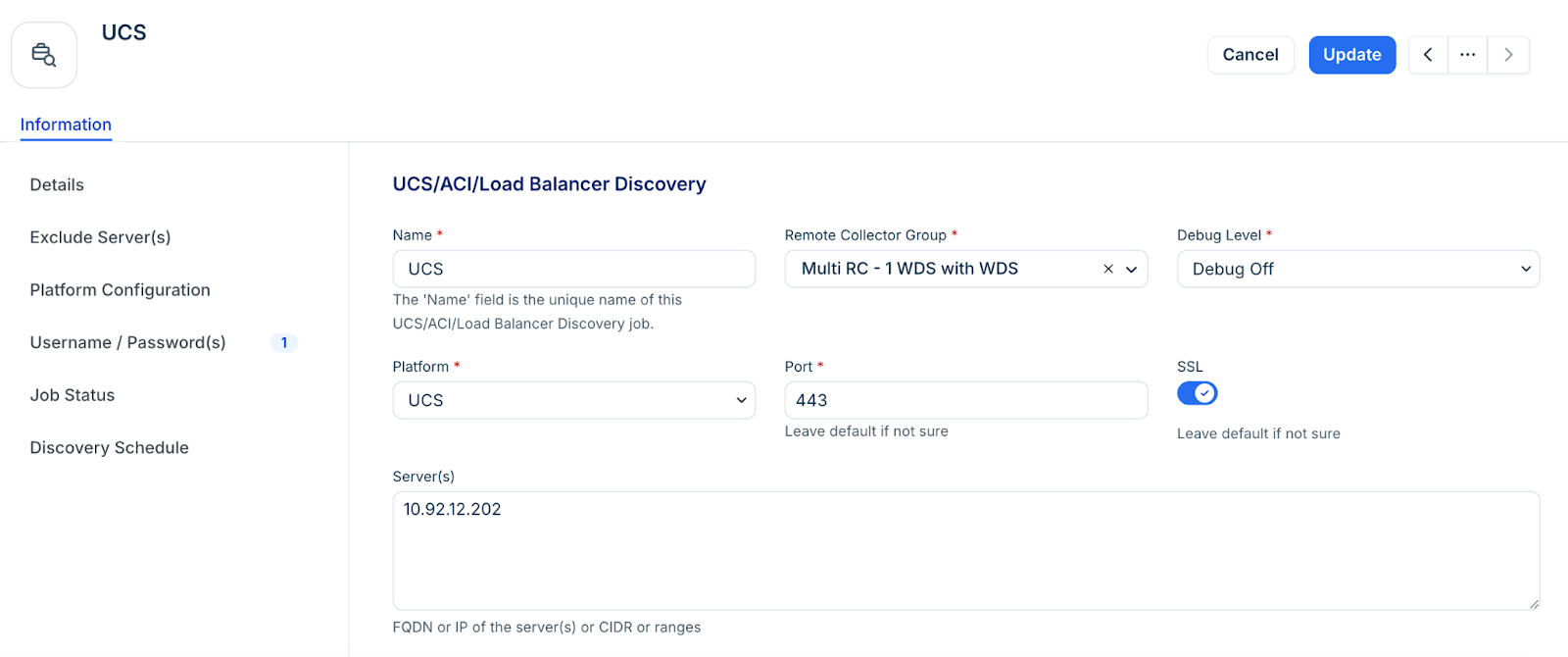
Enter a unique name for the job.
Select a Remote Collector from the drop-down.
Select UCS from the Platform drop-down.
Specify the correct port and select or clear the SSL option as needed.
In the Server(s) field, specify the server hostnames, IP addresses, IP ranges, or CIDR blocks for your cluster devices.
Step 3: Configure discovery options
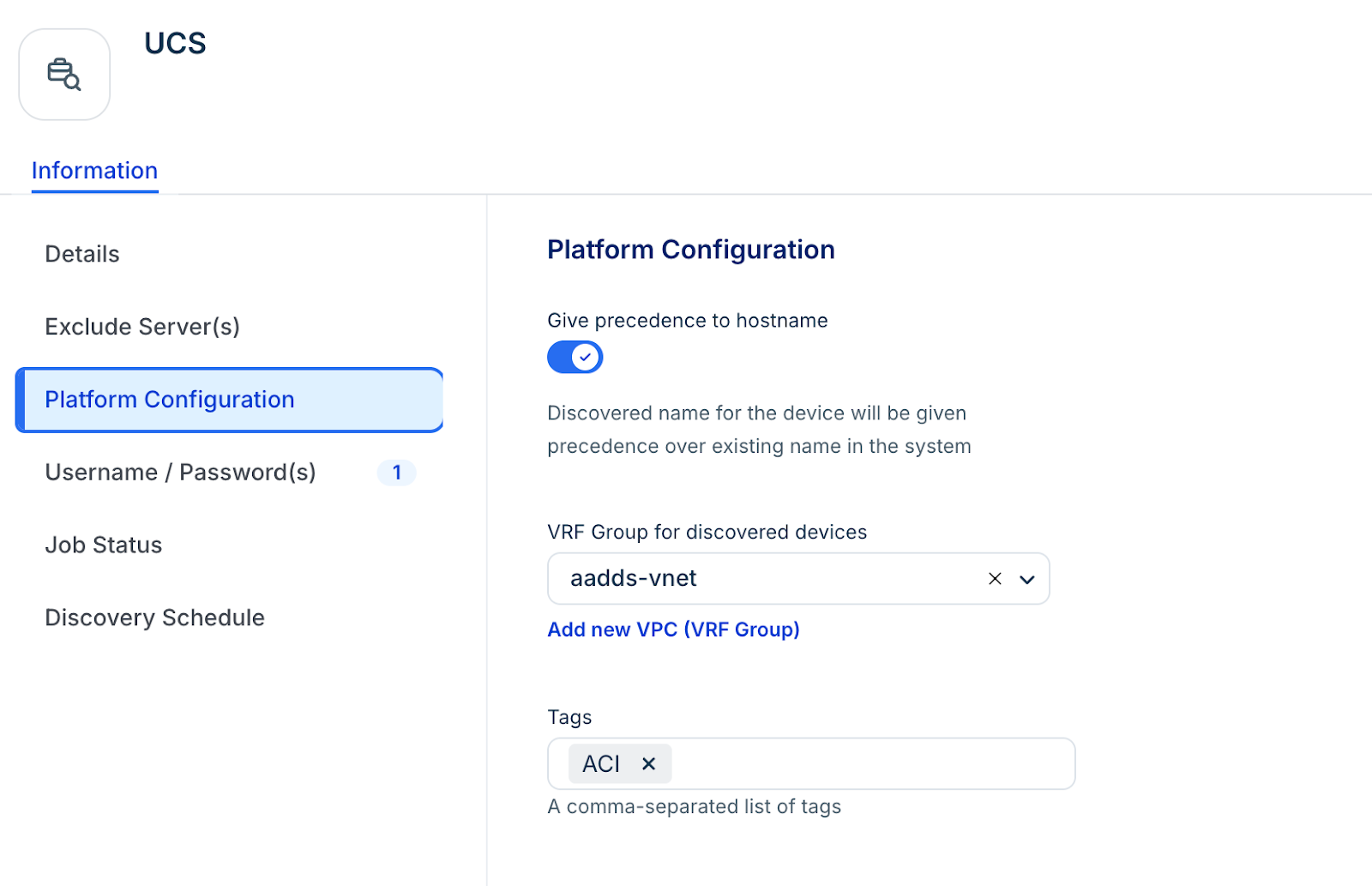
The following options apply to UCS/ACI devices. Also, the options change based on the selected platform.
Hostname to use: Select the hostname format for newly discovered devices.
Enable Toggle service level on power state based on your requirement.
Give precedence to hostname: Select to override the current hostname for existing devices, using the selection in Hostname to use.
Service level for decommissioned devices: Select a service level or add a new one for decommissioned devices.
VRF Group for discovered devices: Place discovered devices into the selected VRF group.
Tags for discovered devices: Add tags to the discovered devices.
Step 4: Authentication
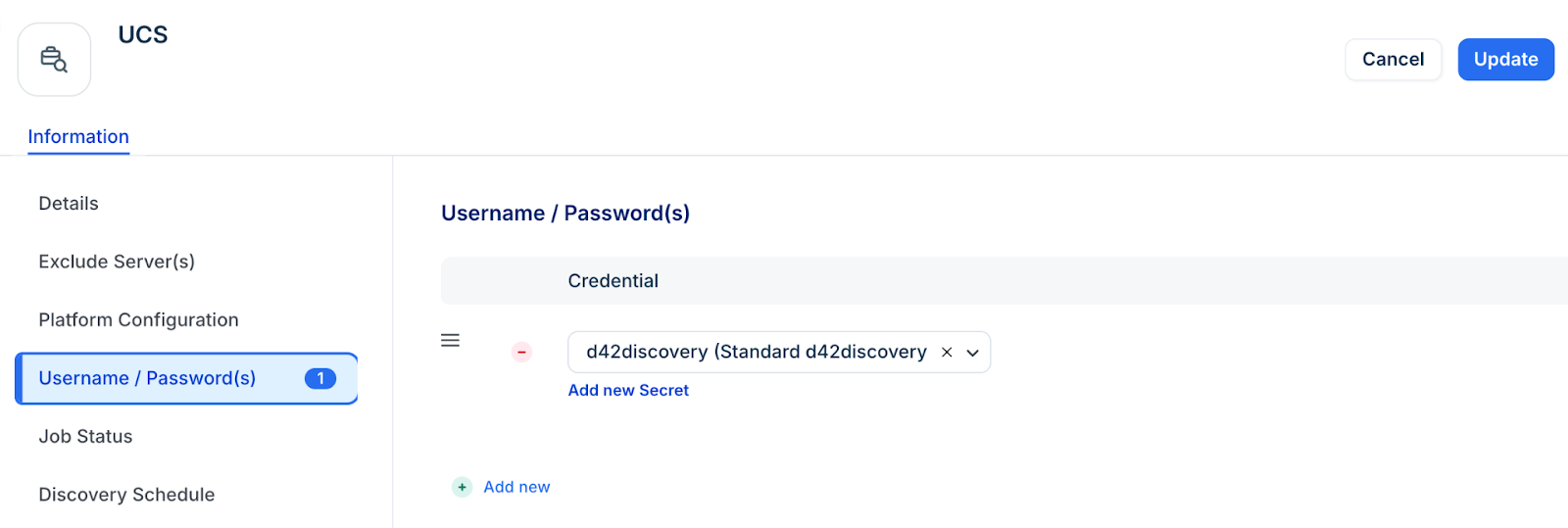
Select one or more sets of credentials that allow for authentication and querying of UCS/Cluster devices.
Step 5: Schedule and run the discovery job
In the Discovery Schedule section, click Add new to create an autodiscovery for the job. You can create multiple schedules.
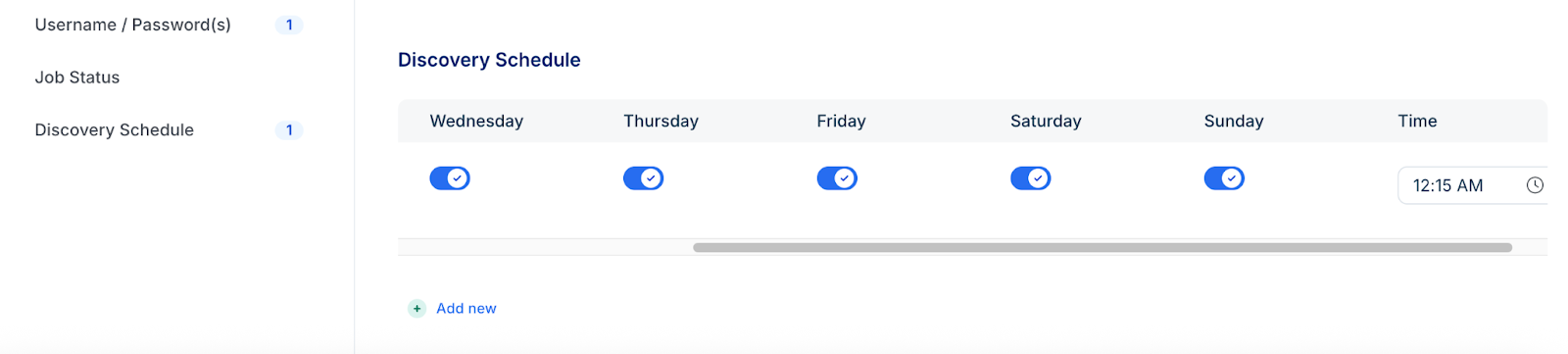
Click Save, then click Run Now to start the discovery.
Note: Newly created jobs will not run on the first day of creation to prevent a high volume of simultaneous tasks. To start the discovery immediately, click Run Now on the Discovery Jobs page.