
 Community
 Video Library
 Agent Training
 Freshservice
 Freshdesk
 Freshchat
 Freshcaller
 Freshsales
 Freshteam
 Freshworks Neo
 Freshsurvey
 Freshservice for MSP
 Note: Available only for new signups after the 31 March, 2026 release. If you signed up earlier, refer to the existing ITAM documentation.
This article provides a comprehensive guide to discovering Kubernetes resources. Whether your clusters are hosted on major cloud platforms or running as standalone environments, the discovery engine identifies nodes, containers, and full cluster structures to build a complete map of your containerized infrastructure.
Kubernetes autodiscovery ensures that your inventory reflects the dynamic nature of container orchestration. The system captures metadata across the entire cluster hierarchy, normalizing data from different providers into a consistent format.
Discovered Kubernetes items
The following table outlines the components of a Kubernetes environment, the types of information discovered for each component, and where they can be found.
Procedures
Kubernetes discovery for AWS, GCP, and Azure
If your clusters are hosted on a managed cloud service (EKS, GKE, or AKS), you can enable Kubernetes scanning within your existing cloud discovery jobs.
Navigate to Discovery > Cloud and click Create (or edit an existing job).
Scroll down the configuration form and check the Kubernetes Discovery option.
Action for Resources not found: Select the action the system should take (e.g., mark as deleted or ignore) when cluster children resources are missing in subsequent scans.
Save and run the job. The system will now use your cloud credentials to query the Kubernetes API.
Standalone Kubernetes discovery
Use this method for on-premise clusters or environments where you prefer to target the Kubernetes API directly.
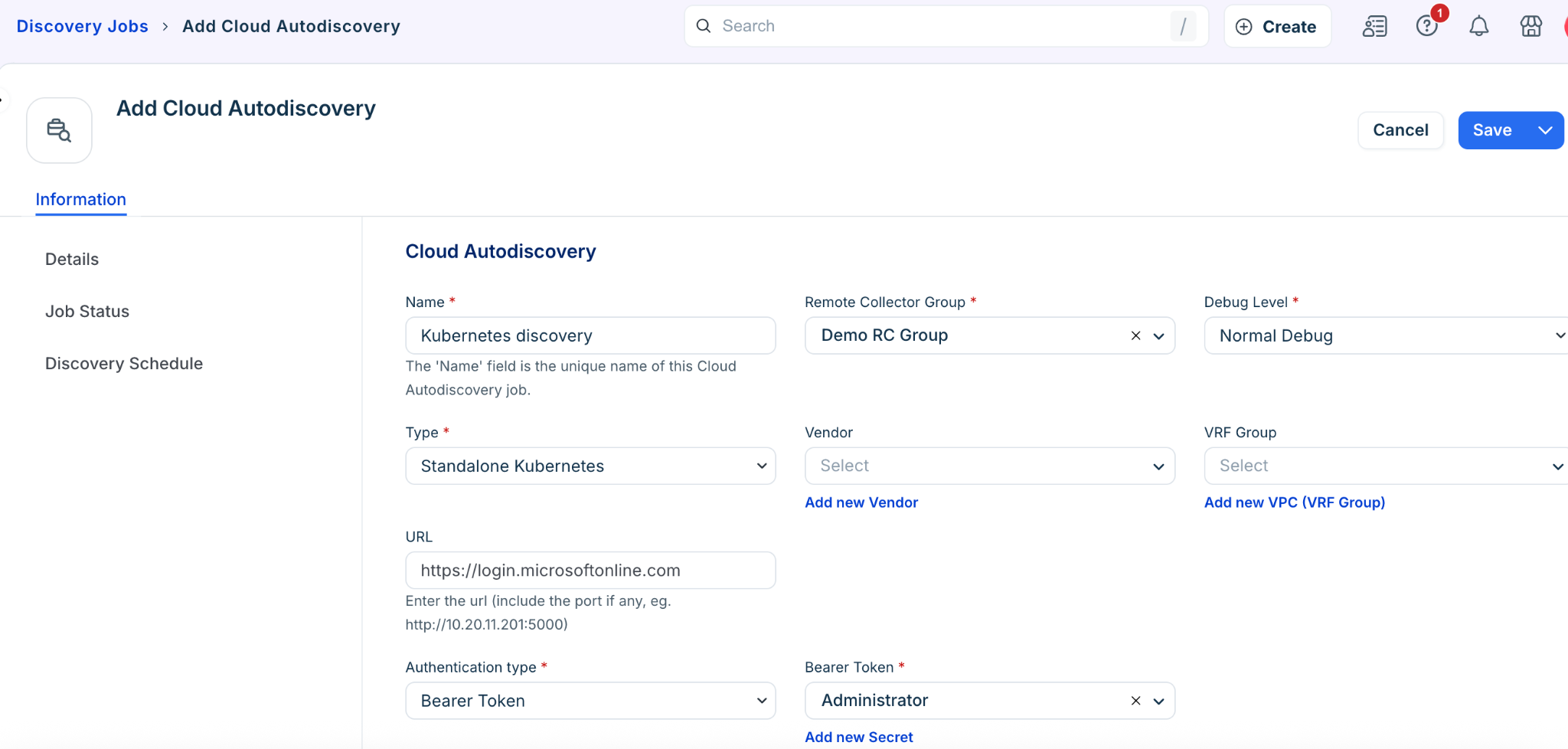
Navigate to Discovery > Cloud and click Create.
Set the Type to Standalone Kubernetes.
API Details: Enter the URL for your Kubernetes API server.
Authentication: Choose your preferred method:
Bearer Token: Provide the service account token.
Basic Credentials: Enter the username and password.
Contextual Settings:
Action for Resources not found: Define the retention policy for missing resources.
Service Level: Assign a lifecycle stage (e.g., Development, Production) to all discovered objects.
Vendor/VRF Group: Optionally assign these user-defined categories for better organization.
View and manage resources
Access discovered data
Once discovery is complete, all container-related assets are centralized in the resource inventory.
Navigate to Resources > All Resources.
Use the Vendor Resource Type dropdown filter to isolate specific Kubernetes components (Nodes, Pods, etc.).
Click any Resource Name to view its full property set, including endpoint details and namespaces.
Edit resource metadata
While the core technical data is updated automatically via discovery, you can manually enrich resource records.
Open a specific resource and click Edit in the bottom right.
You can modify the following fields:
Notes & Tags: Add descriptive information or searchable labels.
In Service Status: Update the operational level or lifecycle stage.
Custom Fields: Provide values for any user-defined metadata fields.
Important considerations
RBAC Permissions: Ensure the service account used for discovery has "read" permissions for nodes, pods, and namespaces within the cluster.
Network Connectivity: The Remote Collector (RC) must have network line-of-sight to the Kubernetes API endpoint (typically port 6443 or 443).