Community
 Video Library
 Agent Training
 Freshservice
 Freshdesk
 Freshchat
 Freshcaller
 Freshsales
 Freshteam
 Freshworks Neo
 Freshsurvey
 Freshservice for MSP
 Cloud autodiscovery jobs gather infrastructure details, monitor network traffic for Application Dependency Mapping (ADM), and track virtual machine (VM) states. Beyond major providers, support is available for a wide variety of cloud platforms. Each cloud type includes specific configuration options to ensure your CMDB remains synchronized with your virtual infrastructure. The following a cloud platform are supported:
Alibaba Cloud
Amazon AWS
Arista CloudVision (Preview)
DigitalOcean
Google Cloud
Intune
Jamf
Linode
Microsoft Azure
OpenStack
Oracle Cloud
Standalone Kubernetes
Prerequisites
You need the following before the installation:
API credentials (Keys, Tokens, or User IDs) for the target cloud platform.
Network connectivity between the appliance (or Remote Collector) and the cloud provider's API endpoints.
Read only permissions for the discovery service account on the cloud provider side.
Alibaba Cloud
Alibaba Cloud discovery collects infrastructure information and monitors network traffic. A read only Alibaba role is sufficient for these operations.
To configure the job:
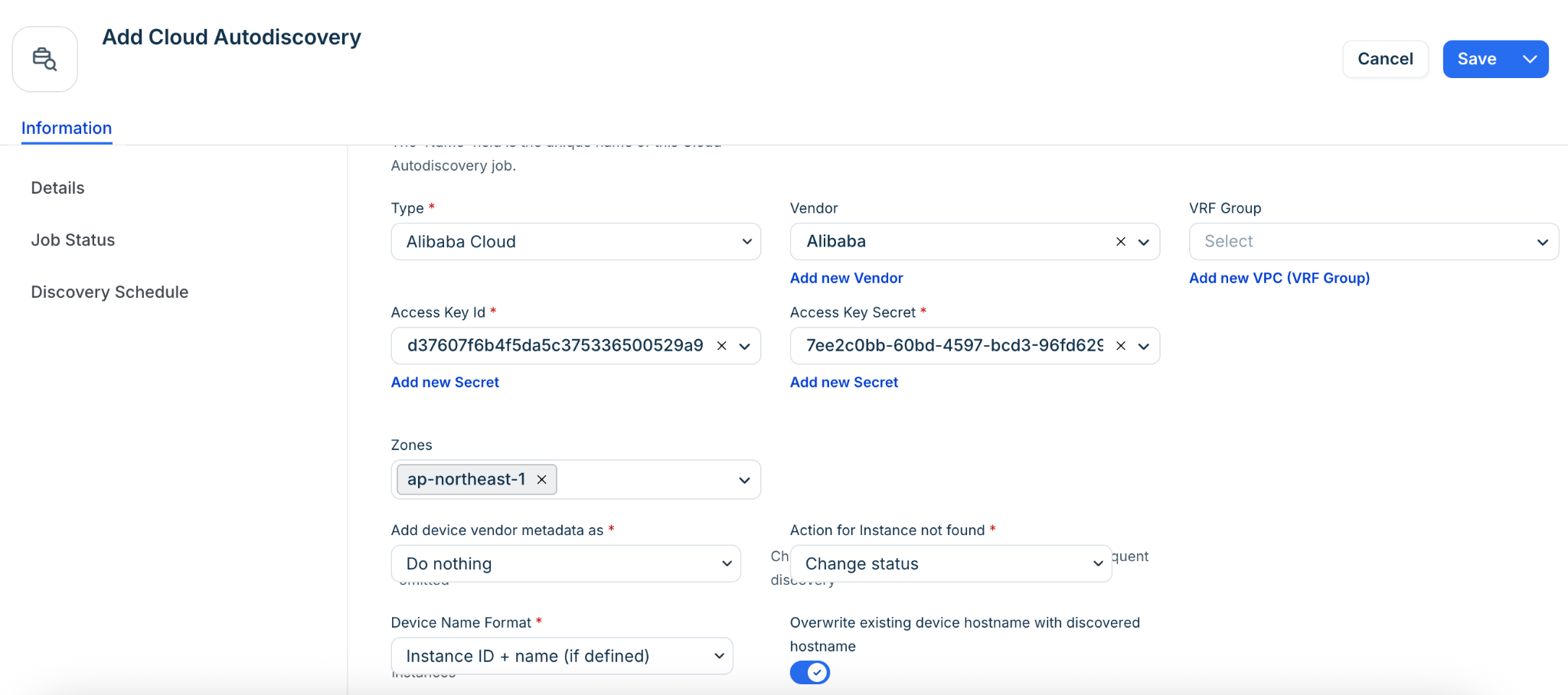
Select Alibaba Cloud from the Type dropdown.
Enter the Access Key Id and Access Key Secret.
Select one or more Available Zones.
Choose an Action for Instance not found and a Device Name Format.
Click Save, then click Run Now.
Arista CloudVision (Preview)
This discovery captures network infrastructure details via the CloudVision API.
To configure the job:
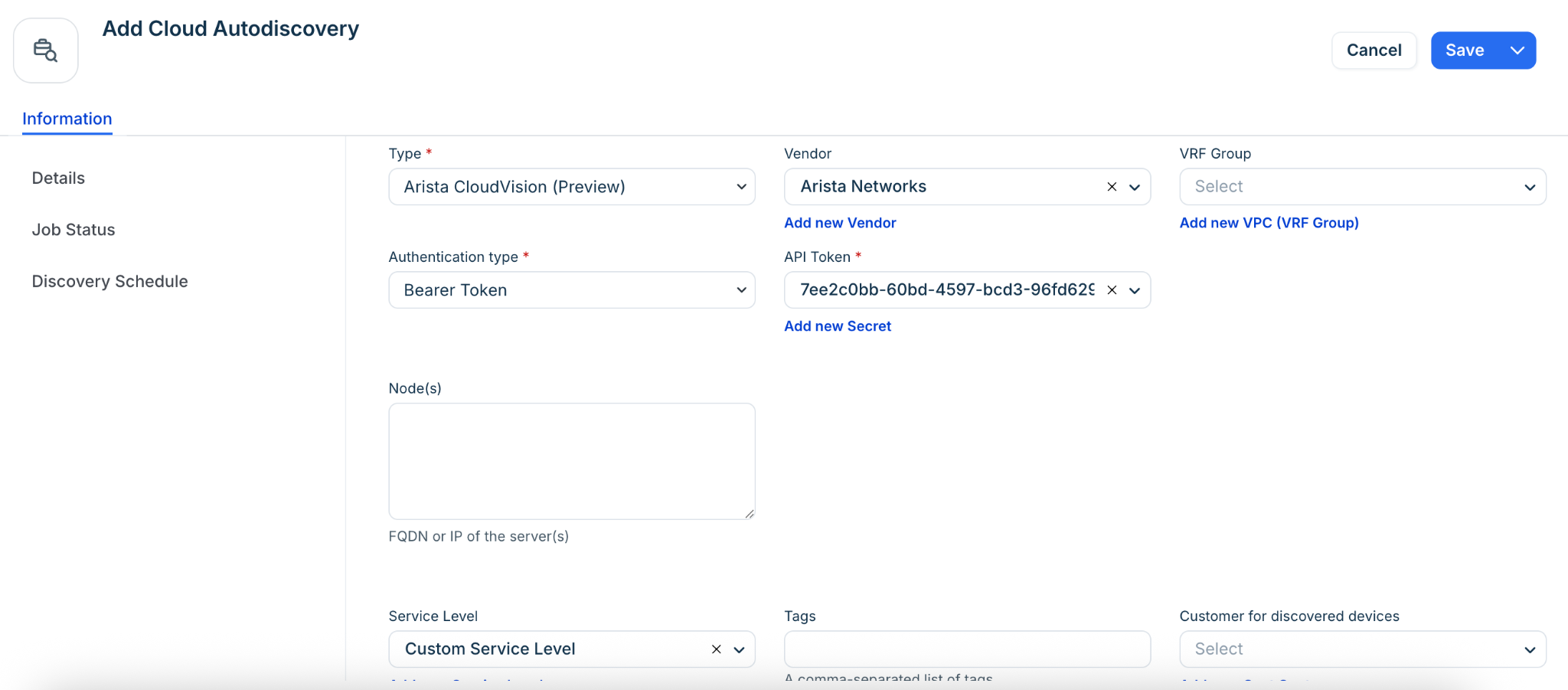
Select Arista CloudVision (Preview) from the Type dropdown.
Enter the server IP or FQDN in the Node(s) field and select a Remote Collector.
Select an Authentication type (Bearer Token or Basic Authentication) and provide credentials.
Optionally add Tags to categorize discovered items for searching and ADM calculation rules.
DigitalOcean
Droplets are discovered and categorized as virtual devices.
To configure the job:
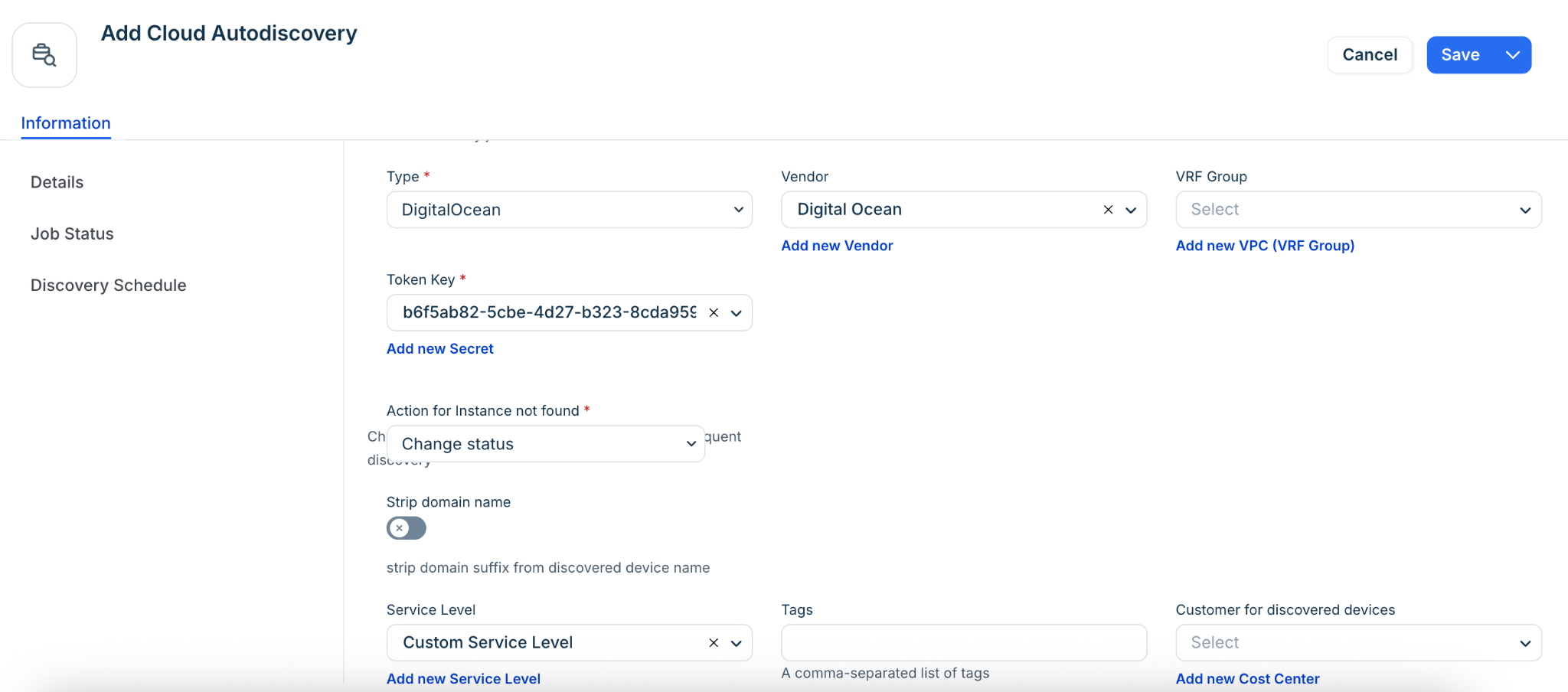
Select DigitalOcean from the Type dropdown.
Enter your Token Key.
Set the Service Level (e.g., Production or Development).
Save and run the job.
Linode
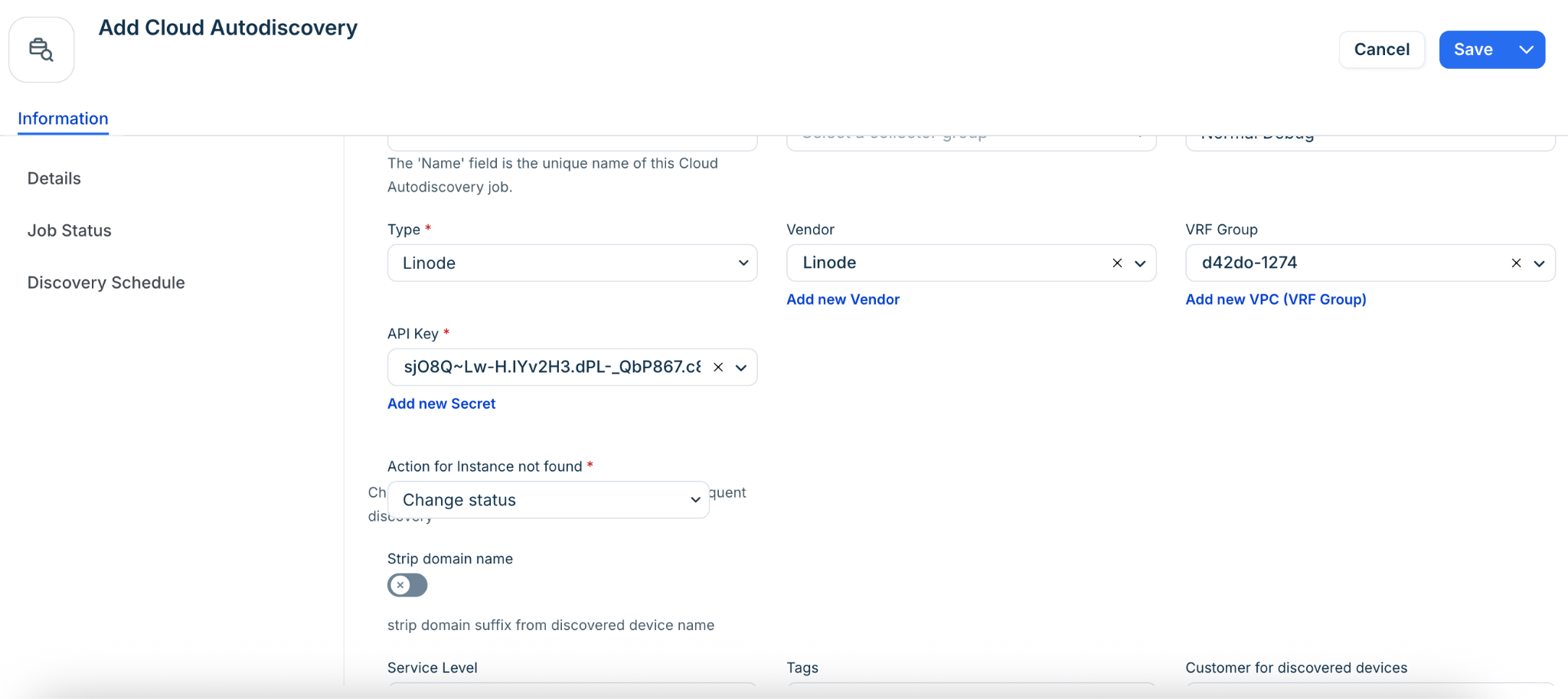
Linode instances are discovered as virtual devices. You must generate an API key in your Linode console under My Profile > API Keys before starting.
To configure the job:
Select Linode from the Type dropdown.
Click the plus (+) icon to add your Linode API key as a Secret.
Action for Instance not found: Select Delete Instance to ensure the CMDB remains in sync if an instance is removed from Linode.
Choose a VRF Group if you have duplicate IPs in your internal network.
OpenStack
OpenStack discovery requires specific project permissions. Ensure the user group has os_compute_api:os-hypervisors and os_compute_api:os-extended-server-attributes enabled in the policy.json.
Get Details for OpenStack Discovery
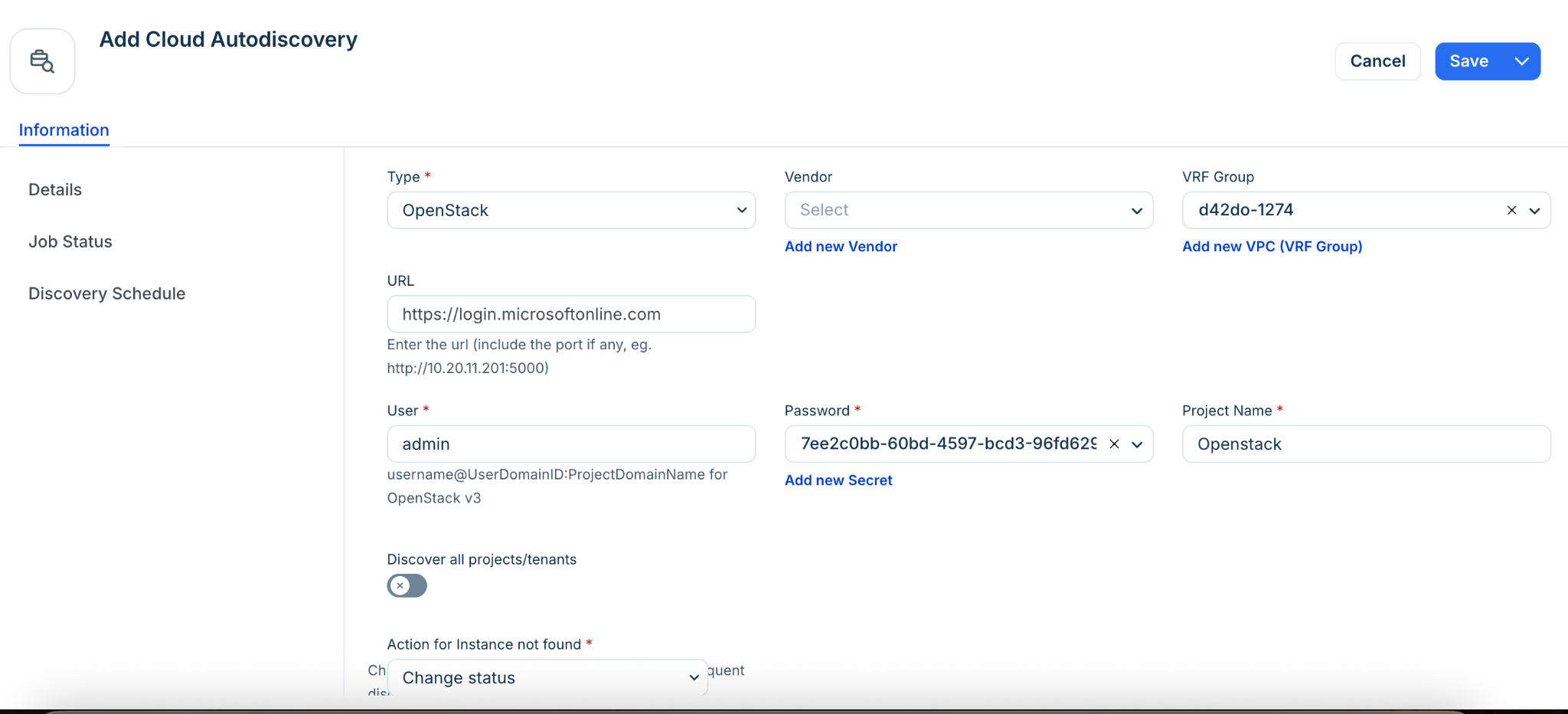
Your OpenStack User Name (username@UserDomainID:ProjectDomainName), Password, and Project Name is required for discovery.
Log in to OpenStack and take note of your User Name and Password.
When you log in to OpenStack, the Overview screen displays a list of projects.
Enter the name of the project you want to access in the Project Name field.
Create an OpenStack Discovery Job
To configure the job, follow these:
Select OpenStack from the Type dropdown menu, and fill in the User name, Password, and Project name fields.
If you disable Discover all projects/tenants, then the Project Name is required. When Discover all projects/tenants is enabled, Device42 will discover resources across all available projects, making the specific project name unnecessary.
Optionally, you can configure the following:
Add a Vendor. Vendors can be user-defined or populated by the data Normalization and Enrichment Service as part of discovery.
Choose a VRF Group. All IPs found will be placed in subnets in the chosen VRF group. This is useful if you have duplicate IPs in your internal network.
Select which Action for Instance not found Device42 should take. If you select Delete Instance, then each time this discovery job is run, any devices previously created for this account that aren't found by the latest discovery job will be deleted.
Set the Service Level of the job to be applied to the discovered items. For example, Development, Deployment, or Production.
Create a regular schedule to determine when the job will run.
Click Save and Run Now to run the job immediately. You can also run the job manually at any time by clicking the Run Now button on the Cloud Autodiscovery list page.
Oracle Cloud
This job discovers Oracle Cloud VMs and their associated subnets.
To configure the job:
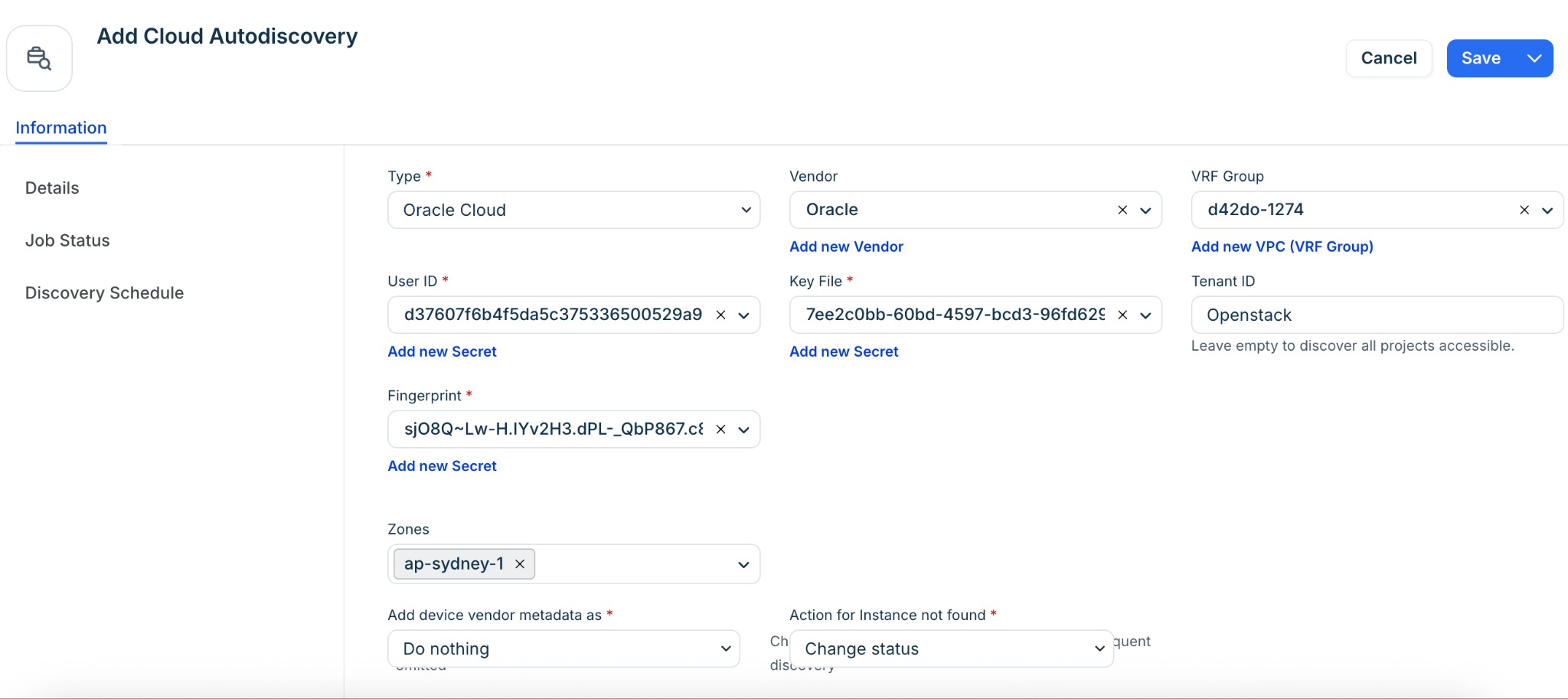
Select Oracle Cloud from the Type dropdown.
Enter the following:
User Id, Fingerprint, Key File, and Tenant ID.Select the target Zones.
Optionally, you can:
Add a Vendor. Vendors can be user-defined or populated by the data Normalization and Enrichment Service as part of discovery.
Select a VRF Group. All IPs found will be placed in subnets in the chosen VRF group. This is useful if you have duplicate IPs in your internal network.
Select a Remote Collector.
Set the Service Level of the job to be applied to the discovered items. For example, Development, Deployment, or Production.
Create a regular schedule to determine when the job will run.
Click Save and execute the job.