
 Community
 Video Library
 Agent Training
 Freshservice
 Freshdesk
 Freshchat
 Freshcaller
 Freshsales
 Freshteam
 Freshworks Neo
 Freshsurvey
 Freshservice for MSP
 Cloud autodiscovery automates the collection of data for virtual devices on Amazon AWS, Amazon API, Microsoft Azure, Linode, DigitalOcean, OpenStack, Google Cloud, Alibaba Cloud, Oracle Cloud, and standalone Kubernetes.
The discovery process imports cloud virtual machines, databases, and storage as devices. These cloud assets share the same features as any other device. You can work with cloud assets to define application components, store passwords, and create custom keys just as you would for physical or virtual hardware.
Note: Available only for new signups after the 31 March, 2026 release. If you signed up earlier, refer to the existing ITAM documentation.
Applicable plans: Growth, Pro, Enterprise
Create Cloud Platform Discovery job
To create a new cloud autodiscovery job, follow these steps:
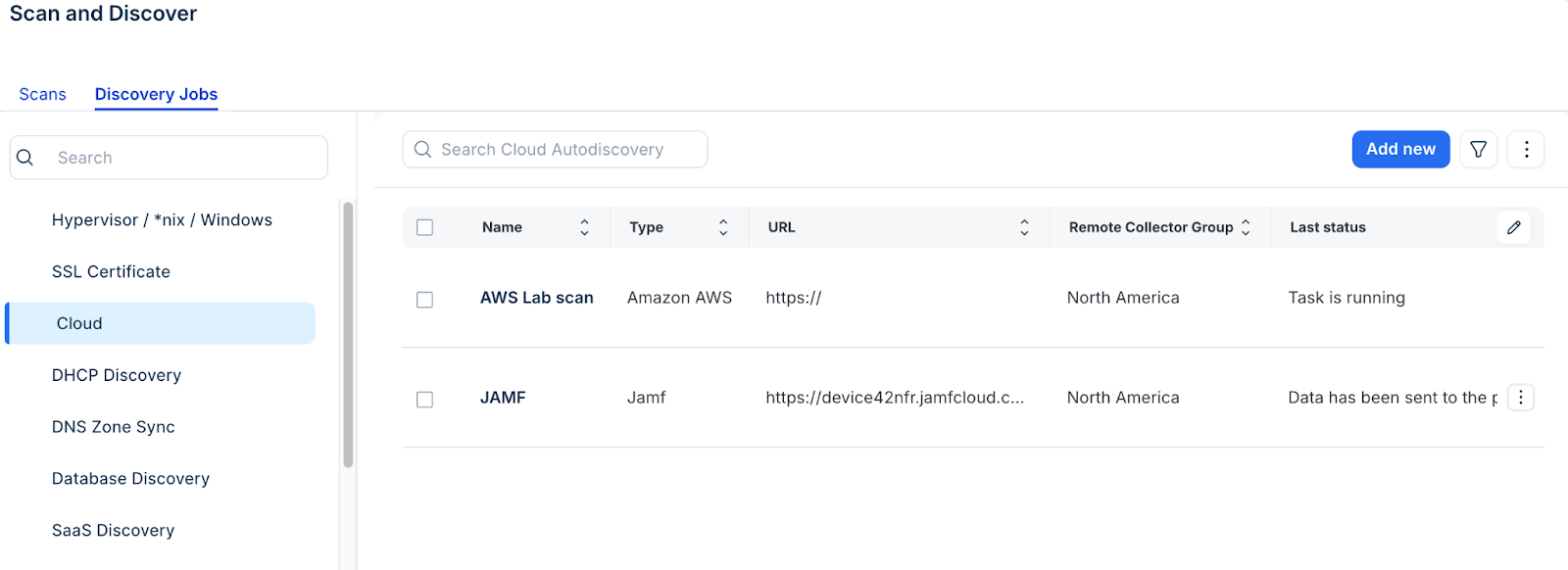
Go to Admin > Asset Management > Scan and discover and click the Discovery Jobs tab.
Select Cloud from the list of discovery jobs and click Add new.
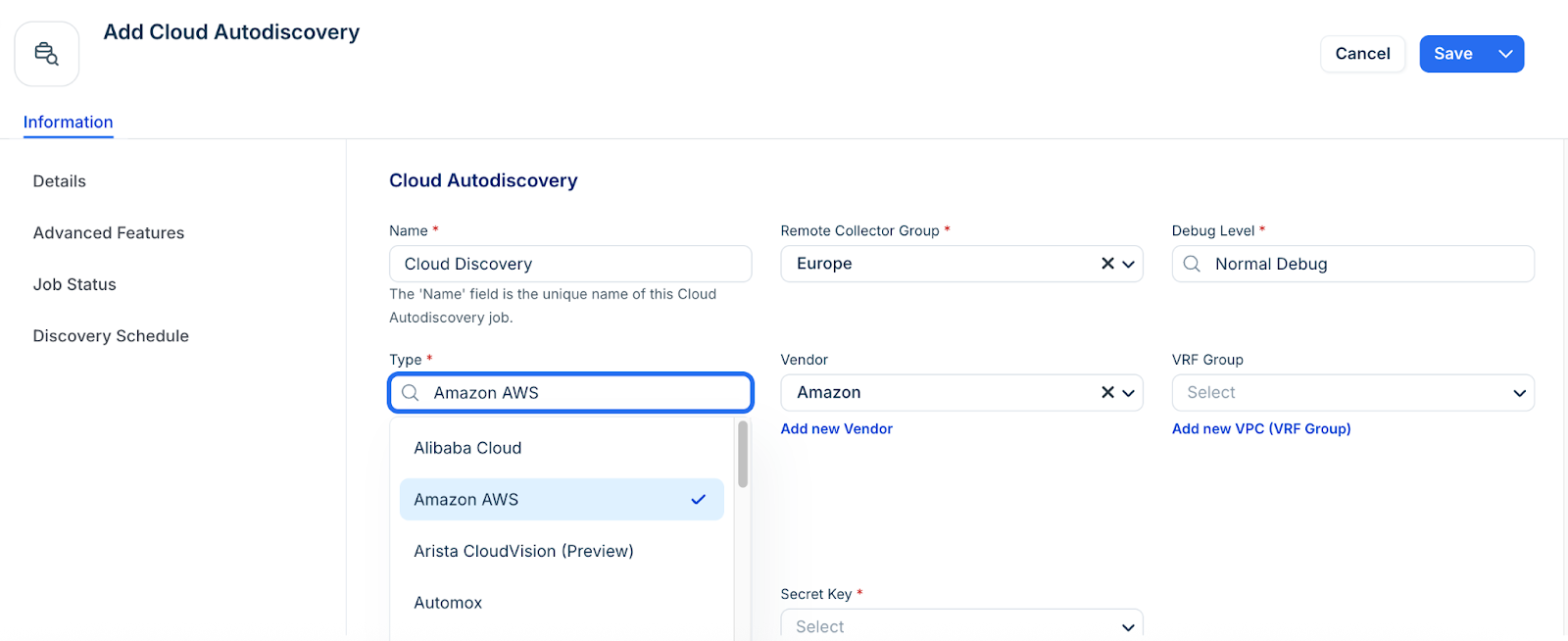
Enter a name and Remote Collector Group for the discovery.
Select the Type and Vendor for the discovery.
Enter the Access key ID and Secret key for the discovery.
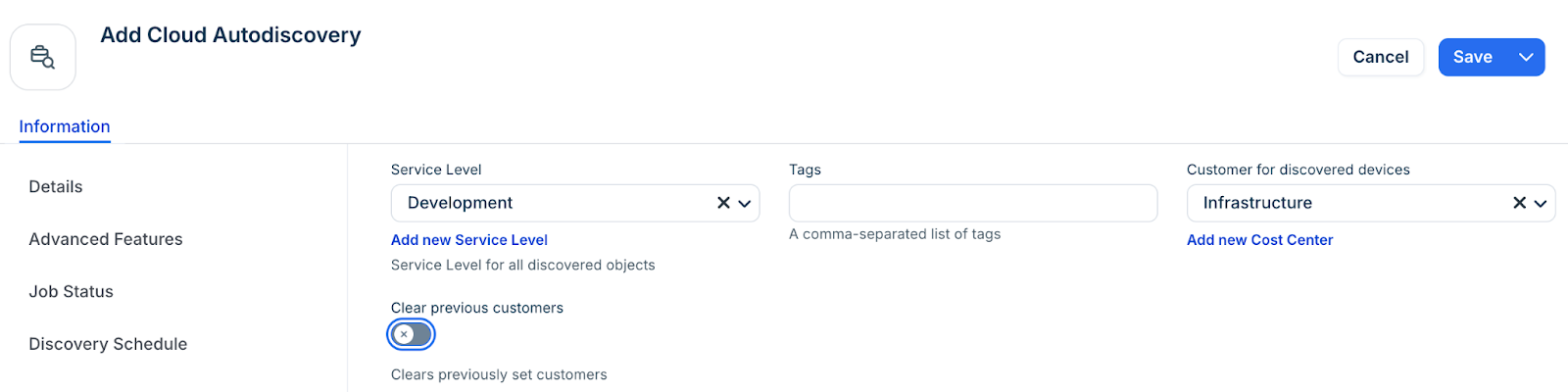
Select an option from the Service Level drop-down, or add a new Service level category. For example, you can set it so that the Development, Deployment, or Production service level is applied to discovered items.
Select a customer for discovered devices to add another specialized classification or create a new by using the Add new Cost Center option.
In the Discovery Schedule section, create an autodiscovery for the job. You can create multiple schedules using the + Add new button.
Click Save.
View cloud instance information
To view the details of your discovered virtual devices, follow these steps:
In the side More options > IT Asset Management > All Devices.
Select Virtual from the Type filter to display the list of virtual devices.
Click on a device name to enter the view or edit mode.
Locate the Cloud Instance Information details at the bottom of the page.
Note: Newly created jobs do not run on the day you create them. This prevents an unintentionally large number of jobs from running simultaneously during initial setup. To run a job immediately after creation, click Run Now on the job details page.