
 Community
 Video Library
 Agent Training
 Freshservice
 Freshdesk
 Freshchat
 Freshcaller
 Freshsales
 Freshteam
 Freshworks Neo
 Freshsurvey
 Freshservice for MSP
 Note: Available only for new signups after the 31 March, 2026 release. If you signed up earlier, refer to the existing ITAM documentation.
The Signed Mac agent allows for secure, agent based discovery of macOS devices. The signed agent provides a secure way to collect inventory data without triggering macOS gatekeeper warnings. For large scale environments, enterprise customers can deploy the agent and its configuration through JAMF or other Mobile Device Management (MDM) solutions.
Install and run the Signed Mac agent
To install the signed Mac agent, follow these steps:
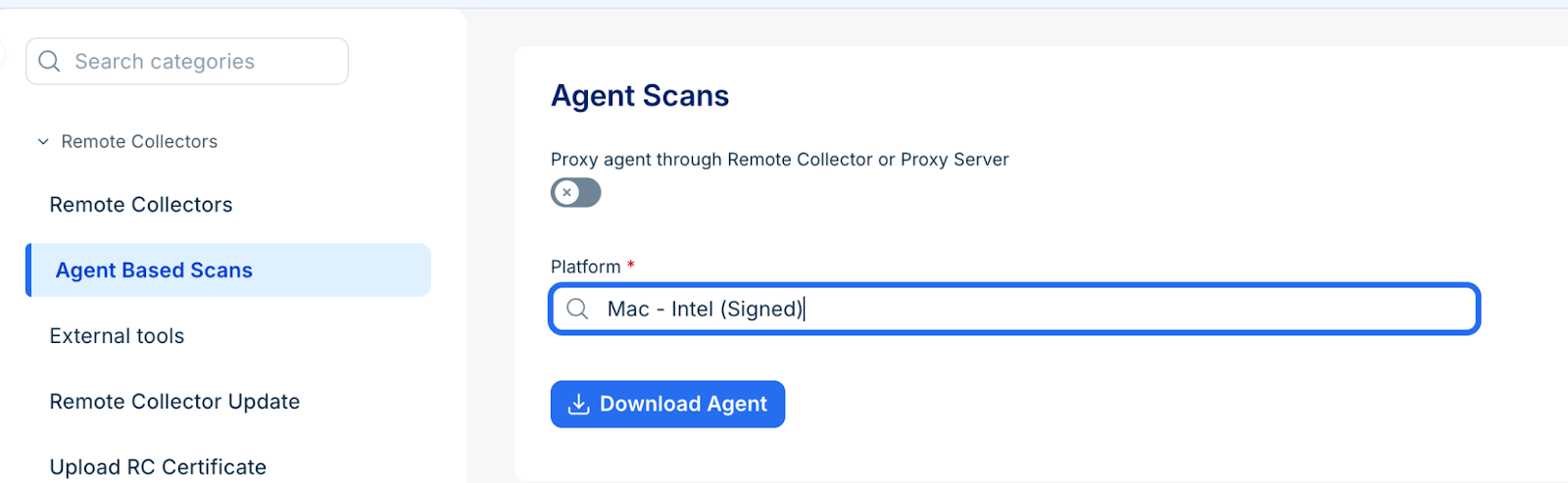
Go to Discovery Hub > Remote Collectors and agents > Agent Based Scans.
In the Platform field, select Mac-Intel (Signed) and click Download Agent.
Unzip the notarized binary file on the target machine.
Store the configuration file (d42_agent_config) in a secure location on the file system.
Open the terminal and run the binary by calling the configuration file using the following command: sudo <executable_name> --config-file=<path>/d42_agent_config
Note: It won't auto-update (as that would break the signing) and needs to be manually updated or updated via MDM solutions.
Troubleshooting
If the agent does not run after installation on macOS, the issue may be caused by the system’s security quarantine attribute.
To resolve this:
Open Terminal.
Run the following command to remove the quarantine attribute:
xattr -d com.apple.quarantine <executable name>
Re-run the executable.