
 Community
 Video Library
 Agent Training
 Freshservice
 Freshdesk
 Freshchat
 Freshcaller
 Freshsales
 Freshteam
 Freshworks Neo
 Freshsurvey
 Freshservice for MSP
 Note: Available only for new signups after the 31 March, 2026 release. If you signed up earlier, refer to the existing ITAM documentation.
Agent-based discovery is designed for environments that are unreachable through the network or governed by strict security rules that limit traffic flow. While agentless discovery is the recommended best practice, agents provide a reliable alternative for security-hardened assets.
Note - The information gathered is identical to agentless methods, but the agent does not support Resource Utilization (RU) data or database discovery.
Supported platforms
Autodiscovery agents are available for deployment on the following platforms:
Windows 64-bit (Recommended)
Windows 32-bit
Mac - Intel (Signed)
Mac - ARM
Linux 32-bit
Linux 64-bit
FreeBSD 32-bit
FreeBSD 64-bit
OpenBSD 32-bit
OpenBSD 64-bit
Solaris Sparc 64-bit
See Windows Discovery Agent Service Wrapper and Mac Agent Service Launcher for information on installing versions of the Windows and Mac discovery agent as a service. Configure environment variables for proxy
If your network requires a proxy, configure the following environment variables on the host machine:
HTTP_PROXY: Define the HTTP proxy server.
HTTPS_PROXY: Define the HTTPS proxy server.
NO_PROXY: Enter a comma-separated list of IP addresses that should bypass the proxy.
On Windows, you can set these by clicking Environment Variables in the System Properties window.
Download and install the agent
To deploy the discovery agent on your assets, follow these steps:
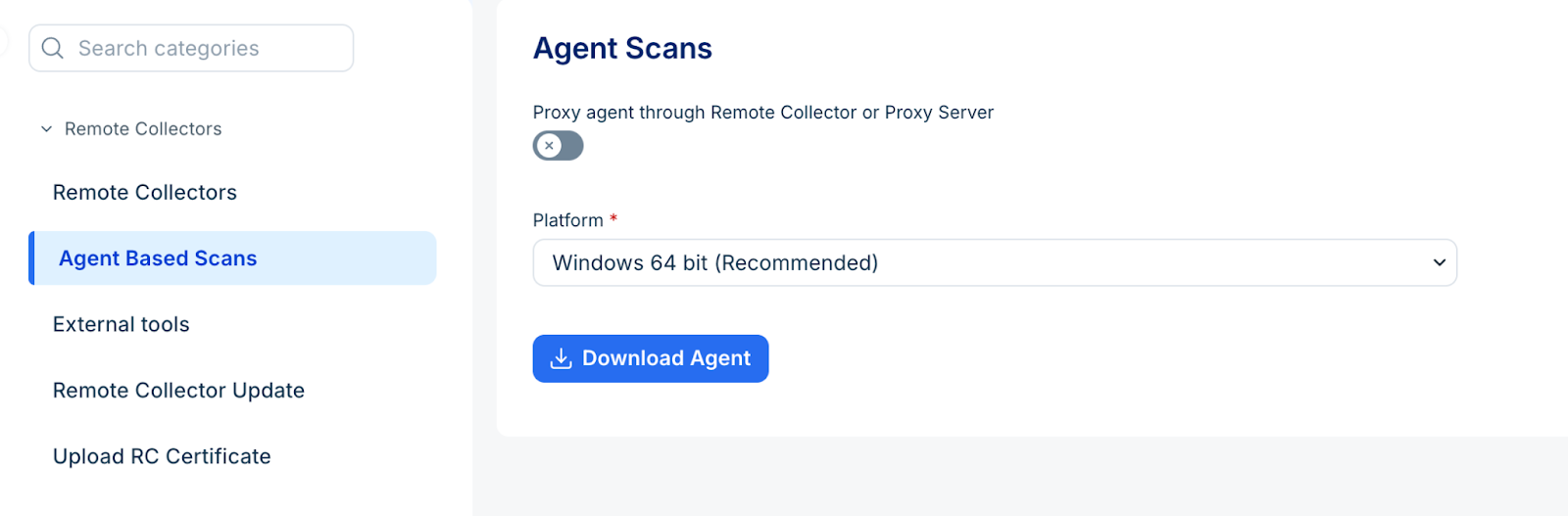
Go to Asset Management > Discovery Hub > Remote Collector and agents > Agent Based Scans.
Select your operating system from the Platform dropdown.
(Optional) Enable the Proxy agent through Remote Collector or Proxy Server toggle if the agent cannot reach the cloud directly.
Enter the Remote Collector or Proxy Server URL.
Click Download Agent.
Caution: Do not use critical or production account credentials for autodiscovery scans. Create a dedicated discovery account to prevent potential account lockouts and service outages.
View Agent details
To monitor the status and version of your deployed agents, follow these steps:
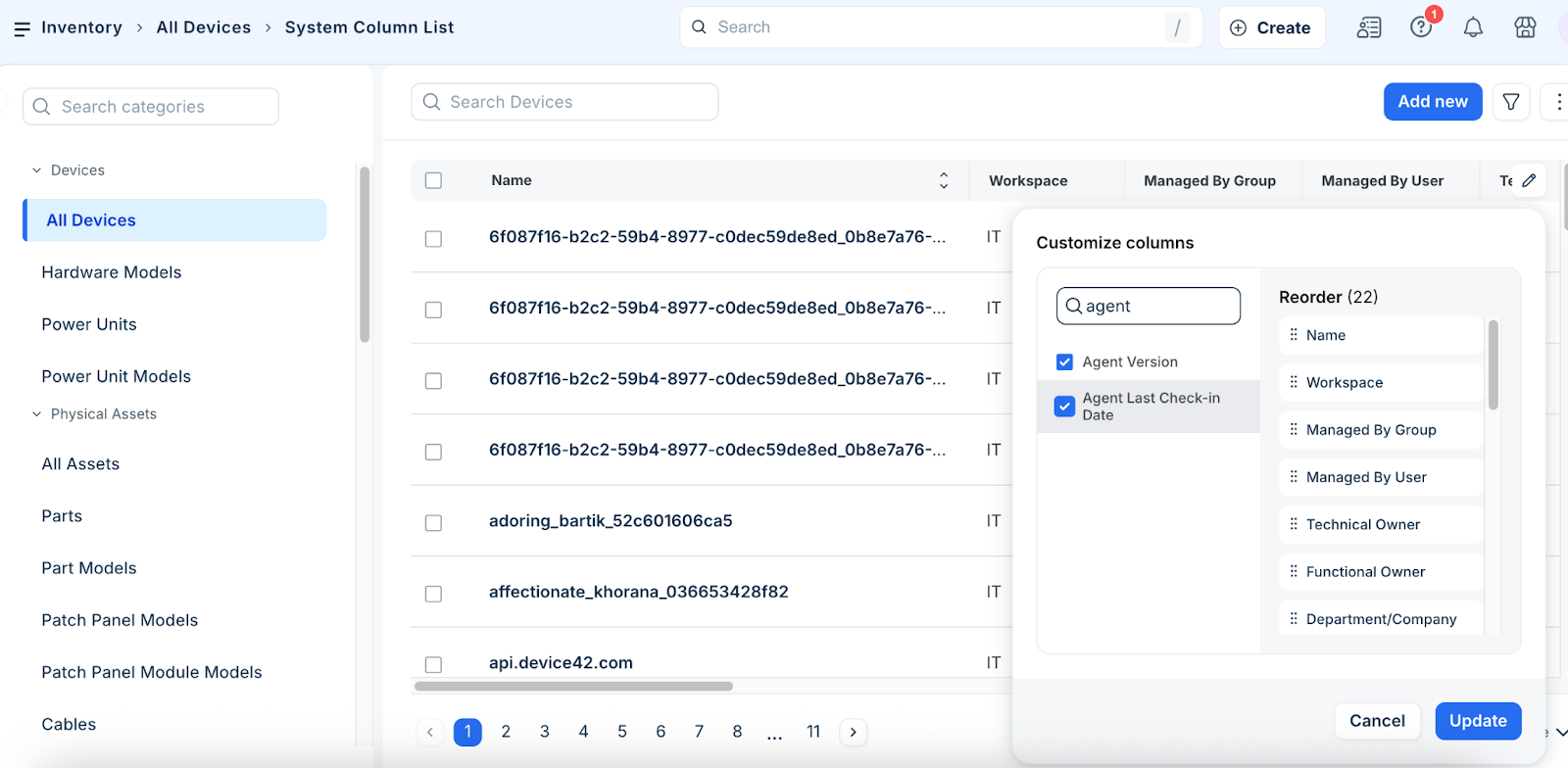
Navigate to Admin > click more > IT Asset Management > Inventory > All Devices.
Click the Edit icon to modify the list view.
Select Agent Version and Agent Last Check-in Date from the columns dropdown menu.
Click Save to define this as a new custom view.
The agent details will be visible in your device inventory.
Platform-specific Installation notes
The installation steps may vary depending on the operating system where the agent is being deployed. Follow the instructions below for your respective platform:
Linux and Mac: After downloading, make the file executable by running chmod +x <agentname>. For best results, run the agent with sudo. You can pass the password using the --sudo-password="password" command.
Windows: Use the Windows Task Scheduler to schedule the executable file (.exe) to run at your preferred intervals.