
 Community
 Video Library
 Agent Training
 Freshservice
 Freshdesk
 Freshchat
 Freshcaller
 Freshsales
 Freshteam
 Freshworks Neo
 Freshsurvey
 Freshservice for MSP
 Note: Available only for new signups after the 31 March, 2026 release. If you signed up earlier, refer to the existing ITAM documentation.
Cloning a device in Freshservice is an efficient way to add multiple assets that share similar hardware specifications, service levels, or customer associations. Instead of manually entering data for every new asset, you can use an existing record as a template. The cloning process allows you to customize which properties are carried over and automate the naming of new records through naming profiles.
This article provides an overview of the device cloning feature, which allows you to create multiple similar devices quickly while maintaining data consistency across your inventory.
Prerequisites
You need the following before cloning devices:
Access to the IT Asset Management module in your Freshservice instance.
At least one existing device records to serve as the source for cloning.
Clone a device
To clone an existing device, follow these steps:
Go to IT Asset Management > Inventory from the left navigation pane. The All Devices page opens and lists all existing devices.
Click the More options icon (three vertical dots) in the upper-right corner and select Clone.
In the Device to clone dropdown menu, select the device you want to use as a template.
Under Select/Deselect All, select the checkboxes for the specific attributes you want to include in the cloned records.
Enter the number of clones you want to create in the # of devices field.
Choose a naming method:
Use a profile: In the Device Name Profile dropdown menu, select a profile to automate the naming of all cloned devices.
Enter names manually: Enter a comma-separated list of names in the text field to name each clone individually.
Optional, select a new asset number profile, service level, or customer to apply to the clones.
Note: If you select a new service level or customer here, ensure you deselect the corresponding checkbox under Properties to prevent the original device data from being copied.Click Clone.
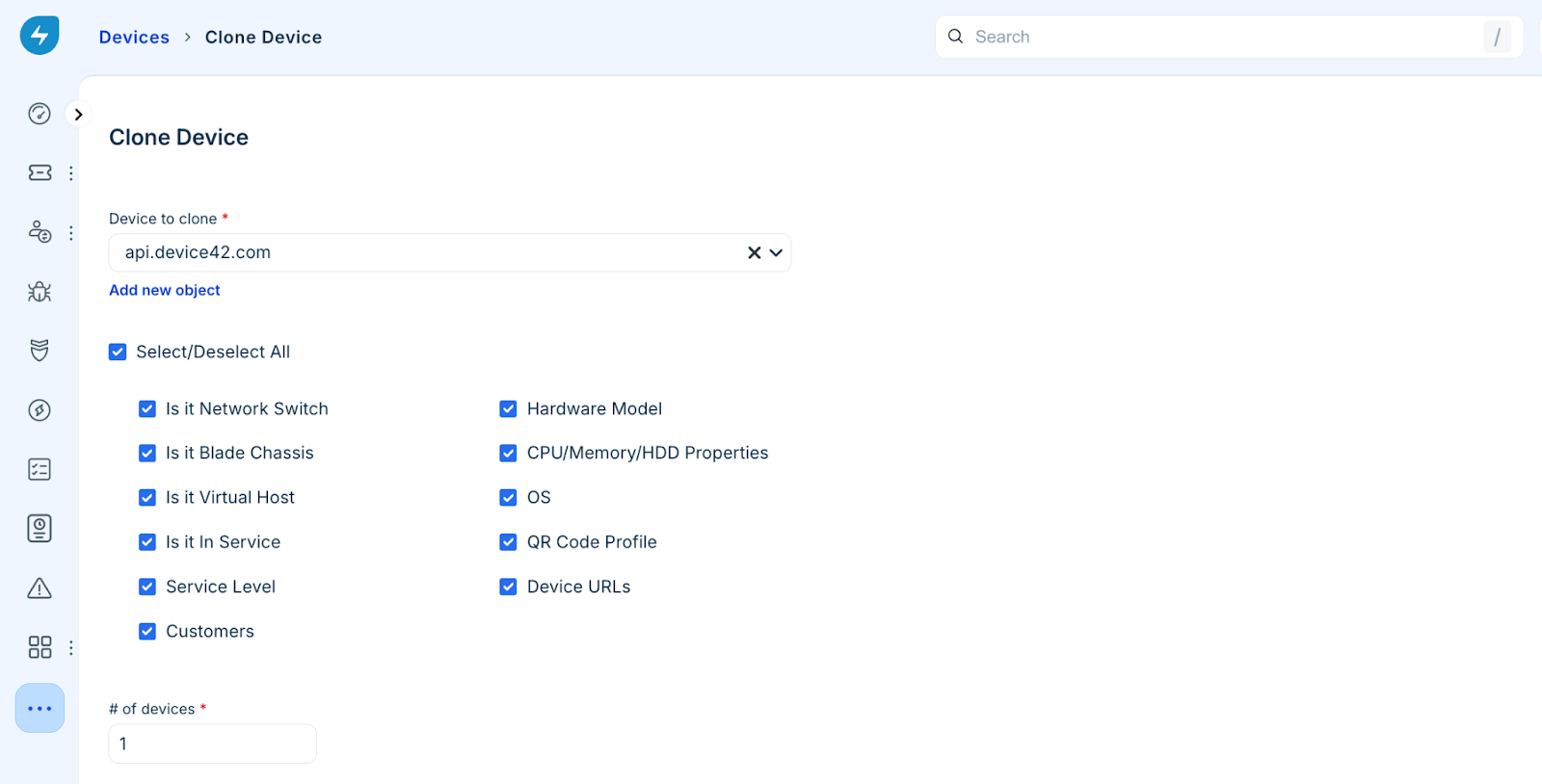
Freshservice generates the new device records based on your selections.
Important considerations
Review the following information to ensure data integrity and organizational consistency when cloning records:
Notes: Notes associated with the original device are not carried over to the clones.
Property Conflicts: Always verify that you have deselected original properties if you are applying new profiles (such as Service Level) during the cloning process to avoid data conflicts.
Bulk Operations: Cloning is ideal for setting up new racks or deploying standardized hardware batches where specifications are identical.