
 Community
 Video Library
 Agent Training
 Freshservice
 Freshdesk
 Freshchat
 Freshcaller
 Freshsales
 Freshteam
 Freshworks Neo
 Freshsurvey
 Freshservice for MSP
 TABLE OF CONTENTS
The "No Access" message indicates a specific permission gap between the report's data source and the user's assigned role profile. Configuring granular visibility settings ensures that your team can access the critical data insights required for their daily workflows.
Why "No Access" messages appear
Understanding the root cause of permission errors helps you determine which module settings to adjust.
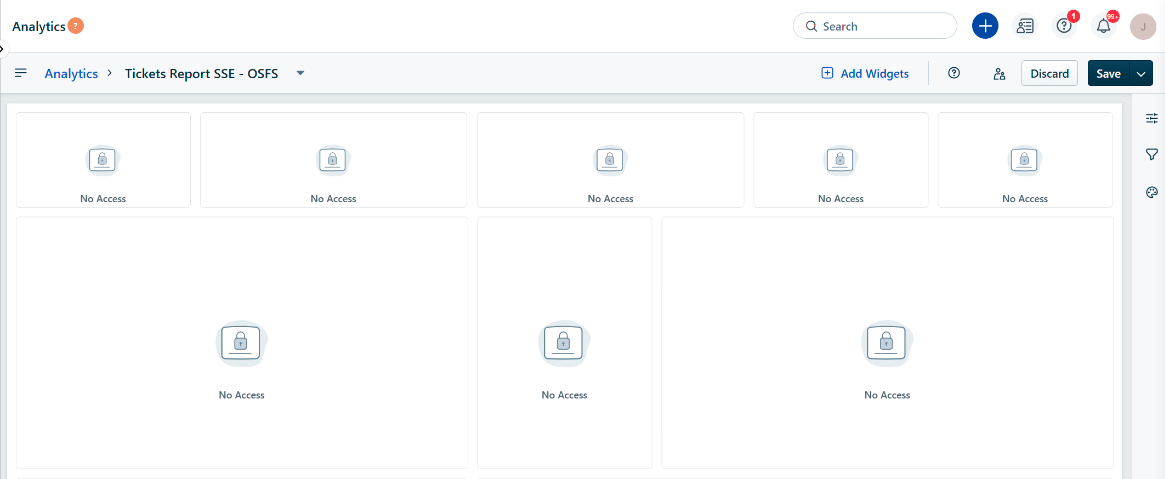
Here are the following reasons these messages appear:
Module restrictions: This occurs when your role lacks the specific permission to view a data module, such as ticket reports.
Global module restrictions: This occurs when a widget uses filters or groups, like Agent Name or Group Name, that belong to restricted global modules.
Data isolation: This occurs when the system restricts certain sensitive data fields from general viewing roles.
Prerequisites
Before you modify access levels, ensure you have the following:
Administrative privileges: You must have the "Admin" role to update system permissions.
Role identification: You must identify which specific Agent or Admin roles require updated access.
Grant report access
Updating role permissions restores visibility to widgets and ensures users see the data they need to perform their jobs.
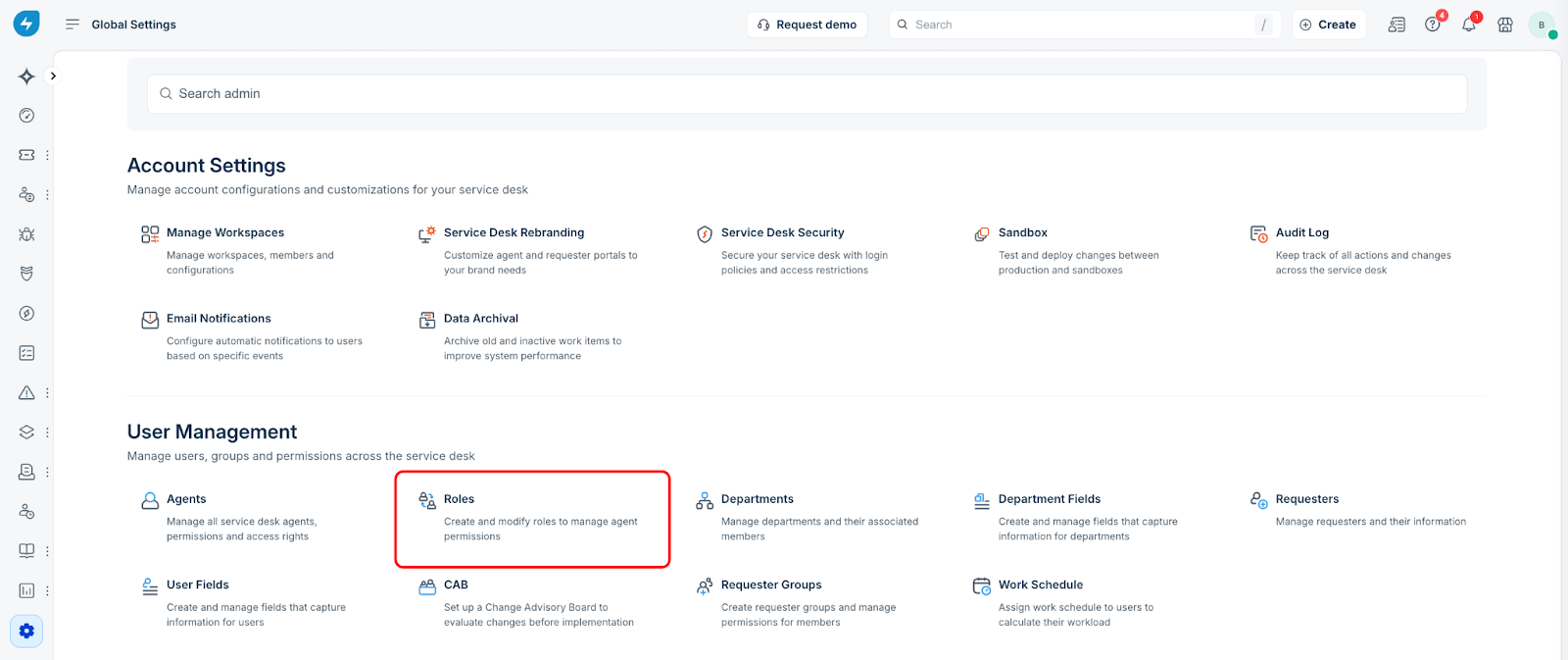
Select Global Settings, and then select Roles.
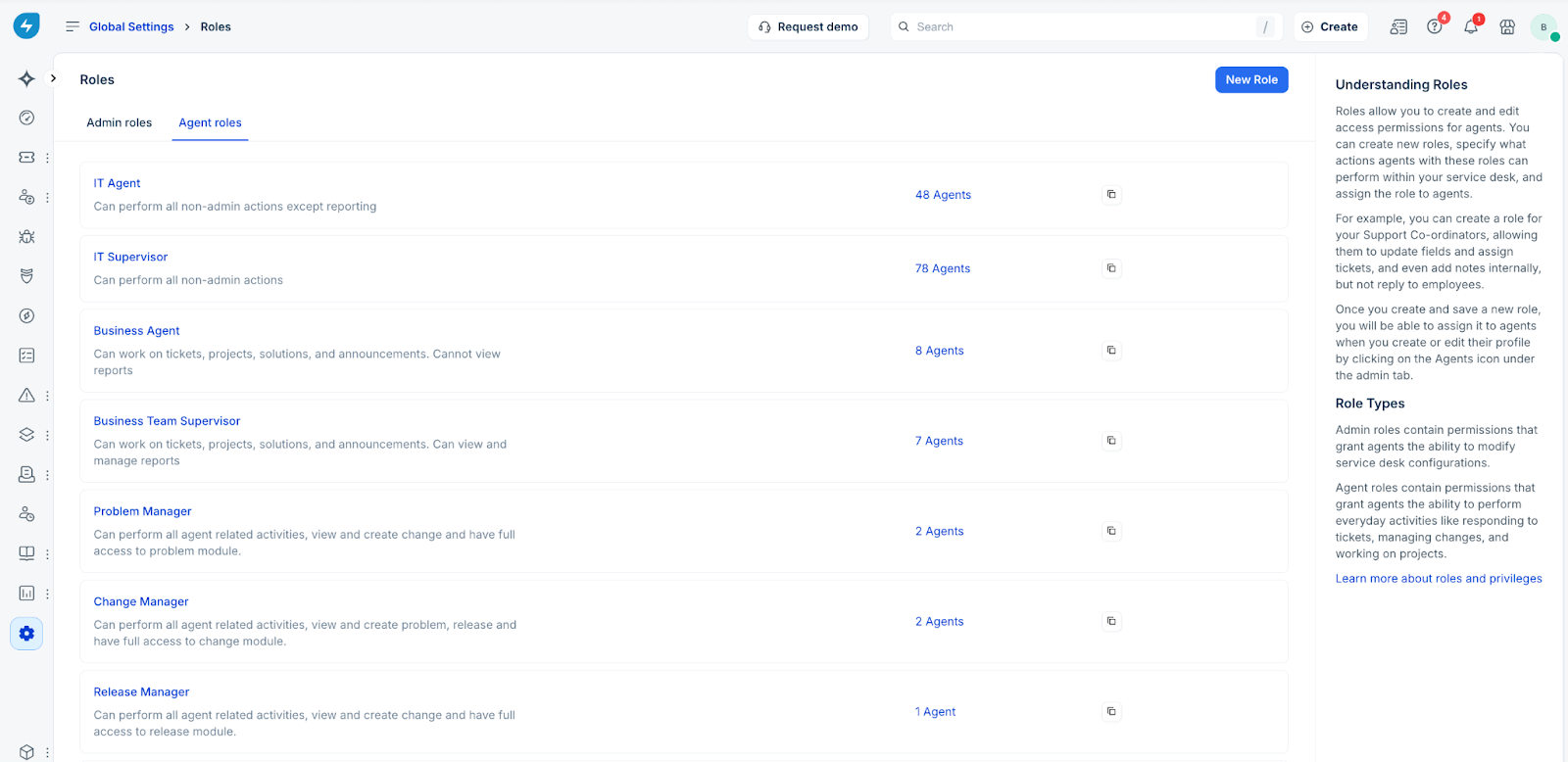
Choose Admin roles or Agent roles to view the list of specific roles in that category.
Select the Role Name you want to modify, such as "IT Agent."
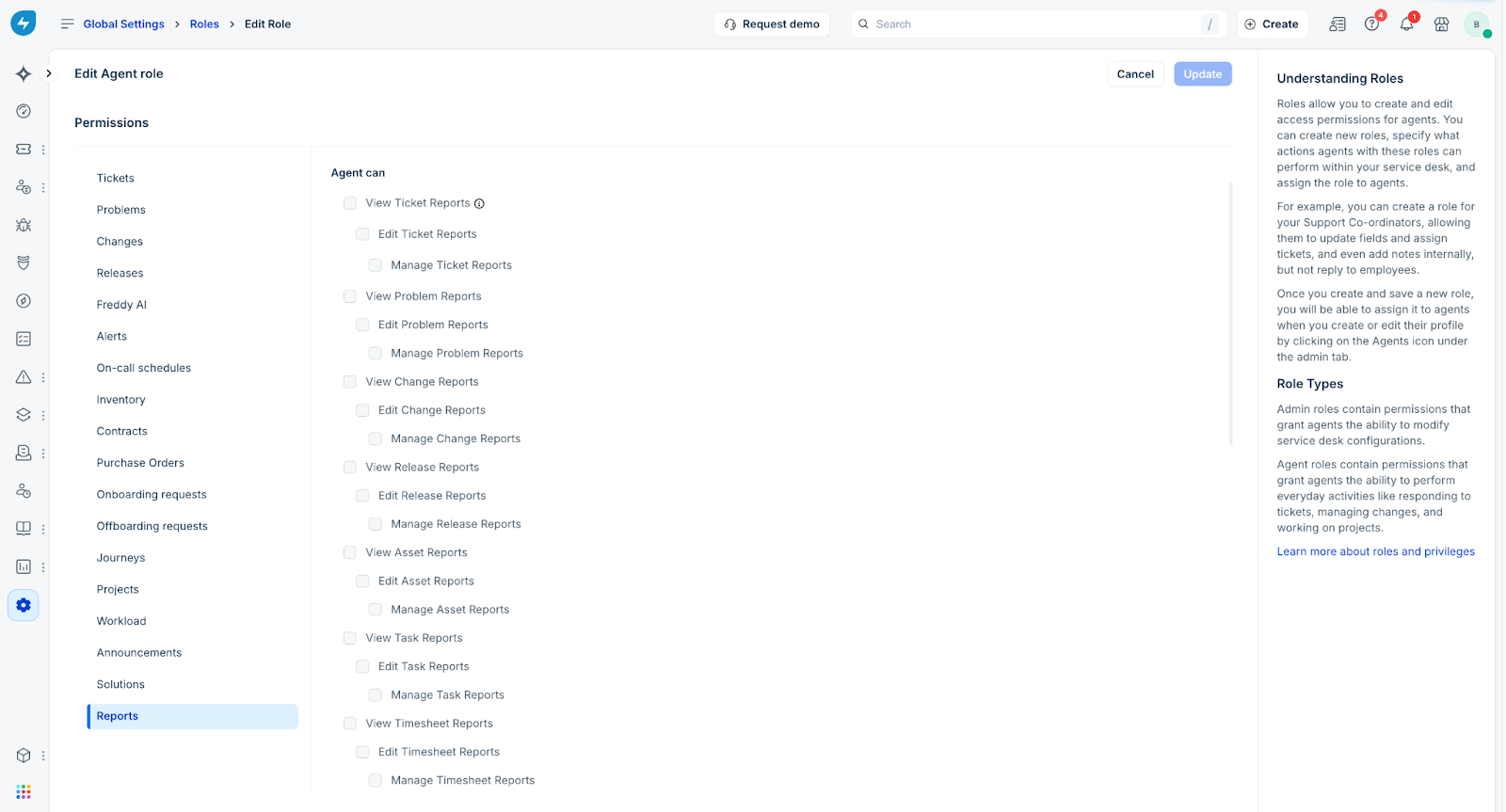
Navigate to the Permissions panel, and then select Reports.
Select the Check boxes for the specific permissions the role requires.
View User Reports: This allows an agent to see data within a report widget.
Edit or Manage: This allows an agent to modify the structure and filters of a report.
Select Save.
Verify access
Confirm the permission update was successful by impersonating the user or having them refresh their dashboard. If the "No Access" message is replaced by data visualizations or tables, the role now has the appropriate permissions.