
 Community
 Video Library
 Agent Training
 Freshservice
 Freshdesk
 Freshchat
 Freshcaller
 Freshsales
 Freshteam
 Freshworks Neo
 Freshsurvey
 Freshservice for MSP
 TABLE OF CONTENTS
- Overview
- Access audit logs
- Apply filters
- Export audit logs
- Audit log data retention policy
- Frequently asked questions (FAQs)
Overview
The Audit Log records every action and modification across your entire service desk. These logs provide a complete audit trail that helps track changes during compliance reviews or service desk incident investigations.
Audit Logs record administrative actions, security updates, as well as configuration changes. You can review audit events in the web application, generate manual exports, or stream log data continuously into external security tools using the Audit Log API.
Note: Specific module events, including those for Tickets, Problems, or Changes, can be monitored under the respective Activity section.
Access audit logs
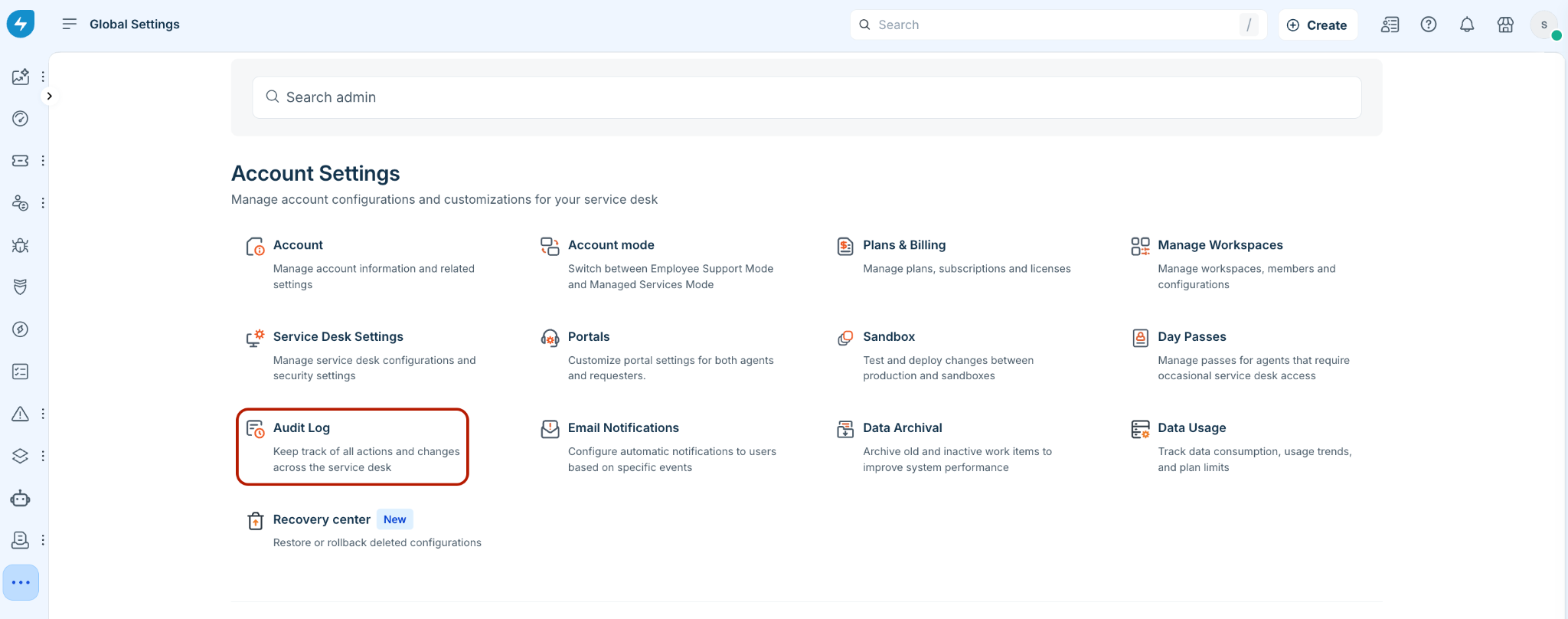
To access audit logs:
Log in to your Freshservice account.
Go to Admin > Global Settings > Account Settings > Audit Log. If your account has multiple workspaces, go to Admin > {Workspace Settings} > Account Settings > Audit Log.
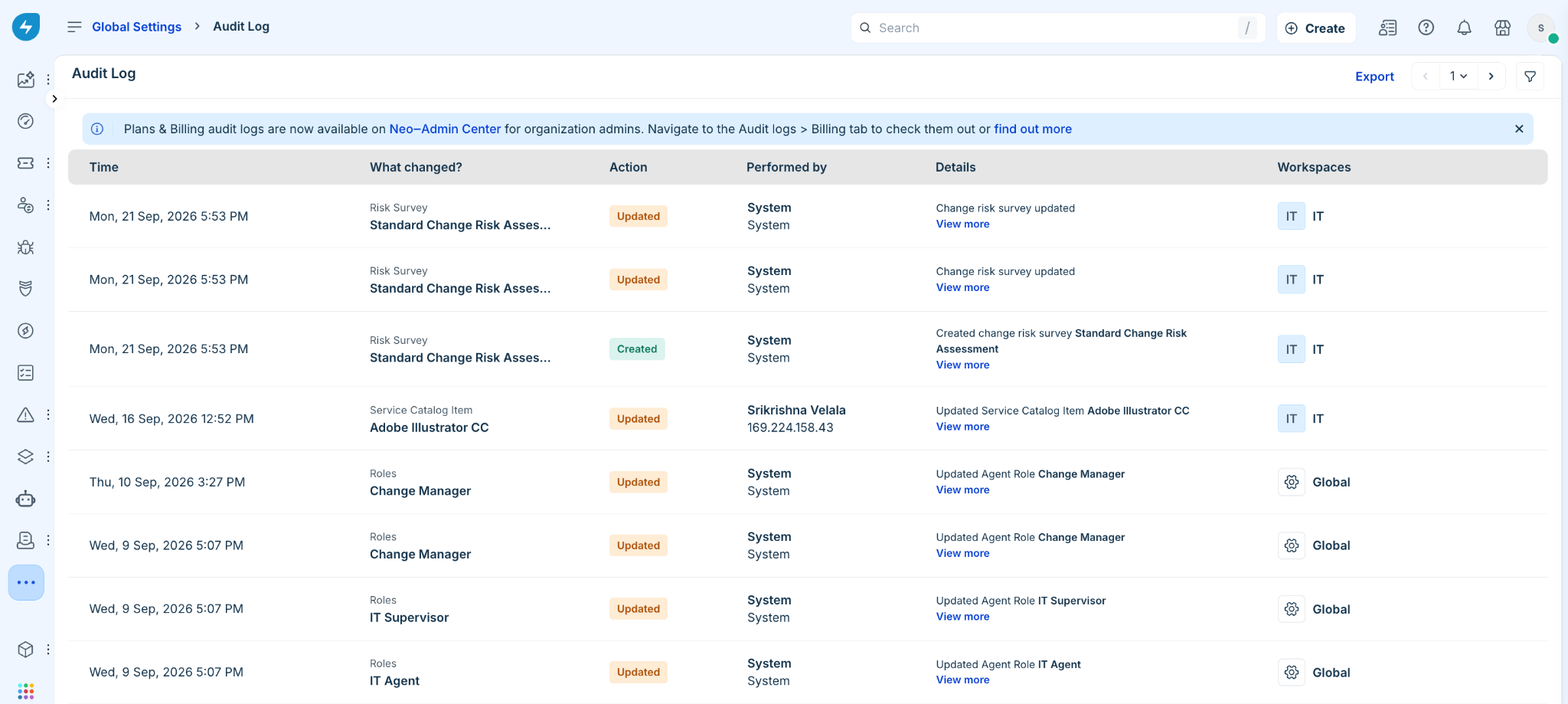
The audit log captures the following details for every entry.
Timestamp: The exact date and time the modification or activity occurred.
What changed: The specific area or module updated. Each entry includes a link to navigate directly to the relevant application page.
Action: The action performed (for example, Created or Updated).
Performed by: The individual responsible for the modification (including IP address of the user).
Details: A summary of the modification. Select View more to display additional information for any record.
Workspace: The workspace associated with the modification.
Apply filters
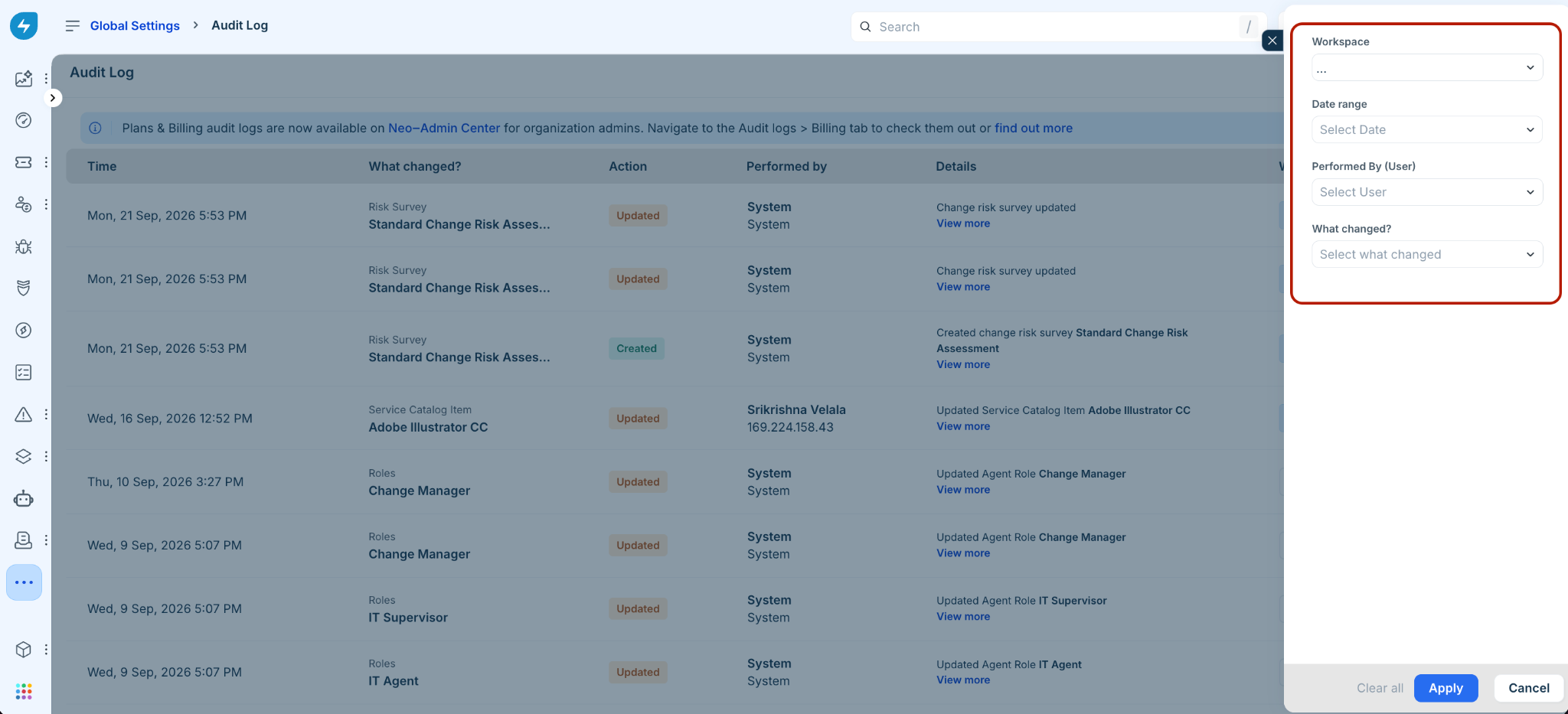
Refine the list of audit log records to quickly pinpoint specific events. You can filter entries based on parameters such as workspace, date range, performing user, or change type (for example, Account, Business Hour, Group, or Agent).
To apply filters:
Click the ‘Filter’ icon at the top right corner of the Audit Log page.
Choose the relevant workspace from the Workspace dropdown (note that this option is available exclusively when using Global Settings Audit Log filters).
Choose the relevant date range from the Date range dropdown.
Search and select the relevant user from the Performed by (User) dropdown.
Choose the change type from What changed? dropdown.
Click Apply.
Export audit logs
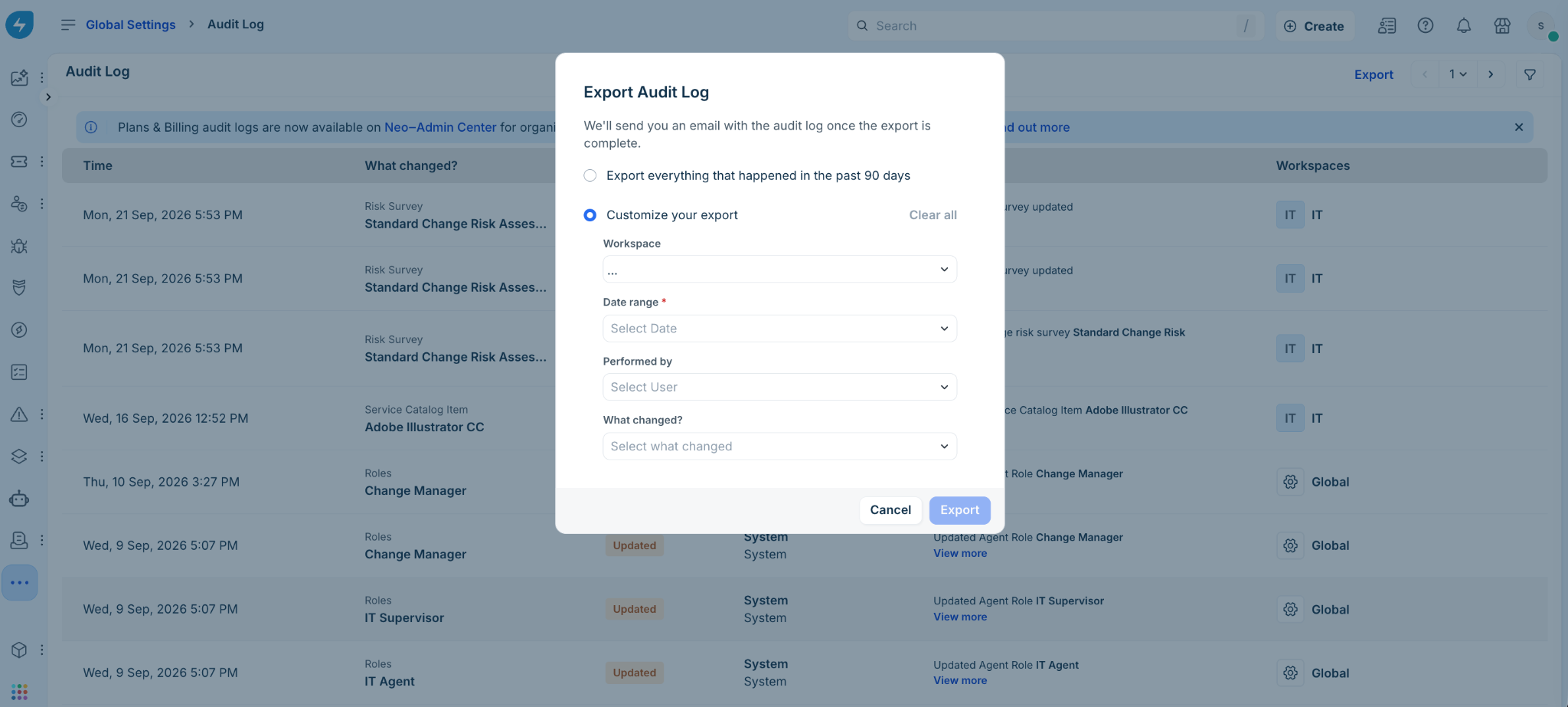
Audit logs can be exported in full for the preceding 90 days, or tailored using specific criteria such as Workspace, Date range, User, and What changed.
To export audit log:
Click Export at the top right corner of the Audit Log page.
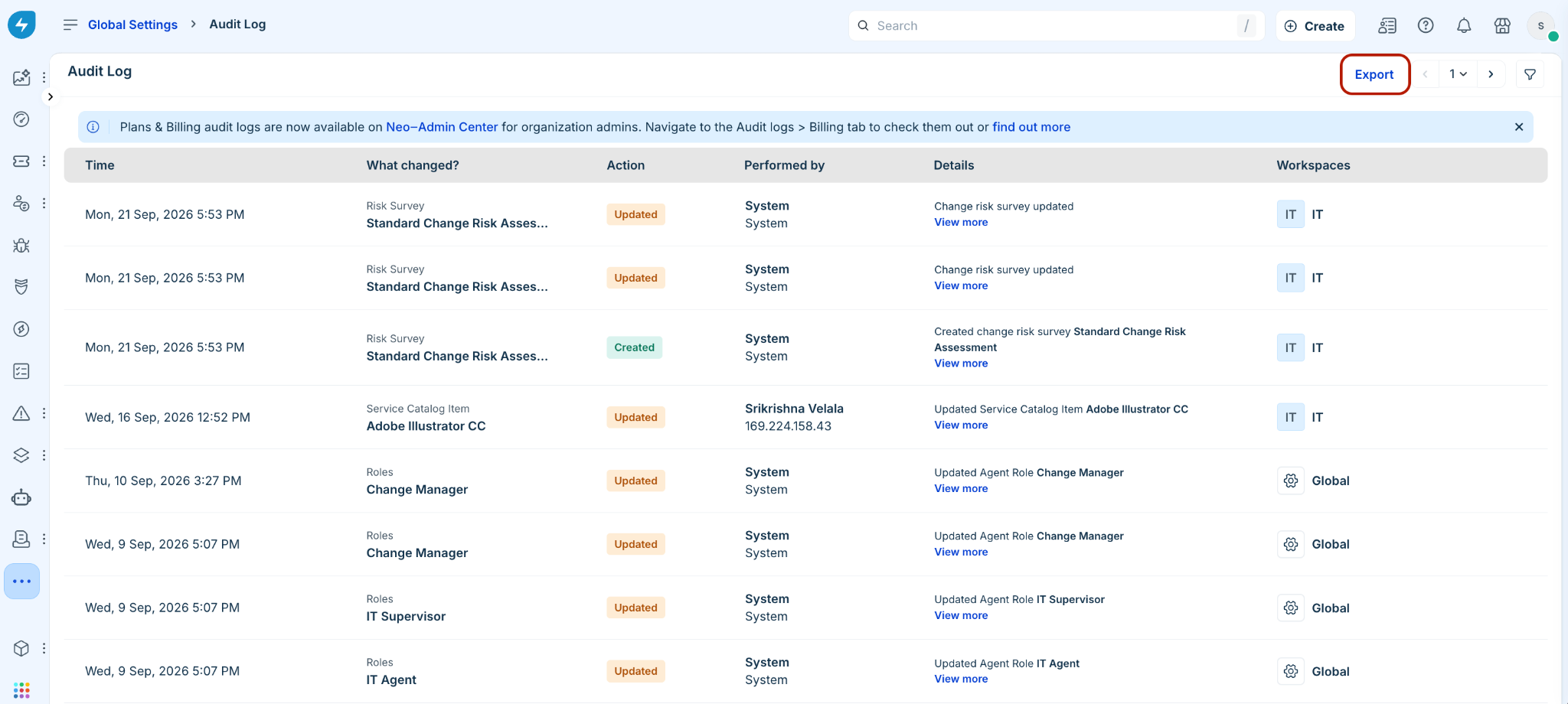
In the Export Audit Log dialog, select the relevant option and click Export.
Once requested, Freshservice processes the export and sends the generated log file directly to your registered email address.
Fetch audit logs using the Audit Log API
To automate audit log collection or integrate with third-party security monitoring tools, use the Audit Log API.
Automated background fetching: Run scheduled scripts to continuously query and fetch incremental log entries without manual exports.
Structured JSON response: API responses return JSON objects containing event details such as timestamp, module name, action type, performing user, IP address, workspace location, and modified fields.
For complete technical specifications, such as API endpoints, request parameters, and JSON schemas, see Audit Logs API documentation.
Audit log data retention policy
Across all subscription plans, Freshservice retains audit log data for a duration of 6 months.
Frequently asked questions (FAQs)
1. Why can’t I locate or view audit logs?
Audit logs are exclusively accessible to administrators. Alternatively, audit logs can be retrieved using the API. For additional details, see Audit Logs API documentation.
2. Where can I view activity, user login, and profile creation logs?
Organization Admins can review a detailed report covering user and profile modifications directly within Audit Log. Key activities logged at the organization level include profile creations, user deletions, plan upgrades, two-factor authentication (2FA) toggles, and updates to security settings.