Community
 Video Library
 Agent Training
 Freshservice
 Freshdesk
 Freshchat
 Freshcaller
 Freshsales
 Freshteam
 Freshworks Neo
 Freshsurvey
 Freshservice for MSP
 Servicebot for Google Chat brings Freshservice self-service, powered by AI agents, directly into your team’s Google Chat workspace.
TABLE OF CONTENTS
Overview
The Servicebot for Google Chat integration bridges the gap between your organization's conversational workspace and Freshservice. By implementing this integration, IT operations teams can deliver immediate, smart conversational assistance directly inside Google Chat.This enables employees to search knowledge bases, track outstanding ticket updates, and order from the service catalog without the need to switch between various windows.
The Servicebot can be powered by the following:
Studio agents: Agents built and managed in Freddy AI Agent Studio, which you can connect to the Servicebot to handle custom conversational workflows.
To use Studio agents, ensure that you have access to Freddy AI Agent Studio and that at least one agent is published.
Prerequisites
Make sure the following requirements are met before the installation:
Ensure you have an active Google Workspace account with Google Chat services turned on.
Ensure you have Administrator permissions within Freshservice.
Ensure service account is authorized using Domain-wide Delegation.
Configure Domain-Wide Delegation (DWD)
The user's Google Workspace Super Administrator must authorize the service account using domain-wide delegation. Follow these steps to complete the authorization:
Sign in to the Google Workspace Admin console as a super administrator.
Go to Security > Access and data control > API controls > Manage Domain Wide Delegation
Click Add new.
Enter the following:
- Client ID : 105133354616740816541
- OAuth Scopes
https://www.googleapis.com/auth/admin.directory.user.readonly,https://www.googleapis.com/auth/chat.spaces,https://www.googleapis.com/auth/chat.admin.spaces.readonly,https://www.googleapis.com/auth/chat.memberships,https://www.googleapis.com/auth/chat.memberships.appClick Authorize.
Verify that the client ID and scopes are listed under Manage Domain-Wide Delegation.
Key benefits
The following table summarizes the core capabilities of the integration and the value each one delivers.
Install the app
To install the app, follow these steps:
Log in to your Freshservice account.
Go to Admin > Channels, and select Servicebot for Google Chat.
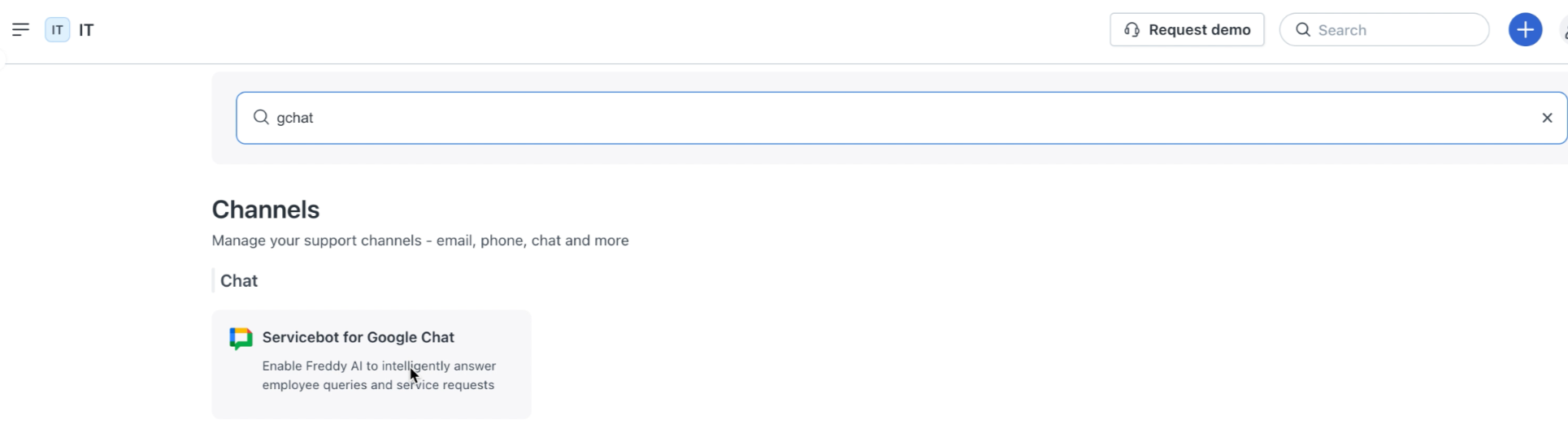
Click Install.
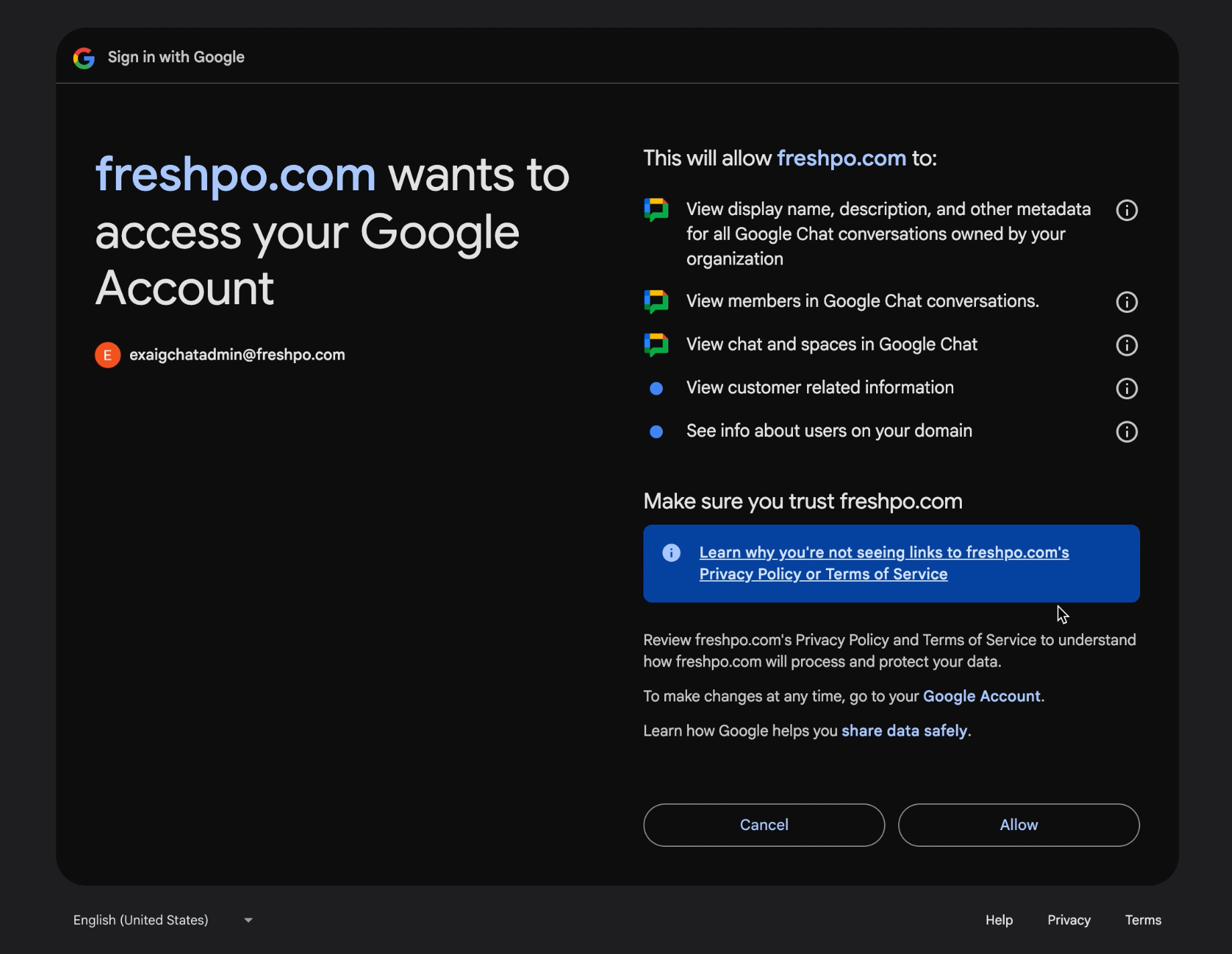
Then, select a relevant Google account, and click Continue.
Review and allow the data handling requirements to complete the app authorization.
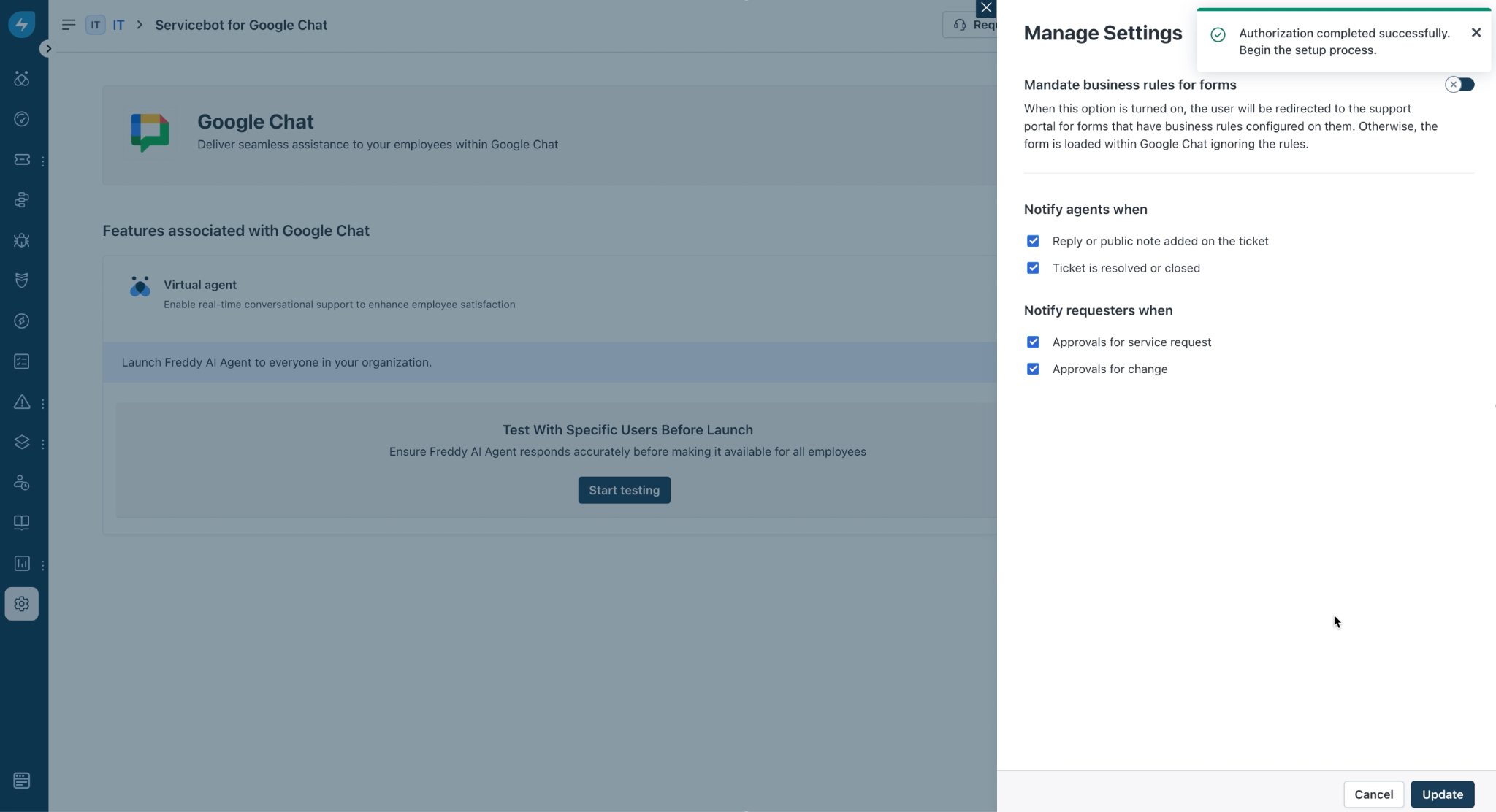
In the Manage Settings slider, customize default ticket parameters, specify automated agent reply alerts, and save settings to finalize installation.
Note: If required, you can mandate business rules for forms.
Test the app
Before deploying the integration live to your entire user base, it is highly recommended to validate configuration properties within an isolated space.
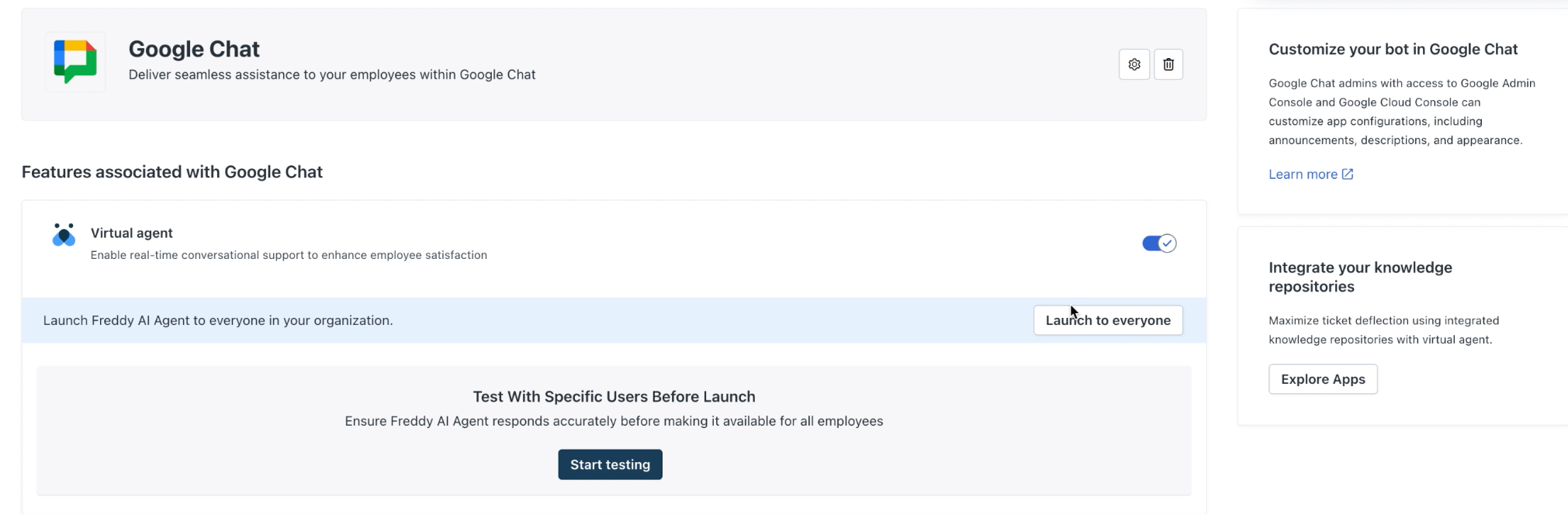
On the configuration page, click Start testing.
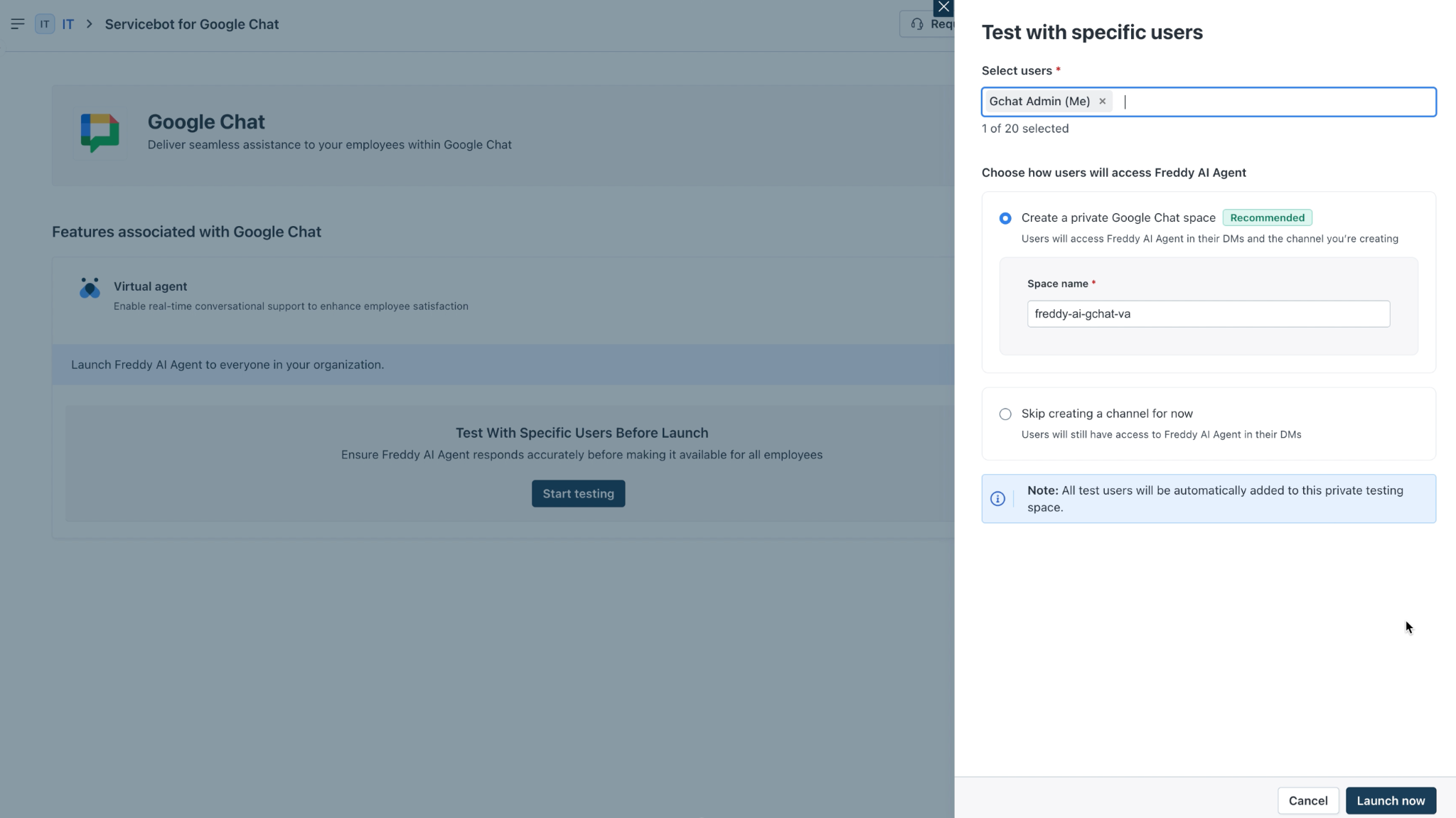
In the Test with specific users slider, add relevant users in the Select users field.
Enter a relevant Space name under Create a private Google Chat space.
Click Launch now.
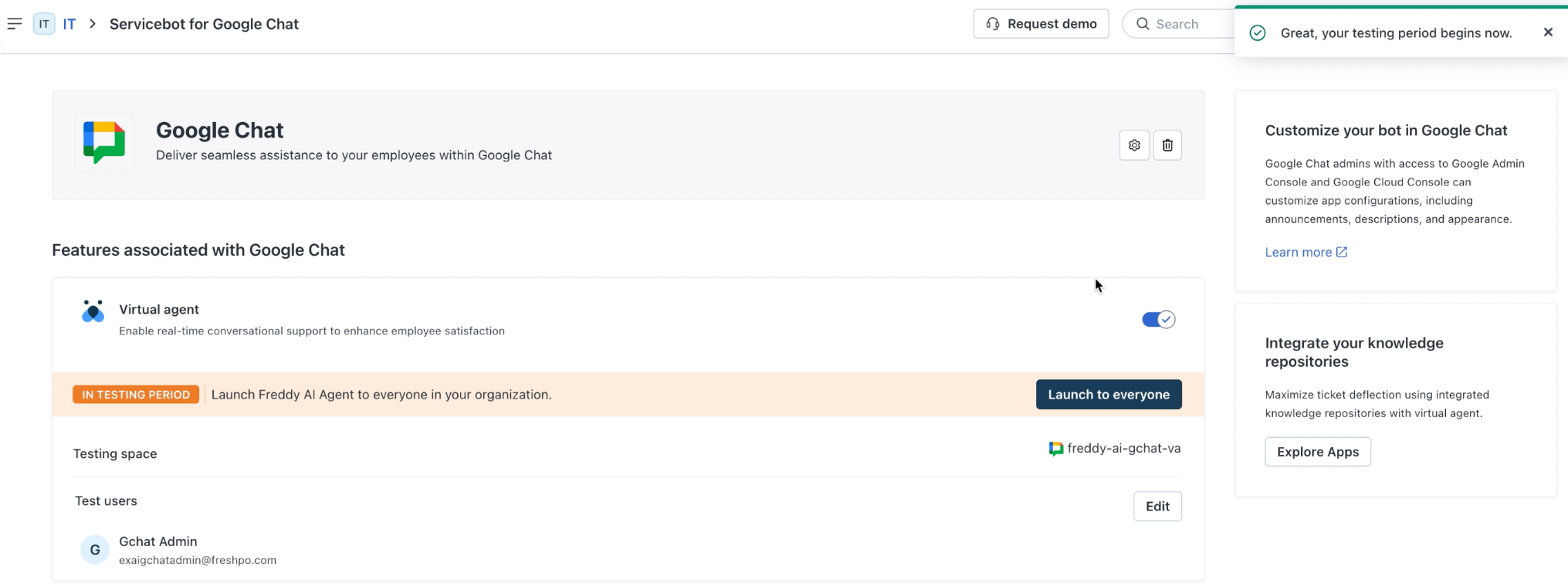
Note: The testing phase for this integration begins here.
After testing is completed, you can Launch to everyone to enable it organization-wide.
Use Servicebot in Google Chat
Employees can interact with the Servicebot, whether it is powered by an account-based agent or a Studio agent, using natural conversational phrases.
AI-driven troubleshooting
Employees can interact with the AI Agent using natural conversational phrases to get help from internal knowledge bases:
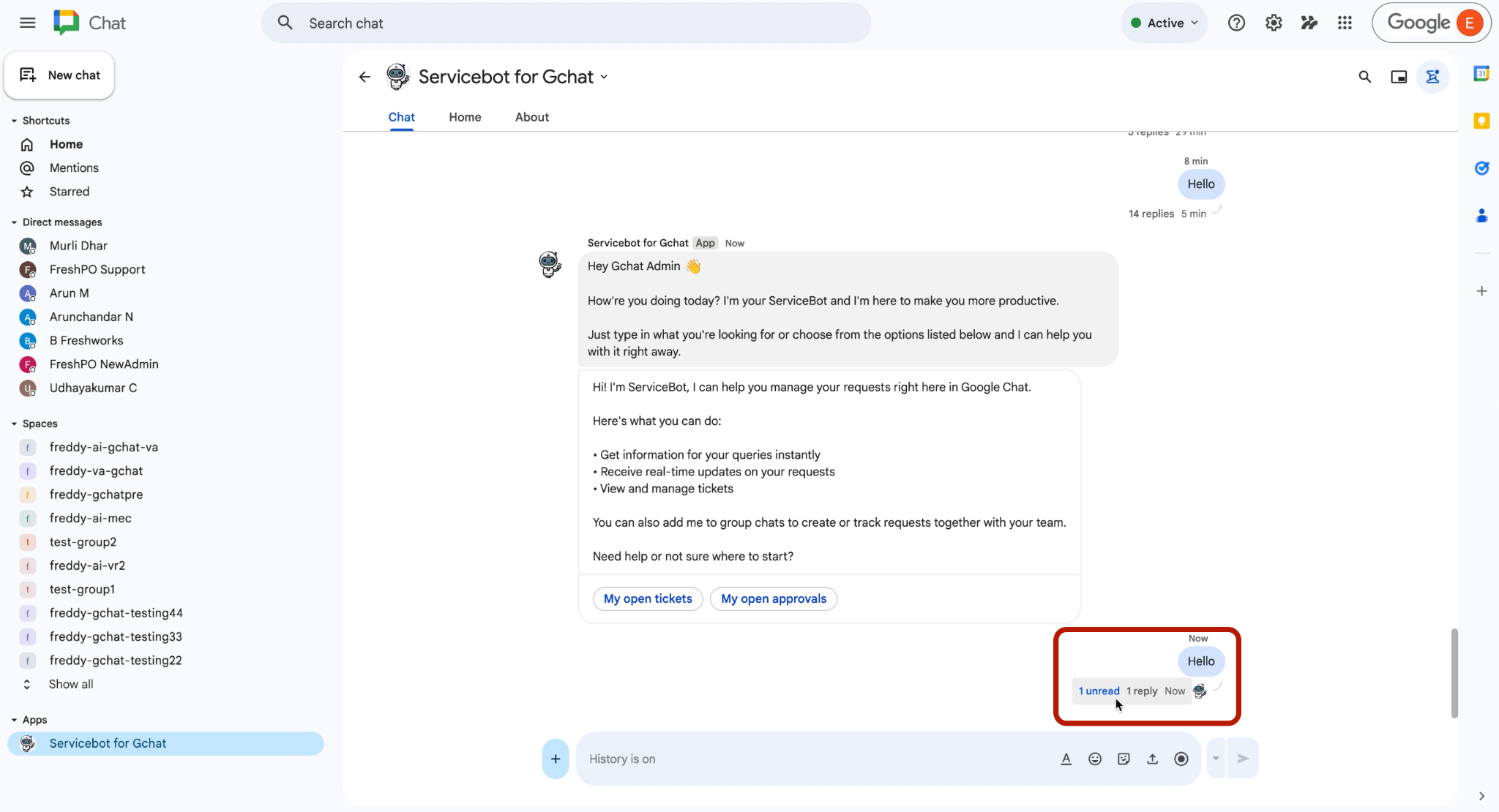
Initiate a prompt with a greeting like "Hello".
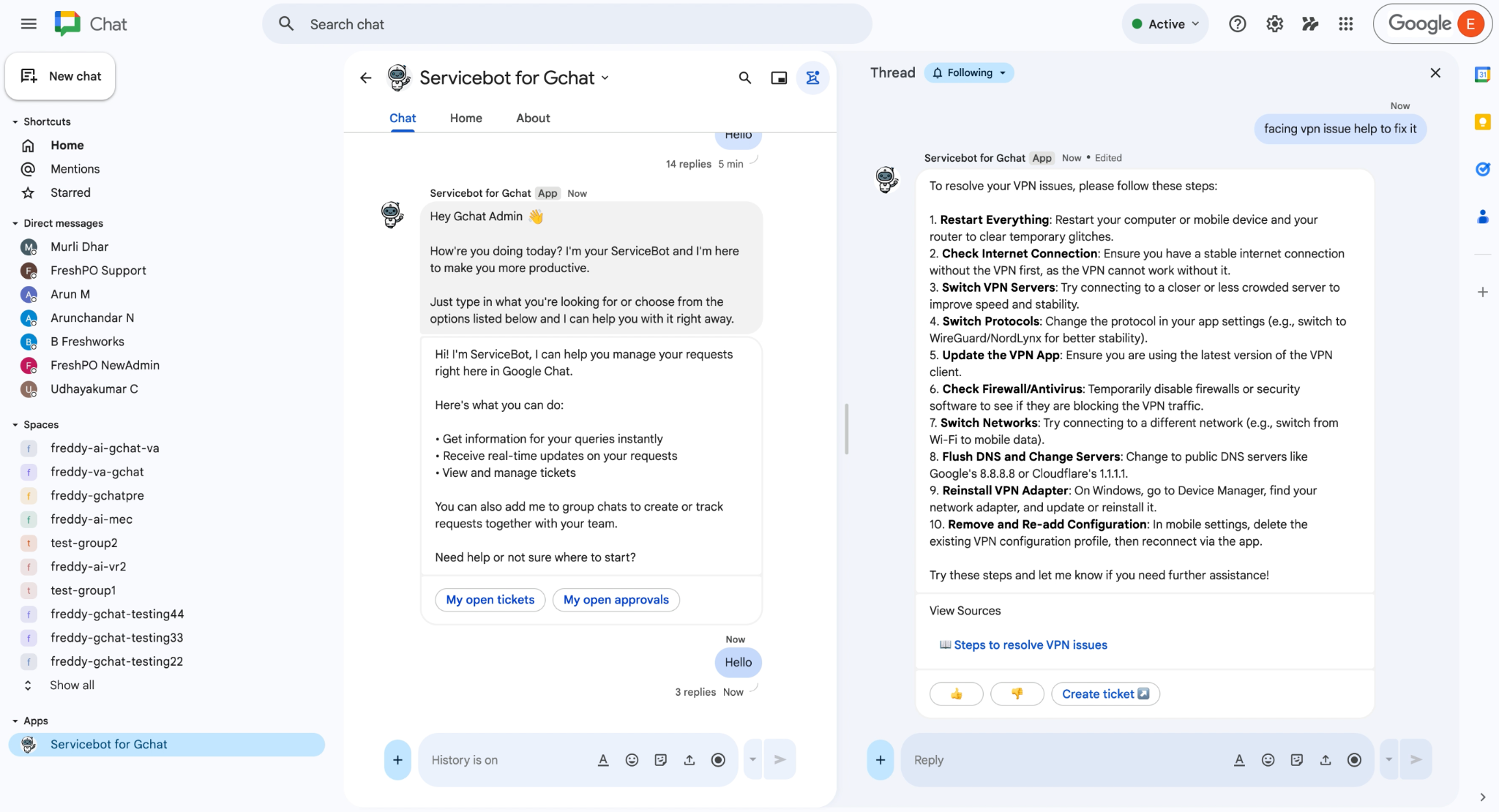
Submit a query. For example: VPN issue.
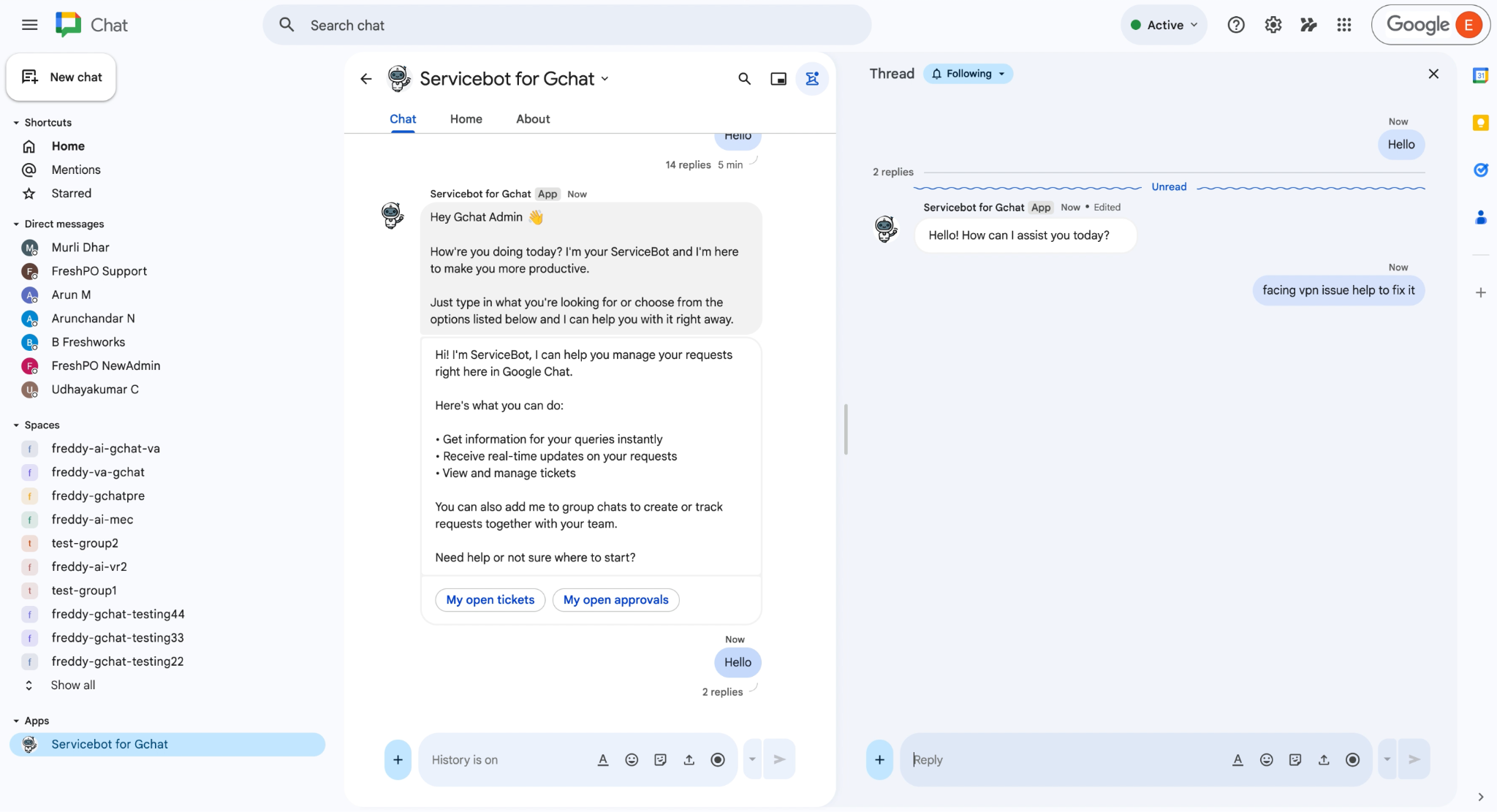
The AI Agent scans the internal knowledge base instantly providing inline instructions.
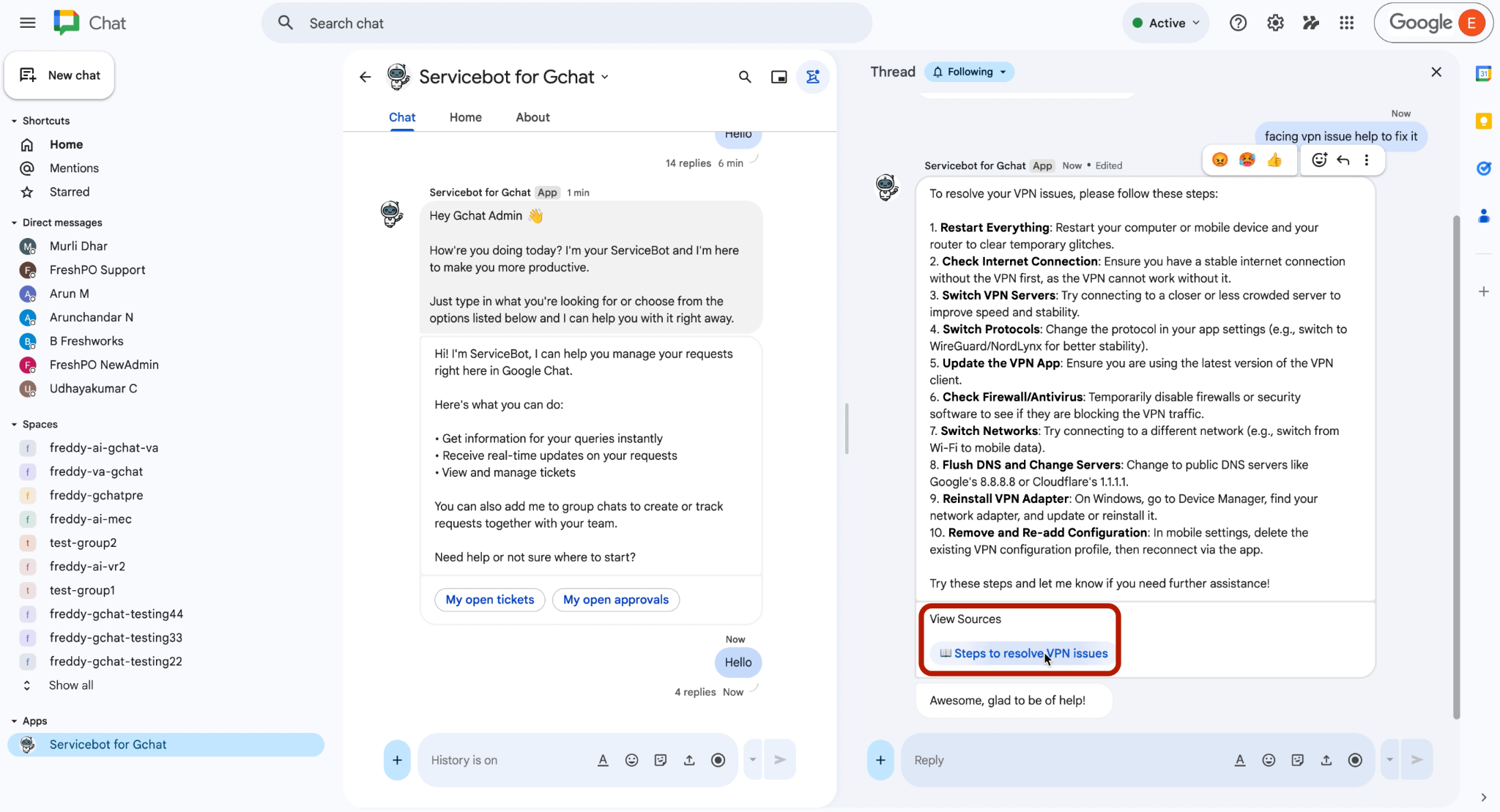
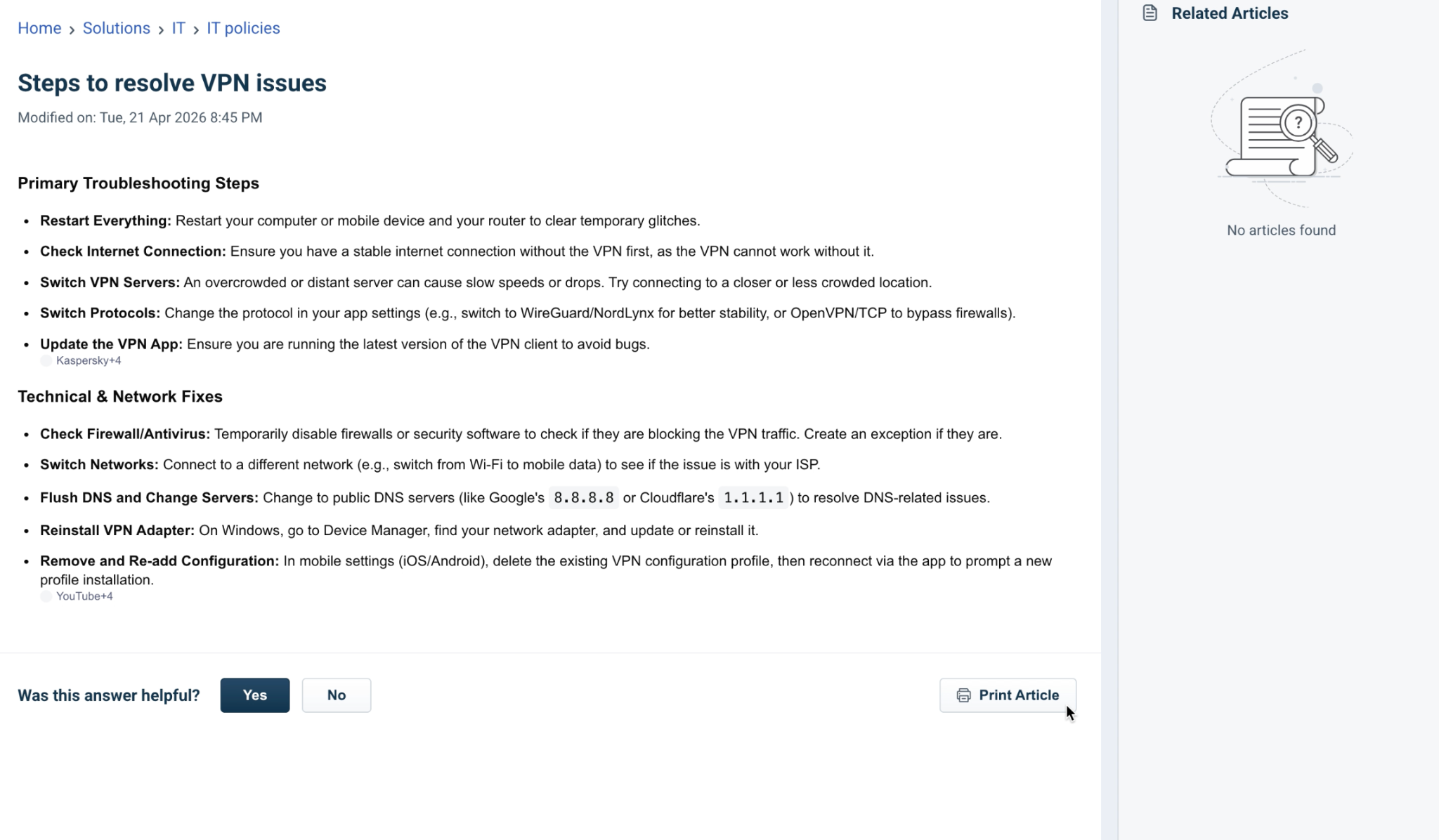
Requesters can select the source (for example, Steps to resolve VPN issues) to view technical runbooks directly.
Request IT assets (Service Catalog)
Users can request assets directly from the chat application interface without having to visit an external site:
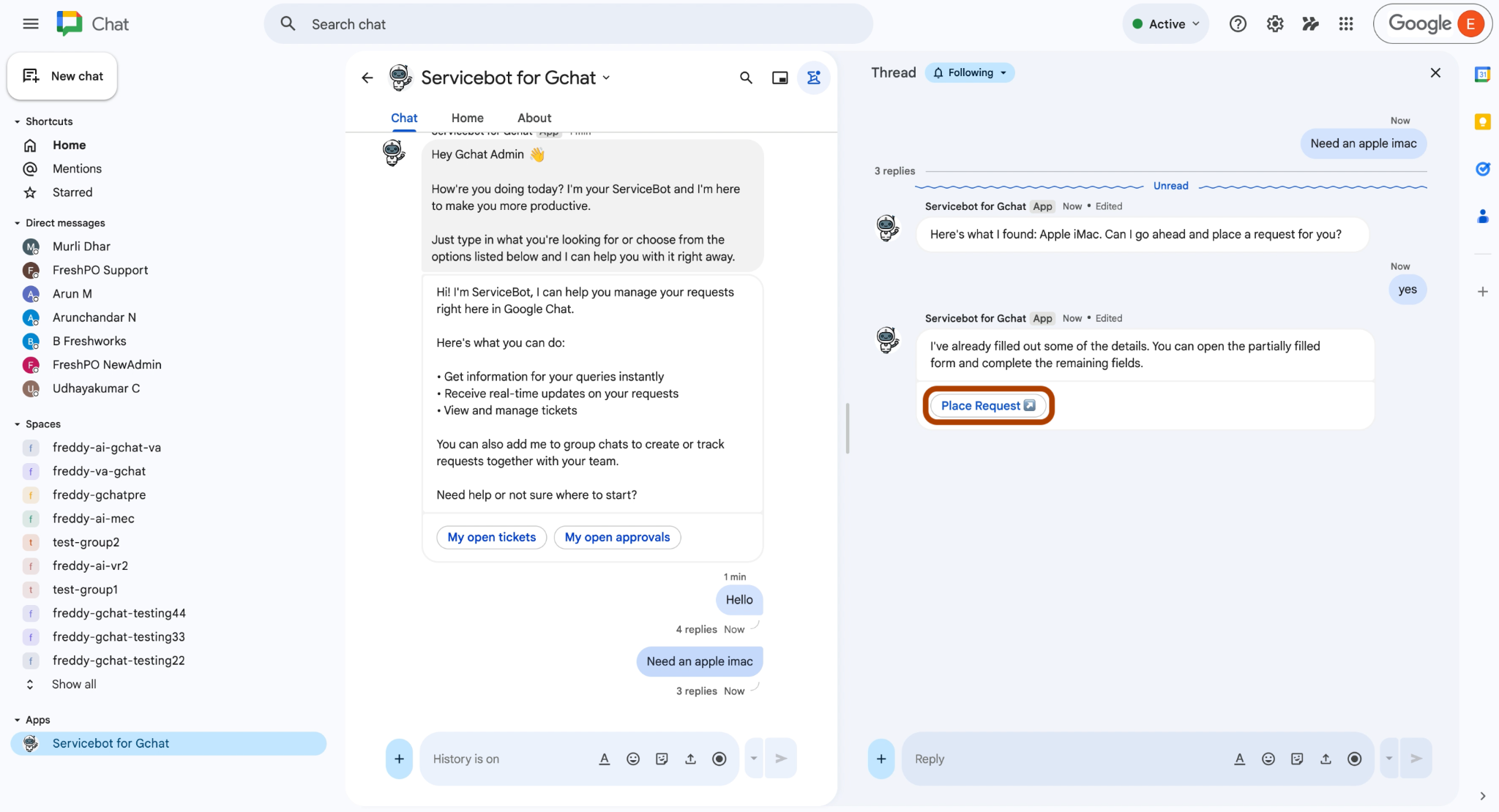
Request a service or asset (for example, Need an apple imac). Then, Place Request.
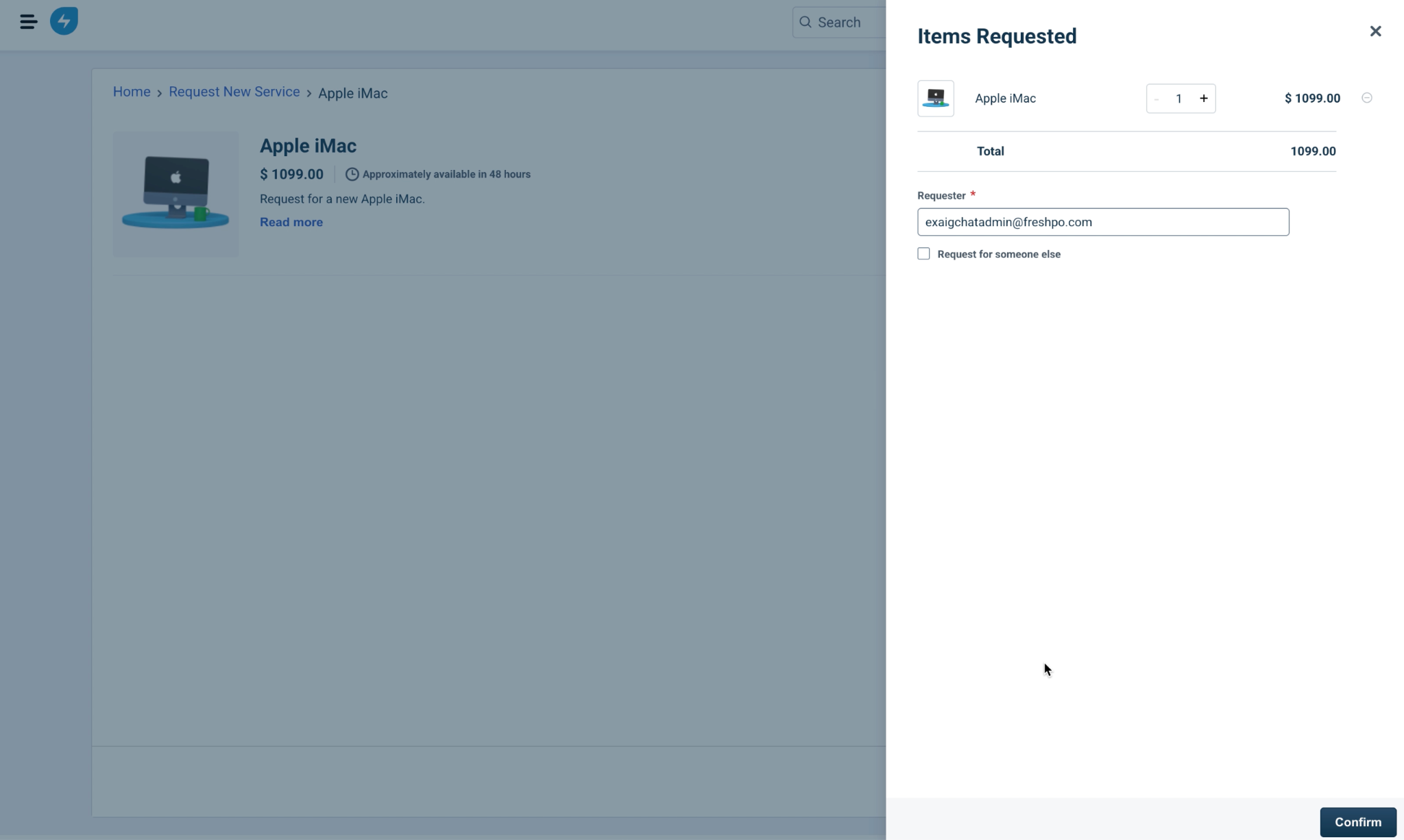
Confirm requester profiles and click Confirm.
Check ticket statuses
Requesters can seamlessly maintain a clear picture of their open service interactions:
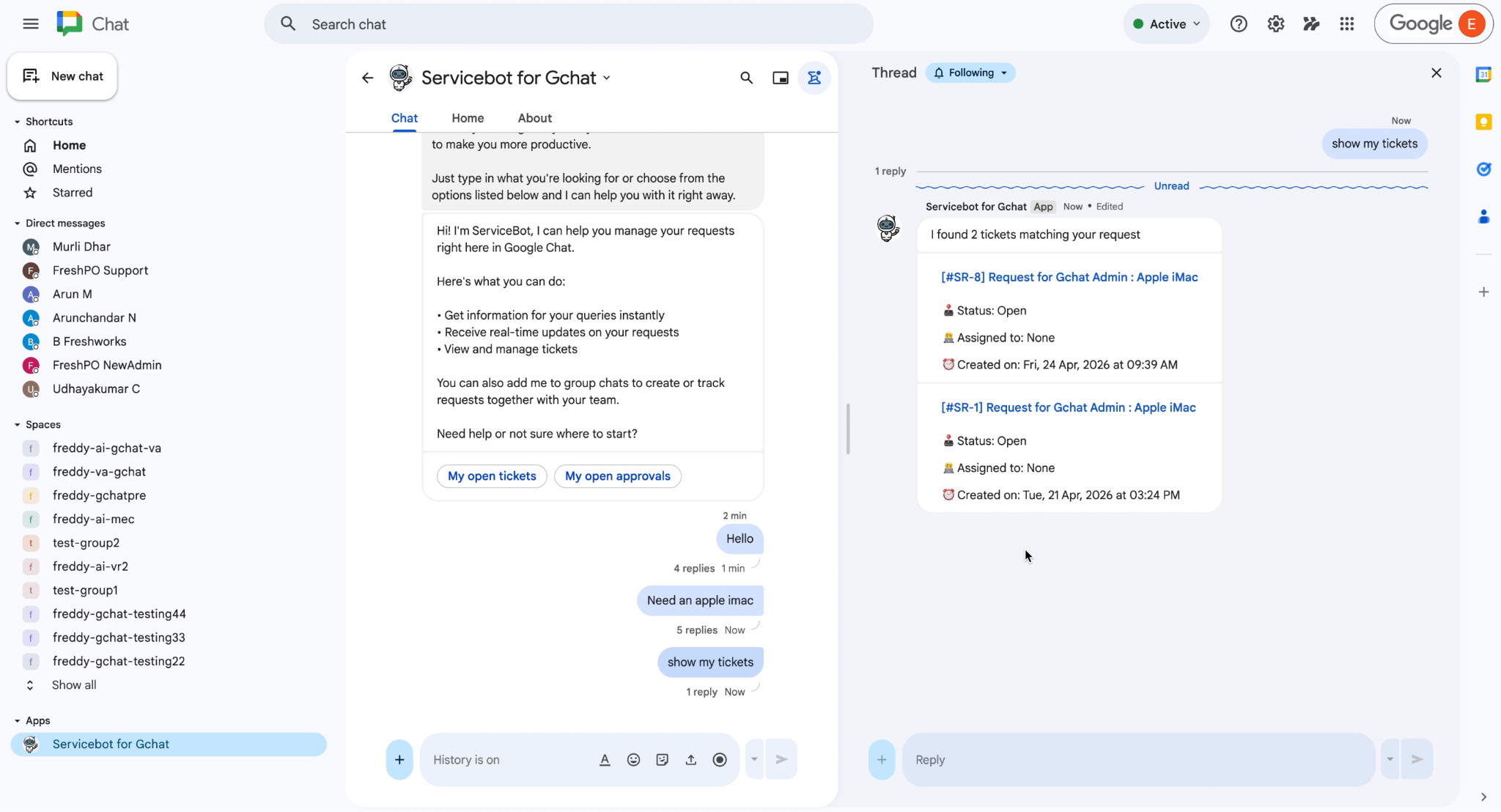
For example, just enter Show my tickets. The service bot generates a complete matching record summary.