
 Community
 Video Library
 Agent Training
 Freshservice
 Freshdesk
 Freshchat
 Freshcaller
 Freshsales
 Freshteam
 Freshworks Neo
 Freshsurvey
 Freshservice for MSP
 Application Component Templates allow you to automatically define and categorize Application Components based on services discovered during standard autodiscovery jobs.
This article provides an overview of Application Component Templates and instructions on how to create, configure, and use them to automate the identification of business applications during discovery.
Prerequisites
You need the following before the installation:
Administrator privileges to manage application settings and discovery jobs.
Successful completion of an inventory discovery job (*Hypervisor/nix/Windows).
Identification of specific service command arguments or ports that define your custom applications.
View and search templates
Access your existing rules to monitor or update your application definitions.
Go to Applications > Application Component Templates.
Use the search bar or filters (Category, Platform, Enabled) to find specific templates.
Click on a template name to view details, or click Edit to update an existing rule.
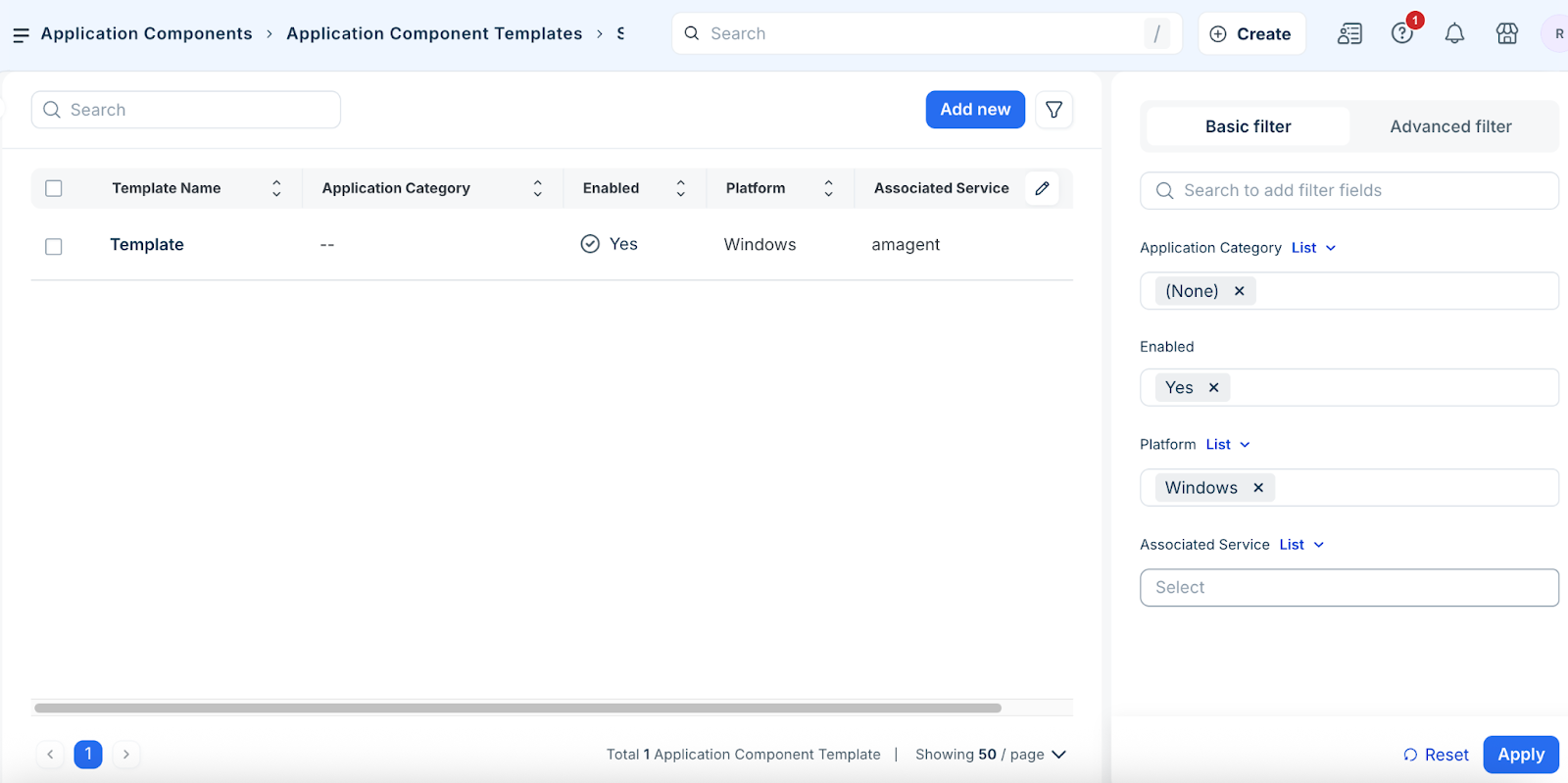
How Application Component Templates work?
When you enable a template, the discovery engine matches running services against your defined criteria and creates a corresponding Application Component in the inventory. These components then automatically generate Application Group Suggestions, which you can review and accept under Applications > Application Groups to build a complete map of your business services.
Create a new template
Follow these steps to create and configure application template:
Step 1: Add a new teamplate
Click Create in the top right of the template list page.
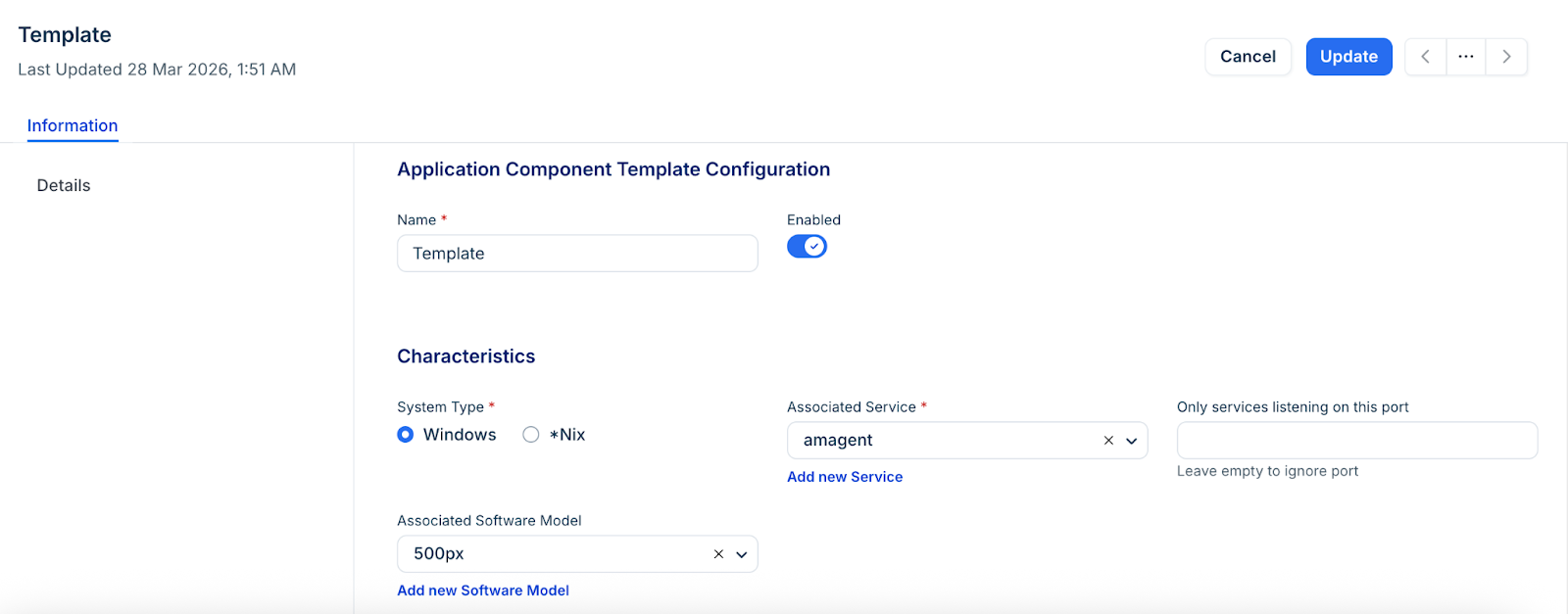
Enter a mandatory Name for the template.
Use the Enabled toggle to activate or deactivate the template for future discovery runs.
Step 2: Configure characteristics and match types
Specify exactly which services the template should look for.
Service Type: Select Windows or *Nix to define the target platform.
Associated Service: Select or add the specific service name that autodiscovery should scan for.
Port Filtering: Enter a port in the Only services listening on this port field to narrow the scope.
Associated Software: Link a software component to ensure the template only triggers when a specific application (like Java) is also present.
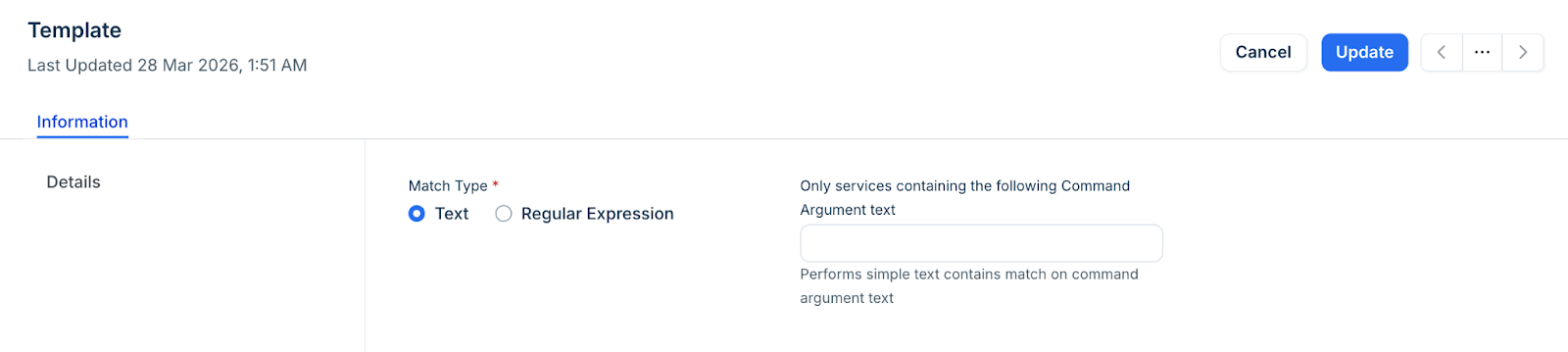
Match Type: Select one of the following:
Text: Performs a simple "contains" match on service command arguments.
Regular Expression: Performs regular expression match on command argument text. Python regular expression syntax is supported. Will generate up to 4 regular expression matches: regex_name variable will contain full match, regex_nameN, where N is 1-3, will contain first 3 group matches, if available.
Step 3: Define creation and naming rules
Automate how the resulting Application Components are named and organized.
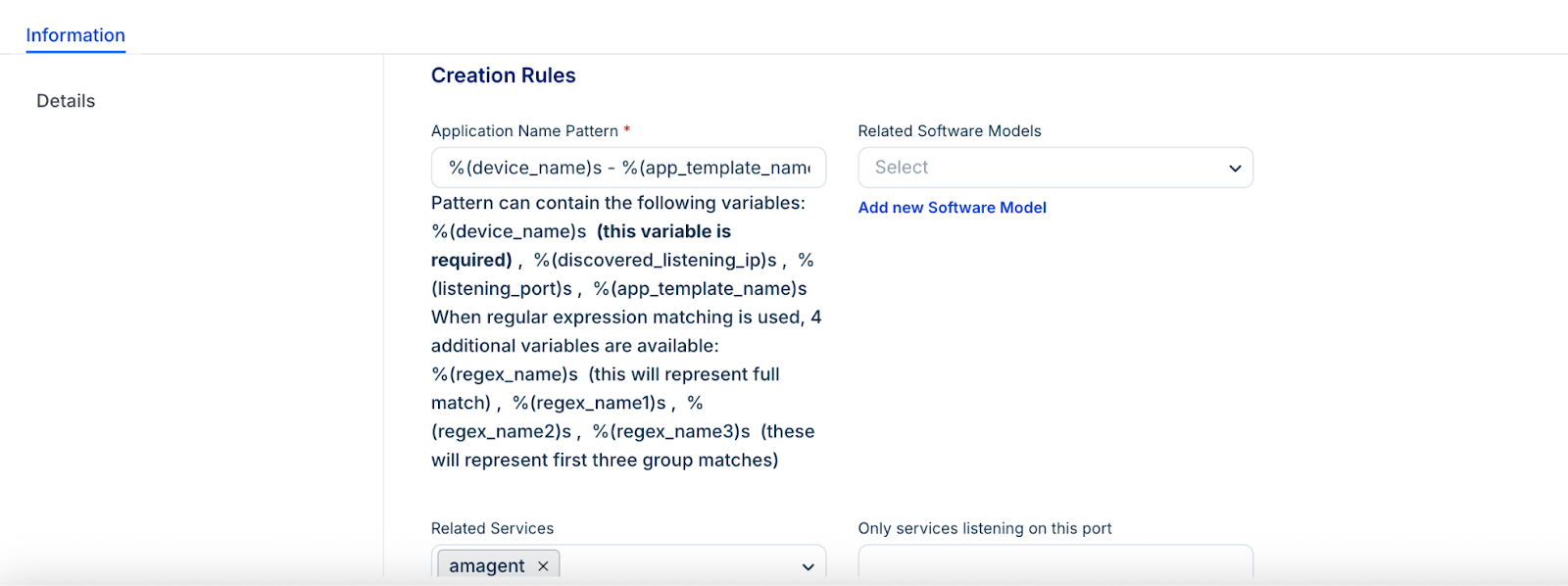
Application Name Pattern: Enter an Application Name Pattern to specify how the Application Component is named. You can use static text and the following variables to construct the Application Component name.
The pattern can contain the following variables:
%(device_name)s (required)
%(discovered_listening_ip)s
%(listening_port)s
%(app_template_name)s
%(device_name)s, %(discovered_listening_ip)s, %(listening_port)s, %(app_template_name)s
When you use regular expression matching, four additional variables are available:
%(regex_name)s (this will represent the full match),
%(regex_name1)s
%(regex_name2)s
%(regex_name3)s (these will represent the first three group matches)
%(regex_name)s, %(regex_name1)s, %(regex_name2)s, %(regex_name3)s
Select, enter, or add (using the plus sign icon) any Related Software Components or Related Services that should be associated with the Application Component. For Related Services, you can specify Only services listening on this port.
Enter a path in Configuration File Location to specify the directory that Device42 should search for configuration files.
Enter a name or partial name in the Configuration Filename Filter field to identify the configuration file(s).
Select Traverse subdirectories to have Device42 traverse the Configuration File Location directory.
Step 4: Configure Details Section
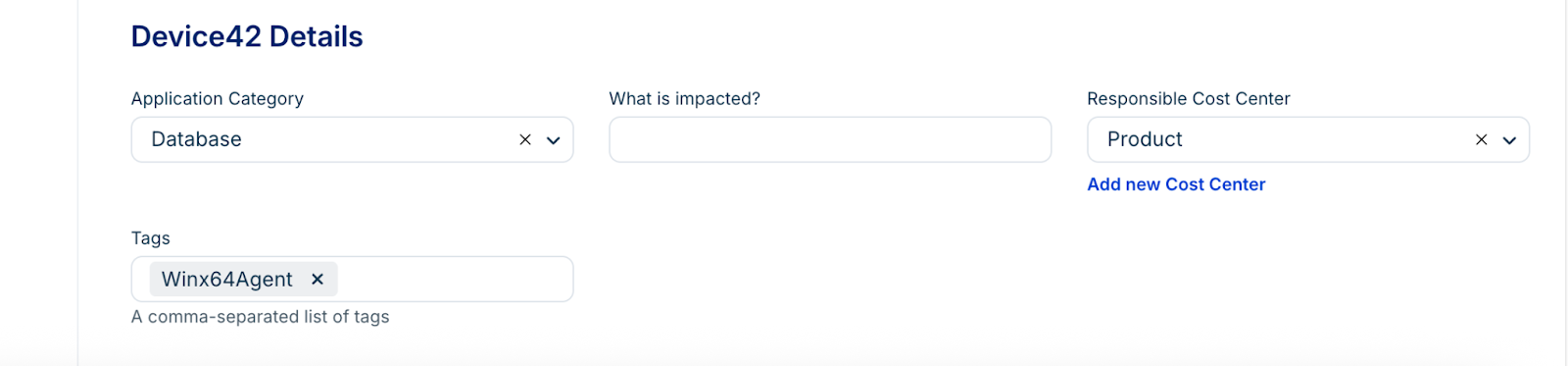
Select the Application Category for the Application Component (either Application Layer, Database, Load Balancer, Other, or Web Server).
Enter What is impacted by the Application Component.
Select or add the Responsible Customer or Department.
Enter any Tags you want for the Application Component.
Manage custom fields
Add specialized metadata to your templates for better reporting.
From the template list page, select one or more templates and click Set Custom Field Value. Or, you can go to
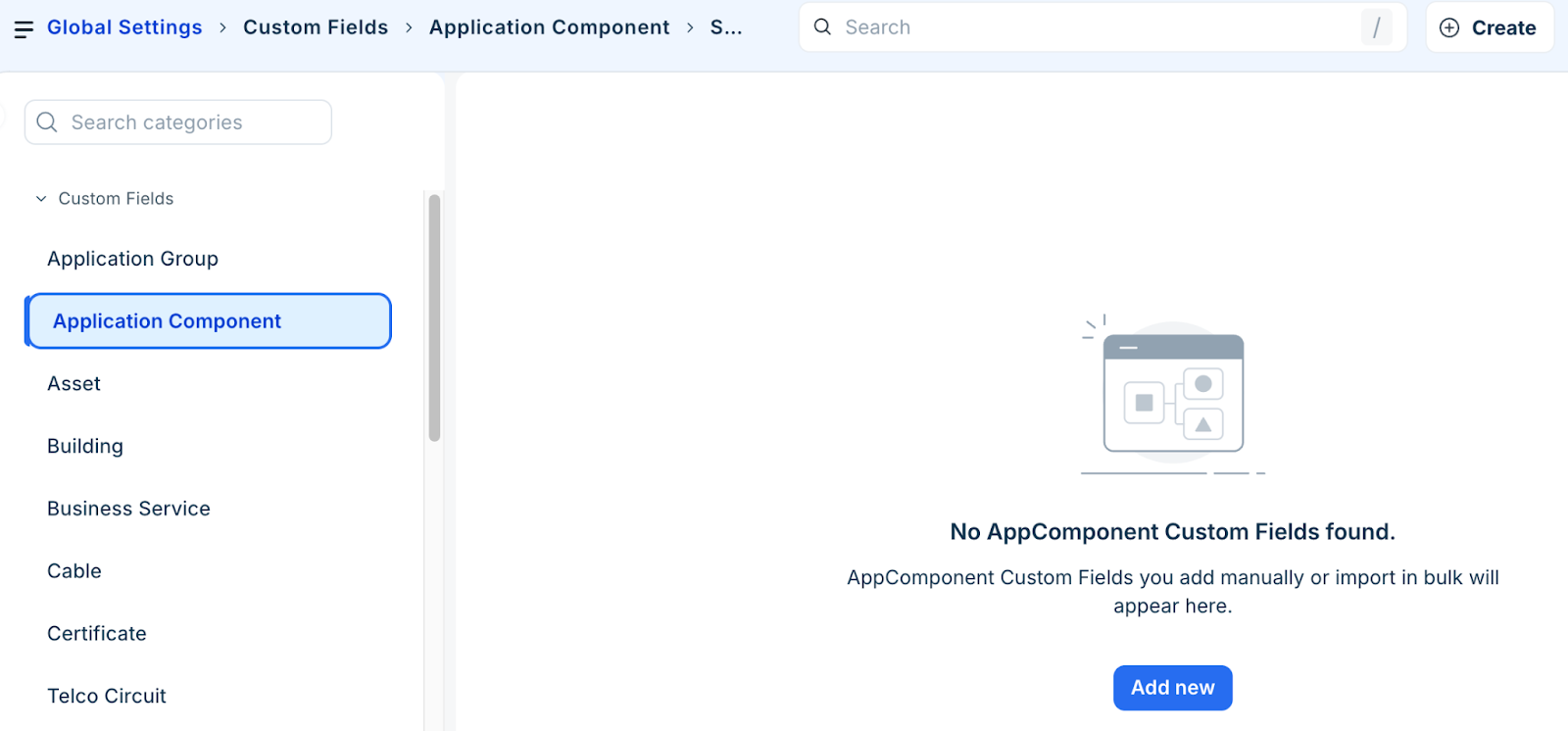
Or, you can go to Asset Management > CMDB > Custom Fields > Application Component > Add new.
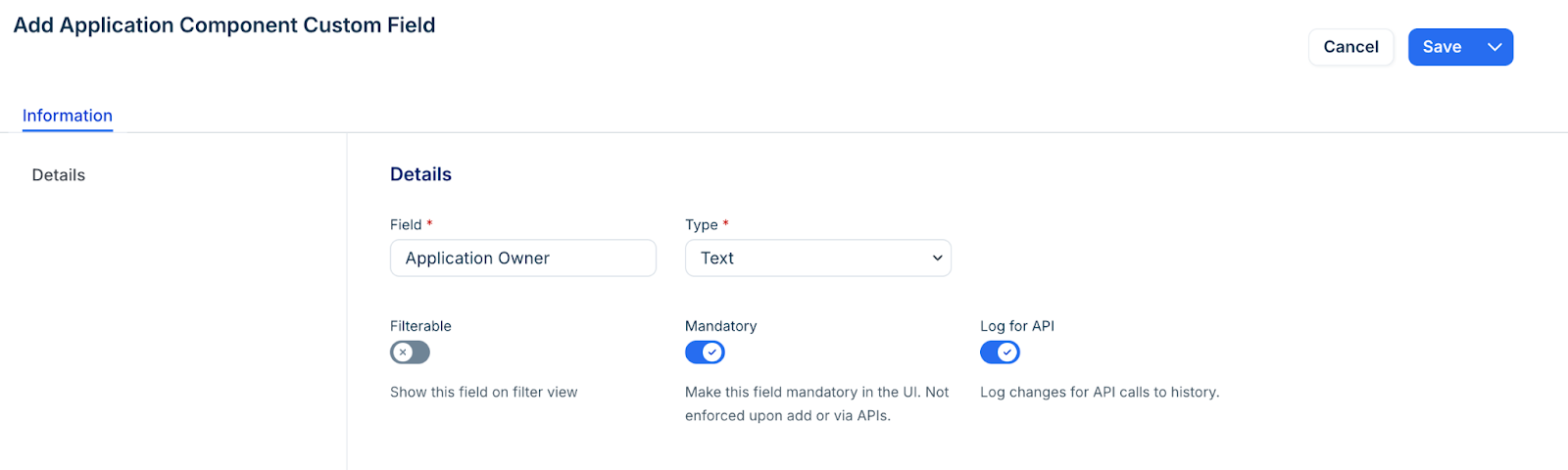
Enter the required Field and Type for the resulting Application Components.
Enable the following options based on your requirement:

Mandatory
Filterable
Log for API
Delete templates
To delete the templates, follow these steps:
Select the templates from the list page and click Delete
Confirm the deletion to remove the template from the system.

Autodiscovery options
The Windows/*nix autodiscovery jobs you run will check to see which Application Component Templates are enabled and use them to create Application Components. When creating an autodiscovery job, the following necessary options are enabled by default in the Software and Applications tab:
Discover Software
Discover Services
Discover Applications