
 Community
 Video Library
 Agent Training
 Freshservice
 Freshdesk
 Freshchat
 Freshcaller
 Freshsales
 Freshteam
 Freshworks Neo
 Freshsurvey
 Freshservice for MSP
 This article explains how to enable and configure Application Dependency Mapping (ADM) in your autodiscovery jobs, view discovered dependencies, and work with Application Groups.
Note: Application discovery is enabled by default for accounts with Enterprise plan. You can contact the support team for more details.
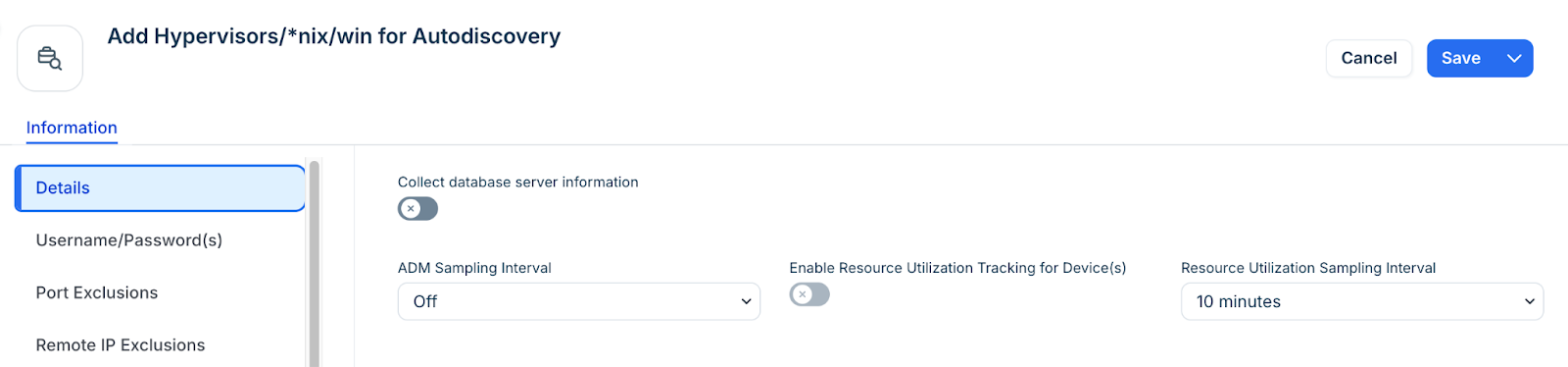
You can change the ADM Sampling Interval to be used with your *nix autodiscovery job. By default the sampling interval is off.
Import configuration files
To capture more granular data, you can store application-specific config files.
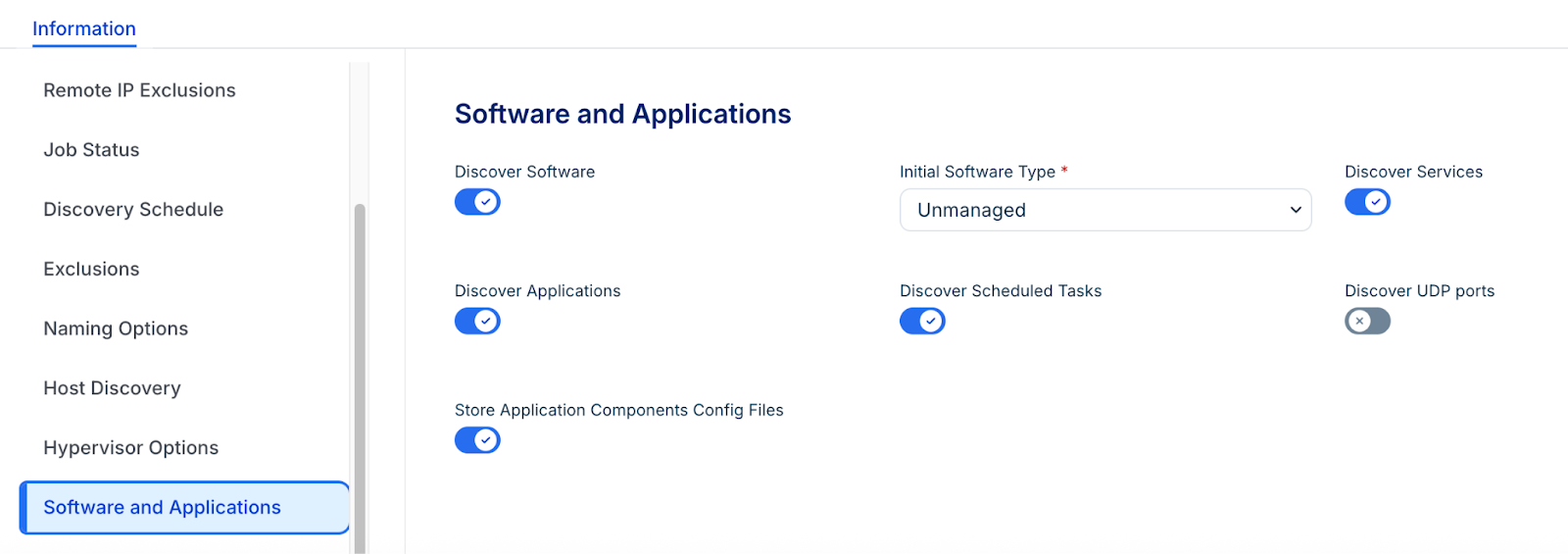
In your autodiscovery job, go to the Software and Applications section and enable Store Applications Components Config Files.
View Application Dependencies
When autodiscovery runs, Application Components is created by grouping related services. For example, all Oracle Database services on a single machine are grouped into one component. For example, for a server running Oracle Database, a component would be created to group together all Oracle Database services on that machine. The autodiscovery also finds the service-to-service connections to view dependent services. For example, your Apache service on Prod-Server1 was directly dependent on the MySQL service running on Prod-Database3.
To see the autodiscovered application dependencies, go to Applications > Application Components. The following component details are available on the page:
The host device
Dependent application components
Associated services with the application component
You can also edit the application to assign responsible or affected departments, describe what's impacted by downtime, and edit any custom fields.
Application Impact Charts
Impact charts provide an enhanced visualization of the relationships between devices, services, and applications. You can do the following actions using Impact charts:
Visualization: Charts show application components, listening ports, and active service connections.
Deep Dive: Click a service and click Details to view discovered configuration info for web or database servers.
Working with Application Groups
Application Groups allow you to bundle related devices and services into a single logical unit.
You can create an Application Group using one of the discovered Application Components as a starting point which will serve as one of the focus items for that group. Automatically, Freshservice will suggest Application Groups based on the discovered Application Components. Accept the groups that most accurately describe significant dependencies in your environment and ignore the others.
Tip: After configuring ADM sampling on the autodiscovery job, see Application Group Calculation Rules for a further explanation of how Starting Points are used to generate Application Groups.
Turn Off Application Discovery
To disable discovery for a specific job:
Set the ADM Interval dropdown to Off.
In the Software and Applications section, disable Discover Application.