
 Community
 Video Library
 Agent Training
 Freshservice
 Freshdesk
 Freshchat
 Freshcaller
 Freshsales
 Freshteam
 Freshworks Neo
 Freshsurvey
 Freshservice for MSP
 AWS discovery ensures you have full visibility into your AWS environments. This visibility gives you insight into your total AWS consumption, allowing you to optimize spending and services consumed. New discoveries are added all the time based on the needs of our customers.
Applicable plan: Growth, Pro, Enterprise
Note: Available only for new signups after the 31 March, 2026 release. If you signed up earlier, refer to the existing ITAM documentation.
Prerequisites
Before initiating discovery, ensure you have the following:
AWS Credentials: An AWS Access Key ID and Secret Key with appropriate permissions.
IAM Policy: An IAM policy attached to your discovery user or role.
Network Access: Ensure your Remote Collector (RC) can reach the necessary AWS endpoints.
Create an AWS discovery job
Navigate to Discovery > Cloud and click Create.
Enter a Name and select Type > Amazon AWS.
Select the Remote Collector to perform the scan.
Authentication: Enter your Access Key ID and Secret Key by clicking the magnifying glass icon.
Account Scope:
Select Discover Main Account to include the primary credentials' account.
Add Available AWS Roles to the "Chosen" list to discover sub-accounts via role assumption.
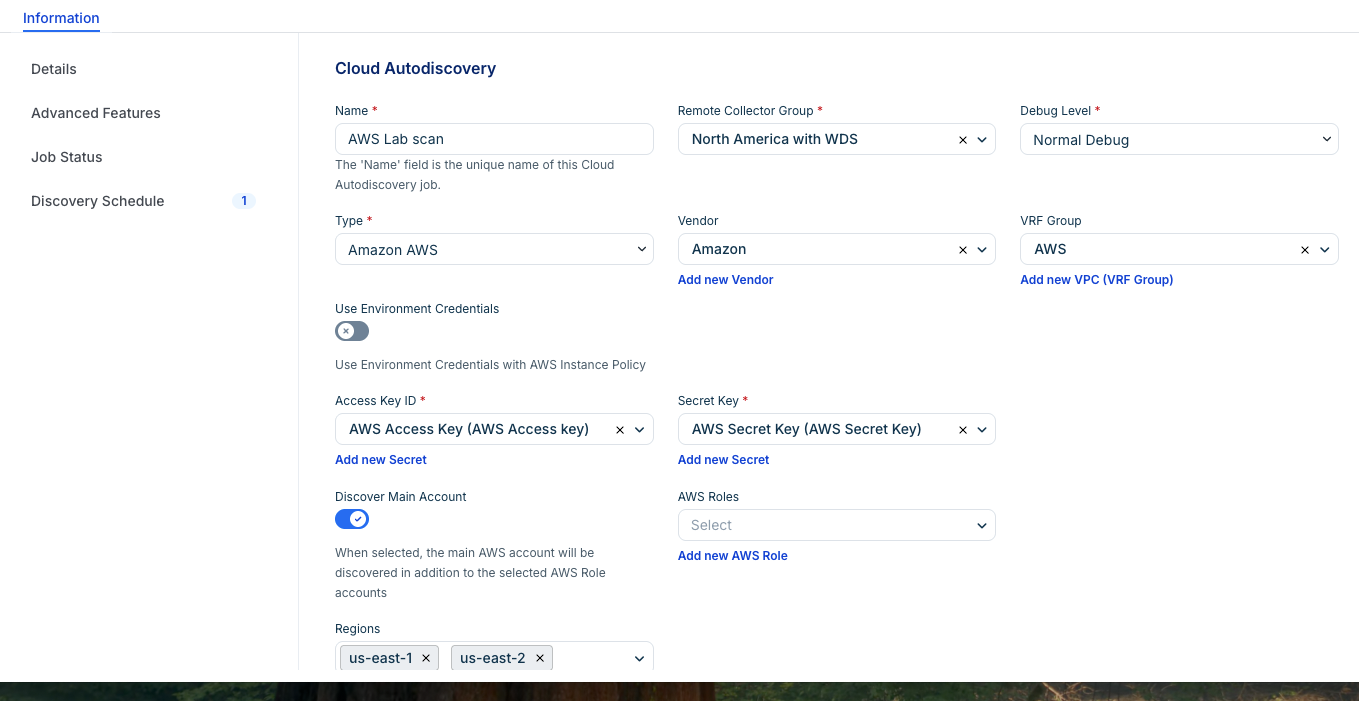
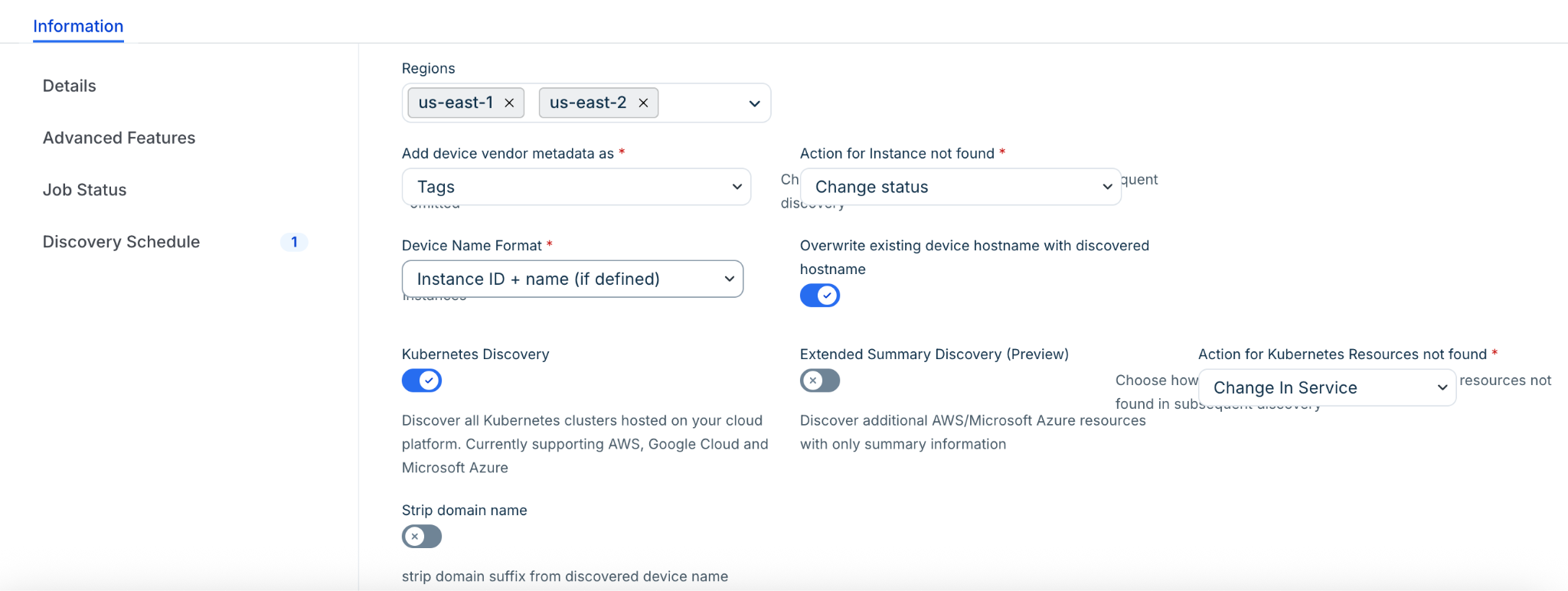
Regions & Resources: Select the target Amazon Regions.
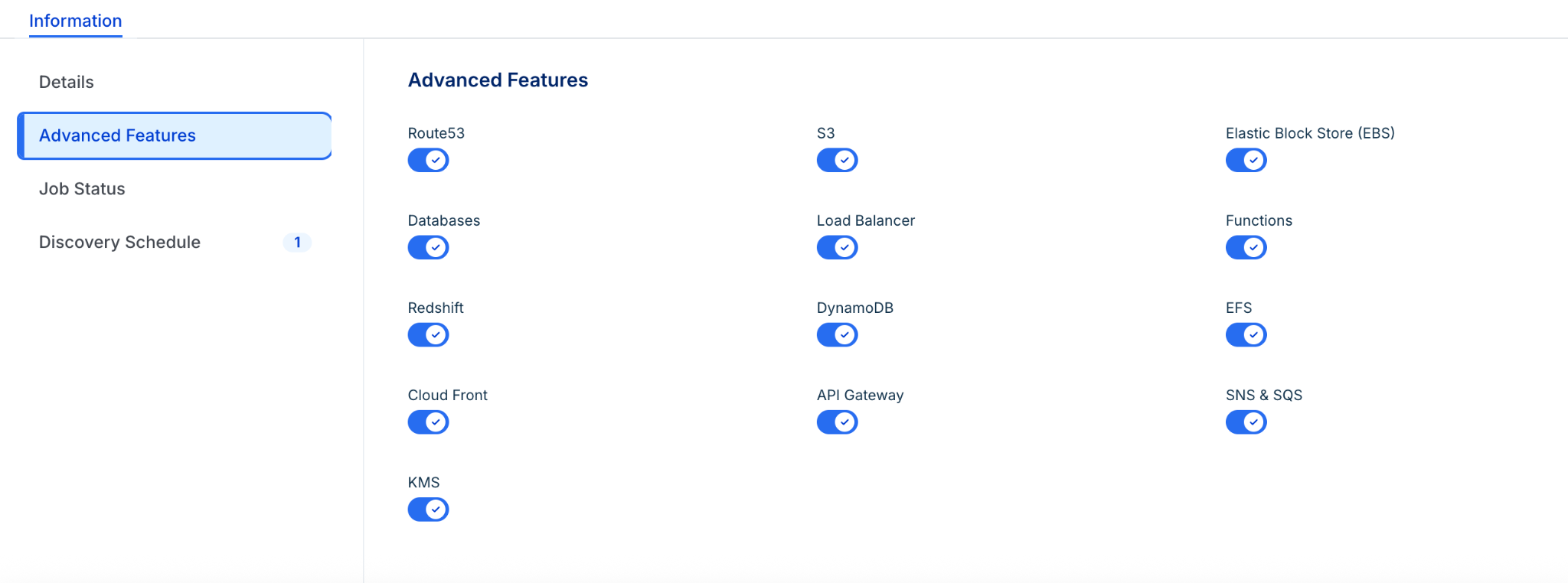
Under Advanced Features, toggle specific resources like S3, Route53, EBS, or Databases.
Enable Extended Summary Discovery to pull a broad breadth of resources into the Cloud Resources list with a limited dataset.
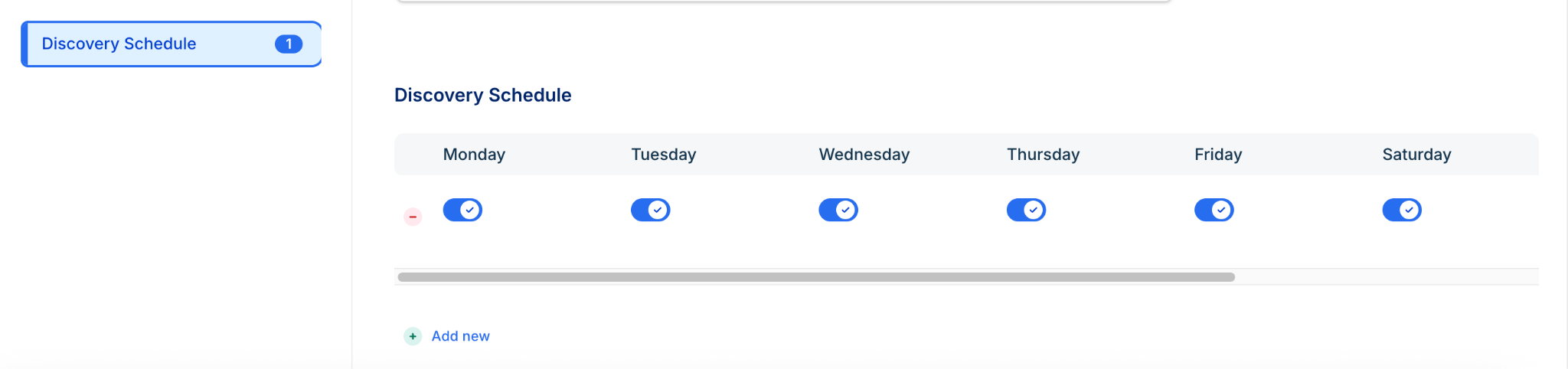
Schedule: Add an Autodiscovery Schedule and click Save. To run immediately, click Run Now on the list page.
Define AWS roles
The system uses an editor to define roles for cross-account discovery.
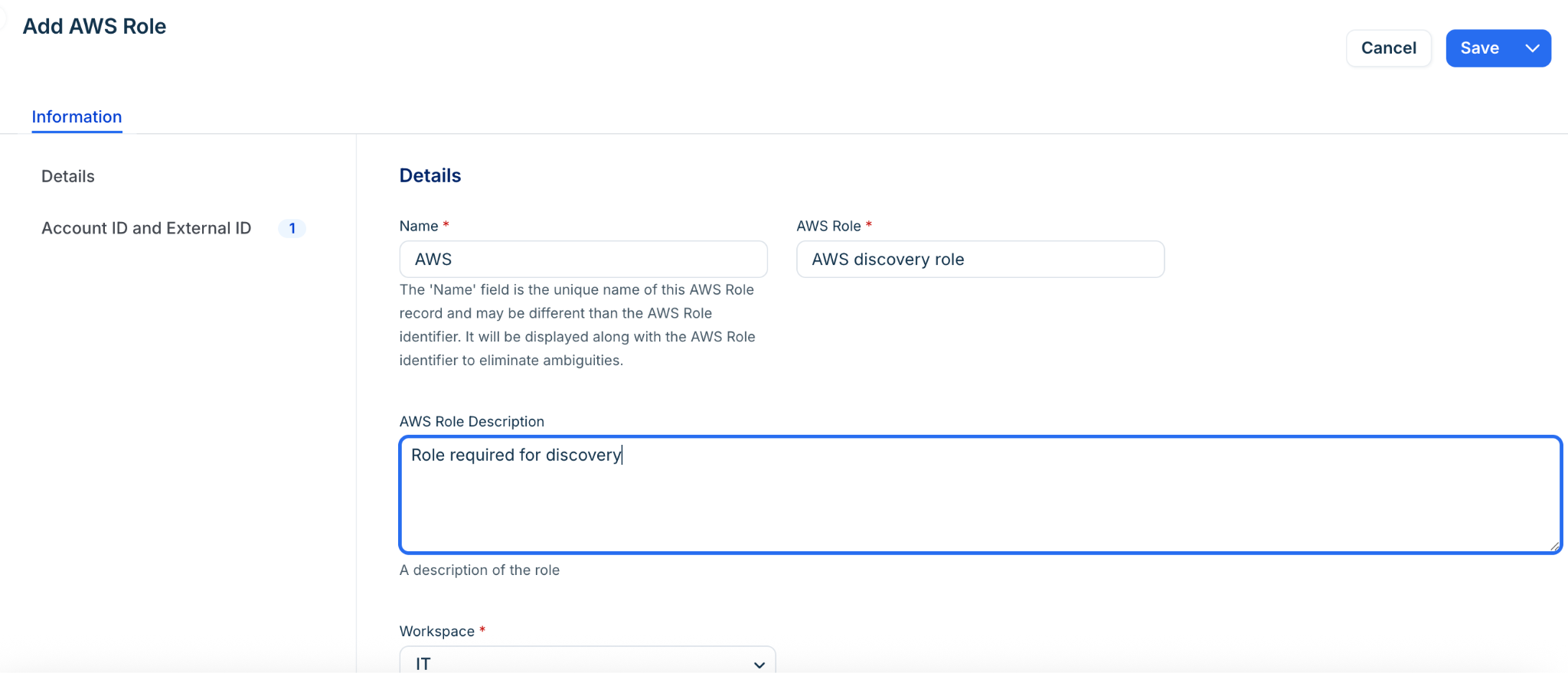
Navigate to Asset Management > AWS Roles.
Click Create and enter a Name and Description.
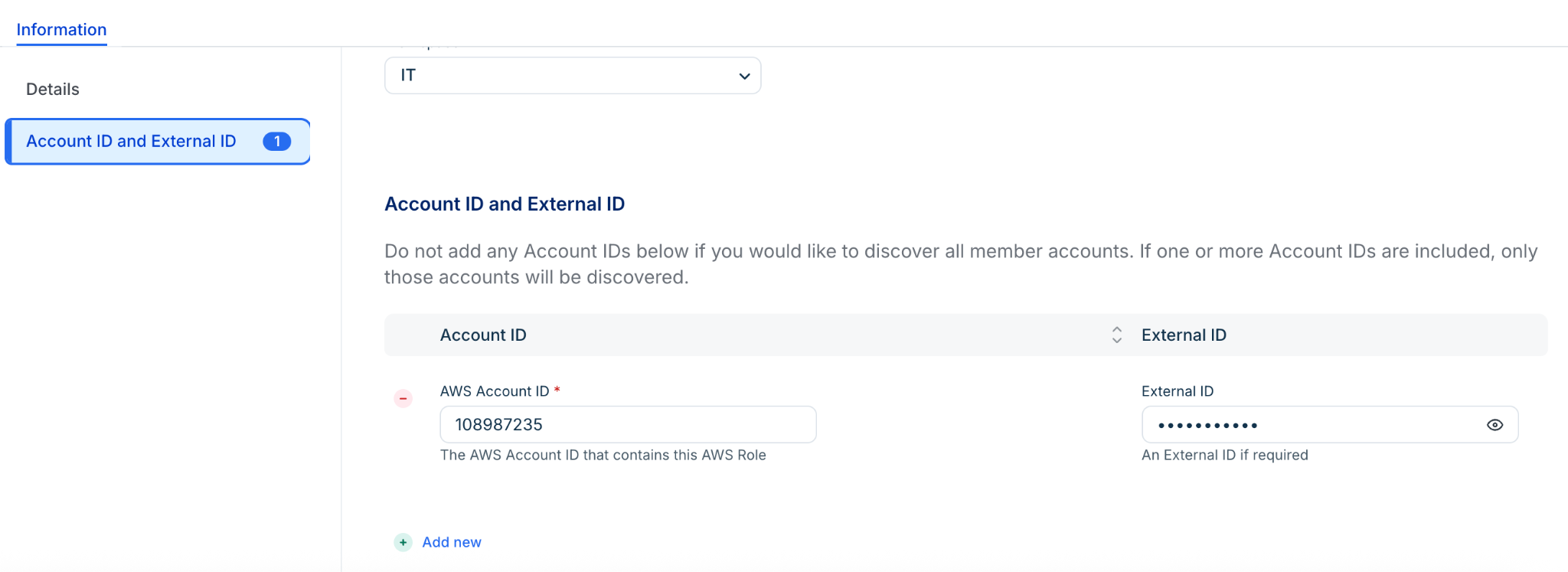
In the Account ID and External ID section, click Add New to enter the target account details.
Click Save. These roles will now appear as options in your AWS Cloud Discovery jobs.
Setting up cross-account role assumption
To discover multiple sub-accounts from a single job, use one of the following methods:
Option 1: Root Account Key Pair (Dynamic Discovery)
Deploy the key pair in the organization's root account.
Ensure the user has sts:assumerole and organizations:listaccounts rights.
Create an identical role name across all target sub-accounts.
Note: Dynamic discovery does not currently support External IDs.
Option 2: Main Account Role
Attach the discovery policy directly to the user in the main account.
Ensure the Discover main account box is checked in the job settings.
AWS Discovery Items
The following tables mentions the list of supported discovery items.
Note: Some Discovery items require enabling the feature and cannot be discovered otherwise.
Credential-free discovery with EC2 instance profiles
If your Main Appliance or Remote Collector is running as an EC2 instance, you can use Instance Profiles to avoid managing long-term secret keys.
Create IAM Policy: Create a JSON policy with the required discovery permissions.
Create IAM Role: Select AWS Service > EC2 as the trusted entity and attach your policy.
Attach Role: In the AWS Console, select your EC2 instance and choose Actions > Security > Modify IAM role to attach the new role.
Configure Job: In the discovery job, simply enable Use Environment Credentials.
IAM Policy and Endpoints
Regular Discovery
sts.<region_name>.amazonaws.com or sts.*.amazonaws.com: Try these endpoints if you encounter an SSL certificate error.
https://organizations.us-east-1.amazonaws.com: Only use this if one of the available features is enabled.
K8s cluster endpoints access per K8s RBAC setup
/api/v1/namespaces/kube-system
/api/v1/nodes?watch=False
/api/v1/services?watch=False
/apis/apps/v1/deployments?watch=False or /apis/extensions/v1beta1/deployments?watch=False (depends on K8s version)
/apis/networking.k8s.io/v1beta1/ingresses?watch=False or /apis/extensions/v1beta1/ingresses?watch=False (depends on K8s version)
Example IAM Policy (except for the K8s cluster endpoints, since it is controlled by K8s RBAC)
Use the following code
{
"Version": "2012-10-17",
"Statement": [
{
"Effect": "Allow",
"Action": [
"acm:DescribeCertificate",
"acm:List*",
"apigateway:GET",
"autoscaling:Describe*",
"cloudfront:ListDistributions",
"cloudfront:ListTagsForResource",
"cloudsearch:DescribeDomains",
"cloudwatch:Describe*",
"cloudwatch:GetMetricData",
"cloudwatch:GetMetricStatistics",
"cloudwatch:ListMetrics",
"config:SelectResourceConfig",
"dynamodb:DescribeGlobalTable",
"dynamodb:DescribeLimits",
"dynamodb:DescribeTable",
"dynamodb:ListGlobalTables",
"dynamodb:ListTables",
"ec2:Describe*",
"eks:DescribeCluster",
"eks:DescribeNodegroup",
"eks:DescribeUpdate",
"eks:ListClusters",
"eks:ListNodegroups",
"eks:ListUpdates",
"elasticache:Describe*",
"elasticfilesystem:DescribeAccessPoints",
"elasticfilesystem:DescribeAccountPreferences",
"elasticfilesystem:DescribeFileSystems",
"elasticfilesystem:DescribeMountTargets",
"elasticloadbalancing:Describe*",
"iam:ListAccountAliases",
"kms:DescribeKey",
"kms:ListKeys",
"kms:ListResourceTags",
"lambda:GetAccountSettings",
"lambda:GetFunction",
"lambda:GetPolicy",
"lambda:List*",
"logs:DescribeLogStreams",
"logs:GetLogEvents",
"organizations:DescribeAccount",
"organizations:ListAccountsForParent",
"organizations:ListOrganizationalUnitsForParent",
"organizations:ListRoots",
"organizations:ListTagsForResource",
"rds:Describe*",
"rds:ListTagsForResource",
"redshift:DescribeClusters",
"redshift:DescribeReservedNodes",
"route53:ListHostedZones",
"route53:ListResourceRecordSets",
"route53:ListTagsForResource",
"route53domains:ListDomains",
"s3:GetAccessPointPolicyStatus",
"s3:GetBucketAcl",
"s3:GetBucketLocation",
"s3:GetBucketPolicyStatus",
"s3:GetBucketPublicAccessBlock",
"s3:GetBucketTagging",
"s3:GetEncryptionConfiguration",
"s3:ListAccessPoints",
"s3:ListAllMyBuckets",
"sns:GetTopicAttributes",
"sns:ListTagsForResource",
"sns:ListTopics",
"sqs:GetQueueAttributes",
"sqs:ListQueues",
"sqs:ListQueueTags"
],
"Resource": "*"
}
]
}
AWS Tags and S3 Access Control
Organizations that use AWS tags can retrieve tags associated with each cloud account within AWS. Discovered tags are located under the Vendor Custom Fields field.
Following can be discovered information on the following S3 fields:
Has Public Access Point
Has Public ACL
Has Public Policy
Public ACLs Blocked
Public Policies Blocked
A bucket can be public if it has Public Access Point, Public ACL or Public Policy. The Public ACLs Blocked and Public Policies Blocked flags can be independently controlled with settings in the AWS S3 console. When these flags are checked off, a user with the correct permissions can access the bucket.
Additional resources:
See S3 Bucket policy examples for more details.
Visit the block public access settings section for S3 access control options.
Multi-Account Discovery with AWS Roles
AWS Cloud Discovery jobs can use AWS roles to discover multiple accounts. When the job includes an AWS role, the discovery job dynamically retrieves accounts from AWS. A single role can discover multiple accounts, so you can either specify exact accounts to discover or leave the account empty to have the discovery job create cloud accounts automatically.