
 Community
 Video Library
 Agent Training
 Freshservice
 Freshdesk
 Freshchat
 Freshcaller
 Freshsales
 Freshteam
 Freshworks Neo
 Freshsurvey
 Freshservice for MSP
 Note: Available only for new signups after the 31 March, 2026 release. If you signed up earlier, refer to the existing ITAM documentation.Operating system (OS) tracking is a core component of IT asset management. Freshservice identifies which OS is running on every discovered device and integrates this data directly into your software license management (SLM) workflow. By centralizing this information, you can reconcile purchased licenses against actual usage and monitor critical support milestones.
This article explains how to navigate the operating systems inventory, use enriched data for lifecycle tracking, and manage the logic for automated OS updates.
Prerequisites
You need the following before managing OS:
Access to the IT Asset Management module in your Freshservice instance.
Administrator privileges or specific permissions to create and edit OS records.
Monitor operating system installations
To view your full operating system (OS) inventory, go to IT Asset Management >Software > Operating Systems Models.
The Operating System Models list page displays your complete OS inventory, including the Total count of devices running each OS, the Discovered licensed count, and the Discovered non-licensed count.
Click any OS name to view detailed information, such as the specific machines where it is installed.
Note: If the OS is standardized and enriched by the data Normalization and Enrichment Service, an AI icon will be displayed to the right of its name.
View enriched data
When an operating system’s record is enriched, Freshservice populates the Enriched Data section in that record’s page with verified vendor information. This automation saves you from manual research and helps maintain a proactive stance on security.
Notes:
- Operating system fields that contain Enriched Data cannot be edited or changed.
- Data will only be populated by the Enriched Data service if it's used by the OS vendor and if the data is available.
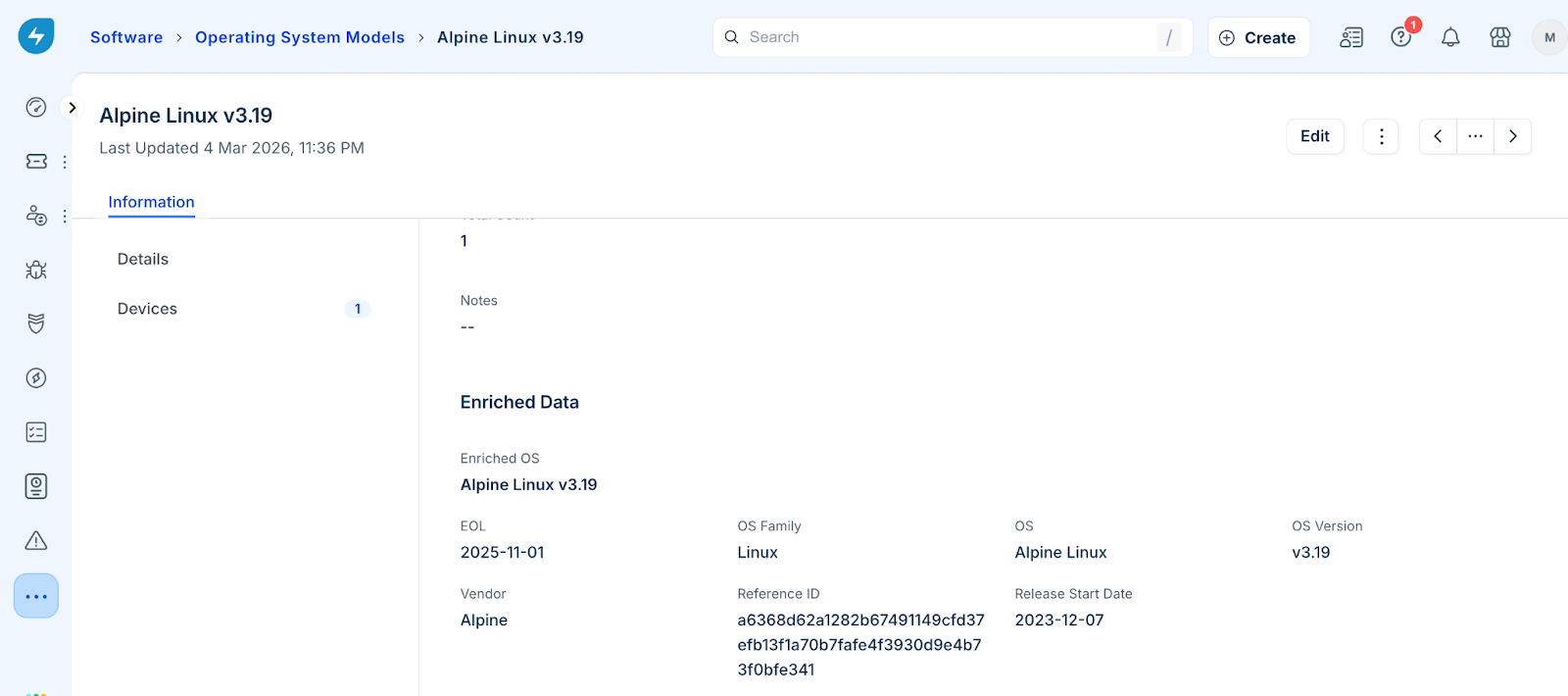
Disable OS changes via API, Discovery, or Enrichment
Freshservice uses built-in safeguards to ensure that high-quality data is not overwritten by less accurate discovery methods.
If you have manually verified an OS and want to prevent automated services from modifying it, you can lock the record by following these steps:
Go to the specific OS record and click Edit.
Enable the Don't change via API/Discovery/Enrichment option.
Click Save.
Understand accuracy scores
Every discovery job assigns an accuracy score to the OS it detects. Freshservice will only update a device's OS information if the newly detected OS has an accuracy score equal to or greater than the existing score.