
 Community
 Video Library
 Agent Training
 Freshservice
 Freshdesk
 Freshchat
 Freshcaller
 Freshsales
 Freshteam
 Freshworks Neo
 Freshsurvey
 Freshservice for MSP
 TABLE OF CONTENTS
- Key feature capabilities and rules
- Prerequisites and permissions
- Create a skillset
- Preview and publish skillsets
- Configuration lifecycle: draft vs. published
This document details skillset setup and publishing, key feature capabilities, and necessary administrative permissions. Refer to the following resources for guidance on skillset management, agent mapping, proficiency settings, routing feedback, assignment policy integration, audit logs, and Sandbox testing:

• Manage skillsets
• Skillsets: Agent associations and proficiency
• Skillsets: Routing feedback
• Skillsets: Integration with assignment policies
• Skillsets: Audit logs and Sandbox support
Skillsets in Freshservice provide an administrator-defined framework for intelligent ticket routing using Freddy AI. Freddy AI categorizes incoming tickets into clear, customer-defined categories—such as Network Support, Identity and Access, or Laptop Support.
Freddy AI evaluates incoming tickets by analyzing the ticket subject, description, and requested item details from service catalog submissions, and tags the most appropriate admin-defined skillset to tickets.
If there are ticket assignment policies matching a ticket with skill enabled, then the skillset tagged to the ticket is taken into consideration, and the best matching agent is identified based on proficiency levels.
It then routes tickets to qualified agents matched with skillset requirements and proficiency levels (Expert, Intermediate, Beginner) alongside agent work schedules and current workloads.
To learn more about setting up and managing ticket assignment policies, see these documentation guides:
Key feature capabilities and rules
Workspace-scoped configuration: Skillsets are defined and managed at the workspace level. The same skillset name (for example, Laptop Support) can exist in different workspaces with distinct configurations and routing rules.
Cross-workspace ticket reassignment: When a ticket is reassigned to a different workspace, Freddy AI automatically re-evaluates the ticket using the destination workspace's skillset definitions and re-triggers assignment rules accordingly.
Tie-breaking assignment logic: When multiple agents share identical proficiency, availability, and workload scores, tickets are assigned to the agent with the oldest ‘assigned at’ timestamp.
Prerequisites and permissions
To configure and manage skillsets, ensure the following requirements are met.
System and feature prerequisites
Plan availability: Available only on the 'Pro and Enterprise plans with Freddy AI Copilot add-on.'
Global setting: Skillsets must be enabled globally under Admin > Global Settings > Freddy AI > Freddy AI Copilot > Skillsets.
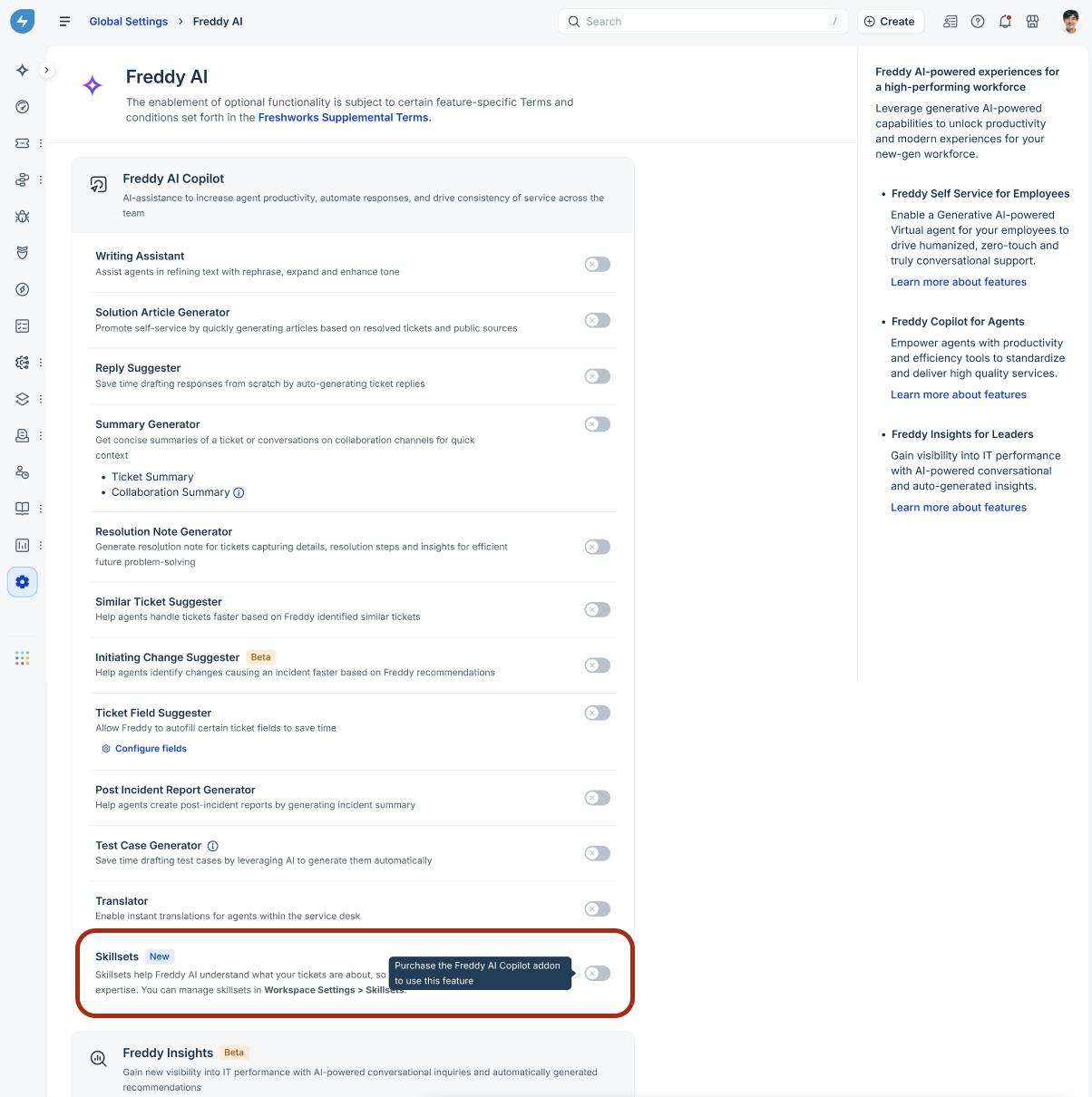
Note: Disabling Skillsets under Global Settings pauses AI learning. Re-enabling it restarts the learning process.
Required admin permissions
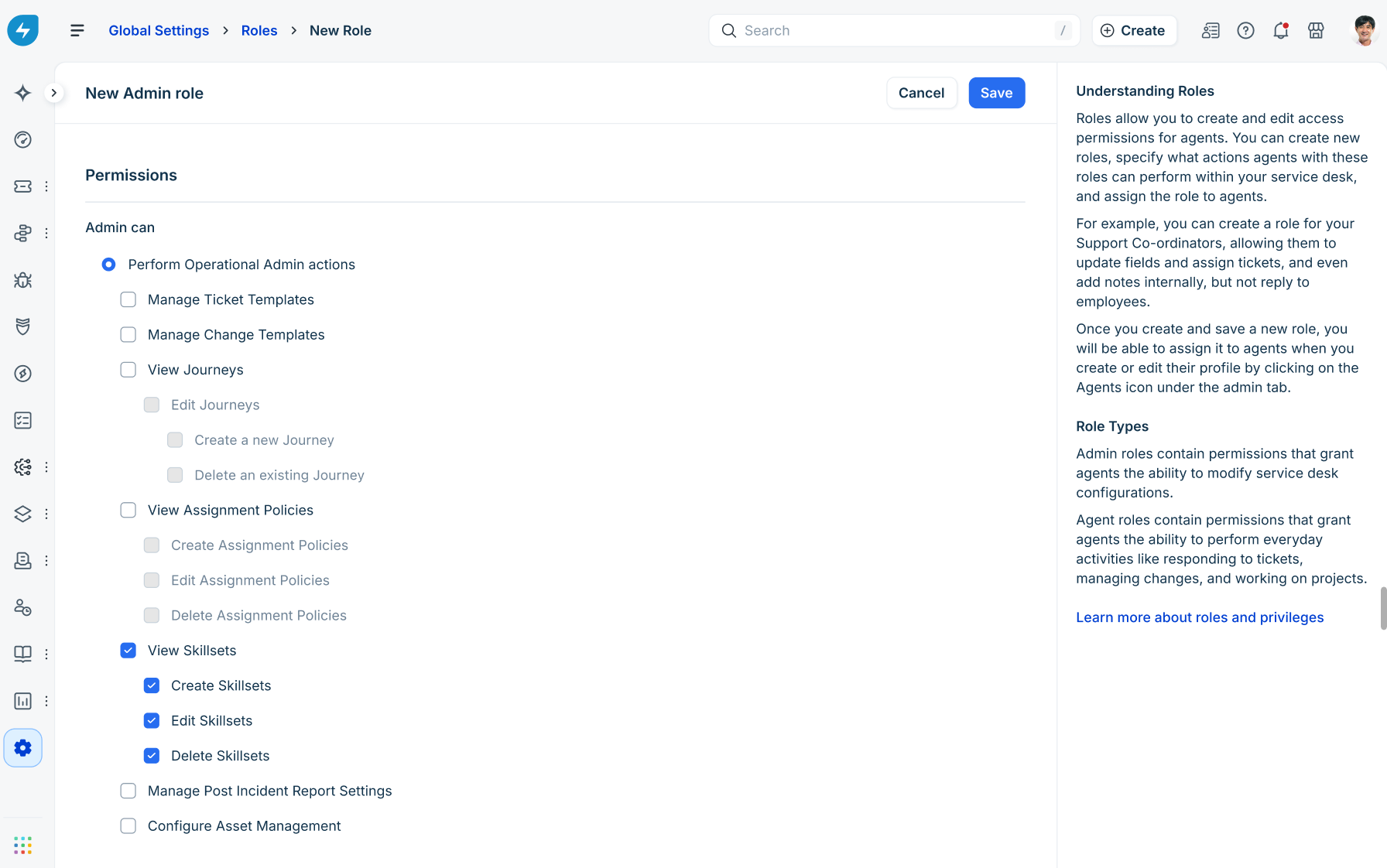
Administrators require custom role permissions to manage skillsets. Privileges can be applied at the Workspace level (managing skillsets only for agents in assigned workspaces) or the Account level (managing skillsets globally across all agents).
To configure these permissions, go to Admin > Global Settings > User Management > Roles > Admin roles:
View skillsets: Grants access to view skillsets and mapped agents.
Create skillsets: Allows creating new skillsets and templates.
Edit skillsets: Allows modifying existing skillsets, keywords, sample tickets, and manual agent associations.
Delete skillsets: Allows archiving and deleting skillsets.
Create a skillset
Administrators can define skillsets from scratch or use pre-built templates tailored to common IT service categories.
Onboarding experience
Log in to your Freshservice account.
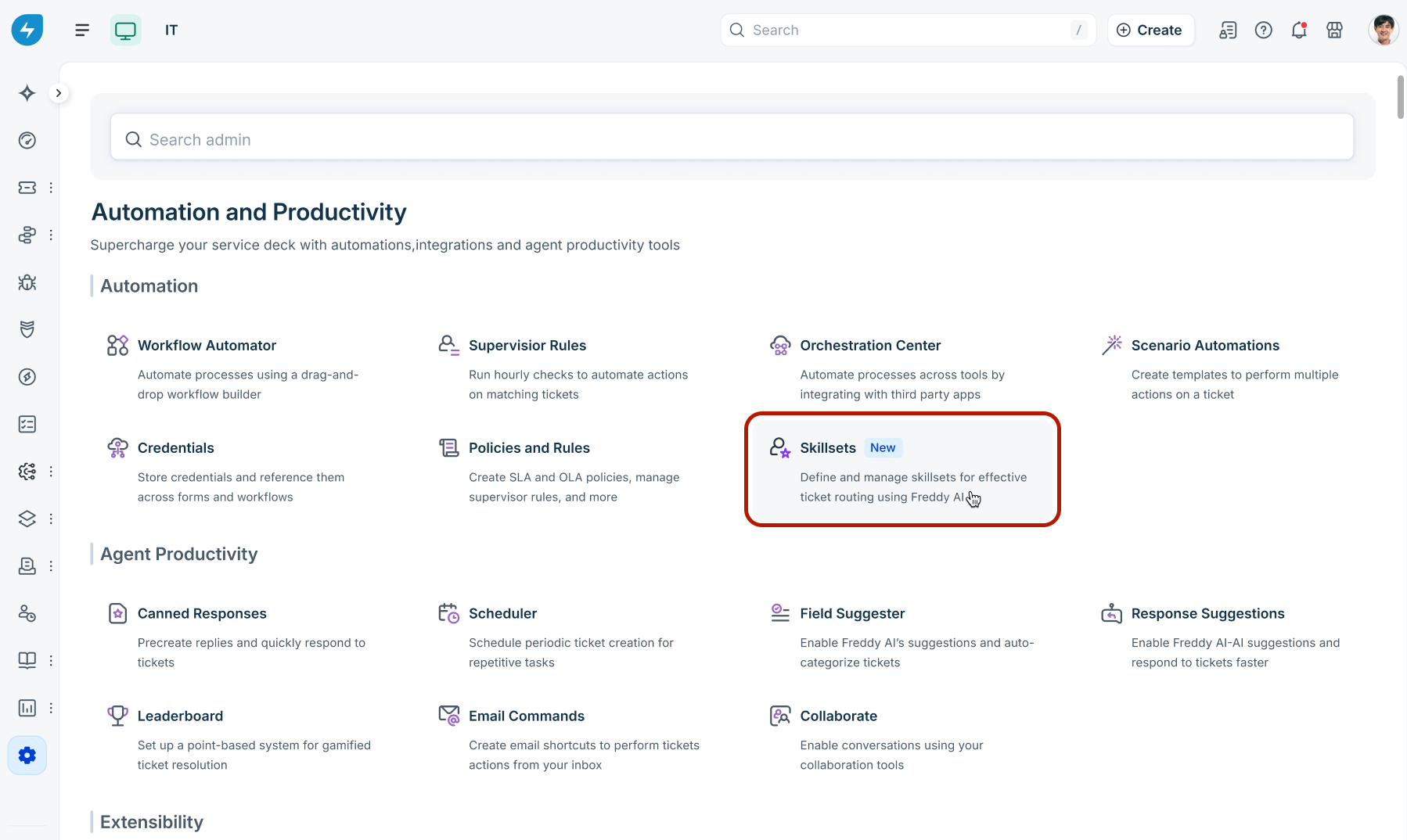
Go to Admin > Workspace settings > Automation > Skillsets.
On the onboarding page, click Get started.
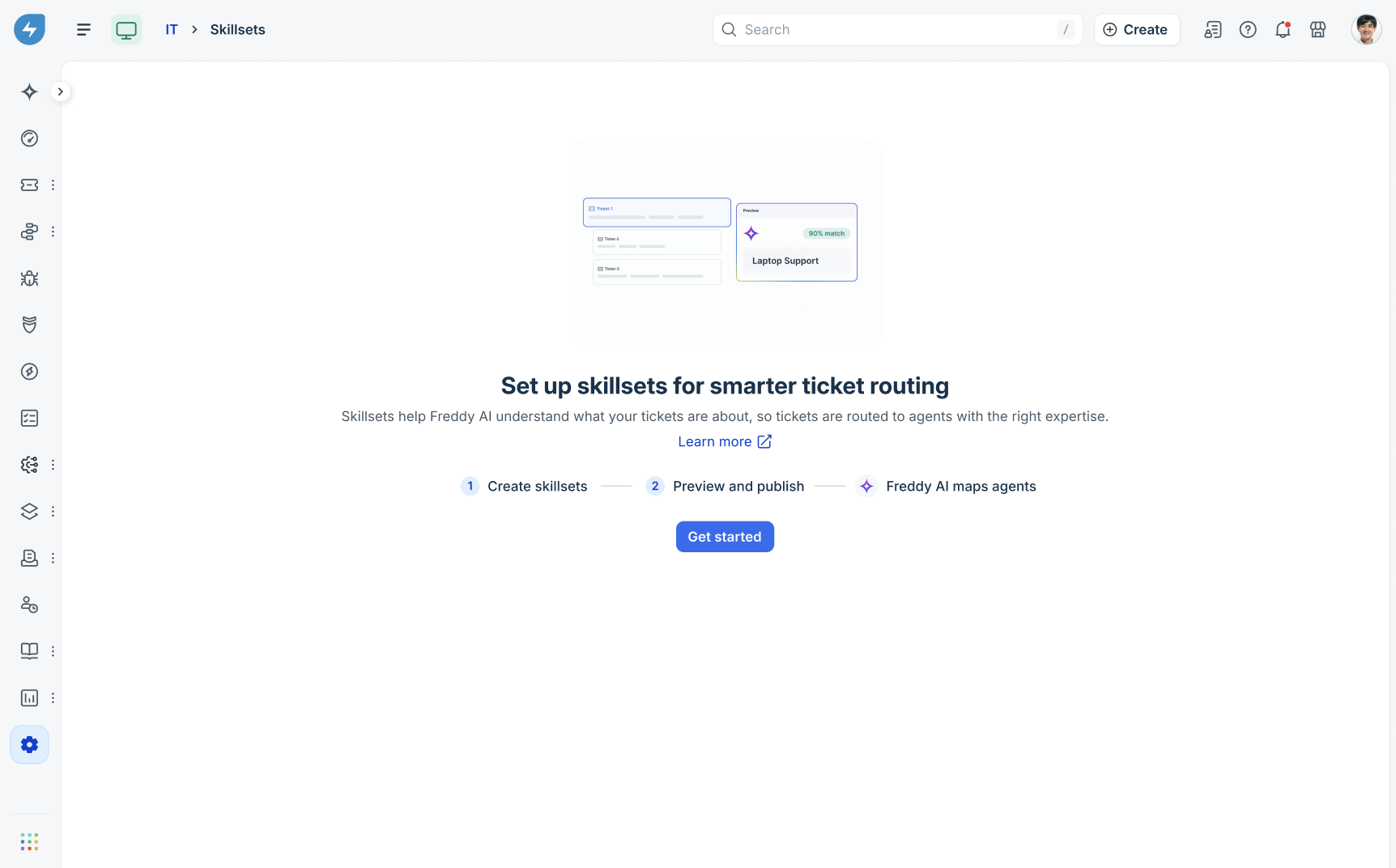
Click Create skillset.
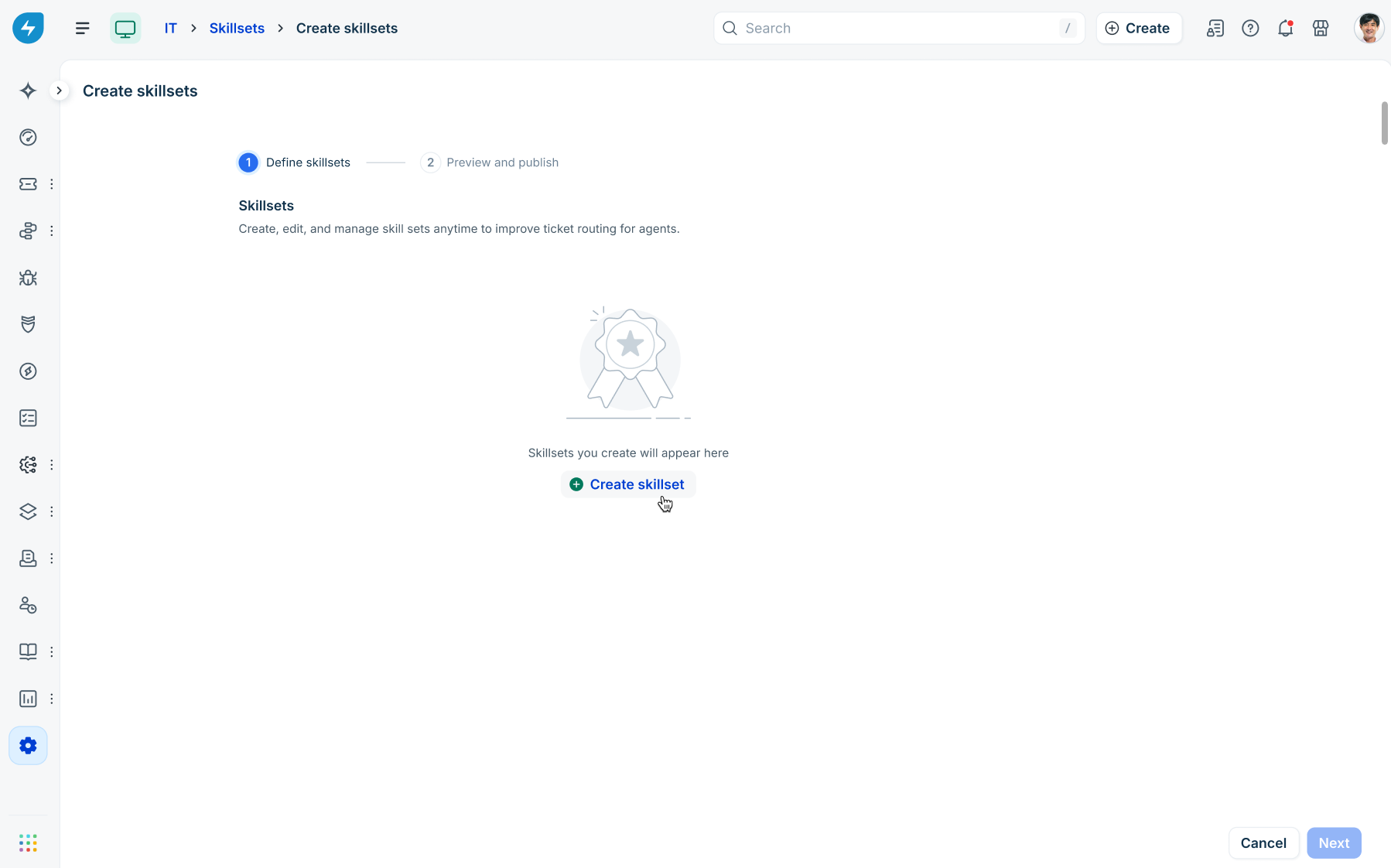
Define skillsets
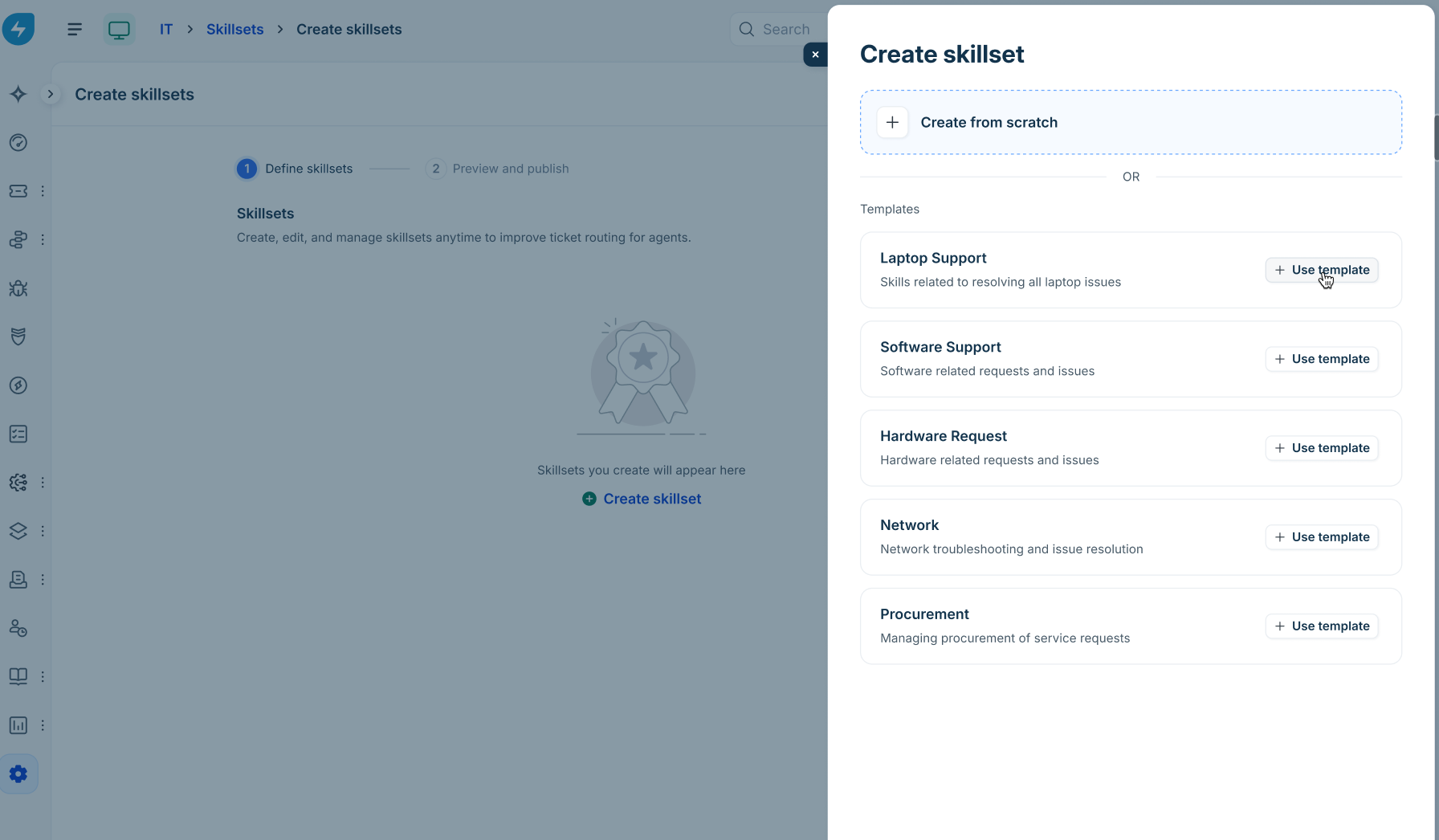
In the Create skillset slider, choose one of the following options:
Create from scratch: Build a custom skillset.
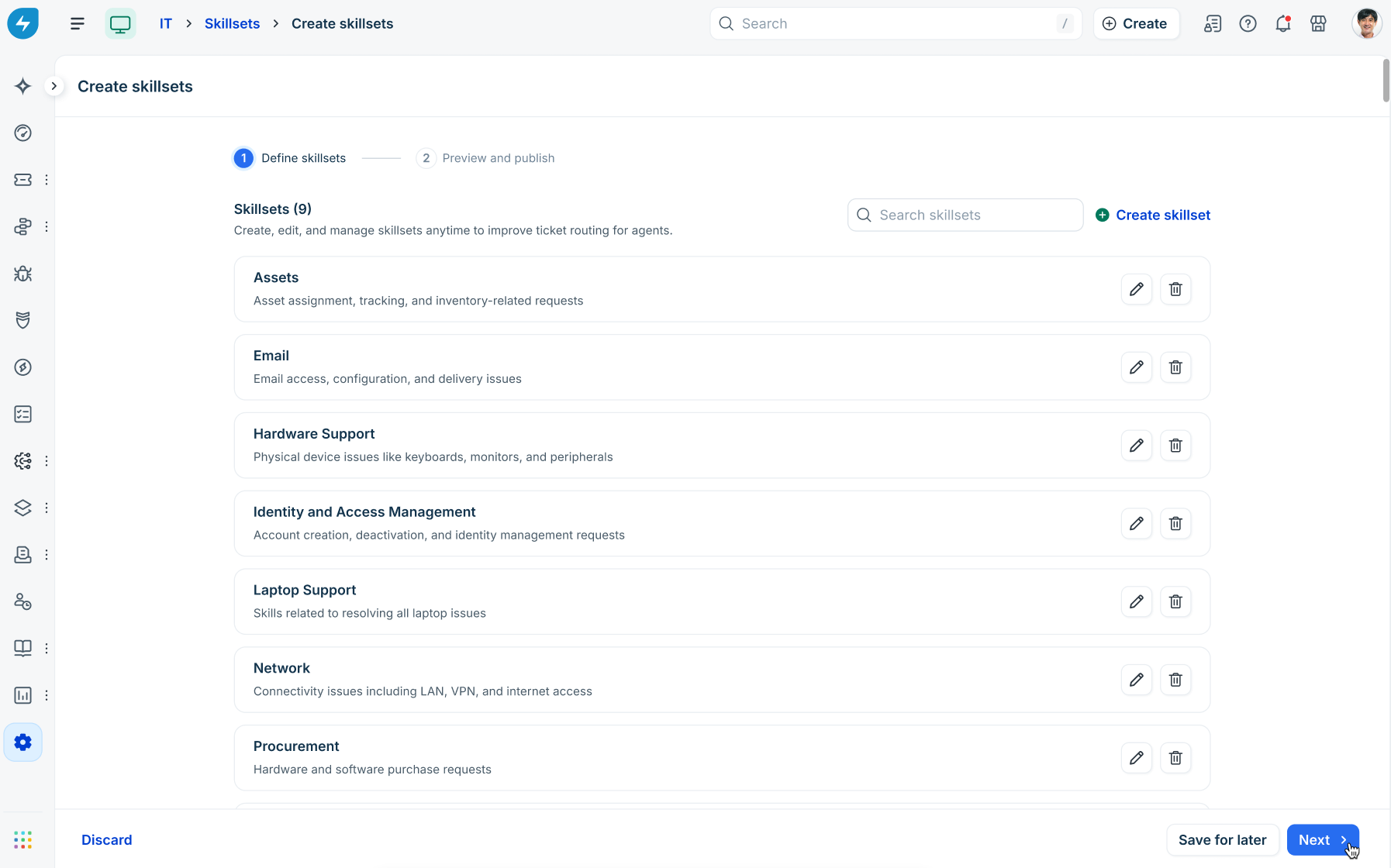
Use template: Select a pre-configured template (such as Laptop Support, Software Support, Hardware Request, Network, or Procurement).
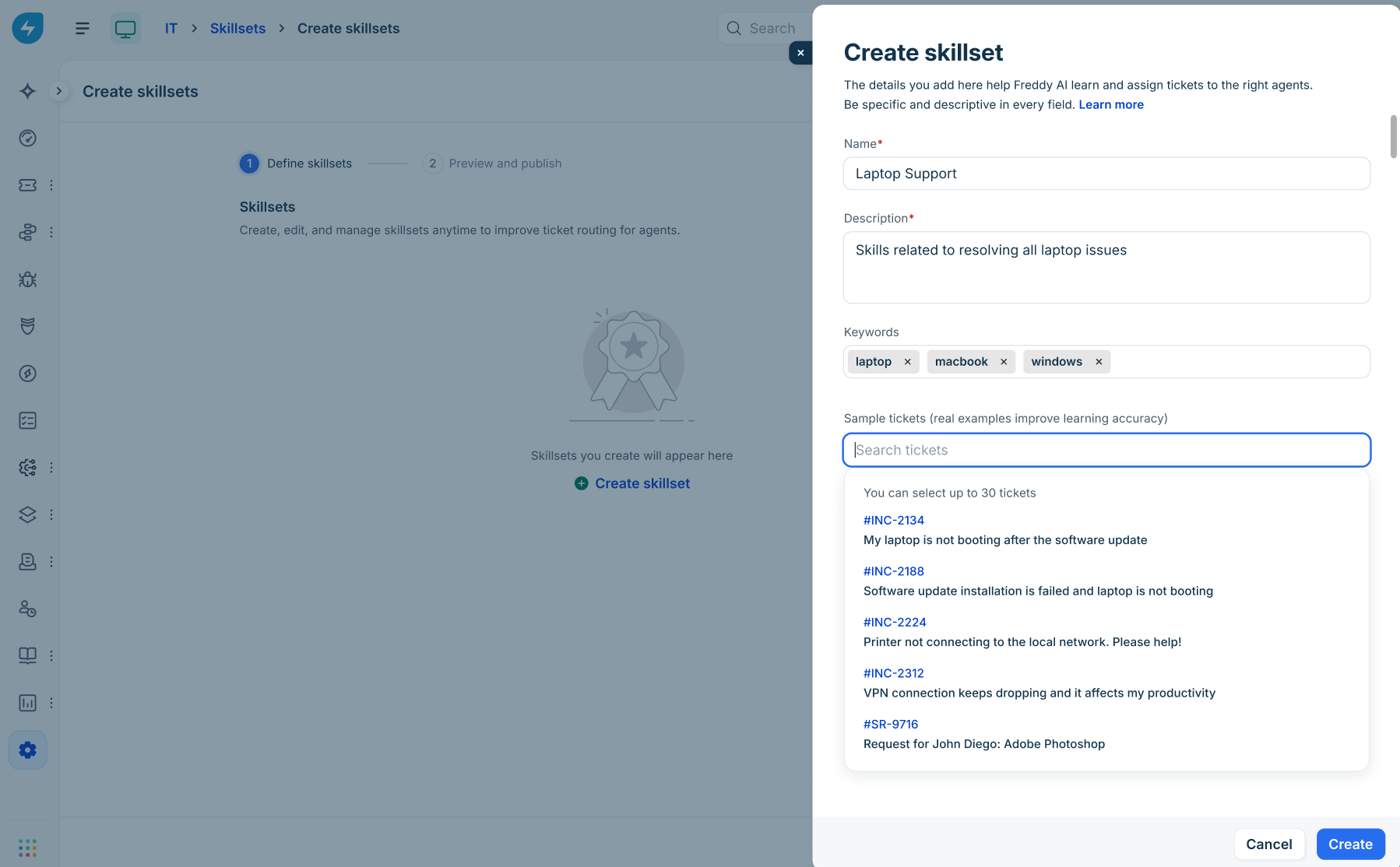
Configure the following fields:
Name: Enter a clear name for the skillset.
Description: Provide a detailed description explaining what types of issues this skillset covers.
Keywords: Enter relevant terms as keywords.
Sample tickets: Search and select up to 30 real tickets from your workspace that best exemplify this skillset.
Validation rules and system constraints:
Reserved name: You cannot name a skillset "Others" as this is reserved for the default system catch-all skillset.
Duplicate mapping: If keywords or sample tickets are already mapped to another skillset, a message will be shown on duplicate mapping.
Deleted tickets: If a selected sample ticket is deleted from the workspace, an error alert prompts you to remove it before saving.
Workspace limit: A maximum of 100 skillsets can be created per workspace.
Click Create.
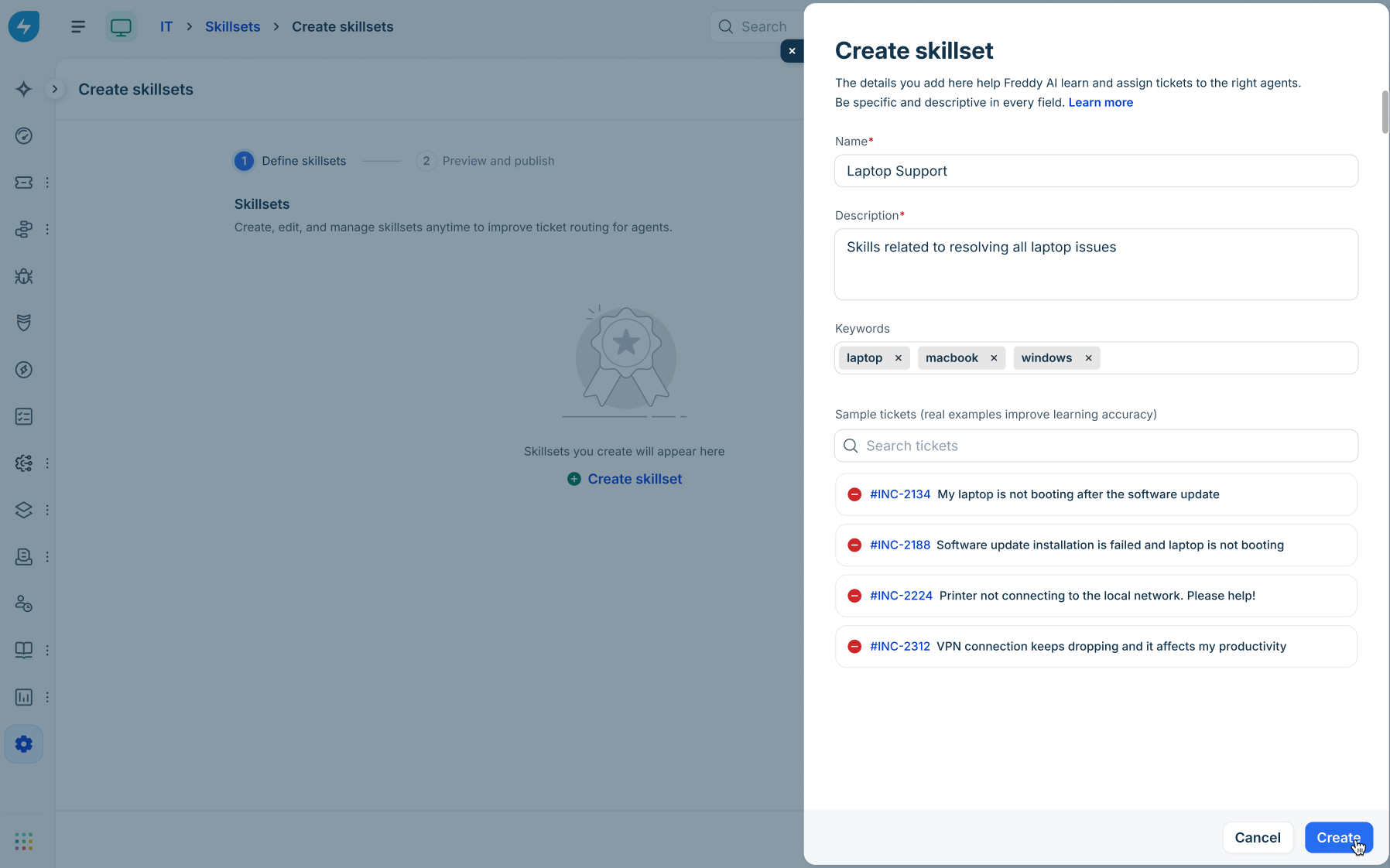
Repeat the process to add additional skillsets.
Important setup guidelines:
Minimum requirement: You must have at least 1 active skillset to proceed to preview and publish.
Broad grouping: Creating fewer than 6 skillsets triggers a message stating that tickets may be grouped too broadly. Click Add more skillsets to refine your routing accuracy.
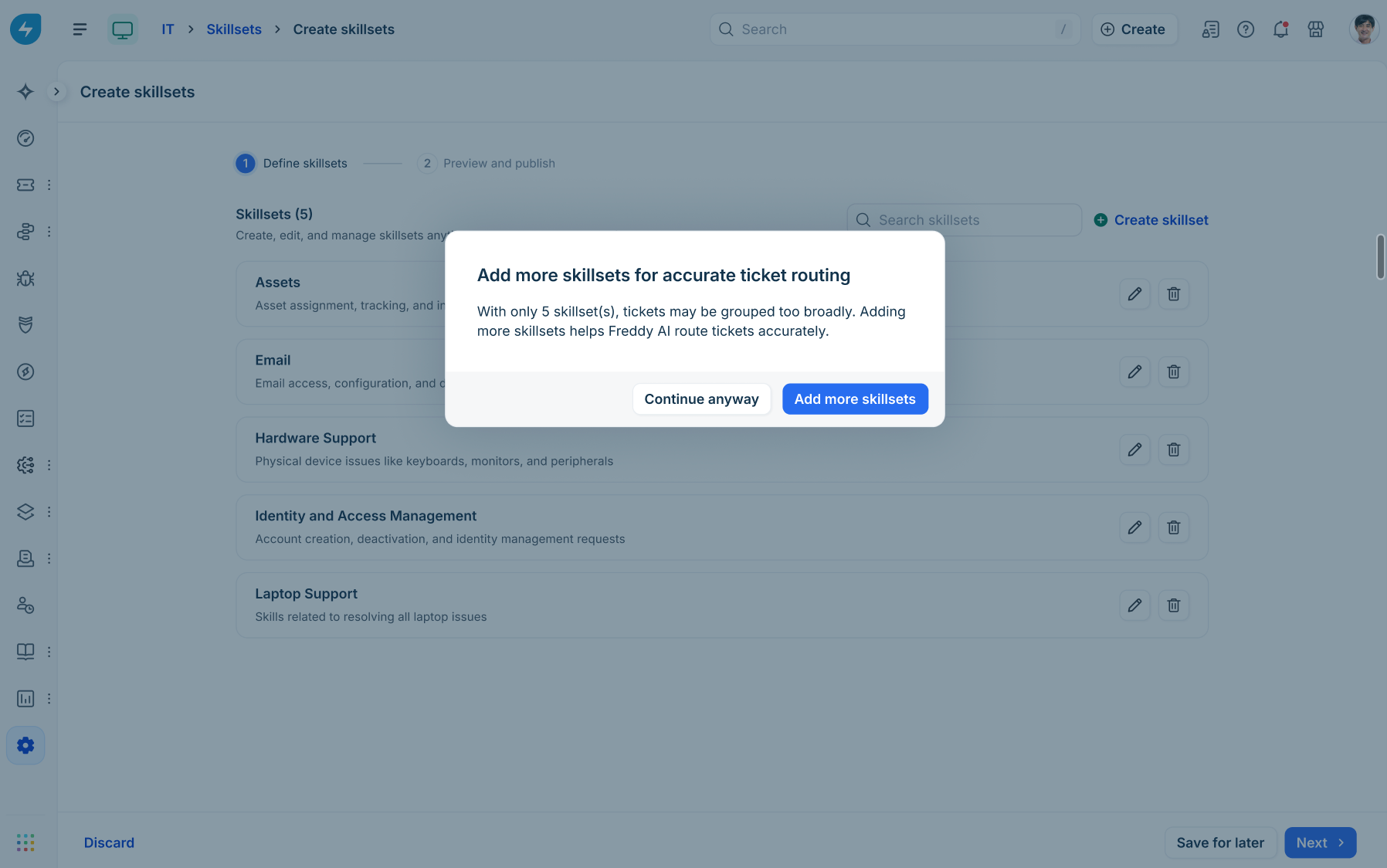
Click Next to proceed to preview, or click Save for later to keep your work in draft state.
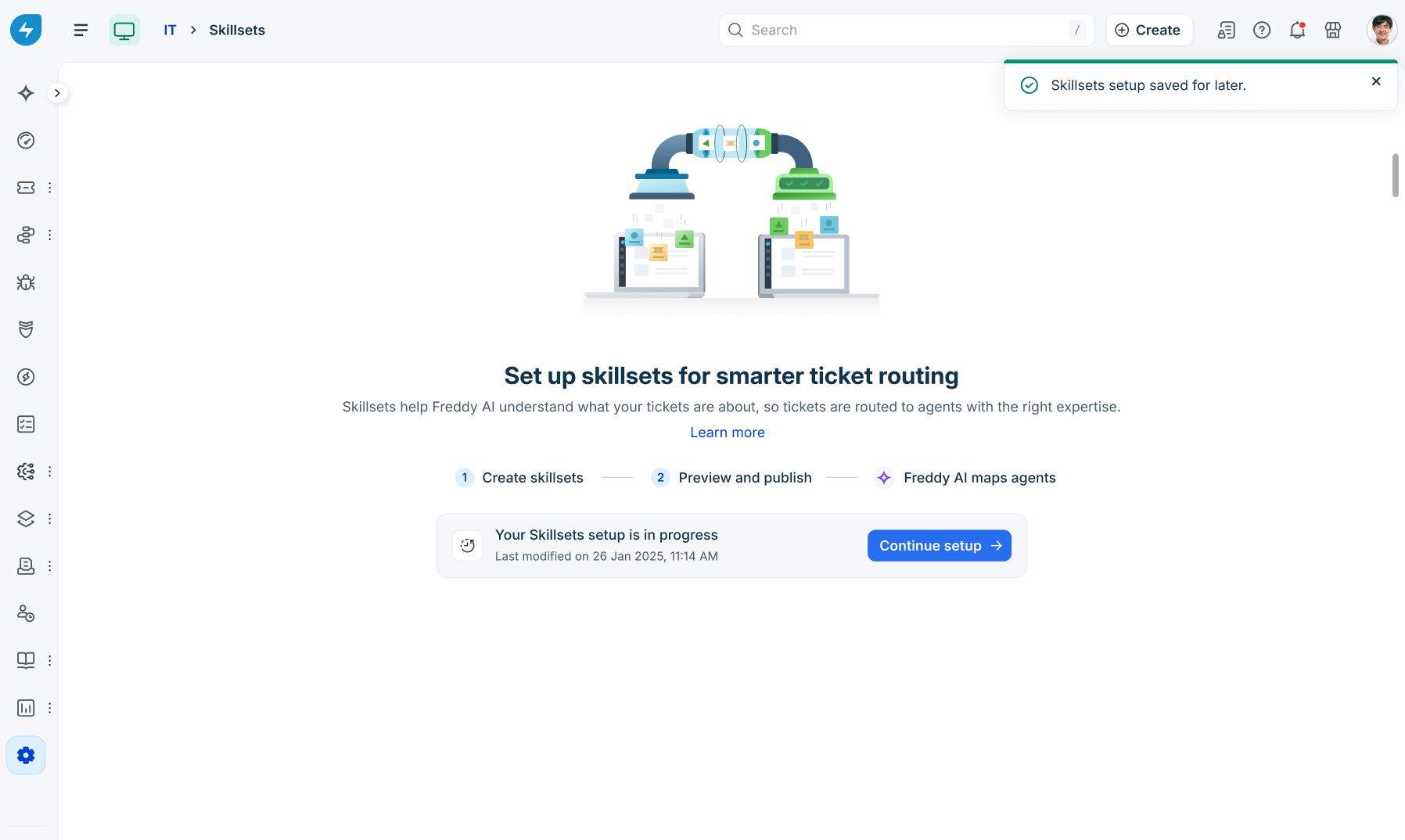
Note: You can continue setting up skillsets when you save changes for later.
Preview and publish skillsets
Before activating skillsets across your service desk, preview how Freddy AI categorizes recent tickets.
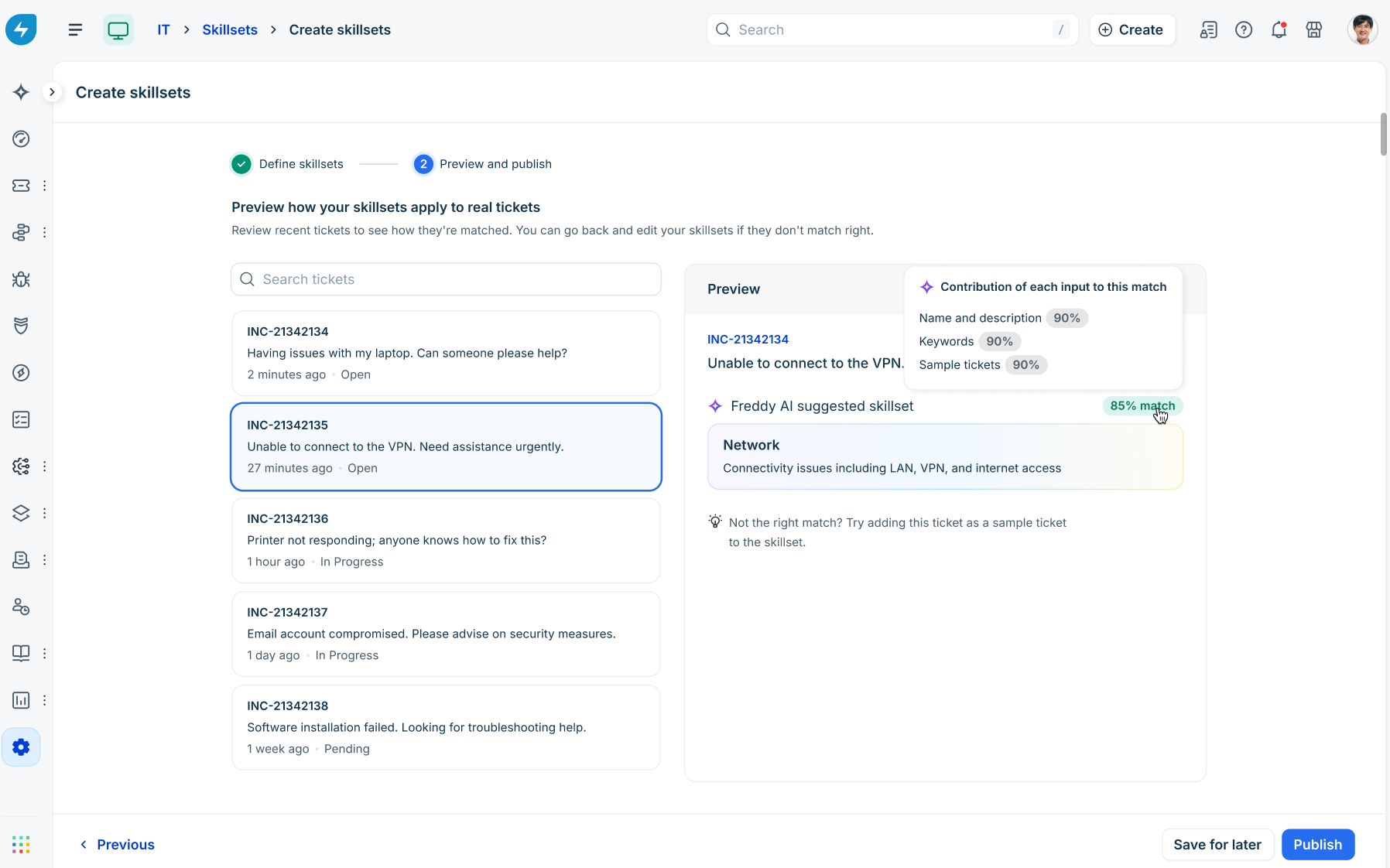
In the Preview and publish step, select any recent ticket from the left pane.
Review the Preview section to check the Freddy AI suggested skillset and the confidence match percentage (for example, 85% match).
Hover over or click the match percentage badge to view the Contribution of each input to this match:
Name and description %
Keywords %
Sample tickets %
If a ticket does not match any custom skillset, Freddy AI assigns it to the default Others skillset.
Click Publish.
In the confirmation dialog, review the notification and click Publish skillsets.
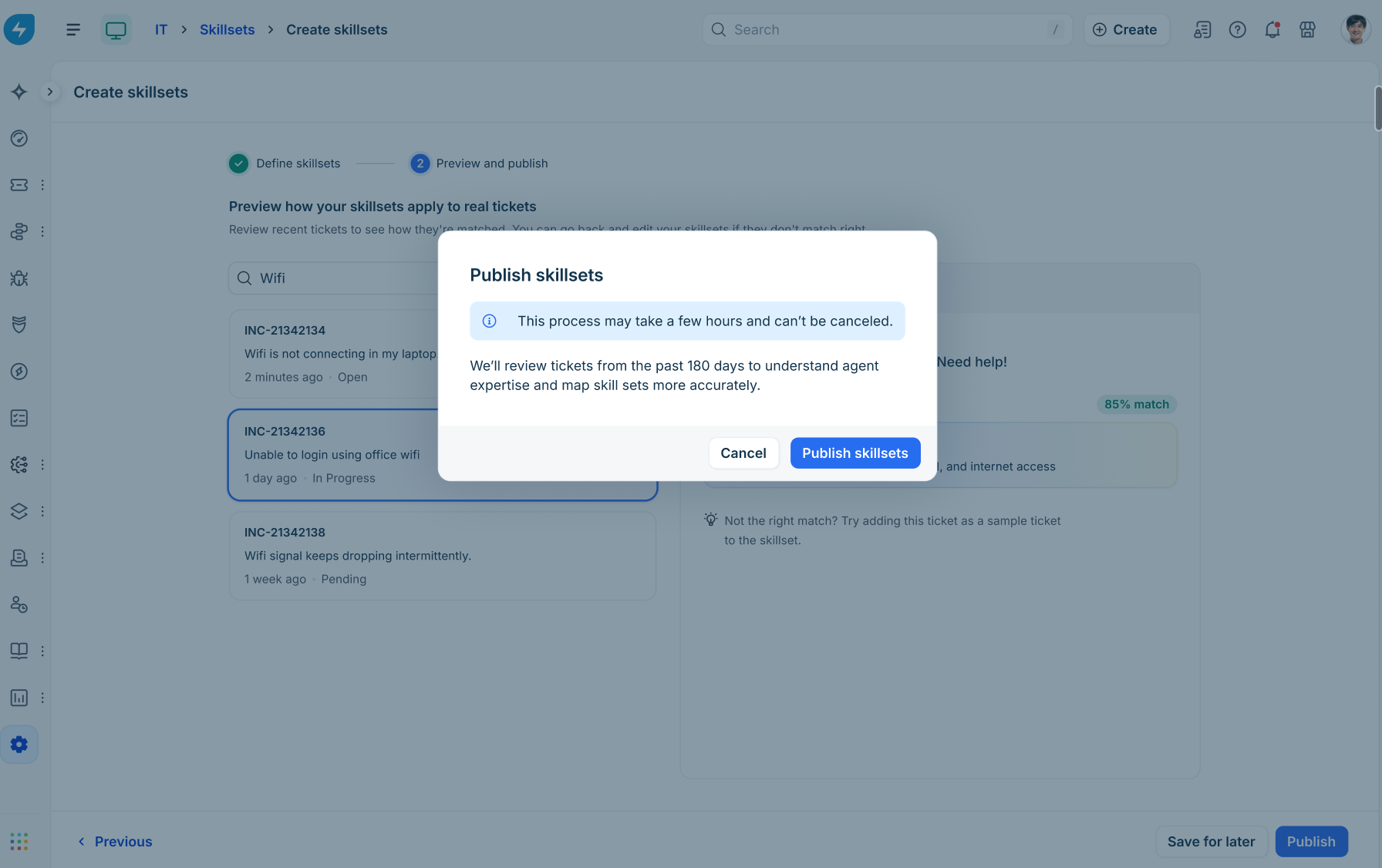
Note (on historical AI learning):
Publishing triggers a historical review of tickets from the past 180 days to evaluate agent expertise.
Initial setup takes 1 to 2 days. During this window, an analyzing banner is shown ("Freddy AI is analyzing historical tickets to map skillsets to agents"), and editing is temporarily locked until complete.
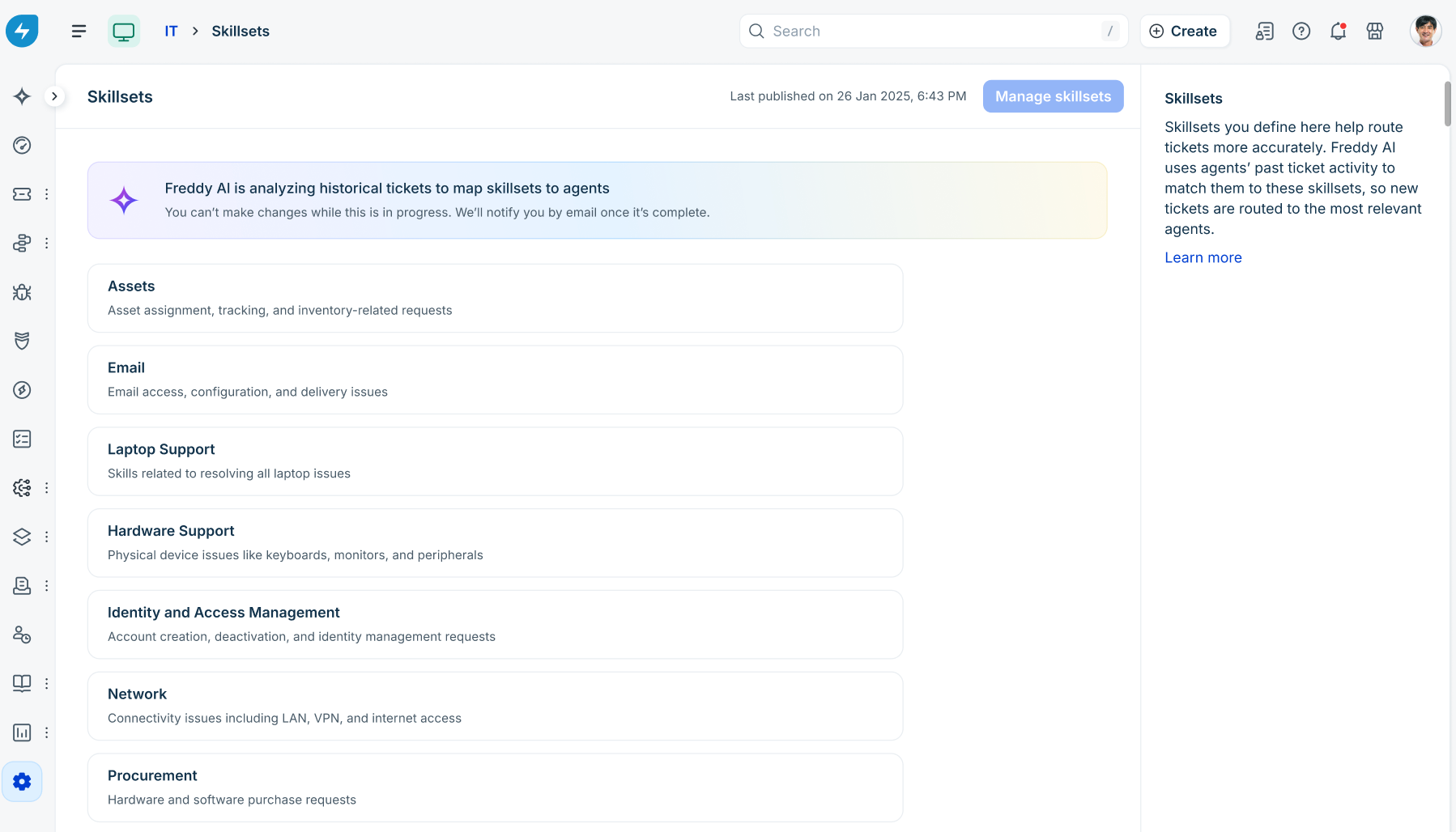
Configuration lifecycle: draft vs. published
Skillset management operates on a configuration-level draft lifecycle:
Workspace-wide draft mode: Individual skillsets are never in draft state independently. Making changes puts the entire workspace skillset configuration into Edit/Draft mode.
Impact on live routing: Modifications made while in Draft mode do not affect live ticket routing until published.
Publishing impact: Publishing activates the entire configuration for real-time ticket routing and initiates historical ticket evaluation (past 180 days) for agent proficiency calculations.
Re-enabling feature processing: If skill-based routing is temporarily turned off and later re-enabled, all skillsets revert to Draft mode. Publishing re-evaluates only the tickets created while the feature was disabled, avoiding unnecessary historical re-processing.