Community
 Video Library
 Agent Training
 Freshservice
 Freshdesk
 Freshchat
 Freshcaller
 Freshsales
 Freshteam
 Freshworks Neo
 Freshsurvey
 Freshservice for MSP
 TABLE OF CONTENTS
- Filtering views
- Edit a skillset
- Best practice: archiving vs. redefining skillsets
- Archive a skillset
- Delete a skillset
- Others (default skillset)
You can edit, archive, restore, or delete published skillsets from the main Skillsets page.
Filtering views
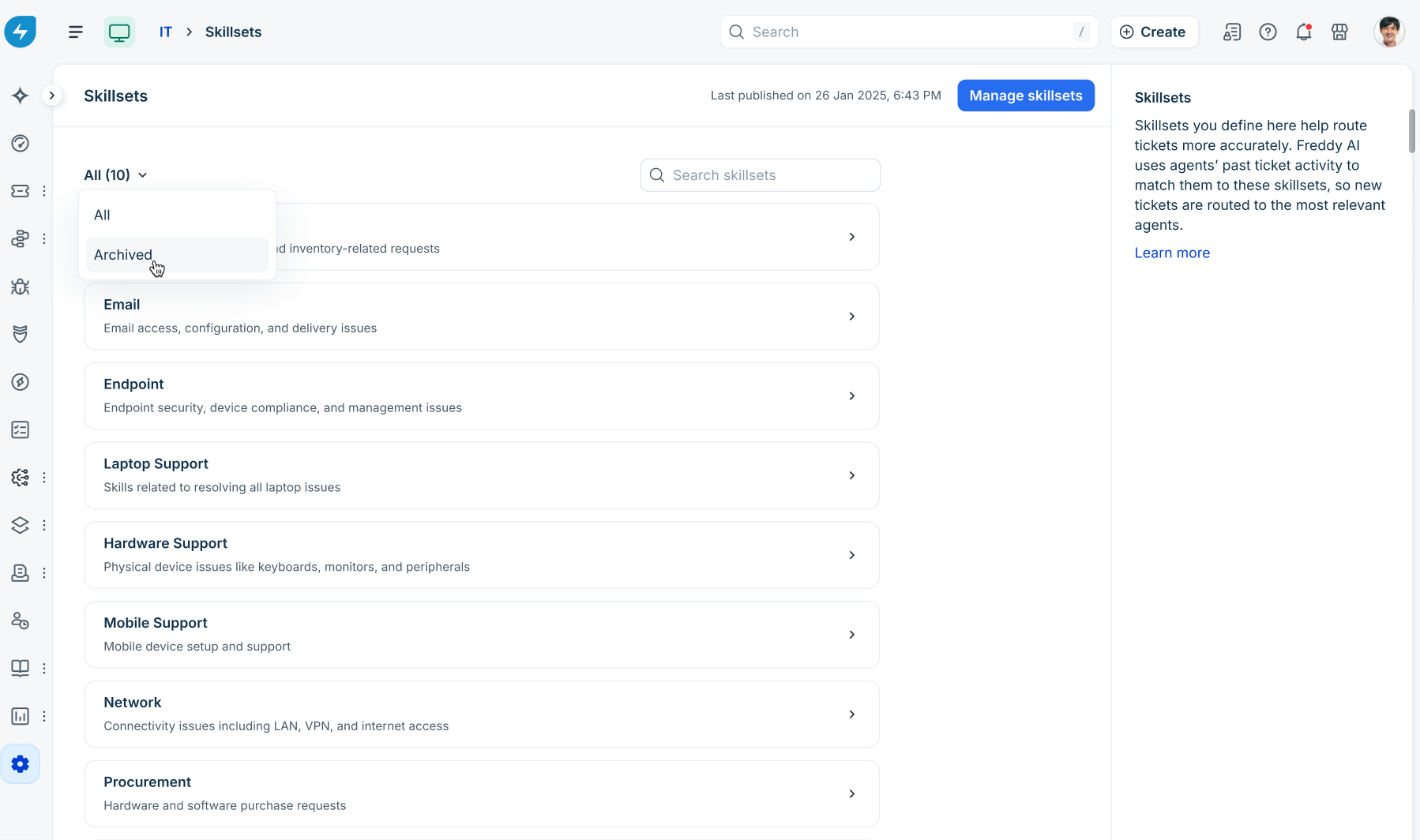
Use the view dropdown on the top-left of the Skillsets page to switch between:
All: Displays all active published and draft skillsets.
Archived: Displays all archived skillsets.
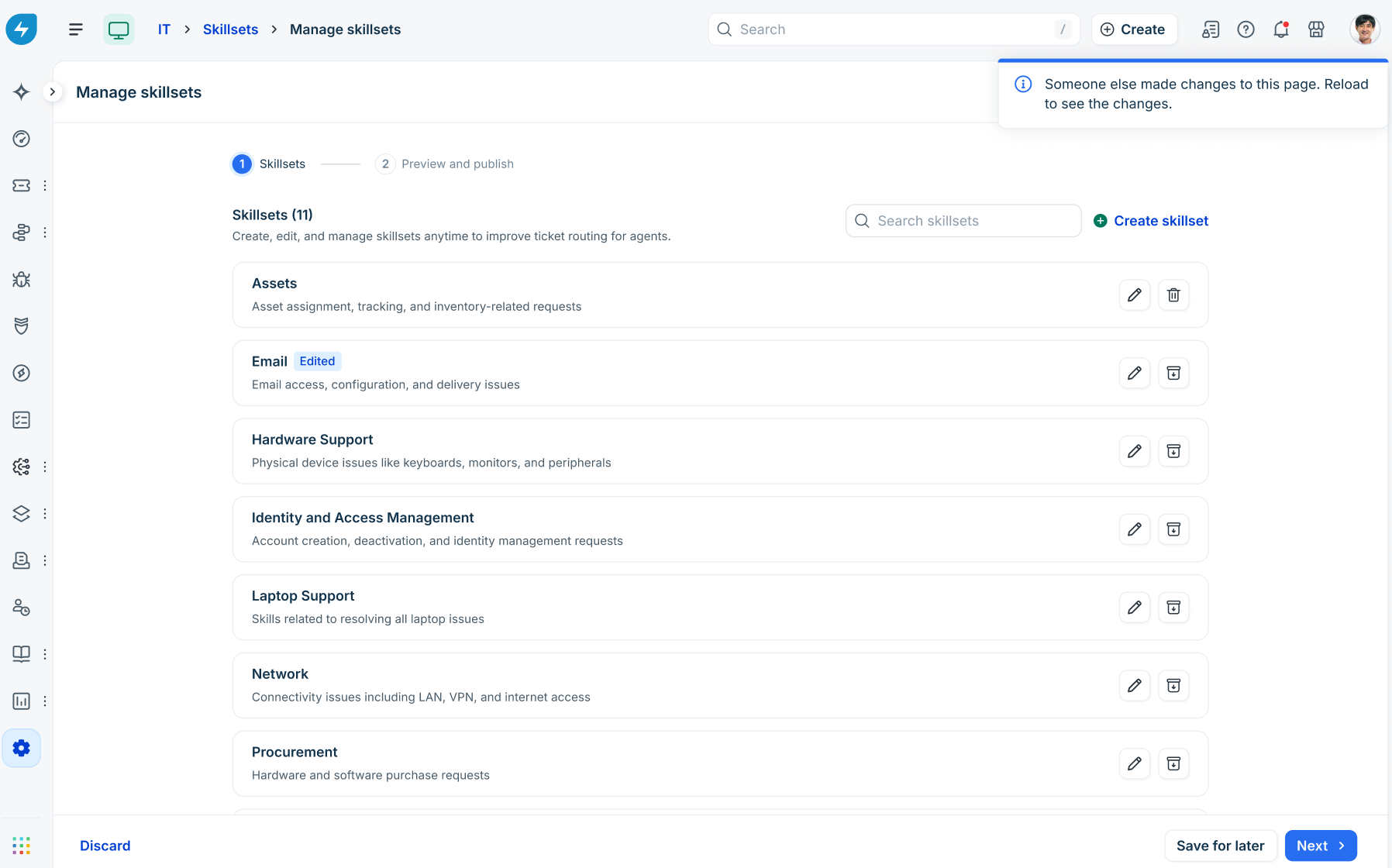
Multi-user concurrency alert: If another administrator modifies skillsets simultaneously, a banner is shown: "Someone else made changes to this page. Reload to see the changes."
Edit a skillset
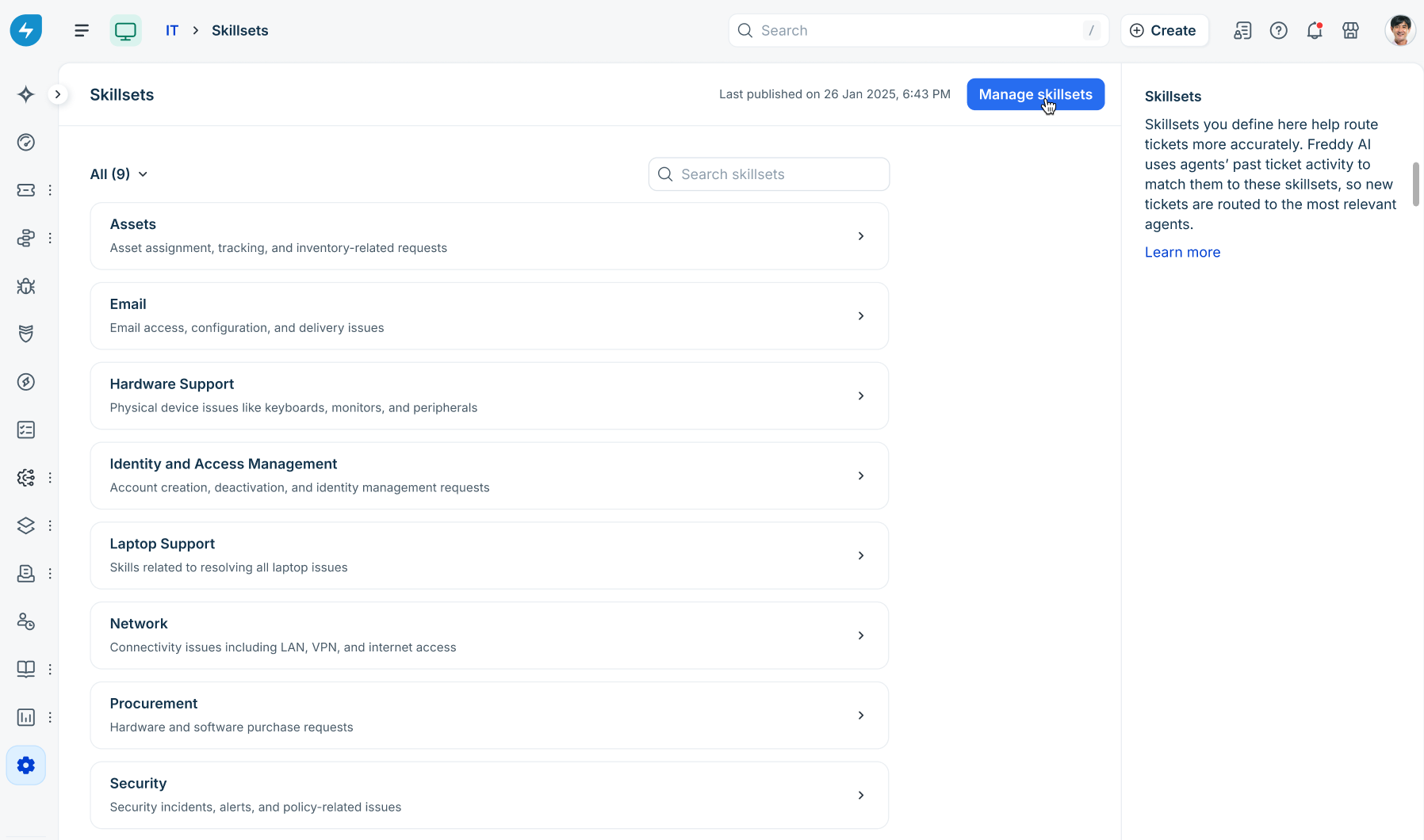
On the Skillsets page, click Manage skillsets.
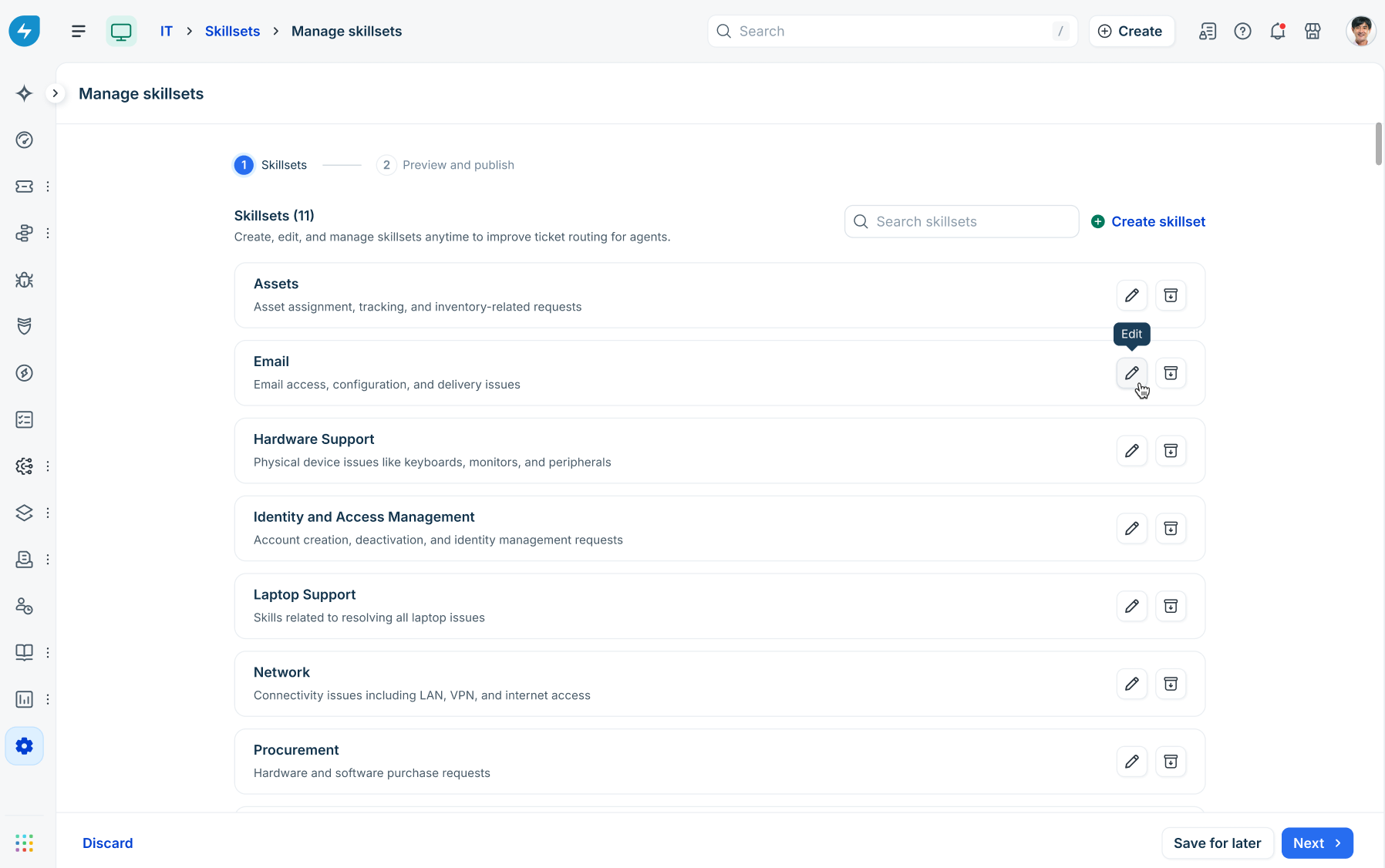
Click the Edit (pencil) icon next to a skillset you wish to modify.
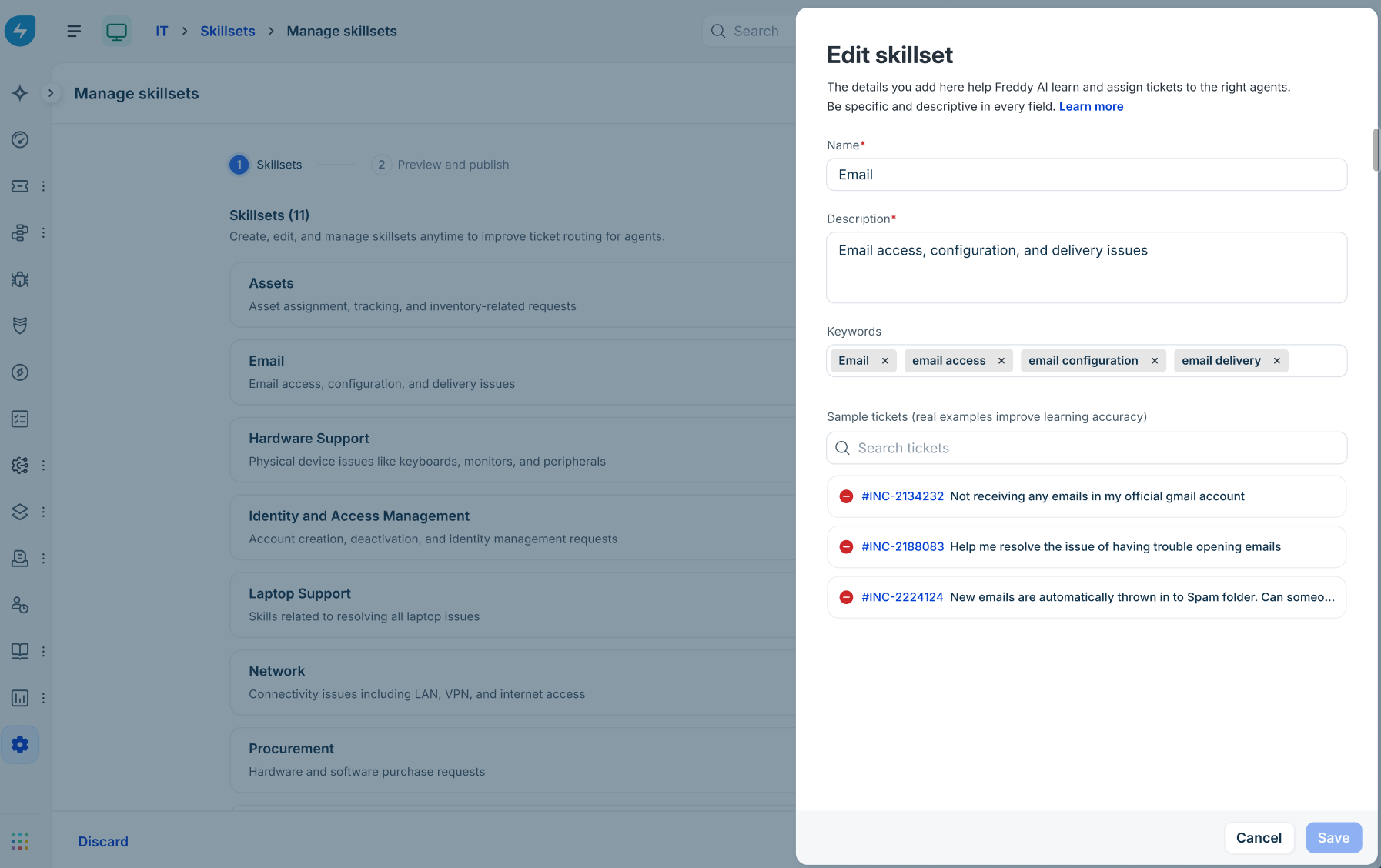
Update the Name, Description, Keywords, or Sample tickets, and click Save.
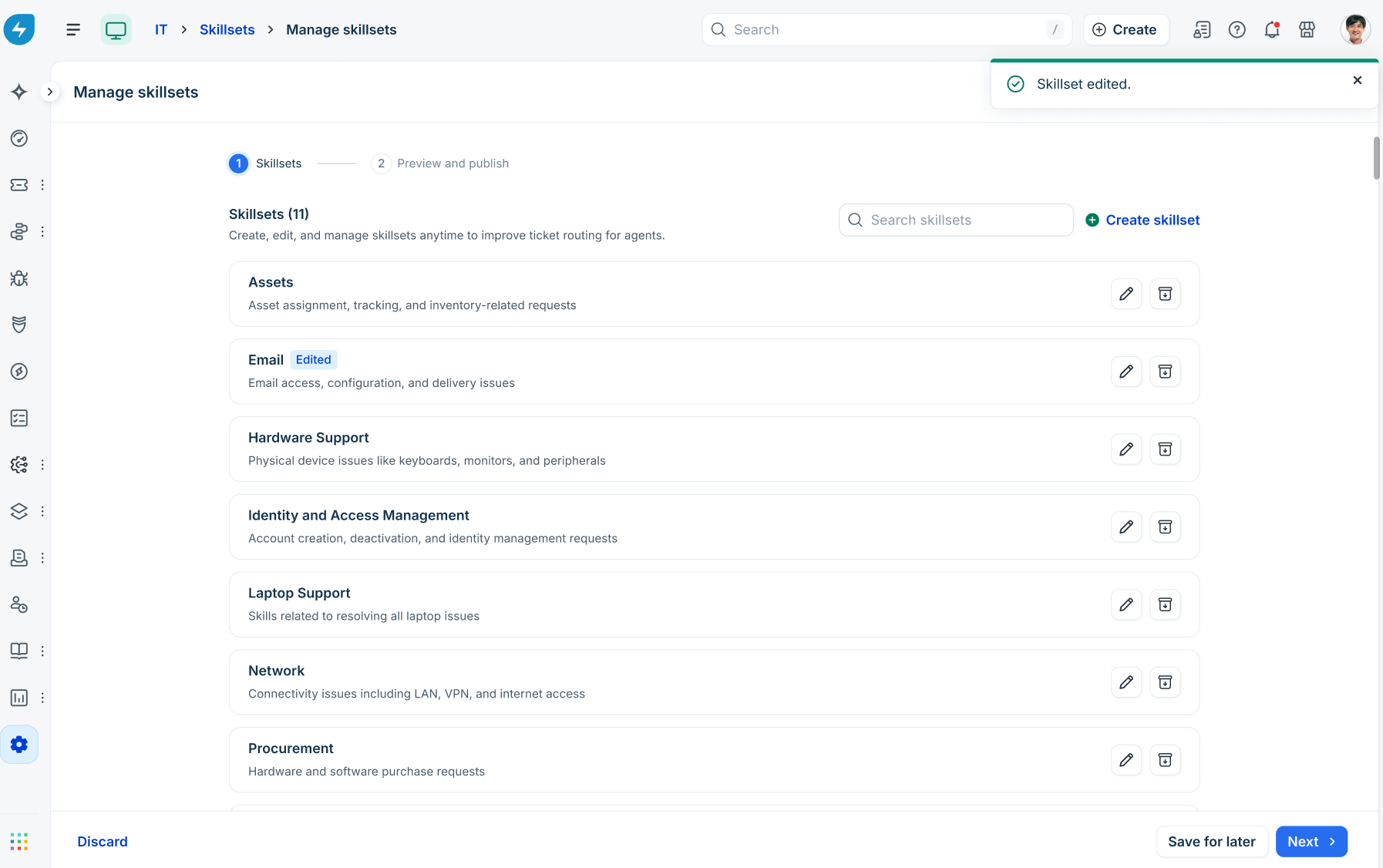
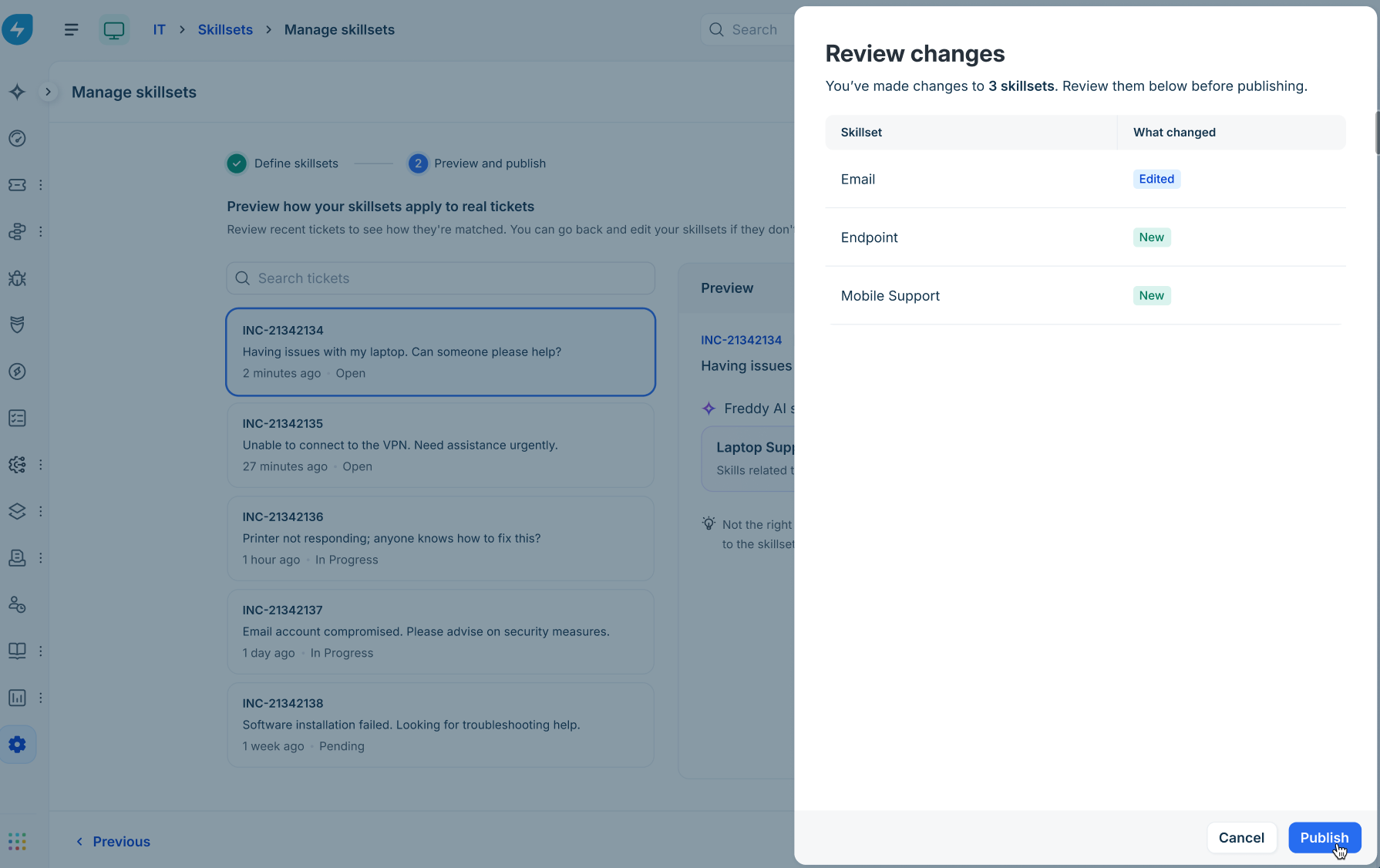
The skillset will display an Edited status badge.
Click Next.
Review the changes.
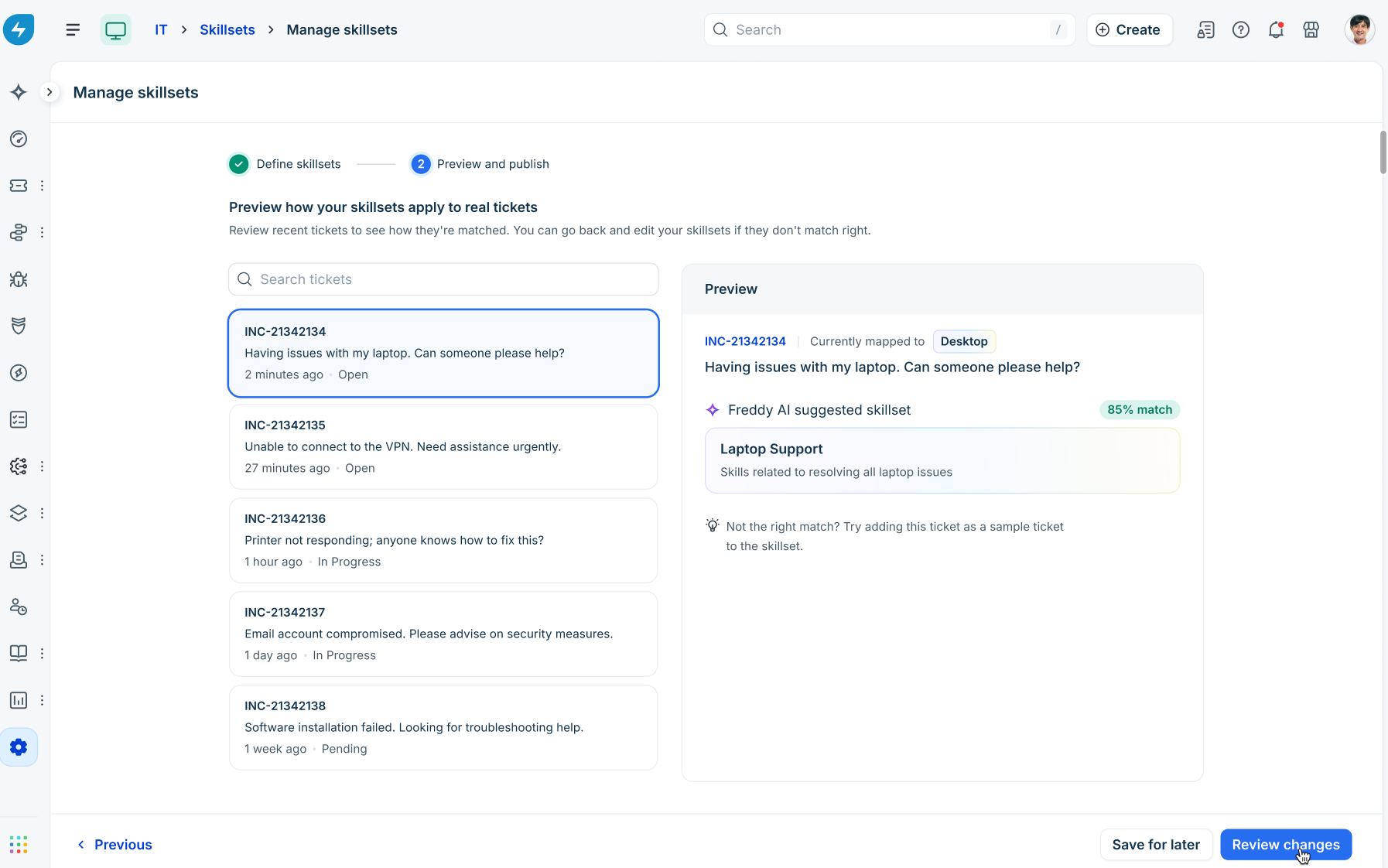
Click Publish to apply changes.
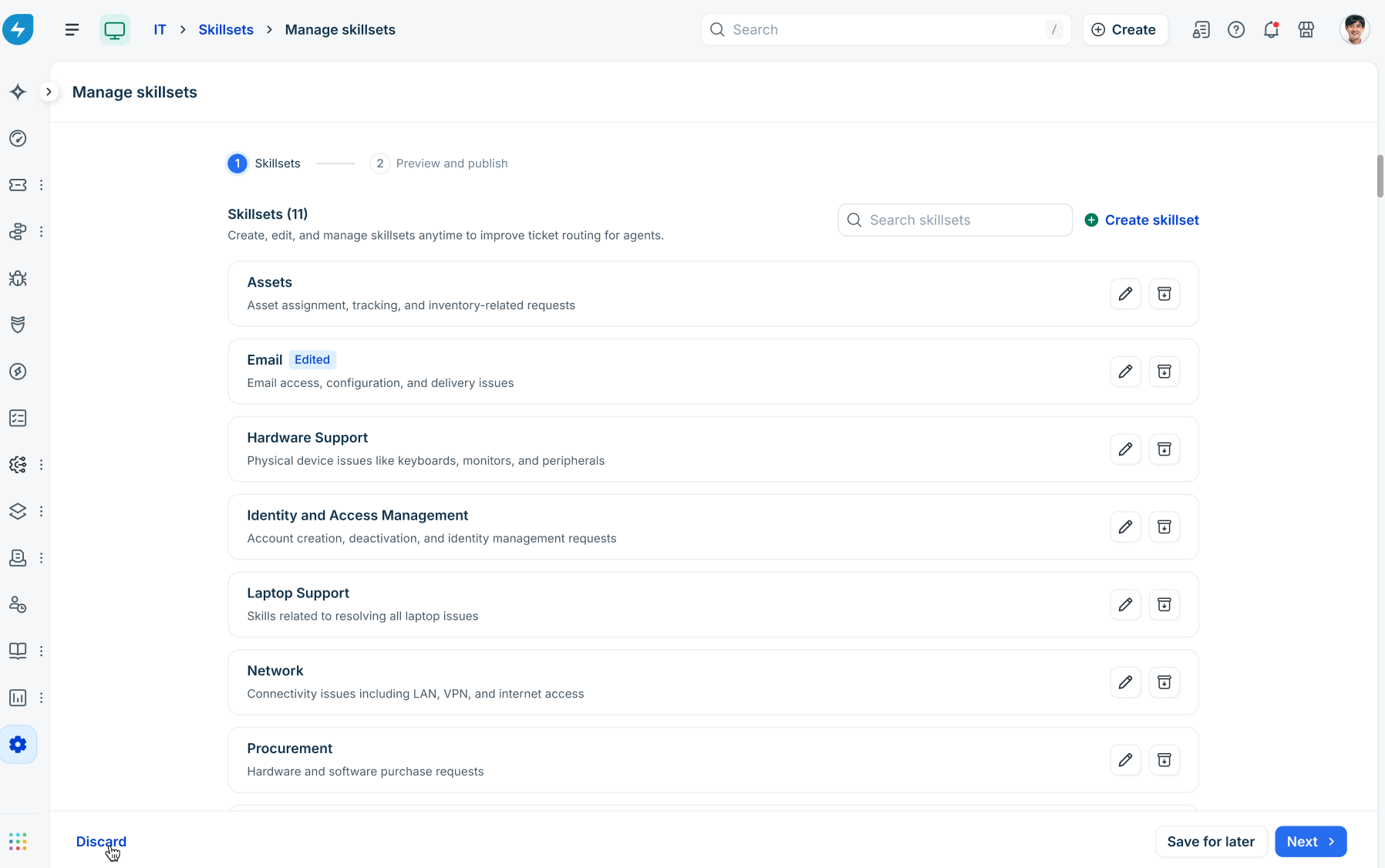
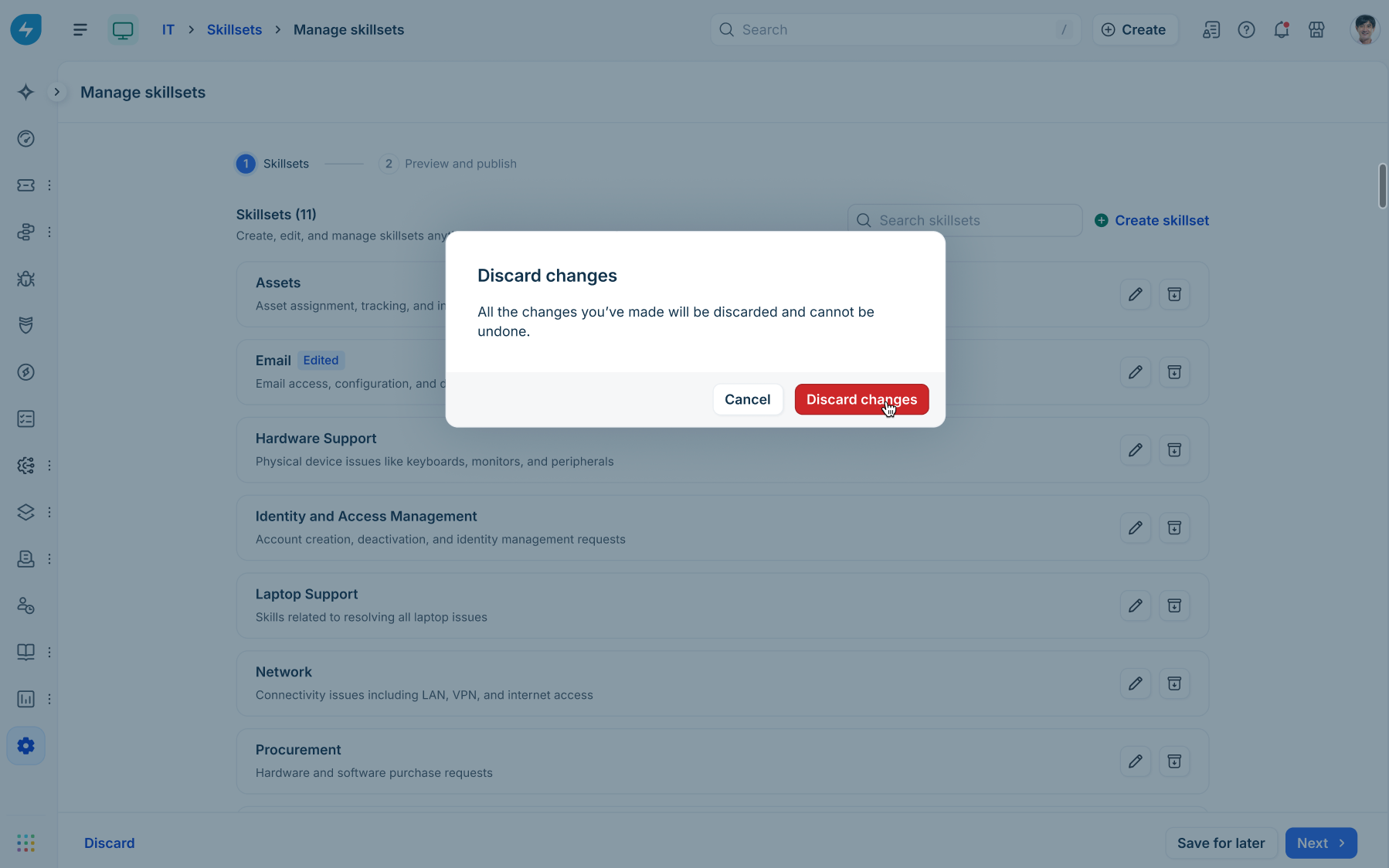
Note: To discard unpublished draft changes, click Discard in the bottom left, and then confirm in the dialog.
Best practice: archiving vs. redefining skillsets
Important: To redefine an existing skillset, archive the original skillset and create new skillsets.
Avoid renaming or redefining an existing skillset to serve a new purpose. Renaming blends historical tickets (tagged under the old definition) with new tickets (representing the new scope), causing reporting inaccuracies and distorted analytics over time.
Archive a skillset
On the Manage skillsets page, click the Archive icon next to an active skillset.
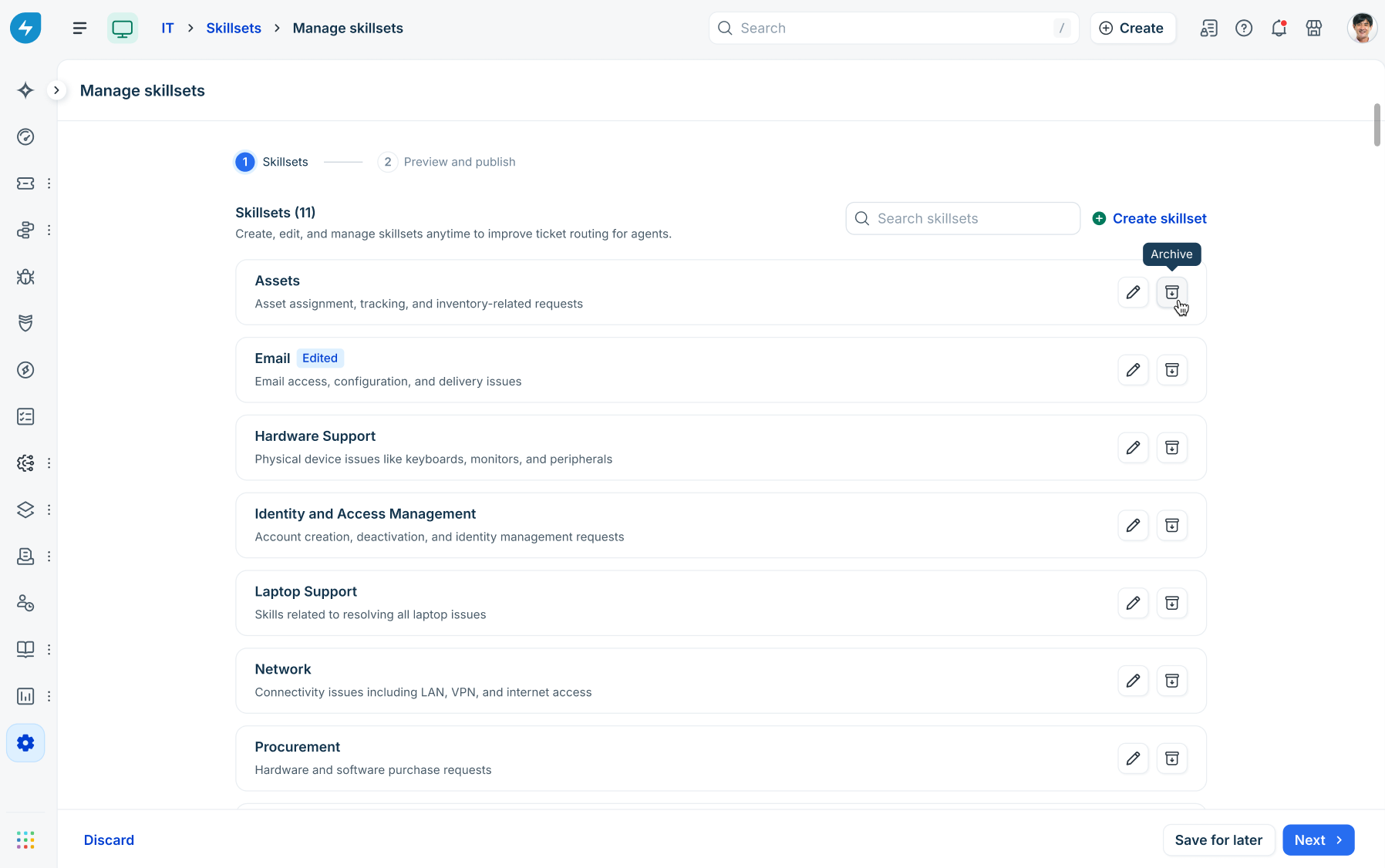
In the confirmation dialog, click Archive.
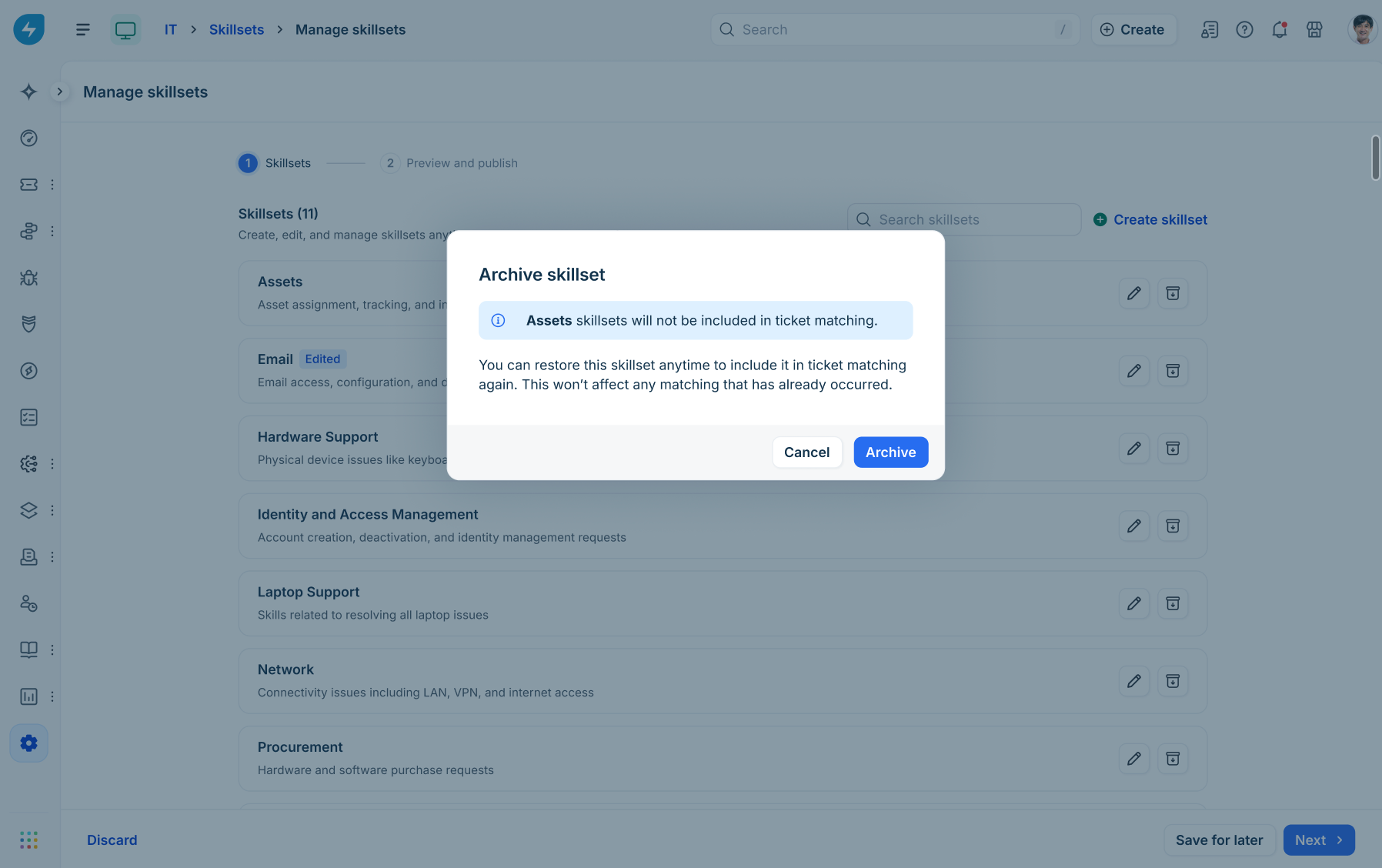
Archived skillsets display an Archived tag and are immediately excluded from future ticket matching while preserving historical data for reporting.
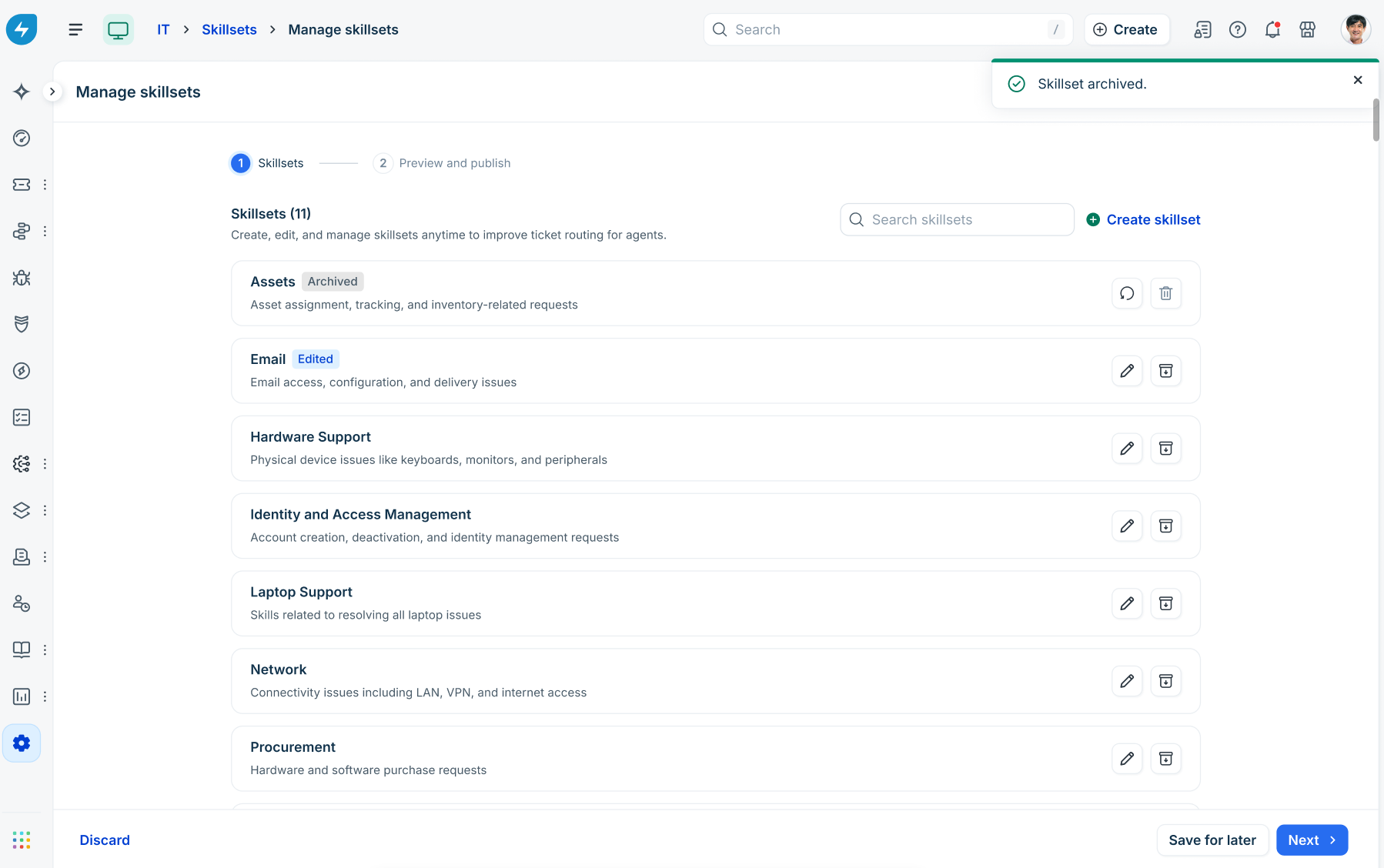
Restore an archived skillset
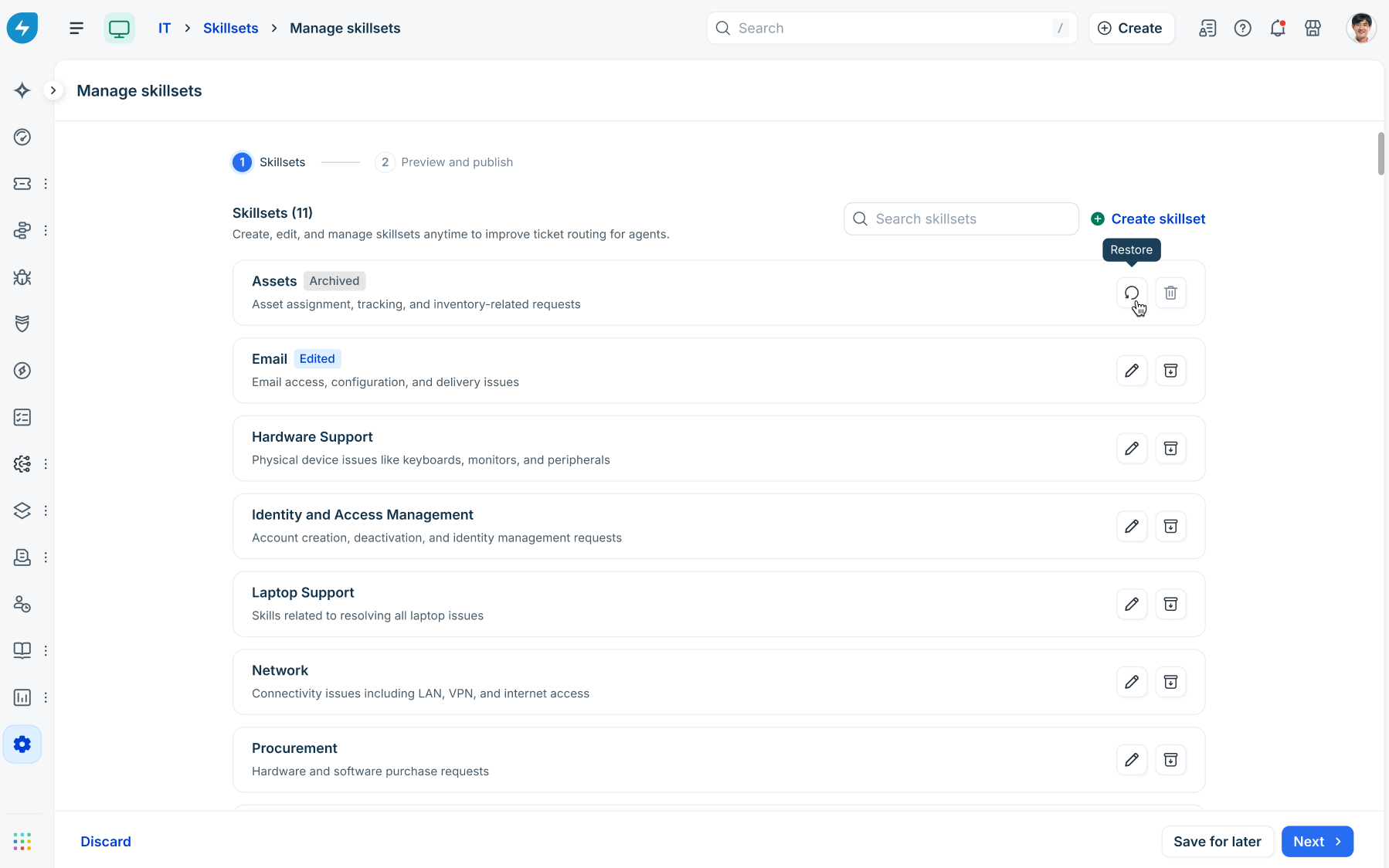
Go to the Archived view or locate the archived skillset.
Click the Restore icon next to the skillset.
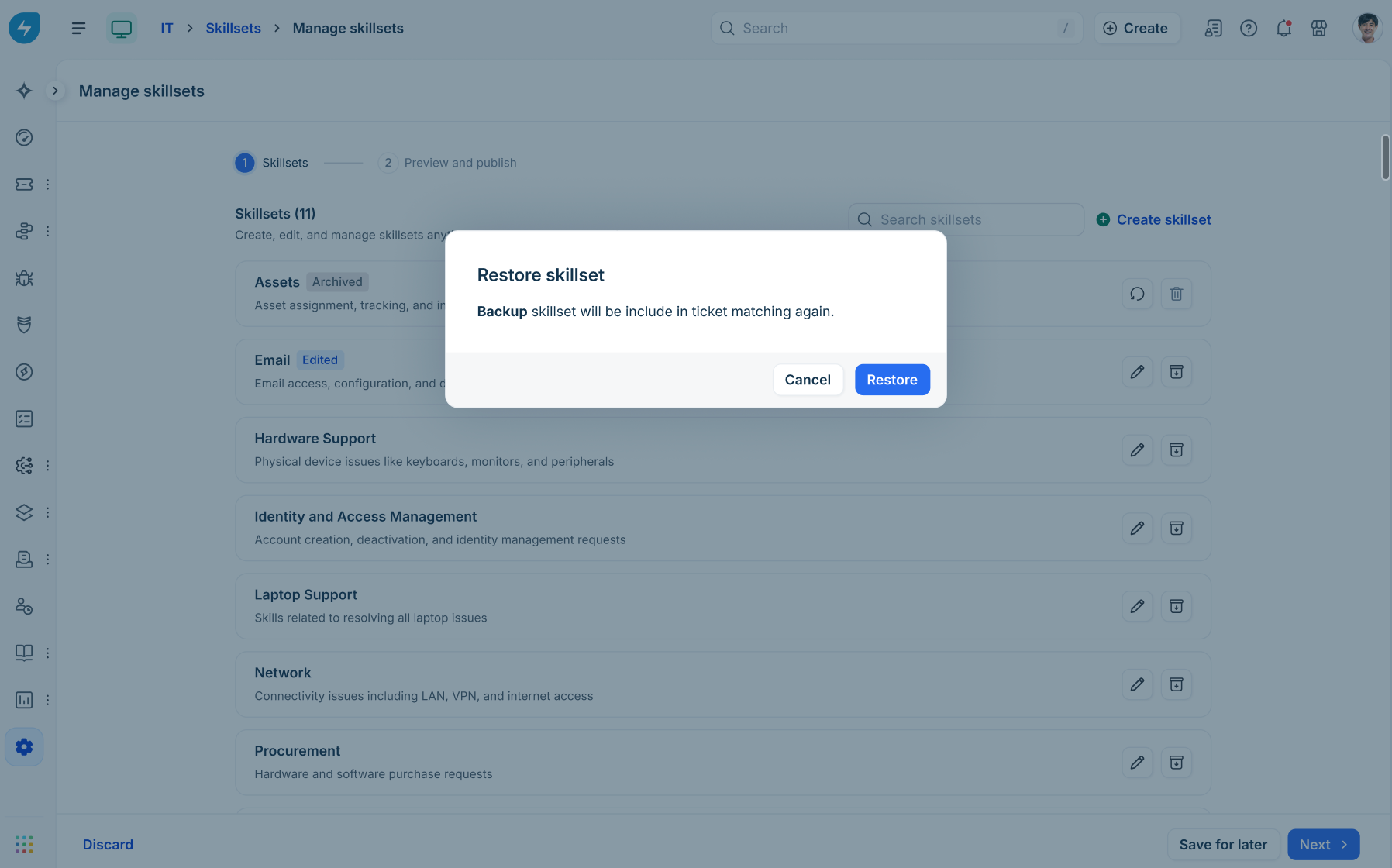
In the confirmation dialog, click Restore.
Delete a skillset
Locate the skillset you wish to remove.
Click the Delete (trash) icon.
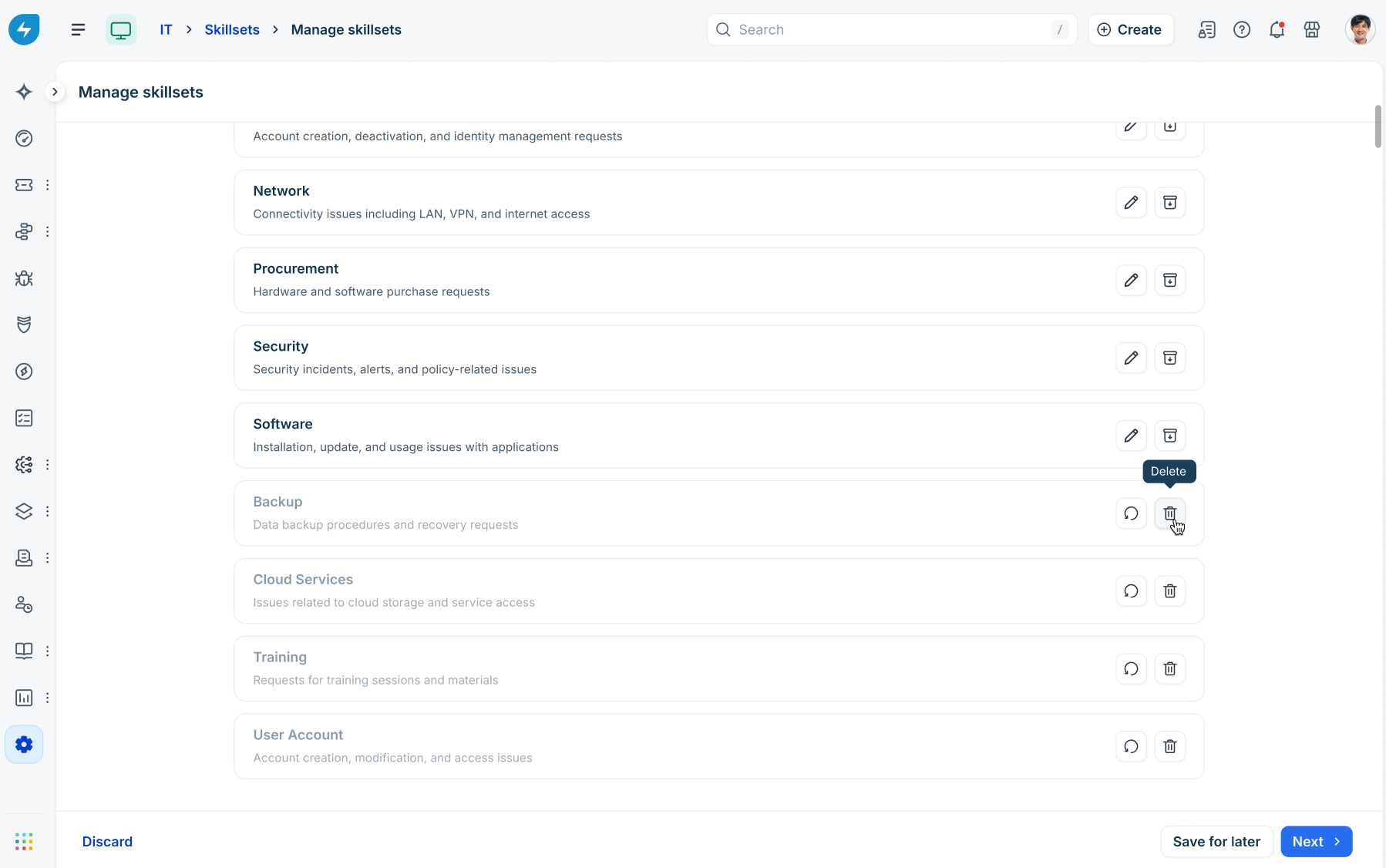
Confirm deletion in the dialog.
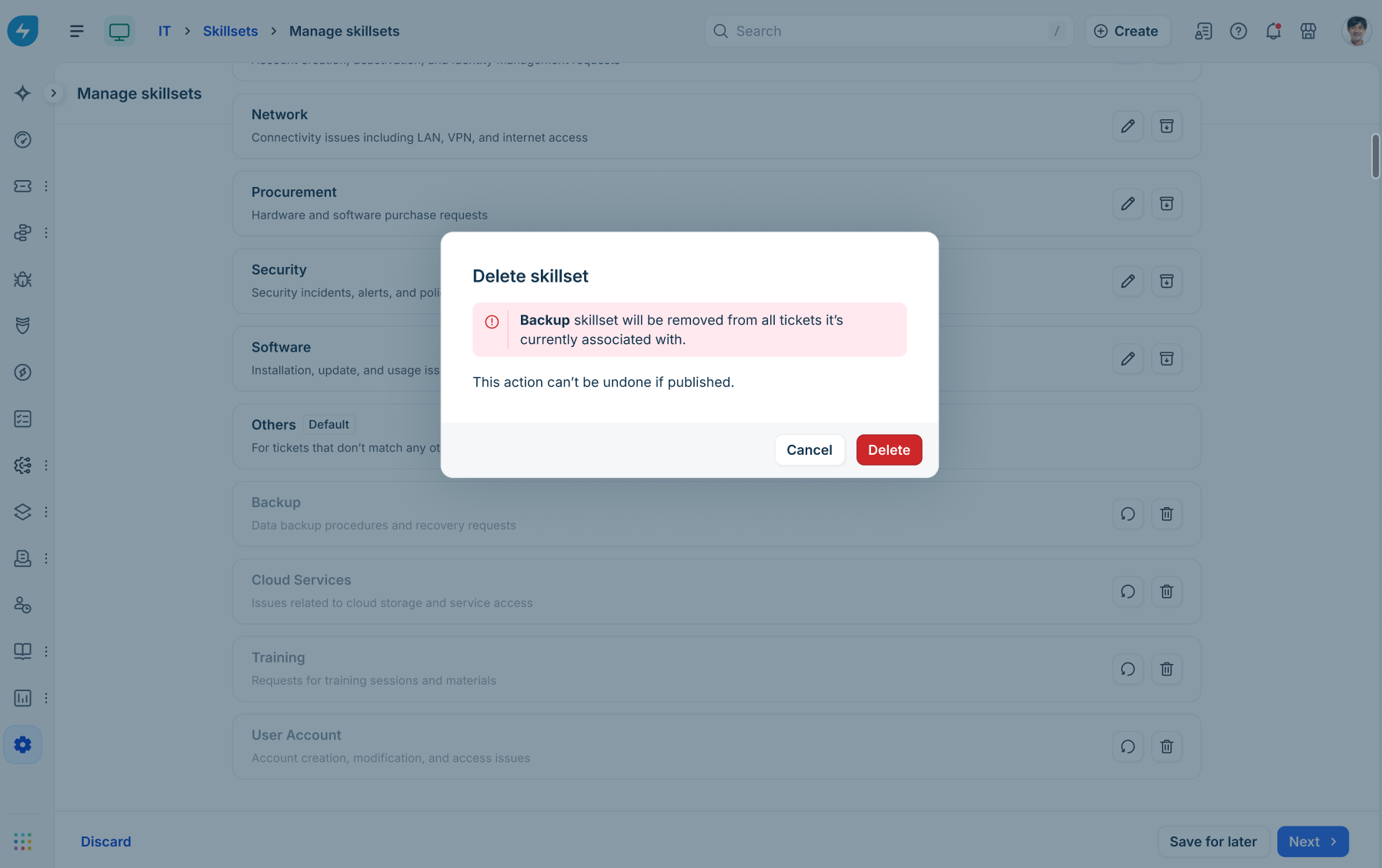
Dependencies:
Active skillsets must be archived before they can be permanently deleted.
Deleting a skillset permanently disassociates it from all assigned tickets. This action cannot be undone once published. Deletion does not impact historical ticket data already tagged to it.
Others (default skillset)
The Others skillset is a built-in default catch-all created automatically by Freshservice.
Function: Handles incoming tickets that do not meet the criteria of any defined custom skillset.
Constraints: The Others skillset cannot be edited, renamed, archived, or deleted.
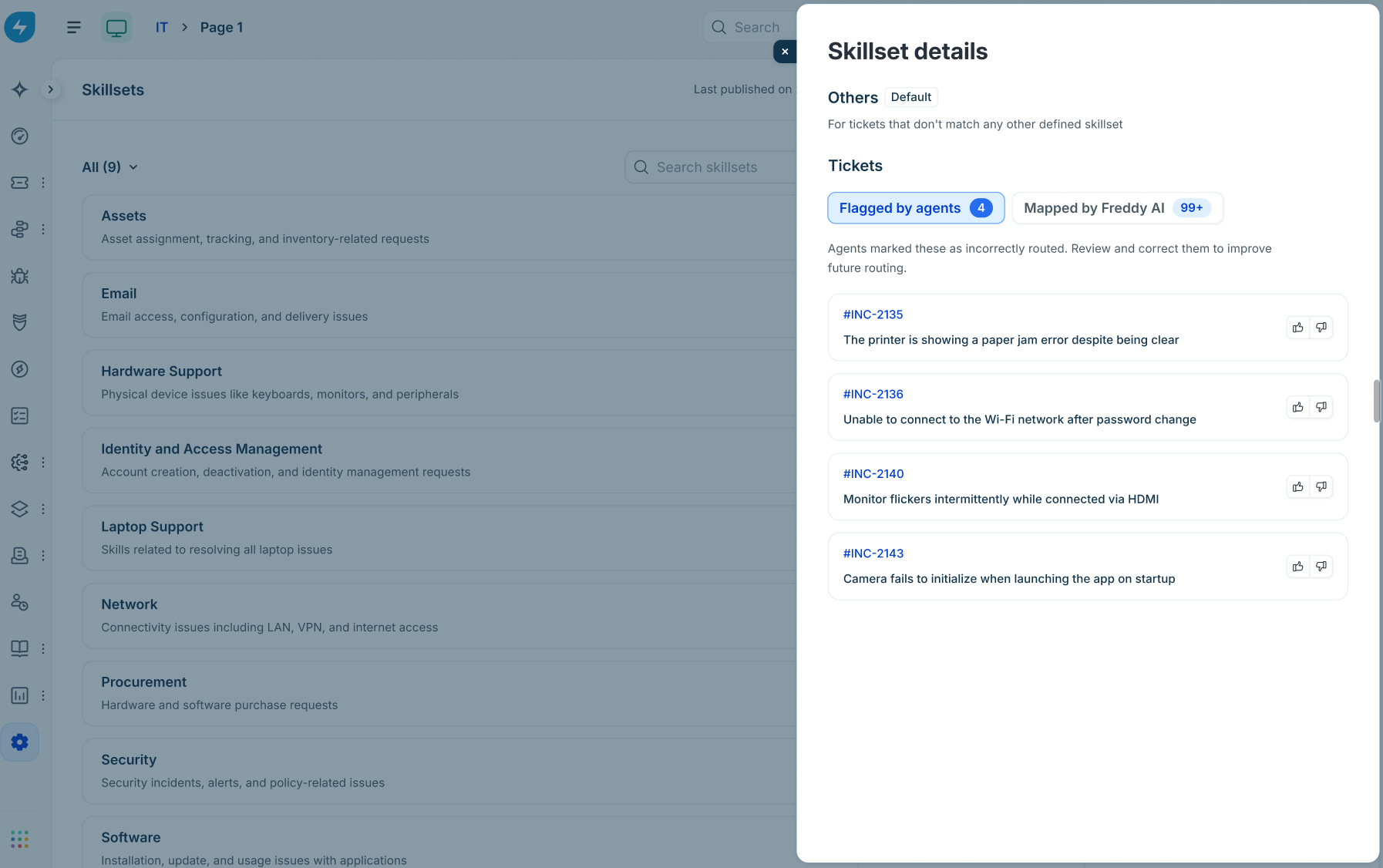
Insights: Opening the Others skillset details provides two tabs under Tickets:
Flagged by agents: Lists tickets marked by agents as incorrectly routed.
Mapped by Freddy AI: Displays all tickets currently grouped under the default fallback skillset.