Community
 Video Library
 Agent Training
 Freshservice
 Freshdesk
 Freshchat
 Freshcaller
 Freshsales
 Freshteam
 Freshworks Neo
 Freshsurvey
 Freshservice for MSP
 Note: Available only for new signups after the 31 March, 2026 release. If you signed up earlier, refer to the existing ITAM documentation.
Device custom fields allow you to store additional information tailored to your specific organizational needs, such as asset ownership, maintenance strategies, or internal project codes. Beyond simple data storage, these fields can be configured to appear in device pop-up panels and layout pages, providing critical information at a glance without requiring you to open the full device record.
This article provides an overview of creating custom fields to organize your devices and how to display these fields in context-sensitive areas of the interface.
Prerequisites
You need the following before managing custom fields:
Access to the IT Asset Management module in your Freshservice instance.
Administrator privileges to create and edit custom fields.
Create a device custom field
To create custom fields for device records, follow these steps:
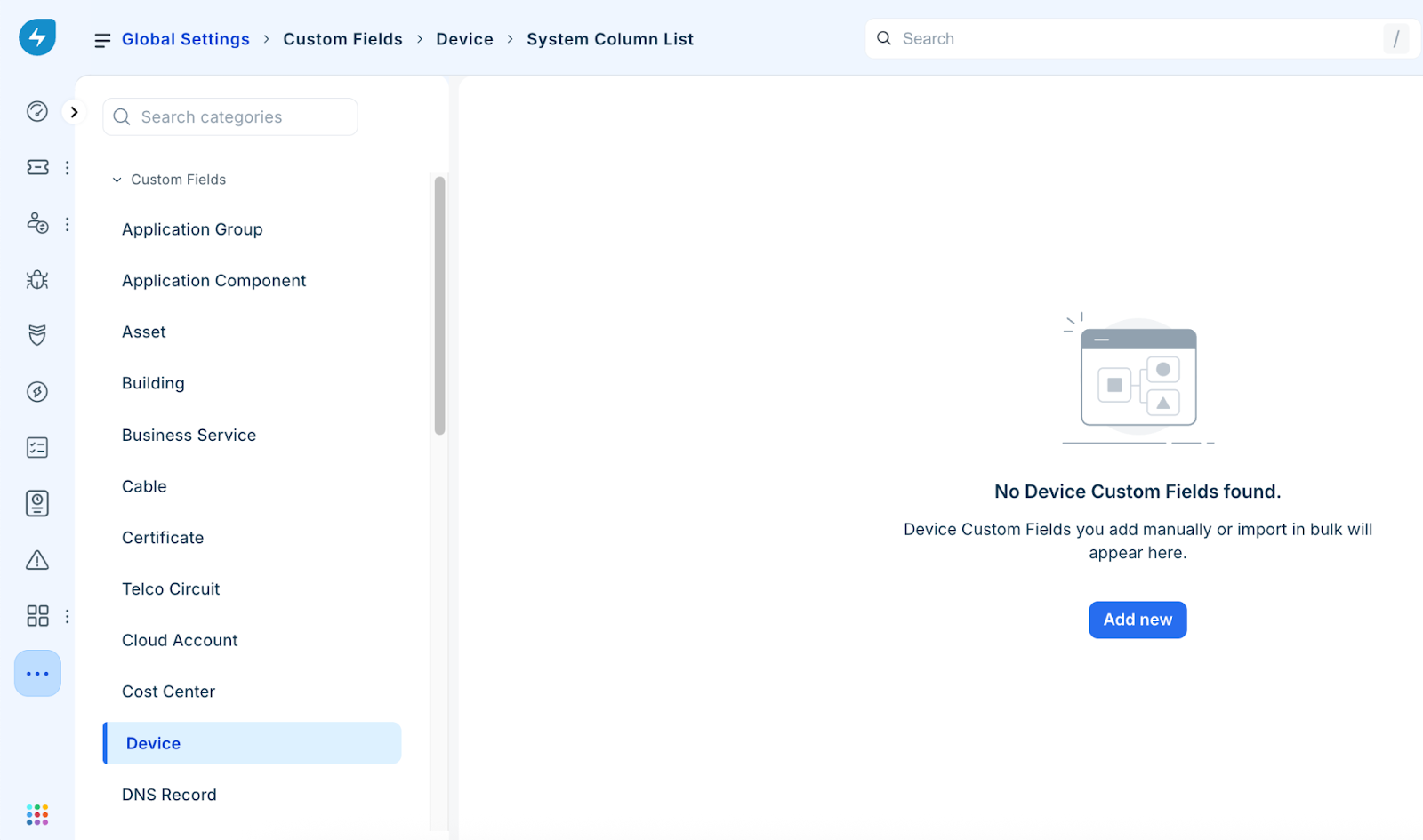
Go to Admin > Asset Management > Custom Fields.
Select Device from the Custom Fields list and click Add New.
Enter a descriptive name in the Field box.
Select the appropriate data format (such as Text, Date, or Number) from the Type dropdown menu.
Select any additional configurations as required:
Filterable: Allows you to use this field as a filter on the device list page.
Mandatory: Requires users to complete this field before saving a record.
Log for API: Ensures changes to this field are recorded in API logs for auditing.
Click Save to apply the field to all device records.