Community
 Video Library
 Agent Training
 Freshservice
 Freshdesk
 Freshchat
 Freshcaller
 Freshsales
 Freshteam
 Freshworks Neo
 Freshsurvey
 Freshservice for MSP
 Note: Available only for new signups after the 31 March, 2026 release. If you signed up earlier, refer to the existing ITAM documentation.
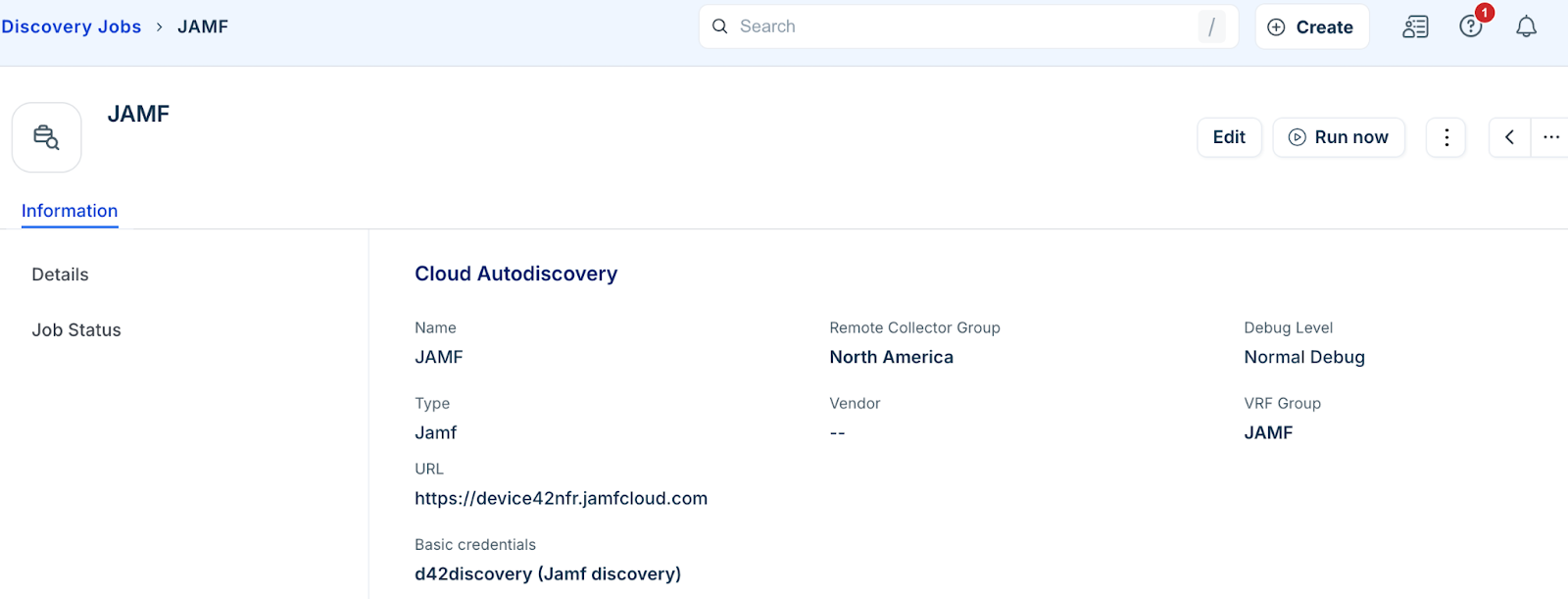
Jamf discovery identifies Apple devices managed by Jamf to streamline asset management. This article provides information on how to configure Jamf discovery jobs, set up required permissions, and collect data from your Jamf environment.
Jamf Discovery items
Jamf discovery retrieves comprehensive data from managed Apple environments, ensuring your inventory stays up to date with the following information:
Computers and mobile devices
IP and MAC addresses
Installed software and applications
Extension attributes (Custom Fields)
You can view discovered software under the Software In Use tab on the details page of any discovered mobile device.
Prerequisites
You need the following before the installation:
A Jamf account with a standard user account and read-all permissions. The Auditor privilege set is recommended. Alternatively, you can use a Custom privilege set with all-read permissions enabled. For information on standard accounts and privilege sets, refer to the Jamf Pro User Accounts and Groups documentation.
Valid Jamf account credentials (username and password) to request a bearer token for authentication.
The URL for your Jamf instance, including the port if applicable.
Create a Jamf discovery job
To configure a Jamf discovery job, follow these steps:
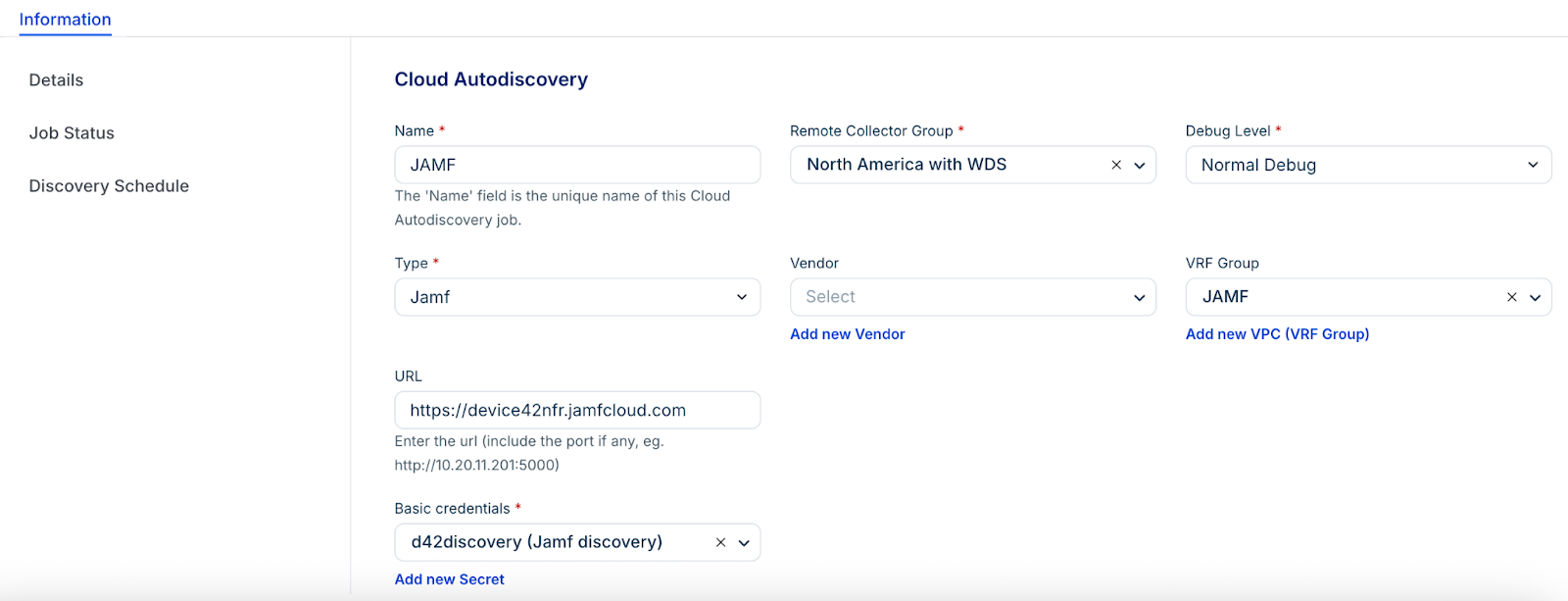
Step 1: Add a new discovery job
Go to Admin > Asset Management > Scan and discover and click the Discovery Jobs tab.
Select Cloud from the list of discovery jobs and click Add new.
Select Jamf from the Type dropdown menu.
Select a Remote Collector from the drop-down.
Enter the URL the job will use, including the port if necessary.
Enter your Basic credentials for the Jamf account.
Step 2: Configure device and metadata options
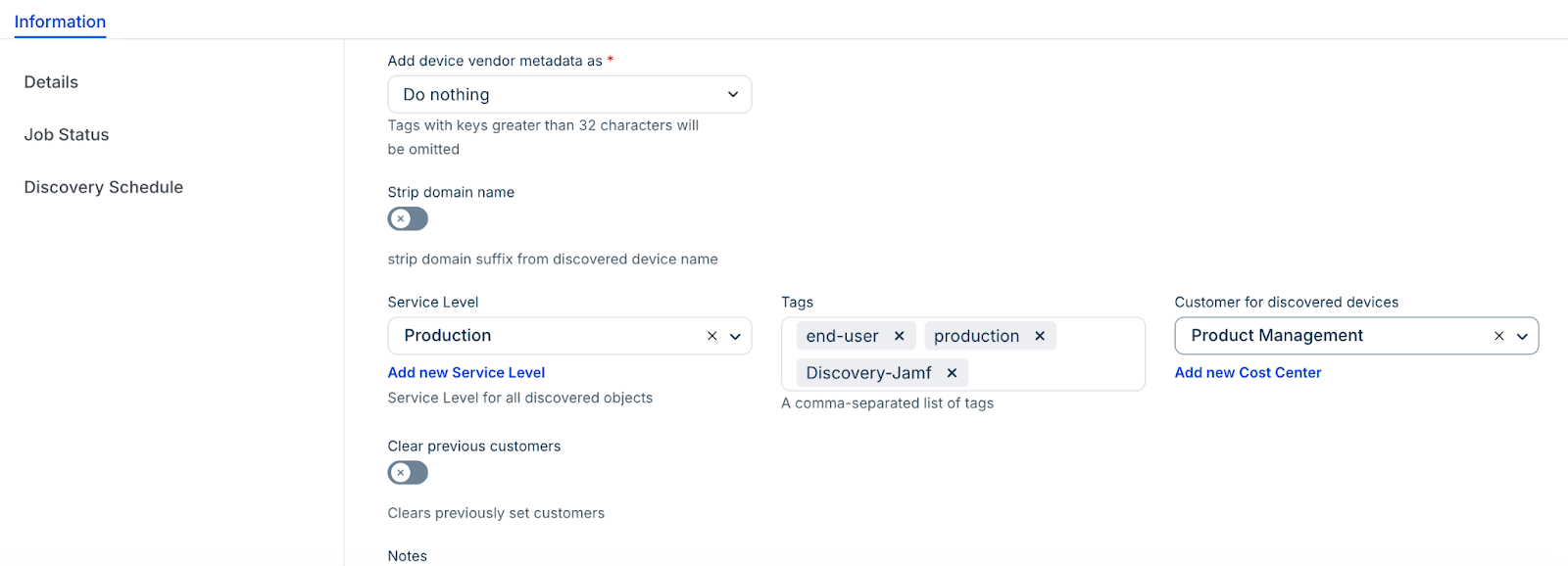
Optionally, add a Service Level for the discovered devices.
In Device vendor metadata drop-down, select one of the following:
Tags
Custom Fields
Do Nothing (Default)
Optionally, include Tags for discovered devices to categorize items for searching and filtering.
Select a Customer for discovered devices to add another specialized classification or create a new by using the Add new Cost Center option.
In the Debug level dropdown, select the logging level. Normal Debug is the default; you can also select No Debug or Extended Debug.
Step 3: Schedule and run the discovery job
In the Discovery Schedule section, click Add new to create an autodiscovery for the job. You can create multiple schedules.
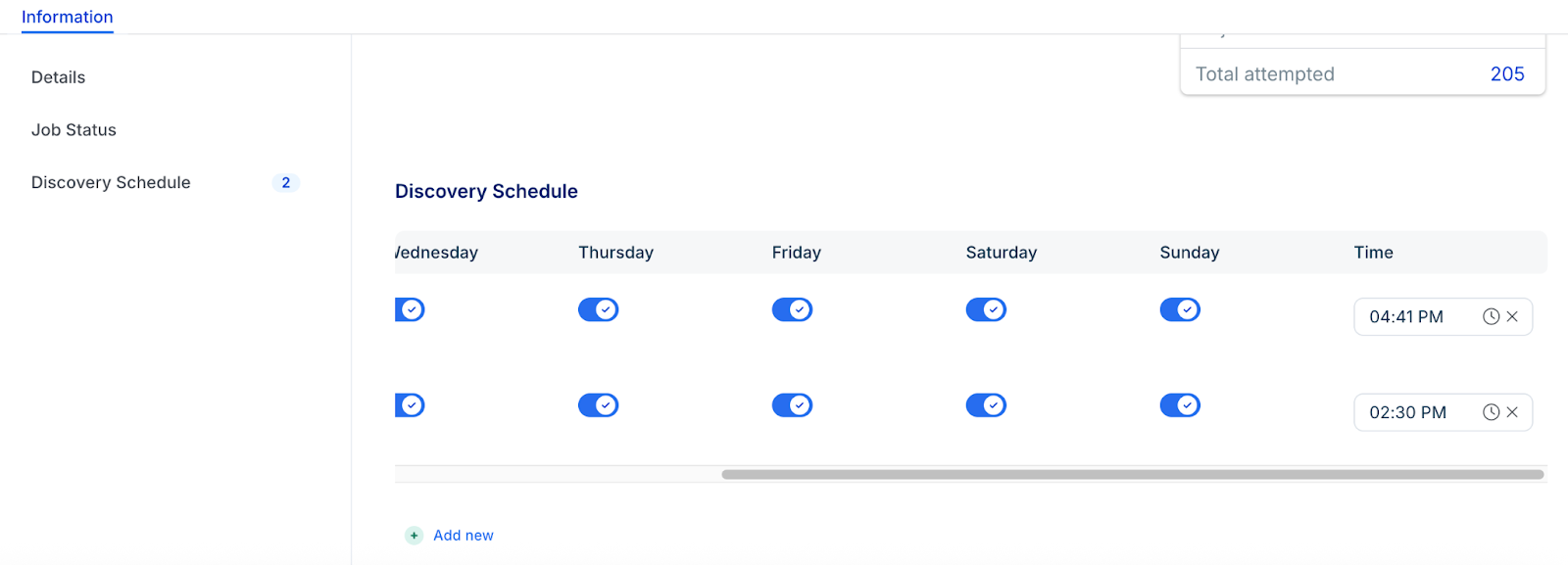
Click Save, then click Run Now to start the discovery.
Note: Newly created jobs will not run on the first day of creation to prevent a high volume of simultaneous tasks. To start the discovery immediately, click Run Now on the Discovery Jobs page or from the Job details view page.