
 Community
 Video Library
 Agent Training
 Freshservice
 Freshdesk
 Freshchat
 Freshcaller
 Freshsales
 Freshteam
 Freshworks Neo
 Freshsurvey
 Freshservice for MSP
 The Application Dependency Mapping (ADM) workflow starts by defining Starting Points and setting rules using logic templates to generate Application Groups.
Calculation Rules enable you to define the generation of groups that accurately represent important communication patterns in your environment. These rules allow you to immediately create groups upon processing or generate suggestions that you can manually review. By combining these groups with application components and devices, you can build a focused picture of your IT environment as a managed business service.
This article provides an overview of Calculation Rules and instructions on how to define starting points, use logic templates, and manage the workflow for generating Application Group suggestions.

When defining rules, you can elect to immediately create the groups upon processing or instruct the rules to output suggestions that you can accept or ignore. You can optionally use predefined calculation rules, which are based on common use cases. You can disable or change the outcomes of these rules.
Navigate the Application Group workflow
The following standard workflow enables you to identify and manage your application clusters:
Application Group Calculation Rules: Use this tab to configure new rules or run predefined templates. This is where the logic of your discovery is defined.
Application Group Suggestions: Review suggestions created by rules with the outcome set to Suggest. The system also automatically generates suggestions based on identified Application Components.
For each entry, click Accept to create the group or Ignore to hide it. An Undo option is available if you accidentally ignore a suggestion.
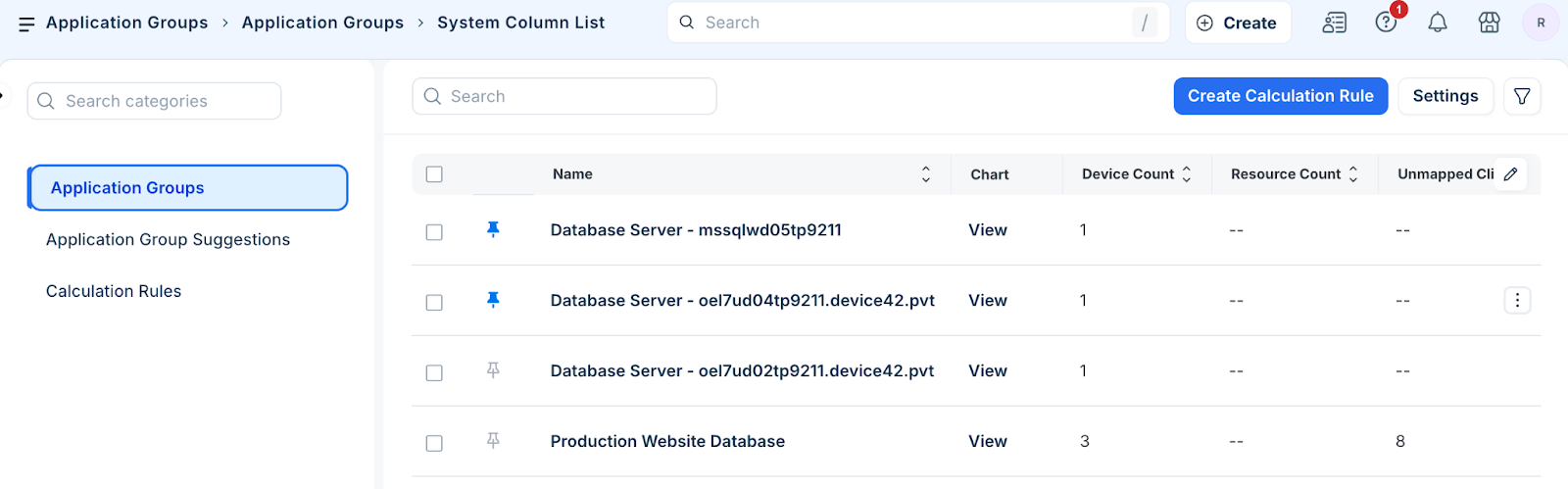
Application Groups: This tab contains the finalized groups. From here, you can view dependency charts and use the groups as building blocks for Business Services.You can view dependency charts and use the groups as building blocks for Business Services.
Define starting points
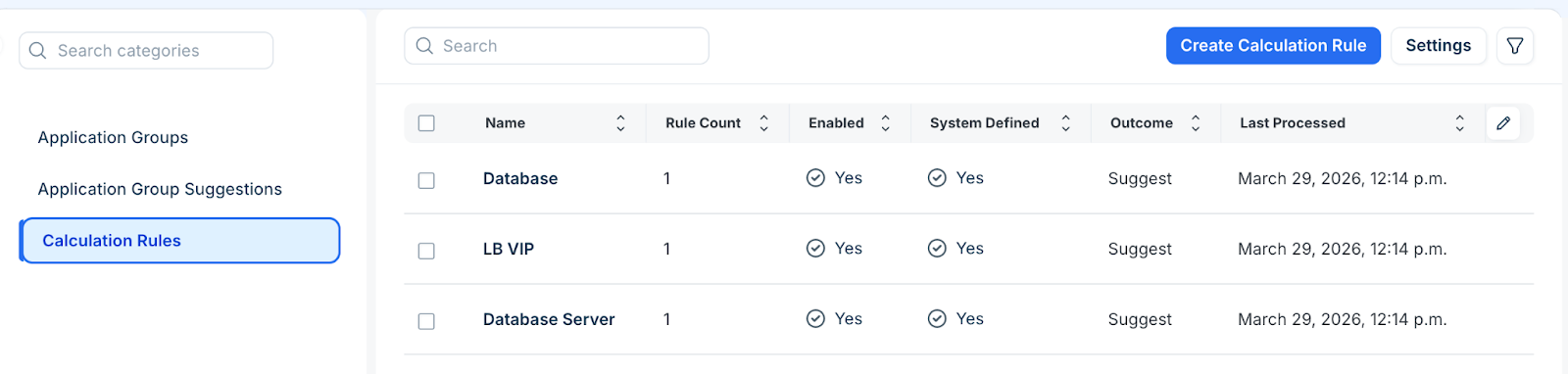
You can leverage three predefined rules based on common use cases. To use them, select a rule and click Process Now.
Starting Points highlight what is important in your environment and indicate which assets should be considered dependencies.
Fixed Starting Points: Select specific, known items that you want to focus on.
Dynamic Starting Points: Use search criteria (object types like Devices or Service Instances, or specific tags) to find items automatically.
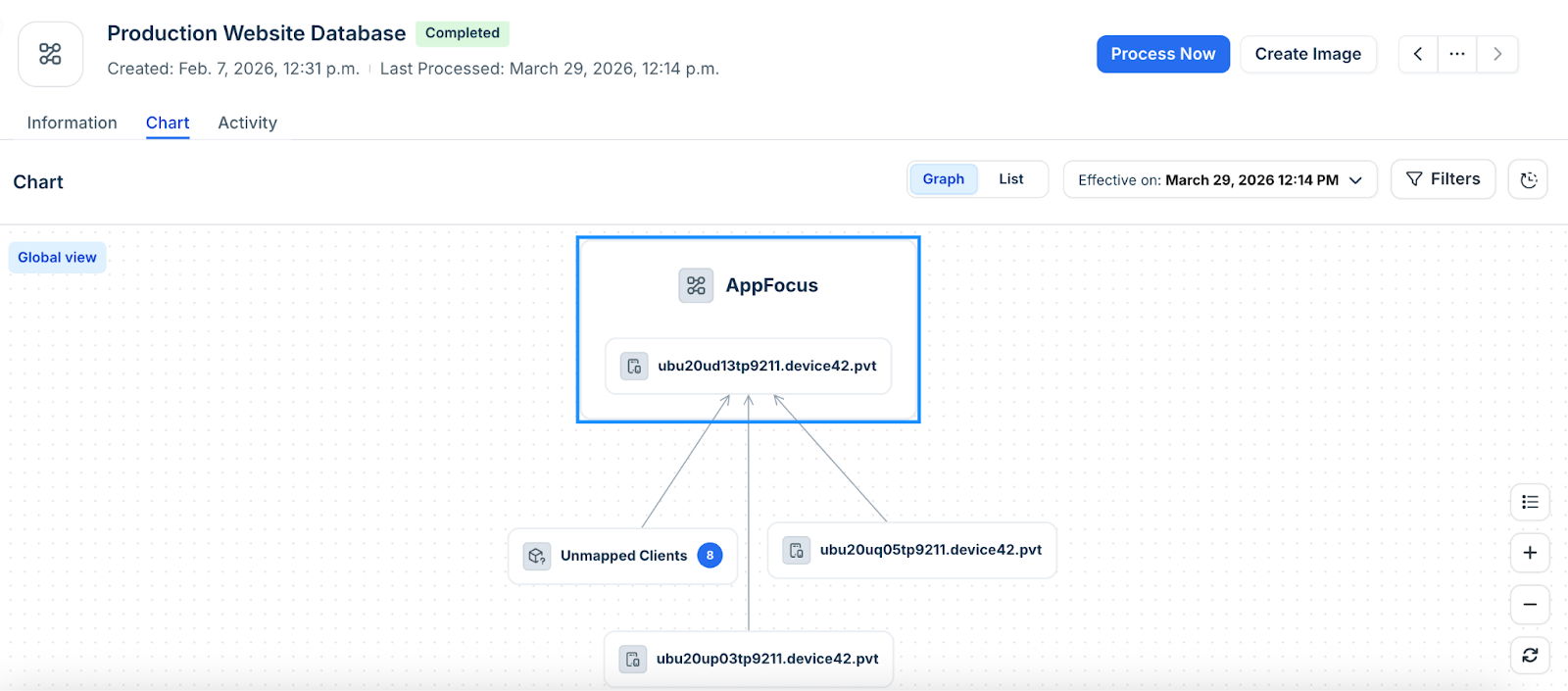
Visibility: The Starting Points you choose will be visible in the AppFocus container within the resulting dependency charts.
Create a new calculation rule
To define the logic for your application discovery, follow these steps:
Step1: Create new rule and select it’s outcomes
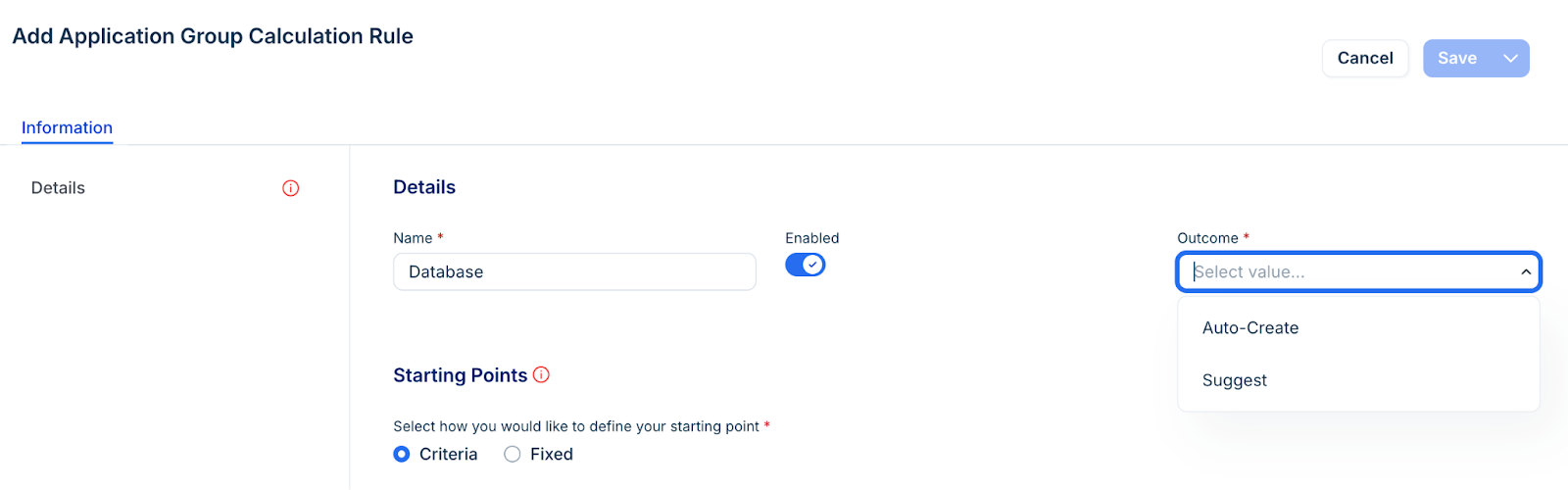
Click Create Calculation Rule on the Calculation Rules page.
Click the Enable option if you want to activate the rule.
Select one of the required outcome:
Auto-Create - Select this if you want to automatically generate the group and add it to the Application Groups tab.
Suggest - Select this if you want to verify the results first. The group is sent to the Application Group Suggestions tab, where you can manually Accept or Ignore it.
Step 2: Define starting points
A Starting Point indicates what is most important to the application you are mapping. It should be defined as close to the application as possible. For example; a specific service, database, or application component.
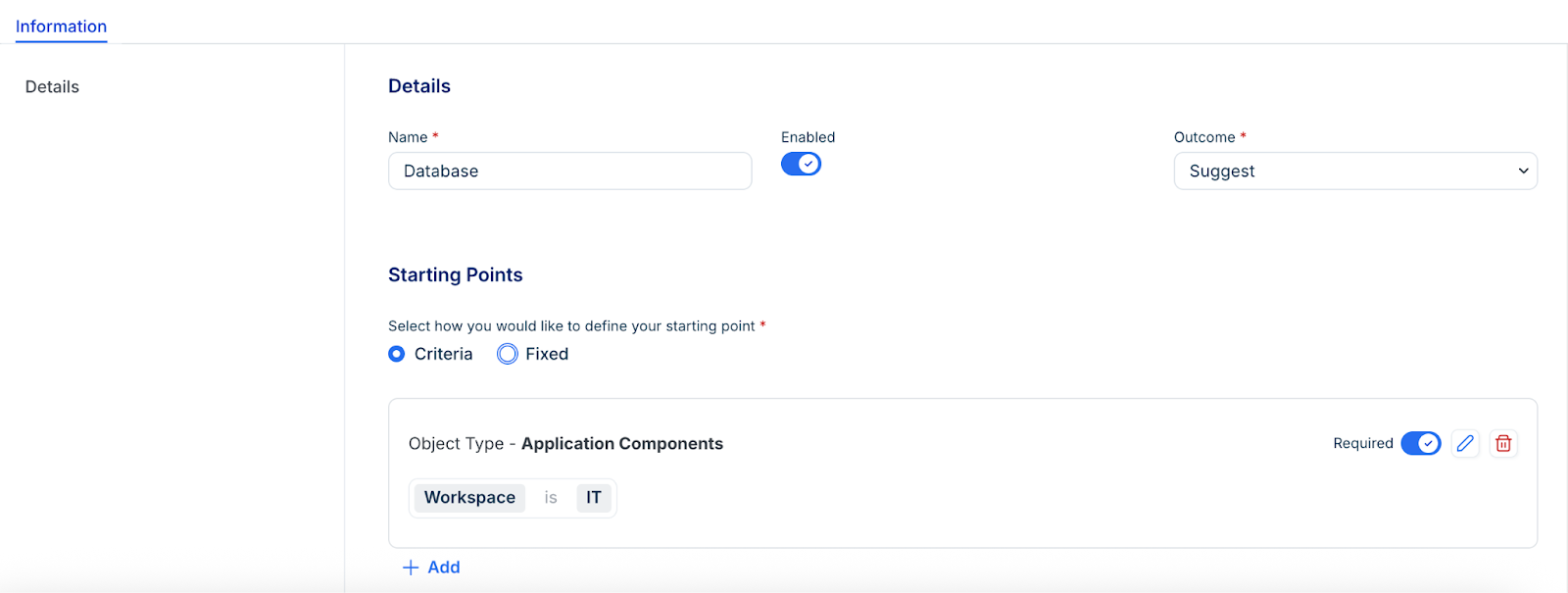
Starting Points: Criteria
Select Criteria to dynamically include items based on their types or categories.
Object Type: Select a category (e.g., Resources,Devices, Service Instances) to include.
Filters: Apply specific filters to narrow the results. For example, you can use a Tags filter with a partial search using the Contains box to find devices with "App_" in their name.
Requirements: You can add multiple criteria; designate at least one as Required to ensure matching items are prioritized in the dependency mapping.
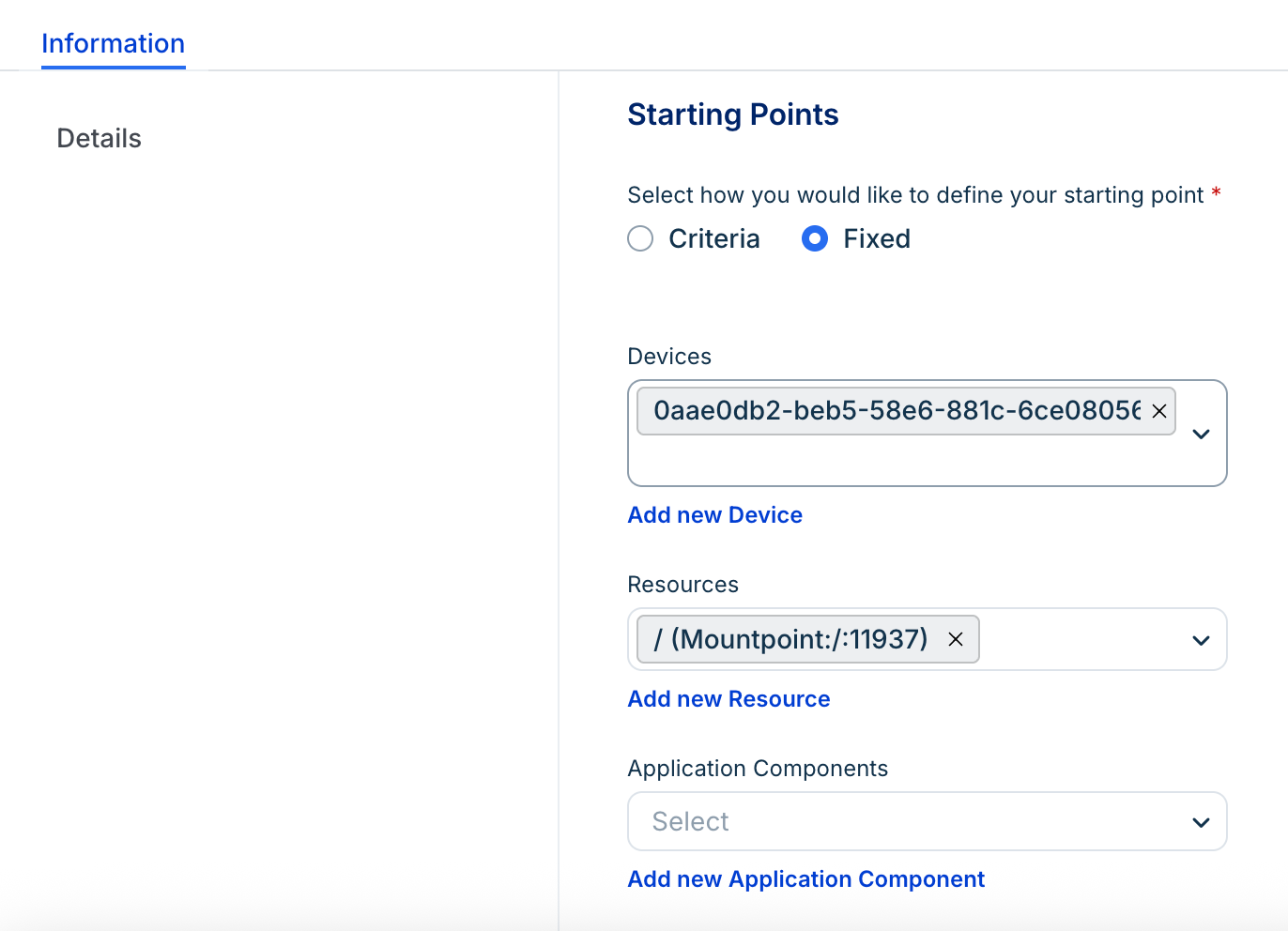
Starting Points: Fixed
Select Fixed to include specific, definitive items rather than a general type. Use the object type search boxes to manually find and select the exact devices or services you want to use as the root of the calculation.
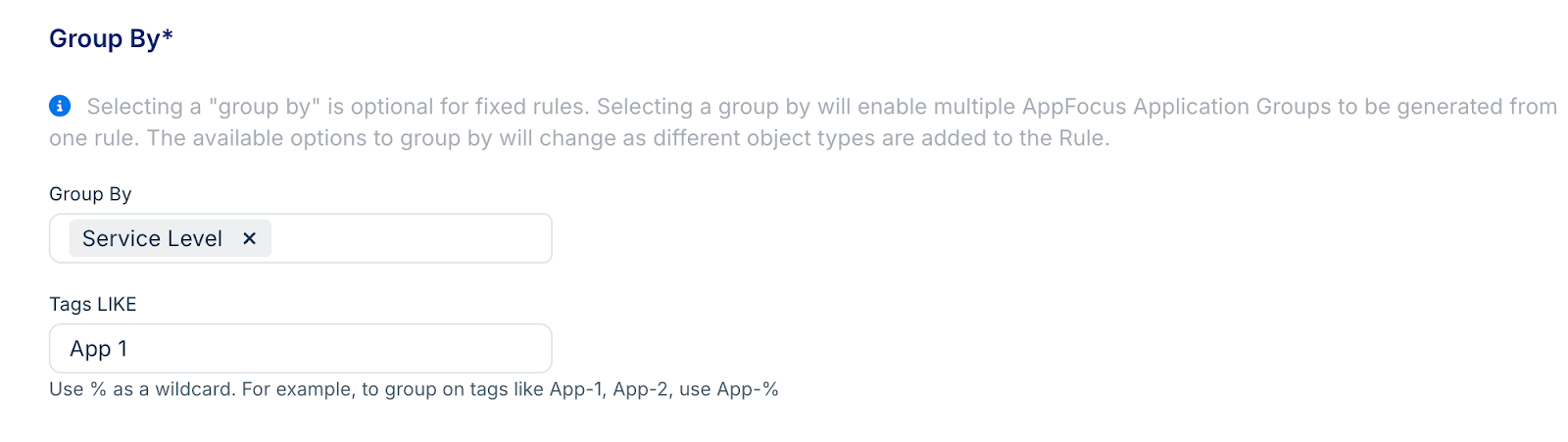
Group by and tags with wildcards
Group By: This field is required if you use the Criteria option. It allows the system to create multiple distinct Application Groups from a single rule based on the grouping attribute.
Tags LIKE: Use the % wildcard to find partial tag matches. For example, entering app_% will include all items with tags starting with "app_".
Calculation logic templates
Logic templates determine the traversal logic, how the system calculates dependencies and what it should include or ignore. You can use a default template or create a custom one.
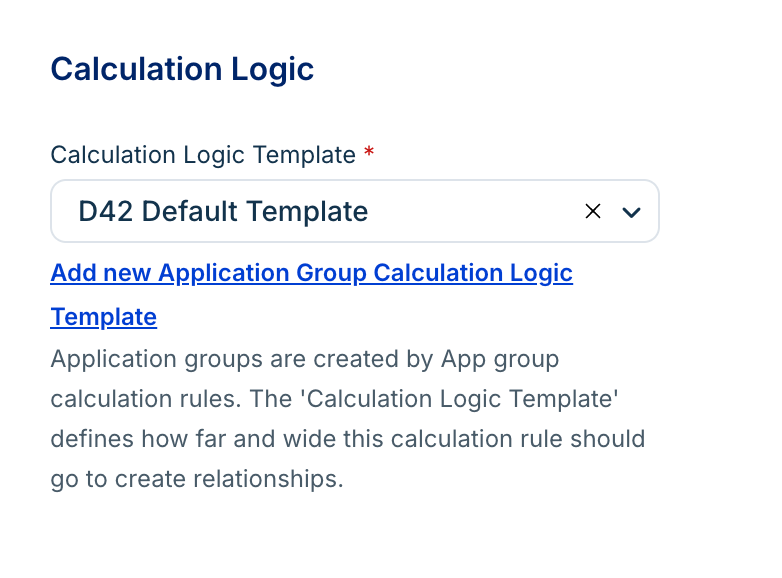
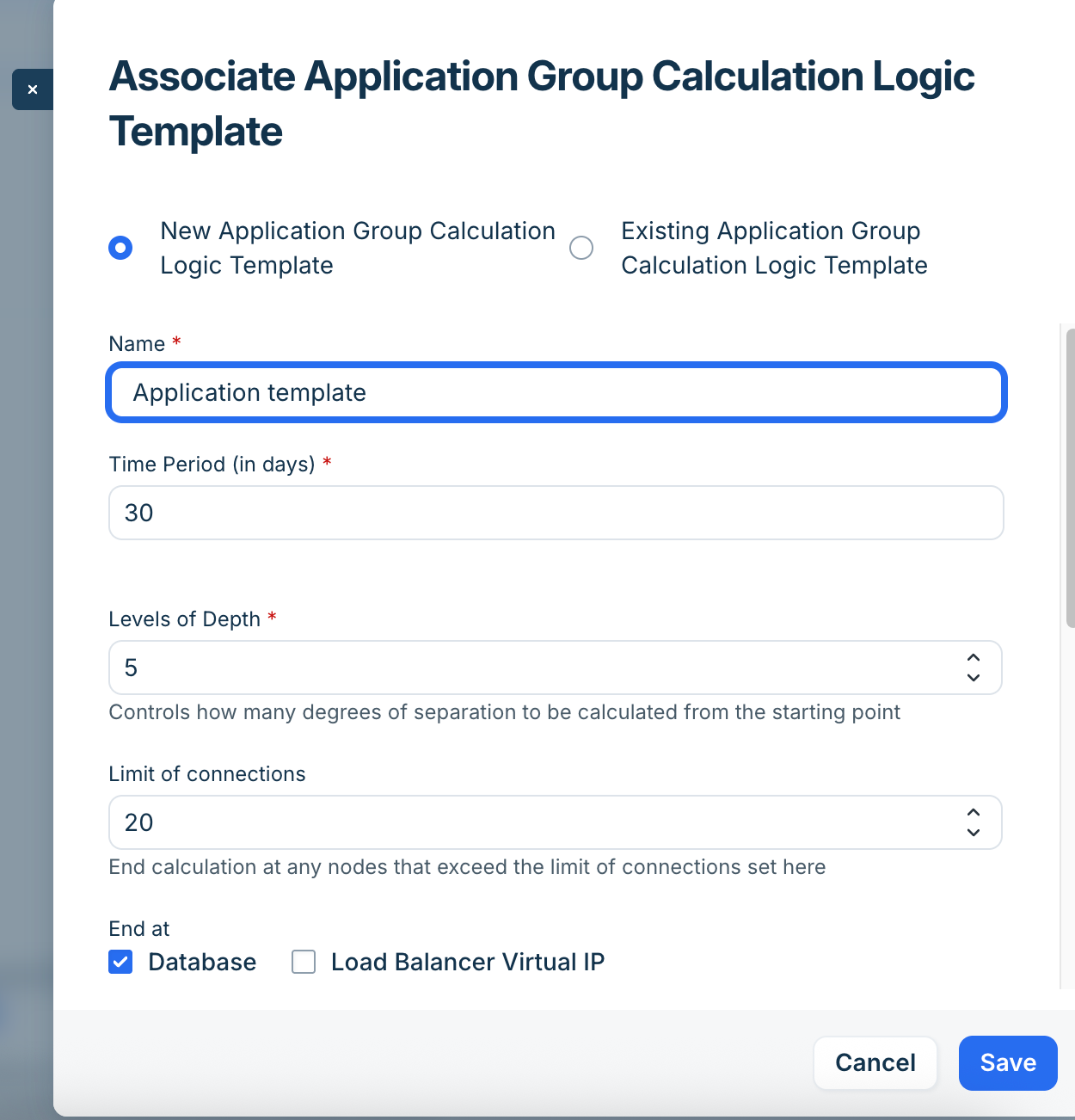
To manage these, navigate to Applications > Application Groups, click Settings, and select Create Calculation Logic Template. While a DOQL format is available for backward compatibility, using the Form format is recommended for ease of use.
Template configuration fields
Follow these steps:
Name: A unique identifier for the template.
Time Period (in days): Choose a window of active communication (e.g., 30 days).
Levels of Depth: Set the maximum number of connections a node can have. A value of 5 is recommended for most environments to avoid "dependency creep."
Limit of Connections: Limit this to avoid pulling in noisy infrastructure services like Active Directory or backup servers.
End at: Specify a logical stop point.
Database: Calculation stops at the database level. (Note: If your starting point is a database, the map will continue based on other rules).
Load Balancer Virtual IP: Useful if the application logic stops at the VIP.
Start at: Specify the exact point where the dependency calculation begins.
Include: Limit calculations strictly to selected items (e.g., only "Production" devices).
Exclude: Filter out irrelevant data, such as IPv6 traffic, port 22 (SSH), or specific management services.
Visualization options
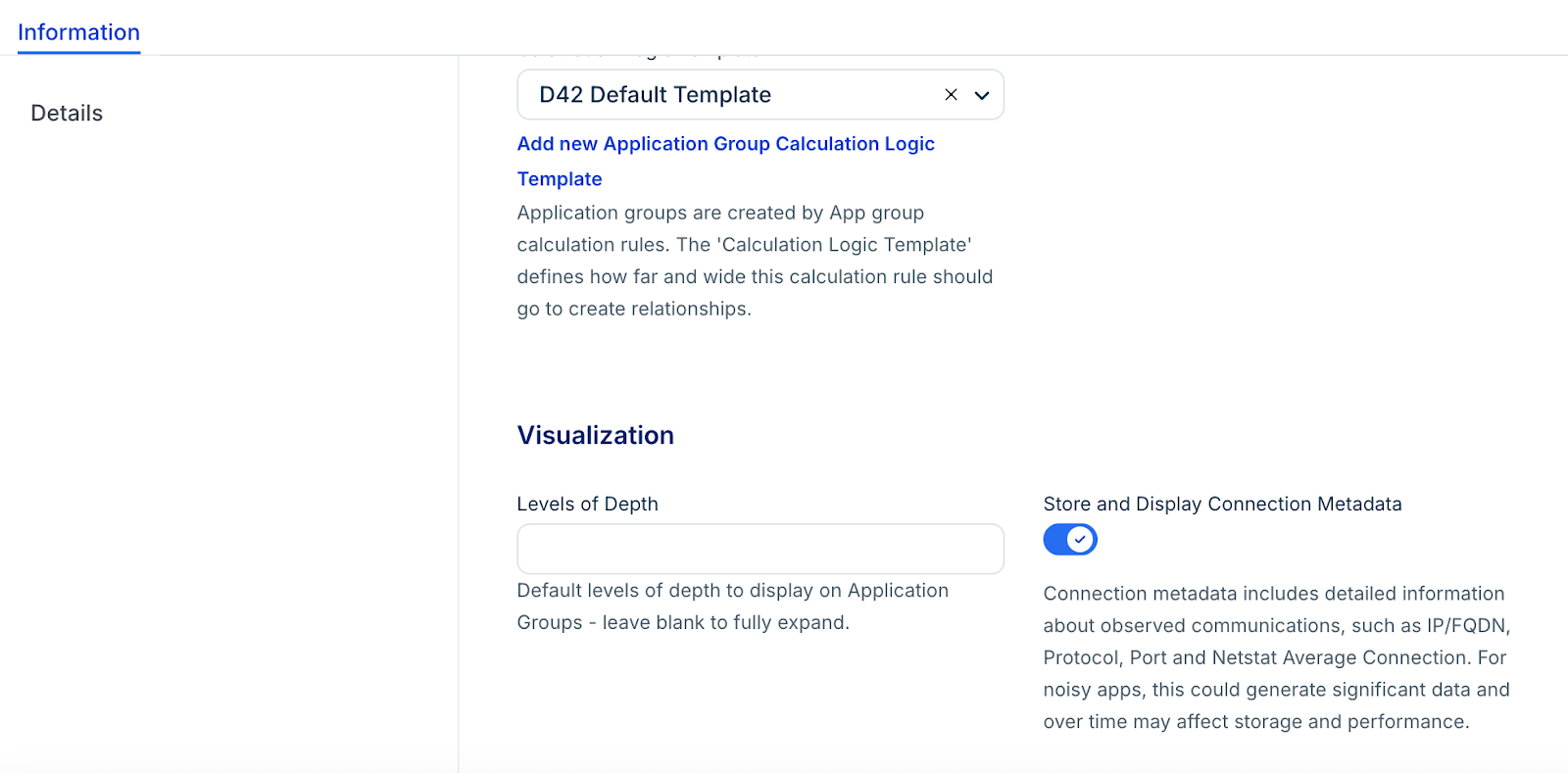
The Visualization settings control how the resulting charts are rendered, which is essential for maintaining clarity in large environments.
Level of Depth: Enter a value to limit the number of dependency levels shown by default. Leave this blank to include all discovered levels.
Store and Display Connection Metadata: Toggle this On to display communication lines and specific connection data (IP addresses and ports) between nodes in the Application Group chart.
Process Calculation Rules
Process one or many Calculation Rules to generate Application Groups and Suggestions at any time. Enabled Calculation Rules are also processed nightly at 2 AM.
You can process a Calculation Rule from its details page by choosing the process option from the Actions menu or finding the process option from the more optionon the Application Groups list page.
Click Process Now at the top-right of a saved Calculation Rule to run it immediately.
Select one or more Calculation Rules from the Application Groups list page and click Run Background Processing.
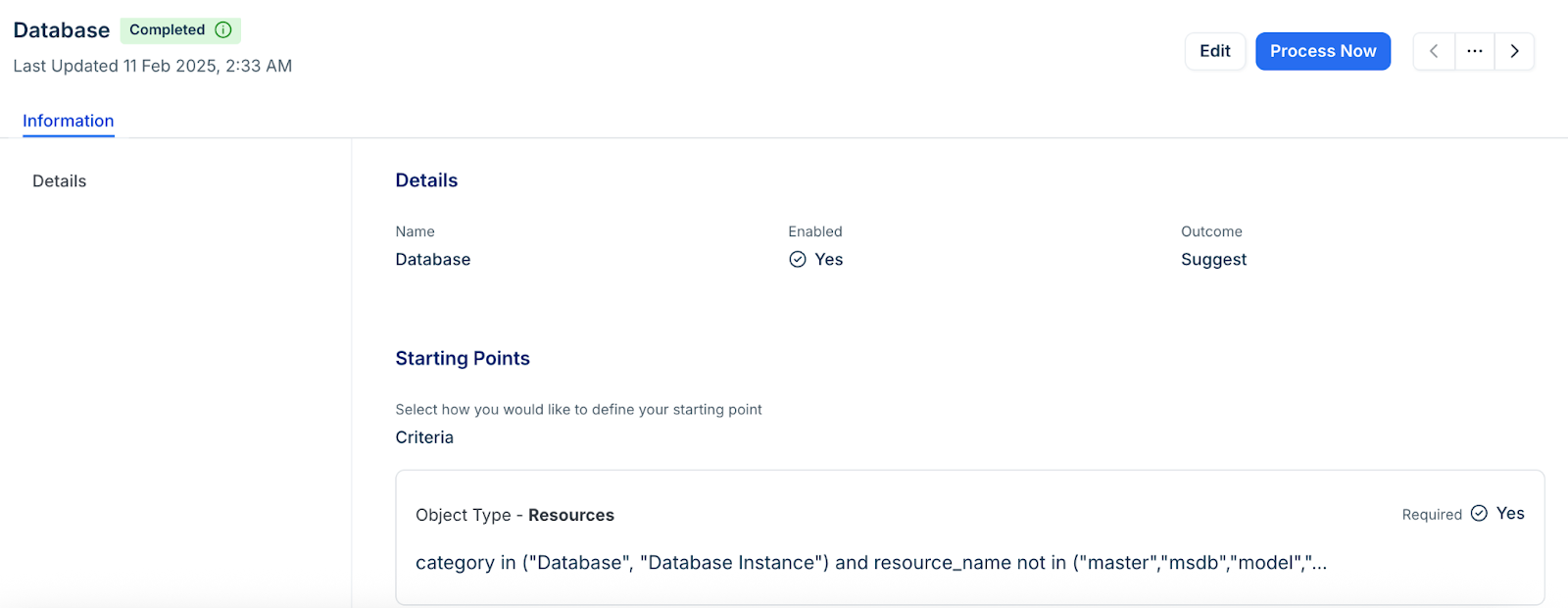
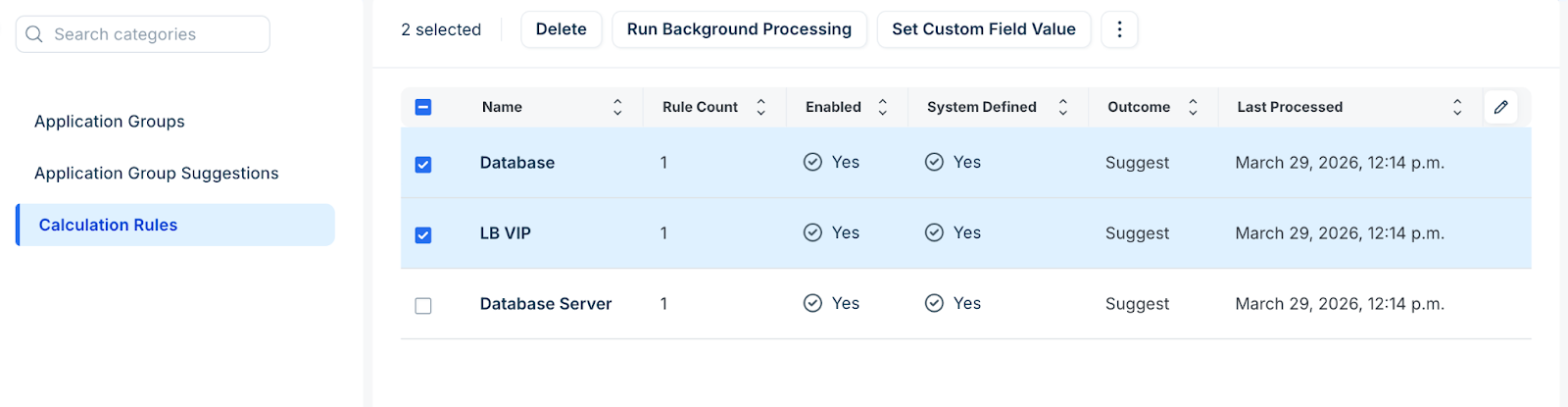
There are four statuses for Calculation Rules: Processing.., Completed, Failed, and Warnings which is displayed on the Calculation rule page.
Bulk apply Logic Templates
You can apply a Calculation Logic Template to multiple Calculation Rules at once. From the Application Group Calculation Rules tab, click more options and then select Set Calculation Template.