
 Community
 Video Library
 Agent Training
 Freshservice
 Freshdesk
 Freshchat
 Freshcaller
 Freshsales
 Freshteam
 Freshworks Neo
 Freshsurvey
 Freshservice for MSP
 Note: Available only for new signups after the 31 March, 2026 release. If you signed up earlier, refer to the existing ITAM documentation.
Freshservice categorizes F5 load balancers as both devices and managed resources. Viewing these as managed resources provides granular details and visual relationship maps. This management approach simplifies the Application Groups chart view by logically grouping backend servers beneath their respective load balancer, making complex network hierarchies easier to understand.
Prerequisites
You need the following before the installation:
SNMP Credentials: Required for the initial identification of F5 devices and associated resources.
Windows/*nix Credentials: Required for discovering backend resources to collect detailed server information.
API Access: Required for the final API-based load balancer discovery to link discovered devices correctly.
Best practice for load balancer discovery
To ensure load balancers are linked correctly to their backend resources, follow the recommended best practice sequence:
Initial Device Identification: Perform an SNMP discovery to identify the F5 devices and their basic resource associations.
Backend Resource Discovery: Perform a Windows/*nix discovery of the backend servers to gather detailed hardware and software information.
Link Resources: Perform the API-based load balancer discovery. This step maps the previously discovered devices and backend servers into a unified view.
View managed resources
Discovered F5 load balancers are categorized under the Resources list for easy management. Follow these steps to view the managed resources:
Click more options in the side bar > IT Asset Management > Inventory > All Resources.
Use a filter to list the load balancer resources in the Vendor Resource Type column.
Select a specific load balancer to view its details.
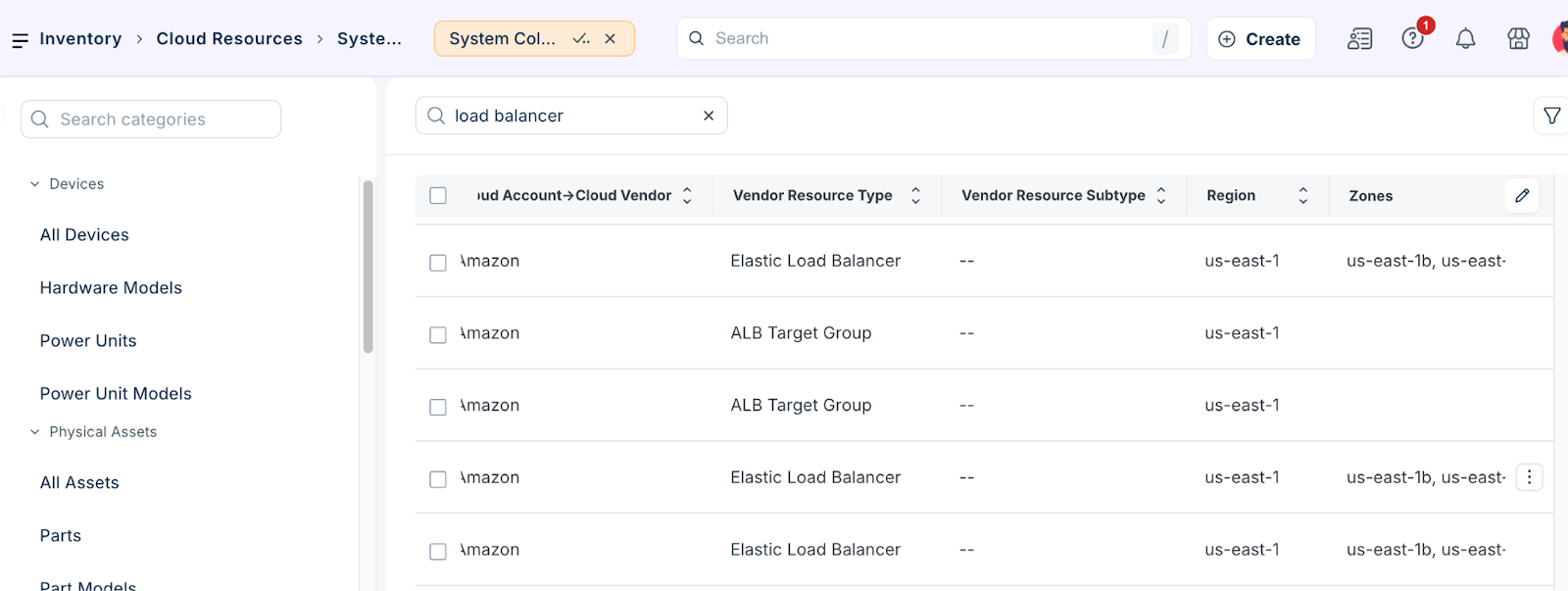
Analyze resource maps and application groups
Visual tools help administrators understand the communication flow between load balancers and servers. To view the resource map, follow these steps:
Click Resource Map to view the topography map.
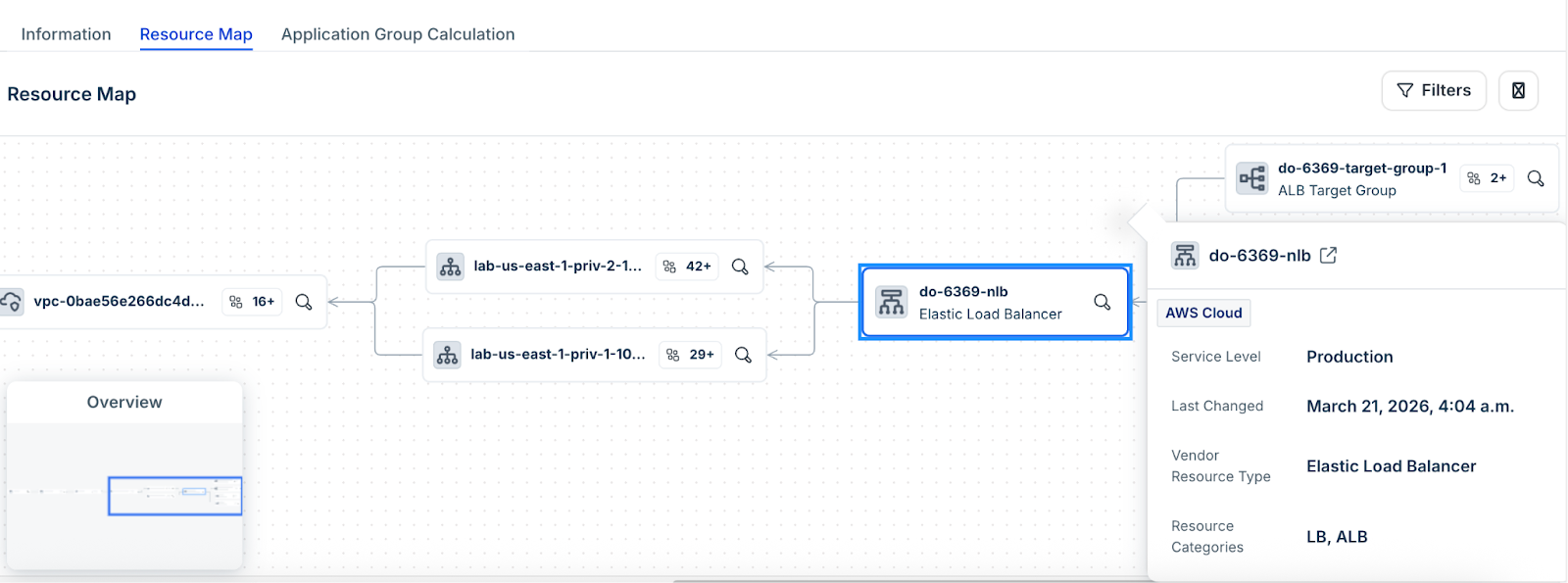
To view the application chart, go to Applications > Application Groups to view a simplified chart view. Click on connection lines within the load balancer Application Group chart to view specific communication details.