Community
 Video Library
 Agent Training
 Freshservice
 Freshdesk
 Freshchat
 Freshcaller
 Freshsales
 Freshteam
 Freshworks Neo
 Freshsurvey
 Freshservice for MSP
 Link a change to an incident to track the relationship between service disruptions and the changes made to resolve them.
Freshservice lets you create a
Change initiated by this incident - Select this option when the incident requires a change to restore or improve service.
Change initiating this incident - Select this option when a change caused the incident.
Follow these steps to link a change to an Incident.
Go to the incident you want to link to a change.
Click Associate.
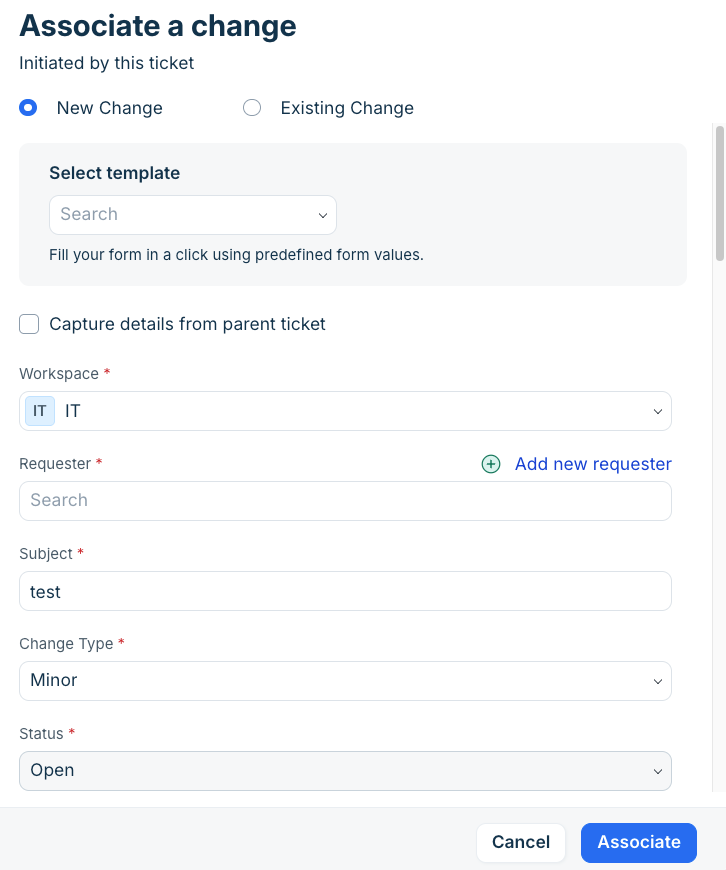
If the incident requires a change to restore or improve service, follow these substeps:
Click Change initiated by this ticket.
The Associate a change section form is displayed.To create a new change, select New Change and create a new change.
Or, if you want to link to an existing change, select Existing Change and select from the available list of change.Click Associate.
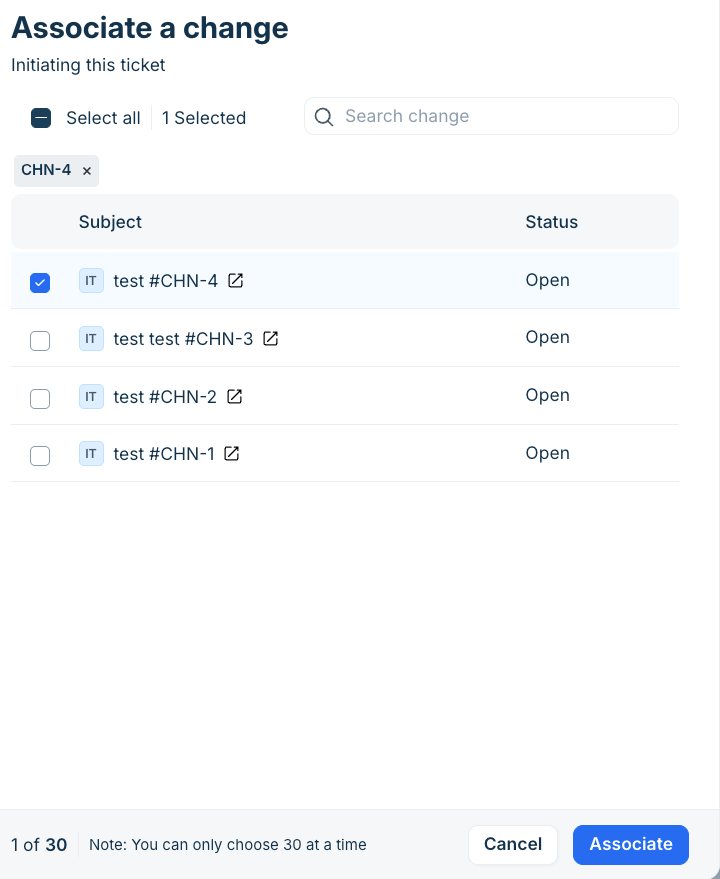
If a change caused the incident, follow these substeps:
Click Change initiating this ticket.
The Associate a change section is displayed and it shows an existing list of change.Select a change from the list.
Click Associate.
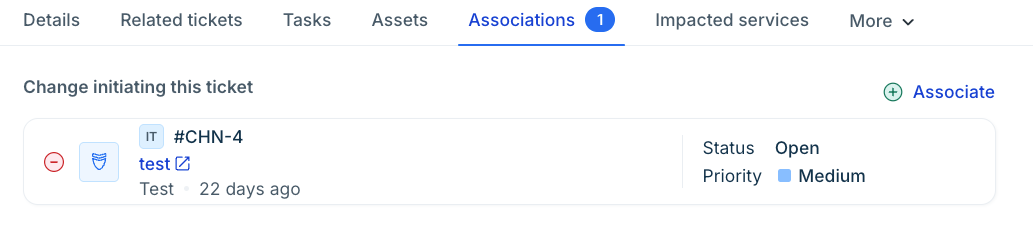
The change is linked to the incident and it is displayed under Associations as shown in the following image.