
 Community
 Video Library
 Agent Training
 Freshservice
 Freshdesk
 Freshchat
 Freshcaller
 Freshsales
 Freshteam
 Freshworks Neo
 Freshsurvey
 Freshservice for MSP
 TABLE OF CONTENTS
- Prerequisites
- Overview of initiating changes
- Find initiating changes for a ticket
- Review and link a suggested change
- View the details of a suggested change
- Share feedback on a suggestion
- Frequently asked questions
Note: Some of the features described in this article are currently available in early access to selected customers. If you are interested in participating in the early access program, contact your Customer Success Manager (CSM).
This article provides details about using the Initiating Change Suggester, a Freddy AI Copilot feature, to identify changes relevant to an incident. It covers how to trigger the suggester, review results, link suggested changes to the incident, and share feedback on suggestions.
Prerequisites
Before you use the Initiating Change Suggester, ensure you have the following:
An active Freddy Copilot license assigned to you.
Initiating Change Suggester enabled by an admin in AI Agent Studio.
Access to the incident that you want to review.
Overview of initiating changes
An initiating change is a modification to your IT environment, such as a firmware upgrade, network reconfiguration, or server maintenance, that caused an incident. Identifying the correct initiating change helps your team understand the root cause and resolve the incident faster.
Previously, agents had to manually search through change records to find the change responsible for an incident. The Initiating Change Suggester simplifies this process by analyzing changes closed within the last 14 days and ranking the ones most likely related to the incident. From the ticket view, you can review the suggestions, inspect change details, and link the relevant changes directly to the ticket.
Note: The suggester only considers changes closed within the last 14 days. Changes closed outside this window do not appear in the suggestions.
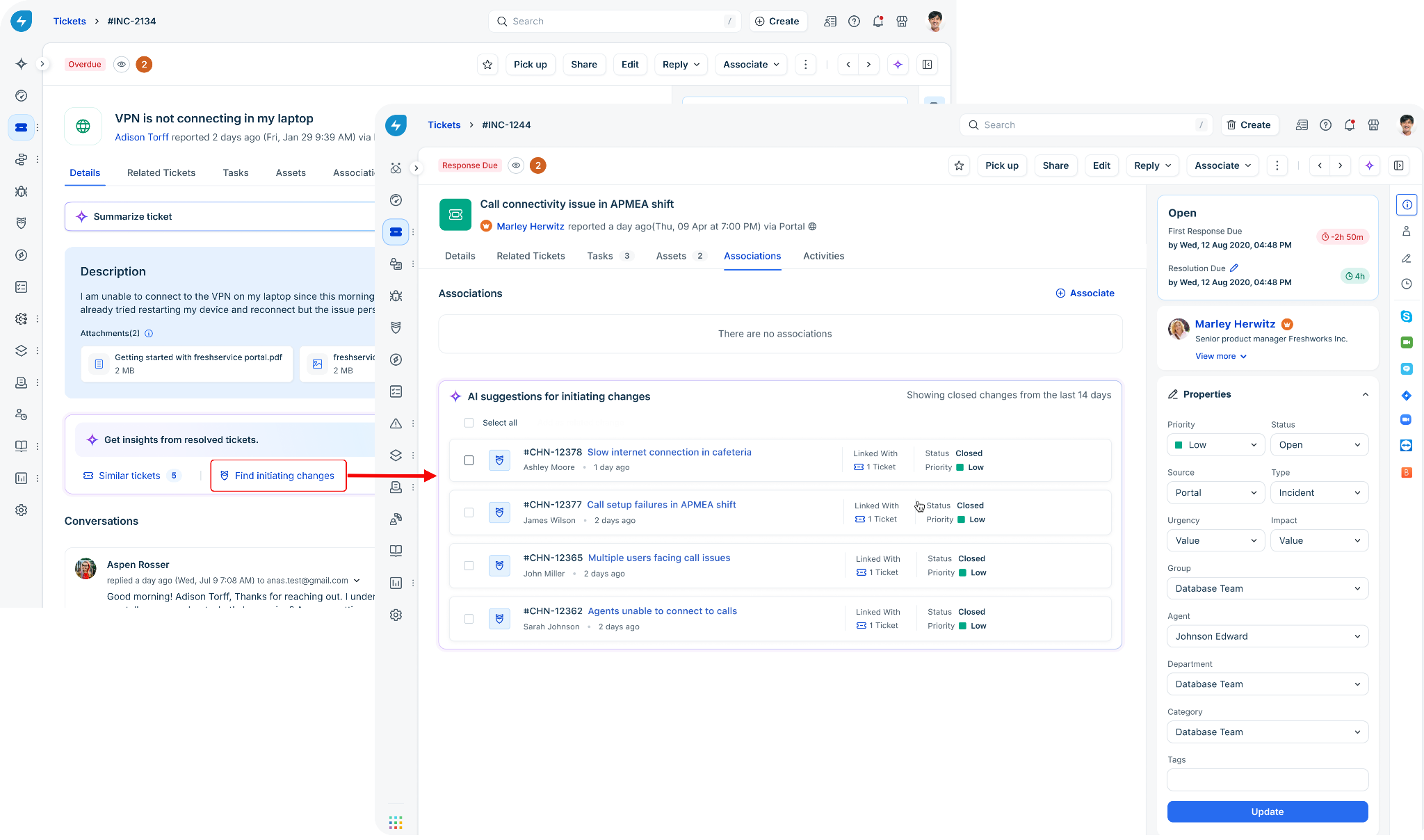
Find initiating changes for a ticket
You can start the Initiating Change Suggester from either the ticket details page or the Associations tab of a ticket.
Trigger from the ticket details page
To trigger the Initiating Change Suggester from the ticket details page, follow these steps:
Open the incident ticket and go to the ticket details view.
Scroll down to the Get insights from resolved tickets card.
Click Find initiating changes.
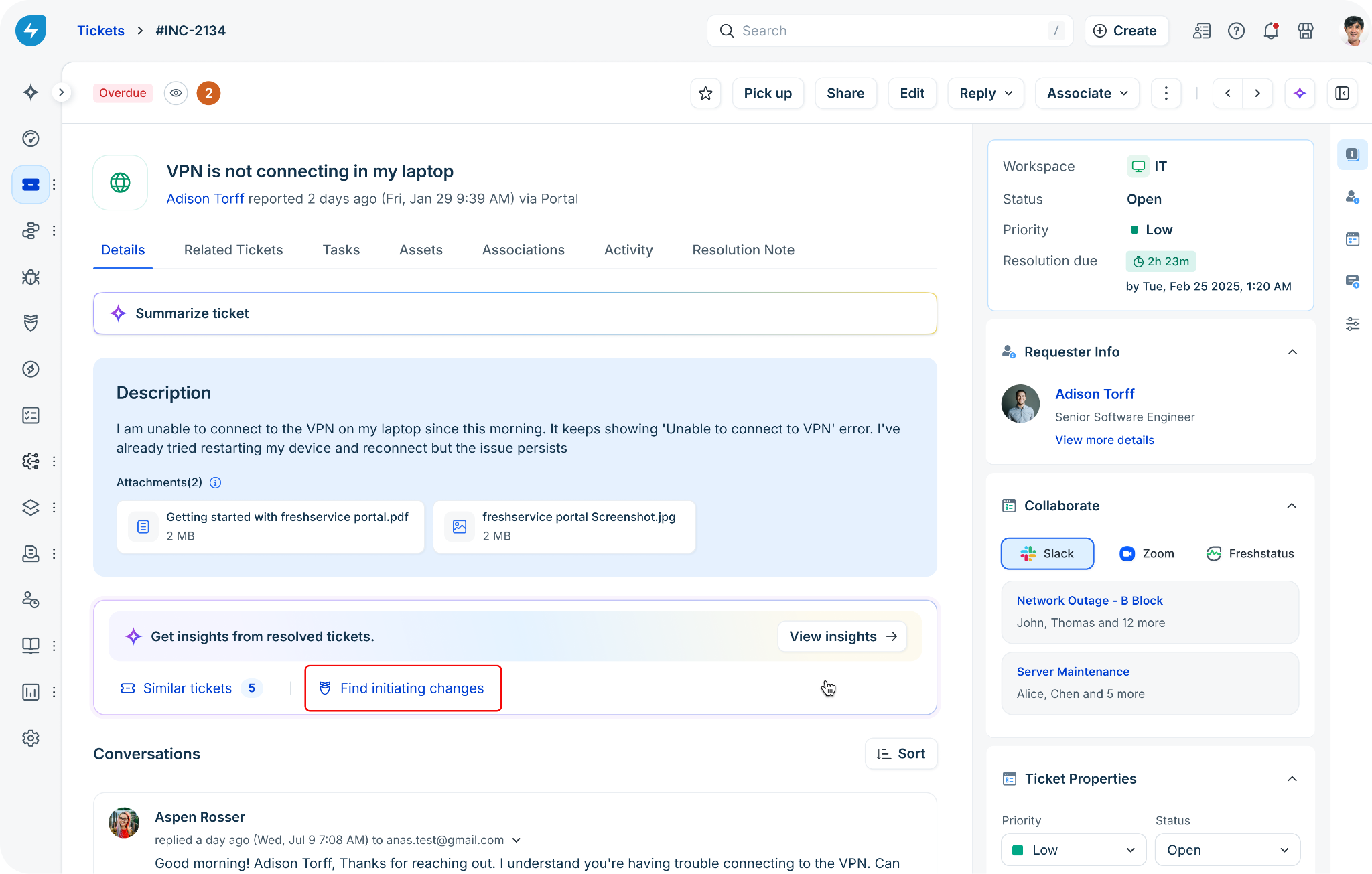
You are taken to the Associations tab, where Freddy AI analyzes recent changes and displays the suggested changes under AI suggestions for initiating changes. Review the suggestions to identify the changes that are relevant to the incident.
Trigger from the Associations tab
To trigger the Initiating Change Suggester directly from the Associations tab, follow these steps:
Open the incident ticket and go to the Associations tab.
In the Find changes that could be initiating this ticket card, click Find initiating changes.
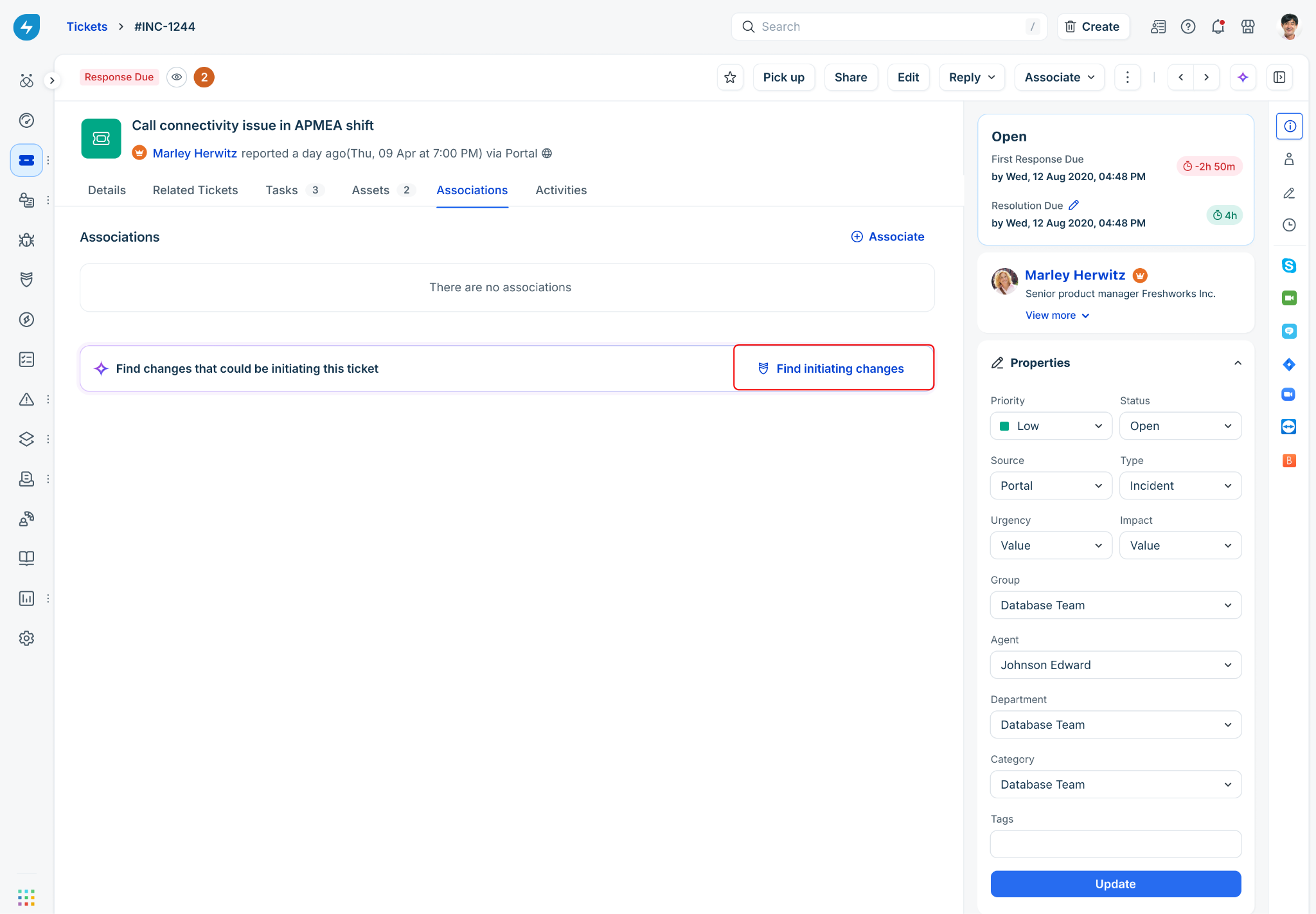
Freddy AI analyzes recent changes and displays the suggested changes under AI suggestions for initiating changes.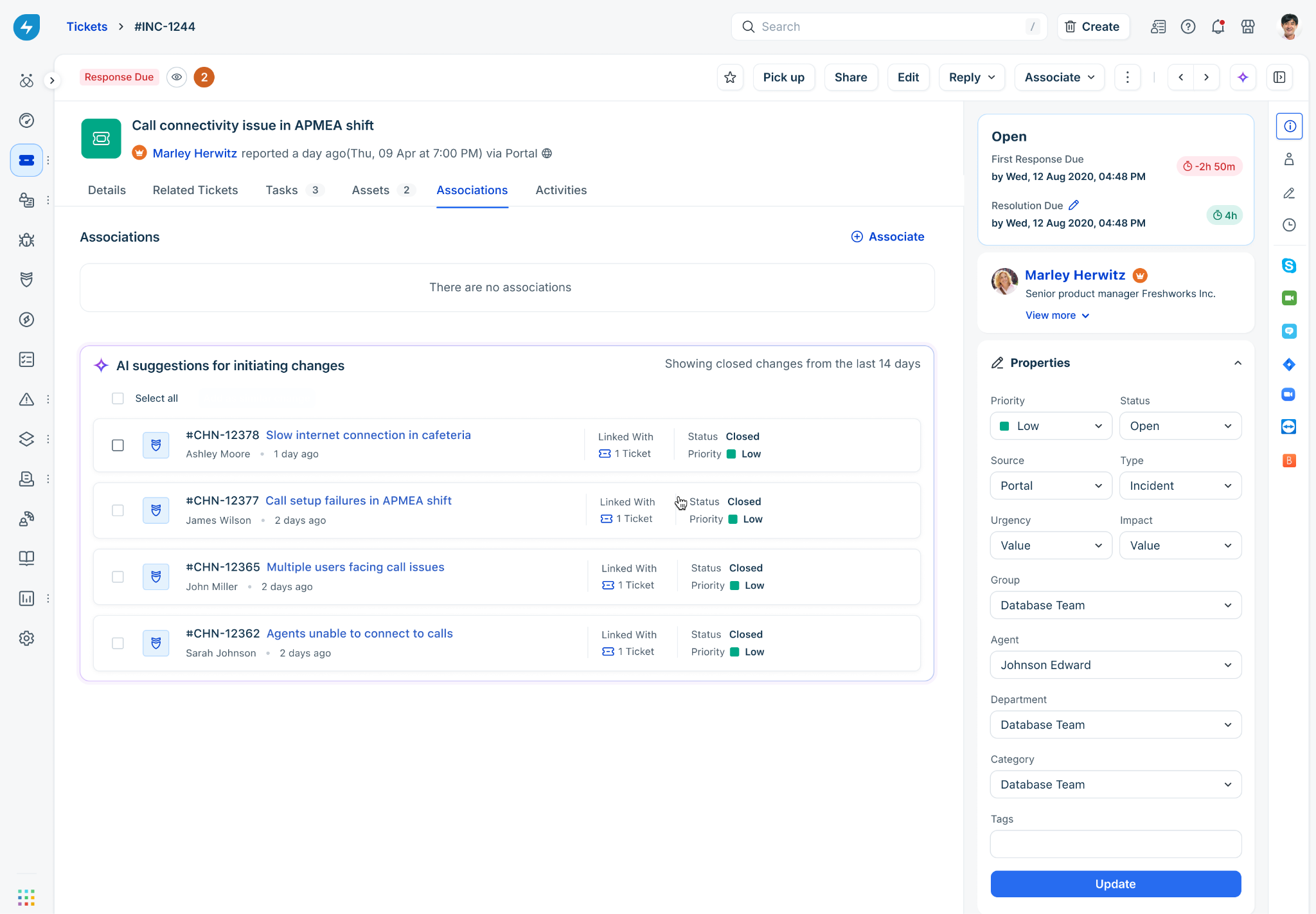
Note: If Freddy AI does not find relevant changes, the card displays No relevant changes found in the last 14 days. If Freddy AI is unable to fetch suggestions, click Retry.
Review and link a suggested change
Review the suggested changes before associating them with the incident. Each suggestion displays information such as the change ID, title, reporter, age, linked tickets, status, and priority.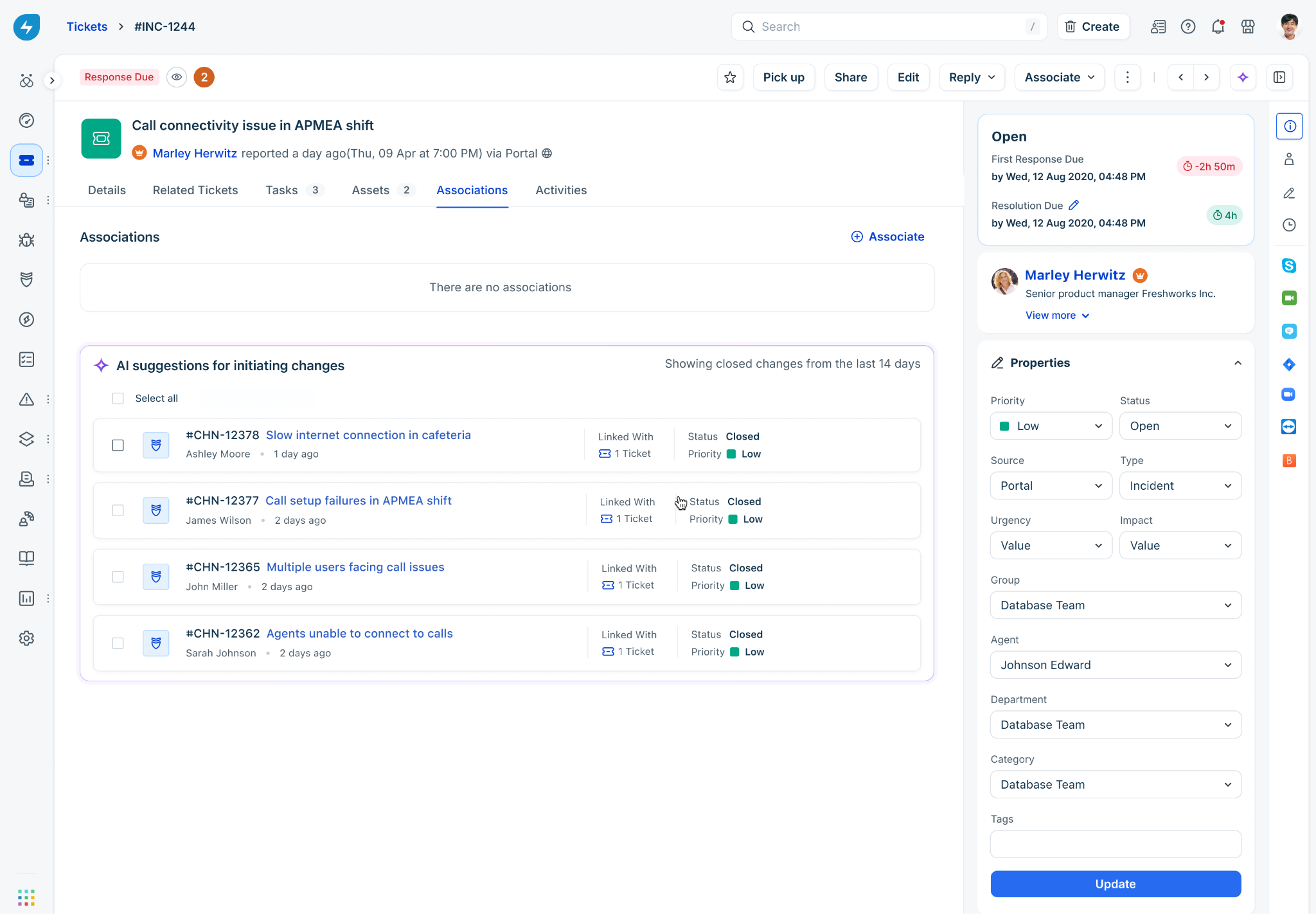
Link changes to the incident
To link one or more suggested changes, follow these steps:
Under AI suggestions for initiating changes, review the suggested changes.
Select the checkbox next to each relevant suggestion, or click Select all.
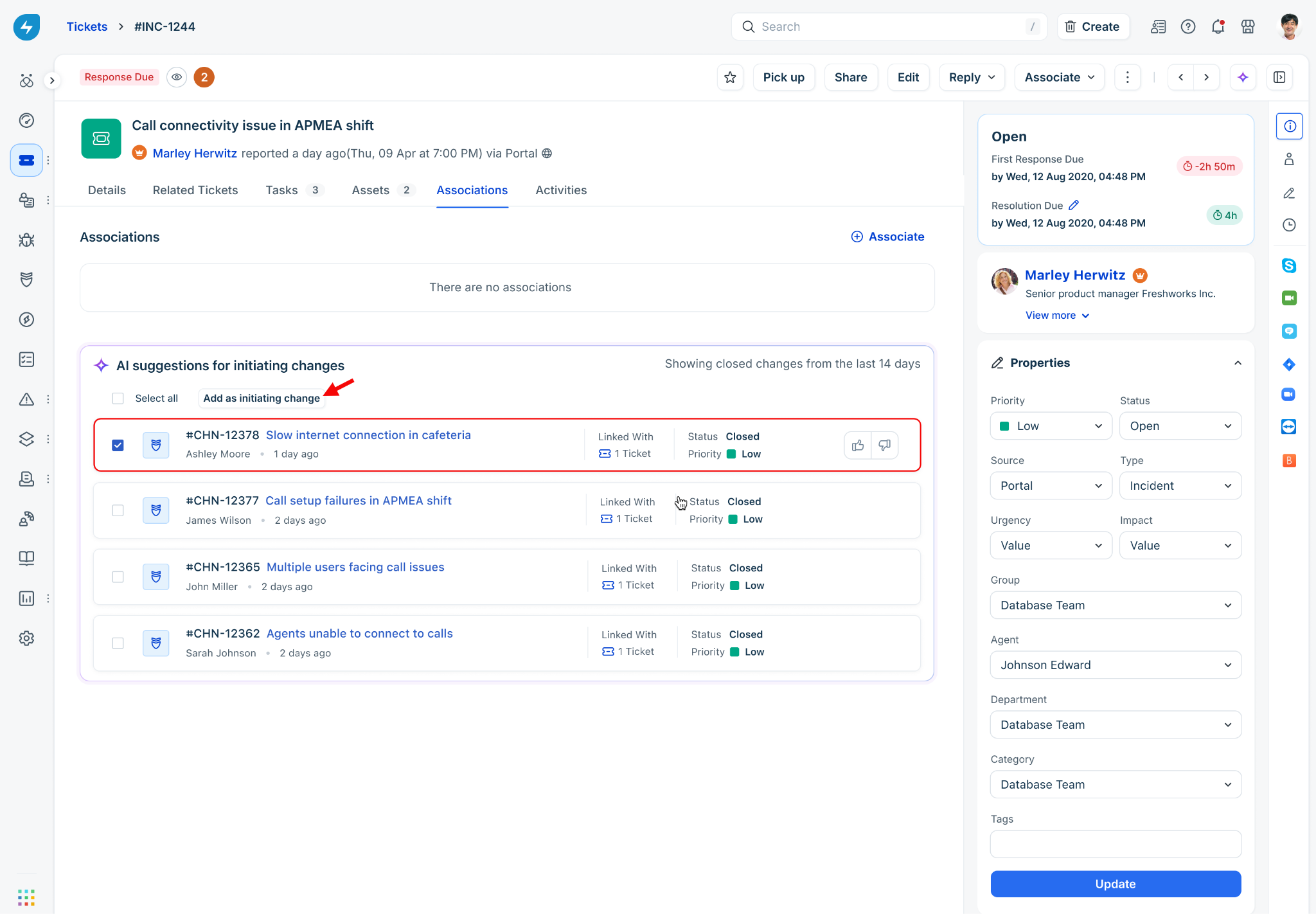
Click Add as initiating change.
The linked changes move to the Changes initiating this ticket section, while the suggestions that you have not linked remain in the suggestions list.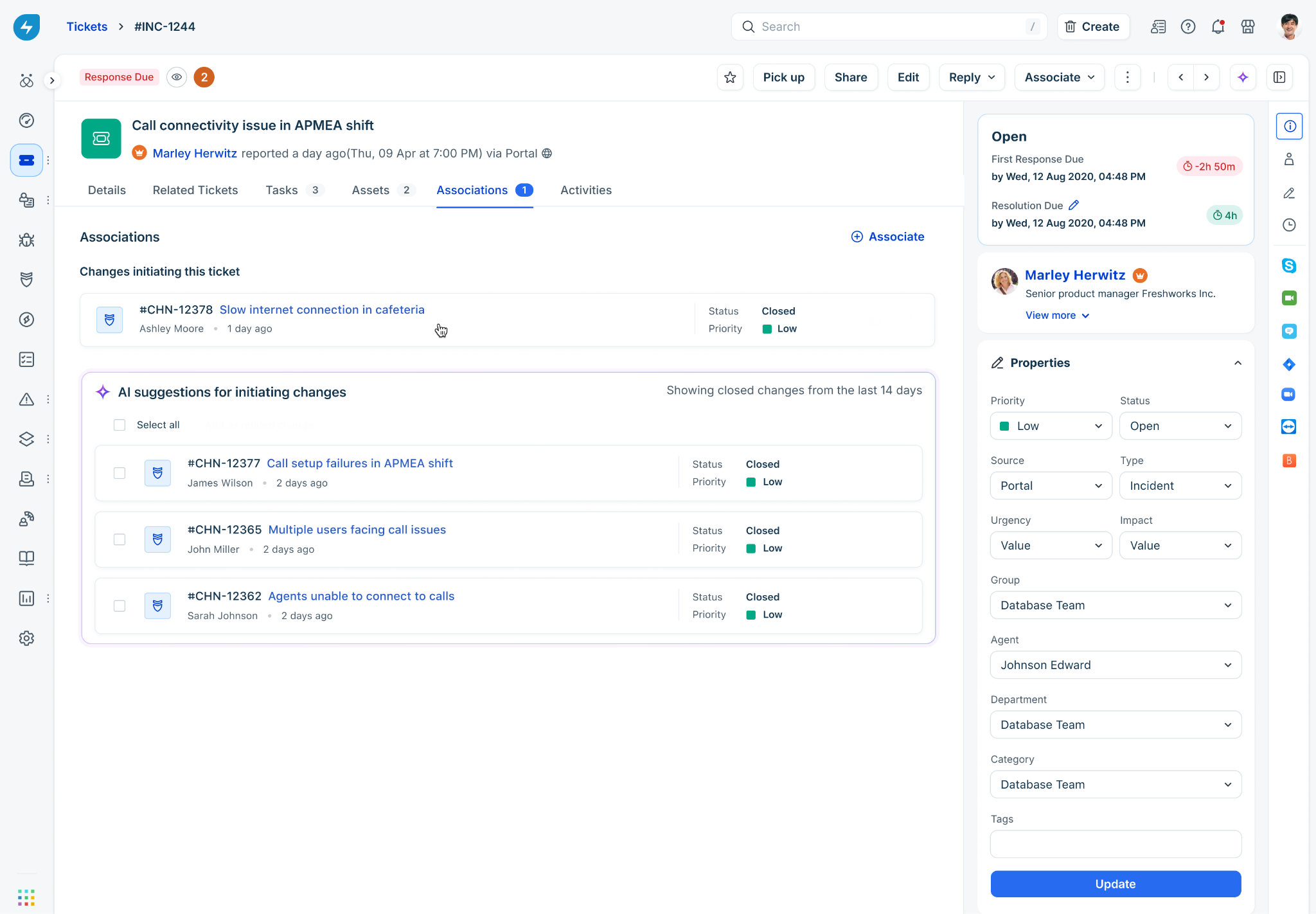
View the details of a suggested change
You can review the full details of a suggested change before deciding whether to link it. To view the details of a suggestion, follow these steps:
In the suggestions list, click the title of the change that you want to review.
In the panel that opens, review details such as Status, Priority, Agent, Change Type, Impact, Risk, Description, Reason for change, Impact details, and Rollout Plan.
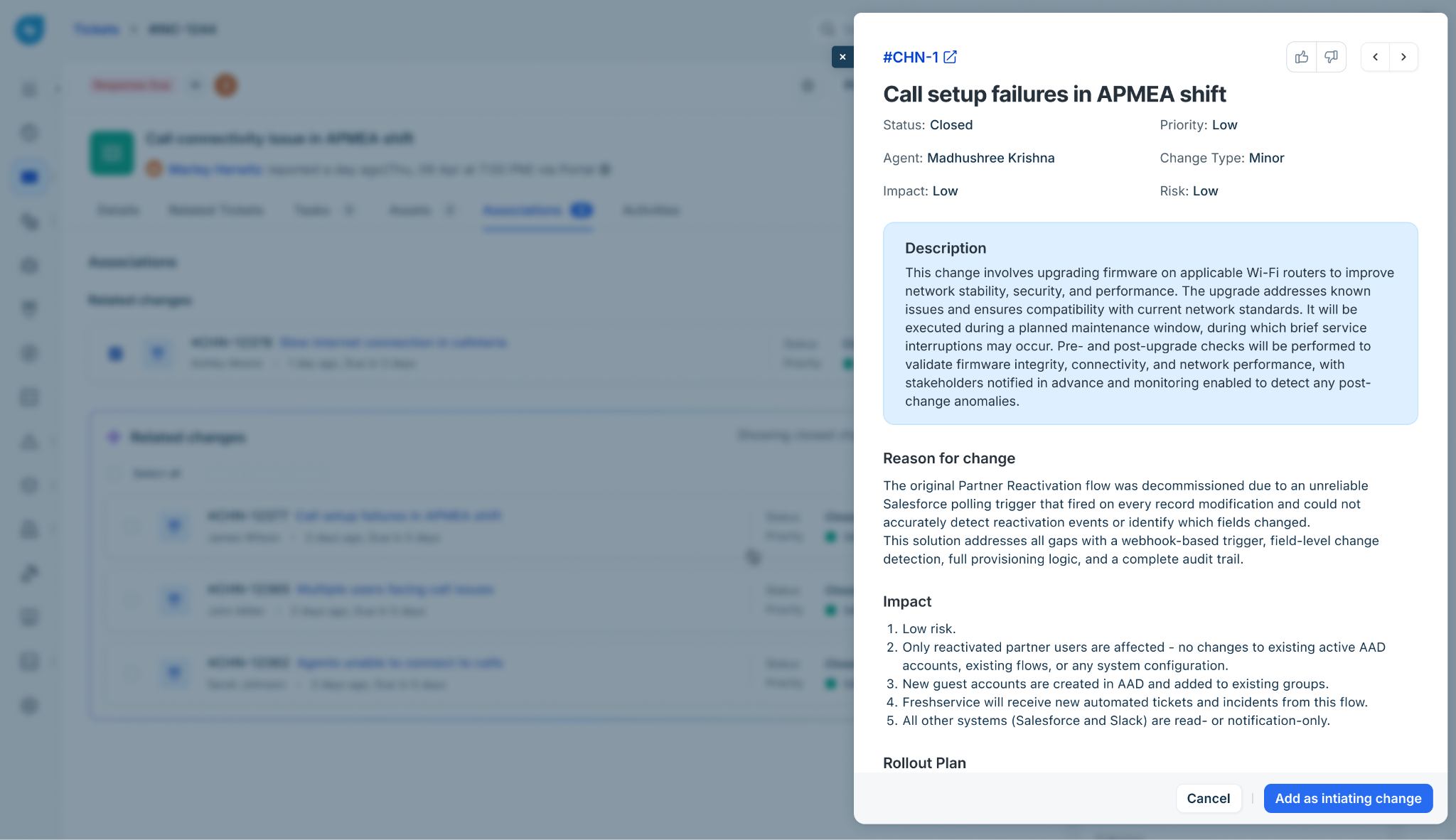
Click Add as initiating change to link the change, or click Cancel to close the panel.
Share feedback on a suggestion
If a suggested change is not relevant to the incident, you can provide feedback to help improve future suggestions.
To provide feedback on a suggestion, follow these steps:
Click the thumbs-down icon next to the suggestion.
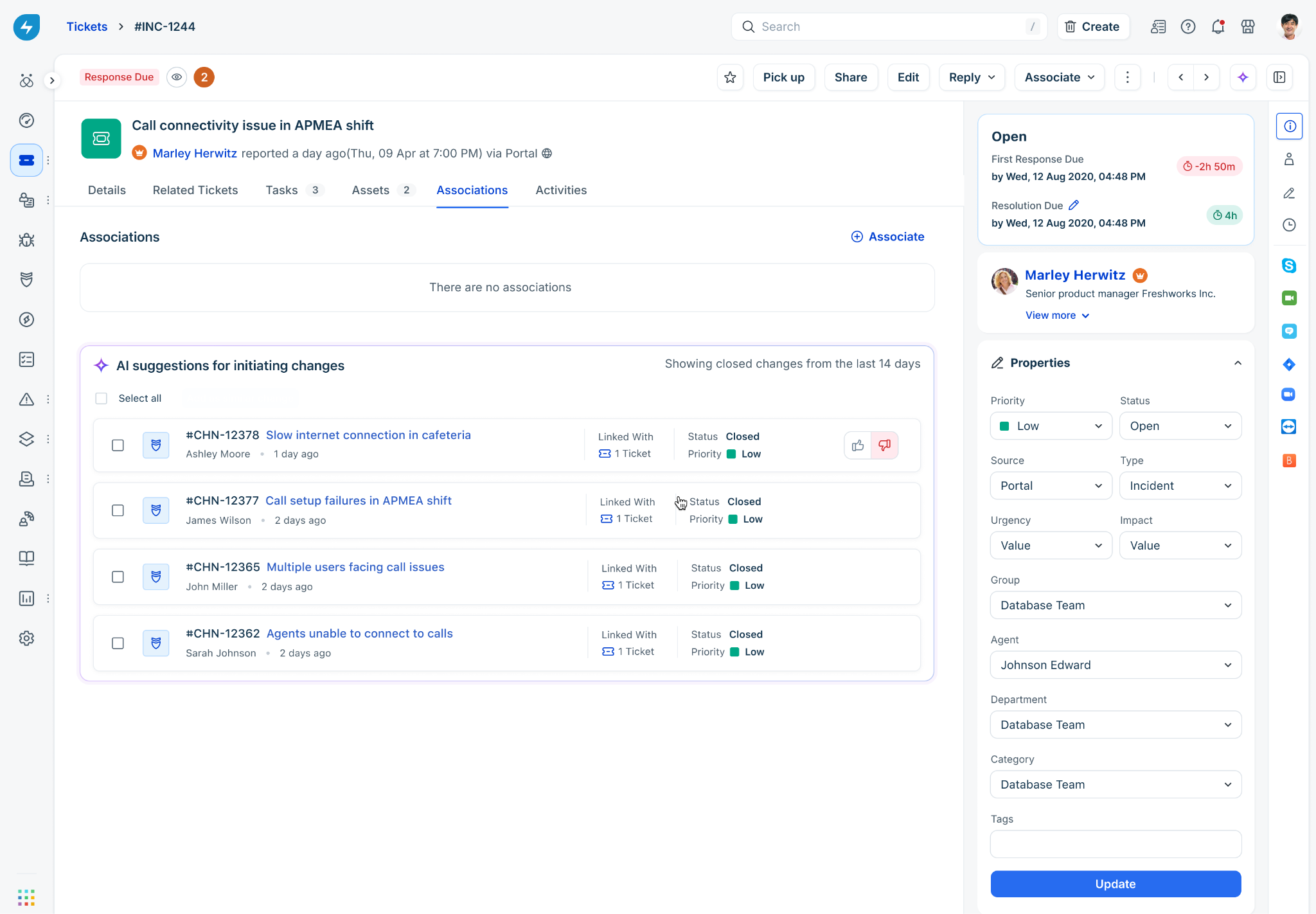
In the Help us improve by sharing your feedback dialog, select the reason that best describes the issue:
Has no relation with ticket
Too old
Same topic, different scope
Others
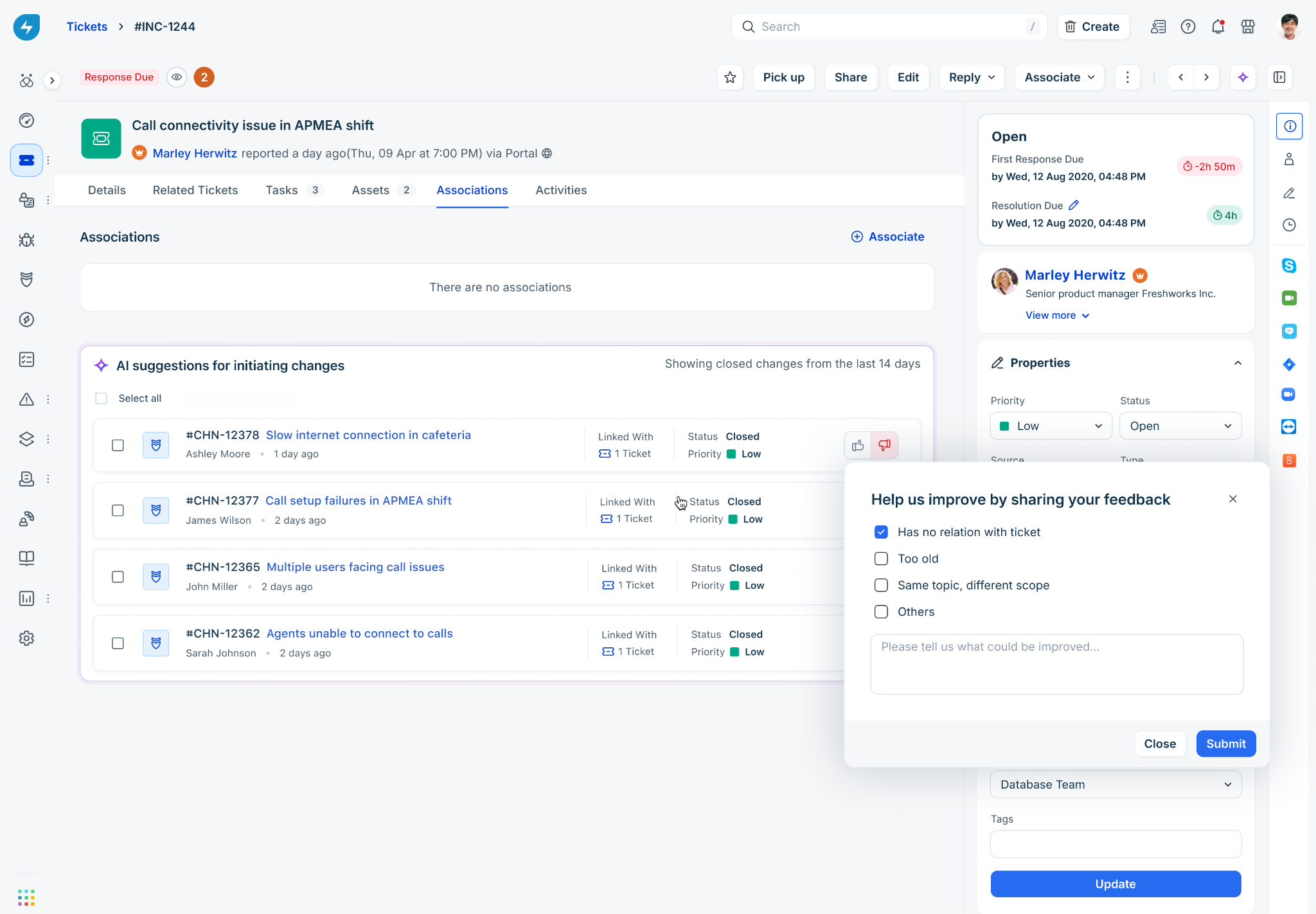
If required, enter additional details in the text box.
Click Submit.
Your feedback helps Freddy AI improve future suggestions. It does not change changes that are already associated with the incident.
Frequently asked questions
The following questions provide answers to common issues you might encounter when using the Initiating Change Suggester.
1. Why don't I see any suggestions on my ticket?
The Initiating Change Suggester only considers changes closed within the last 14 days. If no relevant changes exist within that window, the card displays a "No relevant changes found" message. If you believe the relevant change was closed more than 14 days ago, you can manually search for and link it through the Associations tab.
2. What happens if I link a change by mistake?
You can remove a linked change the same way you remove any other association. Go to the Associations tab, find the change under Changes initiating this ticket and remove it.
3. Does giving feedback affect changes already linked to the incident?
No. Feedback only helps Freddy AI improve the accuracy of future suggestions. It does not affect changes that are already associated with the incident.
4. Can I use this feature for ticket types other than incidents?
The Initiating Change Suggester is currently available for incident tickets only.
5. What information do you consider to identify the initiating changes?
We compare the subject and description of the incident with the subject, description, and reason for change of the Changes to identify the changes that may have initiated the incident.