
 Community
 Video Library
 Agent Training
 Freshservice
 Freshdesk
 Freshchat
 Freshcaller
 Freshsales
 Freshteam
 Freshworks Neo
 Freshsurvey
 Freshservice for MSP
 Note: Translator is available as part of the Freddy AI Copilot add-on. For pricing and availability information, see Freddy AI Copilot pricing.TABLE OF CONTENTS
- Supported plans
- Overview
- Prerequisites
- Watch the video walkthrough
- Correct the detected language
- Manage translation settings for a ticket
- Translate a ticket manually
- Translate individual conversations
- Translate responses before sending
- Turn off translation for a conversation
- Provide feedback on translations
- Limitations
- Related article
Freddy AI Copilot enables agents to translate tickets and replies without using external translation tools. This article explains how to configure translation settings, translate ticket content and responses, and manage multilingual conversations in Freshservice.
Overview
Freddy AI Copilot helps agents work with tickets submitted in different languages by automatically detecting the language of incoming tickets and translating ticket content into the agent's preferred service desk language. This enables agents to review and respond to requests without switching between external translation tools.
With Translator, you can:
Automatically detect the language of incoming tickets.
Automatically translate ticket titles, descriptions, and conversation threads when the ticket language differs from the agent's preferred service desk language.
View the original content when required.
Translate specific messages within a conversation thread.
Correct the detected language when it is incorrect.
Choose between automatic and on-demand translation for a ticket.
Translate tickets manually when a language mismatch is not detected automatically.
Draft responses in your preferred language and preview translations before sending.
Turn off translation for a ticket conversation.
Provide feedback to help improve translation quality.
Video walkthrough
The following video explains how Translator works:
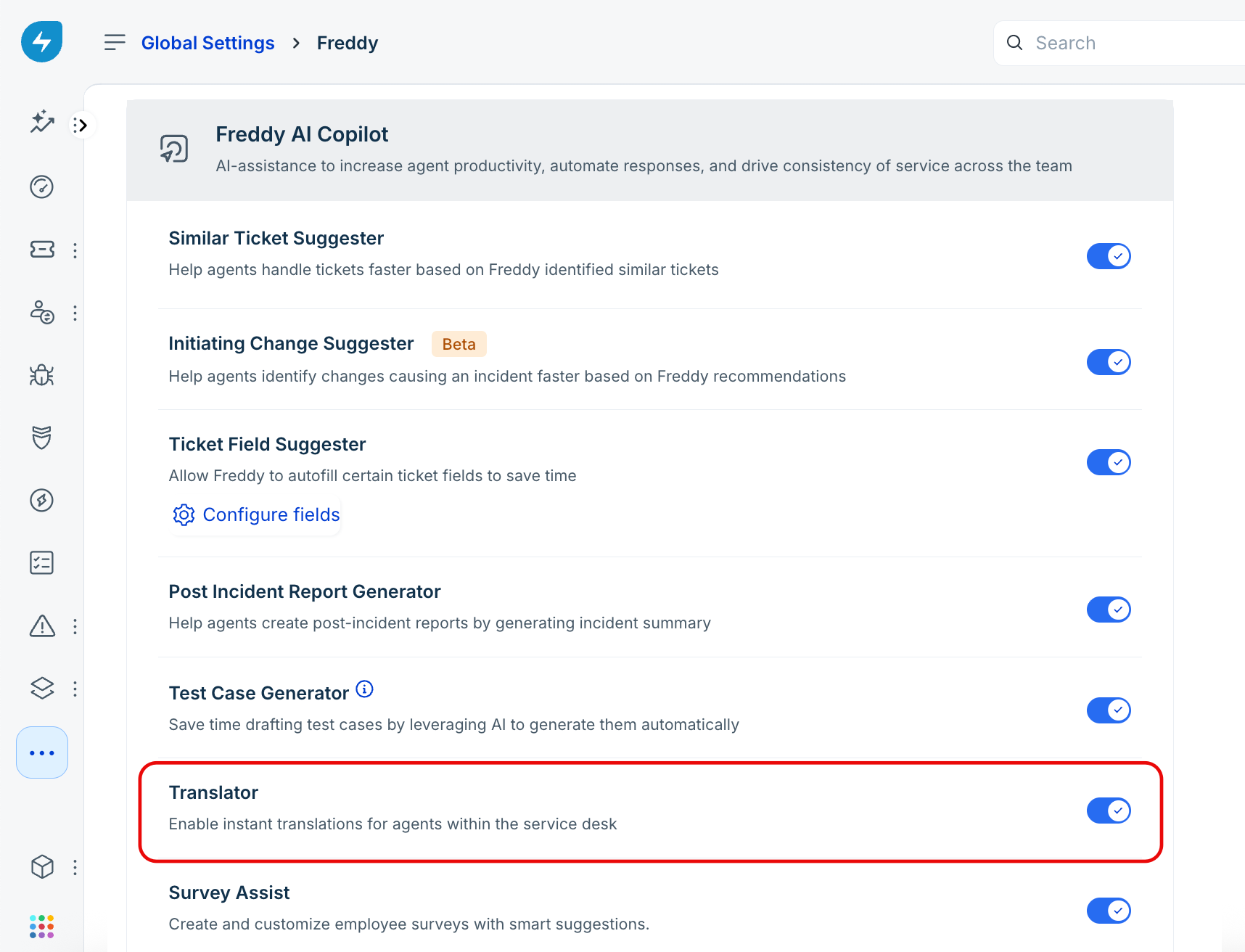
Enable Translator
To enable the Translator for your service desk, follow these steps:
Navigate to Admin > Global Settings > Freddy AI.
Enable the Translator toggle.
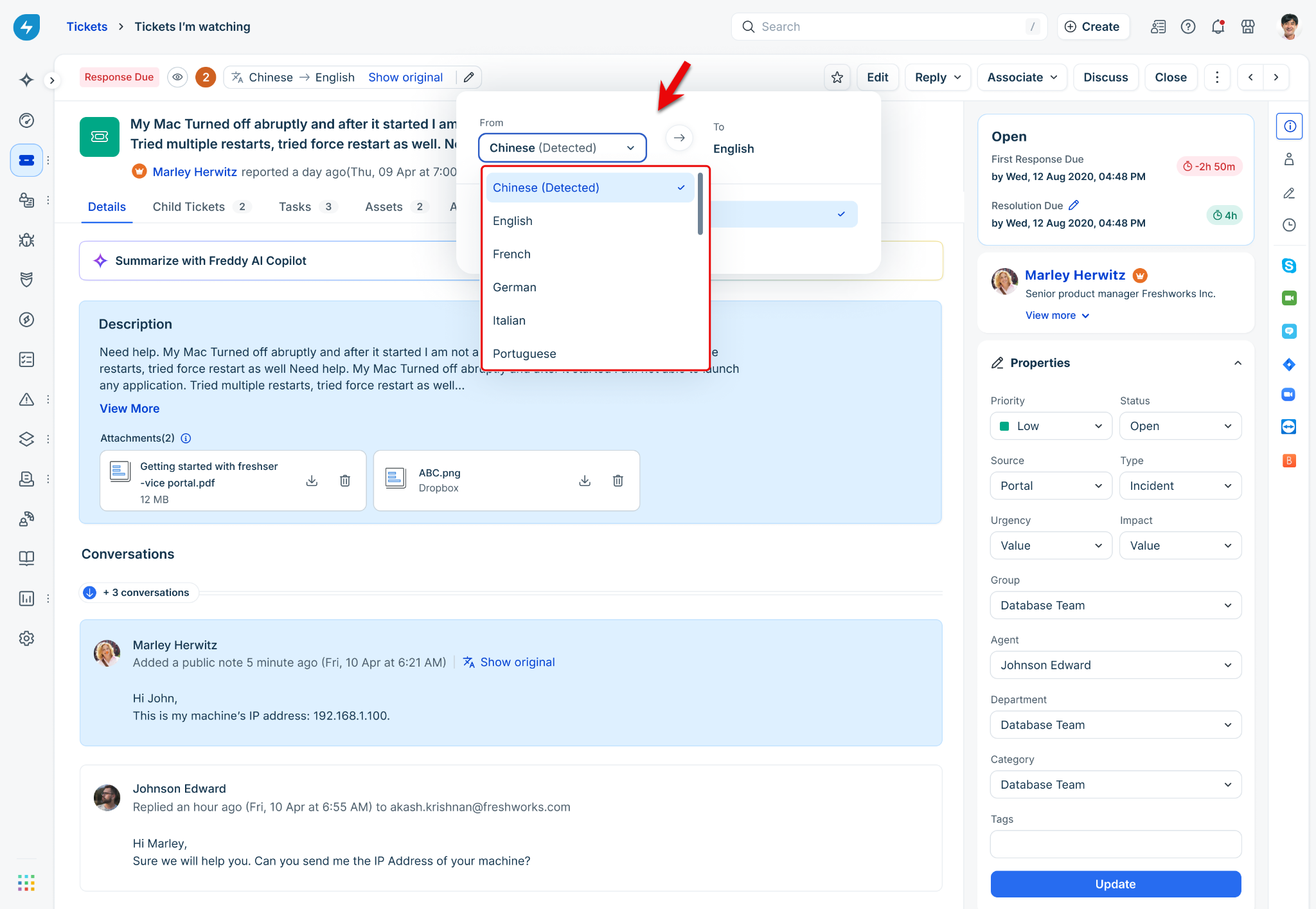
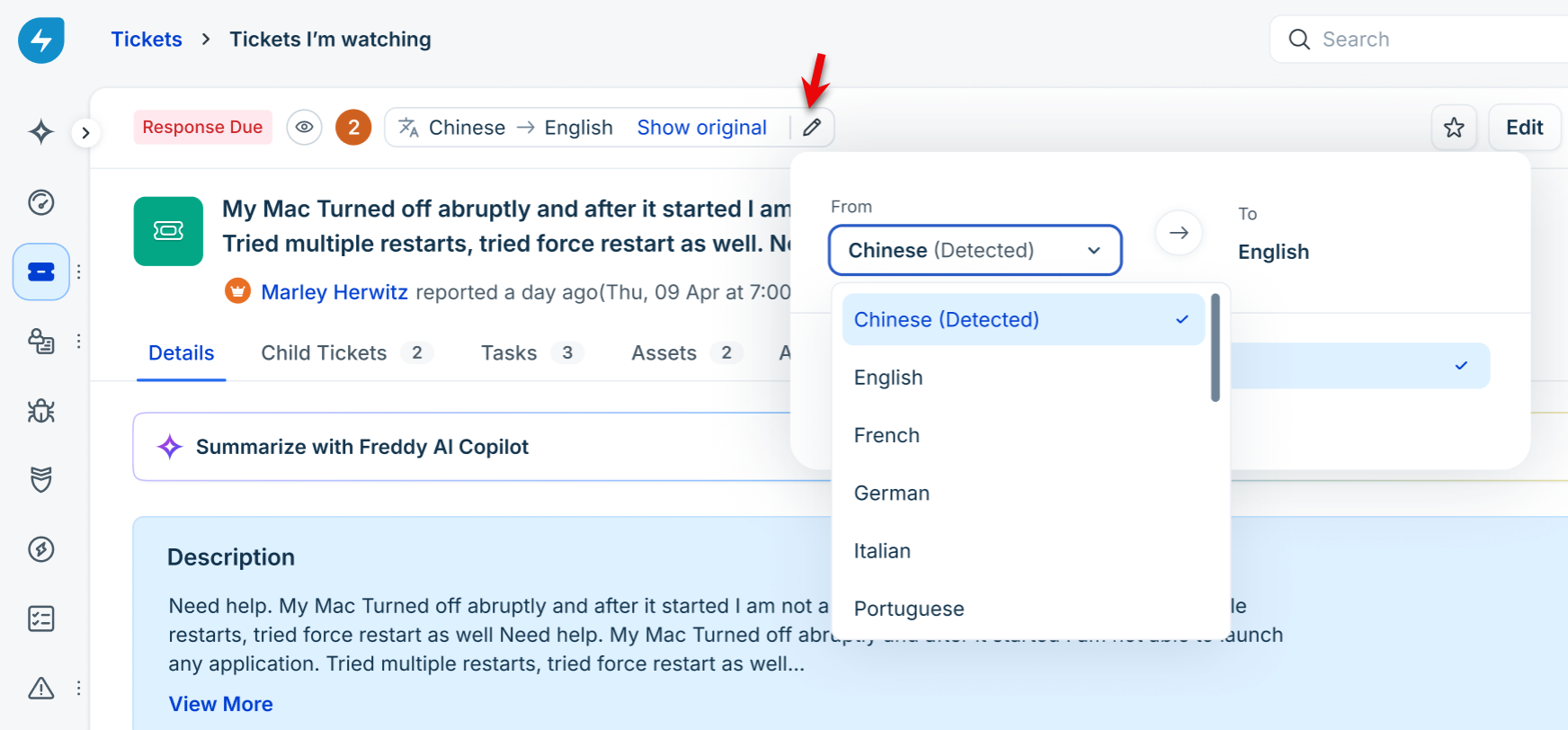
Correct the detected language
If Freddy AI Copilot identifies the wrong language for a ticket, you can update the detected language before translating the ticket.
Open the language selector on the ticket by clicking the Edit icon.
Under the From drop-down menu, choose the correct language.
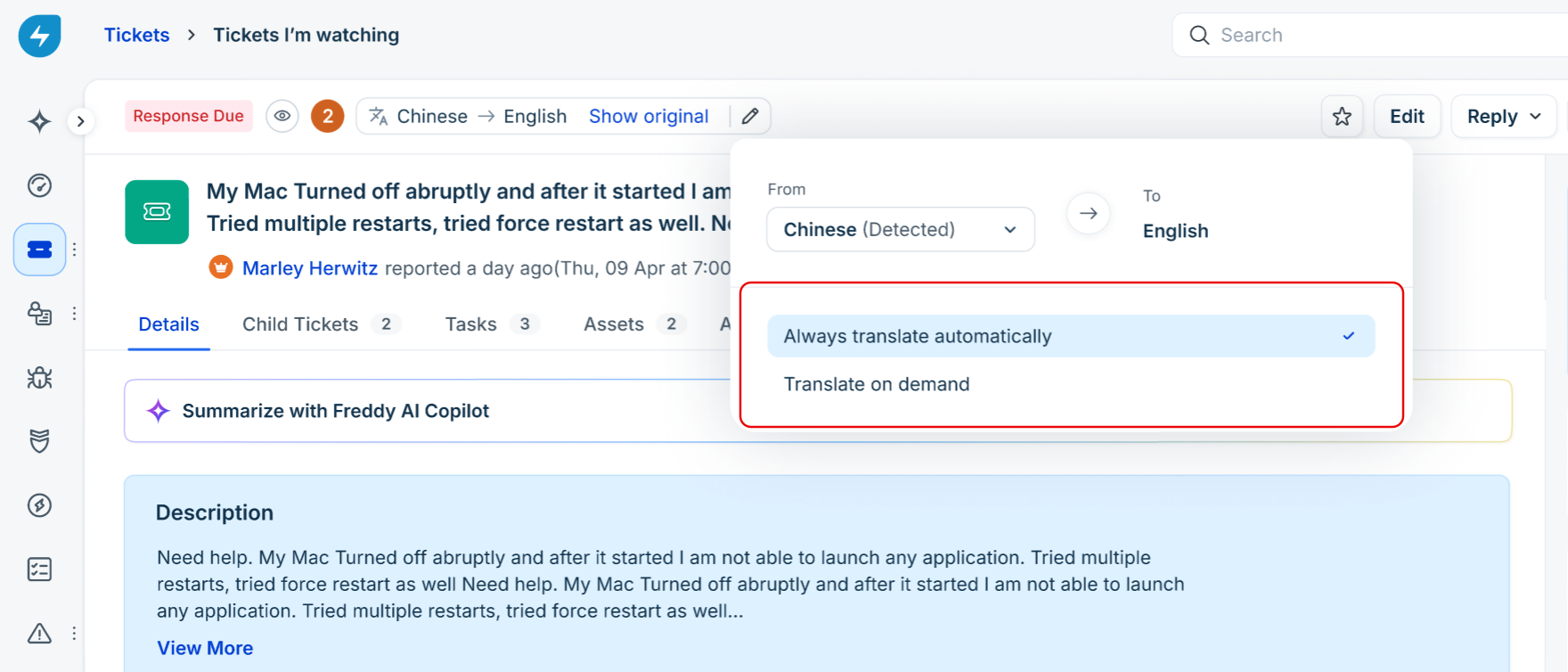
Manage translation settings for a ticket
You can control how translation works for an individual ticket. The available options include:
Automatic translation: Automatically translates the ticket when the ticket language differs from your preferred language.
Translate on demand: Translates content only when you choose to.
To update the translation setting, follow these steps:
Open the translation options on the ticket.
Select the required translation mode.
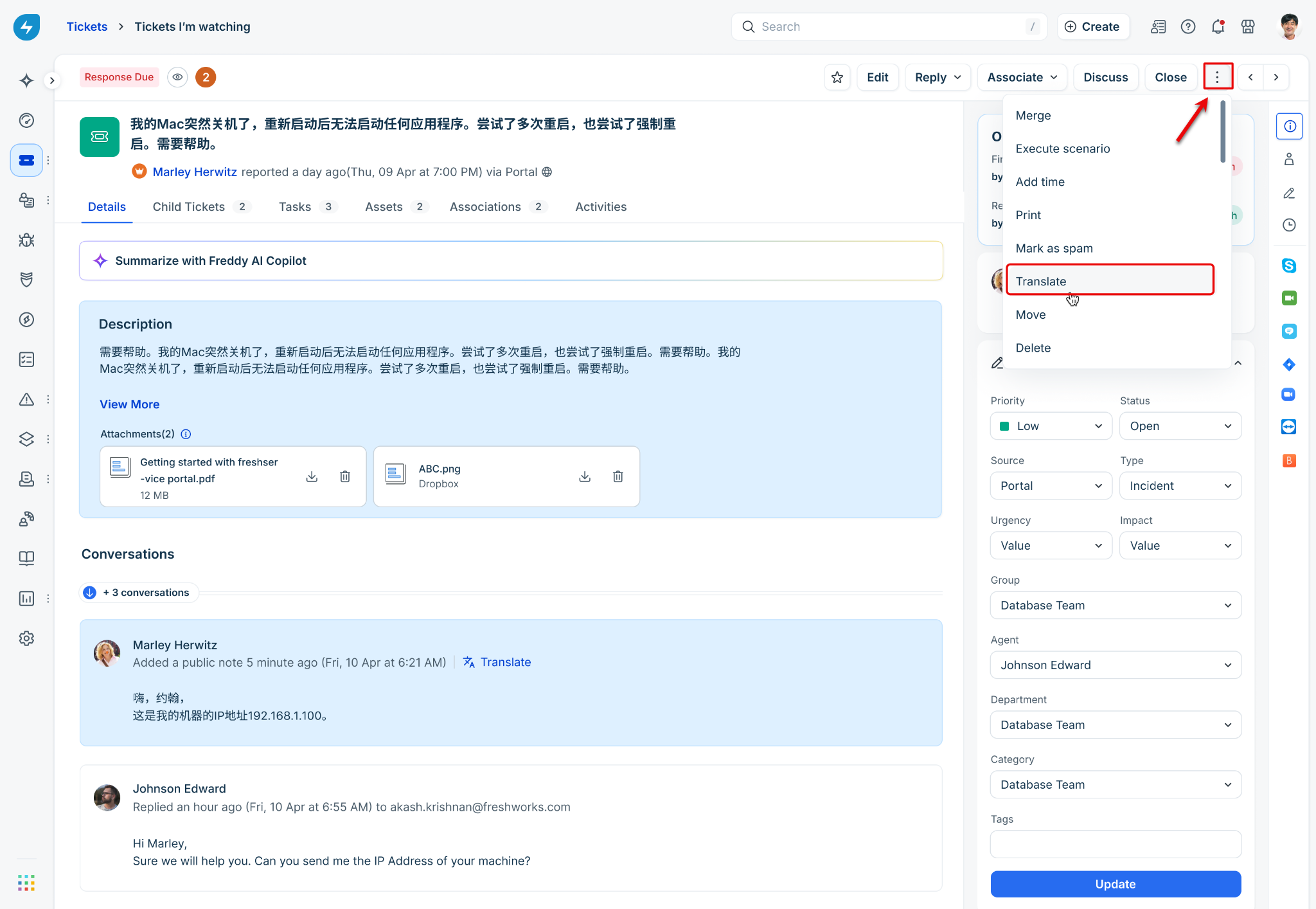
Translate a ticket manually
In some cases, Freddy AI Copilot may not automatically detect a language mismatch. When this happens, you can manually translate the ticket by following these steps:
Open the ticket.
Click More options.
Select Translate. The ticket content is translated into your preferred service desk language.
Translate individual conversations
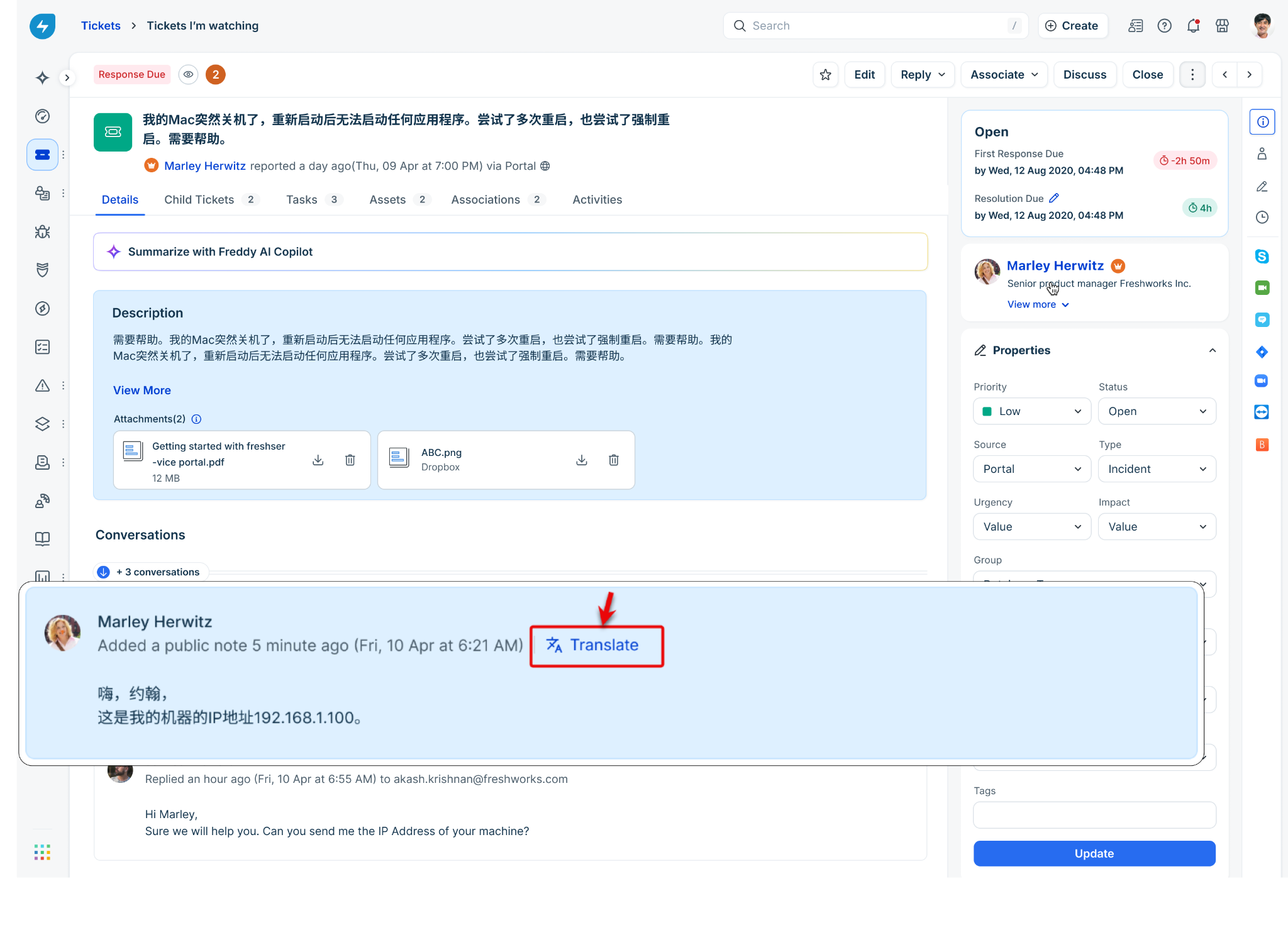
You can translate specific messages within a ticket conversation without translating the entire ticket.
To translate a message, follow these steps:
Locate the conversation entry.
Click Translate.
To view the original content, click Show original.
Translate responses before sending
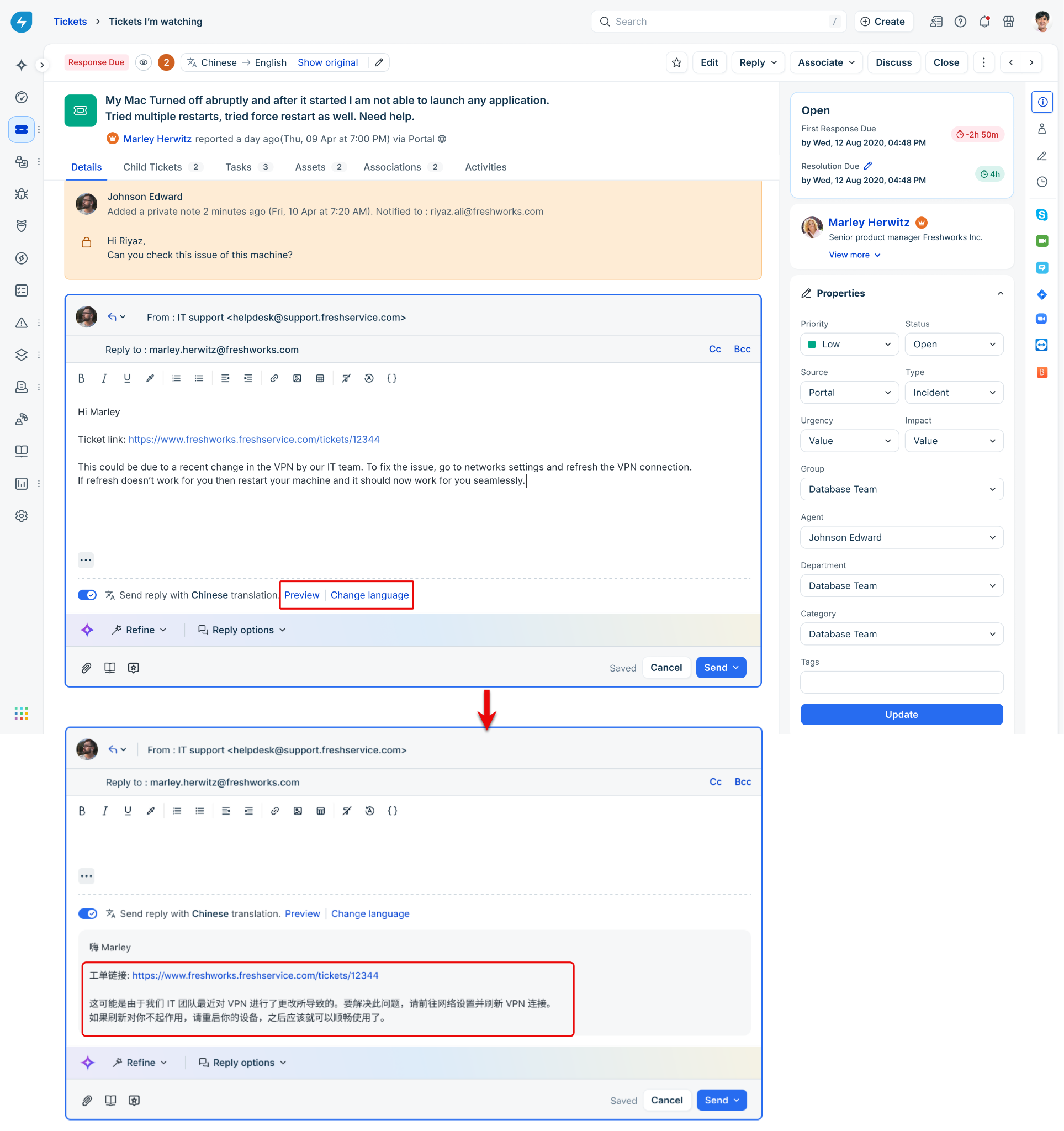
Freddy AI Copilot can translate your responses into the ticket's language before you send them.
Note: Freddy AI Copilot displays the reply translation toggle whenever the ticket language differs from your preferred service desk language.
You can:
Draft the response in your preferred language.
Preview the translated response or change the language using the options shown in the image below.
Confirm the translation before sending.
Send the response in the requester's language.
Turn off translation for a conversation
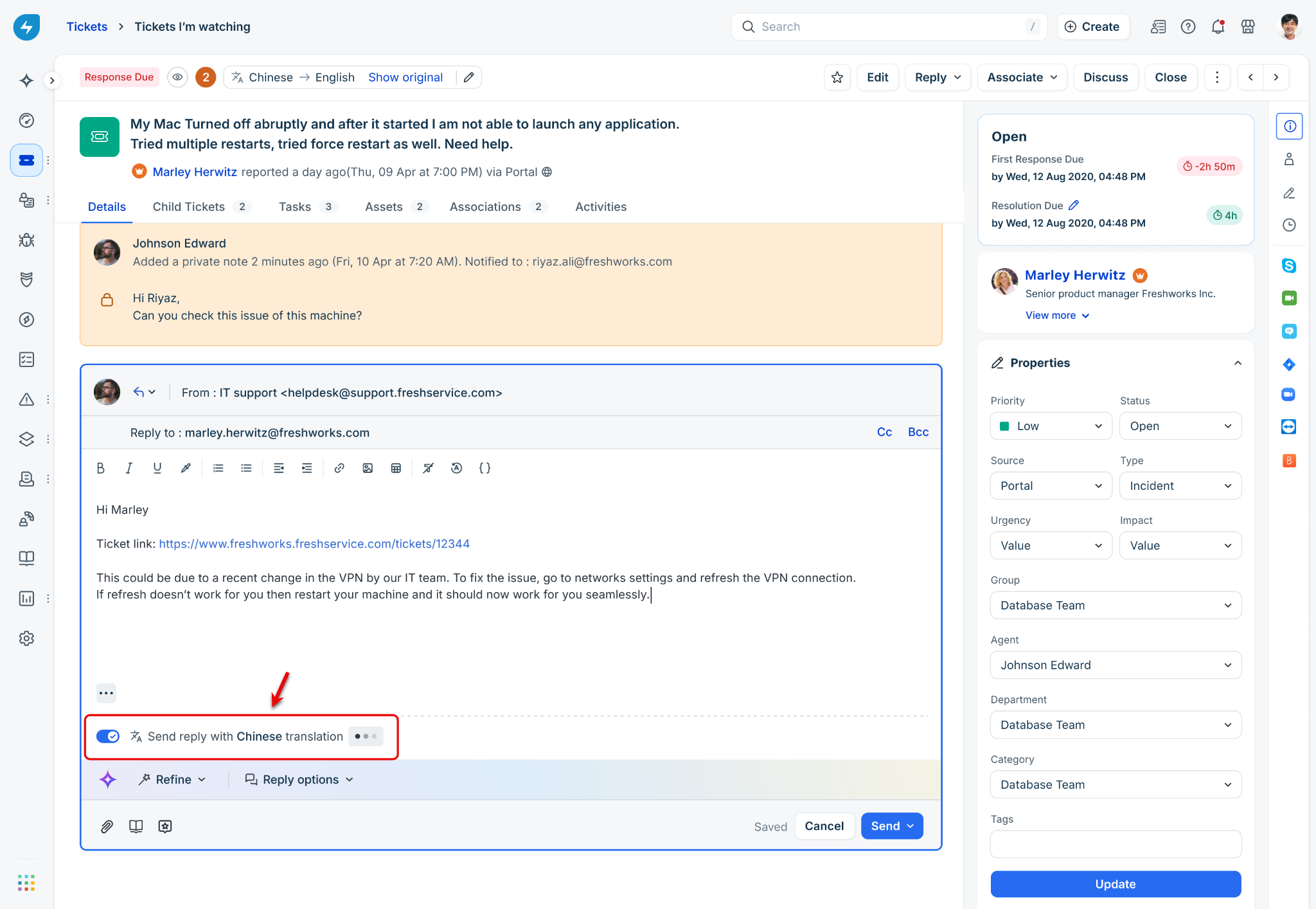
You can disable translation for a conversation while drafting a response by following these steps:
Open the reply editor.
Turn off the translation toggle shown in the image below. Subsequent replies in the ticket conversation are no longer translated automatically.
Provide feedback on translations
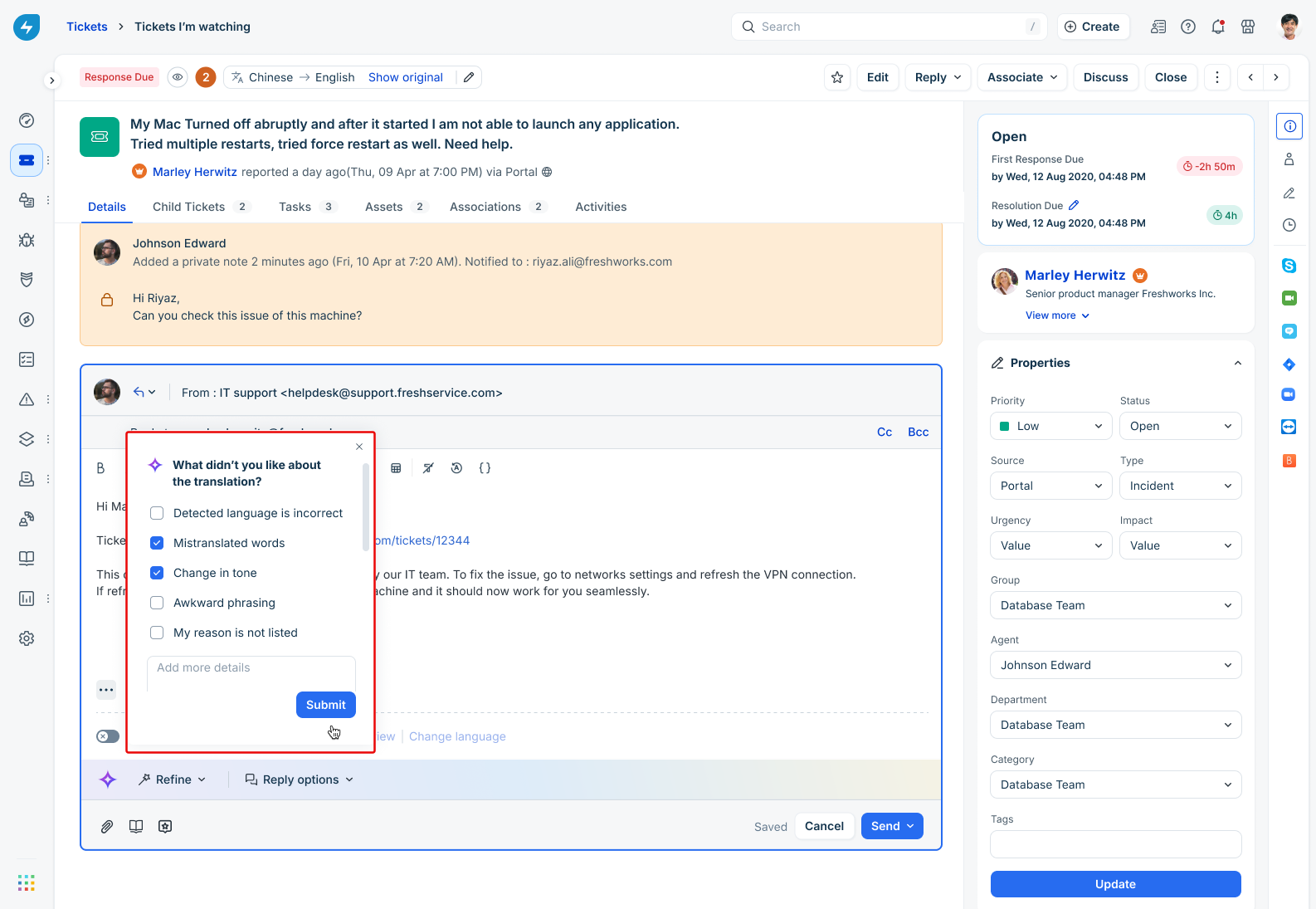
After you send a translated response, Freddy AI Copilot prompts you to provide feedback on the translation. Use the available feedback options to indicate whether the translation was helpful and accurate.
Limitations
The following are some known limitations:
Translation is available only for supported service desk languages.
Attachments are not translated.
The maximum supported translation content size is 50,000 characters per content block, including ticket descriptions and responses.
Related article
To view the supported translation languages, see Languages supported for translation in Freshservice.