
 Community
 Video Library
 Agent Training
 Freshservice
 Freshdesk
 Freshchat
 Freshcaller
 Freshsales
 Freshteam
 Freshworks Neo
 Freshsurvey
 Freshservice for MSP
 The Conversational Copilot helps you investigate issues, retrieve information from your organization's knowledge sources, recommend resolution steps, and generate contextual replies while you work on tickets.
This article explains how to access the Conversational Copilot in natural language to resolve tickets more efficiently.
Prerequisites
Before you use the Conversational Copilot, ensure the following:
You have a Freddy AI Copilot license assigned to your account.
Your administrator has configured the Conversational Copilot.
Your organization's knowledge sources contain accurate and up-to-date information.
Overview
The Conversational Copilot, powered by Freddy AI, helps you resolve tickets faster by bringing together information and actions in one place. Instead of manually searching for similar tickets, knowledge articles, or other sources, you can use the Ask me anything field to ask questions in natural language.
Based on your organization's Conversational Copilot configuration and available knowledge, it can surface insights from similar tickets, find related tickets, retrieve relevant information, generate resolution suggestions, and draft replies for requesters. Each response includes citations so that you can review the referenced sources and verify the information.
Interact with the Conversational Copilot
Use the Conversational Copilot from the Freddy AI Copilot side panel on the ticket details page. If the side panel is not already open, select the Freddy AI icon in the ticket action bar to open it.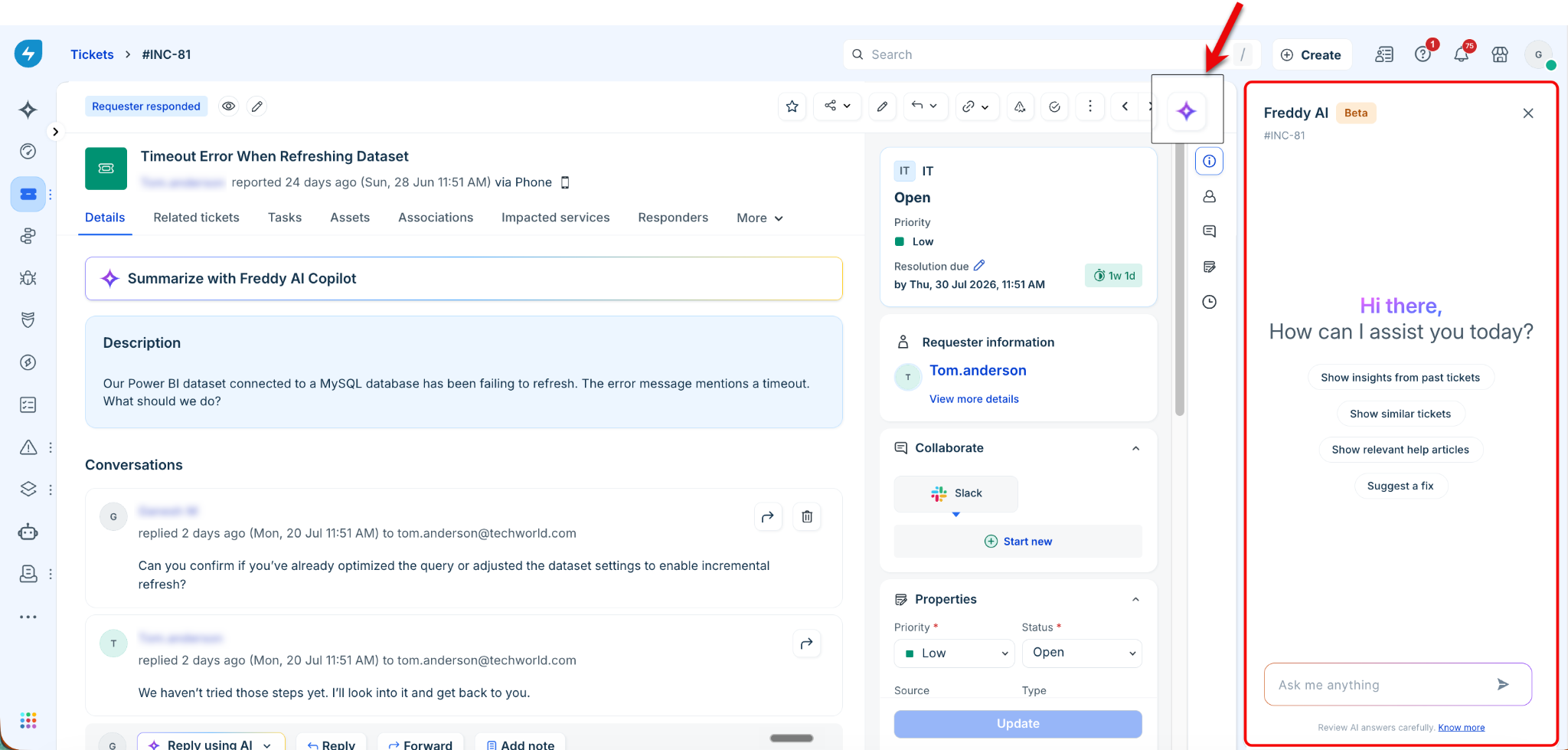
The side panel displays suggested actions based on the current ticket. You can also enter your own request in the Ask me anything field.
To interact with the Conversational Copilot, follow these steps:
Open the Freddy AI Copilot side panel.
Enter your request in the Ask me anything field.
Press Enter or select Send.
Review the generated response.
Open the cited sources, if required, to verify the referenced information.
The following sections describe common tasks you can perform with the Conversational Copilot.
Get insights from similar tickets
Use the Conversational Copilot to analyze previously resolved tickets and understand how similar issues have been resolved. The generated insights help you investigate the current issue by identifying common resolution patterns across similar tickets.
To view these insights, select View Insights on the ticket details page. Alternatively, enter a request in the Ask me anything field to retrieve the same information conversationally.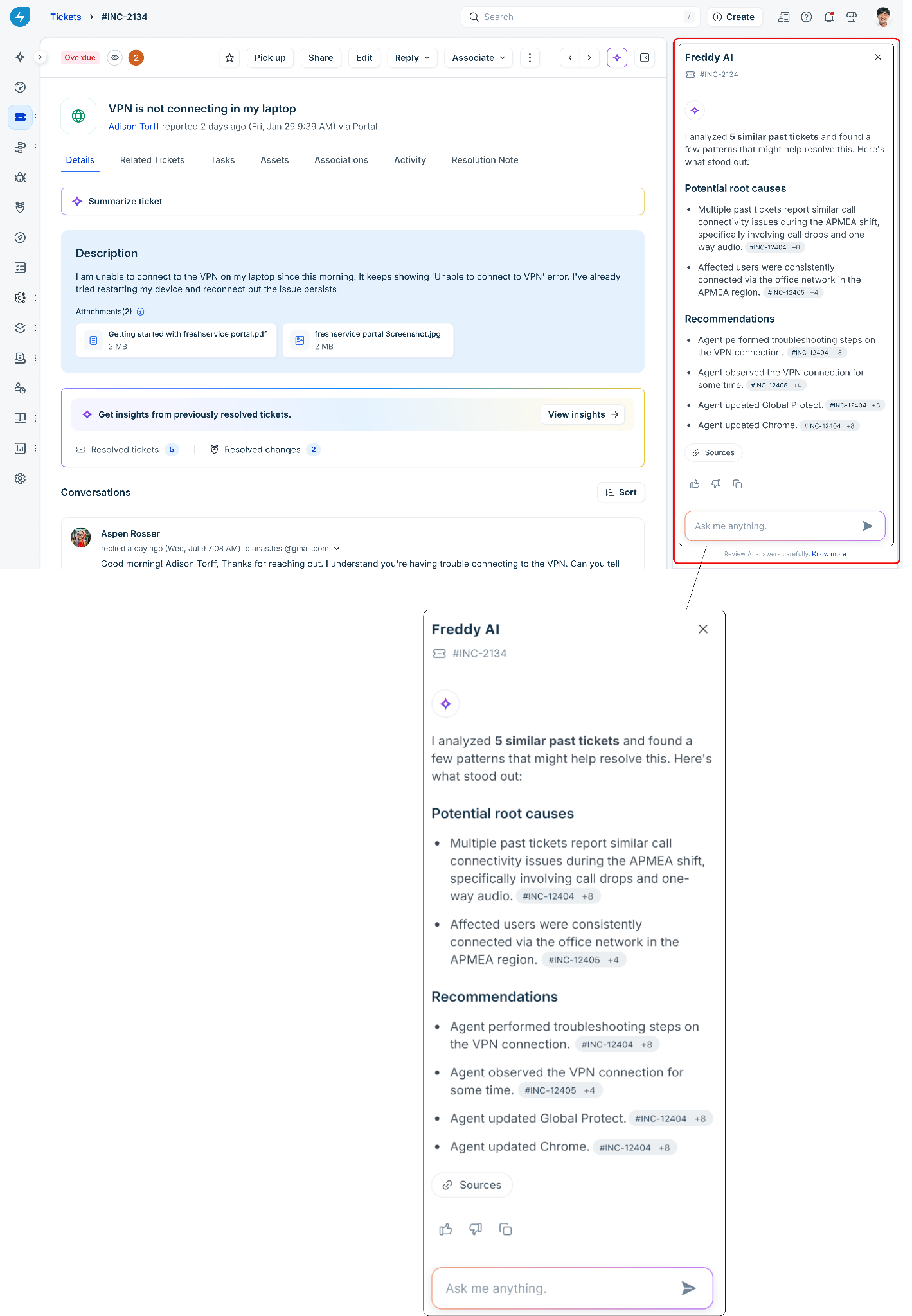
The generated insights identify potential root causes across similar tickets and recommend resolution steps based on previously resolved issues. Responses also include citations to the referenced tickets so that you can review the original context and verify the recommendations.
For more information on Resolution Insights, see Resolve tickets faster with Resolution Insights.
Show similar tickets
Use the Conversational Copilot to identify tickets that are similar to the current ticket. Reviewing similar tickets helps you understand how related issues have been investigated and addressed. You can review previous troubleshooting steps, conversations, work notes, attempted resolutions, and, when available, the final resolution to help diagnose and resolve the current ticket more efficiently.
To view similar tickets, select the Related tickets tab on the ticket details page. Alternatively, enter a request in the Ask me anything field to retrieve the same information conversationally.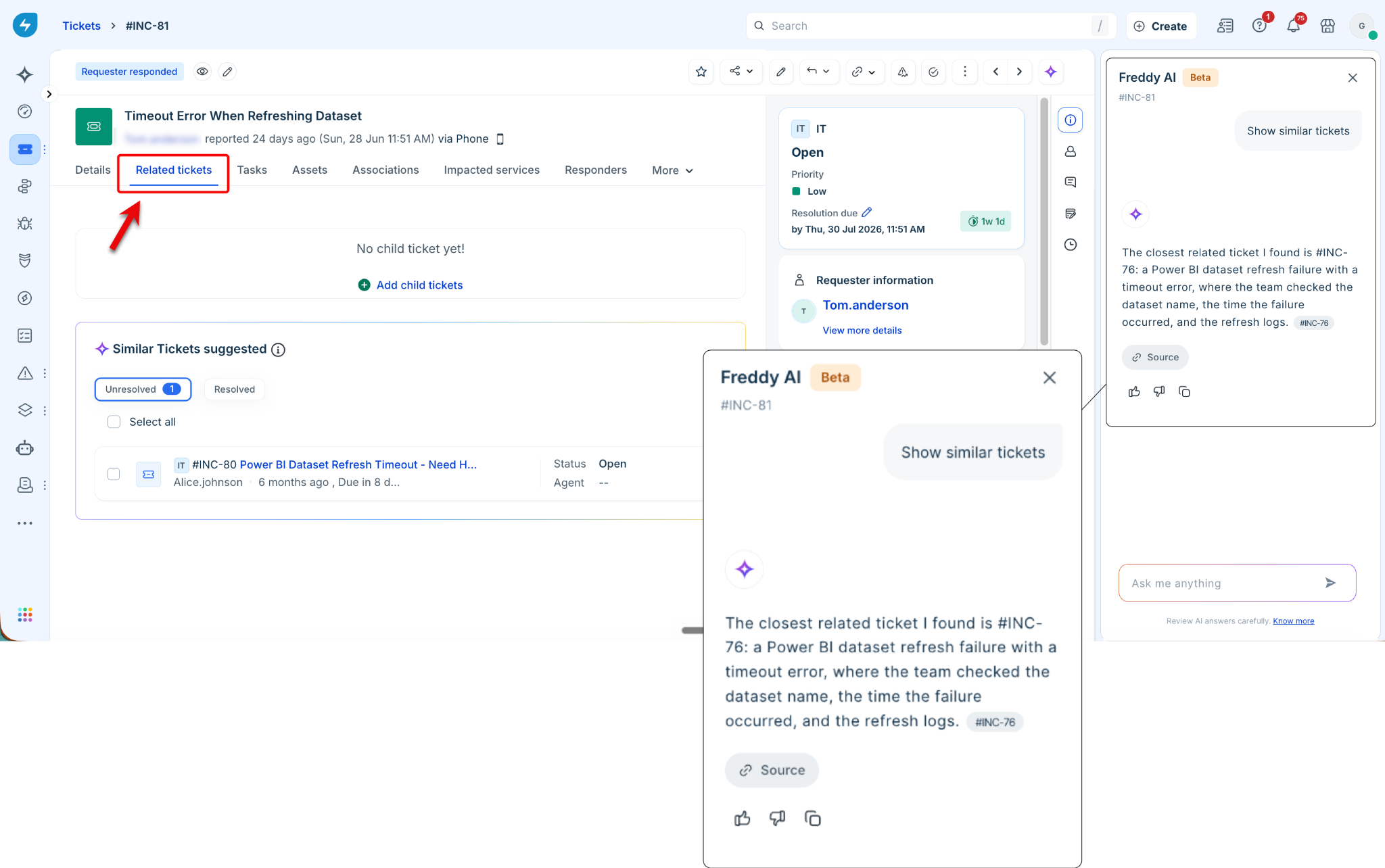
For more information on finding similar tickets, see Identify similar tickets using Similar Ticket Suggester.
Get answers from your organization's knowledge
Use the Conversational Copilot to retrieve information from your organization's knowledge sources without leaving the ticket. Instead of manually searching across multiple knowledge sources, use the Ask me anything field in the Freddy AI Copilot side panel to ask questions in natural language to receive contextual answers based on your organization's available knowledge. Responses include citations to the referenced knowledge articles so that you can review the source content and verify the information.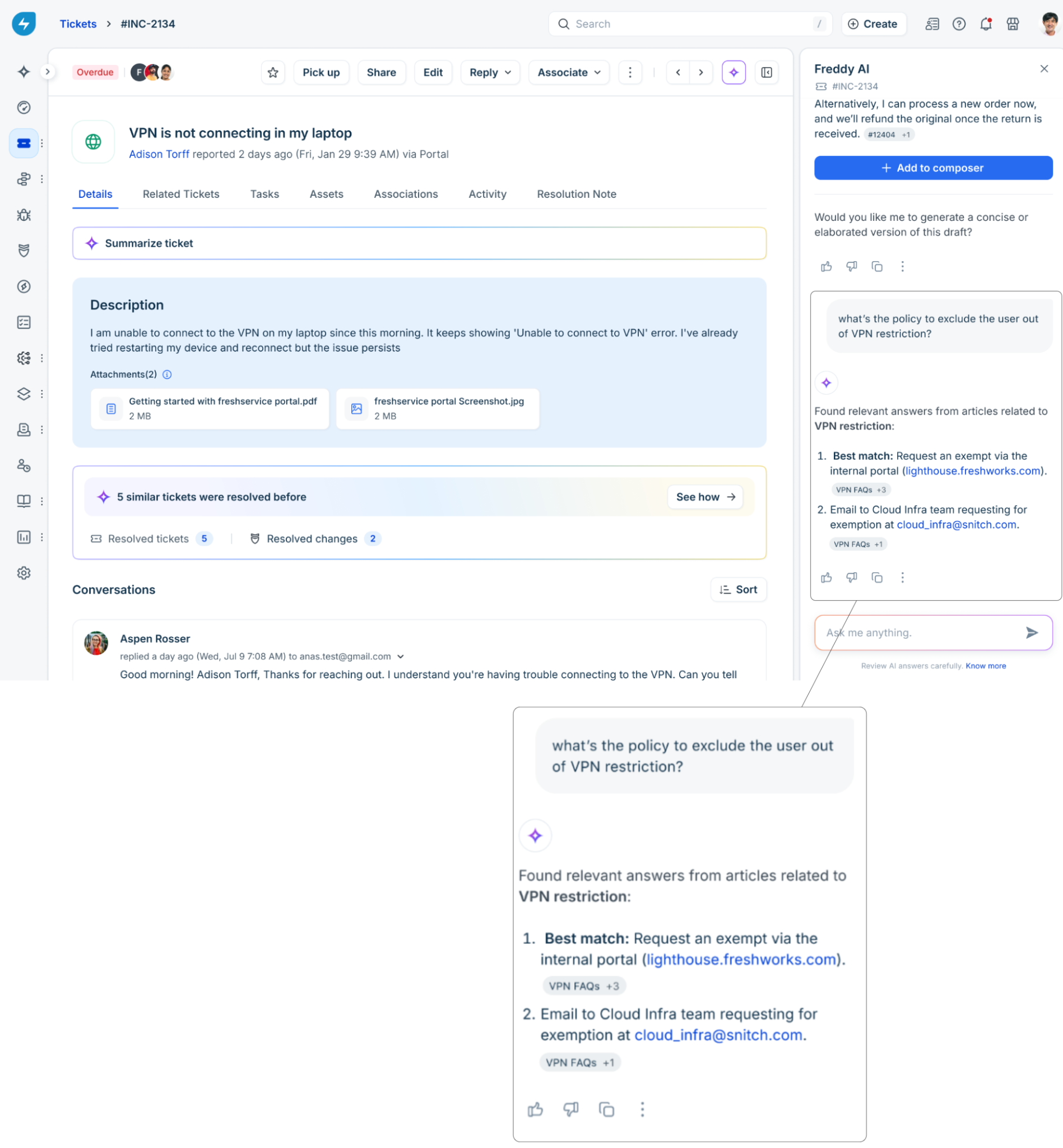
Get resolution suggestions
Use the Conversational Copilot to generate possible resolution steps for the current ticket. It analyzes the ticket context together with your organization's available knowledge to recommend relevant troubleshooting steps. Responses include suggested resolution steps and citations to the referenced sources so that you can review the information and verify the recommendations.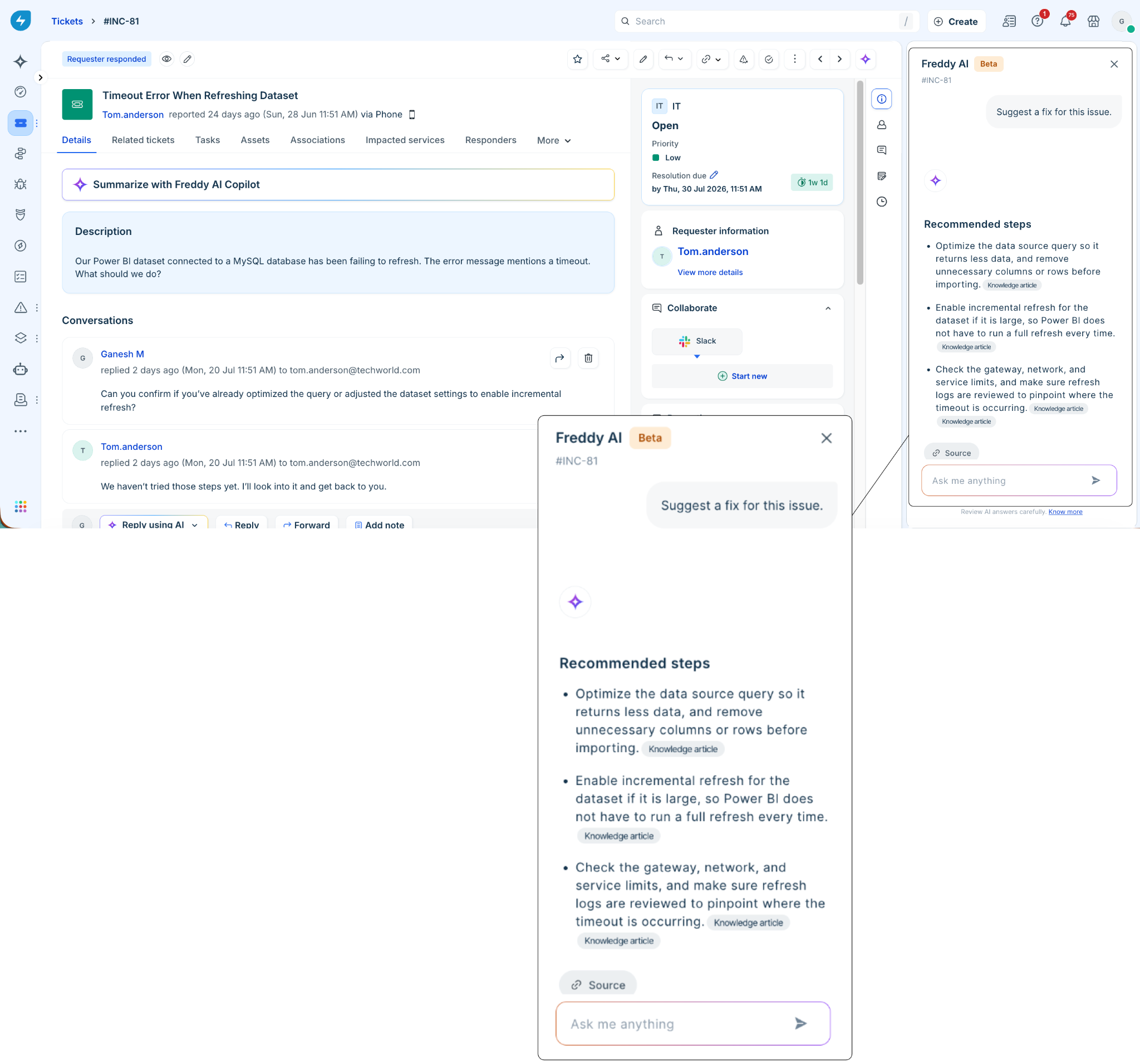
Generate reply suggestions
Use the Conversational Copilot to generate contextual replies for the current ticket. In the Ask me anything field on the Freddy AI Copilot side panel, conversationally ask it to draft a response for the ticket conversation. For example, "Draft a reply informing the requester that we are investigating the issue and will provide an update within two business hours."
The Conversational Copilot analyzes the ticket context and generates a suggested reply for your review. If the suggested reply meets your requirements, select + Add to composer to insert it into the reply editor. You can then edit the reply before sending it to the requester or ask the Conversational Copilot to rewrite it to make it more concise or more detailed.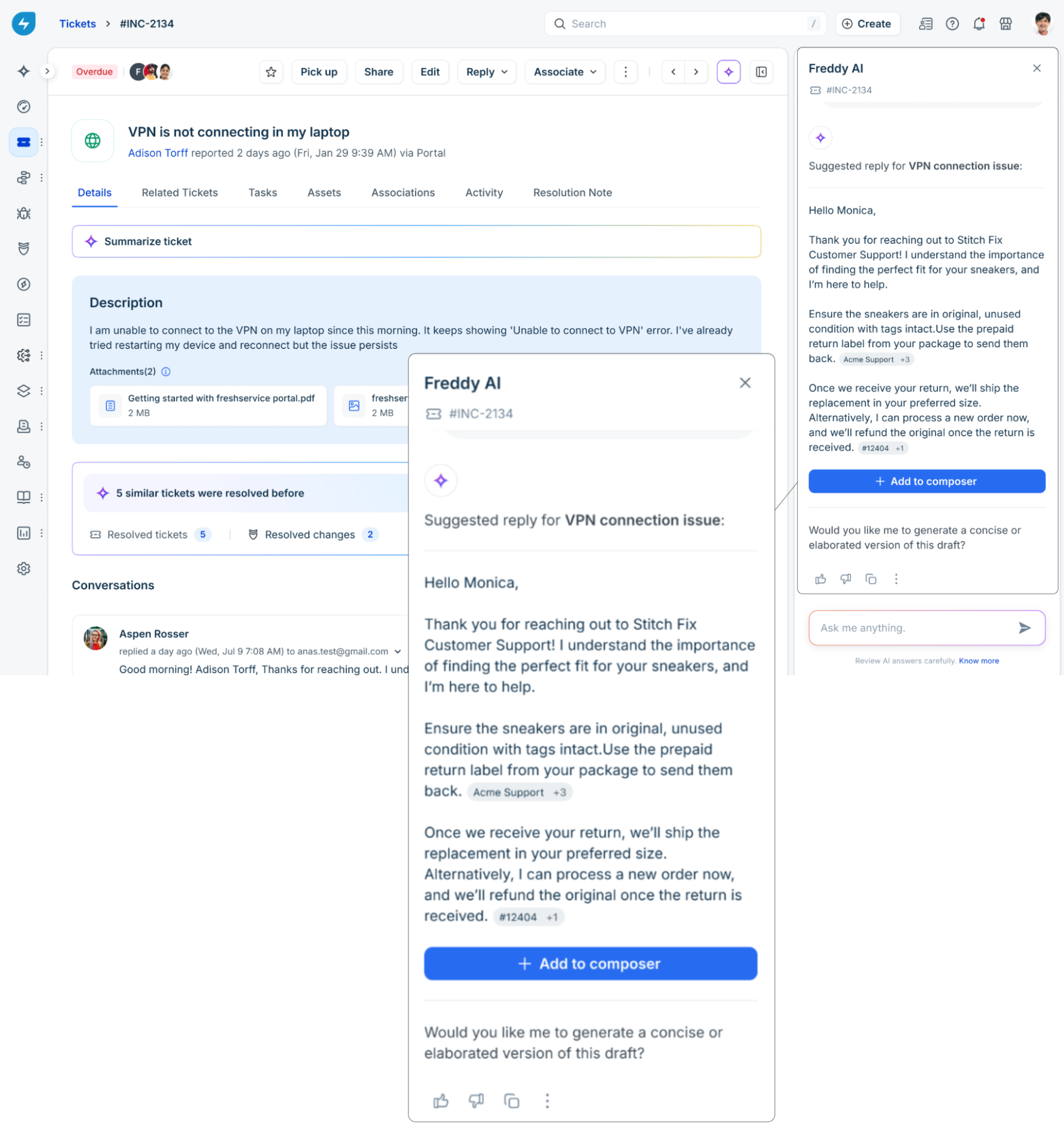
Review sources cited in responses
The Conversational Copilot cites the sources it uses to generate its responses. Citations help you understand where the information comes from and verify it before you use the response to investigate or resolve a ticket.
Citations appear inline in the response next to the information they support. Depending on the information used to generate the response, citations can reference:
A previously resolved ticket with a similar issue or resolution.
A knowledge article from your organization's connected knowledge sources.
Select a citation to view details about the source. For example, when the citation refers to a ticket, you can view the ticket number, title, and description to understand the context behind the response.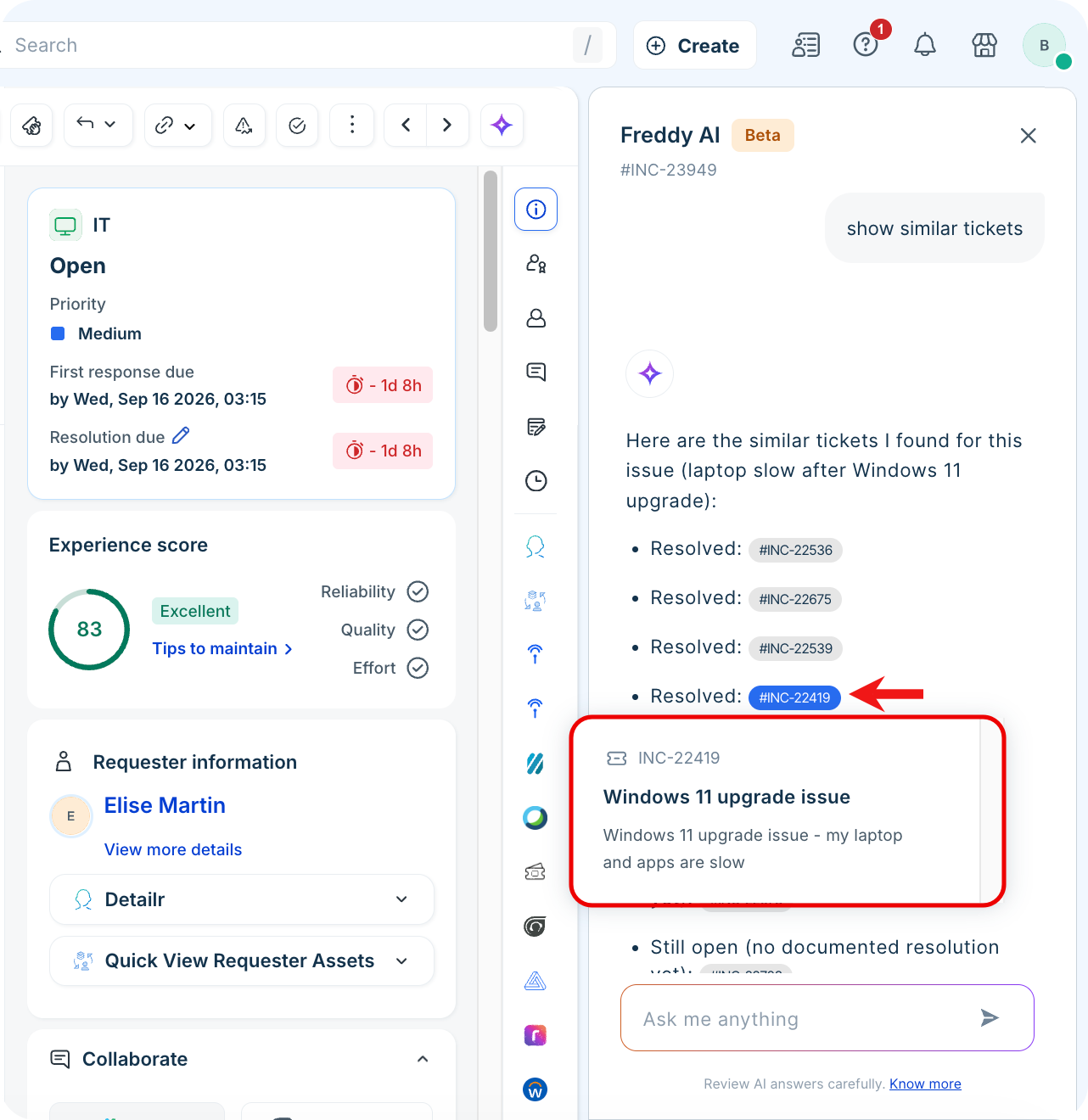
To review all the sources cited in a response, select Source. The Source panel displays the complete list of sources used to generate the response. You can review the details of each source to verify the information and its relevance to the current ticket.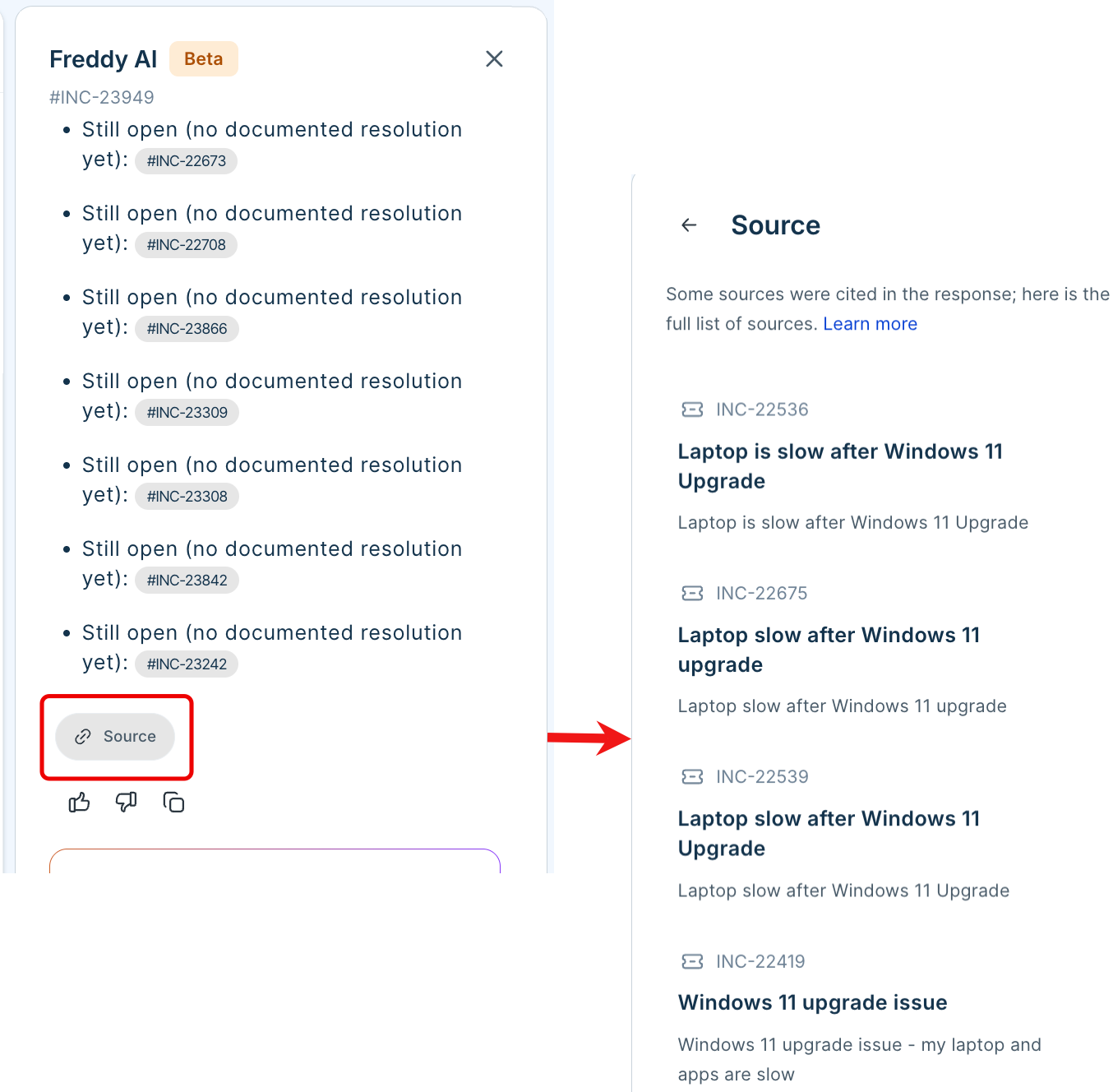
Best practices
Follow these best practices to help the Conversational Copilot generate accurate and relevant responses:
Keep your knowledge base articles accurate and up to date.
Document common issues, troubleshooting steps, and standard operating procedures in your knowledge base.
Review AI-generated responses before sharing them with requesters.
Use the cited sources to verify information when handling complex or business-critical requests.