
 Community
 Video Library
 Agent Training
 Freshservice
 Freshdesk
 Freshchat
 Freshcaller
 Freshsales
 Freshteam
 Freshworks Neo
 Freshsurvey
 Freshservice for MSP
 TABLE OF CONTENTS
- Get started with Freddy AI Agent
- AI Agent features
- Coexistence of Freddy AI Agent Studio and AI Agent (Classic)
With the increasing volume of user inquiries and support requests, traditional methods of agent-based support struggle to keep up with the demand. This results in long waiting times when employees encounter an issue or need assistance, which can be frustrating and can result in productivity losses.
With Freddy AI Agent, resolve incidents and service requests with generative AI-powered agents that are ready to start helping on day one. Bypass traditional experiences powered by forms and tickets with Freddy AI Agent's truly conversational experiences that is zero-touch and personalized.
Get started with Freddy AI Agent (Classic)
To get started with Freddy AI agent, you must first install ServiceBot on Microsoft Teams and Slack.
- You can get started from the Admin page in two ways. You can set things up from the Freddy AI configurations page or the ServiceBot for Microsoft Teams / Slack.
- Next, enable Freddy AI agent to get started
Here’s how you can take it from there: Setup on Microsoft Teams | Setup on Slack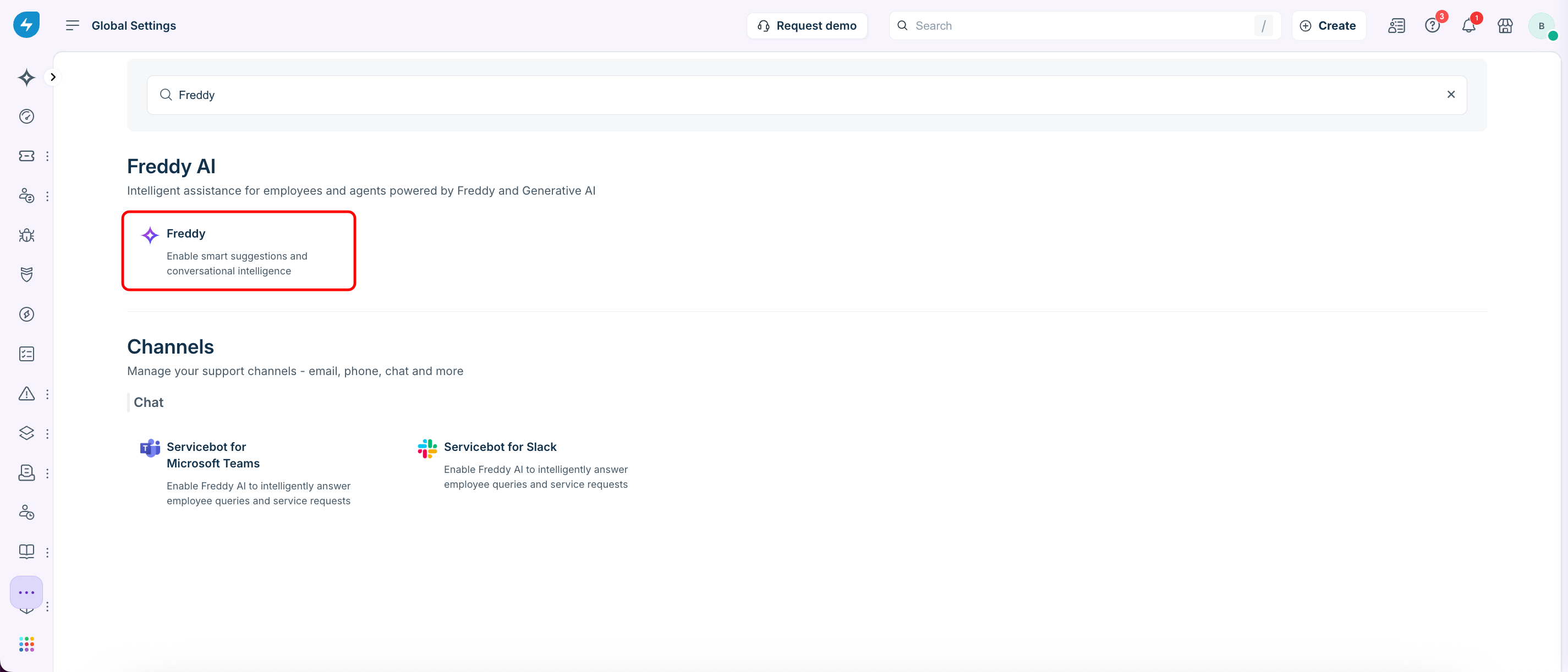
AI Agent (Classic) features
Actionable Response Summaries
Enable employees to quickly find relevant information and take immediate action with curated and actionable responses sourced and summarized from help articles. This approach reduces the time spent on searching through lengthy help articles and improves time to resolve issues through self-service.
Note: This capability is now available on channels within Slack & Microsoft Teams now. Learn how to enable Freddy AI Agent on support channels in Slack or Microsoft Teams.
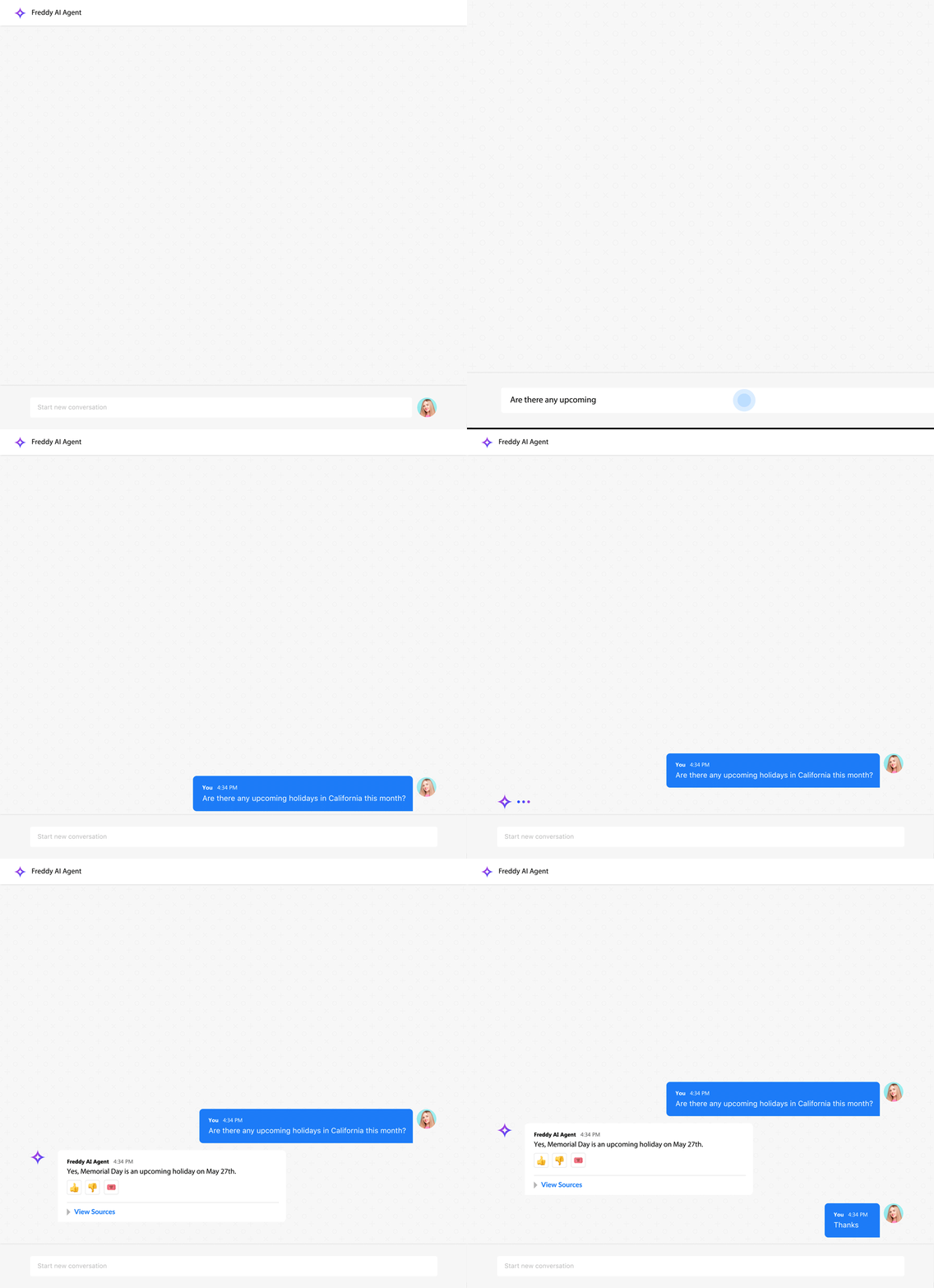
Multi-turn Conversations
Enable effective and quicker issue resolution by enhancing communication between employees and the Freddy AI Agent with continuous two-way dialogues. This interactive experience enables employees to have extended conversations with Freddy AI Agent about their issues and provide continued handholding until their issues are fixed.
Note: This feature is now available on channels within Slack & Microsoft Teams now. Learn how to enable Freddy AI Agent on support channels in Slack or Microsoft Teams.
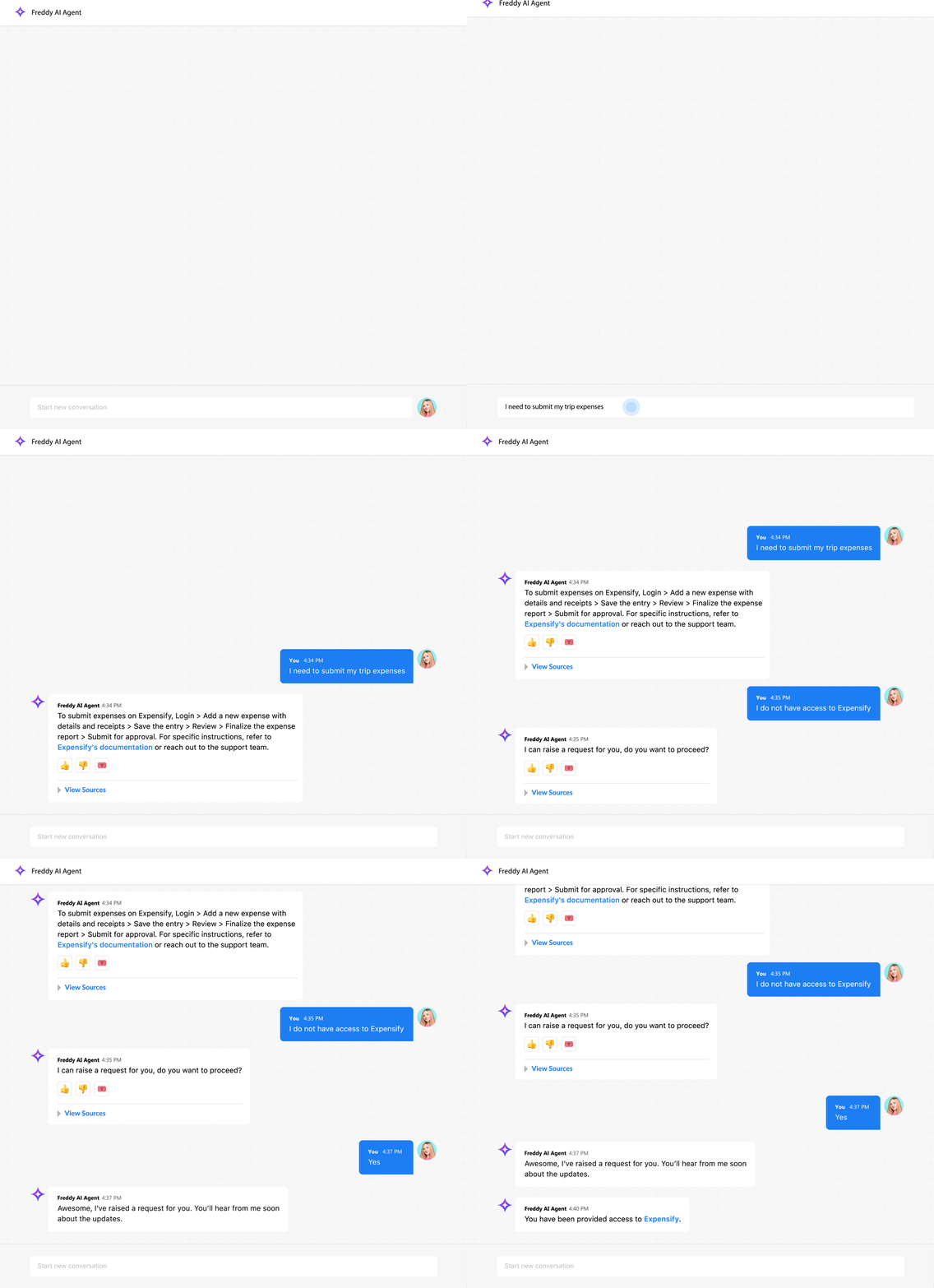
Multi-lingual Conversations
Support a global workforce with localized support experience by empowering employees to talk to Freddy AI Agent in the language of their choice. Enable multilingual responses to understand employees’ queries in any language and respond by translating all available content into employees' preferred language.
Note: This feature is now available on channels within Slack & Microsoft Teams now. Learn how to enable Freddy AI Agent on support channels in Slack or Microsoft Teams.
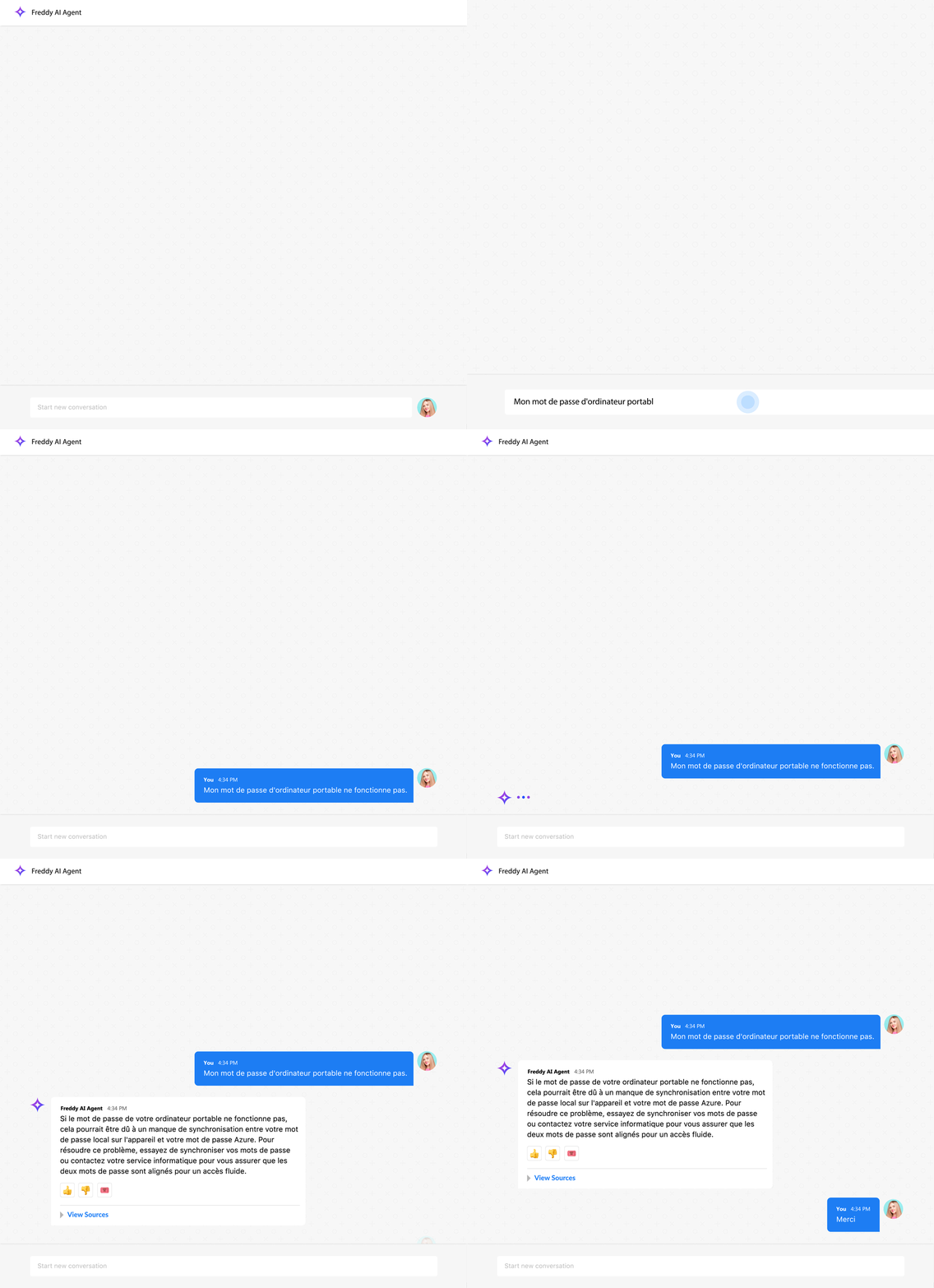
Formless Conversational Experience
Simplify request submission processes and reduce manual efforts by using Freddy AI Agent to fill out forms for employees. Freddy AI Agent can auto-create service requests through a dialog from the context shared.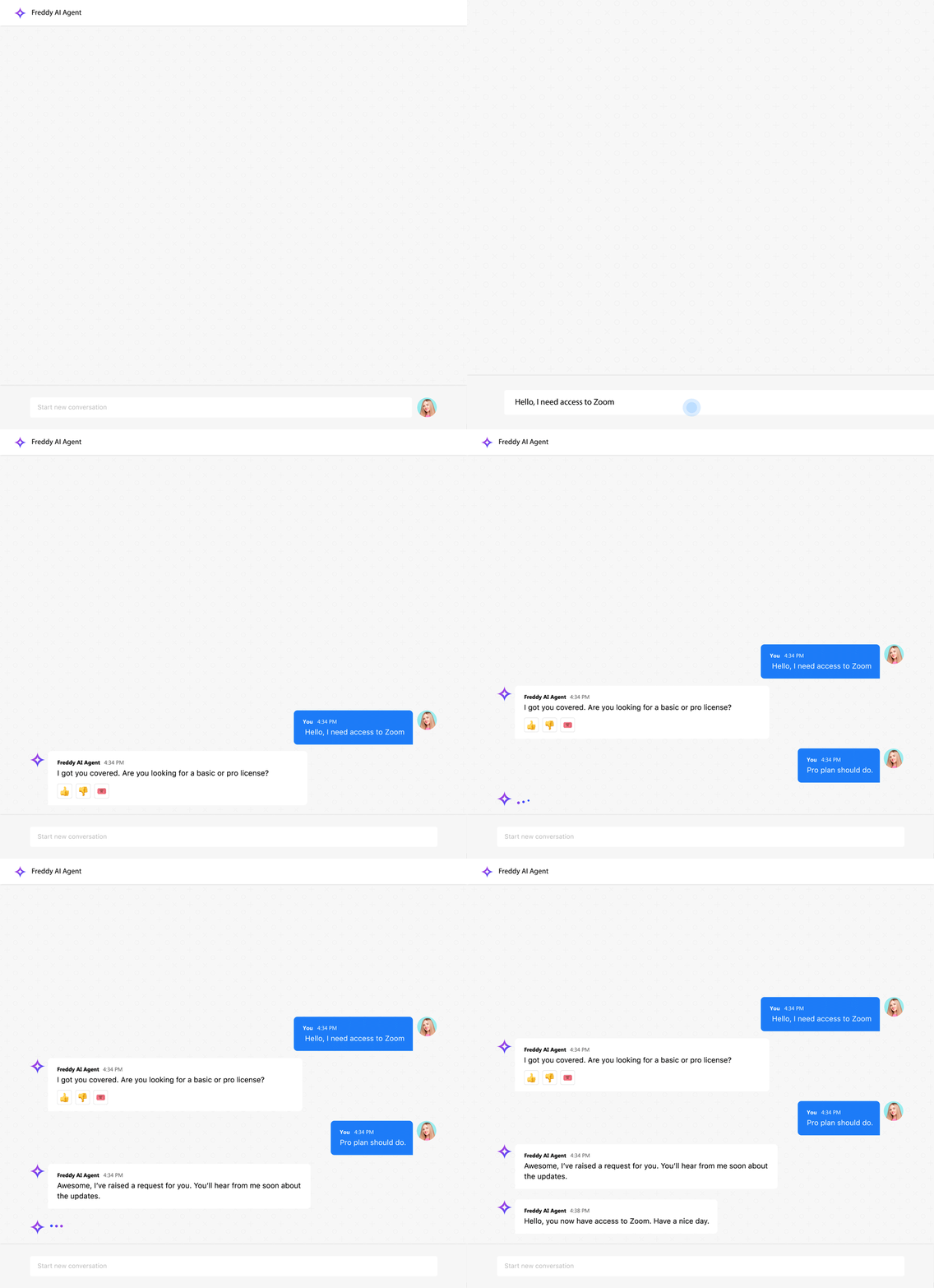
Supported Channels
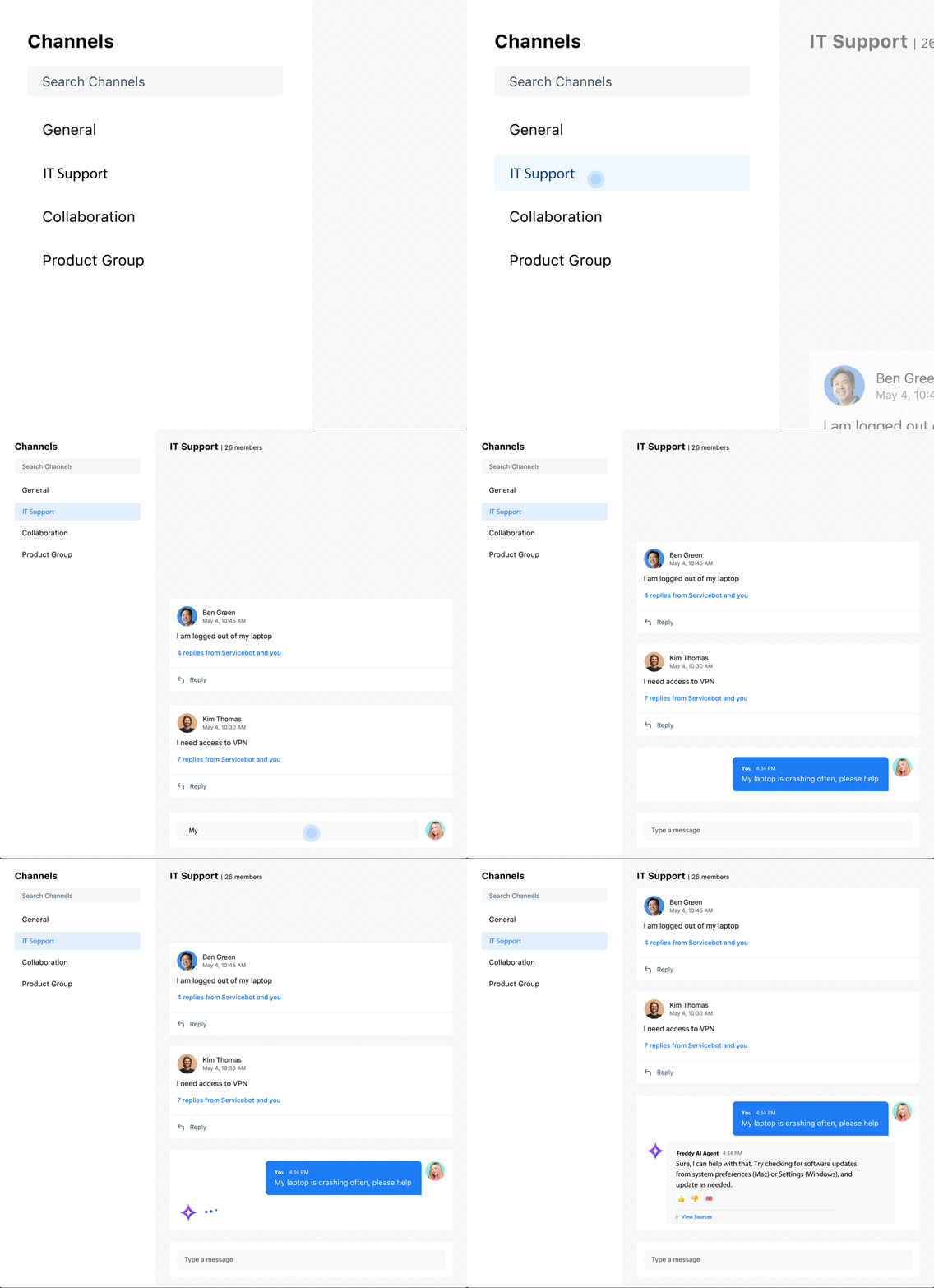
Enable round-the-clock instant support on your help channels by deploying Freddy AI Agent. Free up agents for more strategic tasks while Freddy AI Agent intuitively intercepts conversations and queries on public channels and provides timely resolutions.
Note: This feature is now available on channels within Slack & Microsoft Teams. Learn how to enable Freddy AI Agent on support channels in Slack or Microsoft Teams.
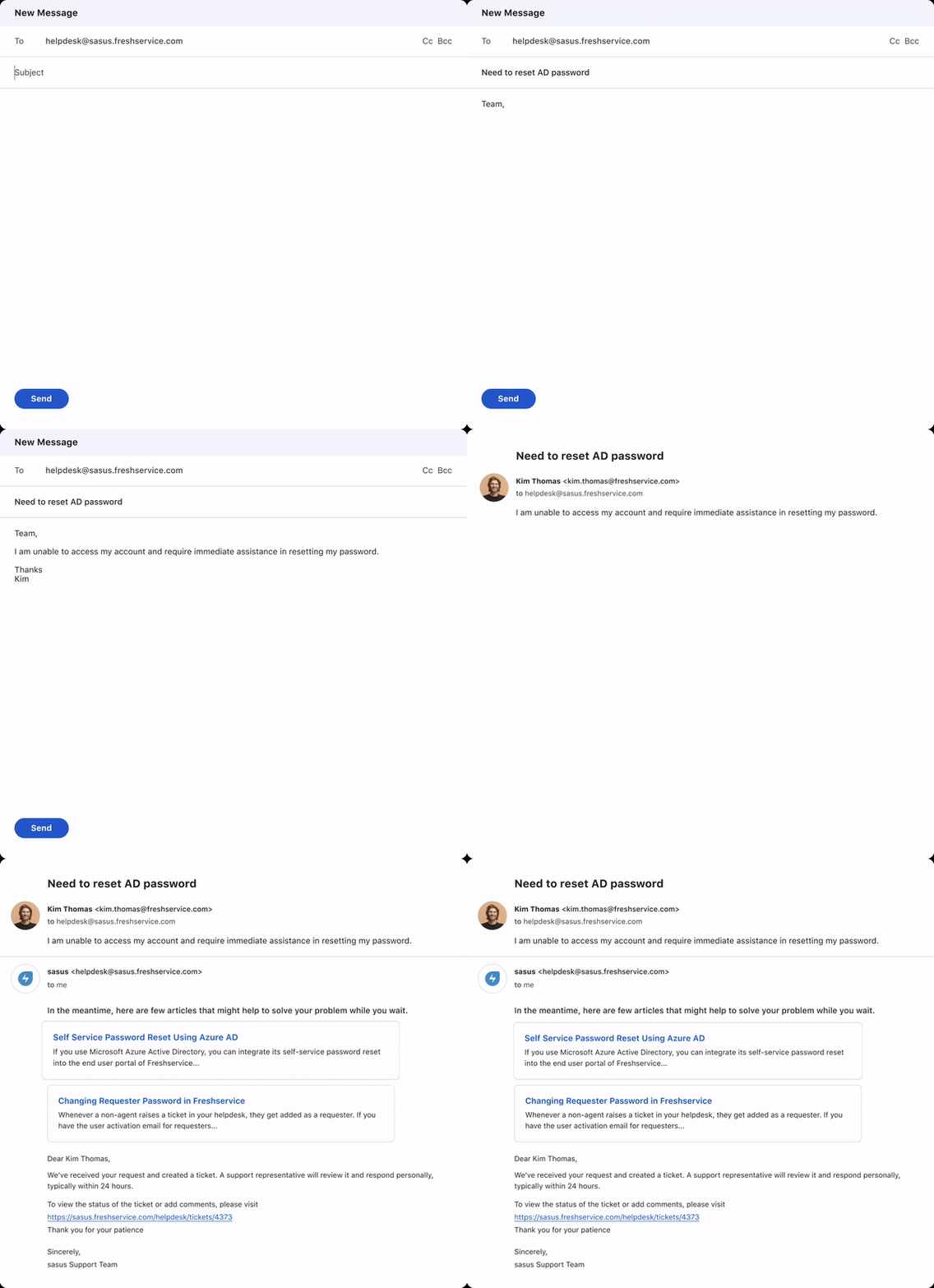
Email Bot
Auto-respond to simple email queries with relevant help articles to self-serve.
Citations and Grounding
Reference-inclusive responses to ground resolutions on an identifiable and reliable source of truth.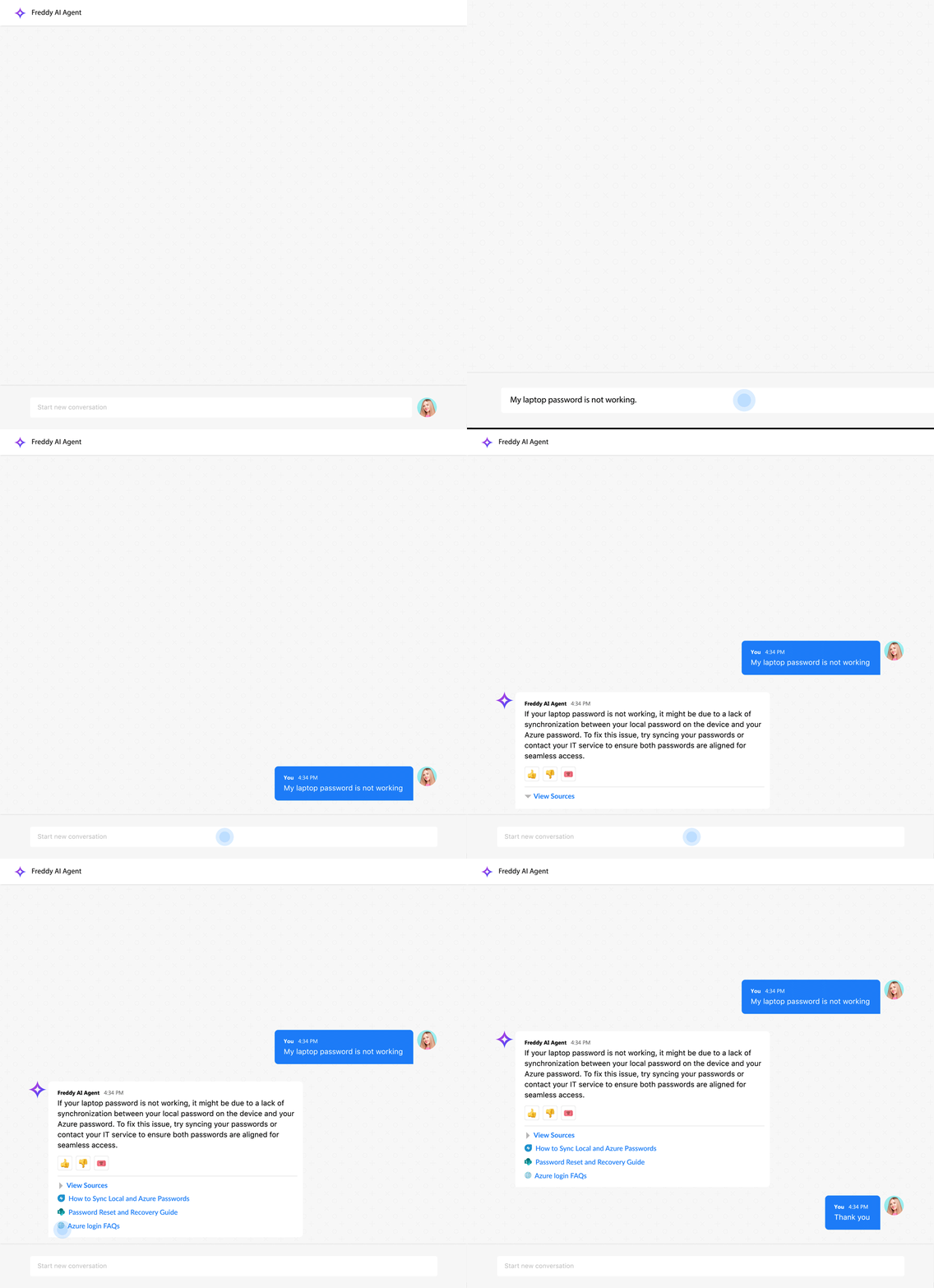
Multi-modal Support
IN THIS SECTION
- Image-based Query Resolution
- Supported Visual Inputs
- Benefits of Multimodal Support in the Virtual Agent
- Knowledge Base Integration
- Seamless Agent Handoff
Image-based Query Resolution
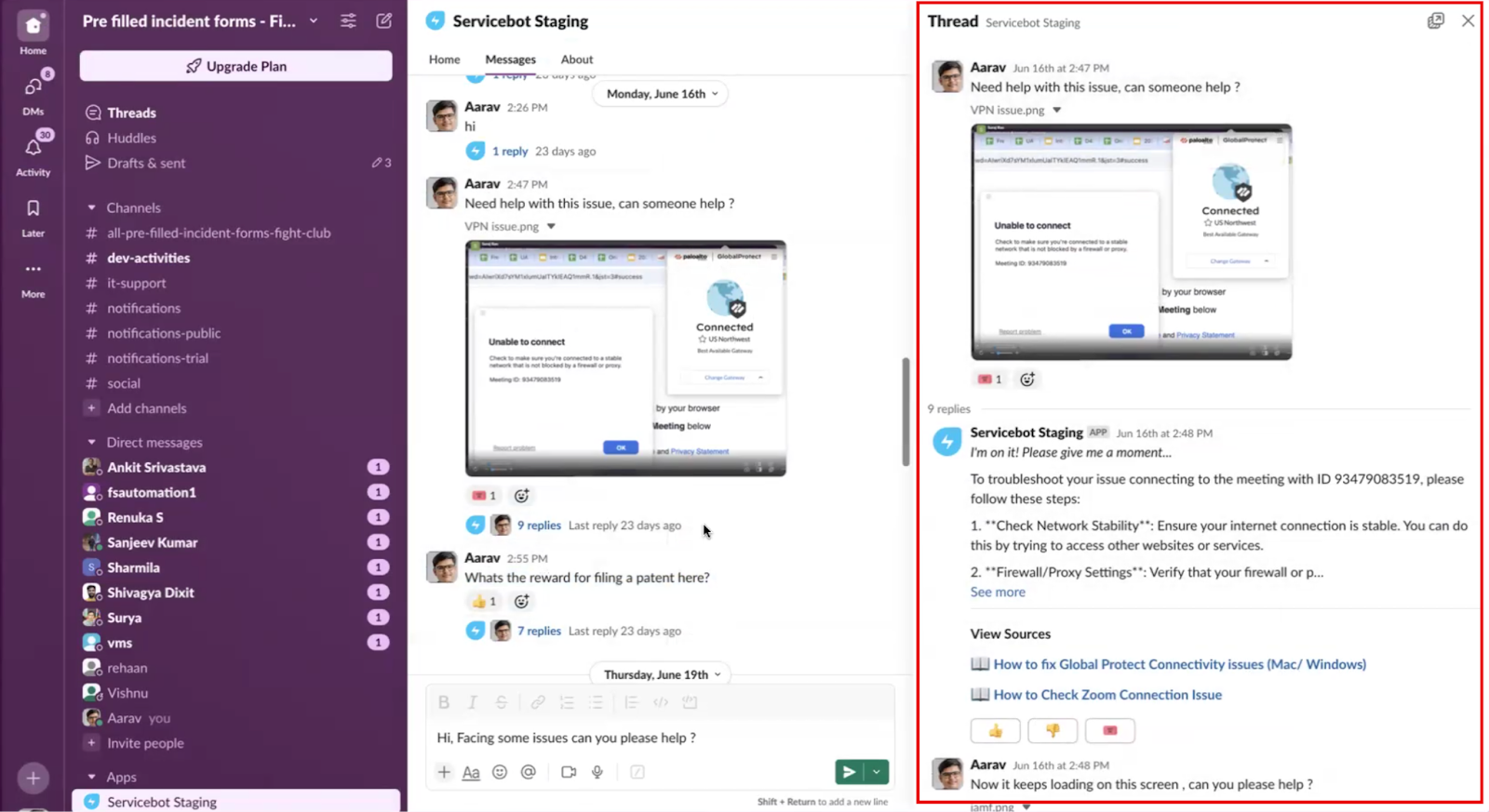
With multimodal capabilities, the virtual agent powered by Freddy can interpret image-based queries, greatly enhancing its ability to understand and resolve issues, especially when users prefer to skip writing or find it difficult to describe their problem in words.
Freddy can also extract visual information from solution articles and reference documents to provide accurate responses. It handles image-based queries in two ways:
Users can submit screenshots, such as error messages, via direct messages in Slack or Microsoft Teams, or in any channel where the bot is active. Supported formats include .png, .jpg, and .jpeg. Freddy analyzes the images and provides relevant troubleshooting steps or policy links without requiring a text-based query.
Freddy can interpret images embedded within solution articles to generate relevant responses.
These capabilities make Freddy more intuitive and effective at handling both text and image-based queries.
Supported Visual Inputs
The virtual agent supports the following types of visual inputs:
Inline images between text
Annotated screenshots
Flow diagrams and charts
Benefits of Multimodal Support in the Virtual Agent
The following are some benefits of multimodal support in the virtual agent:
Faster Resolution: No need for users to manually describe visual issues—Freddy understands them directly.
Reduced Ticket Volume: Common, image-based issues are deflected before reaching agents.
Seamless Escalation: If self-resolution fails, the image and chat history are passed to the agent, reducing back-and-forth.
Knowledge Base Integration
The AI Agent can retrieve and consolidate answers from the following sources:
Freshservice Articles
SharePoint Content
Seamless Agent Handoff
If the issue still requires assistance from a support agent, Freddy enables a smooth handoff. You can click the ticket emoji below the chat to open a form and create an incident directly from the conversation. By deflecting repetitive first-line tickets, Freddy AI improves the employee experience and allows support teams to focus on more complex, high-impact issues.

The complete chat history, including uploaded images is shared with the assigned agent, eliminating the need for repeated explanations and speeding up resolution.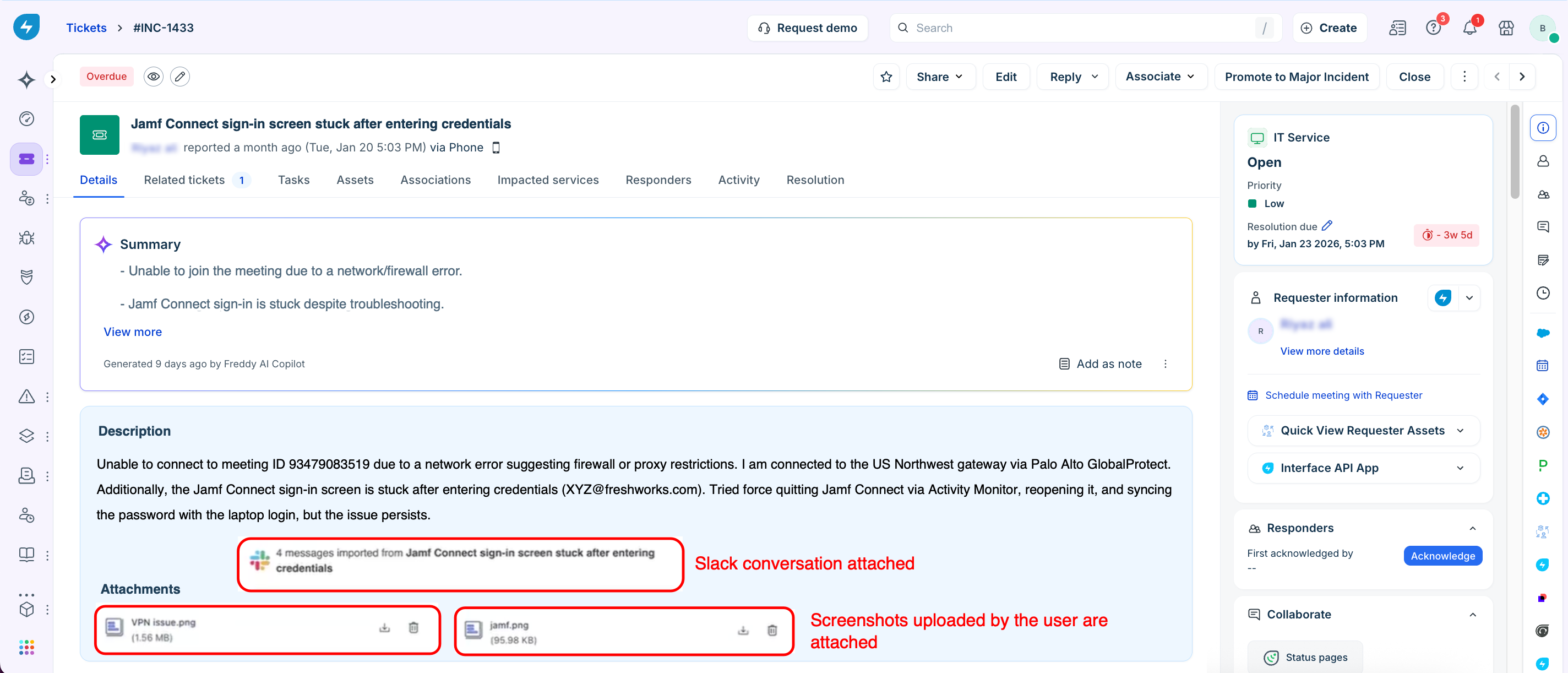
Key Considerations for Solution Article Processing
Understand the following points when using Freddy AI for solution article processing:
Freddy AI can process only the first 50 inline images in a solution article. Inline images are those placed directly in the article body, such as screenshots or diagrams.
Freddy AI processes only the first 5 attachments in the order uploaded, which can be up to 5 MB per attachment.
It might take anywhere from 1 hour to approximately 24 hours to finish processing an article/document, depending on factors such as its length, the number of images it contains, the overall system load, and more.
To use multimodal features, you must upgrade to the latest version of the Slack app (V5)/Microsoft Teams(V7).
Currently, Freddy AI can interpret only image-based content embedded in a solution article. It cannot interpret documents such as .pdf, .docx, or .xlsx files.