
 Community
 Video Library
 Agent Training
 Freshservice
 Freshdesk
 Freshchat
 Freshcaller
 Freshsales
 Freshteam
 Freshworks Neo
 Freshsurvey
 Freshservice for MSP
 Note: For details on the updated pricing and packaging for Freshservice Analytics, see Freshservice pricing.
TABLE OF CONTENTS
- What can you get in Analytics Pro?
- Access Analytics in Freshservice
- Edit a widget
- Filter data from a widget
- Edit a report
- Export reports and widgets
What can you get in Analytics Pro?
Feature | Analytics Basic | Analytics Pro |
Reports | Curated Reports | Curated Reports and Custom Reports |
Filters | Run time only | Filters with Save |
Export Reports | Curated Reports only | All Reports |
Metrics Configuration | No | Yes |
Group By Feature | No | Yes |
Ask Freddy | No | Yes |
Presentation Mode | No | Yes |
Want to know what more you can get with Pro? Find out here!
Access Analytics in Freshservice
Using Analytics, save time drafting reports from scratch to get a complete overview of your service desk performance.
You can access the Analytics module from the AI Insights and Analytics left navigation menu.
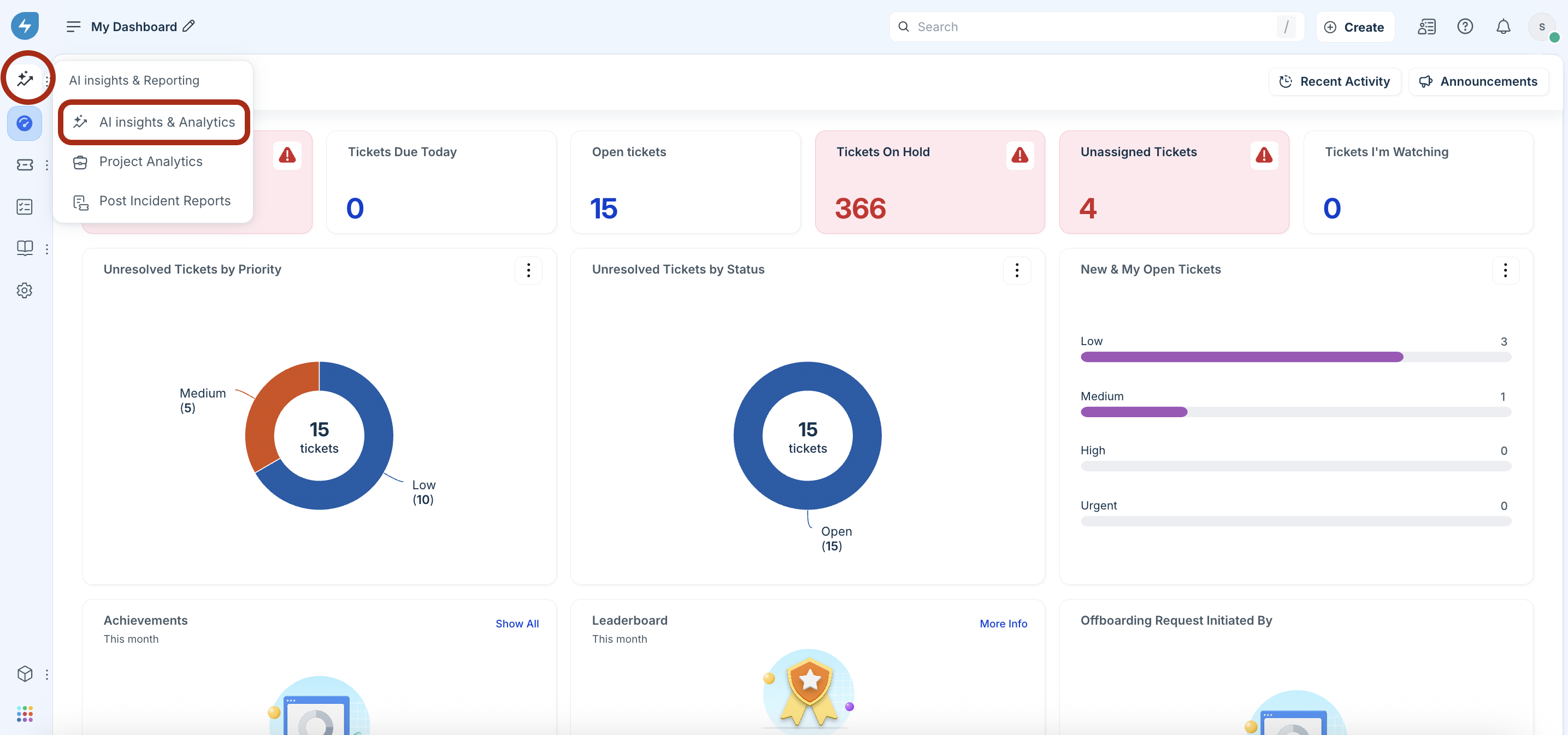
Using Analytics Basic, you can use run-time filters on curated reports and export them as CSV files. We have multiple curated reports for you to choose from as follows:
Agent Performance | Changes Overview | Dashboard Overview | Service Desk at a Glance | Service Desk Load Analysis |
Inventory Overview | Problems Overview | Release Overview | Service Request Reports | SLA Violations Overview |
Tasks Overview | Tickets Backlog | Users Overview |
Edit a widget
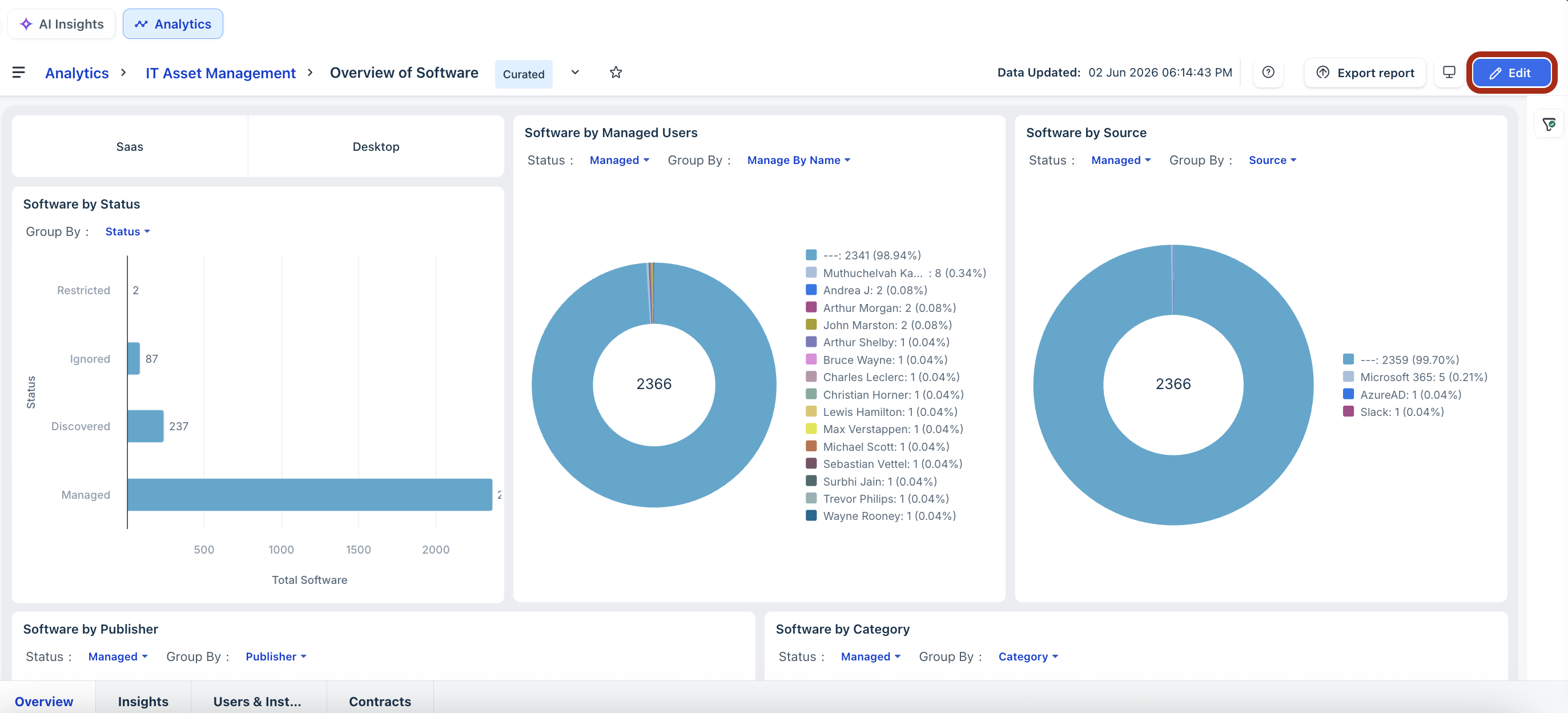
Every widget is a high level, visual representation of your service desk metrics. But, if you want to drill deeper, you can edit the widget. Open a report, and click Edit.
Filter data from a widget
Let’s say you have a widget which shows you the total number of tickets grouped by priority. If you want to view the data for tickets from the last 30 days:
Open the report and widget in which you want to create filters.
Specify the parameters by which you want to filter. For example, Date Range in the last 30 days.
Click Apply to view the updated widget.
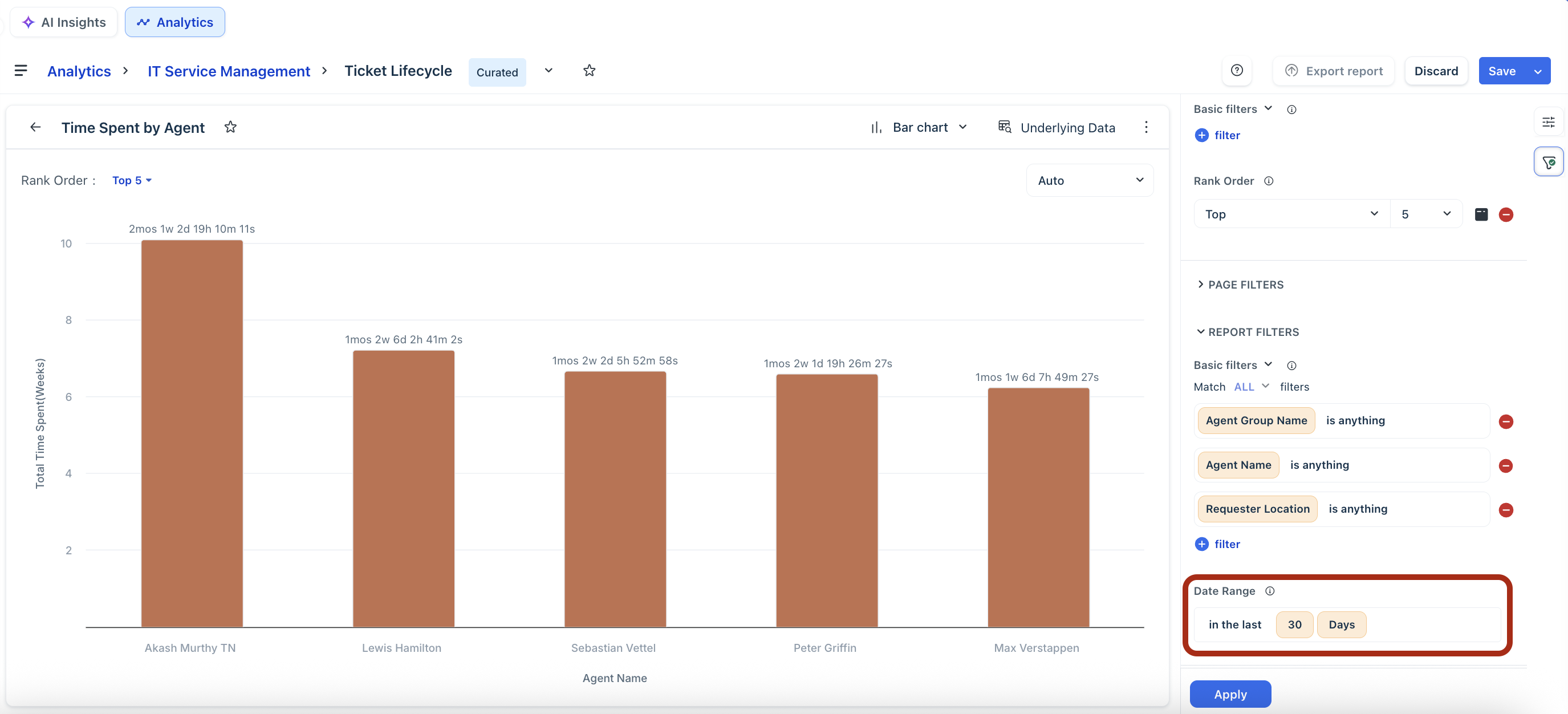
You can also view the data used to render the widget using Underlying Data.
Note:
In Analytics Basic, you cannot create new reports or save edits to the curated reports.
Edit a report
You can modify any existing report using the Edit option and update the Chart Configuration, Metrics, or Group By fields as needed.
For users signing up after February 15, 2025, any changes to field or attribute names will sync automatically with reports, eliminating the need for manual updates.
Tip: If your report includes multiple Service items with the same name, adding an additional filter for a workspace or a service item category ensures that you see accurate data in the report. For example, if "Apple MacBook" appears under both Asset Type and Hardware, running a report by Service Item Name will display two entries. Using the appropriate filter consolidates them into unique service items.
Export reports and widgets
To learn about how you can export data from a report/widget, see Export reports and widgets.