
 Community
 Video Library
 Agent Training
 Freshservice
 Freshdesk
 Freshchat
 Freshcaller
 Freshsales
 Freshteam
 Freshworks Neo
 Freshsurvey
 Freshservice for MSP
 TABLE OF CONTENTS
- Prerequisites
- Overview of problem workflows
- Components of a workflow
- Create an event-based problem workflow
Automate repetitive tasks in the Problems module in Freshservice using workflows. You can create event-based workflows that run automatically when a problem event occurs, or scheduled workflows that run at a predefined time. This article explains how to create an event-based workflow.
Prerequisites
Before you begin, ensure that the following prerequisites are met:
You have administrator privileges to access Workflow Automator.
The Problems module is available in your Freshservice plan.
Overview of problem workflows
Workflow Automator helps you automate repetitive tasks in the Problems module using an intuitive drag-and-drop interface.
You can create the following workflow types:
Event Based Workflows: Run automatically when a problem event occurs, and the conditions you define are met. For example, you can create an event-based workflow to assign a problem to a specific agent or group when it meets the conditions you set.
Scheduled Workflows: Run at a predefined time and execute actions based on the conditions you define. For example, you can create a scheduled workflow to automatically escalate problems that remain in the Pending status for more than seven days. For more information on creating scheduled workflows, see here.
Components of a workflow
A workflow consists of a set of components that define when the workflow runs, the conditions it evaluates, and the actions it performs. You can also add optional components to extend the workflow with advanced logic and integrations.
A single workflow can include multiple conditions and actions.Core components
Every workflow includes the following core components:
Event: Determines when the workflow starts.
Condition: Defines the criteria that the workflow evaluates.
Action: Performs a task when the specified conditions are met.
Additional components
You can add the following components to extend the functionality of your workflow:
Web Request: Sends an API request to external or internal endpoints.
JSON Parser: Extracts data from a JSON payload and makes it available as placeholders.
Expression: Evaluates mathematical, logical, or string operations on workflow data.
Reader: Retrieves a single record from standard or custom objects based on defined criteria.
Subflow: Runs a reusable sequence of workflow nodes within the parent workflow.
Looping: Repeats a set of actions for each item in a collection or until an exit condition is met.
App Node: Executes a predefined action in an integrated third-party application through the Orchestration Center.
Timer: Pauses the workflow for a specified duration before continuing to the next node.
Create an event-based problem workflow
Create an event-based workflow to automate actions in the Problems module when a problem event occurs and the conditions you define are met. The following video provides a quick overview, followed by detailed step-by-step instructions.
Video walkthrough
Watch the following video for a quick overview of creating an event-based workflow using the Event, Condition, and Action components in the Problems module.
Step-by-step instructions
If you prefer step-by-step instructions, follow these steps to create an event-based workflow in the Problems module using the Event, Condition, and Action components.
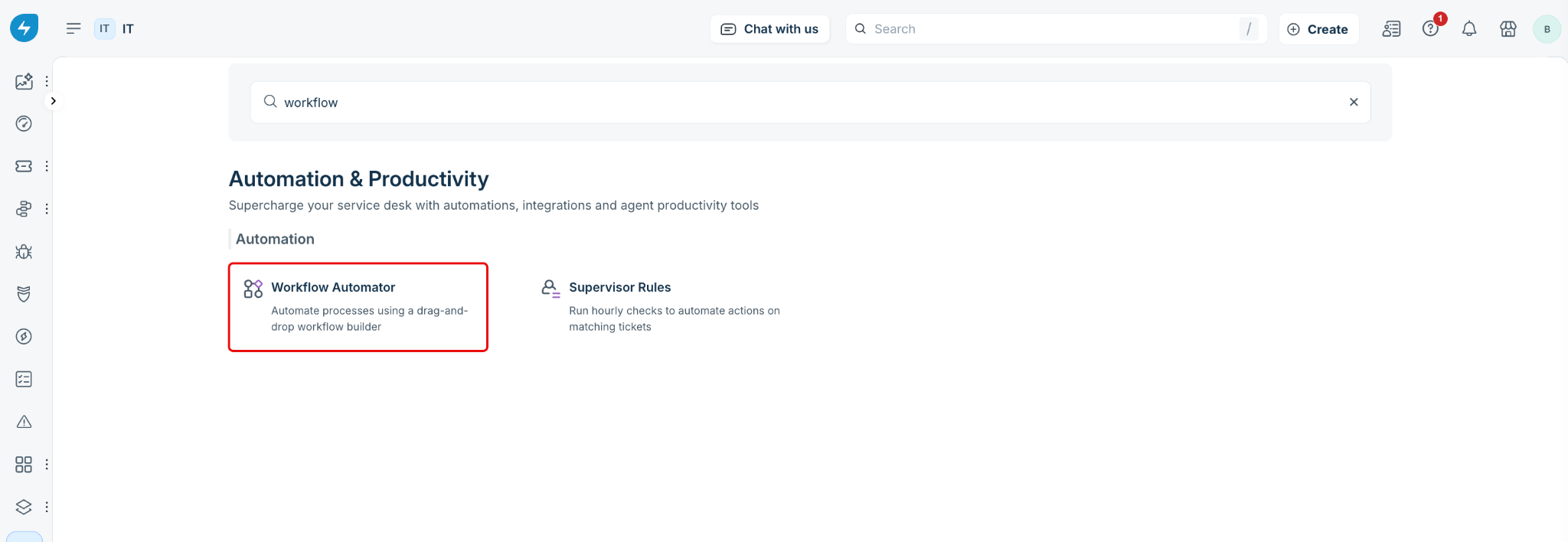
Go to Admin > Automation & Productivity > Workflow Automator.
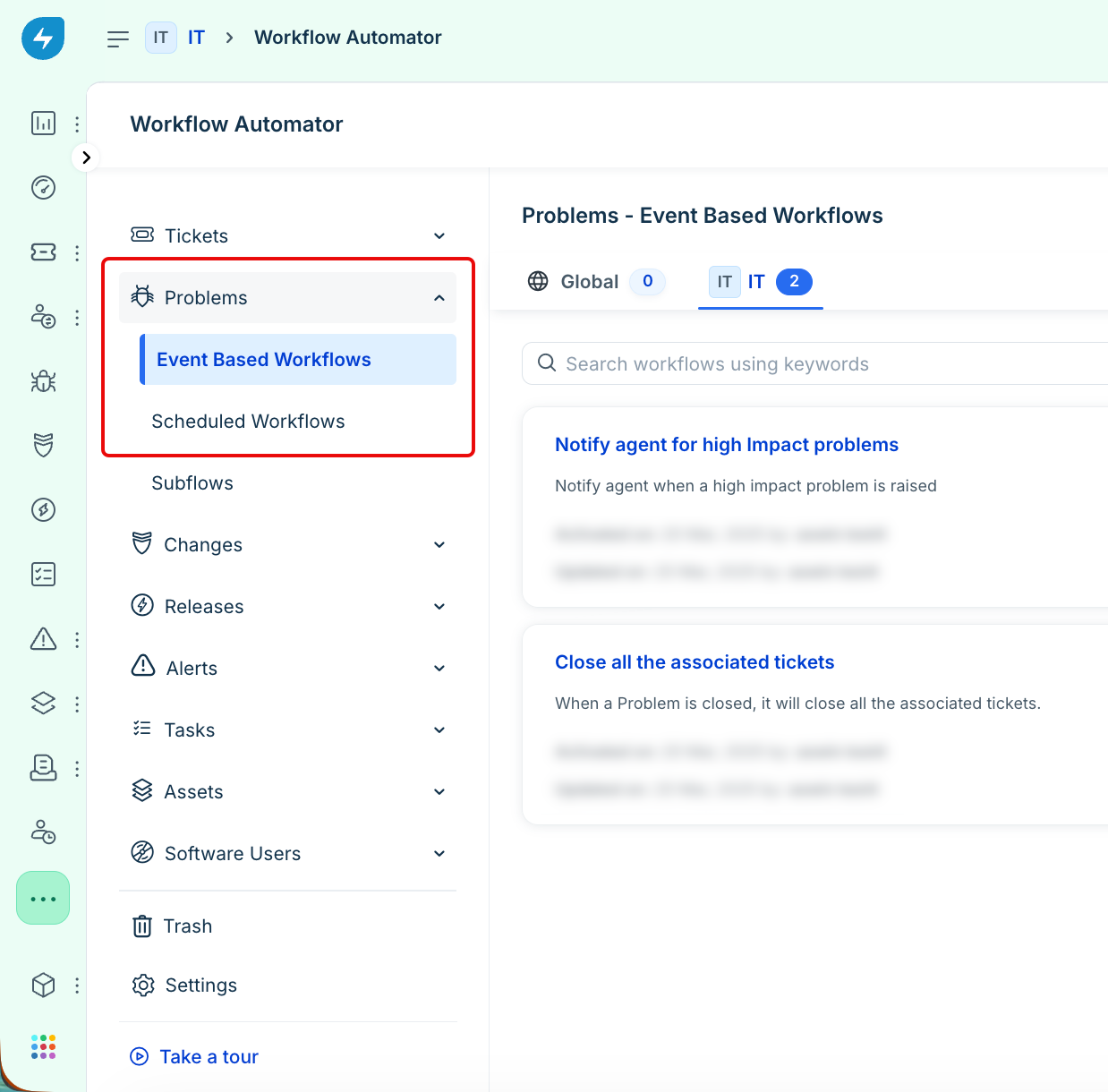
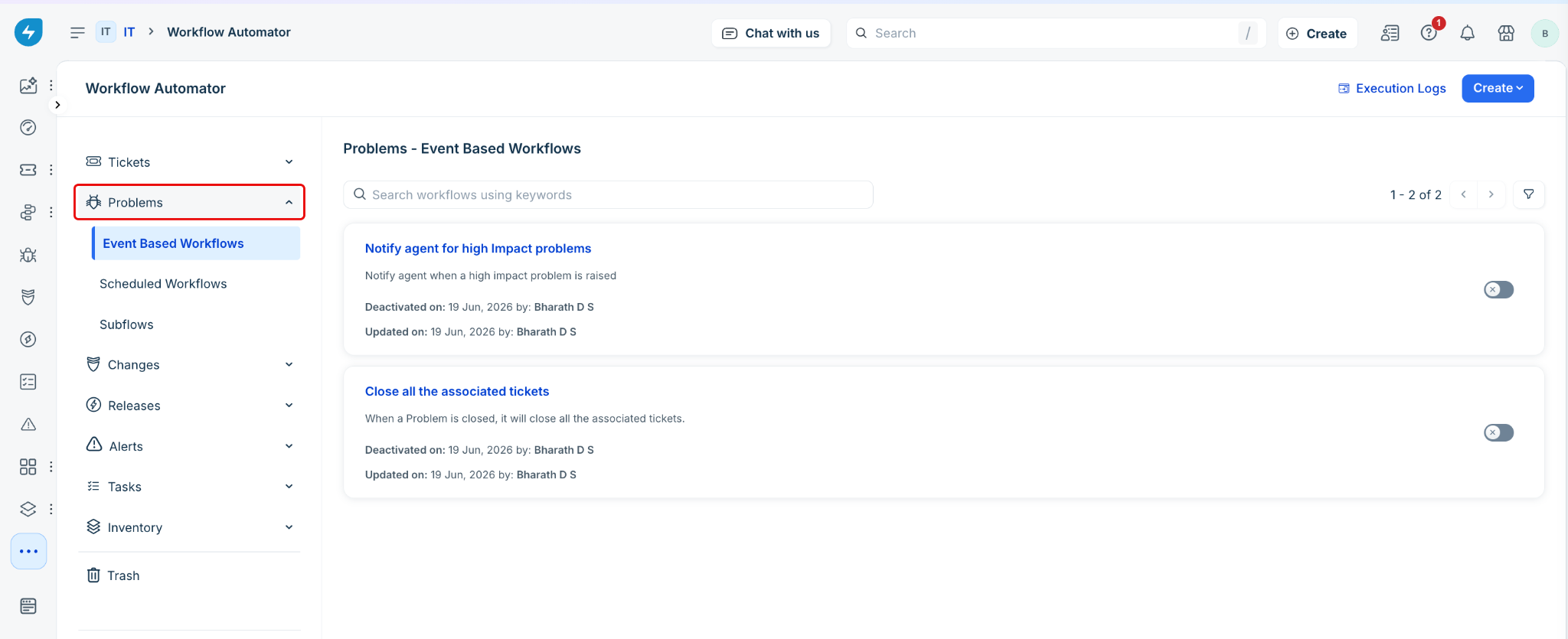
On the left pane, expand Problems.
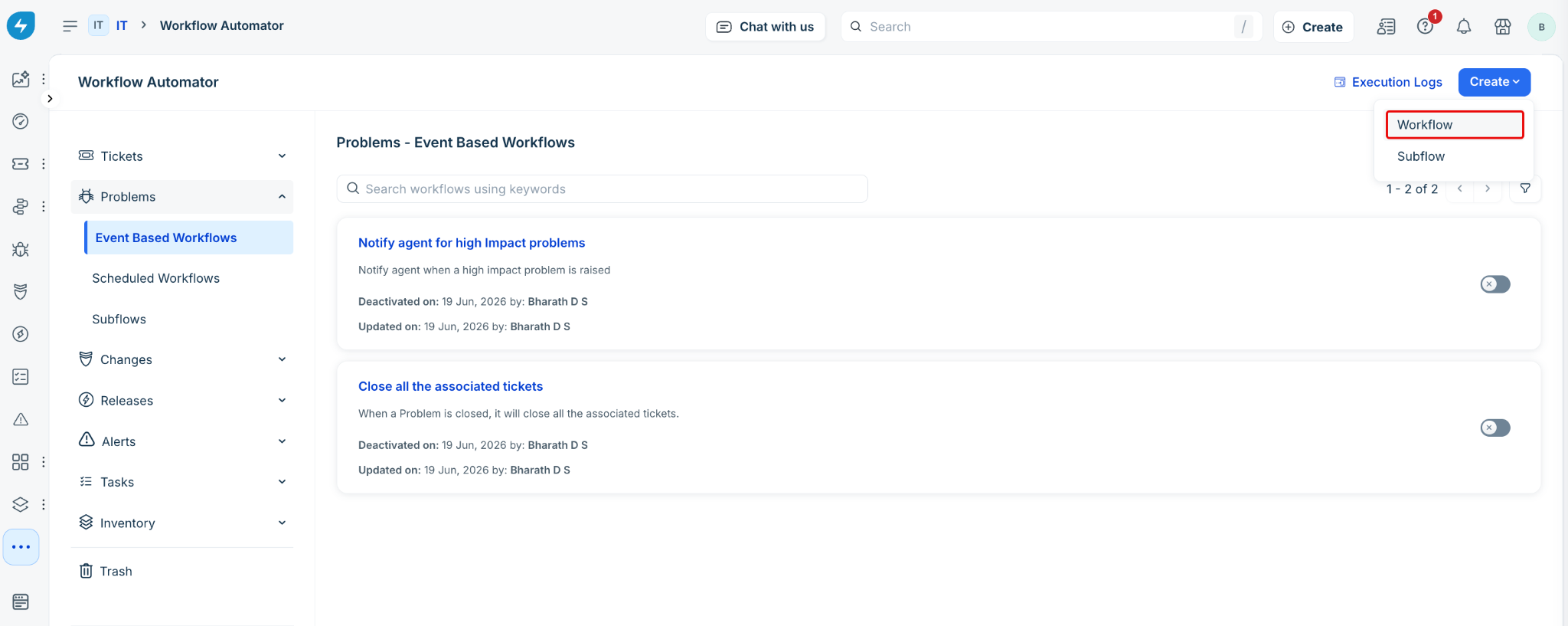
Click Create at the top-right corner, and select Workflow.
In the Create Workflow panel displayed, enter a title for the workflow. To add a description, click + Add Description.
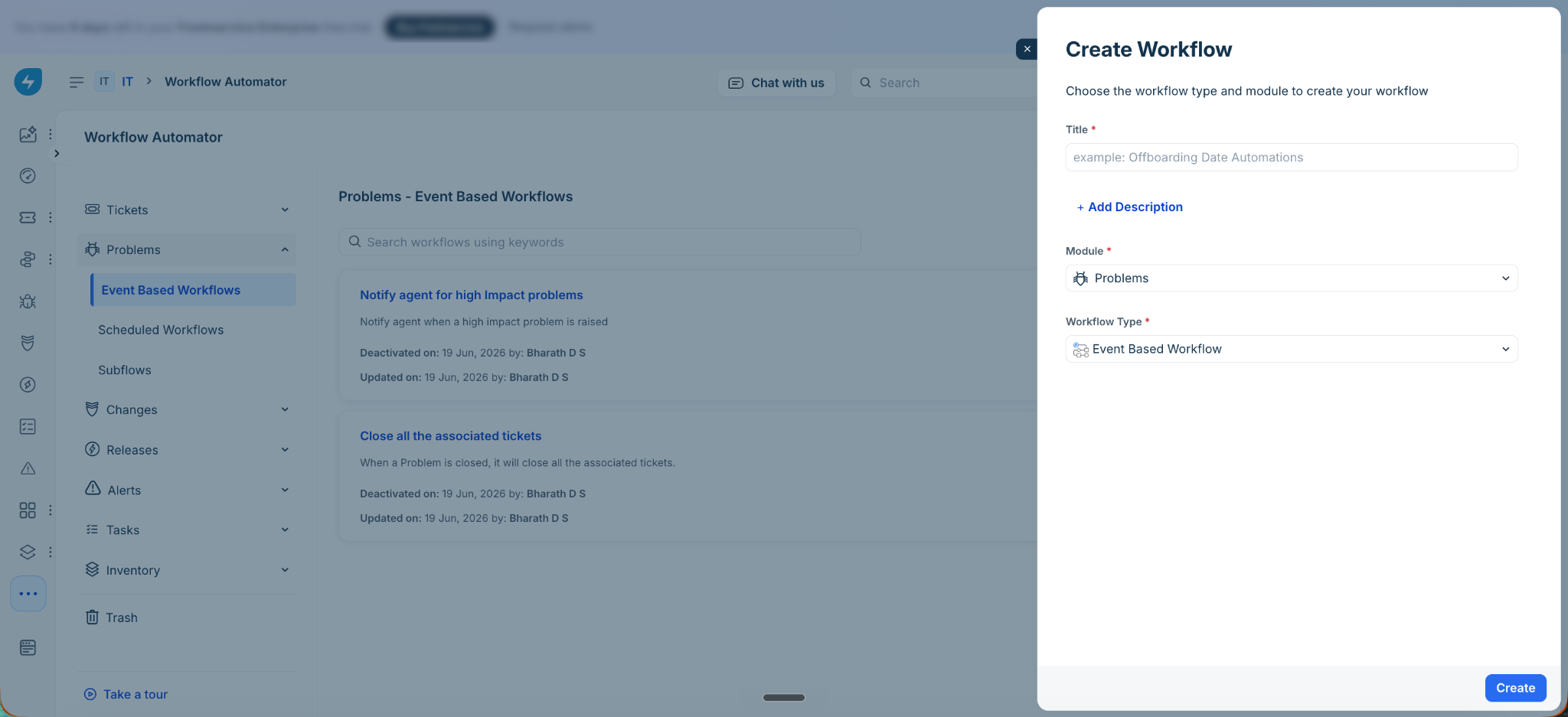
Verify that Module is set to Problems and Workflow Type is set to Event Based Workflow, and then click Create.
The workflow canvas opens, and the Event panel appears on the right.
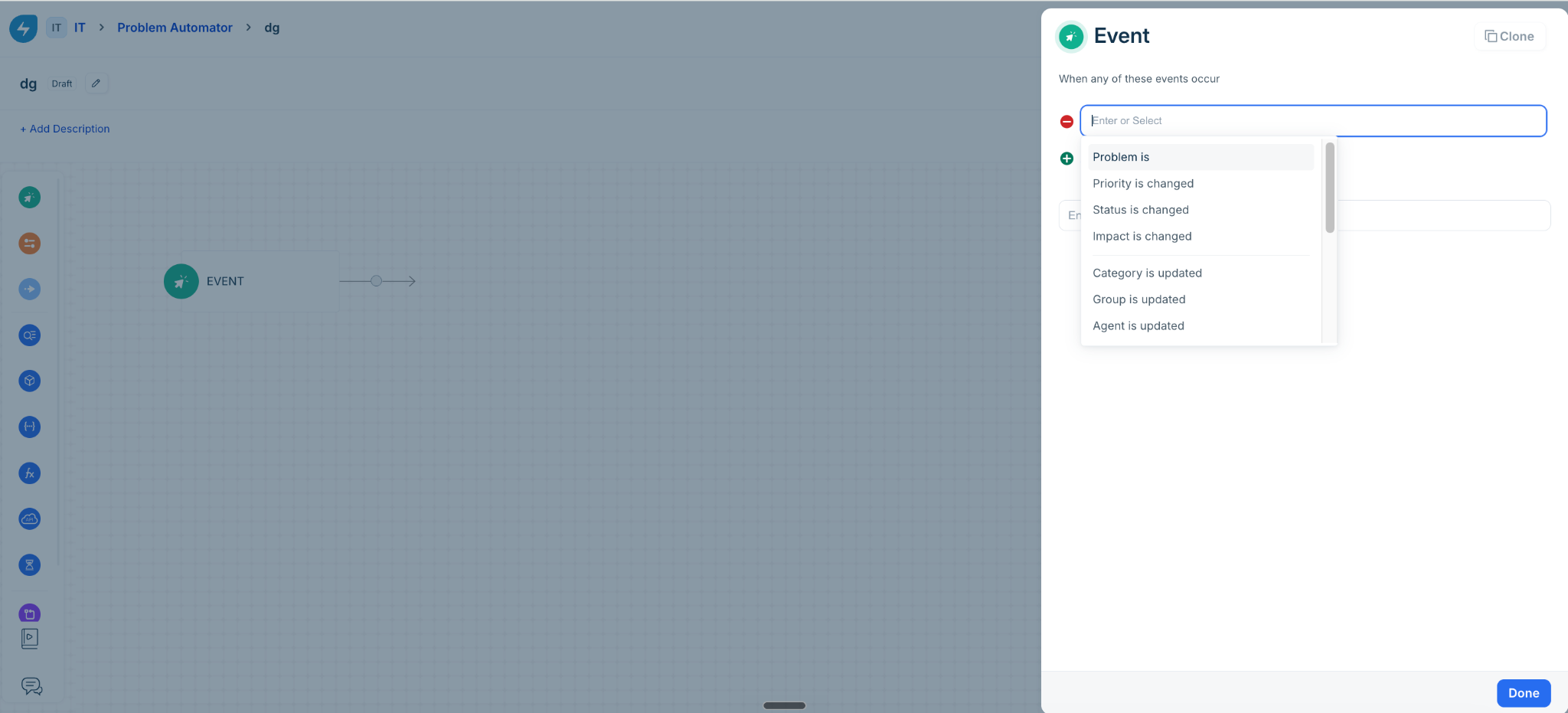
In the Event panel, select an event from When any of these events occur, such as Problem is, Priority is changed, or Status is changed, and specify the required values.
To add more events, click + Add new event.
After configuring the event, click Done.
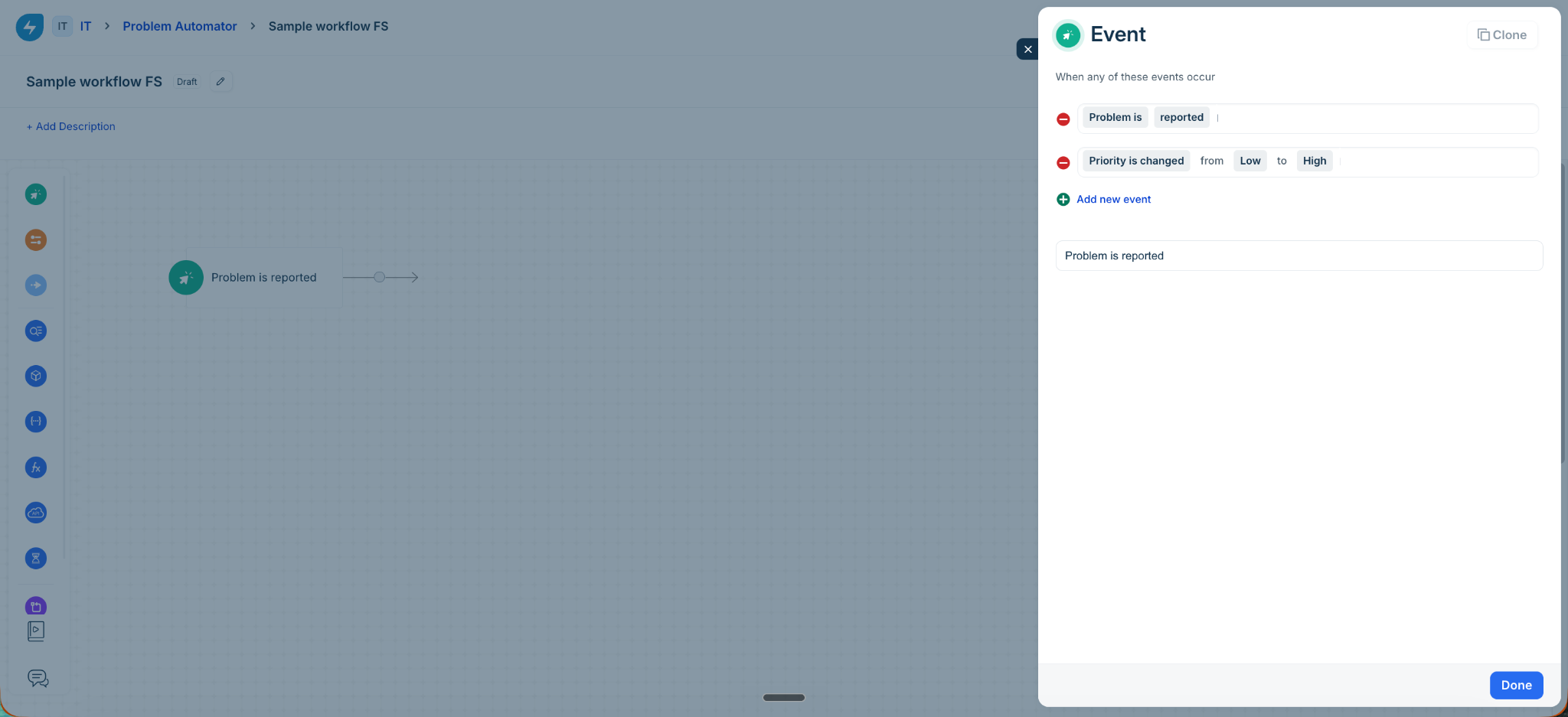
Drag the Condition block from the left panel onto the canvas. In the Condition panel displayed, choose whether to match any or all conditions. Select the relevant condition from Problem Fields (such as Priority, Status, Category, or Impact) and define the required values.
To add more conditions, click + Add new condition.
After configuring the condition, click Done.
Drag the Action block from the left panel onto the canvas. In the Action panel displayed, verify that Perform these actions on is set to Problem. Select the relevant action from the list (such as Set Priority as or Set Status as) and define the required values.
To add more actions, click + Add new action.
After configuring the action, click Done.
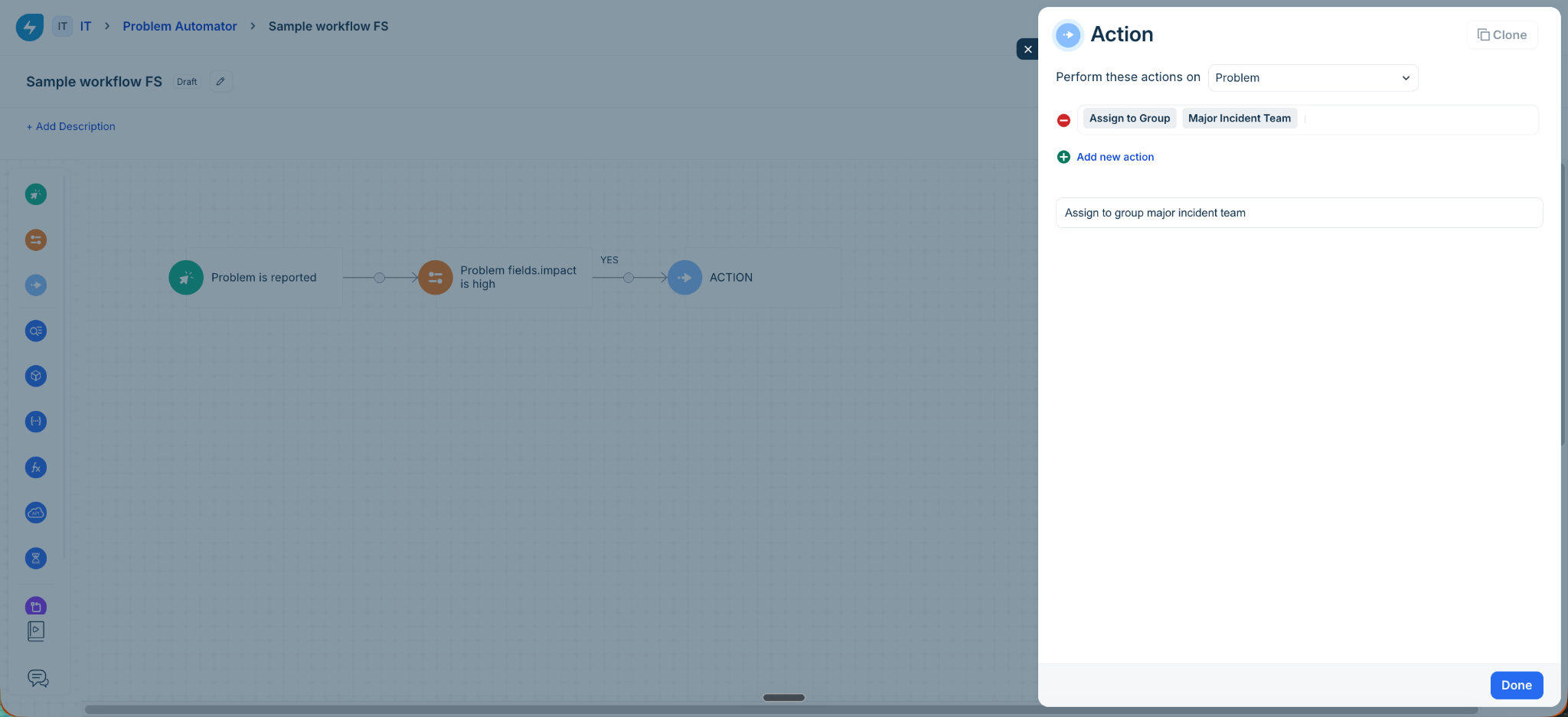
Add and configure any additional workflow components as required. For information about the available workflow components, see the Components of a workflow section above.
Click Activate to enable the workflow for upcoming problems. In this example, the workflow assigns problems based on their impact. When a problem is reported, the workflow evaluates its impact. If the impact is High, the workflow assigns the problem to the Major Incident Team. Otherwise, it assigns the problem to the Incident Team.
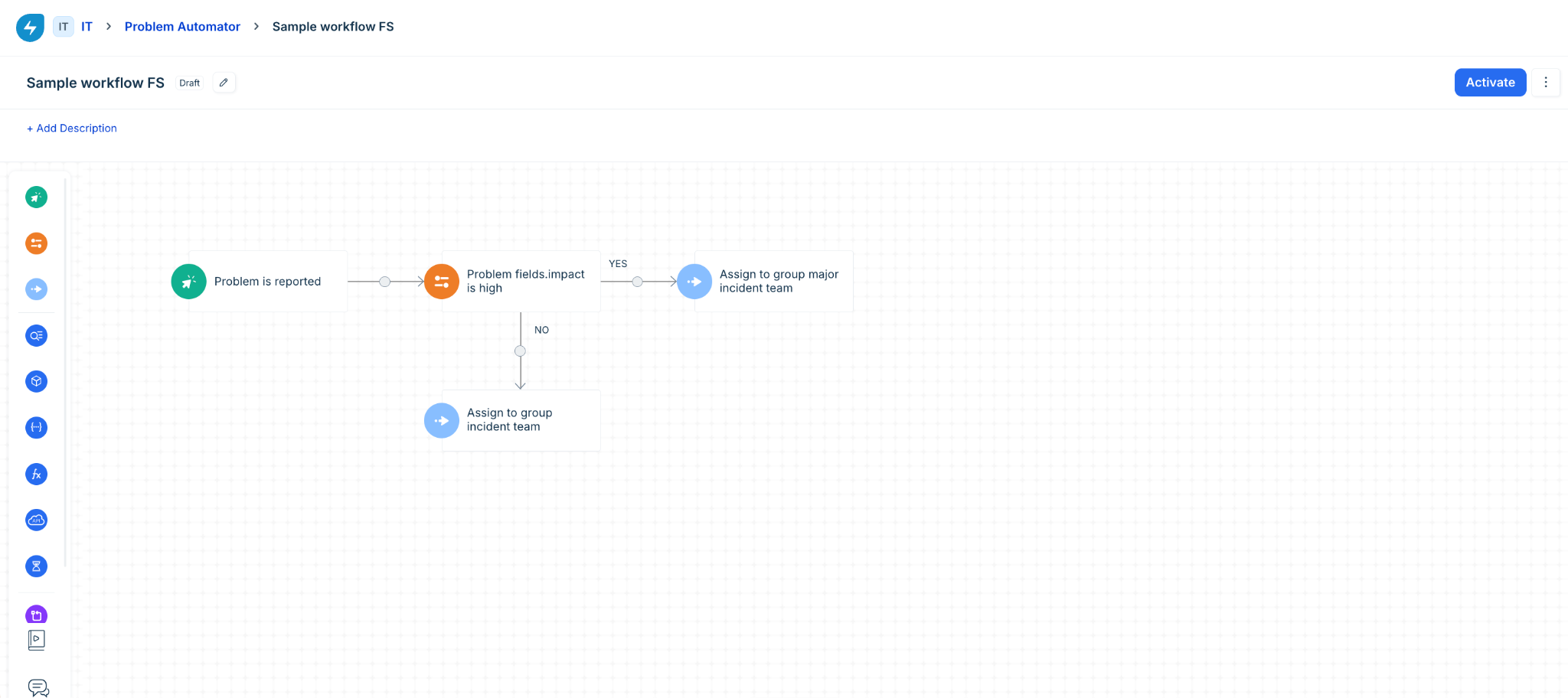
As you configure the event, conditions, and actions, Freshservice auto-saves the workflow as a draft. The workflow runs only after you click Activate.
For more information about building workflows, see Create workflows using Workflow Automator.