Community
 Video Library
 Agent Training
 Freshservice
 Freshdesk
 Freshchat
 Freshcaller
 Freshsales
 Freshteam
 Freshworks Neo
 Freshsurvey
 Freshservice for MSP
 The Remote Collector is a self-hosted, managed virtual appliance that performs agentless discovery across network segments. It can be deployed on supported hypervisors or hosted in cloud environments. Pre-configured images are available through cloud marketplaces, including AWS, Microsoft Azure, and Google Cloud. For a list of supported deployment platforms, see Supported Hypervisors and containers list.
Note: Available only for new signups after the 31 March, 2026 release. If you signed up earlier, refer to the existing ITAM documentation.
TABLE OF CONTENTS
How to install and configure a Remote Collector
To begin discovering assets, you must deploy at least one remote collector within your target network segments. Follow these steps to install and configure a Remote Collector:
Step 1: Access Remote Collector
Navigate to Admin > Asset Management > Discovery Hub.
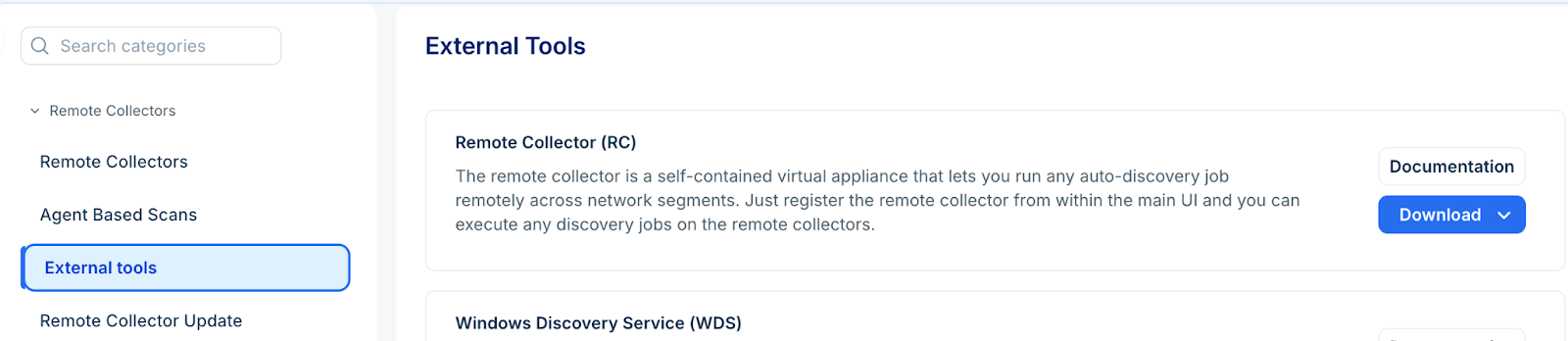
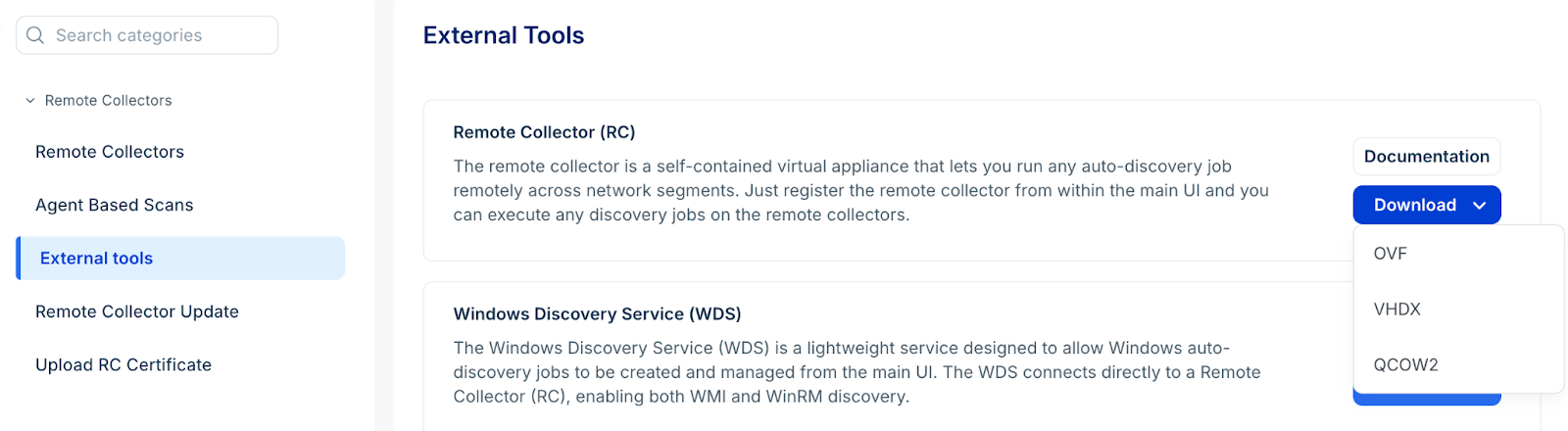
Select Remote Collectors and agents > External tools > click Download in the Remote Collector section.
Once the RC is downloaded and configured you can extend your discovery by hosting RC on a hypervisor of your choice.
Step 2: Add a Remote Collector group and connect to Remote Collector
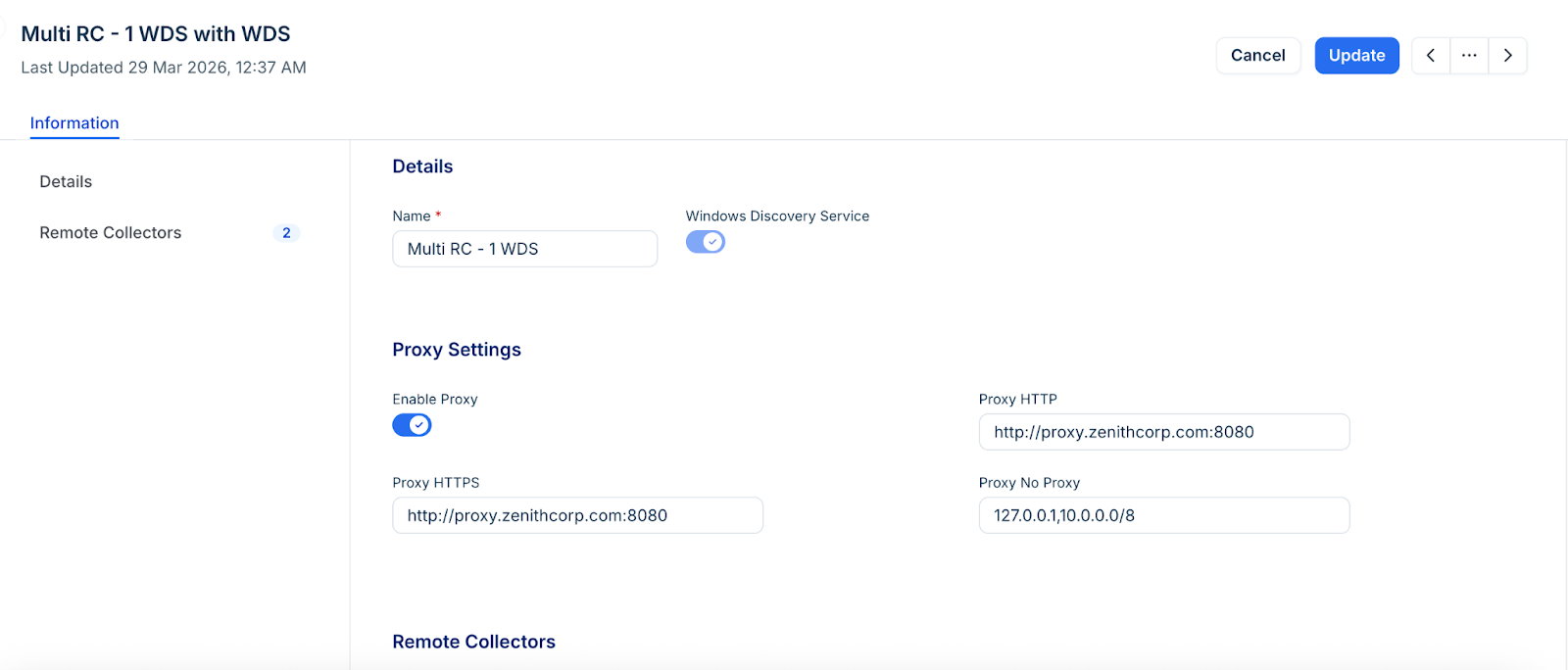
Go to Admin > Asset Management > Discovery Hub > Remote Controllers and agents > Remote Collector Groups tab > click Add new.
Enter the name for the group.
Enable the Windows Discovery Services toggle if you plan to allow this remote collector group to discover windows devices in addition to network and cloud based systems.
Optional, enable Proxy Settings and enter proxy details and click Save.
Go to the Remote Collectors tab and click Add new.
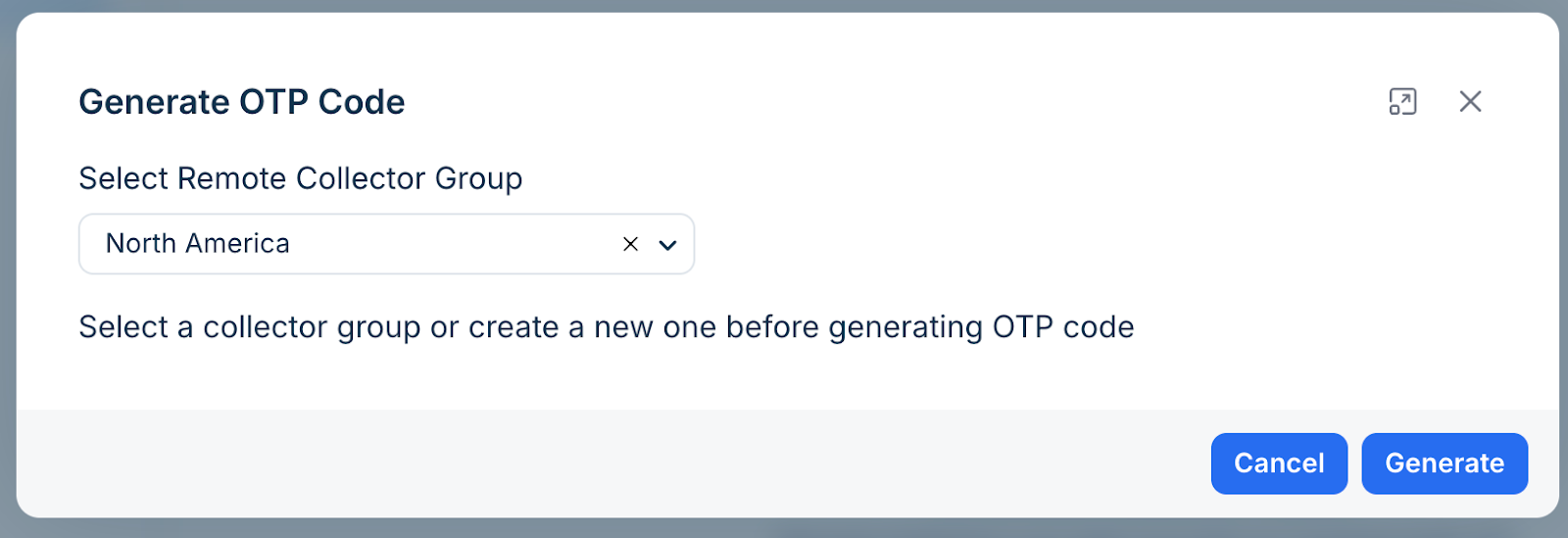
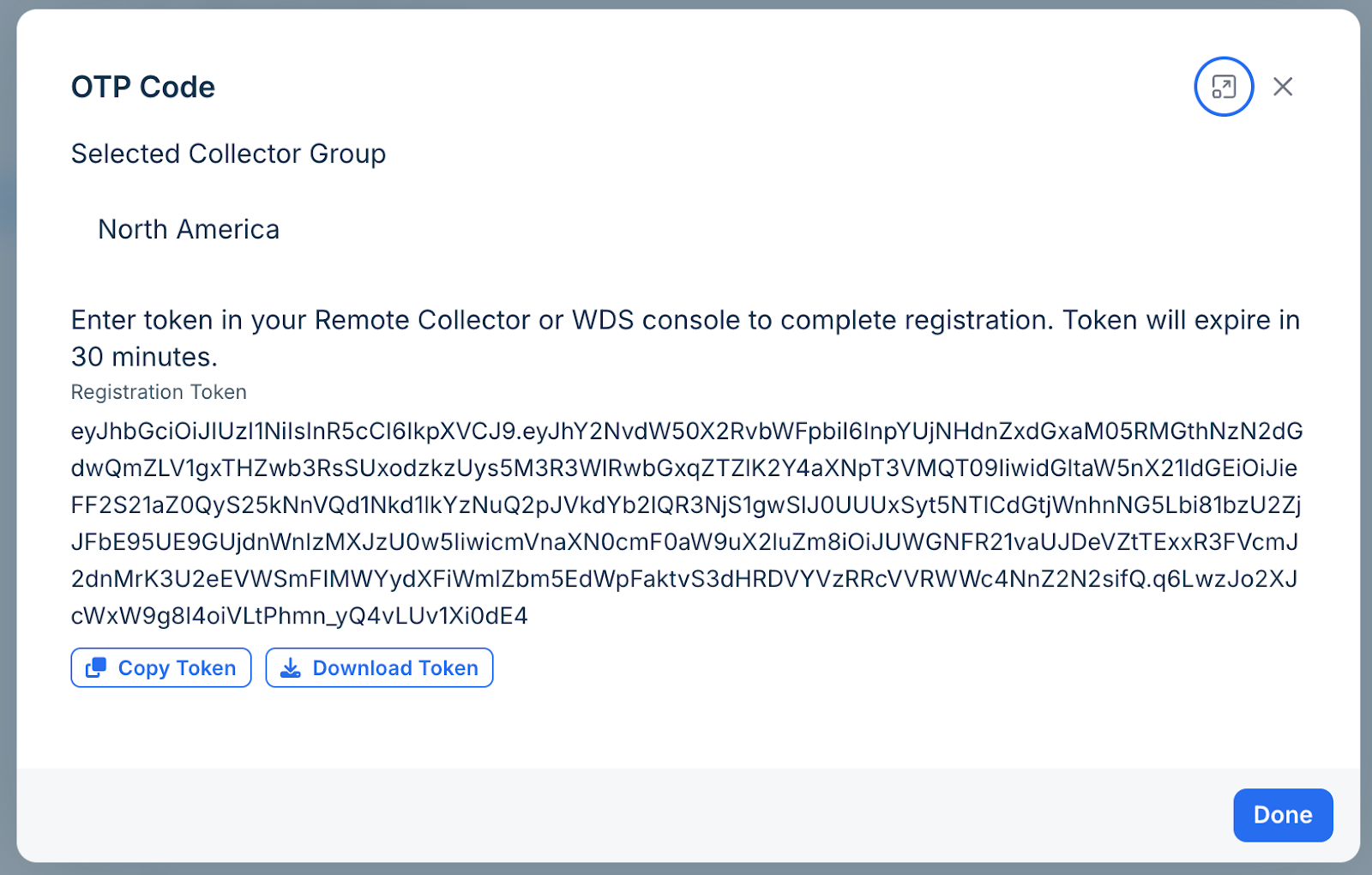
Select the Remote Collector group that you created earlier and click Generate to create an OTP code .
Note: Select a collector group or create a new one before generating OTP code.Copy the token for later use. This token includes the security key needed to communicate with your instance.
Note: Enter this token in your Remote Collector or WDS console to complete registration. Token will expire in 30 minutes.
Host the RC on a hypervisor of your choice. Ensure to follow the system requirements.
Log in to the RC using SSH. Use the default credentials: client <IP address of RC>, Password- device42
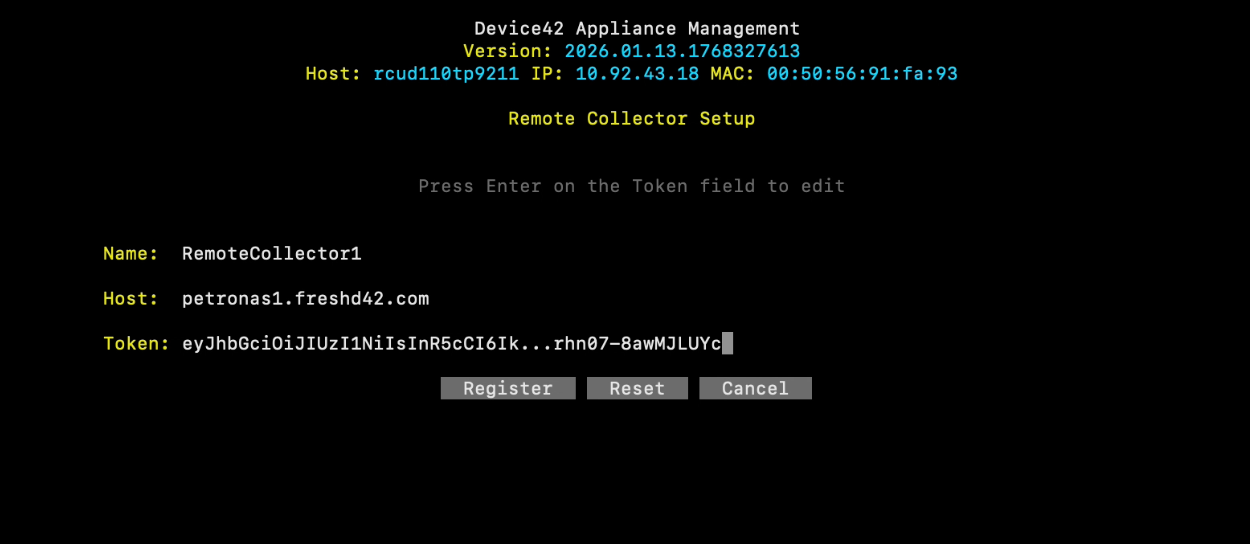
In the Remote Collector Setup, the hostname must be your instance. You can change the name later if required.
Paste the token to securely bind the collector to your instance and click Register. See how to copy a token in Step:2.
Step 3: Change user password
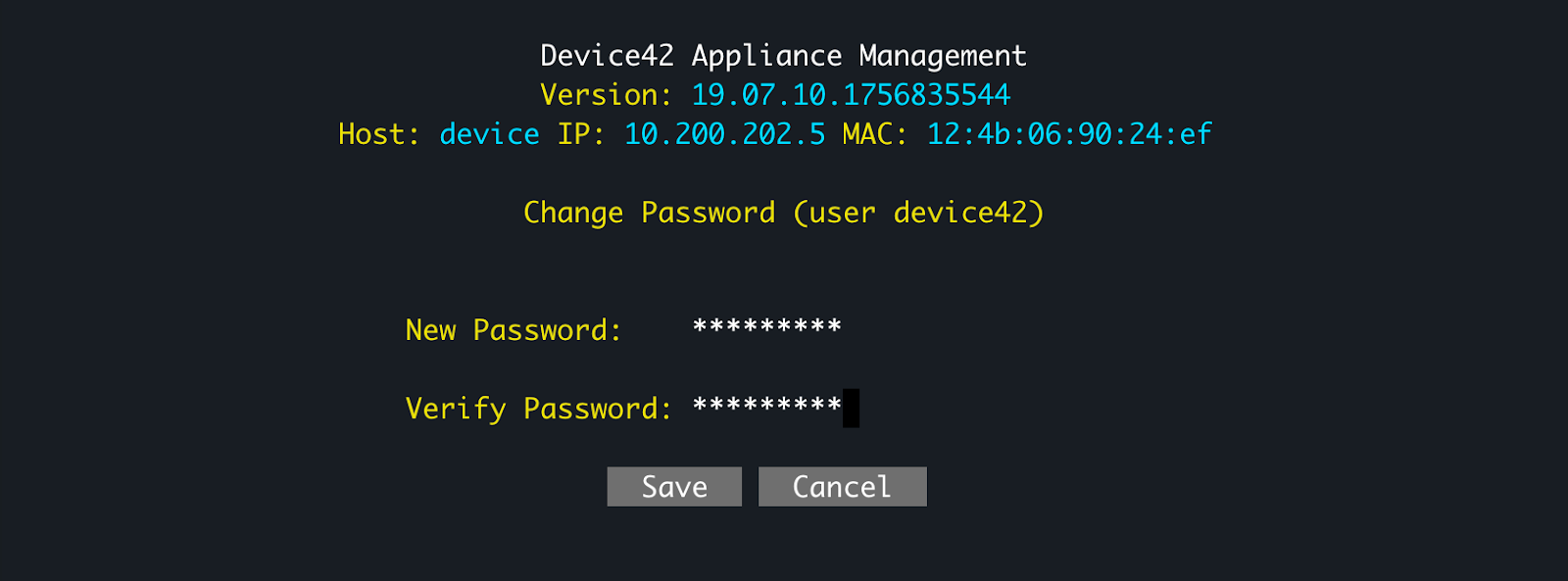
Choose option (p) to enter the Change Password (user client) menu.
Enter and verify the new password.
Click Save.
Caution: Do not put an RC into production without changing the default password.
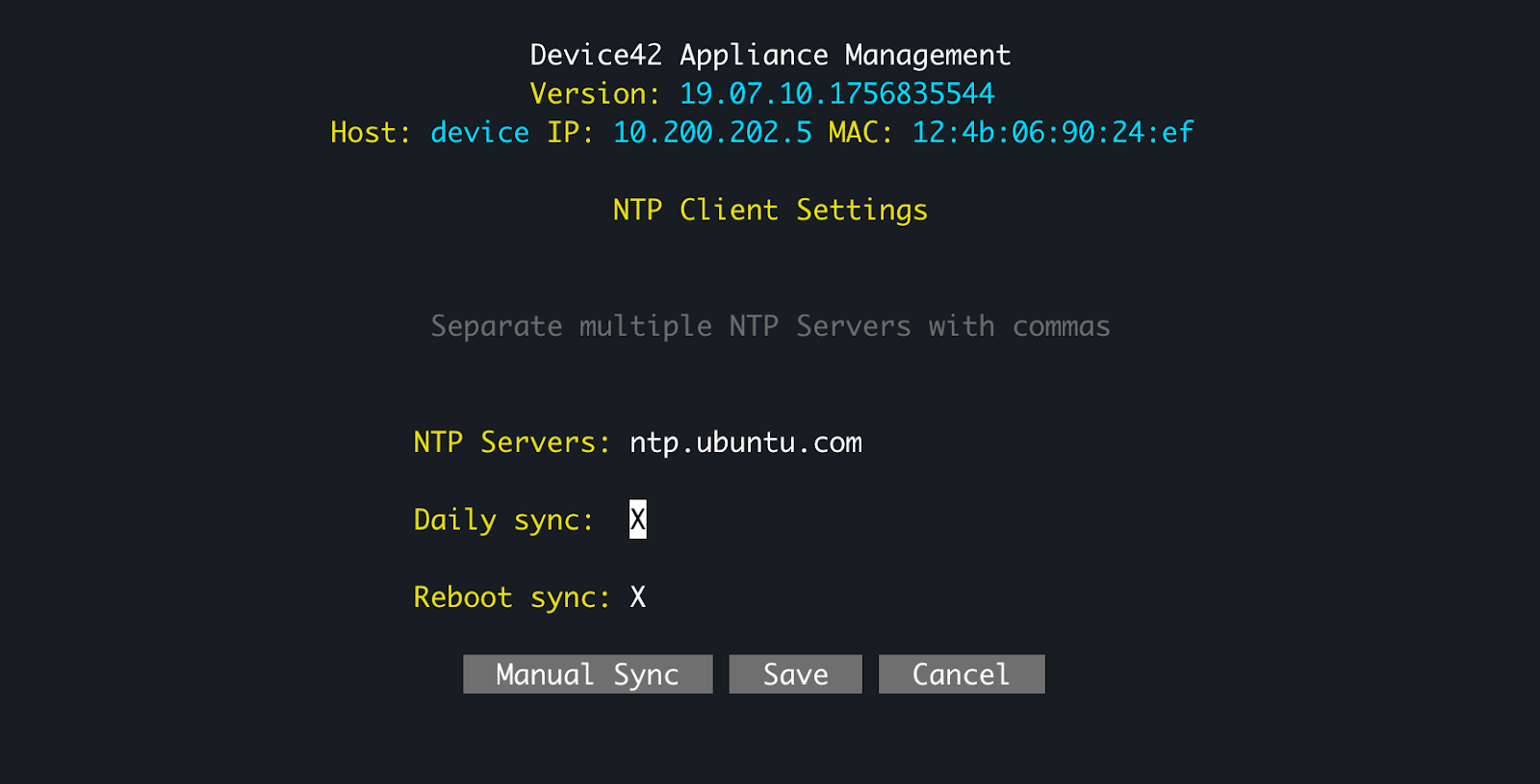
Step 4: Configure the NTP Settings
Choose option (n) to enter the NTP Client Settings menu.
Select Daily sync is chosen.
Select to Reboot sync to enable an admin to reboot the RC within the cloud interface, which can help resolve unusual RC behavior.
Click Manual Sync if you want to perform a manual sync now, else click Save.
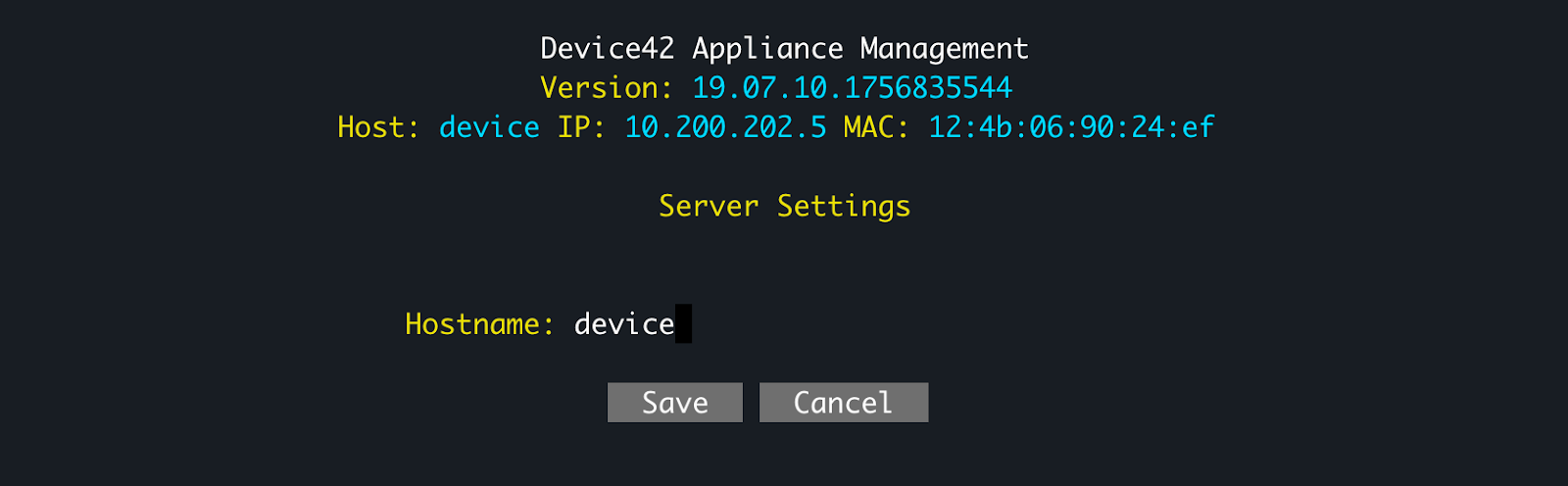
Step 5: Optional, specify hostname
Choose option (s) to enter the Server Settings menu.
Enter a hostname.
Click Save.
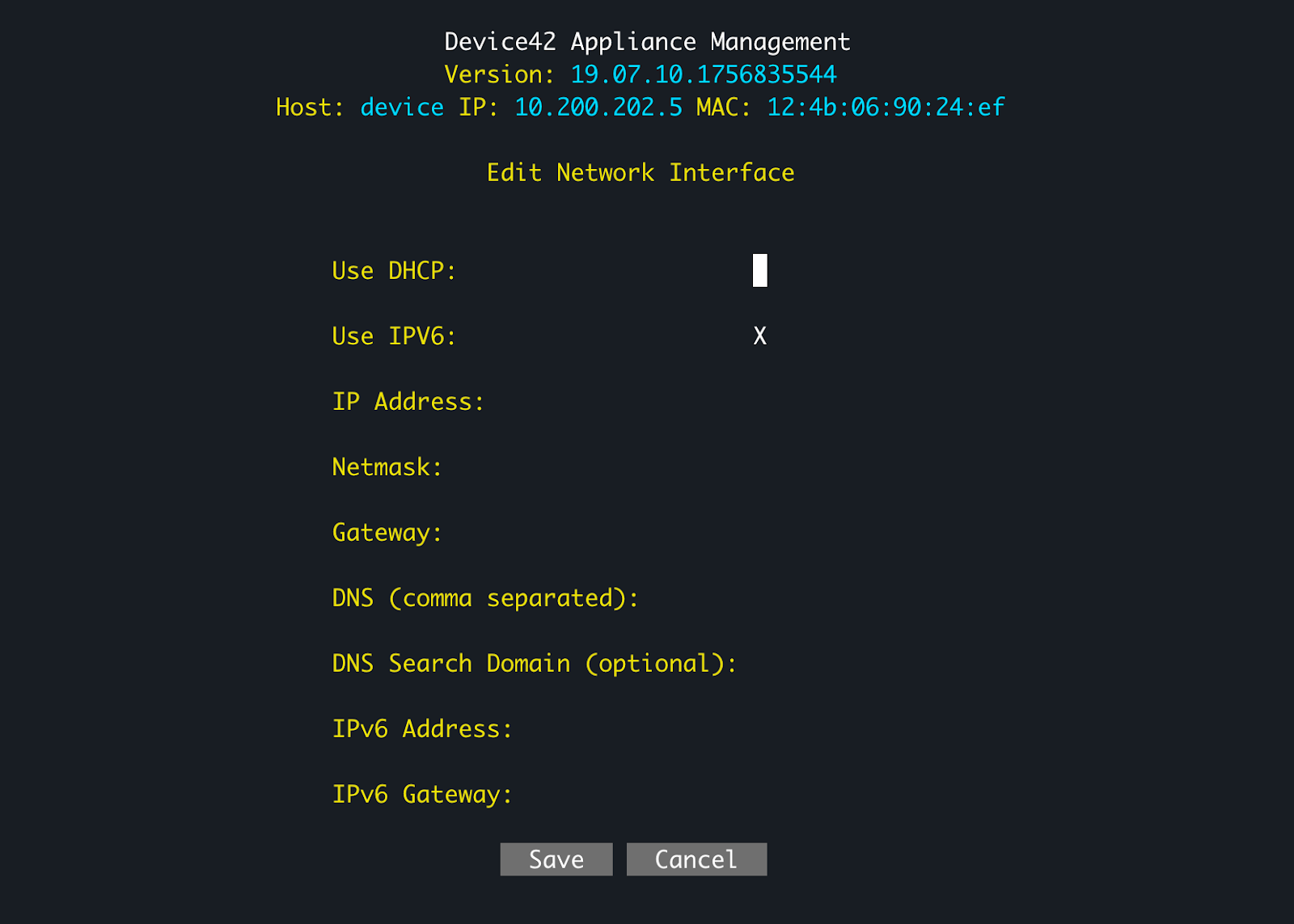
Step 6: Configure the Network Interface
This is only needed if your RC has multiple networks assigned, otherwise the first one is picked.
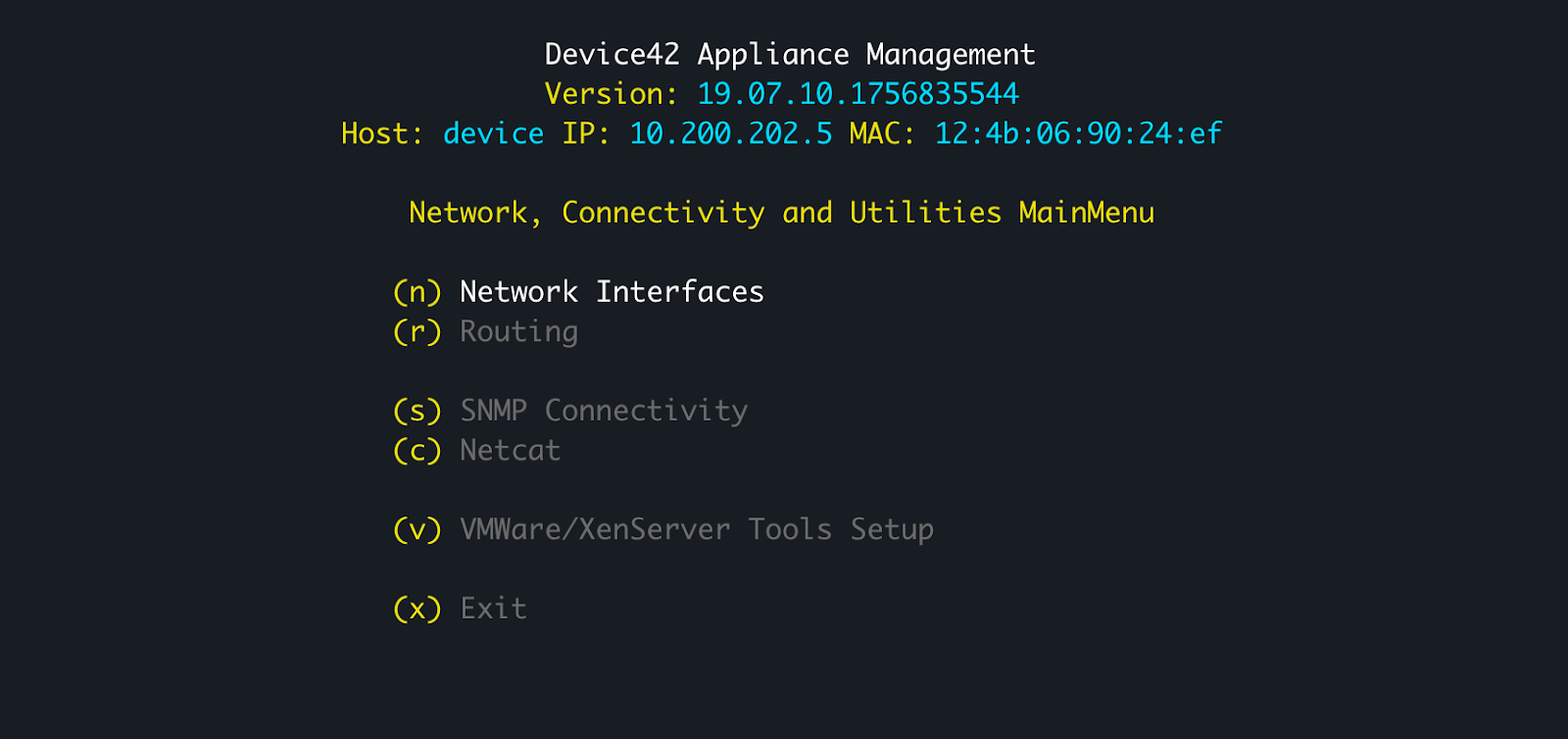
Choose option (u) to enter the Network, Connectivity and Utilities menu.
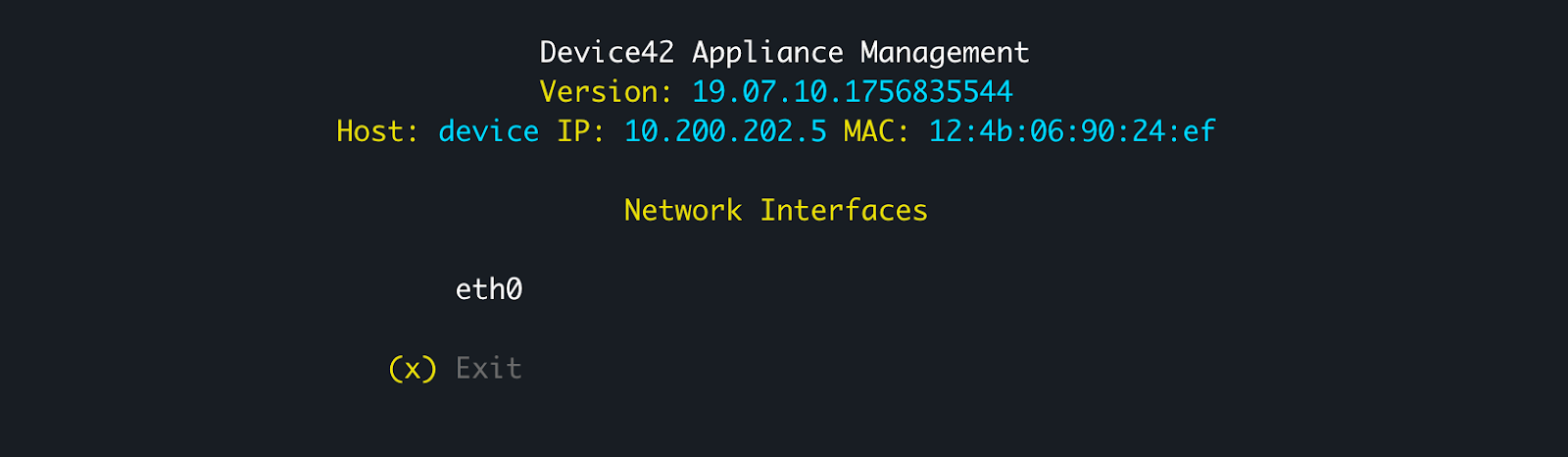
Choose option (n) to enter the Network Interfaces menu.
Select the default interface (highlighted in white) and press Enter.
If using a Static IP, deselect Use DHCP and enter the IP Address, Subnet, Gateway, and DNS server(s). If using IPv6, specify the IPv6 Address and Gateway. It is recommended to have a static IP for RC.
Click Save, then Exit.
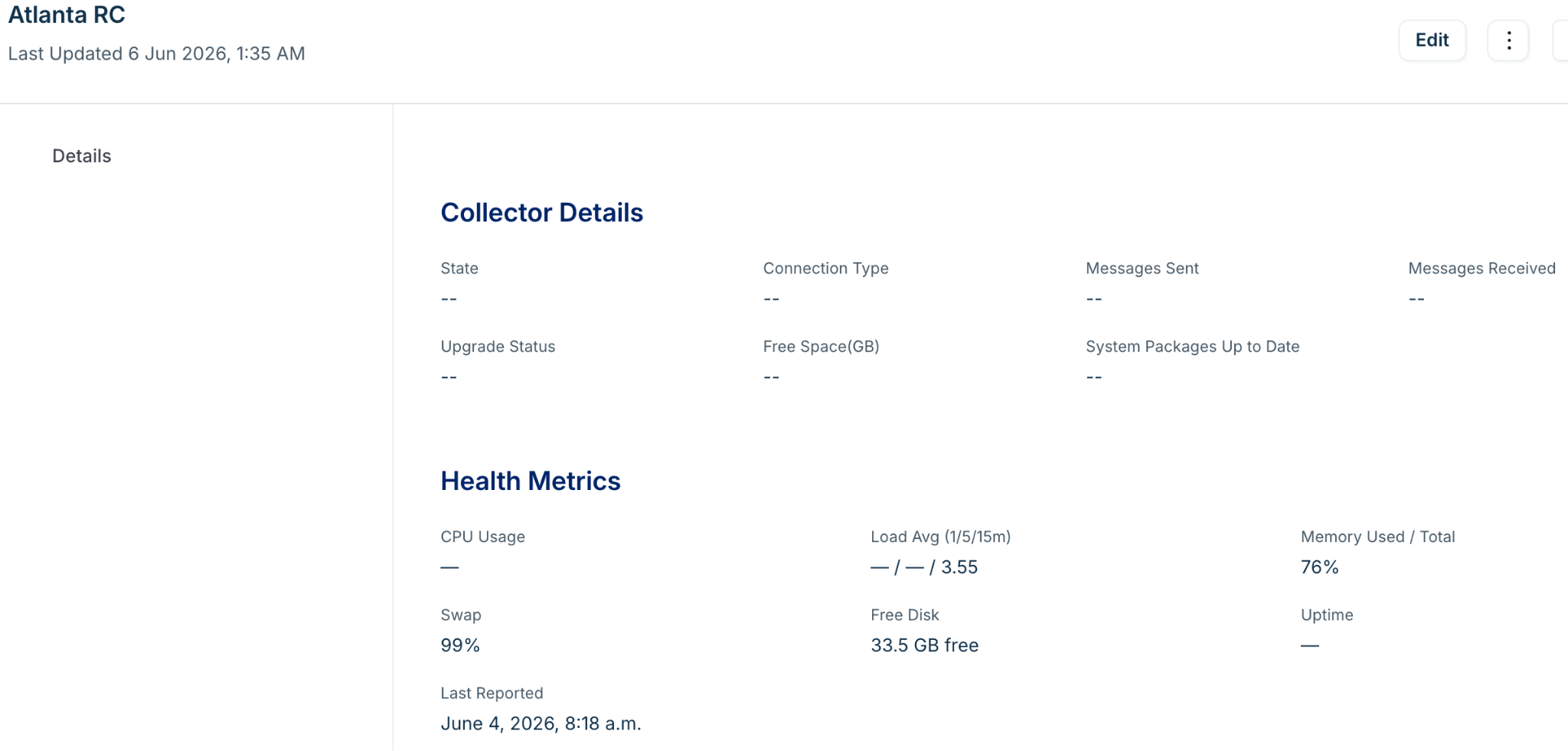
Once the Remote Collector is configured the state will show as Connected. 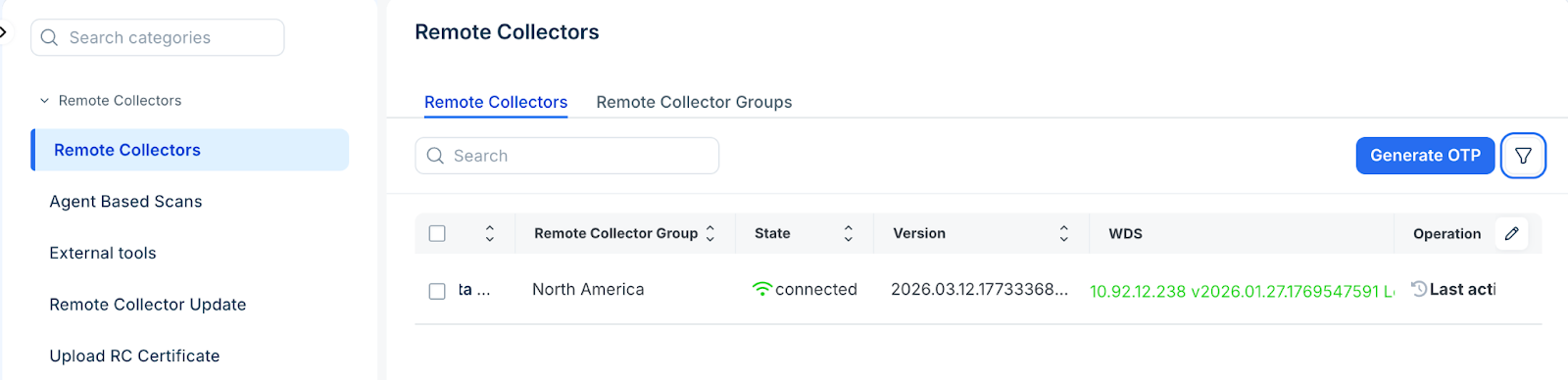
You can review the health metrics for Remote Collectors to view the performance and operational state of your RC machines.
You can monitor the collector status and troubleshoot infrastructure health using the following parameters:
Vital Health metrics: Keep tabs on hardware utilization with tracking for CPU usage, system load averages, memory consumption, swap space, and available free disk space.
Uptime and reporting logs: View system uptime and the Last Reported timestamp to ensure your data pipelines remain consistent and uninterrupted.