
 Community
 Video Library
 Agent Training
 Freshservice
 Freshdesk
 Freshchat
 Freshcaller
 Freshsales
 Freshteam
 Freshworks Neo
 Freshsurvey
 Freshservice for MSP
 TABLE OF CONTENTS
This article provides details about using Copilot Agent to perform actions while you work on a ticket. It covers how human agents can review and perform recommended actions, ask Copilot Agent to perform an action, and share feedback. It also explains how admins can configure apps, action permissions, and agent group access.
Prerequisites
Before you use Freddy AI Copilot Actions, ensure that you have the following:
An active Freddy AI Copilot license is assigned to you.
Your admin has enabled the required app and its actions for Copilot Agent.
Your agent group has access to Actions.
Overview of Freddy AI Copilot Actions
Copilot Agent helps you resolve tickets faster by providing AI-powered assistance directly within the ticket view. With its conversational capabilities, you can ask questions in natural language and get relevant answers based on your available knowledge and ticket context, without leaving the ticket.
With Copilot Agent Actions, you can take this experience further by asking the AI Copilot to perform actions across connected apps. Instead of switching between applications to complete a task, you can describe what you need in natural language from the Freddy AI Copilot side pane. Copilot Agent identifies the appropriate action, lets you review and approve it, and confirms when the action is complete.
The actions available to you depend on the connected apps, configured actions, your permissions, and the ticket context. This helps you complete tasks with less manual effort and reduces the need to switch between applications while working on a ticket.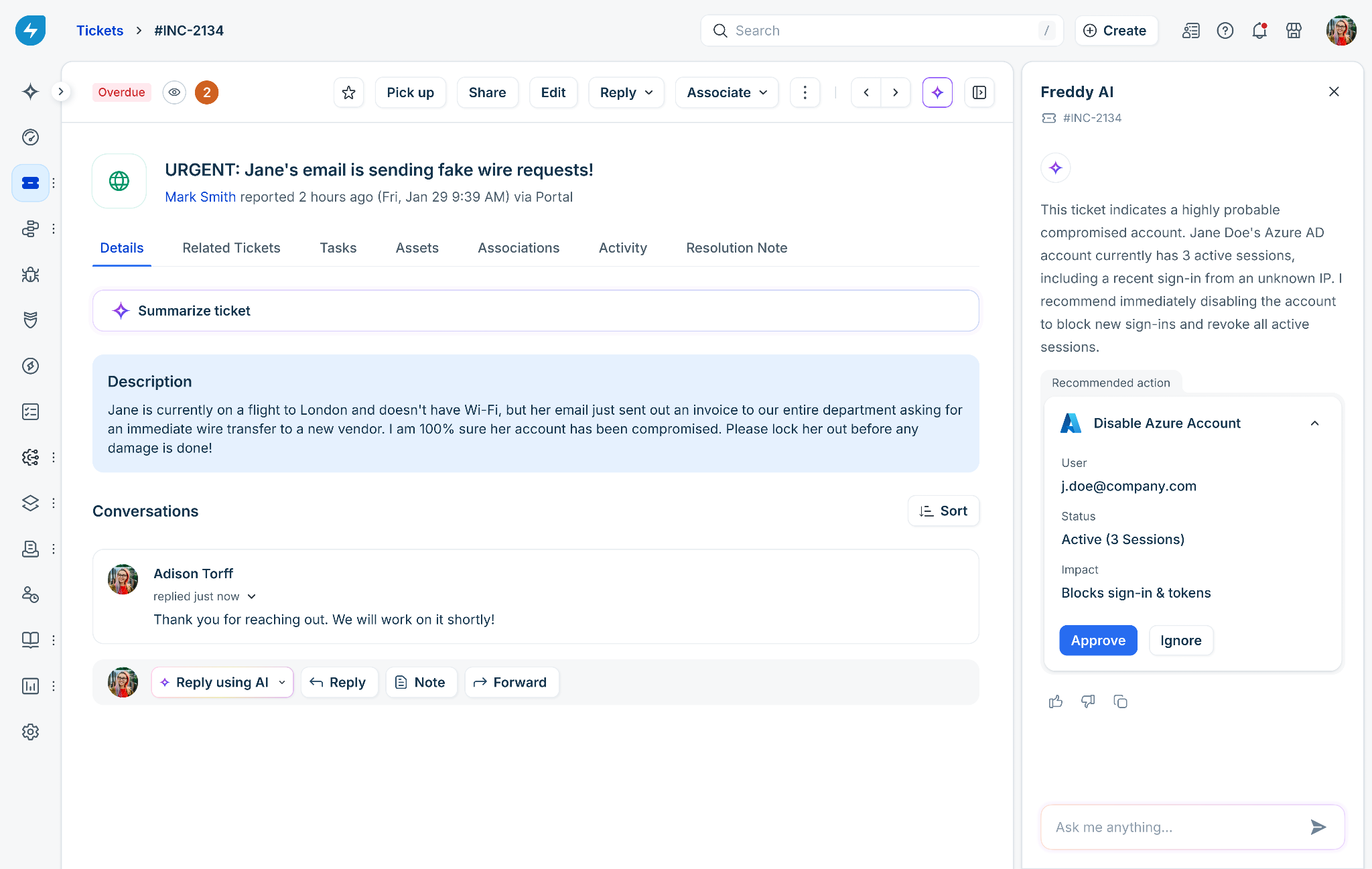
As an admin, you can control which apps and actions agents can access through Copilot Agent. You can configure actions to be always allowed, require agent approval, or be blocked. You can also control access based on agent groups. If a required action isn't available in a connected app, you can add a custom action through a workflow.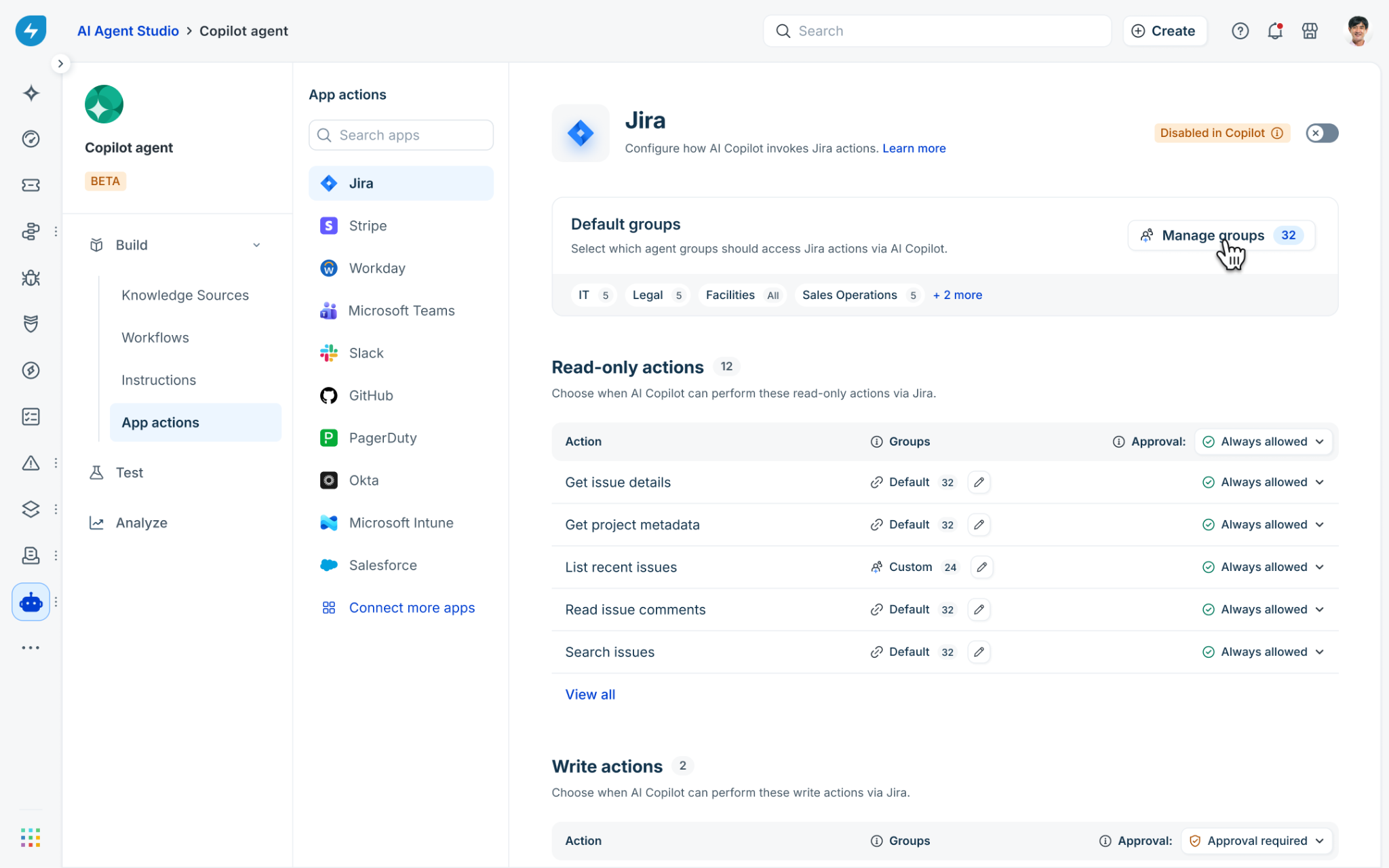
Admin experience
Enable apps for Copilot Agent
Before agents can use actions from a connected app, you must enable the app for Copilot Agent.
To enable an app, follow these steps:
Go to AI Agent Studio > Copilot agent > Build > App actions.
Select the app you want to configure.
If the app isn't connected, select Connect more apps to browse available apps.
Turn on the toggle in the top-right corner.
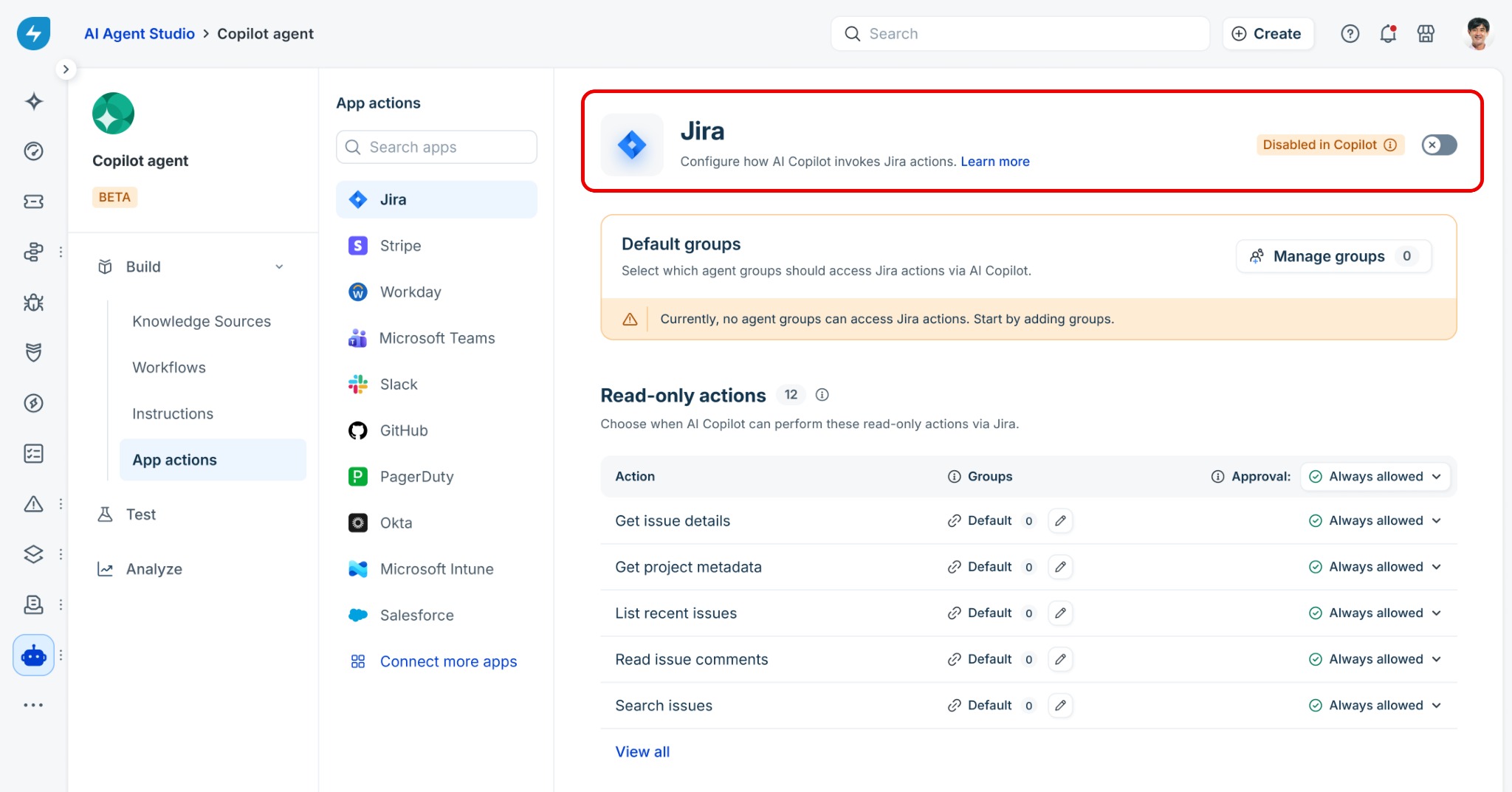
The app is enabled for Copilot Agent.
Configure action permissions
You can control whether Copilot Agent can perform an action automatically, requires agent approval, or cannot perform the action.
To configure an action, follow these steps:
Go to AI Agent Studio > Copilot agent > Build > App actions.
Select the required app.
Under App actions, locate the action.
Under required action, select the required Approval option:
Always allowed: Copilot Agent can perform the action without agent approval.
Approval required: Copilot Agent must receive agent approval before performing the action.
Blocked: Copilot Agent can't perform the action.
To configure different permissions for individual actions, update the setting for each action.
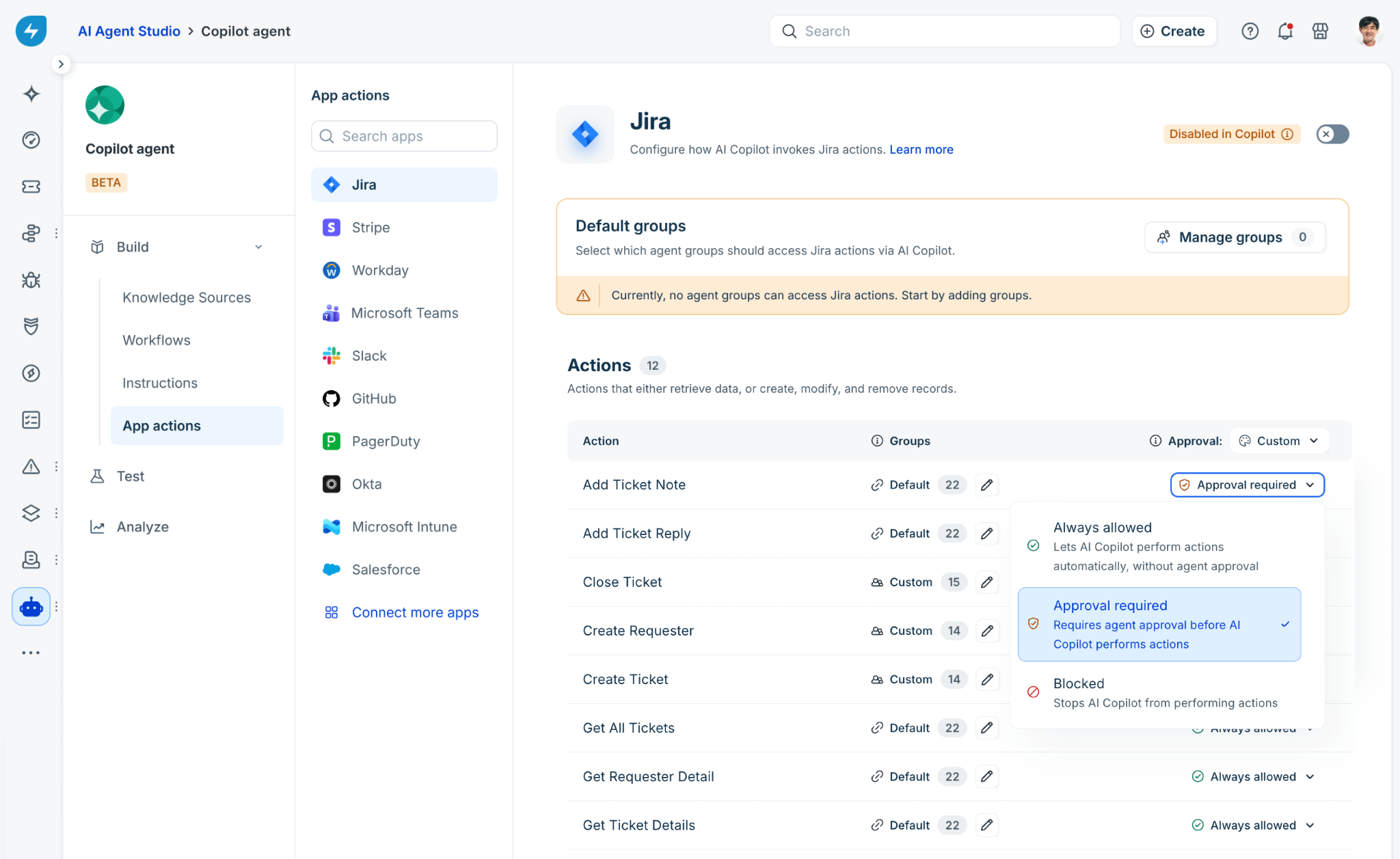
When you configure individual actions separately, the app-level setting changes to Custom.
Manage agent group access
You can control which agent groups can use an app's actions. By default, actions use the app's configured Default groups.
To manage agent group access, follow these steps:
Go to AI Agent Studio > Copilot agent > Build > App actions.
Select the app you want to configure.
To change access for the entire app, select Manage groups next to Default groups.
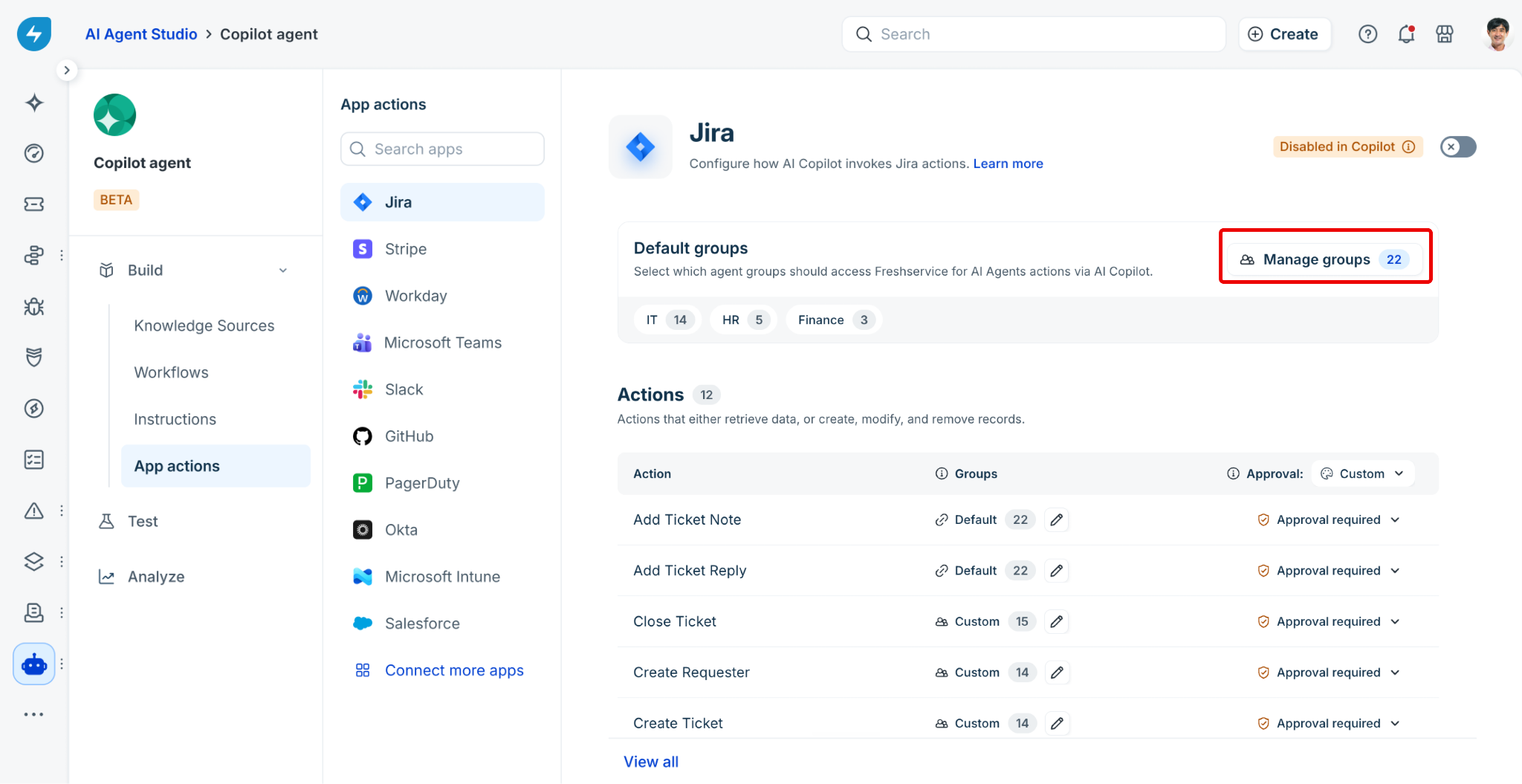
To configure access for an individual action, select the Edit icon for the action and turn off Manage default groups.
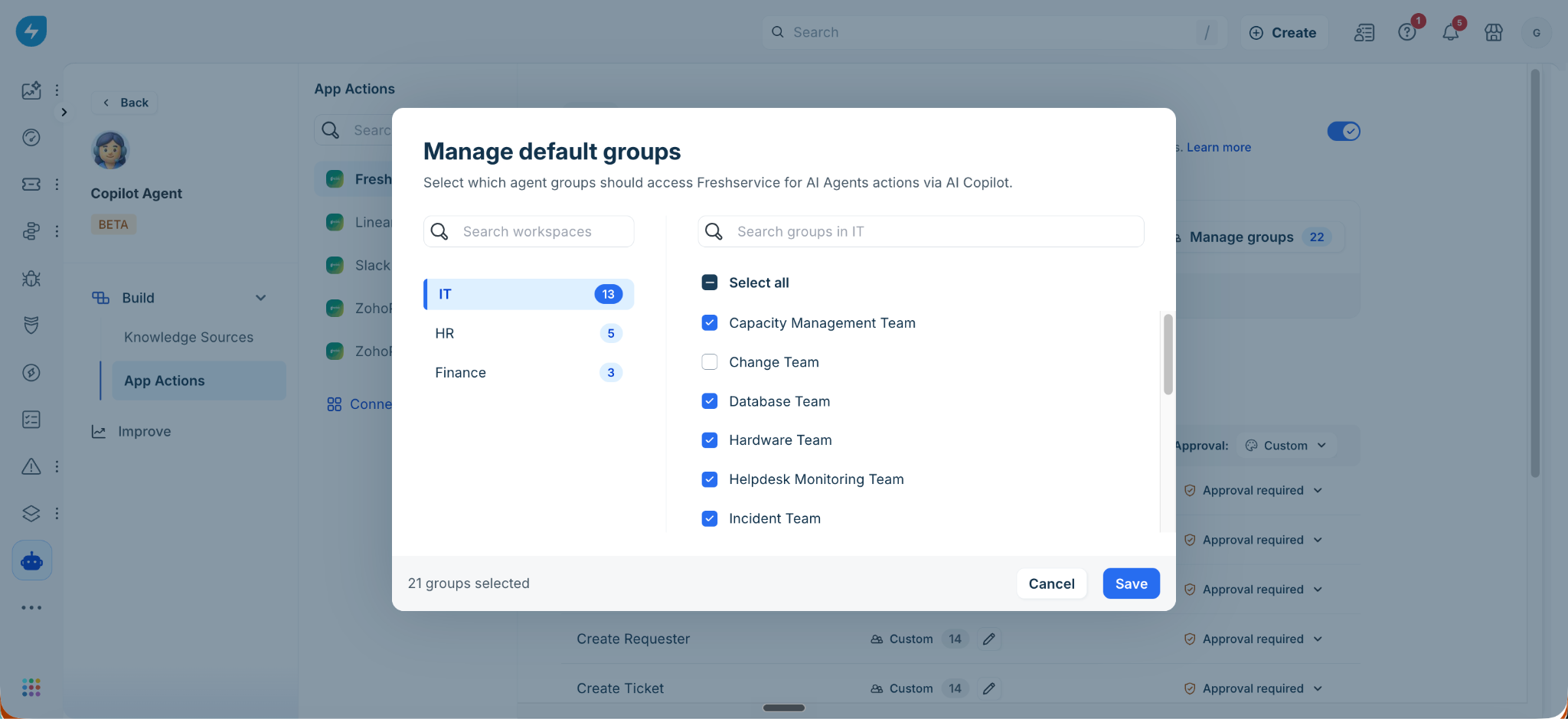
Select the workspace.
Select the agent groups that should have access.
Select Save.
If no agent groups have access, agents in those groups can't use the app's actions.
If you remove every group from an individual action, that action's group setting switches to Custom (0), and no agent group can use the action until you add one back. This is separate from the app's Default groups setting, which continues to apply to any action still set to Default.
Keep actions in sync with your connected apps
Copilot Agent keeps the App actions list in sync with what each connected app exposes, so it never acts on stale or over-privileged permissions.
When a connected app adds a new action, it appears on the App actions page as new and unmapped. Copilot Agent doesn't use it until an admin reviews it and sets its approval and group access. New actions default to a safe state, such as Approval required or Blocked.
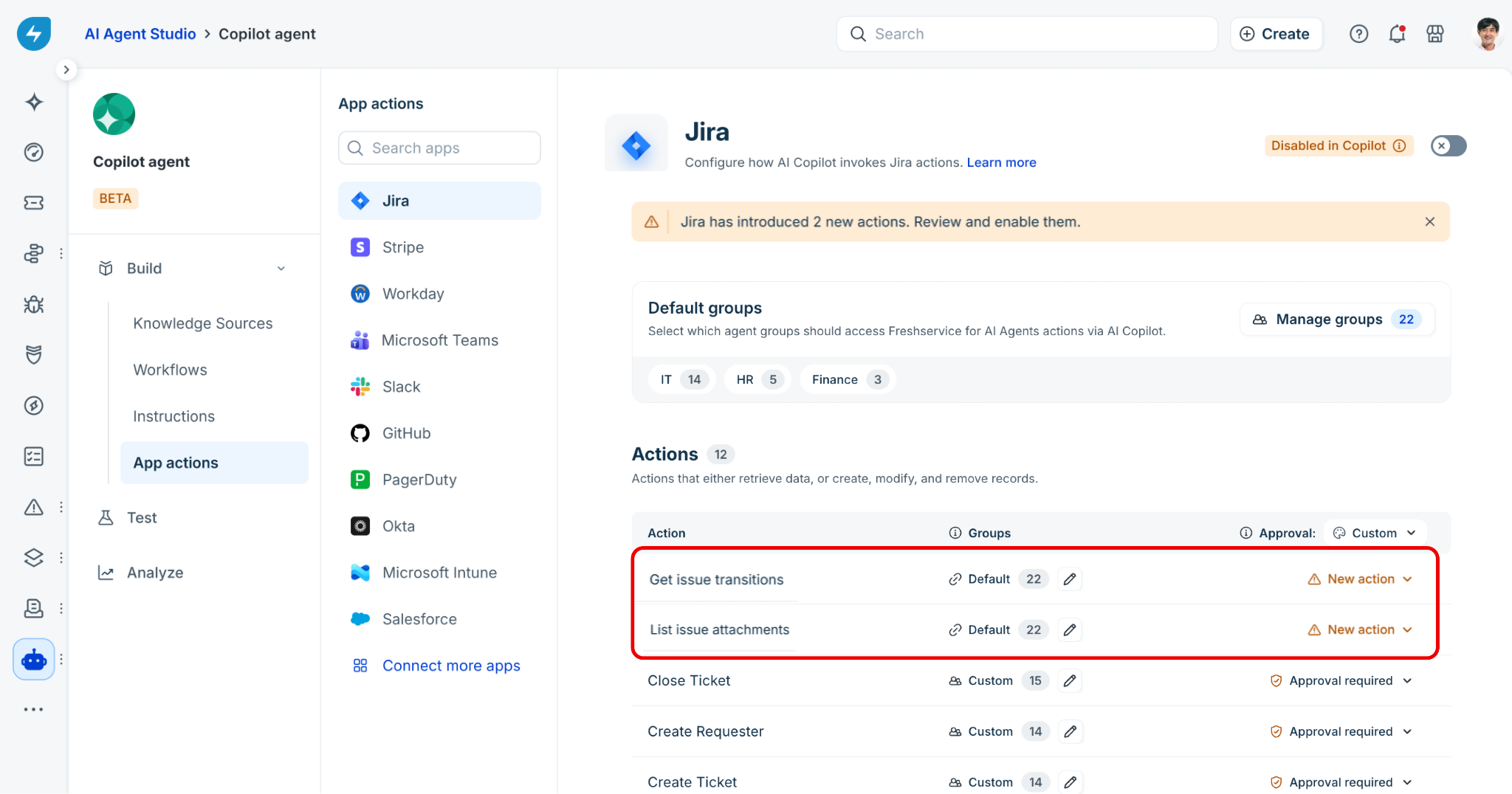
When a connected app removes or deprecates an action, Copilot Agent automatically removes it from the list of available actions. If a workflow depends on that action, the workflow is flagged for the workflow owner or admin to review.
Agent experience
After an admin configures actions for Copilot Agent, it can identify actions that are relevant to a ticket and display them as recommendations in the Freddy AI Copilot side pane. You can review the recommended action and the information retrieved for it, then approve or ignore it before the action is performed.
Review and approve a recommended action
To review and approve a recommended action, follow these steps:
Open the ticket and go to the Freddy AI panel.
Review the Recommended action card.
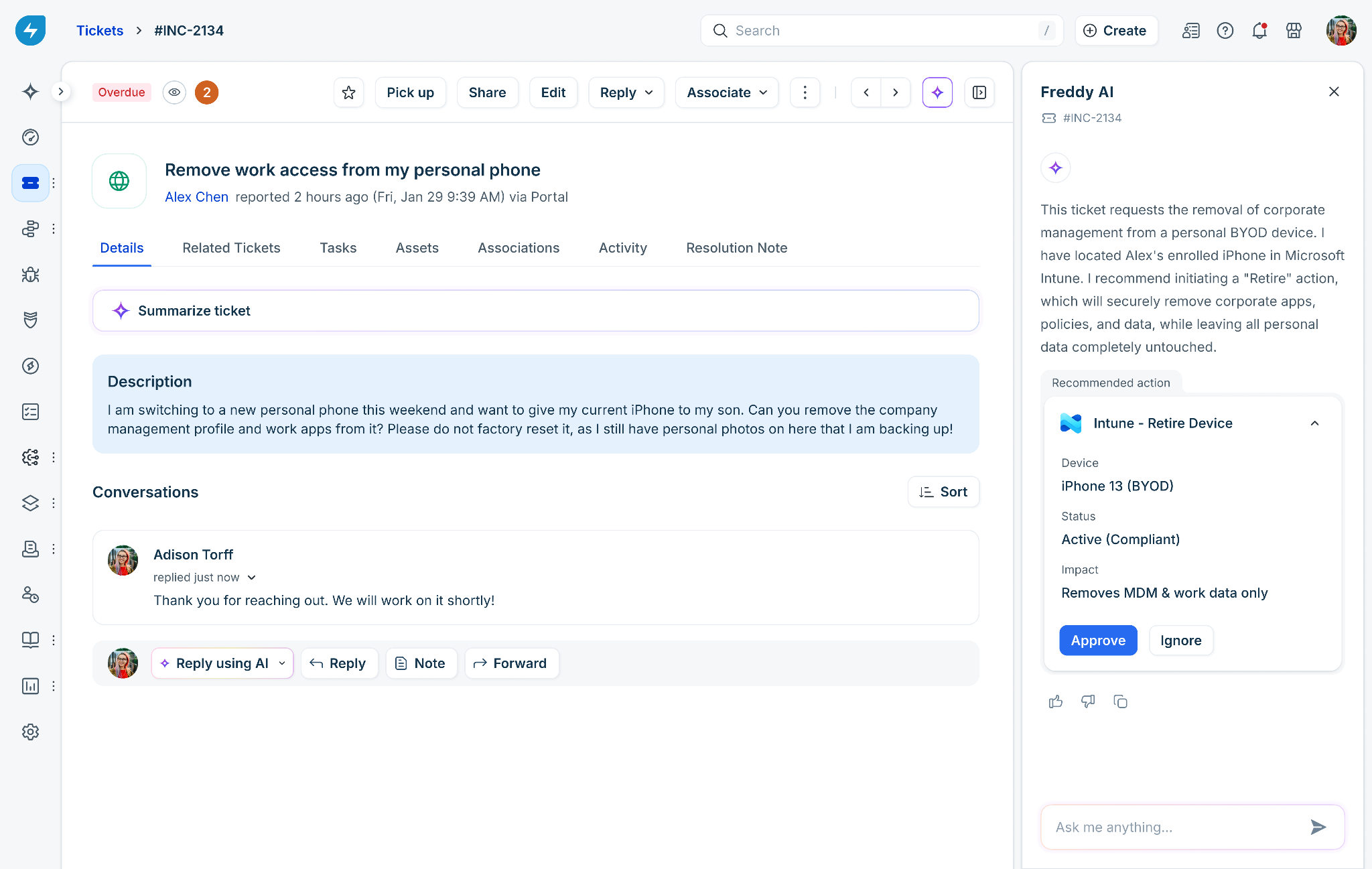
The card displays the action and relevant information retrieved for the action.Select Approve to perform the action or Ignore to dismiss the suggestion.
If prompted, confirm the action.
Copilot Agent displays a confirmation after the action is completed.
Note: Some actions may require an additional confirmation before they are performed.
Ask Copilot Agent to perform an action
You can ask Copilot Agent to perform an action directly instead of waiting for a recommendation.
To ask Copilot Agent to perform an action, follow these steps:
Open the ticket and go to the Freddy AI panel.
In the Ask me anything box, describe the action you want Copilot Agent to perform.
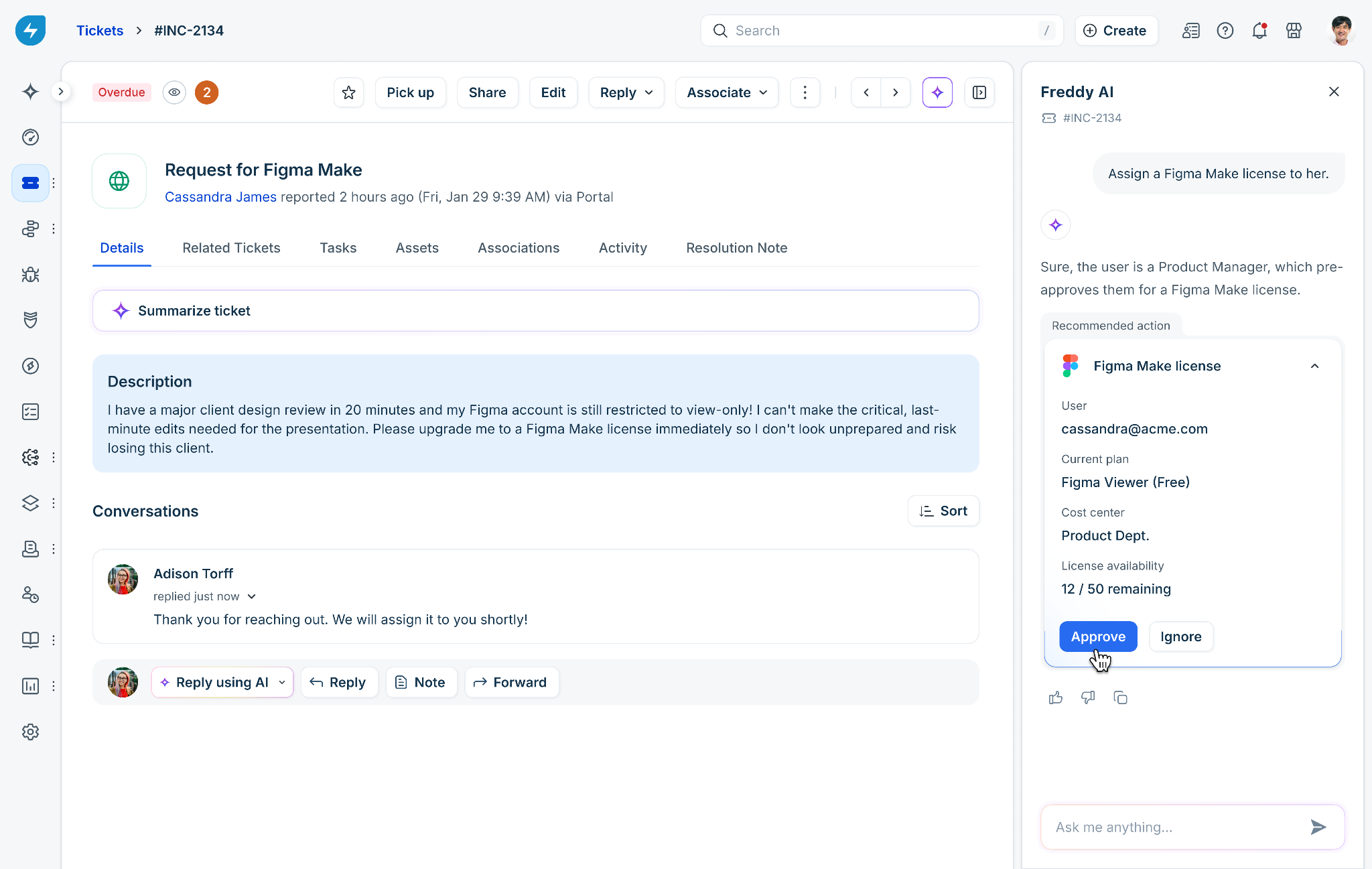
Review the recommended action and the information provided with it.
Select Approve to perform the action or Ignore to cancel it.
If prompted, confirm the action.
Copilot Agent performs the action only if you have the required permissions. If you don't have access to the action, an appropriate error message is displayed.
Understand when action suggestions change
Copilot Agent reevaluates action suggestions when the ticket context changes. This can happen when you:
Open or refresh the ticket.
Assign the ticket.
Add a reply or private note.
Change the ticket status, title, or description.
Add an associated asset, related ticket, problem, change, task, or parent or child ticket.
Copilot Agent retrieves information from connected apps only when it is relevant to the ticket. It also considers your permissions before recommending an action.
Share feedback on an action suggestion
You can provide feedback on an action suggestion to help Copilot Agent improve future recommendations.
Mark a suggestion as helpful
To mark an action suggestion as helpful, follow these steps:
In the Freddy AI Copilot side pane, locate the action suggestion.
Click the thumbs-up icon.
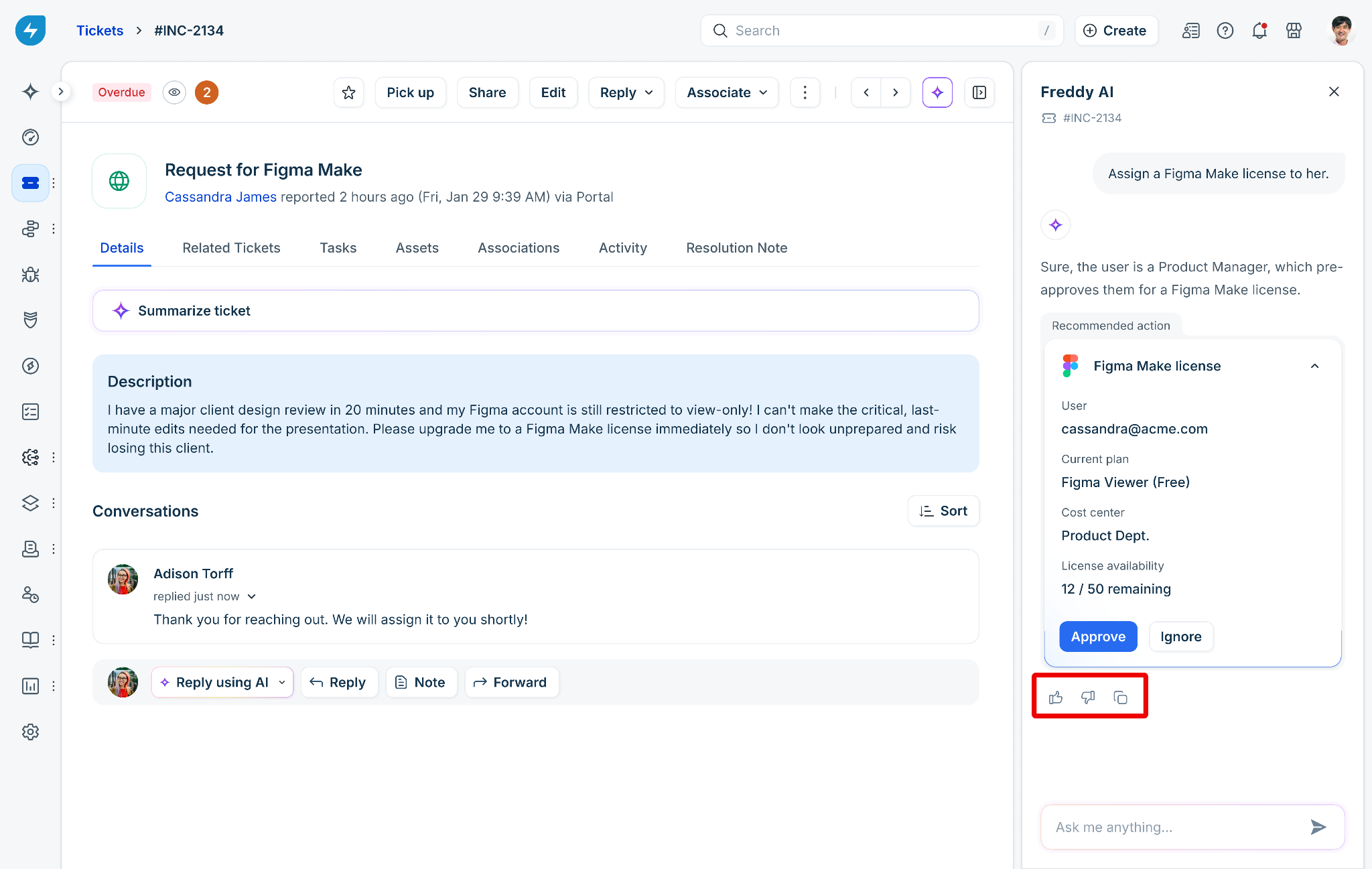
Mark a suggestion as not helpful
To mark an action suggestion as not helpful, follow these steps:
In the Freddy AI Copilot side pane, locate the action suggestion.
Click the thumbs-down icon.
If prompted, select the reason for your feedback.
Enter additional details, if required.
Click Submit.
Your feedback does not change the suggestions currently displayed on the ticket. It is used to improve future recommendations.
Frequently asked questions
The following answers address common questions about Copilot Agent actions.
1. Why don't I see an action that I expect?
Copilot Agent recommends actions based on the current ticket context and your available permissions. An action might not be recommended if:
The action isn't relevant to the current ticket.
The required app isn't enabled for Copilot Agent.
Your agent group doesn't have access to the action.
The action isn't available for Copilot Agent.
2. Can I ask Copilot Agent to perform an action that isn't recommended?
Yes. You can describe the action in the Ask me anything box in the Freddy AI Copilot side pane. Copilot Agent checks whether the action is available and whether you have permission to perform it.
3. Does feedback change the suggestions currently displayed?
No. Feedback doesn't change the suggestions currently displayed on the ticket. It helps improve future recommendations.
4. Are Copilot Agent actions recorded?
Yes. Action executions, workflow executions, and information retrieved from connected apps are recorded in the ticket's activity log.
5. What happens if a connected app adds or removes an action?
A new action appears on the App actions page as unmapped until an admin reviews and configures it, so Copilot Agent never uses it automatically. A removed action is taken out of the available actions list, and any workflow that depended on it is flagged for review.