
 Community
 Video Library
 Agent Training
 Freshservice
 Freshdesk
 Freshchat
 Freshcaller
 Freshsales
 Freshteam
 Freshworks Neo
 Freshsurvey
 Freshservice for MSP
 TABLE OF CONTENTS
- Prerequisites
- Overview of Rich Text fields
- Add a Rich Text field to a document template
- Map Rich Text fields to ticket data
- Change the data type of a mapped field
- Use Liquid filters with Rich Text fields
- Generate a document with Rich Text fields
- Review Rich Text changes in audit logs
- Frequently asked questions
Document templates support Rich Text fields for capturing formatted, multi-paragraph content such as bulleted clauses, bold headings, and multi-line notes. This article explains how to configure Rich Text fields in document templates and service catalog items, and how agents can use them when generating documents.
Prerequisites
Before configuring or using Rich Text fields, ensure you have the following:
Access to Document template and service catalog items.
Access to tickets from which documents are generated.
Overview of Rich Text fields
Rich Text fields allow you to capture and display formatted content in generated documents. You can add a Rich Text field to a document template, map it to supported ticket or service catalog data, and use the field to populate formatted content when generating a document.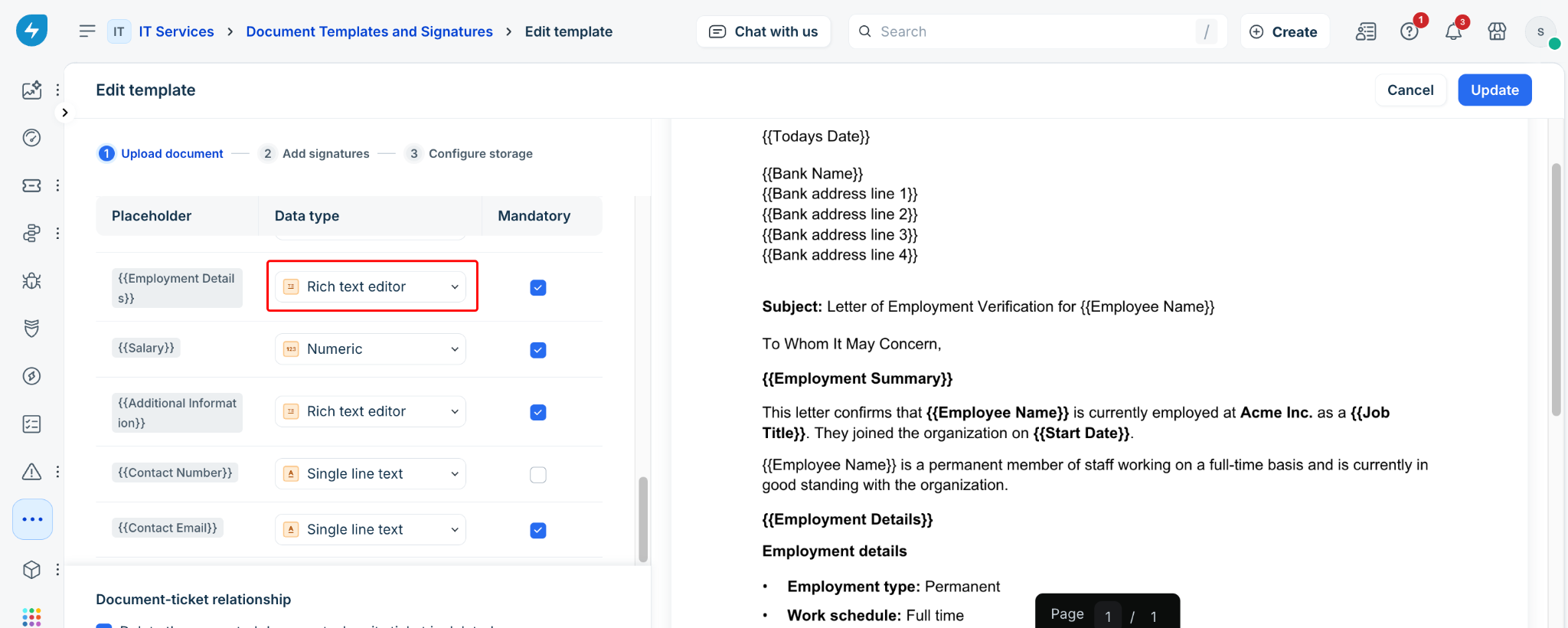
You can map Rich Text fields to ticket fields, requester fields, requested-for fields, custom fields, system fields, service desk fields, service item fields, or static content. You can also leave a Rich Text field unmapped so that agents can enter the content manually when generating a document.
Add a Rich Text field to a document template
To add a Rich Text field to a document template, follow these steps:
Open the document template that you want to edit, or create a new template.
When defining a field, select Rich text editor from the list of data types for required sections of the document.
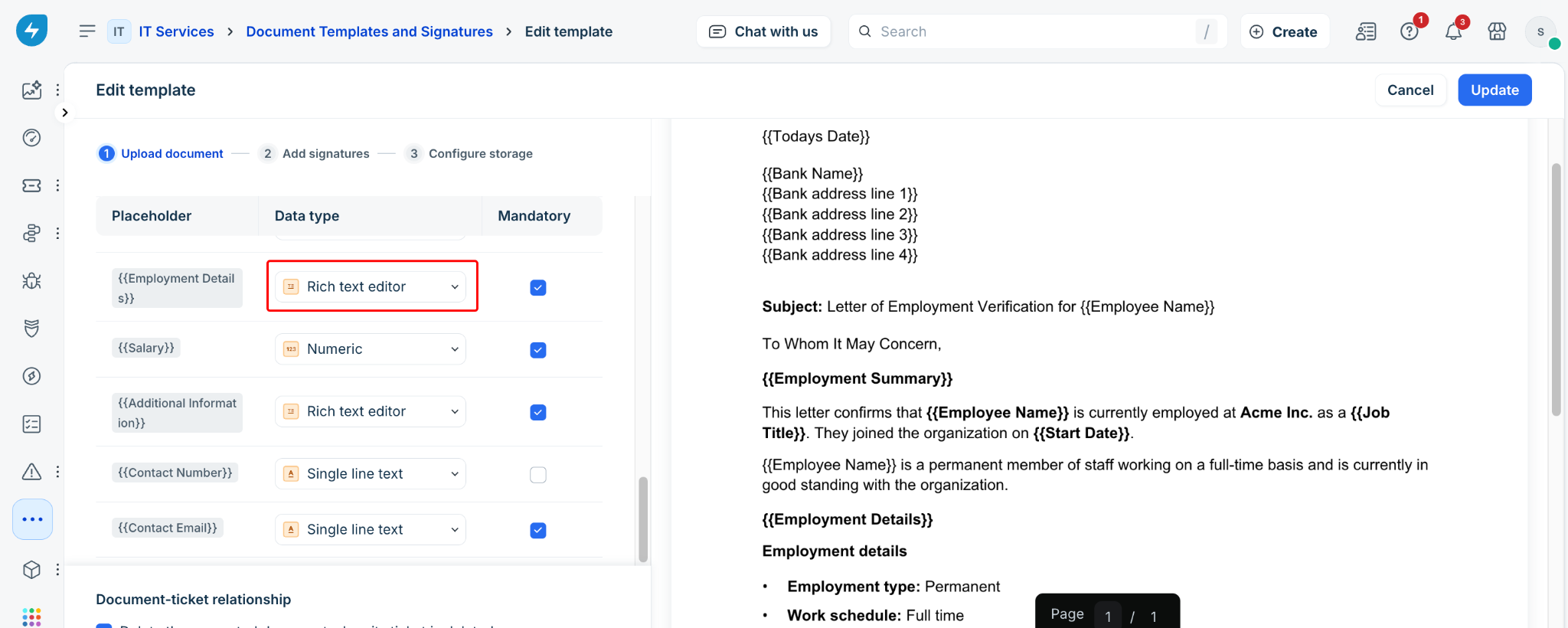
Turn on Mandatory if the field must contain content before a document can be generated.
Note:
You can map a maximum of 10 placeholders to the Rich Text data type in a template.
Existing document templates aren't affected. You can add Rich Text fields to existing templates by editing them.
Map Rich Text fields to ticket data
Field mapping connects a document placeholder to the source of its content. You can map Rich Text fields to supported ticket and service catalog data sources.
To map a Rich Text field, follow these steps:
Go to the service catalog item's Document placeholder field mapping view.
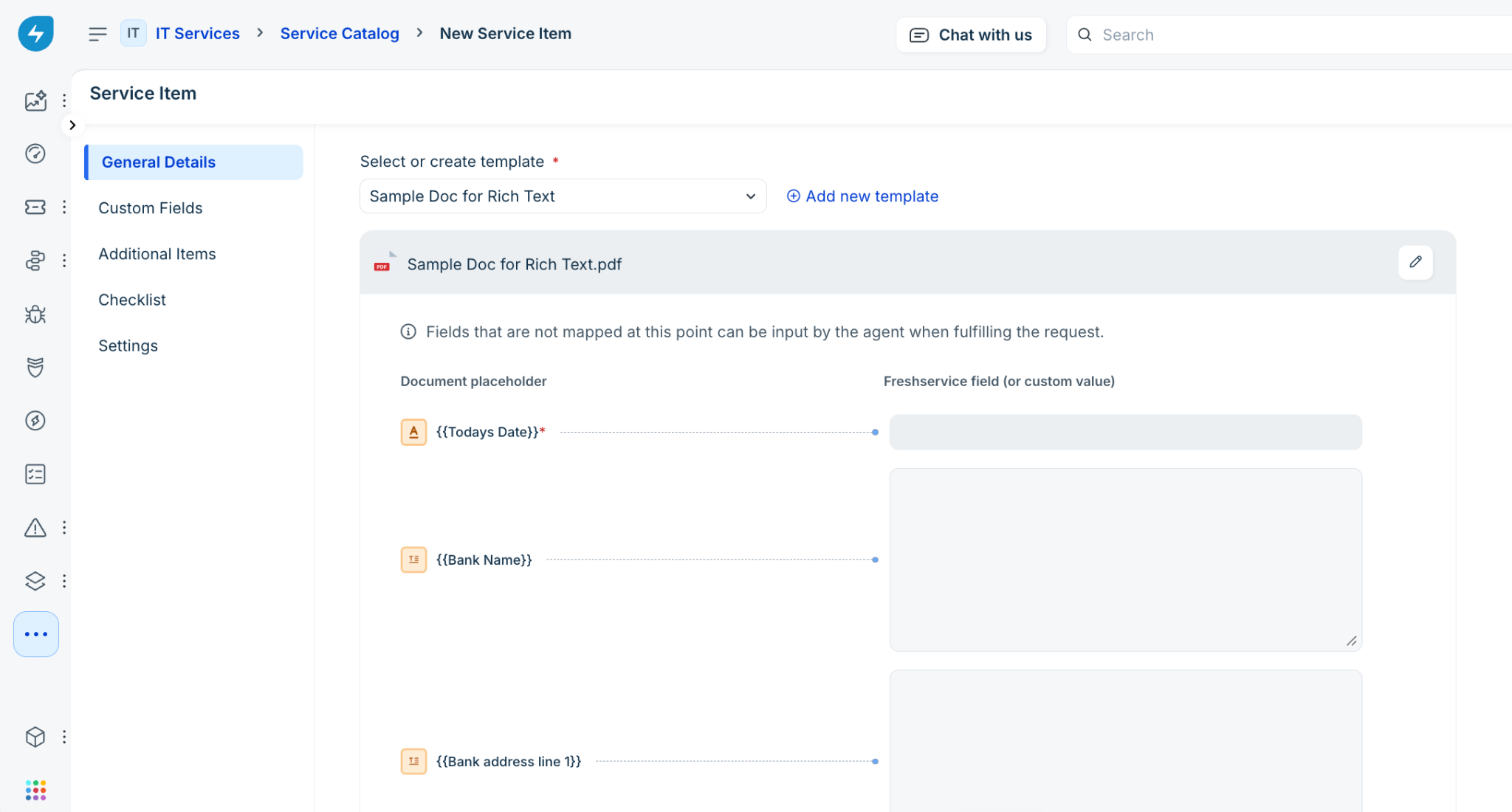
Identify the Rich Text field using its distinct icon.
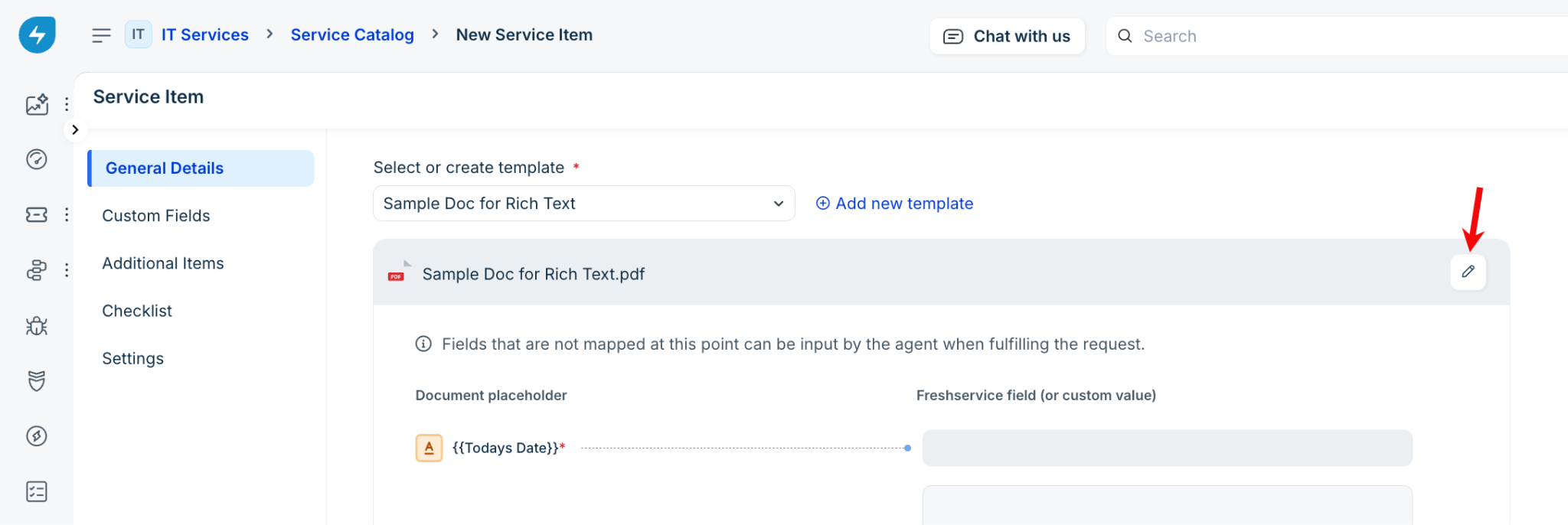
Review the existing mapping. Mapped content is displayed in read-only mode by default.
Click the edit icon to modify the mapping.
Map each placeholder in the template to the corresponding Freshservice system field. This ensures the document is automatically populated when it is generated and sent for e-signing. To map a field, click the + icon next to the placeholder and select the appropriate field from the available options.
Use default fields from available categories such as Ticket, Requester, Service Item, and others.
You can also use custom fields added to the form, such as Employment Start Date or Bank Name.
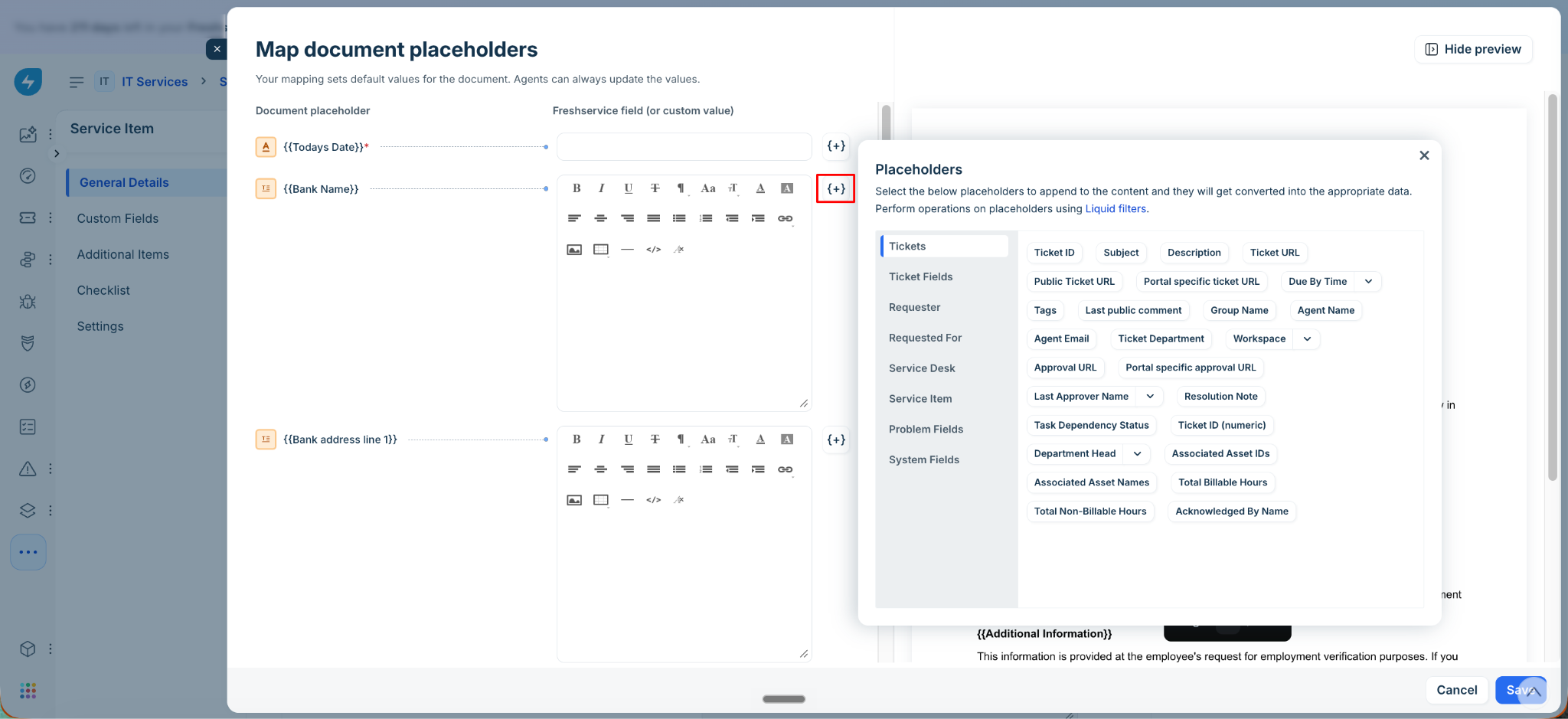
You can leave certain placeholders unmapped if the data is unavailable or requires manual verification. Agents can enter these values manually while generating the document.
After mapping the placeholders, click Save to apply your changes. You can also set up the document to be sent automatically, without an agent's review.
By default, the document template preview appears alongside the field mapping panel. You can select Hide preview to get more space for editing the mappings and show it again when required.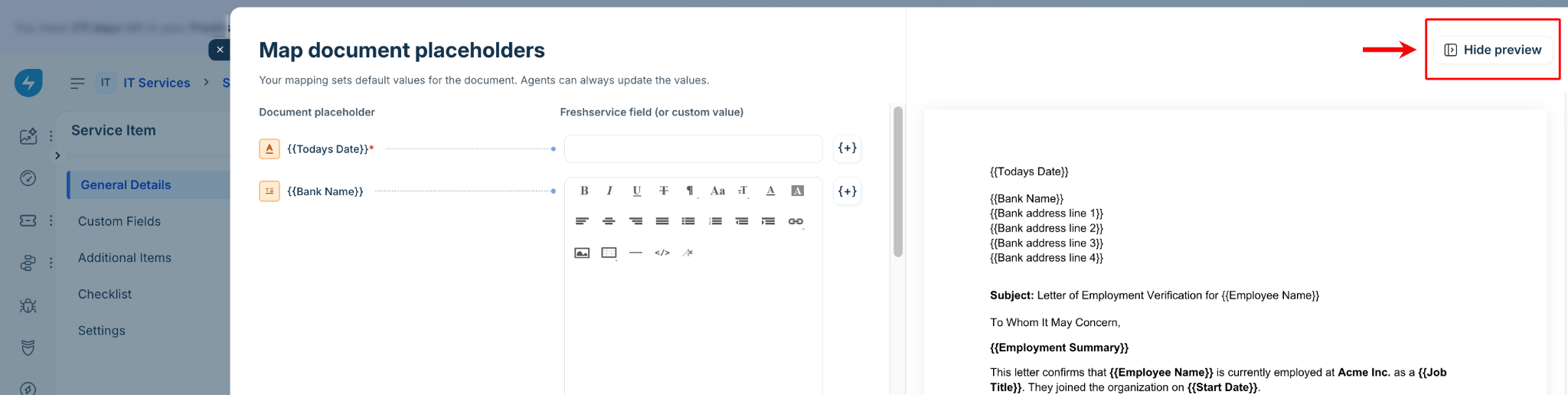
You can also resize a Rich Text field vertically while mapping it. Horizontal resizing isn't supported.
After you save the changes, the document placeholder-to-field mapping table on the service catalog item page is updated with the new mapping.
Change the data type of a mapped field
You can change the data type of a document placeholder after it has been mapped.
If you change another data type to Rich Text, the existing field mapping continues to work.
If you change a Rich Text field to another data type and the existing mapping isn't compatible, an error is displayed on the service item and an inline error is displayed in the placeholder-to-field mapping panel.
You must update an incompatible mapping before you can save the service item.
Use Liquid filters with Rich Text fields
You can use Liquid placeholder functions supported for string-type fields with Rich Text fields. For example, you can apply a date-formatting function to a custom date field mapped to a Rich Text placeholder.
If a Liquid function fails to evaluate when the document is generated, the field is treated as an empty string. The corresponding field in the Generate document panel is also displayed as blank.
For more information, see Powerful Placeholders with Liquid Filters.
Generate a document with Rich Text fields
When you generate a document from a ticket, Rich Text fields are populated based on their configuration.
To generate a document with Rich Text fields, follow these steps:
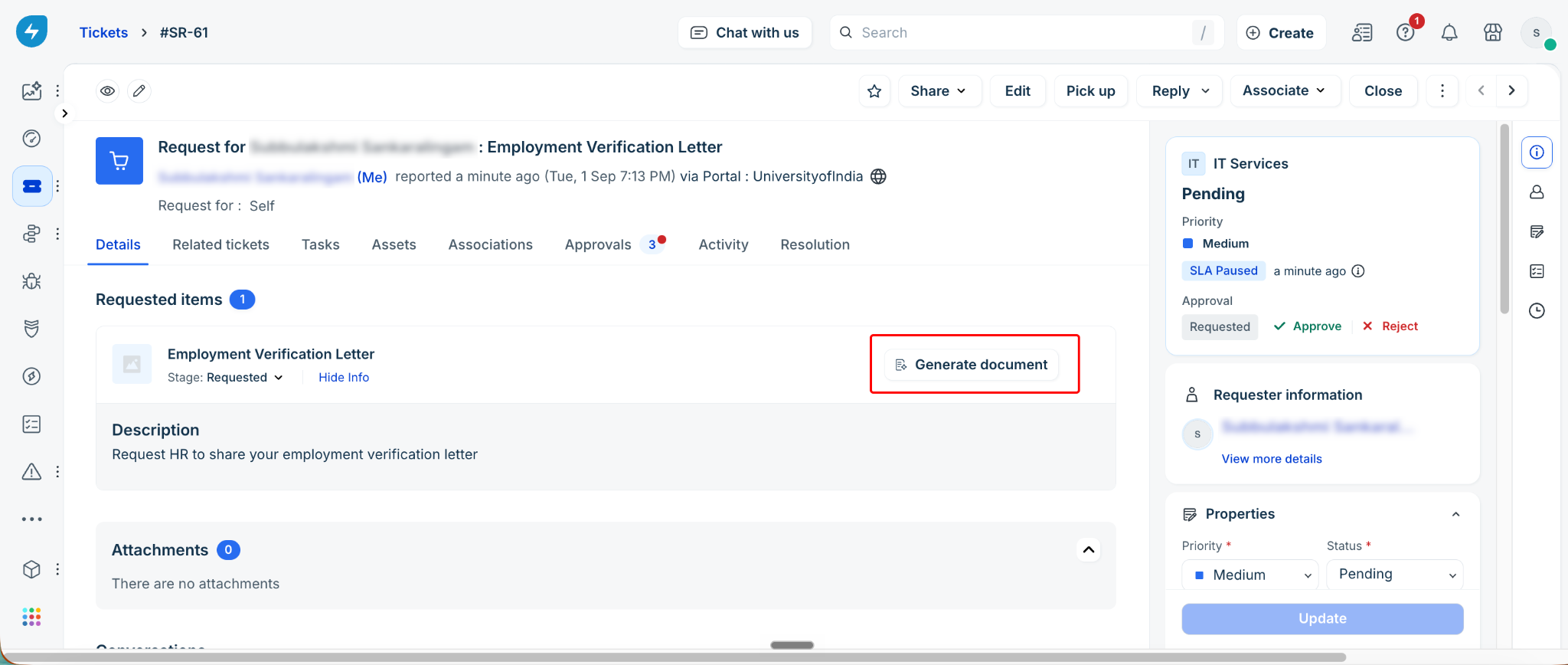
Open the ticket from which you want to generate the document.
Click Generate document.
Review the Rich Text fields in the document.
If a Rich Text field is mapped, review the automatically populated content. The formatting from the source field is preserved.
If a Rich Text field isn't mapped, enter the required content using the rich text editor. Use the formatting toolbar to apply bold, italic, underline, and strikethrough formatting, create numbered or bulleted lists, adjust alignment and indentation, and add links, images, tables, or horizontal lines as required.
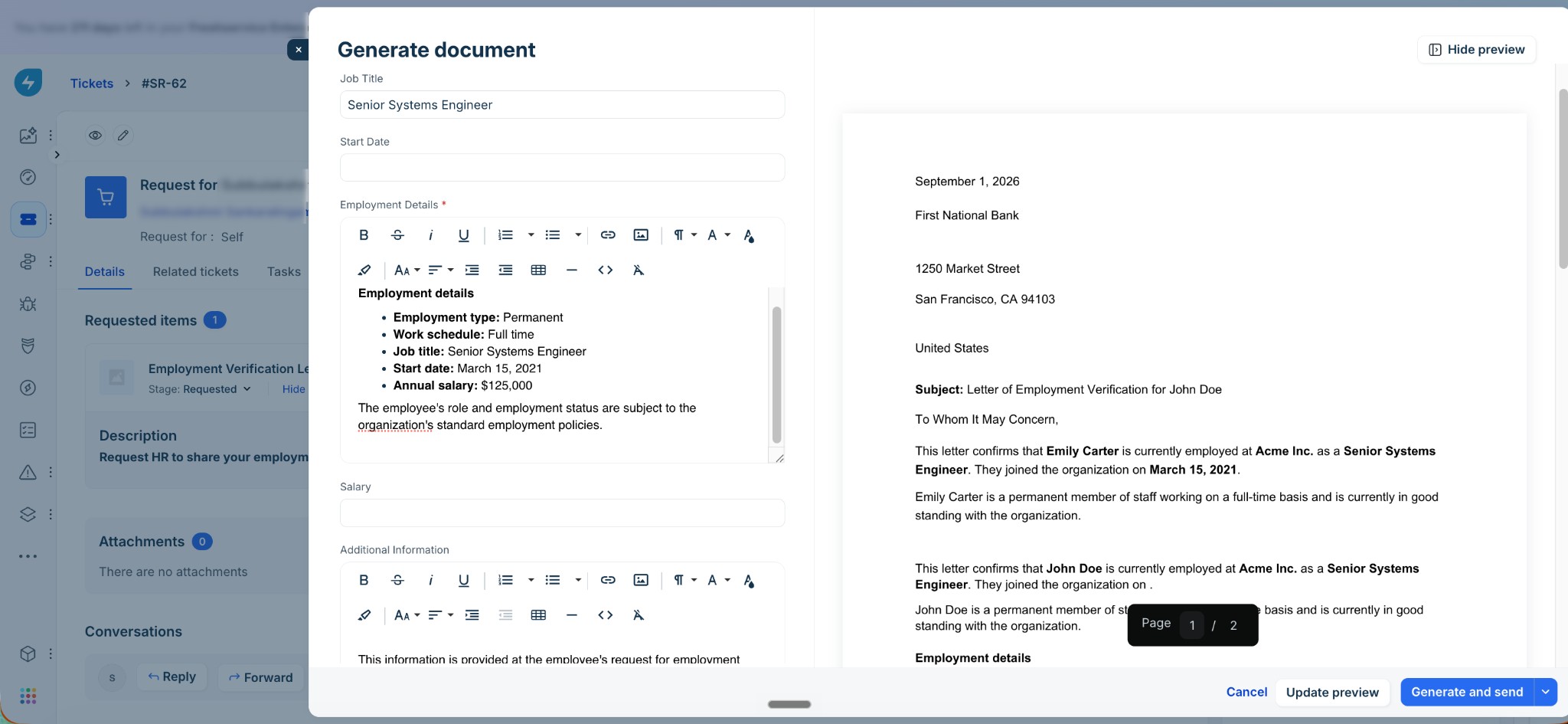
Note: Select Hide preview to get more space for editing the field content. You can bring back the preview when required.Once you have updated the fields, click Update preview to review the document content and verify the formatting.
Once you have verified the document, click Generate and send to generate and send the document.
Review Rich Text changes in audit logs
Changes to Rich Text field mappings and document template field types are recorded in the workspace audit log.
Field mapping changes are recorded when a placeholder is mapped to a field, a Liquid function is added or modified, or the placeholder is mapped to static content.
The audit log records the change in the following format:
Updated Service Catalog Item [item name]
Modified the mapping for the document placeholder {{placeholder}} from [previous value] to [new value]
Document template changes are recorded when you add a Rich Text field or change a field's data type to or from Rich Text.
The audit log records the change in the following format:
Modified the data type for document_placeholder_field from current_data_type to new_data_type
Ticket activity logs aren't affected by these changes.
Frequently asked questions
1. How many Rich Text fields can I add to a template?
You can map a maximum of 10 placeholders to the Rich Text data type in a template.
2. What happens if I link a Rich Text field to an incompatible data type?
If you change a Rich Text field to another data type and its existing mapping isn't compatible, an error is displayed. You must update the mapping before you can save the service item.
3. Can I use a Rich Text field without mapping it?
Yes. You can leave the field unmapped and allow agents to enter the content manually when generating the document.
4. Can I edit content that is automatically populated?
Yes. Agents can edit automatically populated Rich Text content while generating the document. These changes don't modify the underlying ticket data.
5. Can I resize a Rich Text field?
Yes. Rich Text fields can be resized vertically in the field-mapping and document-generation views. Horizontal resizing isn't supported.
6. Does adding Rich Text fields affect existing templates?
No. Existing document templates aren't affected. You can add Rich Text fields to an existing template by editing it.