
 Community
 Video Library
 Agent Training
 Freshservice
 Freshdesk
 Freshchat
 Freshcaller
 Freshsales
 Freshteam
 Freshworks Neo
 Freshsurvey
 Freshservice for MSP
 TABLE OF CONTENTS
- Prerequisites
- Overview of similar changes
- Find similar changes
- Review a similar change
- Refresh similar changes
- Share feedback on a suggestion
- Frequently asked questions
This article provides details about using the Similar Change Suggester, an AI Copilot feature, to identify change requests similar to the current change request. It covers how to view similar changes, review their details, and share feedback on suggestions.
Prerequisites
Before you use the Similar Change Suggester, ensure you have the following:
An active AI Copilot license is assigned to you.
The Similar Change Suggester is enabled by an admin in AI Agent Studio.
Access to the change request that you want to review.
Overview of similar changes
A similar change is a change request created earlier that closely matches the current change in subject, description, or reason for change. Reviewing similar changes helps you learn from previous implementations and make informed decisions during change planning and review.
Previously, agents had to manually search through change records to find similar past changes. The Similar Change Suggester simplifies this process by analyzing recent changes and surfacing the ones most relevant to the current change request. From the change details page, you can review the suggestions, inspect change details, and provide feedback on the results.
Note: The time window for similar changes varies by change stage. The suggester considers changes from the last 6 months. Changes outside the applicable time window do not appear in the suggestions.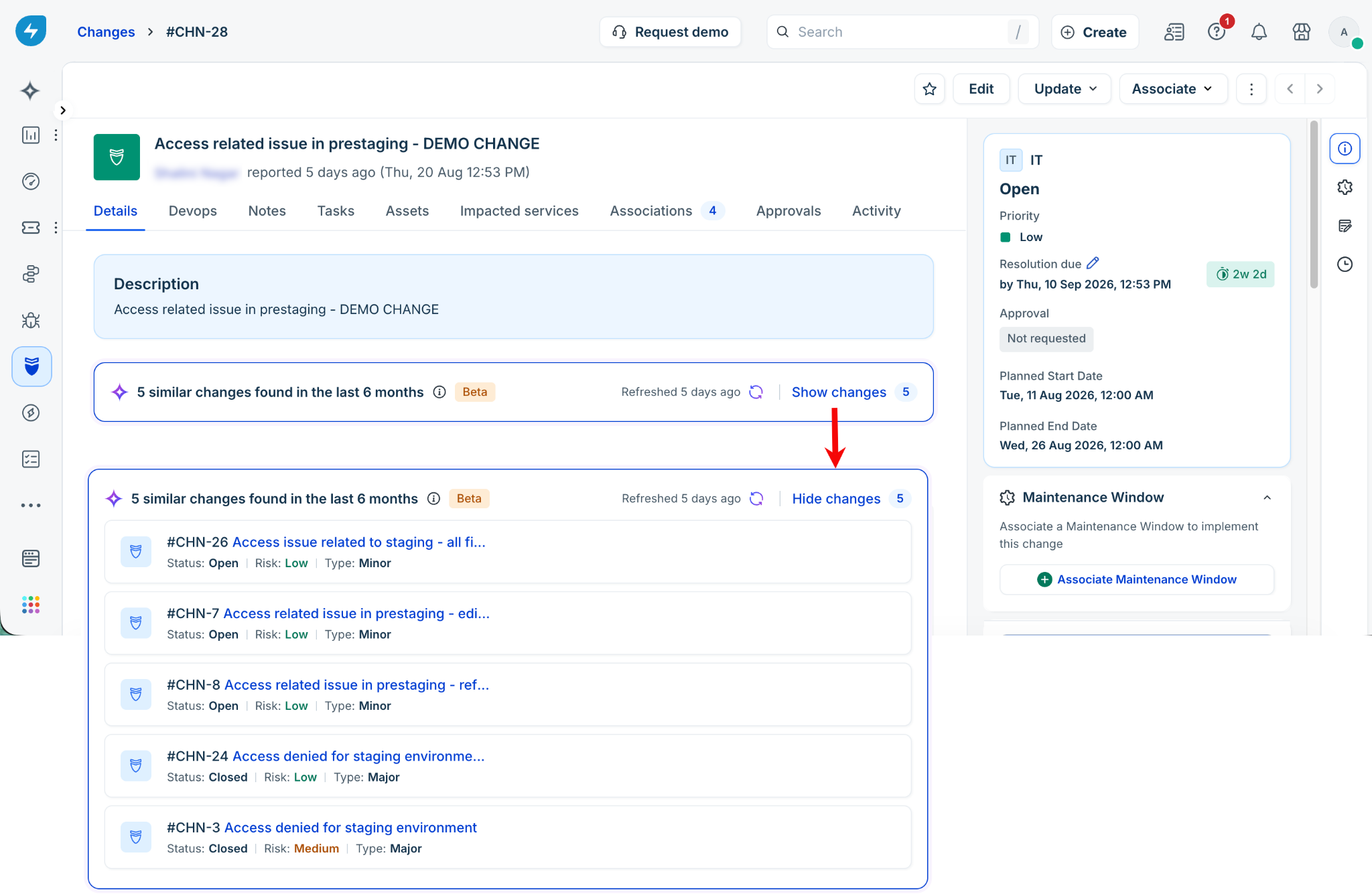
Find similar changes
To find similar changes for a change request, follow these steps:
Open the change request and go to the change details view.
Scroll to the Similar changes card below the description. The card displays the number of similar changes found and the time period considered. The card is available for change requests in the Open, Planning, and Peer review stages.
Click Show changes to view the suggested changes.
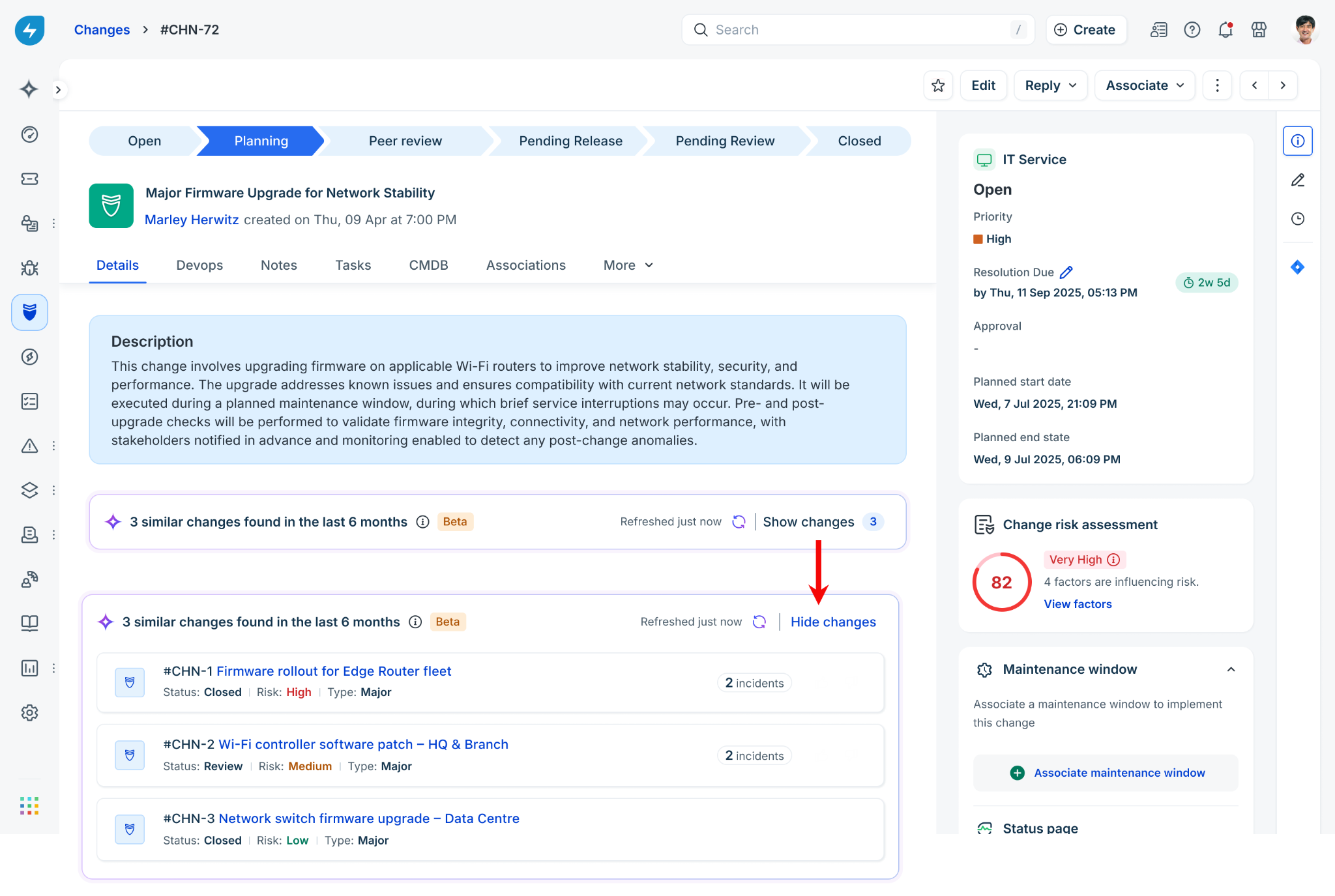
Each suggestion displays details such as the change ID, title, status, risk level, change type, and number of associated incidents.
When no similar changes are found
If AI Copilot does not find matching changes within the applicable time window, the card displays No similar changes found.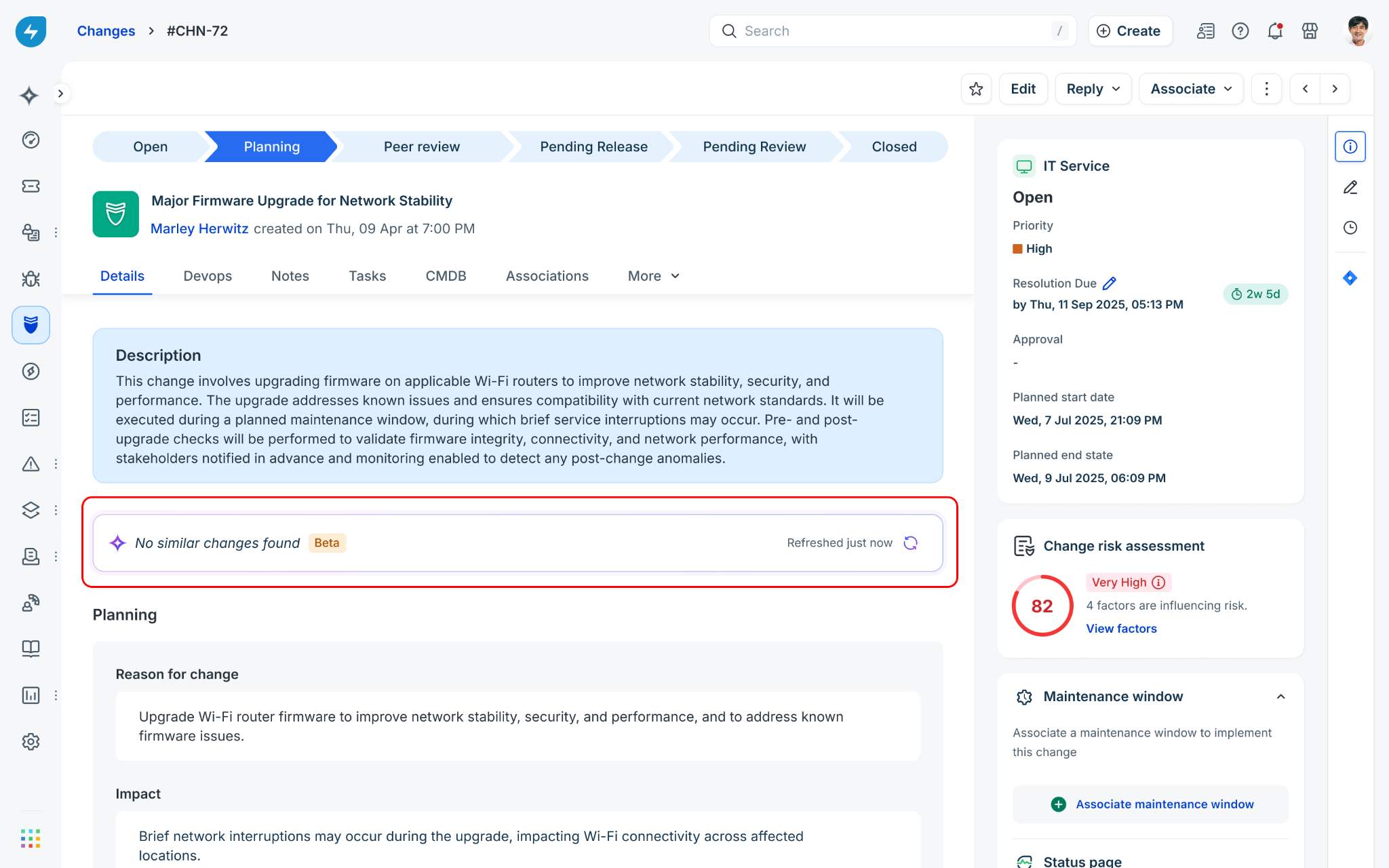
AI Copilot also applies a confidence threshold to the suggestions. Changes with a similarity score below the threshold are not displayed.
Review a similar change
Review a suggested change before using it as a reference for the current change request.
To review a similar change, follow these steps:
In the Similar changes list, click the title of the change that you want to review.
In the panel that opens, review details such as Status, Group, Agent, Description, Reason for change, and other planning information.
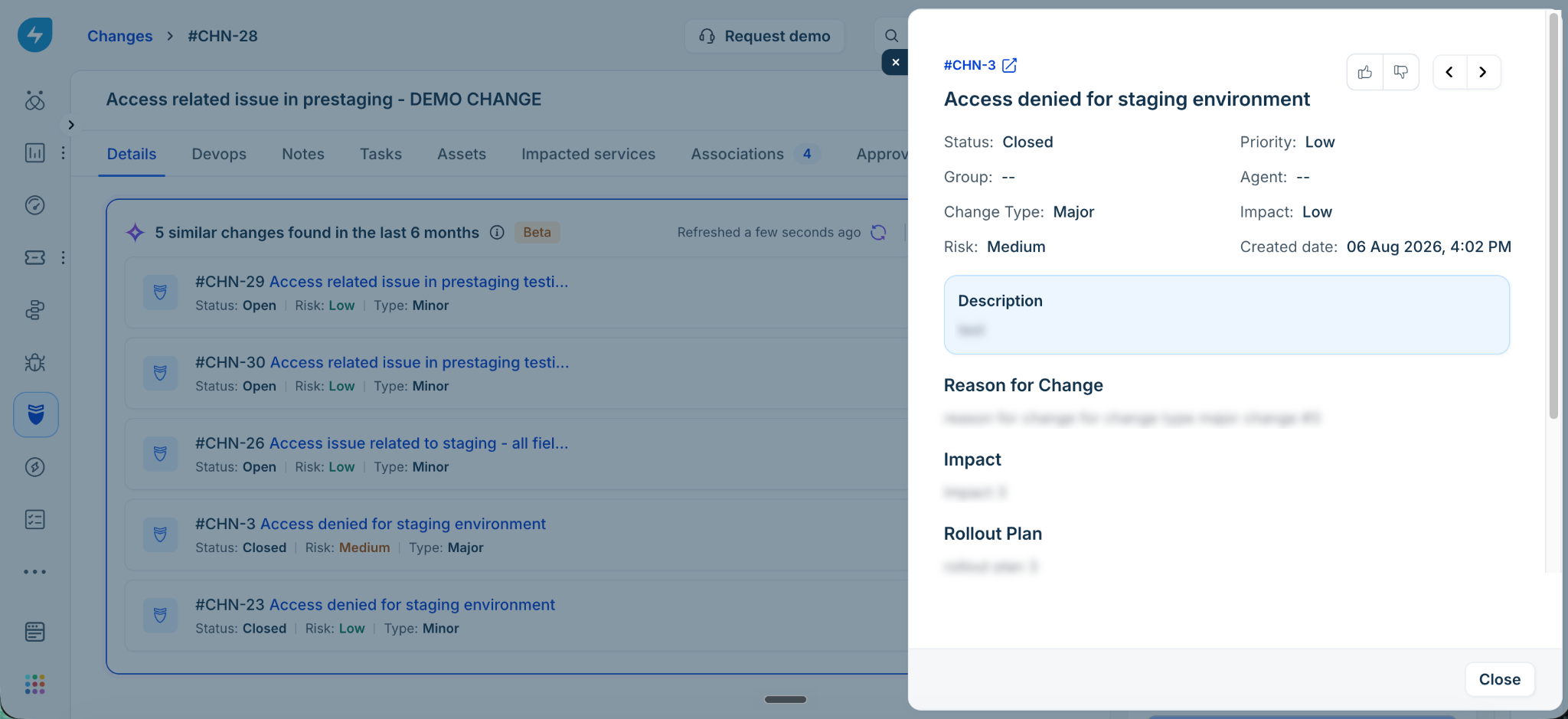
Use the navigation arrows at the top-right of the panel to move between suggested changes.
Click Close to return to the change details page.
Refresh similar changes
The Similar changes card refreshes automatically and displays the last refresh time.
To refresh the suggestions manually, follow these steps:
Go to the Similar changes card.
Click the Refresh icon.
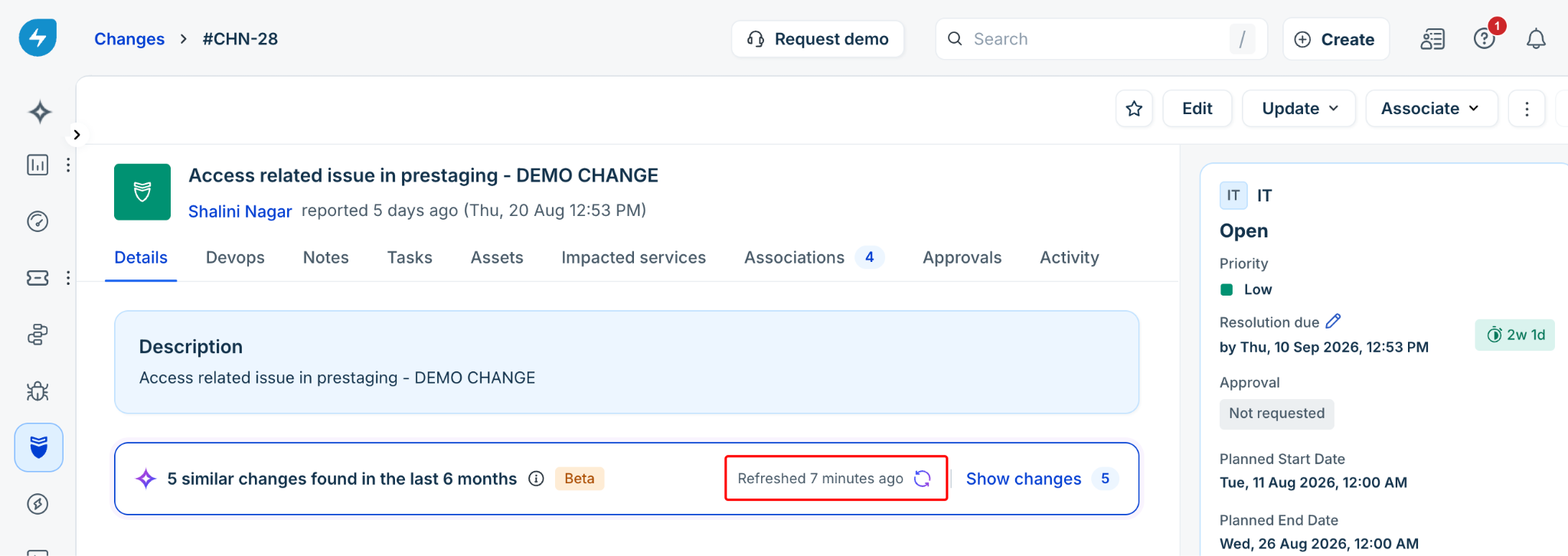
The card displays the latest refresh time after the suggestions are updated.
Share feedback on a suggestion
You can provide feedback on similar change suggestions to help AI Copilot improve the accuracy of future results.
Mark a suggestion as helpful
To mark a suggestion as helpful, follow these steps:
Open the suggested change.
In the details panel, click the thumbs-up icon.
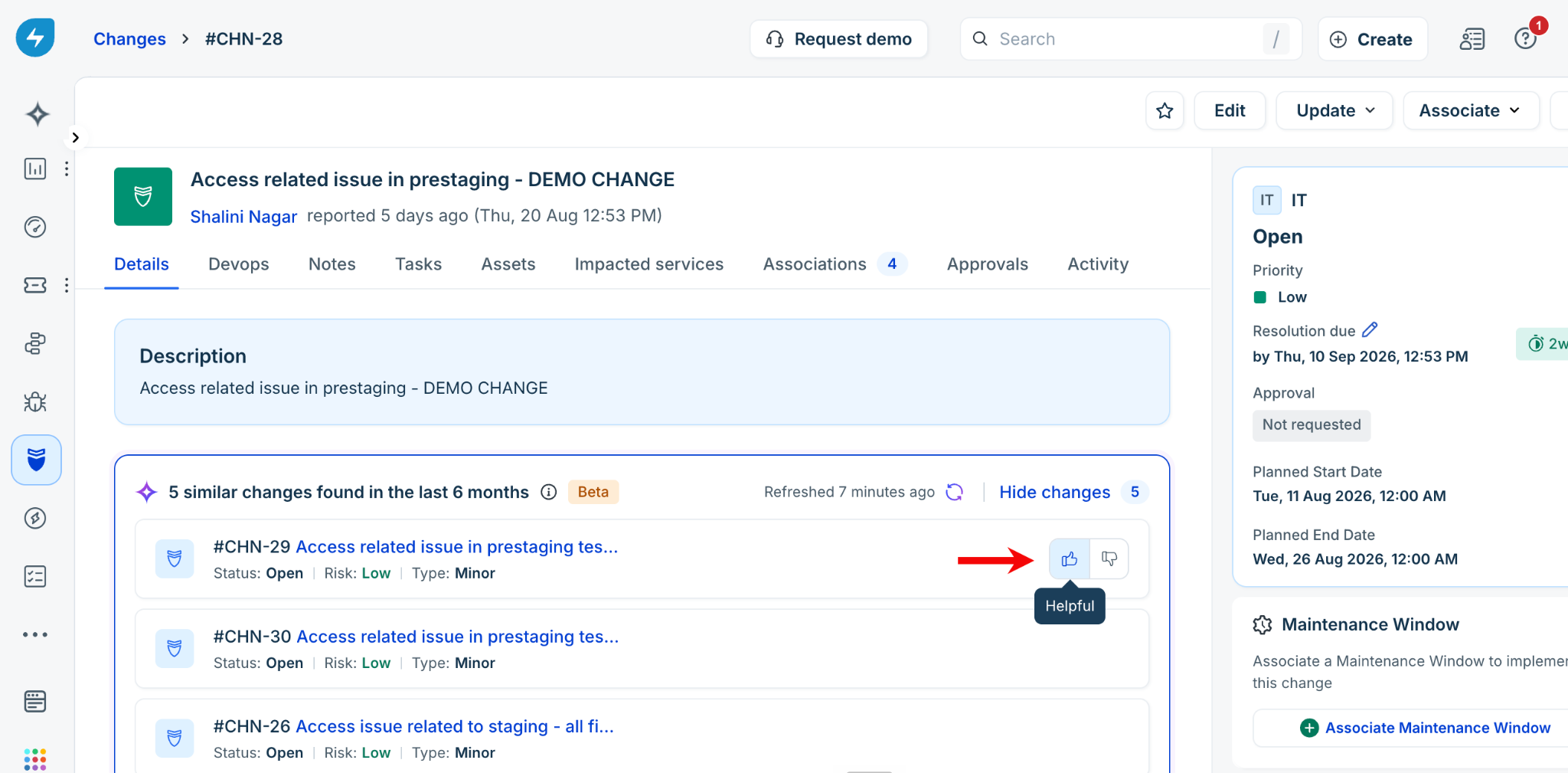
Your feedback helps AI Copilot identify suggestions that are relevant to the current change request.
Mark a suggestion as not helpful
To report that a suggestion is not relevant, follow these steps:
Open the suggested change.
In the details panel, click the thumbs-down icon.
In the What didn't work? dialog, select the reason that best describes the issue:
Not similar
Too old
Same topic, different scope
Others
If required, enter additional details.
Click Submit.
Your feedback helps AI Copilot improve future suggestions. It does not change the similar changes currently displayed for the change request.
Frequently asked questions
The following answers address common questions about the Similar Change Suggester:
1. Why don't I see any similar changes on my change request?
The Similar Change Suggester considers changes within the applicable time window, which can be up to 6 months depending on the change stage. If no similar changes are found within that window, the card displays No similar changes found. AI Copilot also hides suggestions that do not meet the configured confidence threshold.
2. What information does AI Copilot use to identify similar changes?
AI Copilot compares the subject, description, and reason for change of the current change request with the subject, description, and reason for change of changes created earlier.
3. Does giving feedback affect the similar changes currently displayed?
No. Feedback is used to improve the accuracy of future suggestions. It does not affect the suggestions currently displayed for the change request.
4. In which change stages is the Similar Change Suggester available?
The Similar Change Suggester is available for change requests in the Open, Planning, and Peer review stages.
5. How often does the Similar Change Suggester refresh?
The Similar changes card automatically refreshes when the subject, description, or reason for change of the current change request is updated. You can also manually refresh the suggestions by clicking the Refresh icon. The card displays the last refresh time.