
 Community
 Video Library
 Agent Training
 Freshservice
 Freshdesk
 Freshchat
 Freshcaller
 Freshsales
 Freshteam
 Freshworks Neo
 Freshsurvey
 Freshservice for MSP
 This article addresses common questions about Workflow Automator, covering key concepts, configuration, troubleshooting, and supported use cases.
1. Why is the workflow not being triggered in the tickets?
- Check the activities column within the ticket to confirm the execution of the workflow. If not check if the workflow conditions and event have matched the ticket.
- Workflows can only be executed for manual actions. System-triggered actions or another workflow cannot trigger the workflow execution at the moment.
- The workflow will trigger only after the previous workflow executed in the ticket has ended, if you have web-request or any app actions the subsequent workflow will not be triggered until the workflow ends, and we request you to re-order the workflow and have basic automations ( without any web-request or app actions) on top followed by advanced automations.
- If approvals are part of the process, consider re-arranging the workflows and testing by initiating a new workflow.
- If there's no prior workflow executed, clone the existing one, then reorder the cloned workflow to the top. Disable the original workflow and test the cloned version.
Workflows can only be executed for manual actions. System-triggered actions cannot trigger the workflow execution at the moment.
Only one workflow automation can be executed at a time, but multiple workflows can execute on the ticket in sequential order. The execution will be based on the order in the Admin > Workflow Automation.
4. Is it possible to recover a deleted workflow?
No, it is not possible to recover a deleted workflow in Freshservice. Once a workflow is deleted, it cannot be restored.
5. How to send survey using workflow automation?
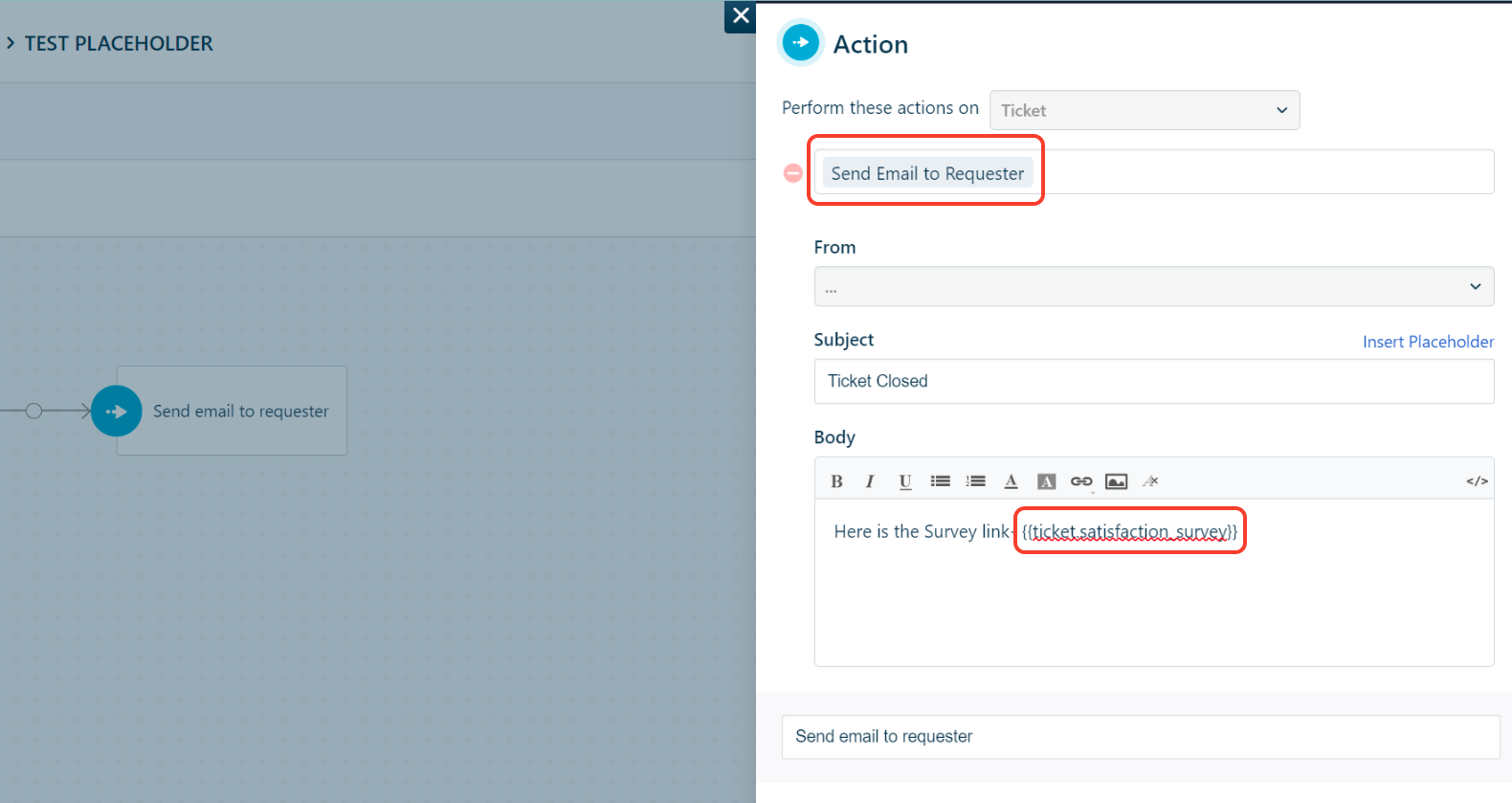
Currently, our automation system lacks a direct placeholder for surveys, but our backend team is actively addressing this. In the interim, you can utilize the placeholder {{ticket.satisfaction_survey}} as a workaround. Note that this placeholder is currently only accessible by default in Email Notifications.
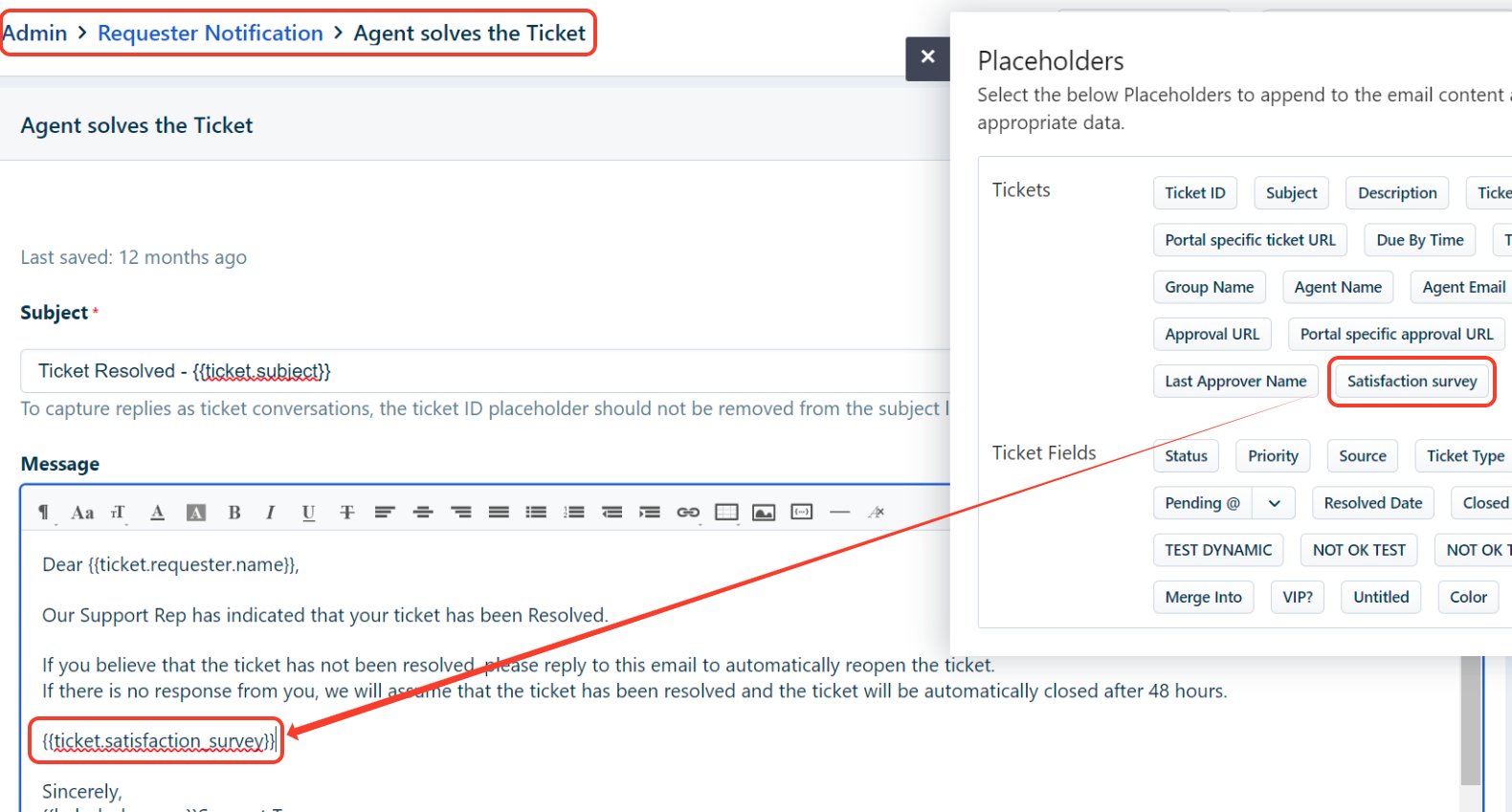
Have the placeholder used in the action node as shown below.
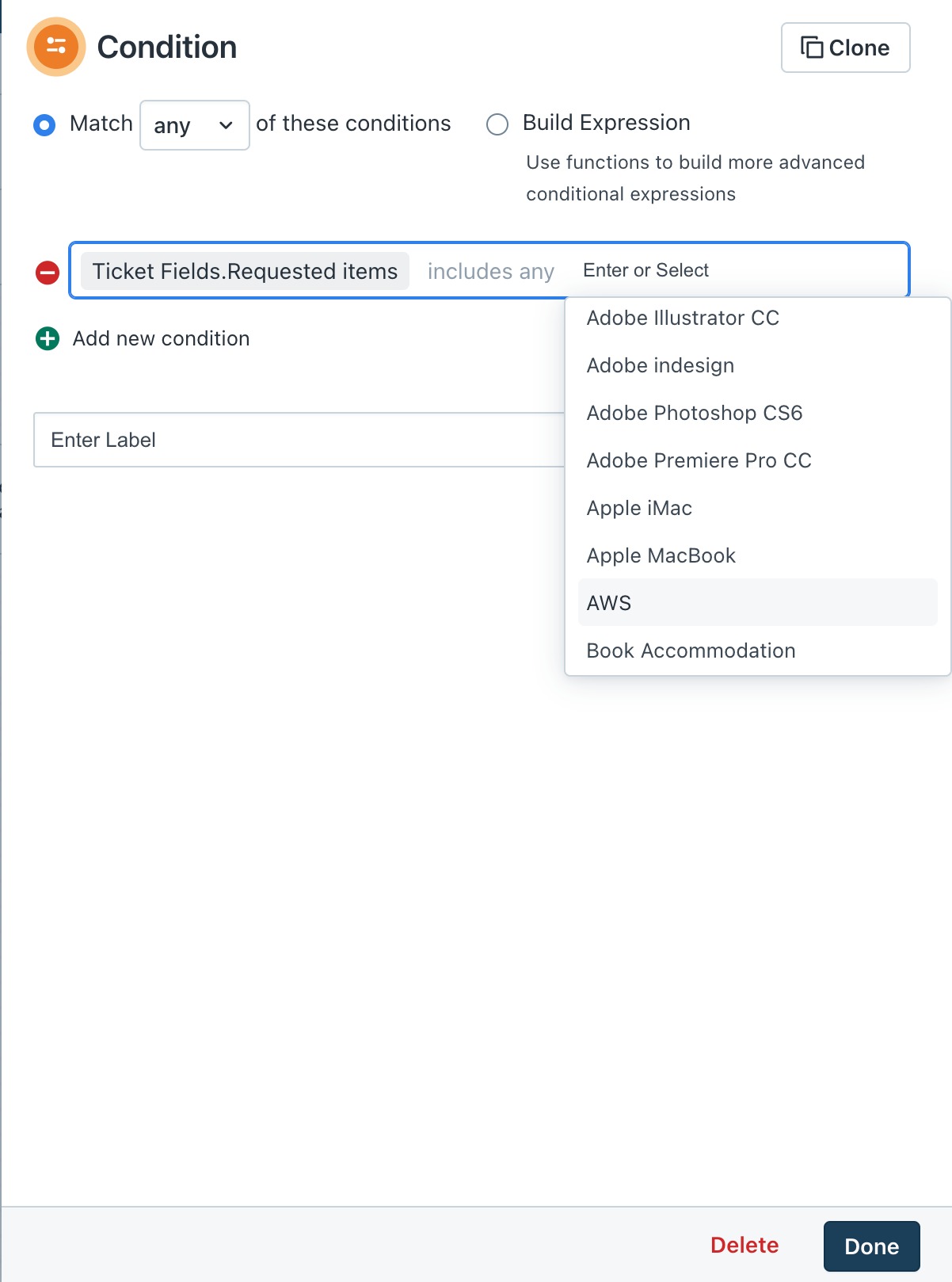
6. How to create a workflow automation for a service catalog item?
Navigate to the respective workflow, in the workflow condition set the requested item to the respective catalog item as shown below.
7. Is it possible to add more than one event in automation and also restrict the event performer?
You can include multiple events within an automation workflow in Freshservice and also add the respective event performer for whom this should trigger as shown in the below image.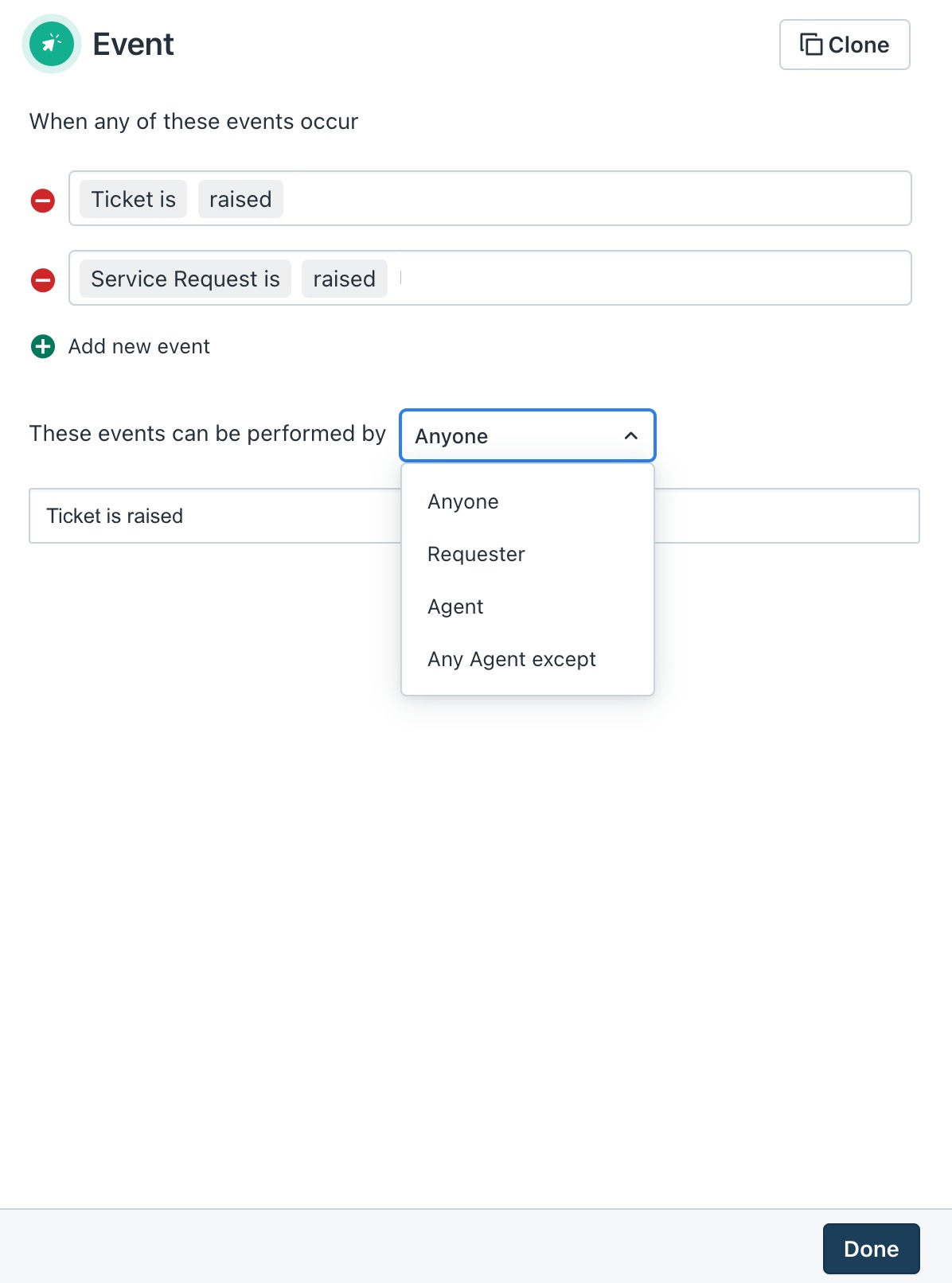
8. How do I set the event and/or the condition to filter on a new onboarding ticket?
In the workflow condition, designate the source as either "Employee Onboarding" or "Employee Offboarding." This will exclusively activate tickets with these specified source values.
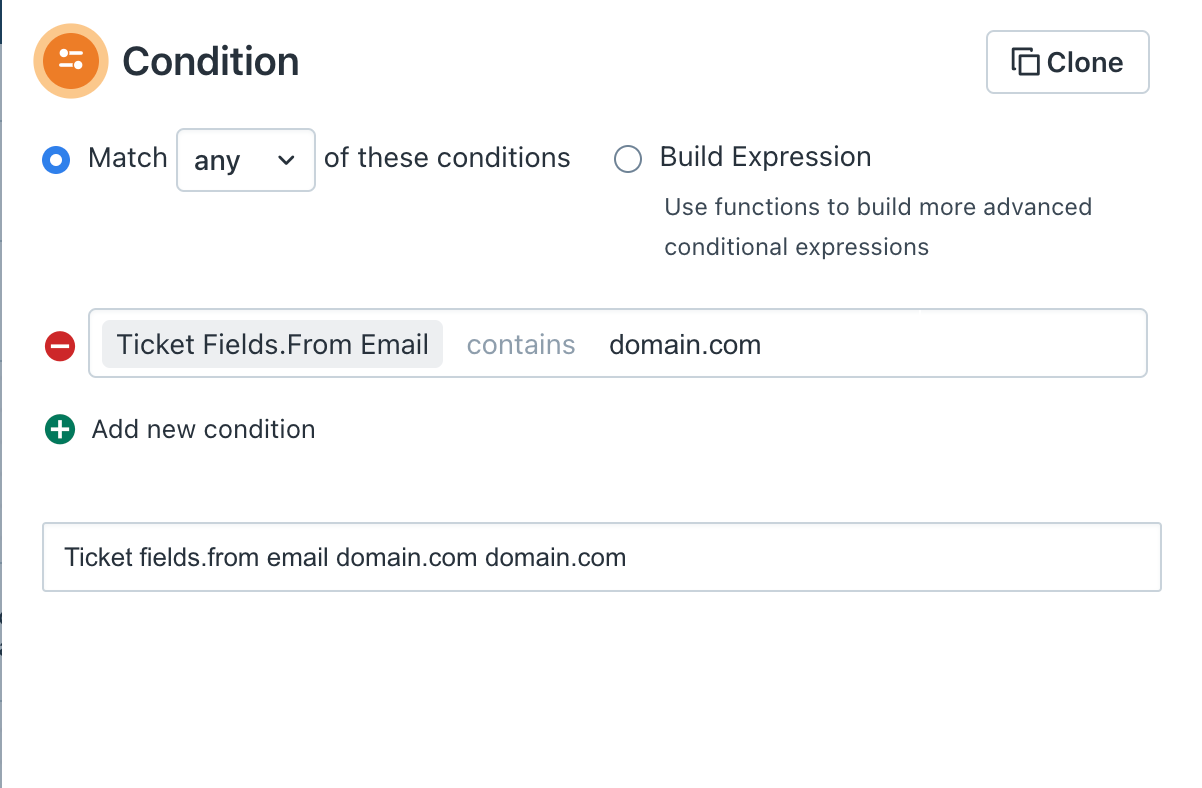
9. How do I setup a workflow, to only trigger a Ticket if its from a specific domain and no others?
You have the option to configure the condition to include the "From" email address containing the relevant domain, thereby limiting the activation of the workflow.
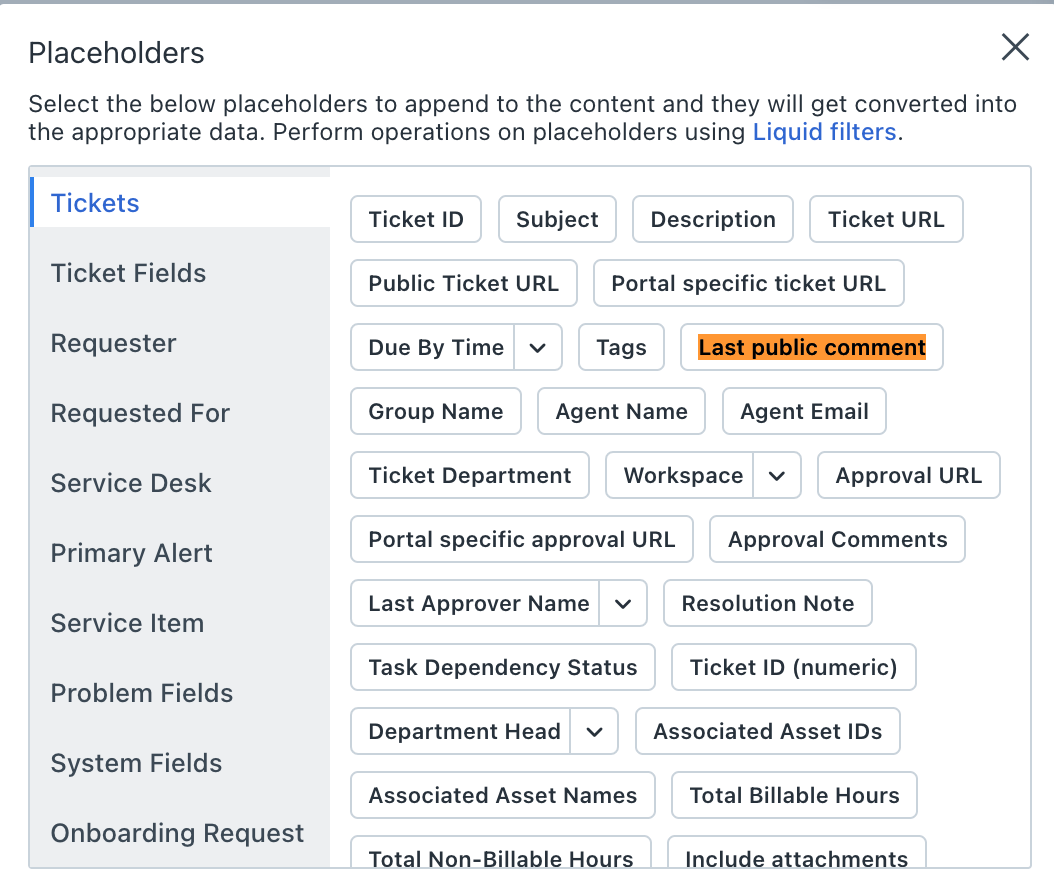
10. How do I get the ticket notes into an email with Workflow Automator using the Placeholders?
Currently, you can only incorporate the last public comment into emails using the placeholder feature. Private notes cannot be included at the moment.
11. Is there a way to clone a workflow from one workspace to another?
Copying workflows from one workspace to another isn't feasible due to the variations in configurations within each workspace.
12. Is there an option to change the description of a ticket using a workflow?
Navigate to the appropriate workflow and add the necessary event and condition nodes. Then, drag and drop the web request node and use the API call provided below.
https://api.freshservice.com/v2/#update_ticket_priority
Set the authentication type to Basic Auth. Use the admin API key, which you can find by clicking on the profile icon at the top right, as the username. For the password, use a single letter such as 'a' or 'x'.
13. How to skip new ticket/ticket creation email notification?
Please go to Workspace > Global Settings Admin > Workflow Automation. Add necessary conditions based on your usecase, set the event to "Ticket is Created" and in the action node, select "Skip New Ticket Email Notifications."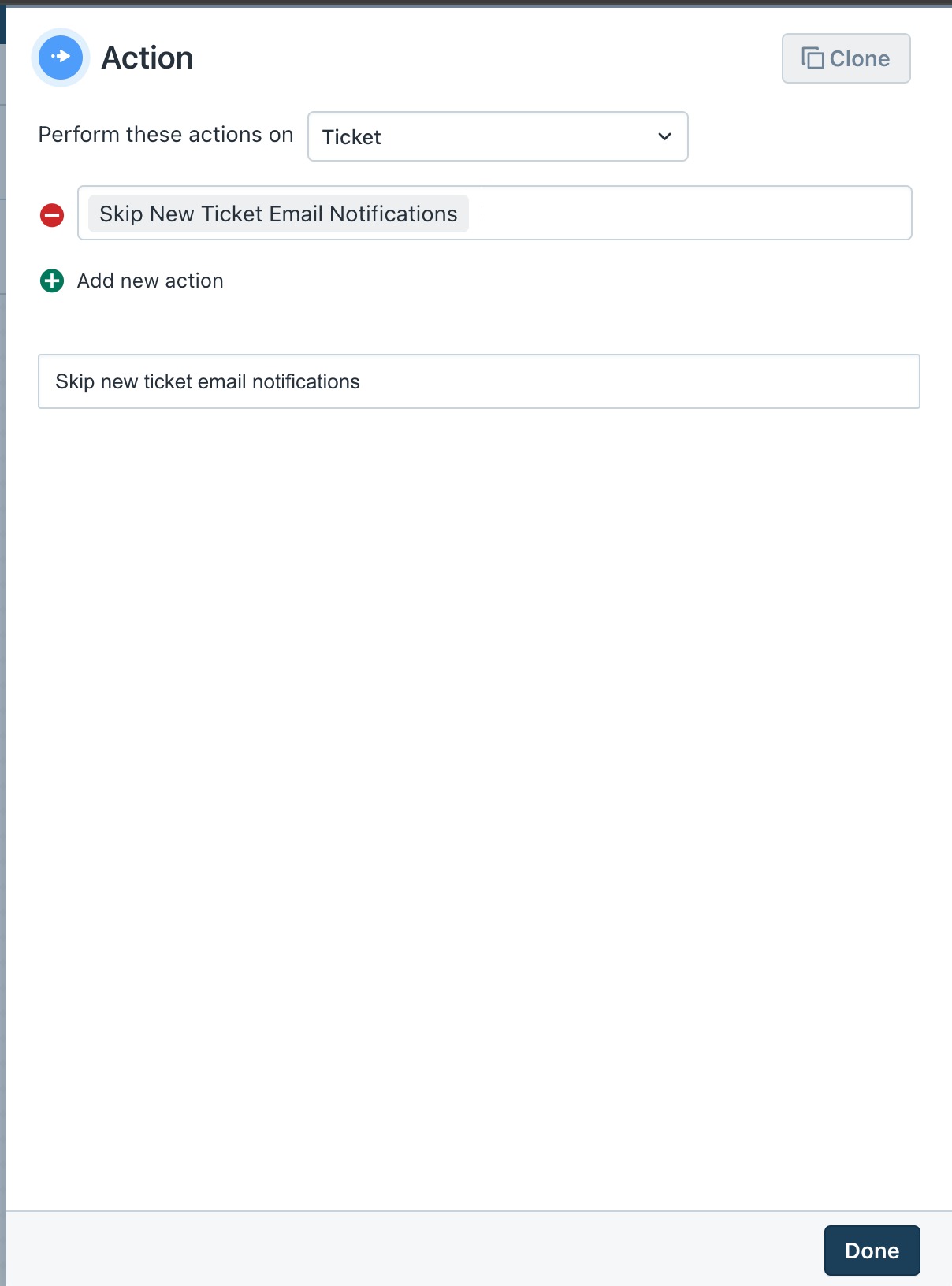
14. How to create child ticket/related ticket from workflow automation?
From the workflow automation use the web-request node Post call to perform this action by referring to the below api documentation to create child tickets.
https://api.freshservice.com/v2/#create_child_ticket
Set the authentication type to Basic Auth. Use the admin API key, which you can find by clicking on the profile icon at the top right, as the username. For the password, use a single letter such as 'a' or 'x'.
15. Can offboarding or onboarding requests be set up to include a list of tasks instead of multiple tickets?
Please create workflows to add tasks to onboarding or offboarding request tickets by navigating to Admin > Workflow Automation > Create a new workflow. Select the event based on your use case and set the condition source to "employee off-boarding" or "employee onboarding." Then, in the action node, add the tasks.
16. How to change the priority status of default tickets coming in via email?
Go to Global Settings / respective workspace Admin > Workflow Automation. Create a new automation with the event "ticket is created" and set the condition "if source is email." In the action node, set the priority as needed.
17. How to automatically assign tickets to a group if the ticket is not assigned when it is created?
Navigate to your workspace Admin > Workflow Automation. Create a new automation with the event "ticket is created." Set the condition to "if the group is null" and in the action, assign it to the respective group.
18. Can I configure workflows for requesters to perform actions?
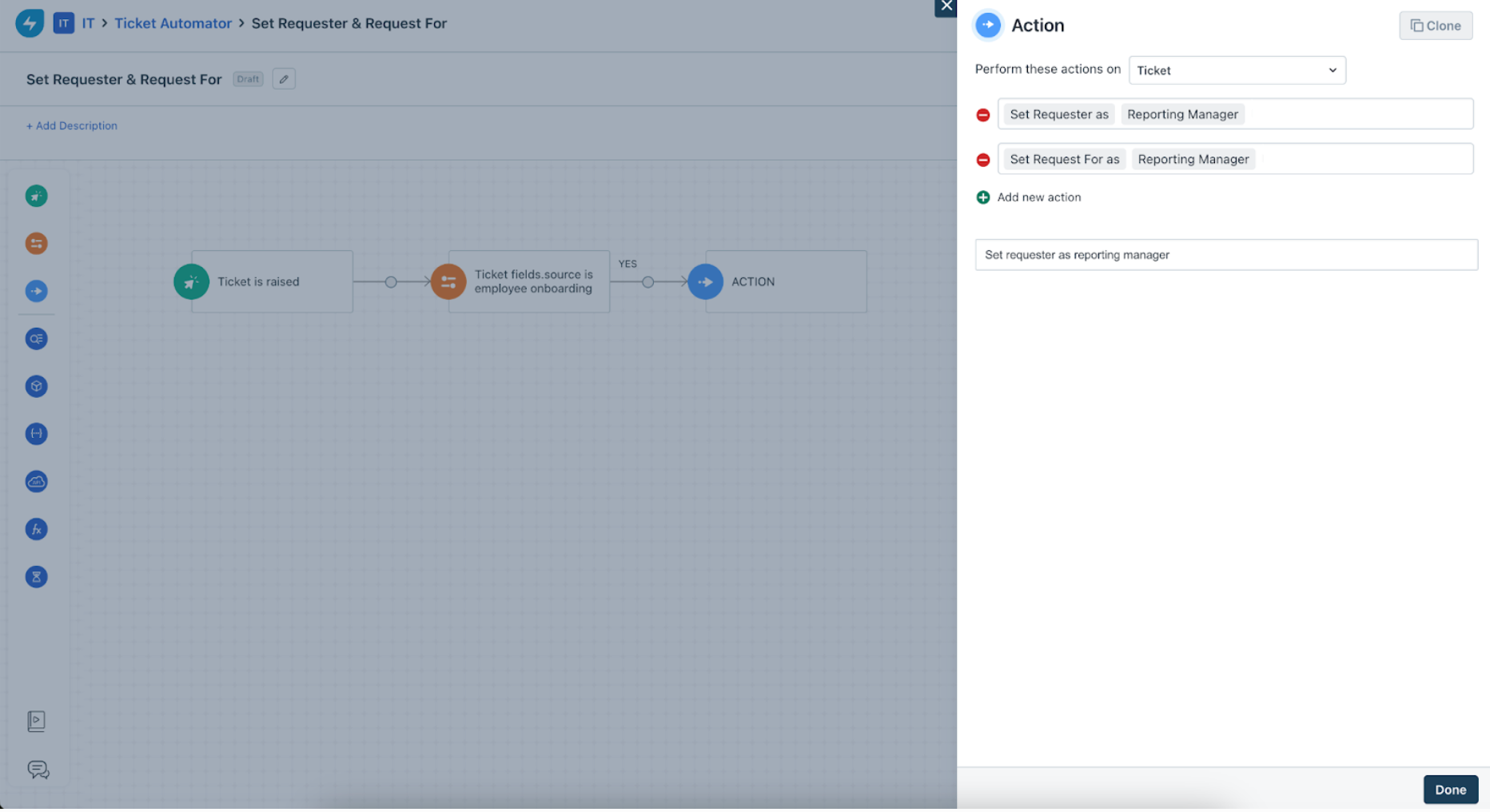
Admins can now configure a workflow action "Set Requester As" for Tickets (incidents and service requests) and Changes. For Tickets, this also applies to the associated child and successor tickets, in which case all the associated child and successor tickets will also have the same requester.
Admins can also configure a workflow action "Set Request For As" for Tickets.
Audit and activity logs are captured for these workflow actions. Business Rules and Supervisor Rules will function similar to how they function when 'requester' and 'request for' fields are manually set up.
19. Can I configure recipients to be CC'd in Ticket and Task workflow automations?
Yes, you can configure recipients to be CC'd in Ticket (including child, successor, and associated tickets) and Task (parent ticket) workflow automations. If the same user was added in “CC To” before a workflow was triggered, then the “CC To” action will not execute again as part of the workflow. The subsequent nodes in the workflow will be executed.
20. Why is the ticket automation not assigning tickets based on keywords and instead routing all tickets to the Fleet group?
The issue occurred because the automation workflow conditions were not correctly identifying the keywords in the ticket subject or description. The automation was triggered only when the keywords were present in specific fields. When the subject or description did not contain the defined keywords, the workflow defaulted to routing tickets to the Fleet group.
To resolve the issue:
1. Verify that the automation workflow is correctly configured with the intended conditions.
2. Ensure that the keywords used for routing are present in the ticket subject or description fields as defined in the workflow.
3. Test the automation by creating a new ticket containing the keyword in both the subject and description to confirm routing behavior.
4. If the ticket still routes incorrectly, check whether the description or subject still contains any other keyword that could trigger the Fleet routing.
5. Once verified, confirm that the workflow triggers correctly when the keyword appears in the intended field.
6. After confirming the fix, revoke any temporary access permissions granted for troubleshooting.
21. How can a ticket created through an automated workflow be automatically assigned to the agent who raised it, considering that the requester and agent may be the same person?
The ticket assignment in an automated workflow depends on how the triggering event and requester are configured. The "event performing agent" refers to the agent who performs the event that triggers the workflow, such as updating a ticket or changing a field value. If the agent performing the event is also the requester, the workflow may not trigger as expected because the system treats them as the requester rather than an agent.
To assign the ticket to the same agent who raised it, create a unique workflow condition that identifies the ticket based on a specific attribute, such as a unique subject line or another identifiable field. This ensures the workflow applies only to relevant tickets.
Another approach is to use the expression builder to create a condition that checks for the requester's email. If the requester's email matches a certain value, add an action node to assign the ticket to a specific agent (for example, [email address]). If the condition is not met, the action will not assign the ticket.
When adding conditions, use two separate condition nodes—one for selecting the requested items and another for applying the expression builder logic. Multiple conditions cannot be combined in a single condition node.
If the same agent will not always create the ticket, include additional values in the condition to account for multiple possible requester-agent combinations. There is no built-in way to automatically assign tickets to variable agents who are also requesters, so this must be handled through conditional expressions and explicit mappings.
For cases involving web requests to add tasks, this can be done directly through an action node if the task creation is part of the workflow logic.
22. How do I move tickets to "In Progress" whenever a response is received?
Create a workflow with the event "Reply is sent (By requester)" and an action to set the status to
"In Progress", then activate it.
23. How do I set a ticket to Open when the requester responds?
Set the event to a requester reply ("A reply is sent" / "public note added by requester"),
optionally check that status is Pending or Awaiting Feedback, and add an action to set status to
Open. Test with a sample ticket.
24. How do I automatically change status when an email update is received?
Use the event "Ticket is updated" with conditions that detect an email reply, then an "Update
Ticket" action to set the desired status. Test with mail from your service-desk mailbox.
25. How do I notify a group when a requester replies to an open, group-assigned ticket
(there is no "Reply is received" event)?
Use the requester reply event instead of looking for "Reply is received". Add a condition for
tickets assigned to a group with no agent, and an action that emails the group.
26. Why do requester replies create a new entry instead of updating the same ticket?
Use auto-assignment or a workflow on "Ticket is updated" with a condition that the status is
Open and a new response was received, plus an action assigning the ticket to the agent
currently handling it, so replies stay on the same ticket.
27. How do I trigger an automation on a date stored in a properties field and email a
user?
Use a scheduled workflow that runs daily, filter on the date field using the expression builder,
and add a "Send email to" action. (See "Scheduled workflows".)
28. Why does my scheduled workflow fail when I add two conditions to the trigger?
The scheduled trigger node accepts only one condition. Keep one condition in the trigger and
move the rest to later condition nodes set to "match all conditions".
29. Why are my scheduled workflows not running even though the conditions look
correct?
Some scheduled flows require an agent to have responded at least once. Confirm the
workspace, ensure an agent response exists, add a "hours since agent responded" condition,
set logic to ALL, and use private-note actions to find the failing condition.
30. How do I run an offboarding workflow only on the separation date?
Use a daily scheduled workflow targeting offboarding tickets with a condition that the separation
date equals the current date (yyyy-mm-dd). Timers cannot use variable durations.
31. How do I send an email a set time after a status change (for example, one hour after
Resolved)?
Add the event(s) at the start, a condition for the status change, then a timer node with the delay
followed by the email action. Activate the workflow — a timer workflow left in draft will not run.
32. How do I enable a CSAT-triggered workflow when the CSAT option is not visible while
adding a condition?
Create an event-based workflow with "CSAT Response Submitted" as the trigger, add a
condition (such as score below a threshold), and an action to notify the right people, then save
and enable.
33. Why is the CSAT notification going to the requester’s reporting manager instead of
the agent’s, and how do I fix it?
Set the action recipient to the agent’s reporting manager field (from the agent profile) rather than
the requester’s, and confirm agents have a manager assigned. Where unavailable directly, use
API calls to fetch the agent’s manager and send the notification.
34. How do I stop a survey for a specific requester / department / user?
For a requester, set their tickets to "resolved" instead of the survey-triggering status. For
departments, use "does not include" with all values in one condition. For a user list, disable
default notifications and send via workflow only to non-excluded users, or gate the survey on a
custom field.
35. How do I access or export completed surveys without opening each ticket?
View them in Analytics via "Underlying Data", or build a workflow on a CSAT event with a "Send
email to" action to receive results by email.
36. Why am I getting an IT sign-off on an HR-workspace survey?
Local workflows/surveys run before global ones; if no local survey is defined for HR, the global
one (with the IT sign-off) applies. Define local HR workflows/surveys so the global rule does not
take over.
37. Where do I view supervisor-rule logs?
Go to Admin > Automation & Productivity > Automation > Supervisor Rules (or under Global Settings /
a specific Workspace for multi-workspace accounts).
38. How do I assign a ticket to a group in the destination workspace when it is moved?
Create a workflow whose event is the ticket being moved to a new workspace, add conditions,
and use "Assign to Group". Ensure agent-group mapping between source and target
workspaces is configured.
39. How do I find the business rule that blocks moving a ticket between workspaces?
Review the Workflow Automator and Business Rules lists for rules triggered by ticket movement
or workspace changes, then modify or disable the offending rule.
40. How do I send an approval only the first time a custom field is filled?
Remove the broad "Ticket is updated" trigger and set the trigger to the specific custom field as
"Field is updated from Any to Any" so it fires once when first populated.
41. How do I assign tickets to a group based on the associated service without auto-
assigning to agents?
Use the service’s "managed by group" field in the conditions and an "Assign to Group" action;
leave the group’s "Auto-assign tickets" setting off.
42. How do I auto-fill the description with the subject text?
Not possible at creation (both fields are mandatory and separate), but a workflow can update
the description with the subject after the ticket is created.
43. Why do contract-expiration reminders fail with a "diffInDays operand is invalid"
error?
A changed placeholder format makes the date input return a Liquid error. Replace the old
placeholder with the current one, ensure it has no [ ] characters, and re-test.
44. How do I set categories or add information to tickets created from the Journey
module?
Journey Activities cannot set categories natively; use a workflow that checks the
subject/attributes and an action node to set the category or add the information.
45. How do I consolidate or remove agent groups without losing assignments?
Reassign active tickets and update referencing workflows/SLAs first; to consolidate, rename
one group, add the other group’s agents, then delete the redundant group.
46. How do I prevent tickets without an agent from going to Pending while still allowing
Closed?
Pair a workflow that keeps status Open when updated with no agent, with a business rule
making the agent field mandatory only when status is Pending.