
 Community
 Video Library
 Agent Training
 Freshservice
 Freshdesk
 Freshchat
 Freshcaller
 Freshsales
 Freshteam
 Freshworks Neo
 Freshsurvey
 Freshservice for MSP
 Datacenter room management provides a centralized framework to view, organize, and visually map physical rooms within your infrastructure.
This article provides an overview of datacenter room management and instructions on how to view rooms, perform bulk or individual room actions, view and edit room details, associate assets, manage room layouts, add objects, view object hover details, and customize heatmaps and temperature shading.
Prerequisites
You need the following before managing datacenter rooms:
Configure Asset Management permission to view and manage racks.
Overview datacenter rooms
You can track available U space, group permissions, associated assets, and environmental conditions across your facilities. By organizing racks and devices into a visual grid, you can model physical floor space, optimize rack placement, and track environmental metrics through interactive heatmaps.
View datacenter rooms
To view the list of datacenter rooms, follow these steps:
Go to Admin > Asset Management > Infrastructure > Rooms.
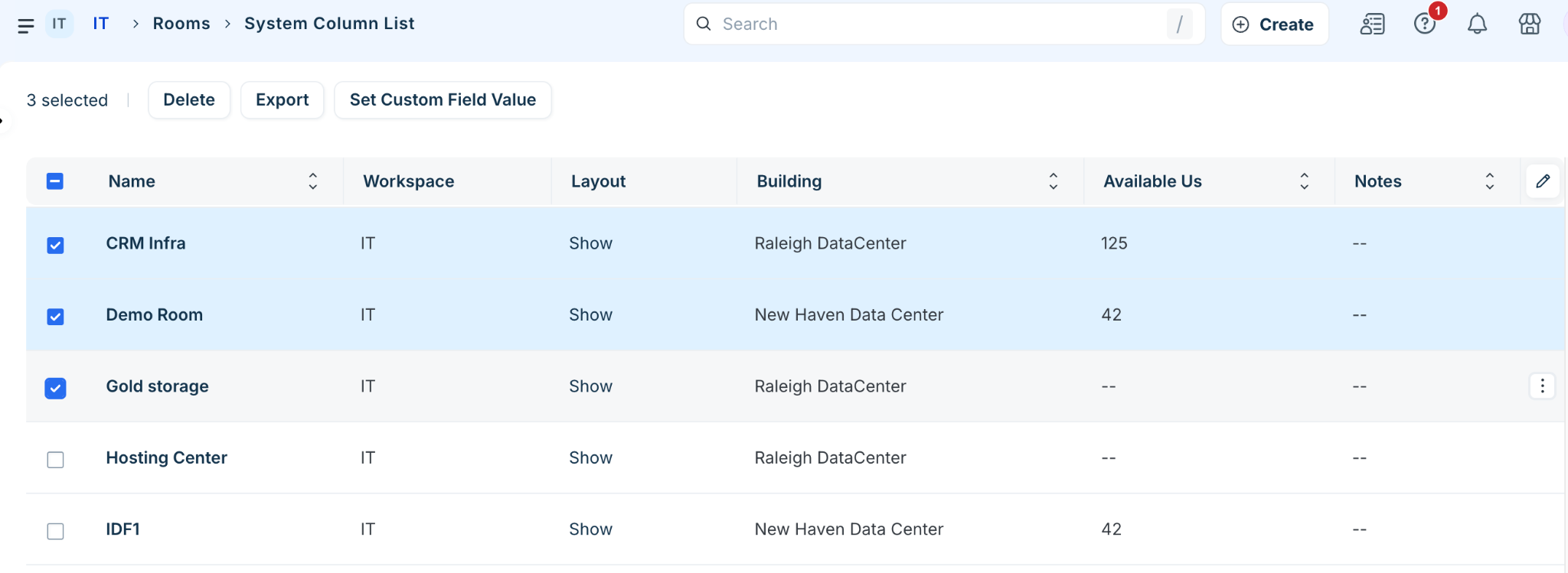
Review the rooms list table, which displays details such as Available Us, Building, and Tags.
Perform bulk or individual room actions
To perform actions on rooms from the rooms list view, follow these steps:
Select the checkbox next to one or more rooms in the list table.
Select one of the following actions:
Delete: Displays a confirmation page listing all impacted dependent objects, including assets, devices, and racks, before proceeding with deletion.
Export: Opens an export window with the following file format options:
Re-importable Export: Exports data in an .xlsx spreadsheet structured for re-importing.
Selected Columns (CSV): Exports selected columns to a CSV file.
Set Custom Field Value: Assigns a populated custom field parameter to the selected items.
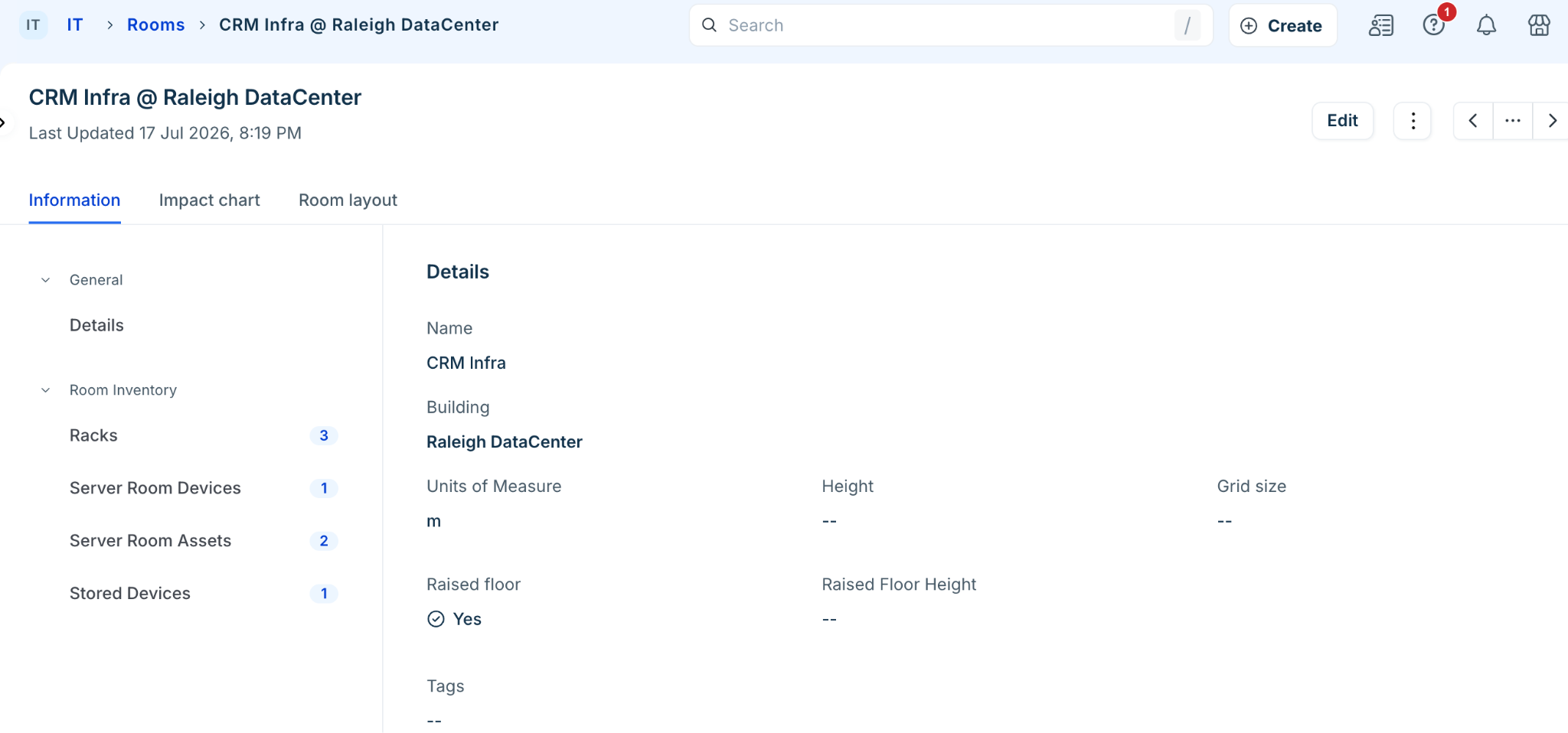
View and edit room details
To view or update room properties, follow these steps:
Go to Admin > Asset Management > Infrastructure > Rooms.
Click any room to open its details page.
Select from the following action buttons at the top of the page:
Information: Displays the room details and inventory.
Impact Chart: View a visual dependency chart of assets, devices, and applications relying on the room.
Room Layout: Open the visual representation of the room floor.
To add or remove racks associated with the room, click Edit in the Racks section.