
 Community
 Video Library
 Agent Training
 Freshservice
 Freshdesk
 Freshchat
 Freshcaller
 Freshsales
 Freshteam
 Freshworks Neo
 Freshsurvey
 Freshservice for MSP
 TABLE OF CONTENTS
- Overview
- Benefits of field validations
- Types of field validations
- Supported field types
- How field validations are enforced
- Limitations
- Administrative guidance
Overview
Field validations allow administrators to define rules on tasks (Ticket, Change, Problem, or Release), ensuring that users enter accurate, complete, and correctly formatted data.
When a user adds a task, field validations check the input against the configured rules. If the input does not meet the defined criteria, the field is highlighted and an inline error message is displayed, prompting the user to correct it before proceeding.
By configuring field validations, administrators can enforce data standards, reduce errors, and ensure that tasks are processed efficiently.
Benefits of field validations
Improved data quality: Catch incorrect or incomplete input at the point of entry, before it affects downstream workflow or automations.
Workflow and automation reliability: Ensure that tasks flowing into workflows or business rules carry clean, correctly formatted data — reducing logic failures and unexpected errors.
Consistent data formats: Enforce standard formats for fields like email addresses, IP addresses, phone numbers, or URLs across all tasks.
Less manual intervention for admins: Fewer malformed data means less time spent on data cleanup and corrections.
Types of field validations
Freshservice supports two types of field validations for Task fields — Regex validation and Custom validation. The right type depends on what you want to validate.
Regex validation
Regex validation lets administrators enforce specific patterns or formats for data entered in a field using regular expressions.
How to configure
To set up a regex validation, open any existing field within a Task form or add a new field. Toggle on Add validation to start building the rule.
Key capabilities
Most used expressions: Quickly apply common patterns — such as Email, Alphanumeric, or IP Address — from the Most used expressions link. These can also be used as a starting point to build more specific rules.
Expression tester: Test your regex pattern against sample values before saving to make sure it behaves as expected.
Custom error messages: Define an inline error message (up to 255 characters) that is shown to users when their input fails validation — for example, "Enter the 10 digit number in this format: (123) 456-7890".
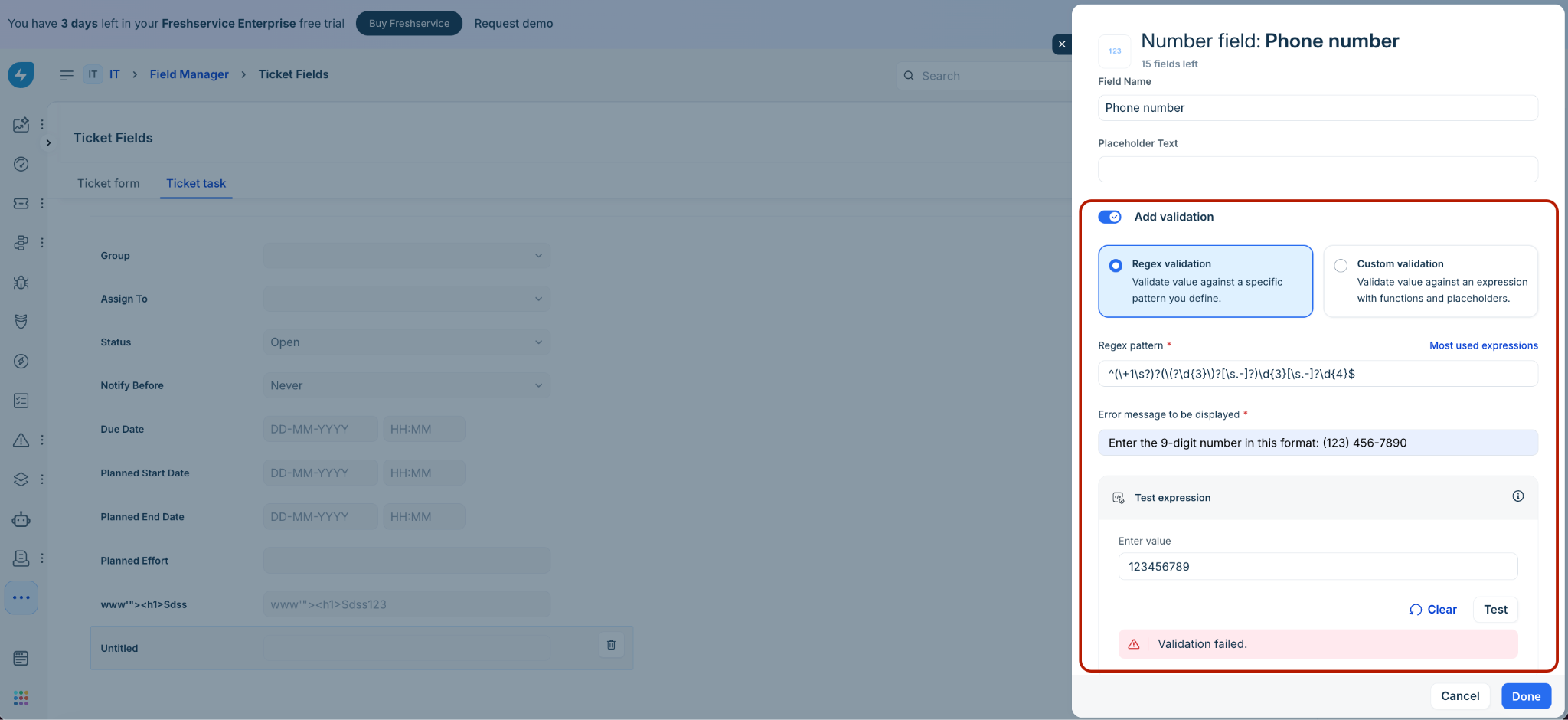
How it appears to users
Once configured, the validation is enforced. The field is highlighted in red and the custom error message is displayed if the input does not match the pattern.
Custom validation
Custom validation lets administrators build expression-based rules that compare or evaluate data across multiple fields in the same task. This is useful for cross-field logic — for example, ensuring that an End Date is always after a Start Date.
How to configure
Open the field you want to validate within a Task form and toggle on Add validation. Use the expression builder to construct your rule using functions, operators, and placeholder fields.
Key capabilities
Functions and operators: Build expressions using string, mathematical, date, and logical functions, along with arithmetic and logical operators.
Placeholders: Reference other fields from the same Task as variables in your expression. Note that RTE and Attachment field types cannot be used as placeholders.
Expression tester: Test your custom expression against sample values before saving to make sure it evaluates as expected.
Custom error messages: Define an inline error message (up to 255 characters) that is shown to users when their input fails validation.
Note:
For URL fields, the system runs a built-in format check first, followed by your custom validation rule.
Fields that have been added but not yet saved will not appear as placeholders in the expression builder. Save and publish the Task first before referencing newly added fields in a custom expression.
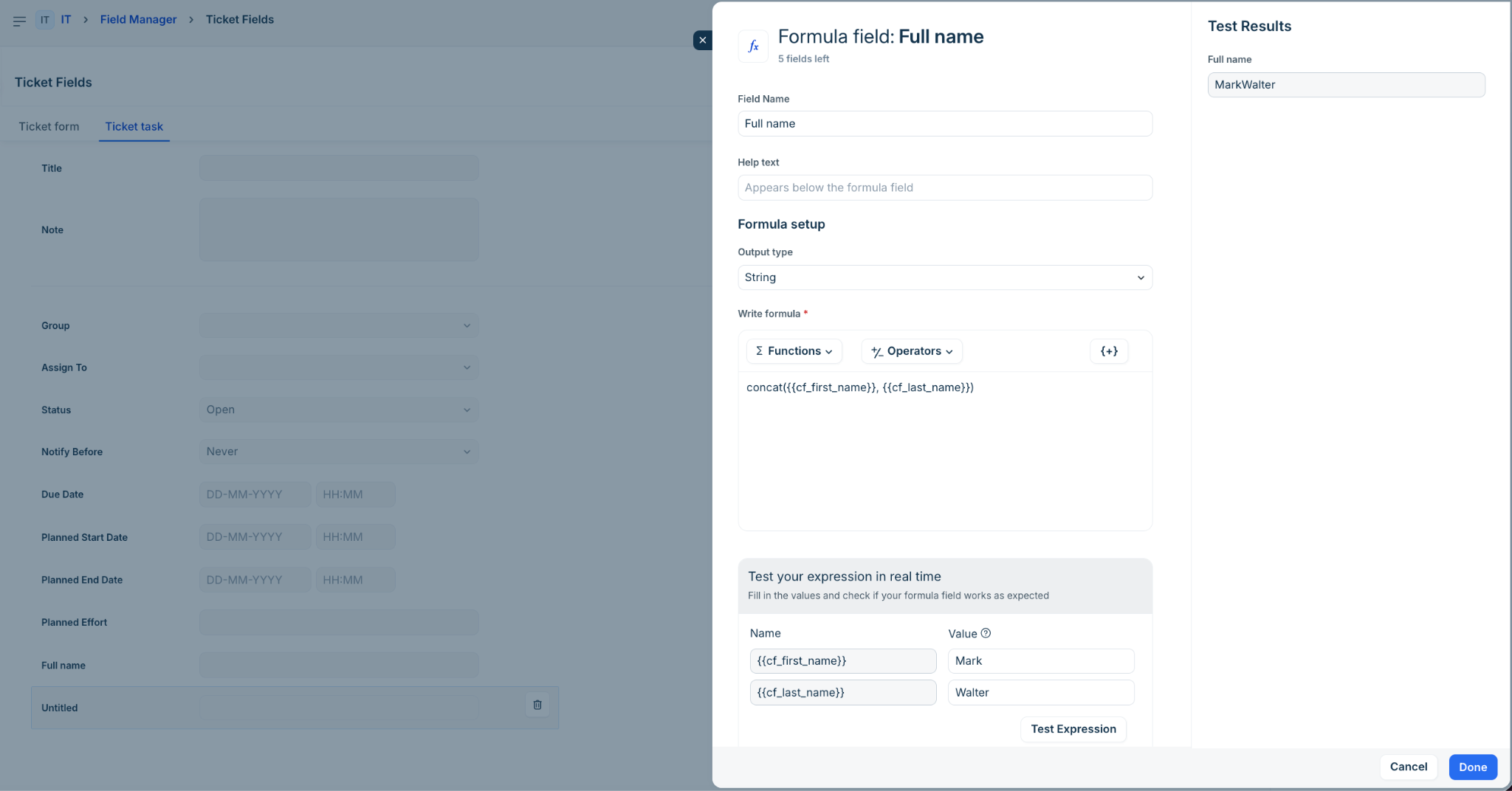
How it appears to users
Once configured, the validation is enforced. If the input does not match the pattern, the field is highlighted in red and the custom error message is displayed.
Supported field types
Field validations are supported for select field types within Tasks. The supported validation type — Regex, Custom, or both — depends on the nature of the field.
Note: A maximum of 15 custom fields per task can have validation rules configured.
Supported custom field types
How field validations are enforced
Understanding when and how validations are triggered helps administrators configure rules with confidence and set the right expectations for agents.
Trigger and user interface (UI) behavior
When validations trigger: Validations are evaluated when agents submit the form.
Validation failure: If a field fails validation, it is highlighted in red and the configured inline error message is displayed, prompting the user to correct the input before resubmitting.
Dependencies and placeholder behavior
Empty or unavailable placeholders: If a placeholder field referenced in a custom validation expression is empty, deleted, or archived, the validation rule is skipped automatically to prevent false errors.
Interaction with business rules: If a business rule hides or disables a field, the validation configured for that field is bypassed. However, if a business rule hides or disables a placeholder field used in the expression, the validation is not bypassed — it continues to be evaluated.
API and integration enforcement
Field validations are not limited to the Freshservice user interface (UI) — they are enforced consistently across APIs and backend.
Any data created or updated via REST APIs, integrations, imports, or scripts must comply with the same validation rules configured on the fields. This ensures data integrity regardless of how a task is submitted or updated.
Limitations
The following limitations apply to field validations in Tasks. Admins should account for these when designing validation rules.
Administrative guidance
The following details cover system behavior and best practices admins should be aware of when configuring and managing field validations.
Deletion of placeholder fields
If you attempt to delete a field that is currently used as a placeholder in another field's validation expression, the system will block the action and display a message identifying the affected fields.
Validation expression integrity
The system validates that every saved expression produces a Boolean (True/False) output. If an expression does not evaluate to a Boolean, it cannot be saved. This prevents misconfigured rules from being applied to live forms.
Audit logs
All changes to validation rules are captured in audit logs, including:
Enabling or disabling a validation rule.
Modifications to a validation expression.
Sandbox
Field validations are available in the Sandbox environment for custom fields, allowing admins to test and validate rules before deploying them to production.